








LightningChart PythonGlobal Earth Temperatures in Python with LightningChart
TutorialImplementation of a Python application to visualize global Earth temperatures.
Written by a human | Updated on April 23rd, 2025
Global Earth Temperatures Analysis
The global temperature has been a crucial indicator of climate change, with significant implications for the planet’s ecosystems and human life. Over the past century, the Earth’s mean temperature has shown a worrying upward trend, leading to phenomena like melting ice sheets, rising sea levels, and extreme weather patterns. The need to analyze and understand these temperature changes is more critical than ever.
This project, “Global Earth Temperatures Analysis in Python,” focuses on leveraging Python’s powerful data processing and visualization libraries to analyze historical temperature data and visualize trends that can offer insights into these alarming changes.
The Importance of visualizing global Earth temperatures
To comprehend the full scope of global temperature changes, data visualization plays a crucial role. Visual representations of historical temperature data allow us to see patterns, anomalies, and trends that might be less obvious in raw data. By using charts like line charts, bar charts, and map charts, we can effectively communicate complex data in a more accessible and understandable format.
LightningChart Python

LightningChart is a high-performance data visualization library that offers a variety of chart types suitable for different kinds of data analysis. Known for its speed and efficiency, LightningChart is particularly well-suited for handling large datasets and rendering complex visualizations quickly. In this project, LightningChart will be used to create line charts, bar charts, and map charts to analyze and visualize global earth temperature data.
Features and Chart Types
The project will utilize several features of LightningChart, including:
- Line Charts: To display temperature trends over time, allowing for the identification of long-term patterns and seasonal fluctuations.
- Bar Charts: To compare temperature data across different periods or regions.
- Map Charts: To visualize temperature changes across various continents, highlighting geographical differences in temperature trends.
Performance Characteristics
LightningChart is renowned for its ability to handle high-volume data with minimal performance overhead. This makes it an ideal choice for this project, where we will be dealing with extensive historical temperature datasets. The library’s efficient rendering ensures that the charts remain responsive and interactive, even when displaying large amounts of data.
Setting Up Python Environment
Before diving into the project, you need to set up your Python environment. If you haven’t already installed Python, you can download it from the official Python website. For this project, you’ll also need to install the following libraries:
pip install pandas lightningchartOverview of libraries used
- Pandas: Essential for data manipulation and analysis, Pandas provides data structures like DataFrames that make it easier to work with structured data.
- LightningChart: The primary library for creating the visualizations in this project.
If you wish so, you can see this project on GitHub.
Setting Up Your Development Environment
Once Python and the necessary libraries are installed, you can set up your development environment. It’s recommended to use an Integrated Development Environment (IDE) like PyCharm, Visual Studio Code, or Jupyter Notebook, which provides an interactive environment for writing and testing your code.
Loading and Processing Data
Loading data files into your Python environment is the first step in the analysis process. You can use Pandas to read data from various file formats like CSV and Excel. Here’s an example of loading and processing data from an CSV file:
# Load the dataset
file_path = 'country-level-monthly-temperature-anomalies.csv'
data = pd.read_csv(file_path)
Line Chart
A line chart is ideal for displaying changes in temperature over time. Here’s how you can create one using LightningChart:
import lightningchart as lc
import pandas as pd

# Read the license key
lc.set_license('my_license_key')

# Load the dataset
file_path = 'Land Ocean Temperature Index.xlsx'
data = pd.read_excel(file_path)

# Extract values
x_values = data['Year'].tolist()
y_values_no_smoothing = data['No_Smoothing'].tolist()
y_values_lowess = data['Lowess(5)'].tolist()

# Create the chart
chart = lc.ChartXY(
    theme=lc.Themes.Dark,
    title='GLOBAL LAND-OCEAN TEMPERATURE INDEX'
)

# Add No_Smoothing series
no_smoothing_series = chart.add_line_series()
no_smoothing_series.add(x_values, y_values_no_smoothing)
no_smoothing_series.set_name('No Smoothing')
no_smoothing_series.set_line_color(lc.Color(0, 128, 255))
no_smoothing_series.set_line_thickness(2)

no_smoothing_points = chart.add_point_series()
no_smoothing_points.add(x_values, y_values_no_smoothing)
no_smoothing_points.set_name('No Smoothing Points')
no_smoothing_points.set_point_shape('circle')
no_smoothing_points.set_point_color(lc.Color(0, 255, 255))
no_smoothing_points.set_point_size(6)

# Add Lowess(5) series
lowess_series = chart.add_line_series()
lowess_series.add(x_values, y_values_lowess)
lowess_series.set_name('Lowess(5)')
lowess_series.set_line_color(lc.Color(255, 255, 0))
lowess_series.set_line_thickness(2)

lowess_points = chart.add_point_series()
lowess_points.add(x_values, y_values_lowess)
lowess_points.set_name('Lowess(5) Points')
lowess_points.set_point_shape('circle')
lowess_points.set_point_color(lc.Color(255, 225, 0))
lowess_points.set_point_size(6)

# Customize x-axis
x_axis = chart.get_default_x_axis()
x_axis.set_title('Year')

# Customize y-axis
y_axis = chart.get_default_y_axis()
y_axis.set_title('Temperature Anomaly (C)')

# Customize chart appearance
legend = chart.add_legend()
legend.add(no_smoothing_series)
legend.add(lowess_series)
legend.add(no_smoothing_points)
legend.add(lowess_points)

# Open the chart
chart.open()
This chart shows the change in global surface temperature compared to the long-term average from 1951 to 1980. Earth’s average surface temperature in 2023 was the warmest on record since recordkeeping began in 1880 (source: NASA/GISS). NASA’s analysis generally matches independent analyses prepared by the National Oceanic and Atmospheric Administration (NOAA) and other research groups.
Overall, Earth was about 2.45 degrees Fahrenheit (or about 1.36 degrees Celsius) warmer in 2023 than in the late 19th-century (1850-1900) preindustrial average. The 10 most recent years are the warmest on record.
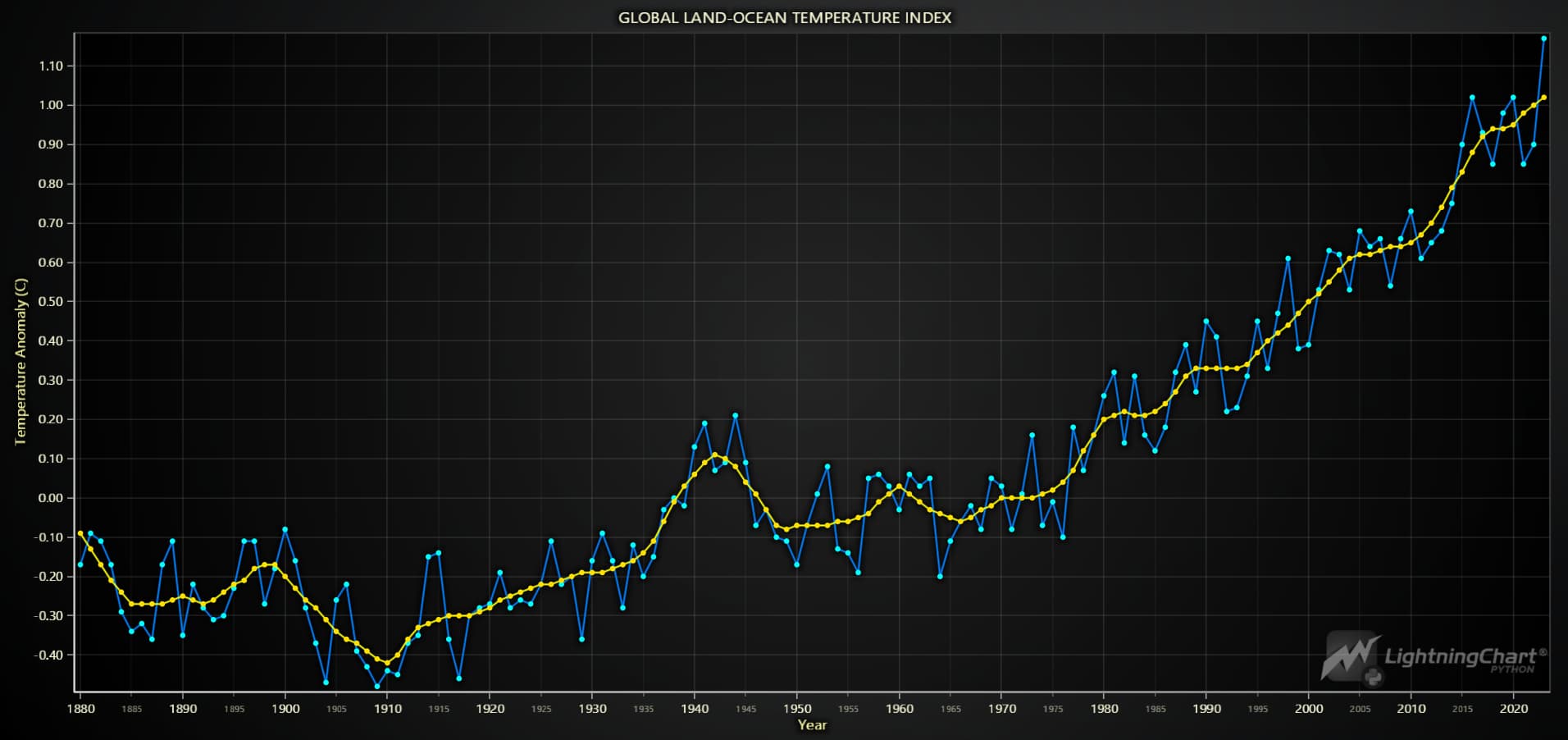
Global temperature anomalies relative to 1850-1900
Bar Chart
To compare temperature data across different periods or regions, a bar chart can be useful:
import lightningchart as lc
import pandas as pd

# Set the license key
lc.set_license('my_license_key')

# Load the dataset
file_path = 'global-temperature-anomalies-by-month.csv'
data = pd.read_csv(file_path)

# Filter data for years 1991 to 2023
data = data[(data['Year'] >= 1991) & (data['Year'] <= 2023)]

# Prepare the dashboard
dashboard = lc.Dashboard(
    columns=4,
    rows=3,
    theme=lc.Themes.Dark
)

# Define the months
months = ["January", "February", "March", "April", "May", "June",
          "July", "August", "September", "October", "November", "December"]

# Loop through each month and create a bar chart
for i, month in enumerate(months):
    month_data = data[data['Entity'] == month]

    # Sort the data by Year to ensure 1991 is on the left and 2023 is on the right
    month_data = month_data.sort_values(by='Year')

    # Prepare the bar chart data
    bar_data = [
        {'category': str(int(row['Year'])), 'value': float(row['Temperature anomaly'])}
        for _, row in month_data.iterrows()
    ]

    # Create a bar chart
    chart = dashboard.BarChart(
        column_index=i % 4,
        row_index=i // 4,
        row_span=1,
        column_span=1
    )
    chart.set_sorting('disabled')
    chart.set_title(f'{month} Temperature Anomalies (1991-2023)')
    chart.set_data(bar_data)


# Open the dashboard
dashboard.open()
The chart below lets you explore these temperature anomalies over time. Each bar represents the temperature anomaly each year.

This chart shows global temperature anomalies for different months of the year from 1940 to 2023. In this dashboard chart, not only can you compare different years for a particular month, but you can also compare global temperature anomaly trends for different months of the year.
Map Chart
Climate change impacts various regions of the globe at different rates, influencing local ecosystems, weather patterns, and human activities. To effectively track these global temperature changes, map charts can be invaluable. Below, we have provided maps of different continents and the world.
Create the MapChart for Europe
# Create the MapChart for Europe
    chart = lc.MapChart(map_type='Europe', theme=lc.Themes.White)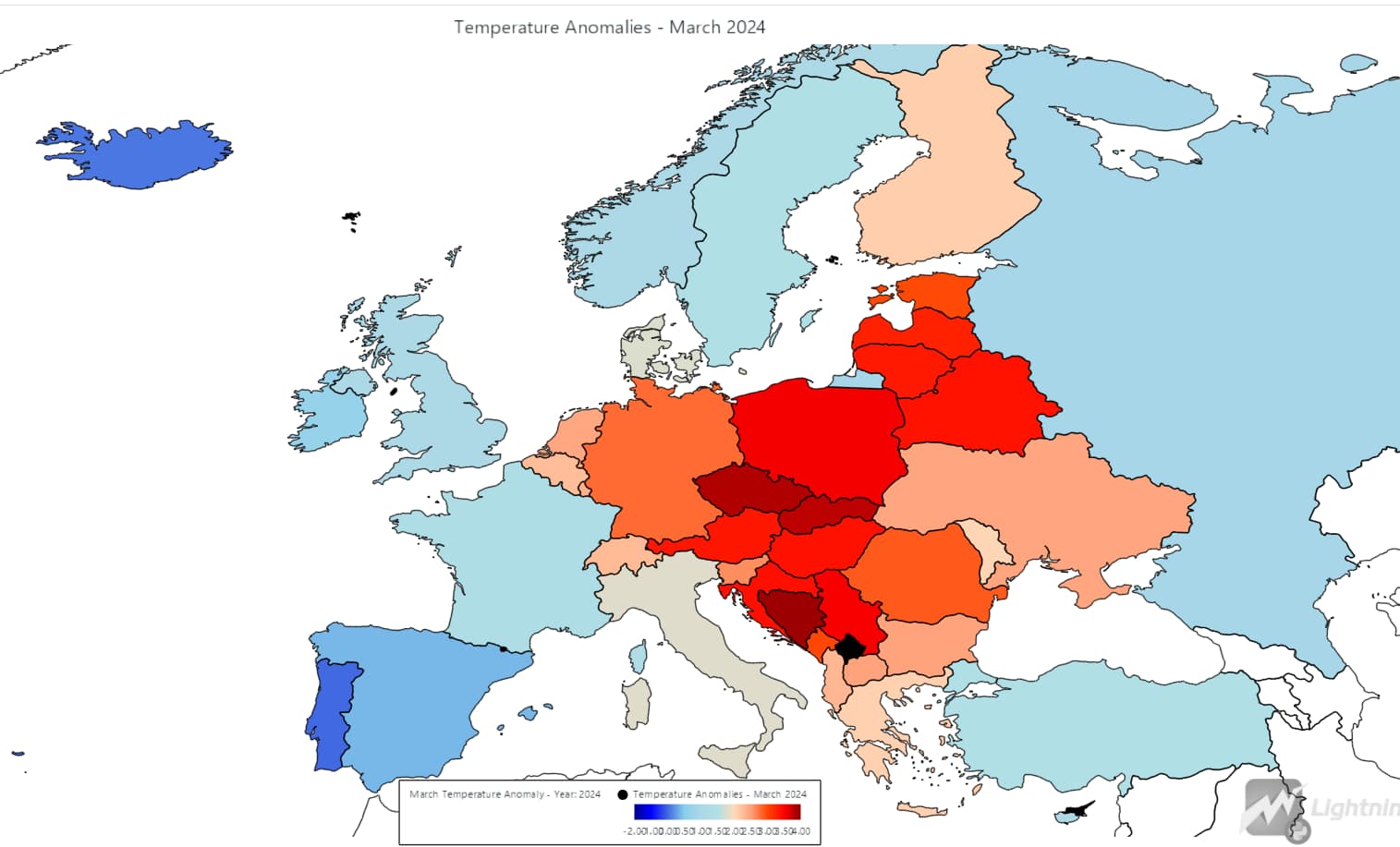
Create the MapChart for Asia
# Create the MapChart for Asia
    chart = lc.MapChart(map_type='Asia', theme=lc.Themes.White)
Create the MapChart for Africa
# Create the MapChart for Africa
    chart = lc.MapChart(map_type='Africa', theme=lc.Themes.White)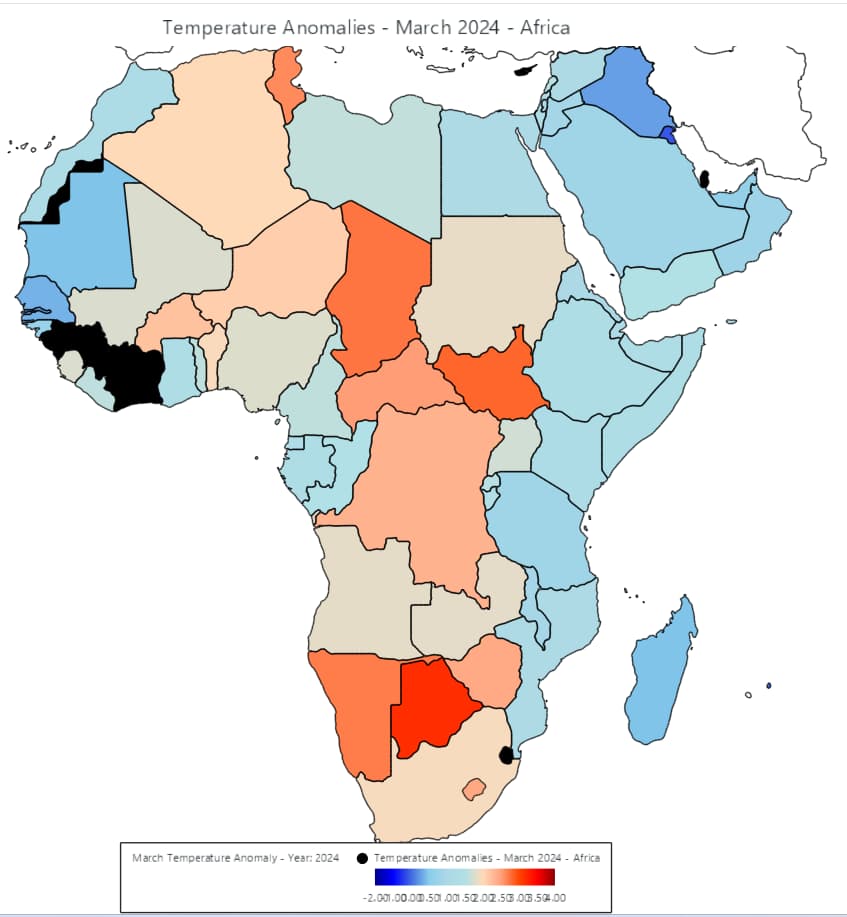
Create the MapChart for North America
    # Create the MapChart for North America
    chart = lc.MapChart(map_type='NorthAmerica', theme=lc.Themes.White)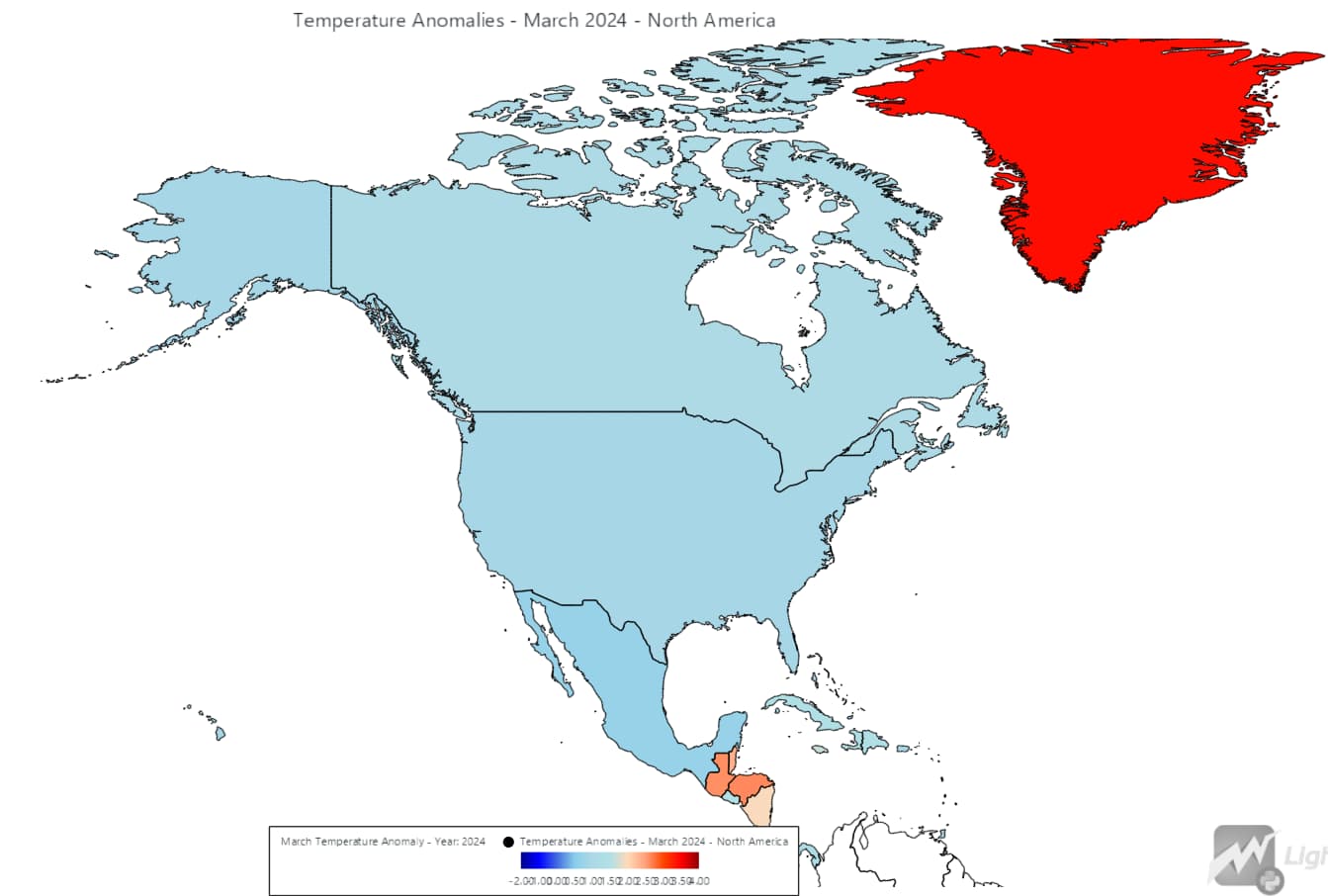
Create the MapChart for South America
    # Create the MapChart for South America
    chart = lc.MapChart(map_type='SouthAmerica', theme=lc.Themes.White)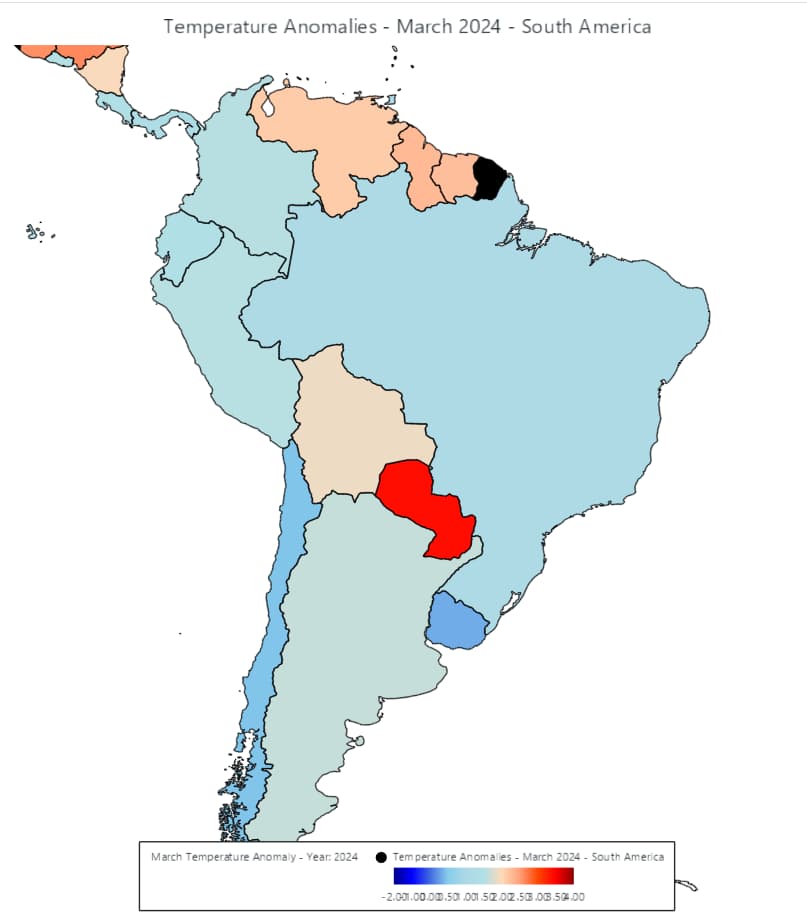
Create the MapChart for the World
import pandas as pd
import lightningchart as lc
from lightningchart import Color, Themes

# Set the license key
lc.set_license('my_license_key')

# Load the dataset
file_path = 'country-level-monthly-temperature-anomalies.csv'
data = pd.read_csv(file_path)

# Function to create a world map chart
def create_world_map_chart(data, year):
    # Filter data for the given year
    data_year = data[data['Year'] == year]
    data_year = data_year[['Code', 'March']].rename(columns={'Code': 'ISO_A3', 'March': 'value'})

    # Create the MapChart for World
    chart = lc.MapChart(map_type='World', theme=lc.Themes.White)

    # Set temperature anomaly data
    chart.invalidate_region_values(data_year.to_dict(orient='records'))

    # Set title with year
    chart.set_title(f"Temperature Anomalies - March {year} - World")

    # Set a detailed color palette with 10 colors
    chart.set_palette_colors(
        steps=[
            {'value': -2, 'color': Color('#00008B')},
            {'value': -1, 'color': Color('#0000FF')},
            {'value': 0, 'color': Color('#4169E1')},
            {'value':  0.5, 'color': Color('#87CEEB')},
            {'value': 1, 'color': Color('#ADD8E6')},
            {'value': 1.5, 'color': Color('#B0E0E6')},
            {'value': 2, 'color': Color('#FFDAB9')},
            {'value': 2.5, 'color': Color('#FFA07A')},
            {'value': 3, 'color': Color('#FF4500')},
            {'value': 3.5, 'color': Color('#FF0000')},
            {'value': 4, 'color': Color('#8B0000')}
        ],
        look_up_property='value',
        percentage_values=False
    )

    # Enable hover highlighting
    chart.set_highlight_on_hover(enabled=True)

    # Add legend
    legend = chart.add_legend(horizontal=True, title=f"March Temperature Anomaly - Year: {year}", data=chart)
    legend.set_font_size(10)  # Adjust font size as needed

    # Open the chart in live mode
    chart.open(live=True)

    return chart

# Create and display the map chart for the year 1990
create_world_map_chart(data, 2024)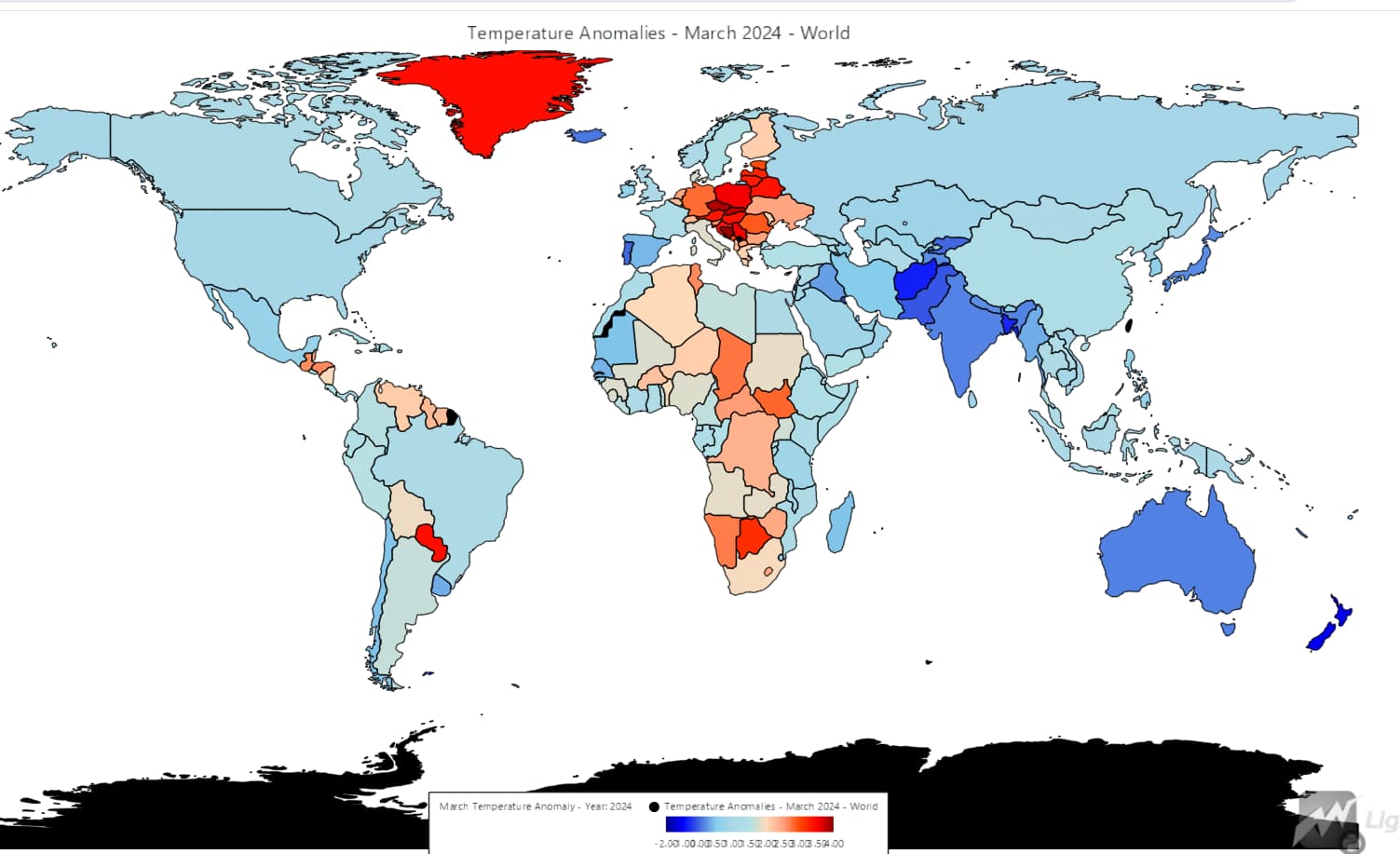
Dashboard
We analyzed temperature anomalies across different countries using map charts. Now, we can compare four different years side by side using the map chart dashboard.
import pandas as pd
import lightningchart as lc
from lightningchart import Color, Dashboard, Themes

# Set the license key
lc.set_license('my_license_key')

# Load the dataset
file_path = 'country-level-monthly-temperature-anomalies.csv'
data = pd.read_csv(file_path)

# Function to create a map chart for a given year and month
def create_map_chart(dashboard, data, year, column_index, row_index):
   data_year = data[(data['Year'] == year)]
   data_year = data_year[['Code', 'March']].rename(columns={'Code': 'ISO_A3', 'March': 'value'})

   # Create world map chart
   chart = dashboard.MapChart(column_index=column_index, row_index=row_index)

   # Set temperature anomaly data
   chart.invalidate_region_values(data_year.to_dict(orient='records'))

    # Set title with year
   chart.set_title(f"Temperature Anomalies - March {year}")

   # Set color palette
   chart.set_palette_colors(
       steps=[
           {'value': -5, 'color': Color('#0000FF')},  # Blue for cold anomalies
           {'value': 0, 'color': Color('#FFFFFF')},  # White for no anomaly
           {'value': 5, 'color': Color('#FF0000')}   # Red for warm anomalies
       ],
       look_up_property='value',
       percentage_values=False
   )

   # Enable hover highlighting
   chart.set_highlight_on_hover(enabled=True)

   # Add legend
   legend = chart.add_legend(horizontal=True, title=f"March Temperature Anomaly - Year: {year}", data=chart)
   legend.set_font_size(10)  # Adjust font size as needed

   return chart

# Create a dashboard to arrange the charts
dashboard = Dashboard(
   rows=2,
   columns=2,
   theme=Themes.White
)

# Create and add map charts to the dashboard
create_map_chart(dashboard, data, 1990, column_index=0, row_index=0)
create_map_chart(dashboard, data, 2000, column_index=1, row_index=0)
create_map_chart(dashboard, data, 2010, column_index=0, row_index=1)
create_map_chart(dashboard, data, 2020, column_index=1, row_index=1)

# Open the dashboard
dashboard.open(live=True)
Customizing Visualizations
LightningChart offers various customization options, allowing you to tweak the appearance of your charts to better suit your data or aesthetic preferences. You can adjust colors, and labels, and even add interactive elements to make the charts more informative.
Conclusion
In this project, we’ve demonstrated how to create a Python application for analyzing and visualizing global earth temperature data using LightningChart. By leveraging the powerful data processing capabilities of Python and the high-performance visualization tools provided by LightningChart, we’ve been able to explore historical temperature trends and present them in a visually compelling way.
Benefits of Using LightningChart Python for Visualizing Data
LightningChart’s performance and flexibility make it an excellent choice for data visualization, particularly when dealing with large datasets or complex visualizations. Its ability to render charts quickly and interactively ensures that users can explore the data in real-time, making it a valuable tool for both researchers and analysts in the field of climate science.

Hosseinali Taheri Andani
Data Science Python Developer


Continue learning with LightningChart

how to create audio output signal reader
Written by a human | Updated on April 10th, 2025What is an Audio Output Signal Reader? An audio output signal reader is a device or software that reads and processes the audio output signal from an audio source and outputs it in a readable or usable format, such...

Audio Input Spectrogram Chart
Written by a human | Updated on April 10th, 2025Audio Input Spectrogram Chart LightningChart .NET is a powerful data visualization tool that provides advanced charting capabilities for the .NET framework. One of its key features is the spectrogram chart, which...

EEG Chart
Written by a human | Updated on April 10th, 2025EEG Chart The human brain is one of the most complex and fascinating structures in the world. Scientists have been studying the brain for years to better understand how it works and to find ways to diagnose and...



If you have any questions, feel free to contact us!



©LightningChart Ltd 2026. All rights reserved.