








LightningChartWPF 3D Maps
ArticleReviewing the theory behind 3D graphics using WPF 3D Maps & LightningChart scientific visualization tools.
Written by a human | Updated on April 23rd, 2025
WPF 3D Maps
Hello! In this article, we will focus on the theory behind WPF 3D maps. It will also serve as an introduction to creating this type of chart using the Lightning Chart .NET tools.
If you have seen our previous articles, you will know that LightningChart has an Interactive Examples demo application. In this tool, we can see several chart types that demonstrate the use in a specific case. The demo application features hundreds of interactive charts.
Particularly, these examples can be executed in real-time, modify their visual properties, and values, and finally, generate projects based on .NET, which you can execute, modify, and implement with other projects.
An example of WPF 3D Maps includes the WPF World Population 3D Map, which will provide you with an extensive explanation of the tools that LightningChart .NET offers and how to create and implement your project.
Well, with those as mentioned earlier, let’s get started.
What is WPF?
Windows Presentation Foundation (WPF) is a framework focused on the development of applications with advanced user interface control, which is divided into two parts: Markup and code-behind.
Markup
Markup allows us to create a user interface with a large number of controls, which allow complex control over the results displayed in the application. Interface development is carried out through XAML (extensible application markup language), which at first glance may resemble an XML template, but with the difference that used for data exchange between applications).
Markup also allows us to create data links, display 2D and 3D graphics, animations, design styles (look and feel), typography, etc. The data, graphics, and animations can be obtained from a source file or can be generated by the Code-Behind.
<Window>
	xmlns="http://schemas.microsoft.com/winfx/2006/xaml/presentation"
	Title="Window with Button"
	Width="250" Height="100">

	<!-- Add button to window -->
	<Button Name="button">Click Me!</Button>

</Window>
The creation of some controls can be almost the same as that of HTML tags, and in other cases, properties such as the style are limited to the declaration of a property within a tag.
Code-Behind
The code behind could be summarized as the file that contains the executable code responsible for reading, generating, and processing the results required by the user. One of the objectives of the code behind is to separate the graphical interface code (XAML, HTML, CSS, etc.) from the executable code.
In some languages (such as classic ASP), where the design and executable code were mixed, it was very risky to make large changes, since the logical process could be damaged by modifying the interface. The separation of markup and code-behind also allows us to divide the user interface work and the development of executable code. This permits a safer, orderly, and faster development.
In the case of WPF, we use the C# language. C# is an object/component-oriented language. This language allows us to develop secure code, thanks to the use of types in variables and arguments used in functions or methods. LightningChart .NET generates WPF projects with C# code ready for execution.
Within this code, Lightning Chart’s tools are used, which can be imported as long as the LC .NET framework is installed.
2D & 3D Graphics
As for 2D graphics, WPF allows us to generate basic 2D graphics, which can contain visual effects such as gradients, bitmaps, scale, and position editing. These charts are provided by the WPF library. WPF allows us to use external libraries (such as LC .NET), which can help us generate more complex graphics, making use of the code behind and styles in the markup.
3D graphics
WPF allows the generation of 3D objects based on 2D objects. Likewise, it allows us to run animations on 3D objects. 3D development in WPF can be quite basic, but the important thing is that it can support this type of object, which will be shown to the user through the markup.
As mentioned above, it is possible to use external libraries, such as LC .NET, which will facilitate the generation and processing of more complex images/objects. Practically, WPF serves as a template, which will support the generation of 2D and 3D images, which will allow us to render them to the user at any time.
3D Maps
A WPF 3D map is the representation of a two-dimensional area or object. The object is generated on the X, Y, and Z axes, which together allow adding volume and depth to the 2D object that previously only had height and width. 3D maps allow us to study locations and their most common properties, such as elevation, depth, type of terrain, buildings, etc.
Nowadays, the development of WPF 3D maps is increasingly common, and of utmost importance for various areas of science and military strategy. To carry out the mapping of real terrestrial areas, various technologies are used, which allow obtaining useful elevation data to generate shapes based on this and other measurements.
Elevation data can be generated from existing contour maps, photogrammetric analysis of stereo aerial photography, satellite imagery, or laser flights to collect LiDAR data. With the advancement of technology, it has been possible to create 3D maps of the world (planet Earth) or even other planets. For example, The SRTM-90 digital elevation data, produced by NASA, provides high-quality elevation data for many areas of the planet.
LightningChart .NET & 3D Tools
Lightning chart offers the technology capable of generating WPF 3D maps, based on 2D images with elevation representation. It also allows us to combine and create 3D graphics, which allow us to show important points on the WPF 3D map or show important information about it (annotations).
Lighting Chart .NET allows us to create data points on a mesh, which will be deformed to generate a 3D object. The main tool is SurfaceMeshSeries3D.
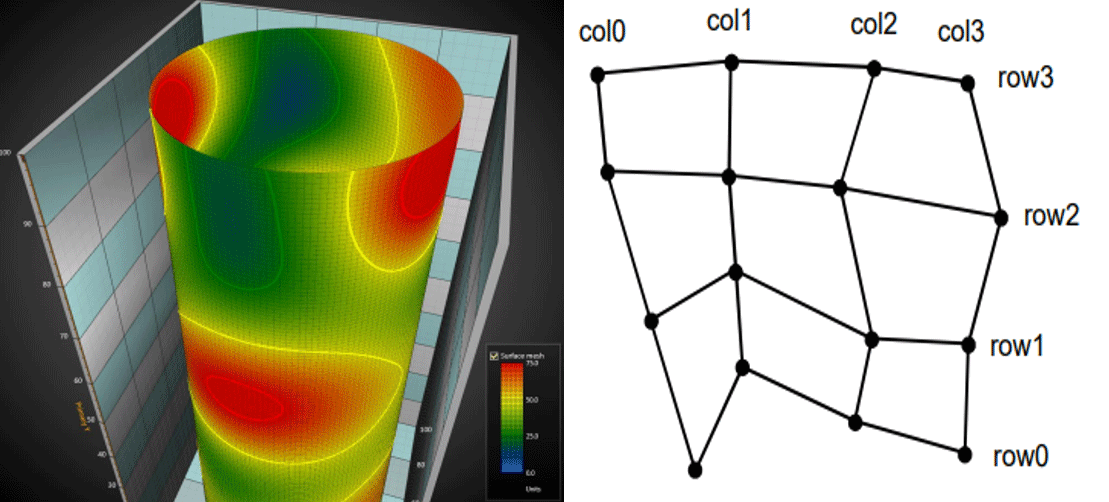
LightningChart .NET SurfaceMeshSeries3D example
SurfaceMeshSeries 3D
SurfaceMeshSeries3D is almost like SurfaceGridSeries3D as they both mostly have the same properties. The biggest difference is that surface nodes can be positioned freely in 3D space. In other words, the surface does not have to be rectangular. SurfaceMeshSeries3D allows warping the surface virtually to any shape, for example to a sphere or a human head.
SurfaceGridSeries3D allows visualizing data as a 3D surface in SurfaceGridSeries3D.Nodes are equally spaced in X dimension, and in Z dimension as well.

LightningChart .NET SurfaceGridSeries3D example
PointLineSeries3D
Among other tools, we will use PointLineSeries3D. This tool allows you to present points and lines in a 3D space. Points are connected with a line:
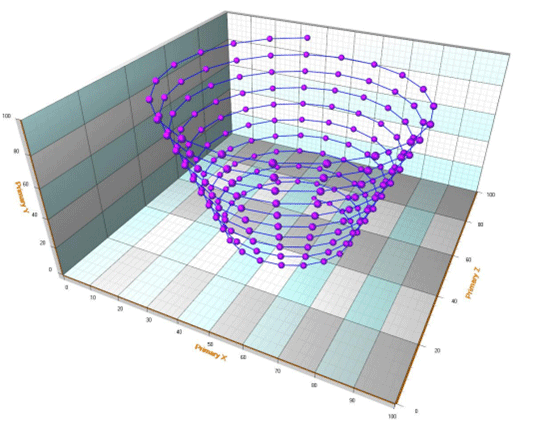
LightningChart .NET PointLineSeries3D example
Points can be shown or hidden, and their shape can be modified based on the design style you want to display. Creating points is quite simple since we must only create a series of data points. Being a WPF 3D map object, each point must have values of X, Y, Z, to create an object with depth, height, and width.
Bitmaps and Fill Styles
LC .NET allows us to create WPF 3D map surfaces from a bitmap image using the SetHeightDataFromBitmap method. The surface gets the size of the bitmap (if no smoothing or resampling is used). For each bitmap image the pixel values, red, green, and blue are added. The greater the sum, the greater the height. Black and dark colors get lower values while bright and white colors get higher values.

LightningChart .NET bitmap images example
We have also been able to add fill styles to any WPF 3D map. These styles will allow us to color areas of our 3D map, to represent land types, temperature, or other parameters.
The following options are available:
- None: By using this, no filling is applied. This selection is useful with wireframe meshes.
- FromSurfacePoints: The colors of the Data property nodes are used.
- Toned: ToneColor applies
- PalettedByY: Coloring by Y values by palette, see chapter 6.10.4.
- PalettedByValue: Coloring by SurfacePoint’s Value fields by palette, see chapter 6.10.4.
Bitmap: A bitmap image is stretched to cover the whole surface. Set the bitmap image in the BitmapFill property. BitmapFill property has sub-properties to mirror the image vertically and horizontally.

LightningChart .NET bitmap fill styles examples
WireFrameMesh
LC .NET allows us to create surfaces from a bitmap image using the SetHeightDataFromBitmap method. The surface gets the size of the bitmap (if no smoothing or resampling is used). For each bitmap image the pixel values, red, green, and blue are added. The greater the sum, the greater the height. Black and dark colors get lower values while bright and white colors get higher values.

LightningChart .NET WireFrameMesh example
LC .Net allows us to create the mesh and provide fill styles, colors, textures, and line styles. With this, we can create a map with colors attached to the real model, or a map with a skeletal structure.
Within the style options for our wireframe, we can use the following:
- None: no wireframe
- Wireframe: A solid color wireframe. Use WireframeLineType.Color to set the color.
- WireframePalettedByY: Wireframe coloring follows the Y ContourPalette field of the SurfacePoint.
- WireframePalettedByY: The wireframe color follows the SurfacePoint Value field.
- WireframeSourcePointColored: The color of the wireframe follows the color of the surface nodes.
- Points: Solid colored points are drawn at the node positions.
- DotsPalettedByY: Points are drawn at node positions and colored with ContourPalette based on the Y field of SurfacePoints
- DotsPalettedByValue: Points are drawn at node positions and colored with ContourPalette based on the SurfacePoints Value field
- DotsSourcePointColored: Points are drawn at the node positions, and the color follows the color of the surface nodes
Wireframe line style (color, width, pattern) can be edited using WireframeLineStyle.

Examples of WireframeType = SourcePointColored and WireframeType = Dots

Examples of WireframeType = DotsPalettedByY and WireframeType = DotsSourcePointColored.
Contour Lines
The contour lines allow quick height data interpretation without having to fill the chart surface with the color palette. These lines can be combined with fill and a wired structure. When establishing the ContourLineType property, the contour lines can be rendered using different styles:

LightningChart .NET examples of contour lines

LightningChart .NET examples of contour lines
Options:
- None: No contour lines are shown
FastColorZones: The lines are drawn as thin vertical zones. Allows powerful rendering, which suits well for continuously updated or animated surfaces.FastPalettedZones: LikeFastColorZones, but line coloring followsContourPalette options.ColorLineByYandColorLineByValue: Contour lines are made with actual lines. Rendering takes longer than FastColorZones. The line width can be adjusted withContourLineStyle.Widthproperty.PalettedLineByYandPalettedLineByValue: LikeColorLineByYandColorLineByValue, but line coloring follows ContourPalette options.
Conclusion
In this article we saw a brief introduction to what a 3D map is and its implementation with WPF. WPF is a .NET framework, focused on creating applications with controls and user interface design. The main objective of WPF is to separate the design layer and the executable code layer. By doing this, you can program neatly, and make changes without seriously affecting the code or design of the application.
WPF uses XAML for creating frameworks and user controls.These objects can have visual properties that modify the appearance of our application. Another of the main advantages of this framework is the ability to render 2D images and 3D objects. This is very useful for us in the implementation and development of 3D maps. To create 3D maps, it will be necessary to use advanced tools.
LC .NET provides us with the tools to create these 3D objects by supporting thousands of data points, joining these to create meshes, filling and coloring these meshes, or simply generating a 3D object based on a bitmap image.
In the case of the bitmap, Lightning Chart .NET allows us to create an object with elevations, based on the intensity of each of the pixels in the bitmap. The darker the pixels, the lower the height. The greater the color intensity, the higher the height.
This tool is quite useful in representing mountainous terrain, reliefs or even continents (as is the case with global maps). To integrate LC .NET, you only need to download the framework from the official website. When installed, it will be integrated into .NET, and its libraries can be imported into any project.
The interactive examples tool is included in this framework, which will allow you to generate WPF projects, from which you can extract the code or modify it at your convenience. In this article we focused on getting to know the tools. If you want to see implementation examples, I recommend visiting our .NET and 3D rendering articles.
Thank you very much for your visit and support, bye.

Omar Urbano
Software Engineer


Continue learning with LightningChart
Creating a Smith Chart Application in .NET
Written by a human | Updated on April 9th, 2025Smith Charts The Smith chart is a diagram designed for the study and resolution of problems with transmission lines. This diagram is aimed at electrical and electronic engineers specializing in radio frequency....
Nbody Simulation Data Visualization
Written by a human | Updated on April 9th, 2025N-body Simulation Nbody simulation is maybe one of the most advanced data visualization types out there. The truth is that we’re not talking anymore about visualizing traditional data with a business focus and it...
Data Visualization Components for React Applications
Written by a human | Updated on April 9th, 2025React Data Visualization Components React is one of the most popular front-end development frameworks on the web in the year 2022. It is a free and open-source front-end JS library that is used to build interactive...



If you have any questions, feel free to contact us!



©LightningChart Ltd 2026. All rights reserved.