








LightningChart .NETWeather Data Visualization
TutorialCreating an Interactive Weather Data Visualization Map with WPF
Written by a human | Updated on April 22nd, 2025
Introduction to Weather Data Visualizations
Weather data visualization is useful when trying to understand complex weather patterns and climate trends. Weather data visualization helps us visualize the weather in specific regions, for instance, in this tutorial, we will create a weather data visualization application for the US. Different parameters can be observed and included in a weather data visualization application, these may include water vapor in the atmosphere and the airflow over a region.
An example of this type of application is the US Government’s initiative to document weather and climate data since 1890 which records parameters including temperature, precipitation, and snow depth. These data have been recorded every day since and similar applications use weather data visualizations to translate these records into actionable and insightful 2D and 3D interactive weather maps.
Weather data is important. High-level managers involved in sectors such as public administration, the energy industry, or water management, rely on weather data for accurate decision-making. Developers working in these sectors may be assigned to work with weather data and how to process it. Today, we’ll create a weather data visualization application that puts into practice weather data and advanced visualization components.
Project Overview
For this weather data visualization, we will use the North American territory to make a representation of the rain parameter. We will use the IntensityGridSeries tool to generate the intensity colors concerning the values obtained. In this weather data visualization charting application, we will work with an XY-type chart, and we will work with an MD file to generate the map. The clouds will be created based on an image that will be converted to a bitmap and manipulated at our convenience.
As for rain, it is measured in millimeters. One millimeter of rain is equivalent to 100 liters per square meter. We will create a legend box, which will be responsible for establishing the intensity of the colors, about the number of millimeters per hour. Let’s get started!

 Download the project to follow the tutorial
Local Setup
For this project, we need to take into count the following requirements to compile the project.
- OS: 32-bit or 64-bit Windows Vista or later, Windows Server 2008 R2 or later.
- DirectX: 9.0c (Shader model 3 and higher) or 11.0 compatible graphics adapter.
- Visual Studio: 2010-2019 for development, not required for deployment.
- Platform .NET Framework: installed version 4.0 or newer.
Now go to the next URL and download LightningChart .NET. You’ll then be redirected to a sign-in form where you’ll have to complete a simple sign-up process. When you’re done with the registration process, you’ll have access to your LightningChart account.

After you sign into your account, you will be able to download the SDK. This SDK will be a “free trial” version, but you will be able to use many important features for this weather data visualization tutorial. When you download the SDK, you’ll have a .exe file like this:

The installation will be a typical Windows process, so please continue with it until it is finished. After the installation, you will see the following programs:

License Manager
In this application, you will see the purchase options. All the projects that you will create with this trial SDK, will be available for future developments with all features enabled.

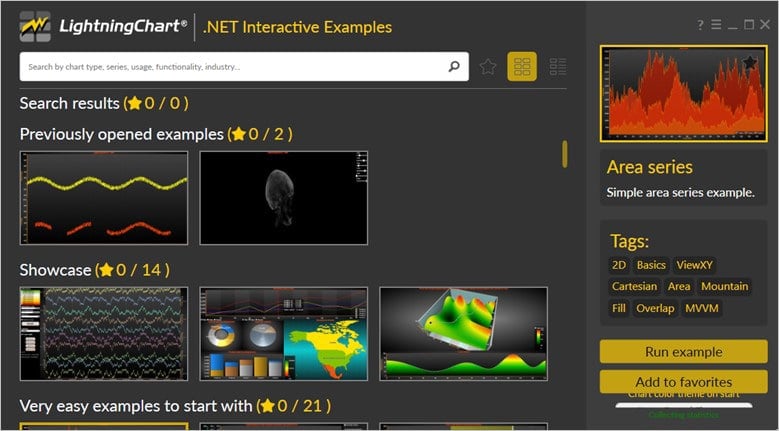
LightningChart .NET Interactive Examples
Now you can see 100+ interactive visualizations available for WPF, WinForms, and/or UWP.
Visual Studio Project
Now let’s work with Visual Studio. The main difference between using the LightningChart visualizer and Visual Studio is that we will be able to analyze and experiment with many features within the source code. In the LC visualizer, select the stencil map and run the example:
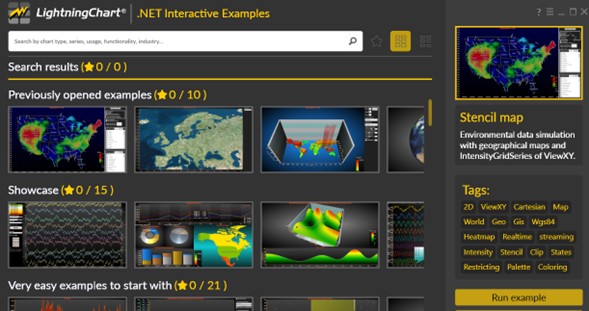
In the top-right zone of the windows, you will see the following options:
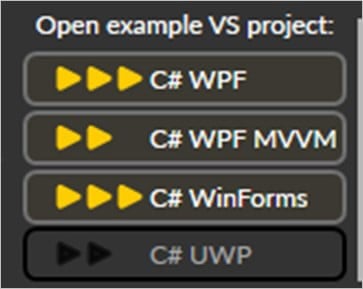
For the trial SDK, we will be able to use the WPF framework. After clicking the framework to use, we will need to specify a folder where the project will be created:

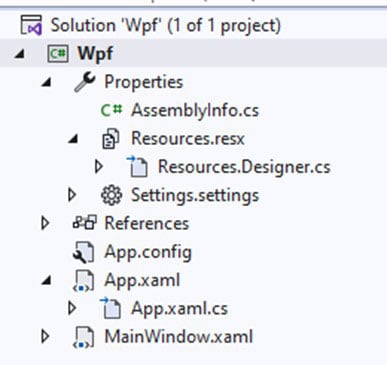
Finally, the WPF weather data visualization project will be created and Visual Studio will be opened and ready for executing the digital signal processing filters application.
Code Review
The main code will be wrapped inside MainWindow.xaml.cs. Here we will find the code for UI controls.
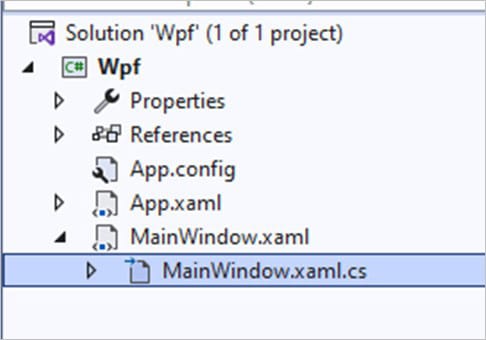
Inside the code, we will check two methods that will create the properties that we need to correctly draw the WPF weather data visualization chart. The interactive example is built with various user controls, to manipulate and change the visual properties of the chart. These controls are not required to generate this graph, so we will focus on the code responsible for generating the object.
MakeSourceData()
We will start with the InitializeComponent method. This will allow us to load our XAML template and access the objects within it.
InitializeComponent();
MakeSourceData();
Once the XAML component is loaded, we can start programming this weather data visualization app instance. To work with images, manipulate them, and load them into our chart, we need to convert them into a bitmap. Within the Resources folder of our project, you can find an image that will help us create the rain “clouds”. This image will be converted into a bitmap and we will extract the colors of the image using the tool GetPixelColors.
System.Drawing.Bitmap bitmapDataSource = new System.Drawing.Bitmap(Environment.CurrentDirectory + @"\Resources\EnvironmentalData200x150.png");

//Use fast method for getting pixel colors
System.Drawing.Color[,] aPixelColors = ChartTools.GetPixelColors(bitmapDataSource);
int width = aPixelColors.GetLength(0);
int iHeight = aPixelColors.GetLength(1);

//The data array has value range of 0...1
m_aEnvironmentalData = new double[width][];
for (int column = 0; column < width; column++)
{
    m_aEnvironmentalData[column] = new double[iHeight];

    for (int row = 0; row < iHeight; row++)
    {
        m_aEnvironmentalData[column][row] = (aPixelColors[column, row].R + aPixelColors[column, row].G
            + aPixelColors[column, row].B) / (3.0 * 255.0);
    }
}
This tool allows us to obtain the color of all the pixels at once instead of doing it for each pixel of the image. Finally, we will obtain all the values of our image by column and row, which will be stored in the variable m_aEnvironmentalData.
CreateChart()
The CreateChart method will construct the chart object, which will be displayed within an XAML frame. We need to create a LightningChart-type object. This constructor will allow us to create an instance of a chart, specify the type of chart, and access different properties.
_chart = new LightningChart
{
    ChartName = "Stencil map chart"
};
_BeginUpdate
The BeginUpdate function will allow us to stop drawing the chart, which will allow us to set up the properties that we want to customize. As long as the update is not closed, the chart will not show the changes we make, this will help with the performance of the chart construction.
_chart.BeginUpdate();Chart Type
We need to specify the active chart view or the type of chart that will be created. In this case, we use the XY view. There are several types of views:
- XY
- 3D
- Pie3D
- Polar
- Smith
_chart.ActiveView = ActiveView.ViewXY;Now we will load the map through the markdown documentation (MD) file, which you can find in the Maps folder of our project. The extracted object will be assigned to the Maps property of the XY chart.
string path = Environment.CurrentDirectory + @"\Maps\" + DefaultMap + ".md";
if (path != "")
{
    _chart.ViewXY.Maps.Path = System.IO.Path.GetDirectoryName(path);
}
The geographic vector data is stored in LightningChart map files, with a .md extension. LightningChart is delivered with a set of map files. The X-Axis is used for Longitude, and the Y-axis for latitude. The map coordinates are decimal degrees, with latitude origin at the equator and longitude origin at Greenwich, U.K.
Map Properties
We’ll start by setting the properties of our map. Set ViewXY.Maps.Optimization to CombinedLayers in a typical situation where the X and Y axis ranges are kept the same, and other data is presented over the maps. This allows the map layers to be rendered into the same buffer image, resulting in more efficient rendering.
The CalcGradient tool will calculate the gradient color between two colors, the first parameter is the initial color, and the second is the final color. The third value is the gradient color position in percent.
_chart.ViewXY.Maps.Type = DefaultMap;
_chart.ViewXY.Maps.AllowUserInteraction = false;
_chart.ViewXY.Maps.Optimization = Map.RenderingOptimization.CombinedLayers;
_chart.ViewXY.Maps.LandOptions.Fill.Color = Colors.DarkBlue;
_chart.ViewXY.Maps.LandOptions.Fill.GradientColor = Colors.Black;
_chart.ViewXY.Maps.LandOptions.Fill.GradientFill = GradientFill.RadialStretched;
_chart.ViewXY.Maps.LandOptions.LineStyle.Color = Colors.Silver;
_chart.ViewXY.Maps.LakeOptions.Fill.Color = Colors.DeepSkyBlue;
_chart.ViewXY.Maps.LakeOptions.Fill.GradientColor = ChartTools.CalcGradient(Colors.DeepSkyBlue, Colors.Black, 80);
Application Background Color
The background fill supports:
- Solid color fills. Set
GradientFill= Solid and use Color to define the color. - Gradient fills, going from
ColortoGradientColor. Set GradientFill = Linear / Radial / RadialStretched / Cylindrical. UseGradientDirectionto control the fill direction in Linear and Cylindrical gradients.
Bitmap fills, with different tiling and stretching options. Bitmap tint and alpha also are supported to make translucent bitmap fills.
_chart.ViewXY.GraphBackground.Color = Color.FromArgb(255, 0, 0, 64);
_chart.ViewXY.GraphBackground.GradientColor = Colors.Black;
_chart.ViewXY.GraphBackground.GradientFill = GradientFill.Linear;
Automatic Axis Layouts
Automatic axis layouts can be disabled. XAxisAutoPlacement controls how the X-axes are placed vertically. YAxisAutoPlacement controls how the Y-axes are placed horizontally.
_chart.ViewXY.AxisLayout.AutoAdjustMargins = false;
_chart.ViewXY.AxisLayout.XAxisAutoPlacement = XAxisAutoPlacement.Off;
_chart.ViewXY.AxisLayout.YAxisAutoPlacement = YAxisAutoPlacement.Off;
_chart.ViewXY.AxisLayout.XAxisTitleAutoPlacement = false;
_chart.ViewXY.AxisLayout.YAxisTitleAutoPlacement = false;
Removing Margins
Margins can be removed from the weather data visualization application. Here’s the code:
_chart.ViewXY.Margins = new Thickness(0, 0, 0, 0);IntensityGridSeries()
Environmental Series
Now we will begin to create our legend box, which will show us the intensity colors per mm of rain. We need to configure an intensity grid series to render environmental data over the geographic map.
IntensityGridSeries environmentalSeries = new IntensityGridSeries(_chart.ViewXY, _chart.ViewXY.XAxes[0], _chart.ViewXY.YAxes[0]);
environmentalSeries.Title.Text = "Rain";
environmentalSeries.FullInterpolation = checkBoxFullInterpolation.IsChecked.Value;
environmentalSeries.Optimization = IntensitySeriesOptimization.DynamicValuesData;
environmentalSeries.AllowUserInteraction = false; //Disable mouse interaction to make DynamicValuesData optimization effective.
environmentalSeries.LegendBoxUnits = "mm/h";
environmentalSeries.LegendBoxValuesFormat = "0.0";
environmentalSeries.SetRangesXY(-125, -65, 24, 49);
environmentalSeries.Data = new IntensityPoint[m_aEnvironmentalData.GetLength(0), m_aEnvironmentalData[0].GetLength(0)];
The IntensityGridSeries class needs three parameters to work:
- The owner or parent object that requires it.
- X axis.
- Y axis.
Within the properties, we can find some focus on process optimization.
- FullInterpolation: Enable the
FullInterpolationproperty to use an enhanced interpolation method in the fill. Note that it will cause more CPU and GPU usage. By using full interpolation, the fill quality is better but can be seen only when the data array size is quite small. - Optimization: Use Optimization:
DynamicValuesDatato update only the Value fields of the Data array’s
IntensityPoint structures, and call the InvalidateValuesDataOnly method to update the chart. This way, the update is much faster as the geometry of the series is not recalculated. This is only intended to be used in applications where the data X and Y values of the nodes stay in the same place, for example in thermal imaging solutions.
SetRanges: Sets X and Y ranges at the same time. Very CPU-efficient way compared to separately setting RangeMinX, RangeMaxX, RangeMinY, and RangeMaxY properties.
Adding Data
To add data, we need to set the values we mapped before to the data property. adding the environmentalSeries to the chart:
_chart.ViewXY.IntensityGridSeries.Add(environmentalSeries);Add template area to environmental data
IntensityGridSeries, IntensityMeshSeries, and Maps have the StencilArea feature and it allows masking in or out areas of drawn data.
Configure X-Axis
_chart.ViewXY.XAxes[0].ScrollMode = XAxisScrollMode.None;
_chart.ViewXY.XAxes[0].SetRange(-130, -65);
_chart.ViewXY.XAxes[0].ValueType = AxisValueType.MapCoordsDegMinSecNESW;

Color color = Colors.Turquoise;
_chart.ViewXY.XAxes[0].MajorGrid.Color = Color.FromArgb(40, color.R, color.G, color.B);

_chart.ViewXY.XAxes[0].LabelsColor = Colors.White;
_chart.ViewXY.XAxes[0].MajorDivTickStyle.Alignment = Alignment.Near;
_chart.ViewXY.XAxes[0].LabelsPosition = Alignment.Near;
_chart.ViewXY.XAxes[0].MajorDivTickStyle.Color = Colors.White;
_chart.ViewXY.XAxes[0].VerticalAlign = AlignmentVertical.Top;
We can access and configure each axis by selecting the X or Y list. In this case, we are only using one X, Y, and Z axis, so we choose the index 0.
ScrollMode
When making a real-time monitoring application, the X-axis must be scrolled to correctly show the current monitoring position, which usually is the time stamp of the latest signal point.
Set the latest time-stamp to the ScrollPosition property after the new signal points have been set to a series. LightningChart has several scrolling modes that you can access using the ScrollMode property.
- None: No scrolling is applied when setting a value to the
ScrollPosition. This is often the selection to use when using the chart in other applications than real-time monitoring.
- Stepping: When collected data reaches the end of the X-axis, the axis with all series data is shifted left by a stepping interval. This shift is executed every time the X-axis end is reached.
SteppingIntervalproperty is defined as the value range.
- Scrolling: The X-axis is kept stationary until the scrolling gap has been reached, after which the X-axis with all series is continuously shifted left. If the scrolling should take effect when the scroll position reaches the end of the X-axis, set
ScrollingGapto 0. The ScrollingGap property is defined as the percent of graph width.
- Sweeping: The sweeping mode gives probably the most user-friendly real-time monitoring view. Sweeping uses two X-axes. The first axis is collected full after which a sweeping gap appears. The second X-axis is then swept over the first one. Both X-axes show their value labels. SweepingGap property is defined as percents of graph width.
- Triggering: The X-axis position is determined by a series value exceeding or falling below a trigger level. Use the Triggering property to set the triggering options. Triggering can be set active by enabling
Triggering.TriggeringActiveproperty.
- MajorGrid: Horizontal grid lines are drawn on vertical positions of division ticks. Major grid for major division ticks, minor grid for minor division ticks. Use
MajorGridandMinorGridproperties to edit the appearance.
- MajorDivTickStyle: The major divisions spacing can be done automatically by leaving the
AutoDivSpacingenabled. The spacing is calculated as user-friendly as possible, depending on label font size andAutoDivSeparationPercentproperties. Increase the value to reduce the amount of major divisions.
- Minor divisions: are calculated between major divisions by using the
MinorDivCountproperty value.
- Major division tick style can be set from the
MajorDivTickStyleproperty. Edit the ticks and labels orientation by usingMajorDivTickStyle.Alignmentproperty. The value labels are drawn next to major division ticks. Edit the minor division properties with theMinorDivTickStyleproperty, respectively.
_chart.ViewXY.YAxes[0].SetRange(23, 53);
_chart.ViewXY.YAxes[0].ValueType = AxisValueType.MapCoordsDegNESW;

color = Colors.Turquoise;
_chart.ViewXY.YAxes[0].MajorGrid.Color = Color.FromArgb(40, color.R, color.G, color.B);

_chart.ViewXY.YAxes[0].LabelsColor = Colors.White;
_chart.ViewXY.YAxes[0].MajorDivTickStyle.Alignment = Alignment.Far;
_chart.ViewXY.YAxes[0].MajorDivTickStyle.Color = Colors.White;
_chart.ViewXY.YAxes[0].Alignment = AlignmentHorizontal.Right;
Setup LegendBoxes
Legend boxes can be placed automatically or manually. Automatic placement allows them to be aligned to the left/top/right/bottom side of the graph segments, or on margins.
Control the position with Position property. Position options are: TopCenter, TopLeft, TopRight, LeftCenter, RightCenter, BottomLeft, BottomCenter, BottomRight, Manual.
Offset property shifts the position by a given amount from the position determined by Position property. Manual positioning calculates the offset from the top-left corner of the legend box to the view’s top-left corner.
_chart.ViewXY.LegendBoxes[0].Layout = LegendBoxLayout.Vertical;
_chart.ViewXY.LegendBoxes[0].Fill.Color = Colors.Transparent;
_chart.ViewXY.LegendBoxes[0].Fill.GradientFill = GradientFill.Solid;
_chart.ViewXY.LegendBoxes[0].UnitsColor = Colors.White;
_chart.ViewXY.LegendBoxes[0].ValueLabelColor = Colors.White;
_chart.ViewXY.LegendBoxes[0].SeriesTitleColor = Colors.White;
_chart.ViewXY.LegendBoxes[0].Offset = new PointIntXY(0, -100);
Final Chart
To finish configuring the weather forecasting analysis and visualization chart, we use the EndUpdate method, which will restore the drawing control, updating the chart with the assigned properties. The chart object will be added to the XAML grid so that it is shown to the user.
_chart.EndUpdate();

_chart.Loaded += _chart_Loaded;

gridChart.Children.Add(_chart);

_chartInitialized = true;
Conclusion
We finished with this weather graphics tutorial, thanks for getting here. In this tutorial, we created an advanced, high-performance, and interactive weather mapping system of the temperature parameters for the US region.
As you saw, this meteorological map application is fully customizable and from a developer’s end, every property and end-user feature can be customized as needed.
LightningChart .NET features different geomaps that can be used to generate any world weather map and any other map applications needed. If you’re interested in developing these weather data visualization applications, I recommend you to continue checking our articles and sign up for LightningChart .NET to start developing charting applications with our components.

Omar Urbano
Software Engineer


Continue learning with LightningChart
The Head and Shoulders Pattern in Technical Analysis
The Head and Shoulders Pattern in Technical Analysis The Head and Shoulders Pattern in Technical Analysis The Head and Shoulders pattern is one of the most recognized and widely used chart patterns in technical analysis. It is considered a reliable reversal pattern...
Best Telerik Charts Alternative in 2026: GPU Performance for WPF, WinForms, and Web
Telerik from Progress is a comprehensive UI component suite covering WPF, WinForms, ASP.NET, Blazor, and JavaScript. The charting components: RadChartView for WPF and WinForms, and Kendo UI Charts for web and Blazor, arrive bundled with the suite purchase. For teams...
Streaming Data Visualization with WebSockets (2026): The Complete Tutorial
Every WebSocket tutorial on the internet shows the same thing: a server sends a random number every second, a chart updates. It works. The demo looks great. Then you deploy to production, your IoT sensors push 800 updates per second across twelve channels, and the...



If you have any questions, feel free to contact us!



©LightningChart Ltd 2026. All rights reserved.