








LightningChart JSSQL Dashboard with Angular, Bootstrap & LightningChart JS
TutorialCreate a responsive SQL dashboard application that integrates LightningChart JS components.
Written by a human | Updated on April 23rd, 2025
SQL Dashboard Application
Hello! In today’s article, we will see work on a small project using several development tools. We will create an SQL Dashboard with data generated in SQL Server and use Angular for web development. In this project, we will create the user interface using Bootstrap.
You can download this project which includes the database backup. It is important to mention that you must have a LightningChart JS trial license to view the charts, the license is free.
Also, is important to know that we will generate the data using SQL server, but the data transfer will be manually available in the Angular project. It will be necessary to use an API and the development code to consume the data through web requests.
If you are interested in an article where we do this API development, let me know on LinkedIn, that would help me a lot in developing this type of project further.
On the graphical interface side, we will use Bootstrap to generate our HTML templates, which will make it much easier for us to create a responsive site, which means that you can view this project on several devices.
Project Overview
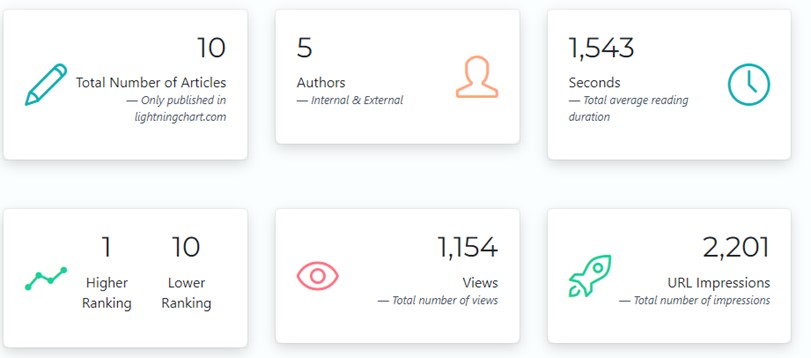
Here are the charts we will use for creating the SQL dashboard. Note that we will not go through the development code for each of them, as they have been explained in previous articles so, we will focus only on the implementation of this project. As with any Dashboard, it is always useful to have summary cards to show relevant data for quick insights. Therefore, we will add some cards that will summarize the data.
1. Donut chart
For more information, check the donut chart implementation article.
2. Horizontal Bar chart
For more information, check the JS Horizontal Bar chart implementation article.
3. Step series chart
For more information, check the JS step series implementation.
4. Vertical bar chart
For more information, check the JS vertical bar chart implementation.
That said, we will focus only on the implementation of this project. As with any Dashboard, it is always useful to have informative cards to show relevant data for a quick analysis. Therefore, we will add some cards that will serve as a summary of the data to our database.
About the dataset
Our dashboard will show marketing information from technology articles and their data about traffic, views, authors, and organic rankings.
 Download the project to follow the tutorial
Technical Requirements

- SQL Server Management Studio v18 or higher.
- Instance of MSSQL server for Local host.
- Node JS 16 or higher (compatible with Angular version)
- Angular v15 or higher.
- Lightning Chart JS license (free trial or purchased)
- Visual Studio Code.
SQL Server + Database
You can find the SQL Server restore file in the DB folder inside the project folder. This file contains the tables with data that will be used to generate our dashboard payload. The file also contains a stored procedure with the necessary queries for the payload. The structure of the tables will be the following:
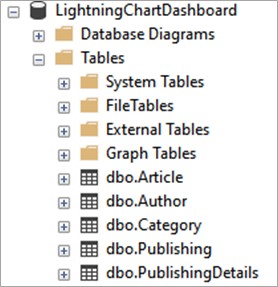
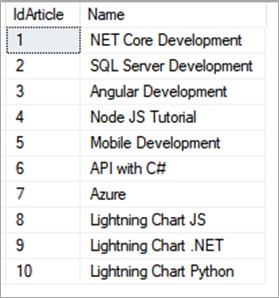
The Article table will contain the names of the articles available in the Dashboard:
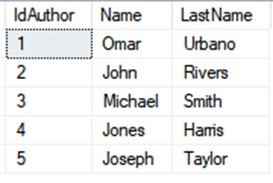
The Author table will contain the names of the authors:
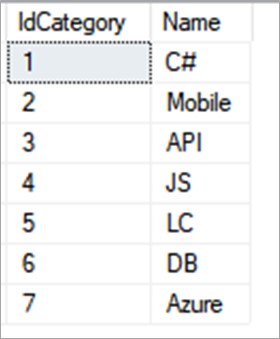
The Category table will serve as a catalog to group our articles by the type of topics explained:
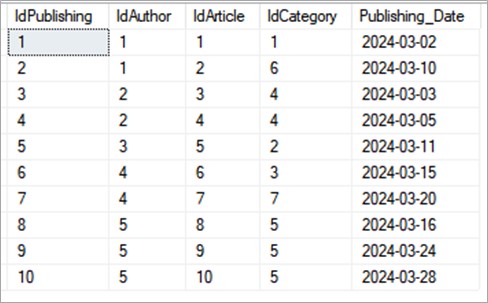
The Publishing table shows us the relationship between articles, authors, categories, and each publication date.
We manage the entity-relationship of our main tables. The PublishingDetails table contains the statistical data of each publication, such as the ranking, impressions, views, and reading duration of each publication.
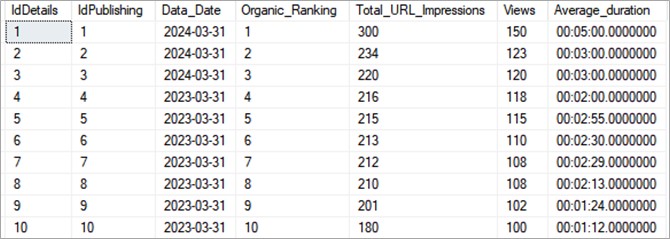
The data were generated randomly, and we only covered a total of 10 articles. You can adapt this tutorial example with the information you need. The tables contain foreign keys, so you will have to remove any relationships before modifying them.
Payload
A payload is a set of data transmitted through a message sent as an HTTP response. APIs help in obtaining this data through the HTTP response to read and manipulate it as JSON strings within the project.
In this project, we will not have an API to automate this process, but we will be able to generate a JSON string that will serve as a response and data source for our Dashboard. Inside the Programmability-Stored Procedures folder, we will find the procedure getDashboardJSONData:
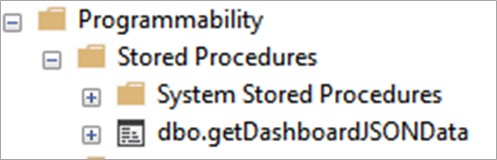
This procedure will return a JSON string that we need to paste into a file located in the Angular project.

By clicking on the result, you will be able to access the complete string:

You just must copy-paste it (I will explain where later). Within the procedure, we will find blocks of queries that will have a suitable format for reading in the Angular project. These queries will generate elements within the final JSON object:
TOTAL_NUMBER_ARTICLES_CATEGORY = (
SELECT 	COUNT(*)		AS ARTICLES_COUNT,
		d.name		AS CATEGORY,
FROM 		Article			a
INNER
JOIN		publishing		c ON a.idarticle = c.idarticle
INNER
JOIN		category		d ON c.idcategory = d.idcategory
INNER
JOIN		author			e ON e.idauthor = c.idauthor
GROUP
BY			d.idcategory,
			d.name
FOR JSON PATH
),
In the example above, the variable TOTAL_NUMBER_ARTICLES_CATEGORY will be a nested object that will contain the articles count by category:
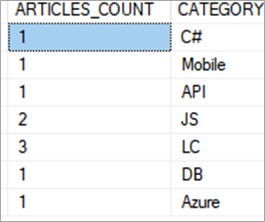
This grouping will serve as the data source for the donut chart. The JSON path allows us to format the query results as a JSON object.
SQL Server No-API Automation
If you have experience in SQL Server, you will have no problem understanding the entity-relationship of the tables. Although these queries may seem complicated to understand, they will serve as a basis for making your adjustments.
How to automate an SQL Server process without an API?
Some ideas to automate the process without an API.
- Use the CMD Shell command to save the JSON file to a path shared with the Angular project.
- Create a SQL Server JOB that executes the stored procedure at a specific date-time.
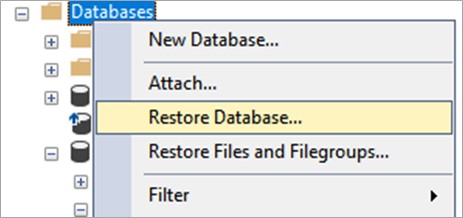
To restore the backup, you must use the restoration tool:
Then you must select the [Device], [add] option, and locate the .bak file:
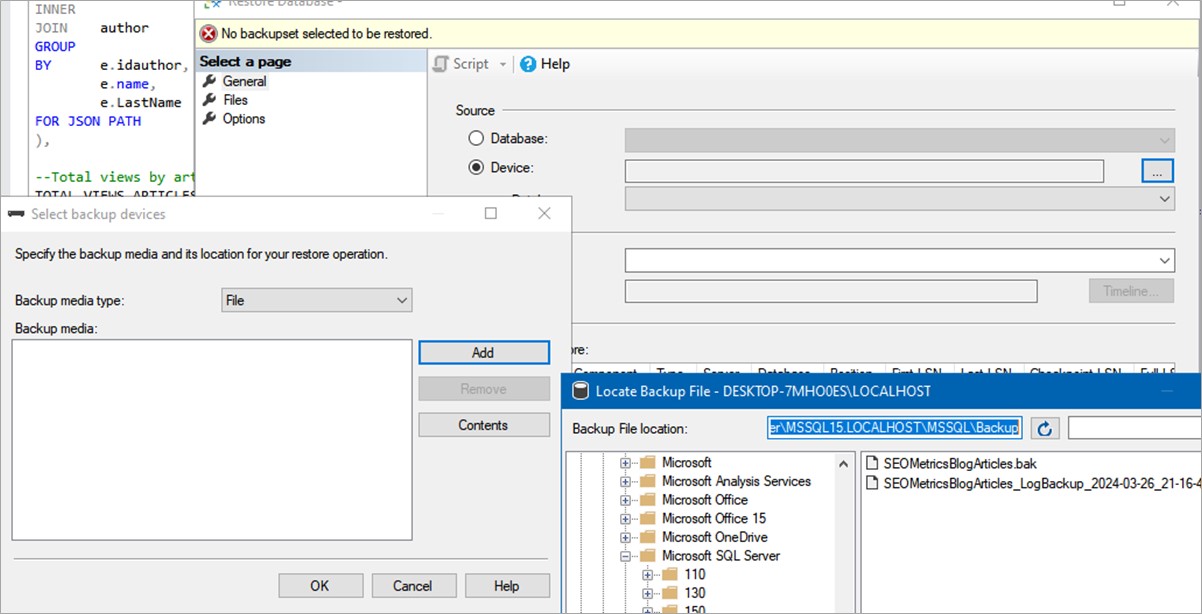
Finally, confirm and run the backup.
Angular Development
Using Visual Studio Code, you will need to open the SQL Dashboard project and once opened, you will see the following structure:
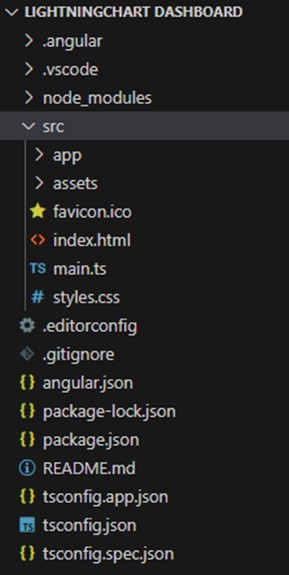
The node_modules folder will not be available until you install the project dependencies. For this, you must open a new terminal and run the npm install command. You will need to have Angular installed on your computer to be able to execute its commands, you can do this by executing the command:
npm install -g @angular/cli.
The global property (-g), installs Angular globally and allows you to use the code in the package as a set of tools on your local computer. Once your project is configured, we can continue with the code review.
App.component
Components are the most basic UI building blocks of an Angular application. Angular components are a subset of directives, always associated with a template. The App component is created by Angular when generating the project from scratch.
We will use this component as the parent that will contain the content of our Dashboard. The HTML file will contain our navigation bar and the body on which our other templates will be rendered.
<header class="navbar navbar-dark sticky-top shadow" style="background-color: #3F4858;">
    <div class="container-fluid">
      <a class="navbar-brand" href="#">LightningChart - Article Ranking Analysis</a>
      <button class="navbar-toggler" type="button" data-bs-toggle="offcanvas" data-bs-target="#offcanvasDarkNavbar" aria-controls="offcanvasDarkNavbar" aria-label="Toggle navigation">
        <span class="navbar-toggler-icon"></span>
      </button>
It is important to mention that the classes belong to Bootstrap version 5. The structure and names of the classes must be kept the same to take advantage of the benefits of Bootstrap including responsiveness, look and feel, and effects. Within its declarations, the module file will have the rest of the components in the project:
@NgModule({
  declarations: [
    AppComponent,
    RankingComponent,
    DonutChartComponent,
    StepSeriesChartComponent,
    HorizontalBarChartComponent,
    VerticalBarChartComponent,
  ],
Routing
The Router enables navigation by interpreting a browser URL as an instruction to change the view. Each menu item that we have in our bar chart, must be added to our router:
const appRoutes:Routes=[
{ path:'rank', component:RankingComponent},
];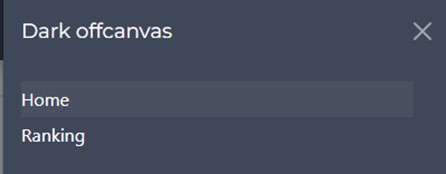
The RankingComponent is the component of our Ranking view that will contain the Dashboard charts.
<li class="nav-item">
	<a class="nav-link" href="/ranking">Ranking</a>
</li>
Charts Development
Inside the Charts folder, we will find the components of our 4-Dashboard charts:
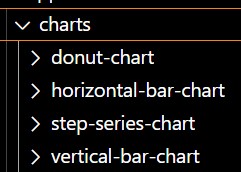
The components have the same structure: CSS, HTML, Typescript. Within each CSS file, we will see that a height in pixels is specified for the HTML div elements:
div { height: 350px;}As the chart components will only use one DIV within their HTML structure (the one that will contain the chart), a maximum height will be assigned for the chart, preventing the chart from being too large or small. Inside the HTML file, we will create the div that will contain the chart:
<div [id]="100"></div>We will assign it an ID that will help LightningChart JS find and assign the HTML object that will display the chart.
Component.ts
This file will contain the logic for creating our chart. As I mentioned at the beginning, there are already articles that explain step by step each of the charts used in the Dashboard, so I will only explain some important points. At first, we will see the modules that will help us build the chart as well as the Angular modules necessary for its implementation:
import { Component, Input, AfterViewInit, OnChanges, OnDestroy } from '@angular/core';
import { lightningChart, ChartXY, Point, PieChartTypes, UIElementBuilders, LegendBoxBuilders, Themes, SliceLabelFormatters, UIOrigins, UIDraggingModes, emptyFill, emptyLine, AxisTickStrategies, SolidFill, SolidLine, Animator, transparentFill, Chart, PieChart, ColorRGBA } from '@arction/lcjs';
import donutdata from "../../../assets/data/data.json";
There is a JSON file import. That file will contain the JSON generated by our SQL Server stored procedure (getDashboardJSONData).
let TOTAL_NUMBER_ARTICLES_CATEGORY = donutdata.TOTAL_NUMBER_ARTICLES_CATEGORYThe JSON object will be assigned to a variable that will be used later for mapping and formatting the data. The license JSON object will contain the license string and will be assigned to the license property of the LightningChart JS library:
const lc = lightningchart({license: licenseJson.license})
this.chart = lc
.BarChart({
	type. BarChartTypes.Horizontal,
	theme: Themes.lightningNature,
	container: '200',
})
You can always get a completely free non-commercial LightningChart JS license. With this license, you will be able to access the complete library and continue the implementation of this project. To update your license, you must go to the file license.json and replace its value:
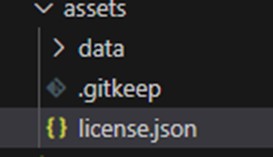
{"license":"xxx-xxxx"}The container property must have the same component ID as the DIV element created in the HTML file. The variable that contains the JSON file will be used to give the required format to the chart:
for (let i = 0; i < TOTAL_NUMBER_ARTICLES_CATEGORY.length; i++) {
  totalVisitor += TOTAL_NUMBER_ARTICLES_CATEGORY[i].ARTICLES_COUNT;
  processedData.push({ name: `${TOTAL_NUMBER_ARTICLES_CATEGORY[i].CATEGORY}`, value: TOTAL_NUMBER_ARTICLES_CATEGORY[i].ARTICLES_COUNT })
}
The JSON mapping and formatting code will change depending on the chart. The visual properties will also be different, but each of them can be consulted in the official LightningChart JS documentation. Importing modules and license settings will remain the same for all of the chart components.
@Component({
  selector: 'app-donut-chart',
  templateUrl: './donut-chart.component.html',
  styleUrls: ['./donut-chart.component.css']
})
The code above shows three properties, each referencing an HTML template and a style file.
- The selector property tells Angular to create an instance of this component wherever it finds the corresponding tag in the HTML template.
- The selector value is important since we will load each chart component into the Ranking component through it.
Rankings
The RankingComponent will load the rest of the chart’s components. It is important to mention that each chart component will be executed when called by ranking, so we do not have to worry about its processes within this component. We will only have to call or execute them using their selector.
Data on the SQL dashboard cards
In the case of the cards, since they are only HTML templates that show a specific value, we can extract those values located in the JSON file and assign them to a variable that can be used in the Ranking HTML:
export class RankingComponent {
  ARTICLES_TOTAL = `${data.ARTICLES_SUMMARY[0].ARTICLES_TOTAL}`;
  AUTHORS_TOTAL = `${data.ARTICLES_SUMMARY[0].AUTHORS_TOTAL}`;
  HIGHER_RANKING = `${data.ARTICLES_SUMMARY[0].HIGHER_RANKING}`;
  LOWER_RANKING = `${data.ARTICLES_SUMMARY[0].LOWER_RANKING}`;
  VIEWS_TOTAL = `${data.ARTICLES_SUMMARY[0].VIEWS_TOTAL}`;
  URL_IMPRESSIONS_TOTAL = `${data.ARTICLES_SUMMARY[0].URL_IMPRESSIONS_TOTAL}`;
  AVG_DURATION_TOTAL = `${data.ARTICLES_SUMMARY[0].AVG_DURATION_TOTAL}`;
}
<!-- Ranking HTML-->
<div class="card">
<div class="card-header" style=" background-color: #6f7d96;color: white;font-size: large;border: none">Article Summary:</div>
<div class="card-body styled-card">
<div class="row">
<div class="col-sm-6">
<div class="row row-cols-1 row-cols-md-3 g-4">
<div class="col">
<div class="card">
<div class="card-content">
<div class="card-body styled-shadow">
<div class="media d-flex">
<div class="align-self-center">
<i class="icon-pencil primary font-large-2 float-left"></i>
</div>
<div class="media-body text-right">
<h1>{{ARTICLES_TOTAL | number}}</h1>
<figure>
<blockquote>
<p>Total Number of Articles</p>
</blockquote>
<figcaption class="blockquote-footer">
<cite title="Source Title">Only published in lightningchart.com</cite>
</figcaption>
</figure>In order to display a chart in the SQL dashboard, we need to use the component selector as if it were an HTML tag. For the chart to display neatly and be responsive to the rest of the HTML code, we must include it within a Bootstrap HTML structure:
<div class="card styled-card">
    <div class="card-header" style="    background-color: #6f7d96;color: white;font-size: large;border: none">Views Chart:</div>
    <div class="card-body styled-card">
      <div class="row">
        <div class="col-sm-12">
          <figure class="text-center">
            <blockquote class="blockquote">
              <p>Count of articles by author</p>
            </blockquote>
            <figcaption class="blockquote-footer">
              <cite title="Source Title">Count of all items in the selected time period</cite>
            </figcaption>
          </figure>
          <app-horizontal-bar-chart></app-horizontal-bar-chart>
Responsiveness
Here are some examples of the SQL dashboard’s responsiveness. When you call the chart component using the selector, it will be processed based on your code located in your TypeScript file, and the result will be rendered within the Ranking HTML.
Data.json
This file is located inside the assets folder and here is where you must paste the result obtained from the database.
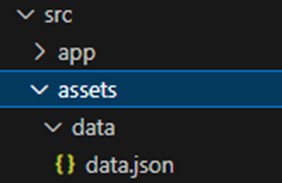
When you refresh the site in the browser, the data will be obtained immediately. If you review the imports of each component, you will notice that the variable containing the JSON file points to the path of the assets-data folder.
Run Angular Project
The ng serve command builds, deploys, serves, and displays our code changes:
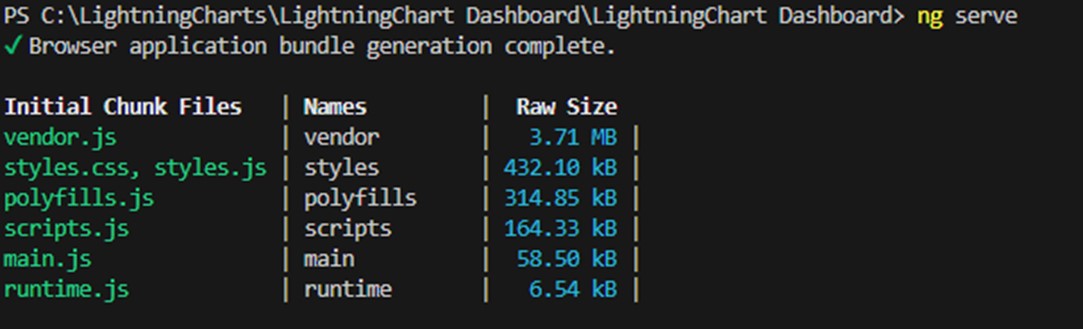
Once successfully compiled, we can open the path specified by the terminal to see our project:
** Angular Live Development Server is listening on localhost:4200, open your browser on http://localhost:4200/ **Final application demo
Conclusion
Thank you for going through this SQL dashboard tutorial. This was a long-awaited tutorial that I was excited about. Creating a short project with LightningChart JS and all these technologies was a fun exercise. As I mentioned earlier, the SQL dashboard database and the Angular project are not completely refined, but the goal was to cover all the tools needed to develop a high-end project in a short time using SQL (and other technologies) with LightningChart JS.
You can find Angular exercises in our LightningChart blog that explain how to create Angular projects from scratch using commands. Angular is an effective tool for creating web applications and can be quite robust when complemented with various supporting libraries. I like Angular because allows using a project like this to create a mobile application.
Similarly, we have an Ionic-capacitor article where we created an Angular project for an Android and iOS mobile application that I highly recommend you take a look at. Now, let’s say you need to create a mobile application. You can complement this project with Ionic-Capacitor and create a dashboard compatible with Android and iOS. You will need an Apple Mac computer to compile the iOS version.
Among the changes that you will have to consider, are:
- updating the HTML templates
- Ionic HTML elements will have to be kept so that they can work on both platforms.
Another important point is that you will have to develop and consume an API if you want to update data in real time. But for learning topics, you can continue using the JSON file generated by the DB. Now, what would a dashboard be without interactive charts to help us analyze our data? Well, LightningChart JS is a pretty effective library, since practically all the charts in this example were generated with the code provided in the interactive examples found on the website. Certain changes were made to the behavior and style of the charts, but the implementation was almost the same.
LightningChart JS chart components are fully compatible with Angular and Bootstrap (even in Android and iOS applications).The implementation of LCJS is not complicated at all and allows advanced interactivity with the user without the need to program or add extra code. The charts shown in this example are quite simple, but you can use any 2D and 3D charts, or even charts oriented to processing hundreds of thousands of data points.
If you are interested in seeing more about the API, and how to add new functionalities to this project, let me know on LinkedIn. Sharing this and other articles will also help me know if this topic is of interest to you. Thank you!

Omar Urbano
Software Engineer


Continue learning with LightningChart
Best OxyPlot Alternative in 2026: GPU Rendering, 3D Charts, Commercial Support
OxyPlot has been a reliable reference point in the .NET scientific and engineering charting space for over a decade. MIT-licensed, platform-neutral in its rendering model (which is how it achieves coverage across WPF, WinForms, Xamarin, Avalonia, and MAUI from a...
7 Best Plotly.js Alternatives in 2026: Faster, Lighter, No Context Limits
Plotly.js holds a unique position in the JavaScript charting ecosystem. Data scientists already know it from Python, when Plotly.py generates a chart in a Jupyter notebook, it's Plotly.js rendering it in the browser. That continuity between languages is genuinely...

7 Best Highcharts Alternatives in 2026: Faster, Cheaper, and More Capable
Highcharts has been a reliable workhorse for enterprise JavaScript charts since 2009. Solid documentation, broad chart type coverage, WCAG accessibility that's genuinely best-in-class. A lot of teams have built a lot of dashboards on it over the years. But teams also...



If you have any questions, feel free to contact us!



©LightningChart Ltd 2026. All rights reserved.