








LightningChart PythonGlobal Temperature Changes Analysis
TutorialImplementation of a Global Temperature Changes Analysis application with LightningChart Python
Written by a human | Updated on April 24th, 2025
Global Temperature Changes Analysis
Global temperature change is one of the most important topics in environmental and climate research. The dataset used in this analysis provides global and regional temperature anomalies from 1880 to the present. These anomalies represent deviations from a long-term average temperature, measured in degrees Celsius (°C).
The dataset is derived from comprehensive historical records of land and ocean surface temperatures collected by NASA. It includes global temperature measurements as well as specific regions like the Northern Hemisphere (NHem), Southern Hemisphere (SHem), and other latitudinal bands (e.g., 64N-90N, 90S-64S).
With over 140 years of data and thousands of data points, the dataset allows for in-depth trend analysis, such as identifying periods of significant warming or cooling and comparing regional trends with global averages. This information is crucial for understanding how climate change has evolved over time and its varying impacts on different parts of the world. Visualizing this data not only helps identify patterns but also facilitates communication of these important findings to a broader audience.
This report demonstrates how to create and analyze temperature anomaly charts using Python and LightningChart. Line graphs are an effective way to visualize changes over time, especially for continuous data like temperatures. Various types of charts, including simple line graphs, point series, and a combination of both, are used to illustrate how global temperatures have changed over the years.
LightningChart Python

LightningChart Python is a high-performance tool for creating interactive data visualizations, particularly well-suited for handling large datasets and real-time data applications. It supports a variety of chart types, including scatter plots, bar charts, and 3D visualizations, offering extensive customization for axes, series, and overall appearance.
Known for its exceptional speed and precision, LightningChart Python ensures smooth rendering even when dealing with millions of data points. Its real-time data update capabilities make it an ideal choice for industries requiring instant insights and analysis, providing a seamless experience for users working with complex datasets.
Setting Up Python Environment
To begin working on this project, it’s necessary to install the required libraries, including Pandas and LightningChart Python. You can do this by following the steps below:
First, you need to install Python: Download and install the latest version of Python from the official Python website. Second, you need to Install Pandas and LightningChart Python using the pip package manager to install the necessary libraries by running these commands:
pip install lightningchart
pip install pandas
These libraries will allow you to process the dataset and create interactive visualizations for analyzing temperature trends over time.
Loading and Processing Data
This Python code shows how to read data from a CSV file using Pandas and print the first few rows to check the data.
import pandas as pd

# Load the dataset from a CSV file
path = 'ZonAnn.Ts+dSST.csv'
data = pd.read_csv(path)

# Display the first few rows of the dataset
print(data.head())
This Python code checks the structure of the dataset and shows if there are any missing values.
Temperature_Zones_info  = data.info()

# summarizes any missing values in the dataset.
irTemperature_Zones_values_summary = data.isnull().sum()

Temperature_Zones_info
irTemperature_Zones_values_summary
And then check that the data is not duplicated.
# Check for duplicate rows
duplicate_rows = data.duplicated()

# Remove duplicates from the dataset
data_cleaned = data.drop_duplicates()

# View cleaned data to ensure duplicates were removed
print(data_cleaned.head())
Global Temperature Anomalies
The first visualization shows global temperature anomalies from 1880 to the present, highlighting critical points such as the maximum and minimum anomalies, along with the largest increases and decreases. A custom tick is also added to emphasize the year with the largest increase.

# Find the global max, min, and the largest increase and decrease
global_max = data.loc[data['Glob'].idxmax()]
global_min = data.loc[data['Glob'].idxmin()]
data['Glob_diff'] = data['Glob'].diff()

largest_increase = data.nlargest(5, 'Glob_diff')
largest_decrease = data.nsmallest(5, 'Glob_diff')

# Create the chart
chart = lc.ChartXY(
    theme=lc.Themes.White,
    title='Global Temperature Anomalies with Critical Points (1880 - Present)'
)

# Add max anomaly point series
max_series = chart.add_point_series().set_point_shape('circle').set_name('Max Anomaly')
max_series.set_point_size(10).set_point_color(lc.Color(255, 0, 0))
max_series.add(x=[global_max['Year']], y=[global_max['Glob']])

# Add min anomaly point series
min_series = chart.add_point_series().set_point_shape('circle').set_name('Min Anomaly')
min_series.set_point_size(10).set_point_color(lc.Color(0, 255, 0))
min_series.add(x=[global_min['Year']], y=[global_min['Glob']])

# Add largest increases point series
inc_series = chart.add_point_series().set_point_shape('triangle').set_name('Largest Increases')
inc_series.set_point_size(10).set_point_color(lc.Color(255, 165, 0))
inc_series.add(x=largest_increase['Year'].tolist(), y=largest_increase['Glob'].tolist())

# Add largest decreases point series
dec_series = chart.add_point_series().set_point_shape('square').set_name('Largest Decreases')
dec_series.set_point_size(10).set_point_color(lc.Color(128, 0, 128))
dec_series.add(x=largest_decrease['Year'].tolist(), y=largest_decrease['Glob'].tolist())

# Add line series for global temperature anomalies
line_series = chart.add_line_series().set_name('Global Temperature Anomalies')
line_series.set_line_thickness(2).set_line_color(lc.Color(0, 0, 255))

x_values = data['Year'].tolist()
y_values = data['Glob'].tolist()
line_series.add(x=x_values, y=y_values)

# Add a custom tick for the year with the largest increase
largest_increase_year = largest_increase.iloc[0]['Year']  # The year with the largest increase
x_axis = chart.get_default_x_axis()
custom_tick = x_axis.add_custom_tick()
custom_tick.set_value(largest_increase_year)  # Set the year for the tick
custom_tick.set_tick_label_padding(10)  # Padding for the label
custom_tick.set_marker_color(lc.Color(255, 0, 0))  # Red color for the marker
custom_tick.set_marker_font(size=20, weight='bold')  # Bold font for the label

# Add the legend
legend = chart.add_legend(x=30, y=70)
legend.add(max_series)
legend.add(min_series)
legend.add(inc_series)
legend.add(dec_series)
legend.add(line_series)

# Open the chart
chart.open()
Regional Temperature Comparisons
This chart compares temperature changes between two distinct regions: 64N-90N and 90S-64S. Additionally, it calculates and displays the global average temperature anomaly using a constant line, making it easy to compare regional temperature trends with the global average.

# Create the chart
chart = lc.ChartXY(
    theme=lc.Themes.Black,
    title='Temperature Changes in Different Regions'
)

regions = ['64N-90N', '90S-64S']
shapes = ['circle', 'triangle', 'square']

legend = chart.add_legend(x=15, y=80)

# Loop through the regions and plot both line and point series for each
for i, region in enumerate(regions):
    line_series = chart.add_point_line_series().set_point_shape(shapes[i]).set_name(region)

    y_values = list(data[region])
    x_values = list(data['Year'])

    line_series.set_point_size(10)
    line_series.set_line_thickness(2)

    line_series.add(x=x_values, y=y_values)

    legend.add(line_series)

# Calculate the average global temperature (Glob)
average_global_temp = data['Glob'].mean()

# Add a constant line for the average global temperature
y_axis = chart.get_default_y_axis()
constant_line = y_axis.add_constant_line()
constant_line.set_value(average_global_temp)  # Add the calculated average global temperature
constant_line.set_stroke(2.5, lc.Color(255, 0, 0))  # Red line with thickness 2.5

# Open the chart
chart.open()
This comparison helps highlight the differences in how various regions are affected by global temperature changes.
Global Temperature Trends and Forecast: A Look into the Past and Future (1880-2033)
This chart displays global temperature changes from 1880 to 2023 and provides a forecast for global temperatures from 2024 to 2033. The blue section represents historical data, showing the rise in global temperatures over time. The red section, marked with red triangles, presents the predicted future temperatures for the next 10 years using an ARIMA statistical model. The forecast start (year 2024) is highlighted with a cyan tick, clearly distinguishing the past data from the future predictions. The chart indicates that the global temperature rise is expected to continue in the coming decade.
import pandas as pd
import lightningchart as lc
from statsmodels.tsa.arima.model import ARIMA
import numpy as np
import warnings

warnings.filterwarnings("ignore", category=UserWarning)
warnings.filterwarnings("ignore", category=FutureWarning)

# Load the dataset
file_path = 'ZonAnn.Ts+dSST.csv'
data = pd.read_csv(file_path)

# Filter the data to use the 'Glob' (Global temperature anomalies) column
global_data = data[['Year', 'Glob']]
global_data = global_data[global_data['Glob'].notna()]  # Remove NaN values

# Set up chart with LightningChart
chart = lc.ChartXY(title="Global Temperature Anomaly Forecast (2024-2033)", theme=lc.Themes.Dark)
chart.get_default_x_axis().set_title("Year")
chart.get_default_y_axis().set_title("Temperature Anomaly (°C)")

legend = chart.add_legend()

historical_series = chart.add_point_line_series().set_name("Historical Data")
forecasted_series = chart.add_point_line_series().set_name("Forecasted Data")

# Customize the style of the series
historical_series.set_point_shape('circle').set_point_size(6).set_line_thickness(2).set_line_color(lc.Color(0, 0, 255))
forecasted_series.set_point_shape('triangle').set_point_size(6).set_line_thickness(2).set_line_color(lc.Color(255, 0, 0))

# Add series to the legend
legend.add(historical_series)
legend.add(forecasted_series)

# Train ARIMA model for forecasting future values (for 10 years)
def predict_future_temperatures():
    try:
        model = ARIMA(global_data['Glob'].values, order=(1, 1, 1))
        model_fit = model.fit()
        forecast = model_fit.forecast(steps=10)  # Forecast for 10 years (2024-2033)
        return forecast
    except Exception as e:
        return [0] * 10

# Plot historical data (up to 2023)
x_historical_values = global_data['Year'].values
y_historical_values = global_data['Glob'].values
historical_series.add(x=x_historical_values, y=y_historical_values)

forecasted_values = predict_future_temperatures()
predicted_years = np.arange(2024, 2034)
forecasted_series.add(x=predicted_years, y=forecasted_values)

# Dynamically get the first year of the forecast (first value in the predicted_years array)
forecast_start_year = int(predicted_years[0])  # Convert NumPy int32 to Python int

# Add custom tick to highlight the start year of the forecast
custom_tick_forecast_start = chart.get_default_x_axis().add_custom_tick()
custom_tick_forecast_start.set_value(forecast_start_year)  # Highlight the forecast start year
custom_tick_forecast_start.set_tick_label_padding(10)
custom_tick_forecast_start.set_marker_color(lc.Color(0, 255, 255))  # Cyan color for the marker
custom_tick_forecast_start.set_marker_font(size=20, weight='bold')

# Add a textbox to explain the custom tick
text_box = chart.add_textbox(
    text=f"Forecast starts from {forecast_start_year}",
    x=0.5,
    y=0.95
)

# Open the chart
chart.open()
Temperature Periods of Stability and Variability
In this section, we will create a chart that highlights the periods of global temperature stability and variability. The moving average helps smooth out short-term fluctuations, while the standard deviation helps identify the degree of variability over time. We’ll focus on a 10-year moving window to calculate both metrics.

years = data['Year']
temperature_anomalies = data['Glob']

# Calculate the moving average and standard deviation
data['moving_avg'] = data['Glob'].rolling(window=10).mean()  # 10-year moving average
data['moving_std'] = data['Glob'].rolling(window=10).std()   # 10-year moving standard deviation

# Find the most stable year and the most variable year
most_stable_year = data.loc[data['moving_std'].idxmin()]['Year']
most_variable_year = data.loc[data['moving_std'].idxmax()]['Year']

# Define a range around the most stable and most variable years
start_year_stable = most_stable_year - 5
end_year_stable = most_stable_year + 5

start_year_variable = most_variable_year - 5
end_year_variable = most_variable_year + 5

# Create the chart
chart = lc.ChartXY(title="Global Temperature Anomalies with Stability and Variability Periods", theme=lc.Themes.Dark)

# Add a point series for the scatter plot
point_series = chart.add_point_series()

# Set color palette based on temperature anomalies
point_series.set_palette_colors(
    steps=[
        {'value': -1.0, 'color': lc.Color('darkblue')},
        {'value': 0.0, 'color': lc.Color('lightblue')},
        {'value': 0.5, 'color': lc.Color('orange')},
        {'value': 1.0, 'color': lc.Color('red')},
    ],
    look_up_property='y',
    percentage_values=False  # Use absolute values
)
point_series.add(x=years, y=temperature_anomalies)

# Set axis titles
x_axis = chart.get_default_x_axis()
x_axis.set_title("Year")
y_axis = chart.get_default_y_axis()
y_axis.set_title("Global Temperature Anomalies (°C)")

# Add a band for the most stable period (centered around the most stable year)
band_stable = x_axis.add_band()
band_stable.set_value_start(start_year_stable)
band_stable.set_value_end(end_year_stable)
band_stable.set_color(lc.Color(0, 255, 0, 100))  # Light green for stability

# Add a band for the most variable period (centered around the most variable year)
band_variable = x_axis.add_band()
band_variable.set_value_start(start_year_variable)
band_variable.set_value_end(end_year_variable)
band_variable.set_color(lc.Color(255, 0, 0, 100))  # Light red for variability

# Add a textbox to explain the chart
text_box = chart.add_textbox(
    text=f"Stable period: {int(start_year_stable)}-{int(end_year_stable)}, Variable period: {int(start_year_variable)}-{int(end_year_variable)}",
    x=0.5,
    y=0.95
)

# Open the chart
chart.open()
Heatmap Temperature Changes
Creating the Heatmap We create a heatmap to visualize temperature changes. The X-axis represents the years, and the Y-axis represents different regions. Below is the code to generate the heatmap using LightningChart:

# Extract the 'Year' column and convert it to datetime, then to milliseconds
temperature_df['Year'] = pd.to_datetime(temperature_df['Year'], format='%Y')
years_ms = [int(t.timestamp() * 1000) for t in temperature_df['Year']]

# Remove the 'Year' column for heatmap data processing
heatmap_data = temperature_df.drop(columns=['Year']).fillna(0).values

# Create a new chart
chart = lc.ChartXY(
    title='Global Temperature Change Heatmap',
    theme=lc.Themes.Dark
)

# Create the heatmap grid series
grid_size_x, grid_size_y = heatmap_data.shape
heatmap_series = chart.add_heatmap_grid_series(
    columns=grid_size_x,
    rows=grid_size_y
)

# Set the start, end, and step positions for the heatmap
heatmap_series.set_start(x=years_ms[0], y=0)
heatmap_series.set_end(x=years_ms[-1], y=grid_size_y)
heatmap_series.set_step(x=(years_ms[-1] - years_ms[0]) / grid_size_x, y=1)

# Enable interpolation and set intensity values from heatmap_data
heatmap_series.set_intensity_interpolation(True)
heatmap_series.invalidate_intensity_values(heatmap_data.tolist())

# Hide wireframe
heatmap_series.hide_wireframe()

# Define a custom color palette for the heatmap
custom_palette = [
    {"value": np.min(heatmap_data), "color": lc.Color(0, 0, 255)},  # Blue for minimum value
    {"value": np.max(heatmap_data), "color": lc.Color(255, 0, 0)}  # Red for maximum value
]

# Set the color palette to the heatmap
heatmap_series.set_palette_colors(
    steps=custom_palette,
    look_up_property='value',
    interpolate=True
)

# Set axis titles
chart.get_default_x_axis().set_title('Year')
chart.get_default_y_axis().set_title('Regions')

# Format the X-axis to use years
x_axis = chart.get_default_x_axis()
x_axis.set_tick_strategy('DateTime', utc=True)

# Add a legend
chart.add_legend(data=heatmap_series).set_title('Temperature Intensity')

# Open the chart
chart.open()
Customizing the Heatmap
- Themes: The ‘Dark’ theme is used for better contrast.
- Color Palette: A custom palette is applied, with blue representing lower temperatures and red representing higher values.
- Axis Customization: The X-axis displays the years, and the Y-axis shows different regions.
Temperature Bar Plots
Bar Plot: Global Temperature Anomalies by Year
This basic bar plot shows global temperature anomalies over time. Red bars represent positive anomalies (warmer years), while blue bars indicate negative anomalies (cooler years). This plot provides a clear visual of how temperature anomalies have changed year by year, highlighting warming and cooling trends.

data = []
for i, row in data_df.iterrows():
    data.append({'category': str(int(row['Year'])), 'value': row['Glob']})

chart = lc.BarChart(
    vertical=True,
    theme=lc.Themes.White,
    title='Global Temperature Anomaly by Year'
)
chart.set_sorting('disabled')
chart.set_data(data)
chart.set_label_rotation(-90)
for item in data:
    if item['value'] >= 0:
        chart.set_bar_color(item['category'], lc.Color(255, 0, 0))
    else:
        chart.set_bar_color(item['category'], lc.Color(0, 0, 255))


chart.open()
Grouped Bar Plot: Temperature Anomalies by Region
The grouped bar plot compares temperature anomalies across the Northern Hemisphere, Southern Hemisphere, and a specific latitude range (24N-90N) by decade. This plot visually compares temperature trends between regions and decades, offering insights into which regions are experiencing faster warming.
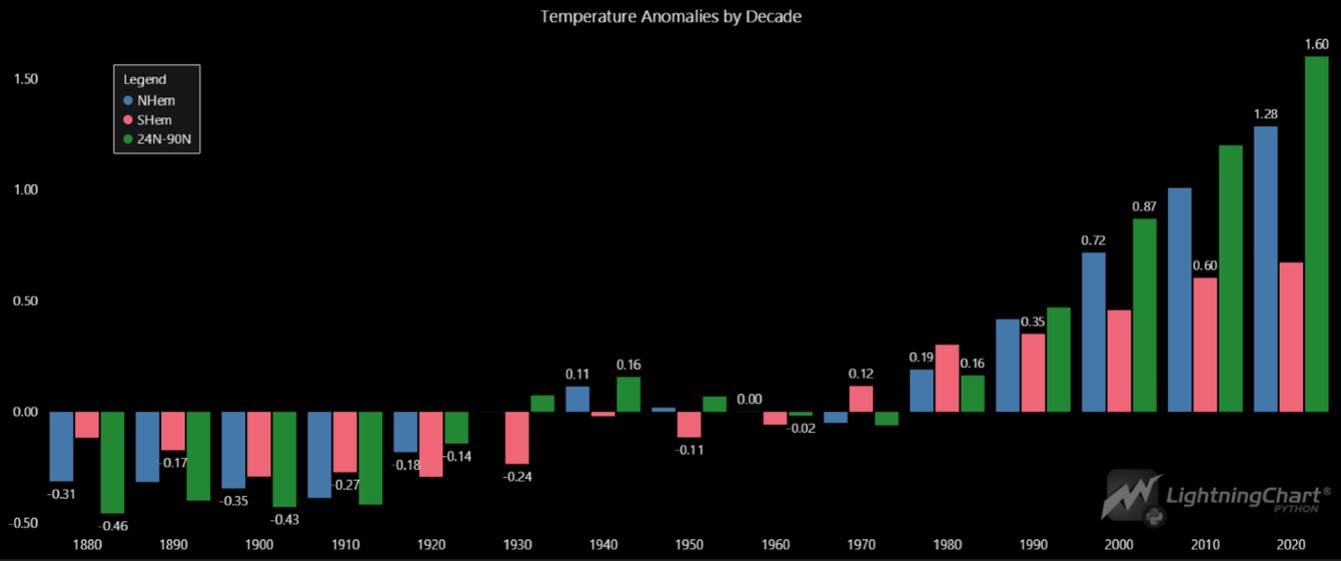
data['Decade'] = (data['Year'] // 10) * 10
decade_group = data.groupby('Decade').mean().reset_index()

chart = lc.BarChart(
    vertical=True,
    theme=lc.Themes.Black,
    title='Temperature Anomalies by Decade'
)
chart.set_sorting('alphabetical')
# Prepare the data for the grouped bar chart
decades = decade_group['Decade'].astype(str).tolist()  # X-axis labels (Decades)
region_data = [
    {'subCategory': 'NHem', 'values': decade_group['NHem'].tolist()},
    {'subCategory': 'SHem', 'values': decade_group['SHem'].tolist()},
    {'subCategory': '24N-90N', 'values': decade_group['24N-90N'].tolist()}
]

# Set the data for the grouped bar chart
chart.set_data_grouped(decades, region_data)

# Add a legend to distinguish the regions
chart.add_legend(x=15, y=80).add(chart)

# Display the chart
chart.open()
Python Stacked Bar Plot:
The stacked bar plot visualizes the sales of four products over several years. Each bar is divided into segments representing different products, providing a clear view of how each product contributes to the total sales in a given year.

file_path = 'generated_sales_data.csv'
df = pd.read_csv(file_path)

years = df['Year'].astype(str).tolist()
product_A_sales = df['Product_A_Sales'].tolist()
product_B_sales = df['Product_B_Sales'].tolist()
product_C_sales = df['Product_C_Sales'].tolist()
product_D_sales = df['Product_D_Sales'].tolist()

chart = lc.BarChart(
    vertical=True,
    theme=lc.Themes.Light,
    title='Stacked Bar Chart - Product Sales Over Years'
)

chart.set_data_stacked(
    years,
    [
        {'subCategory': 'Product A', 'values': product_A_sales},
        {'subCategory': 'Product B', 'values': product_B_sales},
        {'subCategory': 'Product C', 'values': product_C_sales},
        {'subCategory': 'Product D', 'values': product_D_sales}
    ]
)

chart.set_value_label_display_mode('hidden')

chart.add_legend(x=98,y=80).add(chart)

chart.open()
Conclusion
Using LightningChart for visualizing global temperature anomalies allows for effective analysis of climate trends over time. By adding custom features like bands, constant lines, and legends, we can enhance the clarity of these visualizations. These tools offer powerful insights into how different regions are impacted by global climate changes, helping researchers and analysts better understand the ongoing changes in our environment.

Fateme Ajam
Data Science Python Developer


Continue learning with LightningChart

How to Set Up LightningChart JS in Cursor and Claude Code Using MCP, in Under 5 Minutes
A step-by-step guide to installing the LightningChart JS MCP server so your AI coding agent stops hallucinating chart APIs and starts writing production-ready code from the first prompt. AI coding agents are good at writing chart code. They are less good at writing...

The LightningChart JS Agent Skill: Give Any AI Coding Agent Accurate Charting Knowledge in 60 Seconds
An agent skill is a folder of instructions your AI coding tool picks up automatically. This one teaches any compatible agent how to use LightningChart JS correctly, before it writes a single line of chart code. Agent skills are a relatively new concept and the...
Why AI Coding Agents Get Data Visualization Wrong, and What to Do About It
AI coding assistants are getting good at most parts of application development. Data visualization is one of the areas where they still have a consistent, predictable failure mode. This article explains the mechanics of why it happens and the practical fix. I spent a...



If you have any questions, feel free to contact us!



©LightningChart Ltd 2026. All rights reserved.