









.NET Data VisualizationMultithreaded Chart Applications
ArticleUnderstanding multithreaded data visualization applications in LightningChart .NET
Written by a human | Updated on April 9th, 2025
Multithreaded chart applications with LightningChart .NET data visualization control
Getting an application to run smoothly using background threads can really make a big difference. Unloading non-essential processes to one or more background threads helps keep the application’s UI responsive and fast.
However, compared to a single-threaded program, multithreaded programs need a bit more effort to develop. The careless use of threads is a big reason for subtle bugs, which can take a lot of time to locate.
This article aims to help to understand multithreaded chart applications and explains some of the concepts of .NET multithreading and in particular, how the LightningChart .NET control should be used in multithreaded programs.
Here’s an example:
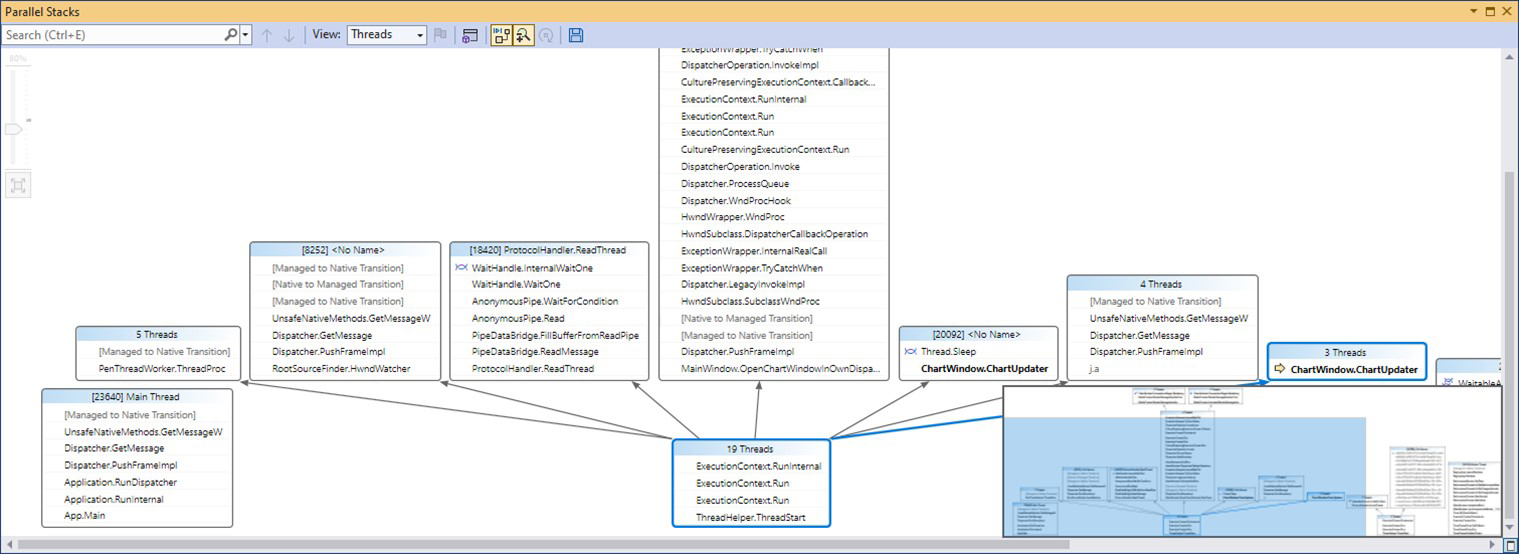
Example of Parallel Stacks window of multithreaded chart application in Visual Studio.
Most operating systems use a single-threading model for code involving the user interface. This model is necessary to properly sequence user-interface events, including keystrokes and touch input. This thread is often called the main thread, the user-interface thread, or the UI thread. Strictly speaking, .NET classifies the foreground and background differently.
But in this article, we will call the non-UI thread as a background thread.
Multithreading
Understanding multithreaded chart applications can improve the performance of an application but access to UI controls isn’t inherently thread-safe. Multithreading can expose your code to serious and complex bugs.
Two or more threads manipulating a control can force the control into an inconsistent state and lead to race conditions, access violations, deadlocks, and freezes or hangs. If you implement multithreading in your app, ensure you are calling the cross-thread controls in a thread-safe way.
UI libraries (Windows Forms, WPF, and UWP) are designed in such a way that UI elements may only be accessed from the UI thread. Windows does this to ensure the integrity of UI controls.
LightningChart® .NET control is a UI element. Therefore, the same thread-safe rules apply. Like every other UI control, it requires that all the LightningChart properties should be updated in the UI Thread.
When using a background thread in the application, all UI updates from the thread must go through Invoke (Control.Invoke() in WinForms, and Dispatcher.Invoke() in WPF). Both methods schedule a delegate for execution.
WPF dispatcher is more flexible as it allows users to specify queue priority when adding an element to the Dispatcher queue.
Multithreaded chart applications Demo
This design for multithreaded chart applications is demonstrated in the following ExampleThreadMultiChannel from our Demo. We use this design very often, as it perfectly suits distributing calculations over multiple threads as well as updating the charts as fast as possible.
The idea is to have a background thread to read/collect/generate new data and push some amount of ‘new points’ through the Invoke() call.
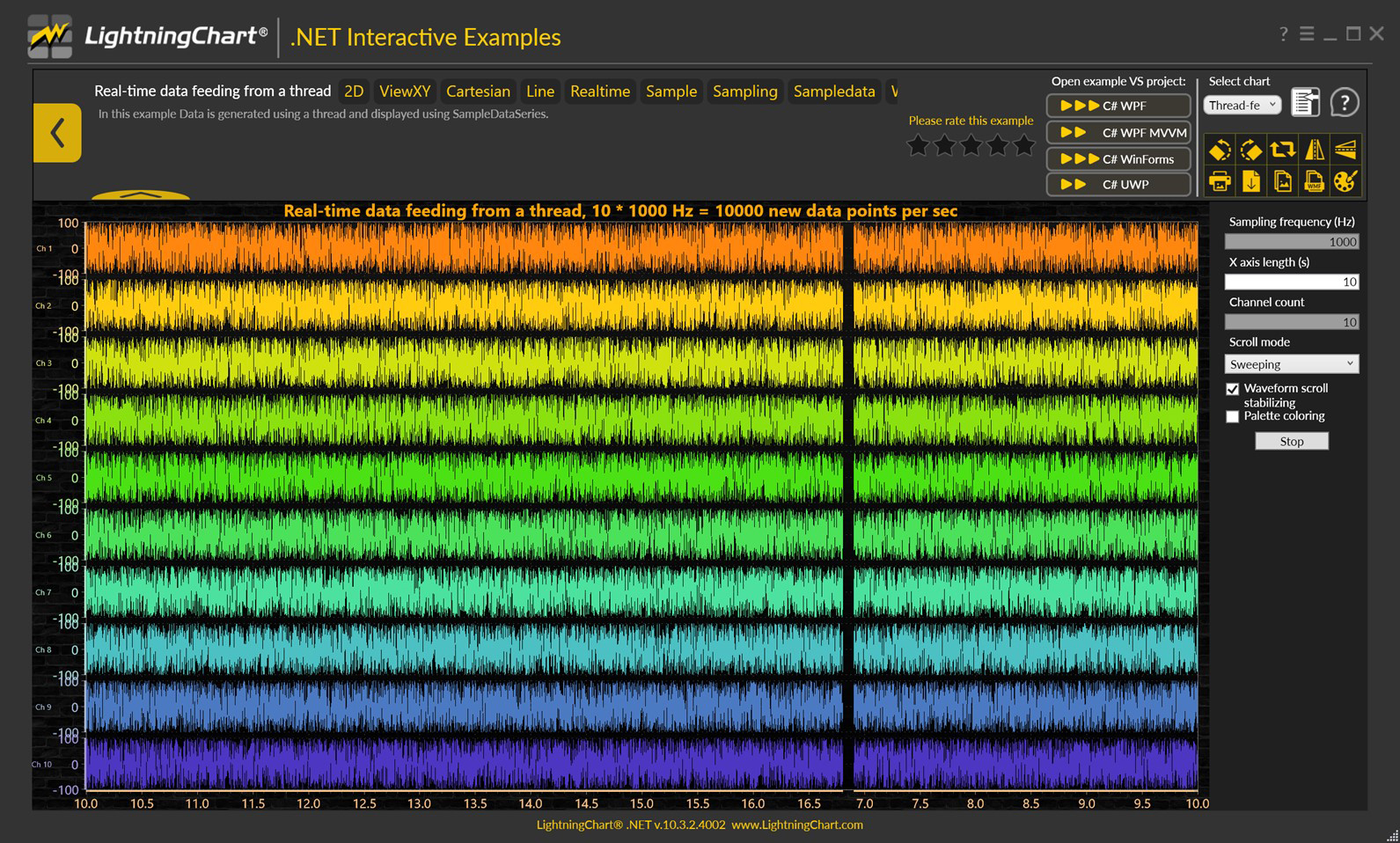
Our Demo’s (Interactive Examples app) examples show thread-safe chart updates and background thread usage for data generating.
The principles of LightningChart rendering are simple. Whenever a user adds data (or modifies a property) the chart is rendered. That process involves a lot of processing, which includes parallel loop computation, object disposal, updating of relevant properties, the recreation of objects, etc.
For this reason, only one thread should update and read Chart – serial/synchronous execution.
Headless Demo Service
Here’s a diagram of a client’s internal operation of messages with named pipes and background thread illustrated.
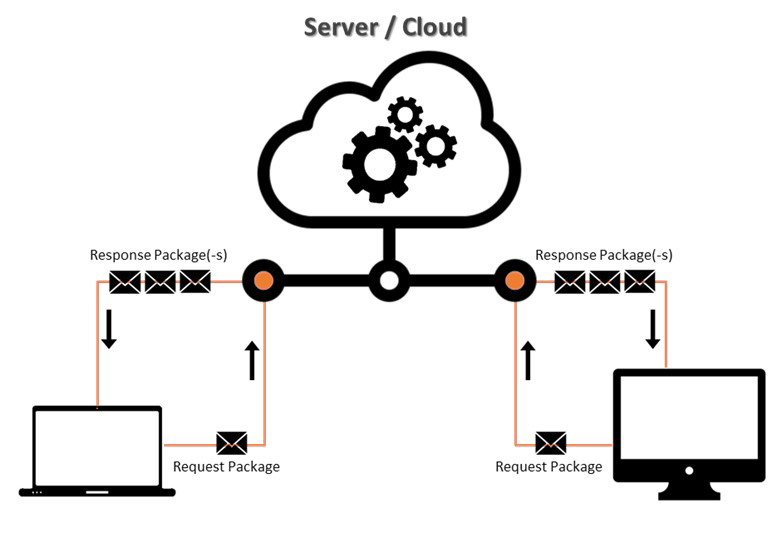
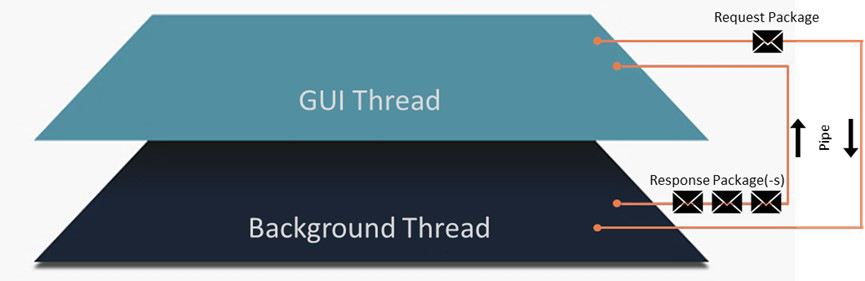
Headless demo service
For a standard desktop application, the LightningChart thread is the same as the Main UI Thread. However, that thread doesn’t necessarily have to be the Main UI Thread. The Headless mode (User manual chapter 24, Fig.3) allows the chart to run in a background thread, but all the updates should go through the same thread where the chart was created.
Another use case is, for example, when the application may have multiple windows, and each window may have its own Thread.
For this scenario, LightningChart is allowed to use the thread of the window it was added to (which could be a different thread than the one running on the main app’s window). This kind of design was implemented in our test-bench example, as seen in the next image:
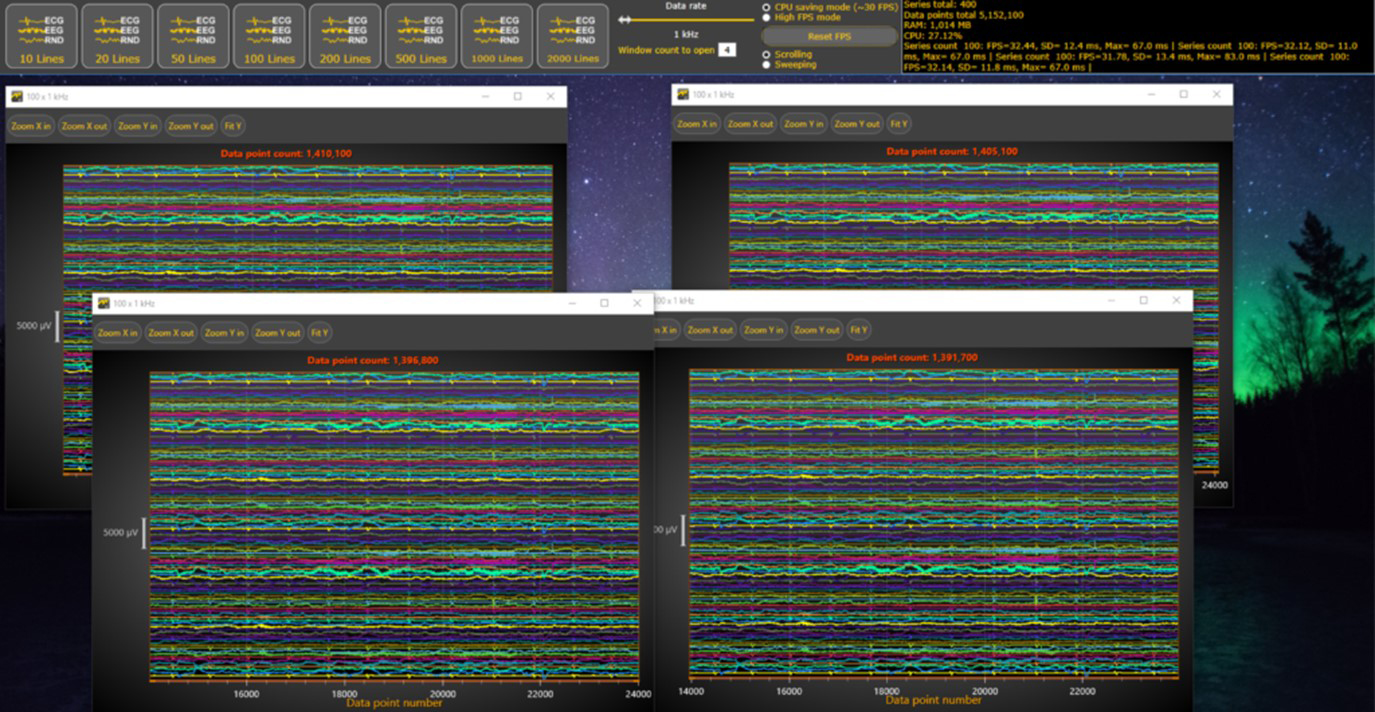
Multiple Windows – multithreaded chart applications approach.
It is worth noting that the Dispatcher/Control has two similar methods: Invoke() and BeginInvoke(). Both methods schedule a delegate for execution.
- Invoke is a synchronous call – that is, it doesn’t return until the UI thread actually finishes executing the delegate.
- BeginInvoke is asynchronous and returns immediately.
On the other hand (in the case of LightningChart .NET) by updating the chart through BeginInvoke, the user instantly gets a responsive UI. However, on the other hand, the application has limited information when the actual rendering happens. A similar effect could be achieved by changing the chart update type, with:
_chart.(Chart)RenderOptions.UpdateType = ChartUpdateTypes.Async;Additional Notes
System.Threading.Tasks.Task class is a special case: a Task object typically executes asynchronously on a thread pool rather than synchronously on the main application thread. Therefore, it is more likely that the task will be executed in the background thread than in the UI thread. This can cause an access violation in the thread if the process is intended to be run on the UI thread.
Understanding the multithreaded chart applications approach is not going to improve the performance if the user does not arrange tiny chart updates into bigger batches.
If more than one property is programmatically changed at the same time, the property changes should be made between the BeginUpdate() and EndUpdate() method calls as a batch (User manual chapter 15.3).
Otherwise, every property update will refresh the chart and cause a massive extra overhead.
Conclusion
Whenever you have large and time-consuming items in your multithreaded chart applications, consider using background threads / several threads. However, don’t forget that LightningChart is a UI element. Therefore, for thread safety, all the LightningChart properties should be updated in the UI Thread.
- Use the Parallel Stacks window (Microsoft Visual Studio documentation)
- Foreground and background threads (Microsoft .NET documentation)
- How to make thread-safe calls to controls (Windows Forms .NET)
- Threading Model (Microsoft .NET documentation)

Kestutis Gurevicius
CTO, Scientific Software Analyst, Support, Team Lead (.NET)

Continue learning with LightningChart

DataGrid Monitoring
Written by a human | Updated on April 10th, 2025JavaScript DataGrid Monitoring Application In this article, we will carry out an exercise of an XY chart that updates in real-time using the new LC JS DataGrid monitoring component. DataGrid is an additional...

how to create audio output signal reader
Written by a human | Updated on April 10th, 2025What is an Audio Output Signal Reader? An audio output signal reader is a device or software that reads and processes the audio output signal from an audio source and outputs it in a readable or usable format, such...
Audio Input Spectrogram Chart
Written by a human | Updated on April 10th, 2025Audio Input Spectrogram Chart LightningChart .NET is a powerful data visualization tool that provides advanced charting capabilities for the .NET framework. One of its key features is the spectrogram chart, which...



If you have any questions, feel free to contact us!



©LightningChart Ltd 2026. All rights reserved.