LightningChart .NETWPF 3D Surface Plot
TutorialLearn how to create a WPF 3D Surface Mesh chart application with LightningChart .NET
Written by a human | Updated on April 14th, 2025
WPF 3D Surface Plot
Hello! This is Omar and I’m back with an interesting WPF surface mesh chart application tutorial. This chart is also known as a surface or mesh plot and is useful for visualizing 3D data. The surface mesh chart is a three-dimensional plot that creates a grid of interconnected quadrangles, creating the “surface” where data points are visualized. Usually, in a surface mesh chart, you’ll see that the point’s color and height will represent the data’s magnitude or intensity.
Surface mesh charts are widely used in terrain elevations. For example, to visualize the elevation of landscapes and grounds. This is widely used in topographic applications.
Project Overview
In this project, we will work with the WPF framework and create a 3D Surface plot application with LightningChart .NET. As said, this is a chart with X, Y, and Z values. The surface styles can be customized defining different fills, wireframes, contour palettes, and zones.

 Download the project to follow the tutorial
Local Setup
For this polar chart project, we need to take in count the following requirements to compile the project.
-
OS: 32-bit or 64-bit Windows Vista or later, Windows Server 2008 R2 or later.
-
DirectX: 9.0c (Shader model 3 and higher) or 11.0 compatible graphics adapter.
-
Visual Studio: 2010-2019 for development, not required for deployment.
-
Platform .NET Framework: installed version 4.0 or newer.
Now go to the next URL and click the download button: http://lightningchart.com/net-charts/

You will be redirected to a sign in form, from then on, the process is very simple to follow. So, after confirming your email, you will have access to your own LightningChart account.

After you sign into your account, you will be able to download the SDK. This SDK will be a "free trial" version, but you will be able to use many important features.
If you download the SDK, you will have an .exe like this:

The installation will be a typical Windows process, so please continue with it until it is finished. After the installation, you will see the following programs:

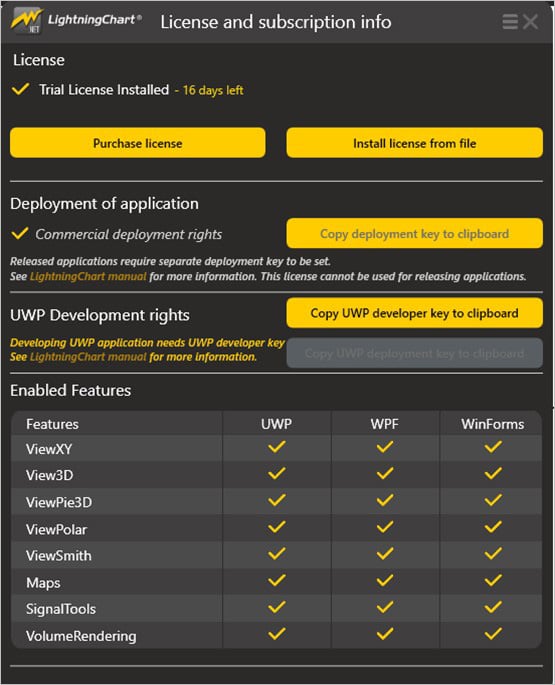
- License Manager: In this application, you will see the purchase options. All the projects that you will create with this trial SDK, will be available for future developments with all features enabled.
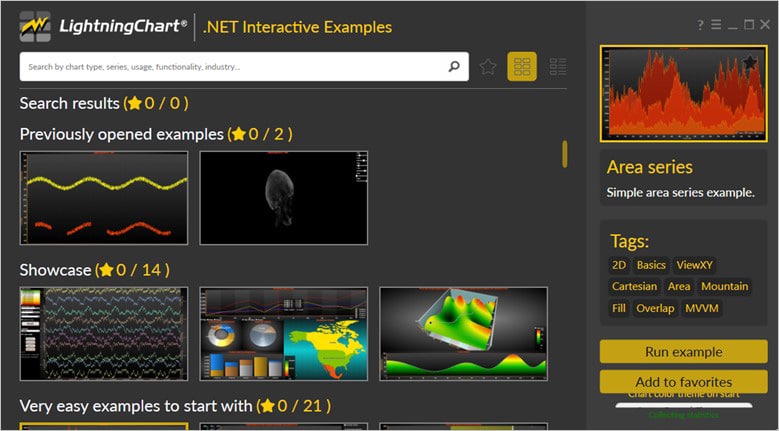
- LightningChart .NET Interactive Examples: now you can see 100+ interactive visualizations available for WPF, WinForms, and/or UWP though today we’re working with Smith Charts.
Visual Studio Project
Now let’s work with visual studio. The main difference between using the LightningChart .NET visualizer and Visual Studio, is that we will be able to analyze and experiment with many features in the source code. In the LC visualizer, select the surface mesh chart and run the example:

In the top-right zone of the windows, you will see the following options:
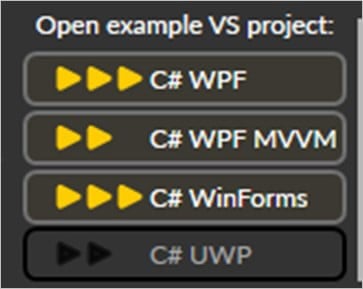
For trial SDK, we will be able to use the WPF and WinForms frameworks. If you are fully related to windows forms, this option will be more comfortable. In this case I will use the Windows Presentation Foundation framework.
After clicked the framework to use, we will need to specify a folder where the project will be created:
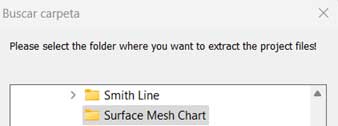
Finally, the project will be created, and the Visual Studio will be opened and ready for execution.
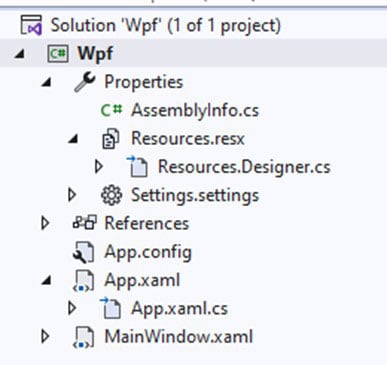
Code Review
The main code will be wrapped inside MainWindow.xaml.cs. Here we will find the code for UI controls.
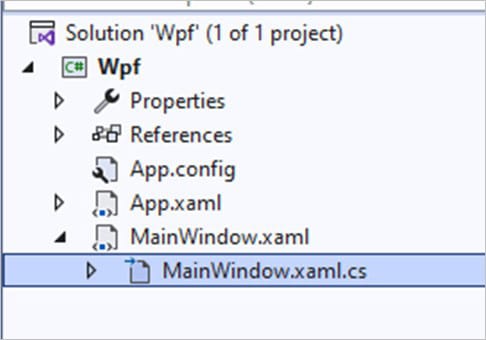
Inside the code we will check two methods that will create the properties that we need to draw correctly the chart. The interactive example is built with various user controls, to manipulate and change the visual properties of the chart. These controls are not required to generate this graph, so we will focus on the code responsible for generating the object.
CreateChart()
This main method will initialize many properties that are provided by the Lightning Chart .NET framework. The great advantage of creating this surface mesh chart is, if you have C# knowledge, this syntax will be easier for you.
_chart:
The chart object will contain the LightningChart constructor… basically, this will contain a new instance of a surface mesh chart object.
_chart = new LightningChart();Dispose() function and set the _chart object to null.gridChart.Children.Clear();
if (_chart != null)
{
_chart.Dispose();
_chart = null;
}
}We create a new instance of LightningChart and give the new surface mesh chart a name.
_chart = new LightningChart
            {
                ChartName = "Surface mesh chart"
            };
BeginUpdate:
_chart.BeginUpdate();Disables control repaints when a property is changed. Recommended when updating the status of many properties or updating series points.
3D View:
Let’s assign the 3D view type, which is necessary for the surface mesh chart. We assign an array with positioning values to the lights. Lights can be freely positioned anywhere in the 3D model space.
Several lights can be added to Lights. collection property. There are two different light types: Directional and Point of Light. Finally, we finish the chart update so that it begins to be generated. We assign the new instance to the grid (XAML).
_chart.ActiveView = ActiveView.View3D;
            _chart.View3D.Lights[0].Location.SetValues(30, 30, -30);
            _chart.EndUpdate();
            gridChart.Children.Add(_chart);
CreateMeshSeries()
This method will be responsible for generating the data series for our 3d surface plot. We’ll start by creating an instance of the SurfaceMeshSeries3D constructor. This constructor requires the view of our chart and the X, Y, and Z axes.
private void CreateMeshSeries()
        {
            SurfaceMeshSeries3D mesh = new SurfaceMeshSeries3D(_chart.View3D, Axis3DBinding.Primary,
                            Axis3DBinding.Primary, Axis3DBinding.Primary);
SurfaceMeshSeries3D is very similar to the SurfaceGridSeries3D as they both have mostly the same properties. The biggest difference is that the surface nodes can be freely positioned in a 3D space. That is, the surface does not have to be rectangular. SurfaceMeshSeries3D allows for the deformation of the surface. almost any shape, for example, a sphere or a human head.
Now we need to assign some graphical properties to our series:
mesh.ContourPalette = CreatePalette(mesh);
            mesh.WireframeType = SurfaceWireframeType3D.None;
            mesh.InitialValue = 30;
            mesh.FadeAway = 0;
            mesh.SetSize(int.Parse(textBoxWidth.Text), int.Parse(textBoxHeight.Text));
            mesh.DrawWireframeThrough = checkBoxDrawWireframeThrough.IsChecked.Value;
ContourPalette:
It allows us to assign a pattern of colors to the Y-axis. In this case, we make use of the ValueRangePalette constructor, which will help us create color steps, which are assigned to the polygons that meet the assigned values.
ValueRangePalette palette = new ValueRangePalette(ownerSeries)
            {
                MinValue = -40
            };
            palette.Steps.Clear();
            palette.Steps.Add(new PaletteStep(palette, Colors.Red, 20));
            palette.Steps.Add(new PaletteStep(palette, Colors.Blue, 50));
            palette.Steps.Add(new PaletteStep(palette, Colors.Lime, 100));
            palette.Steps.Add(new PaletteStep(palette, Colors.White, 150));
            palette.Type = PaletteType.Gradient;
WireFrameType:
- Type of wireframe: We can choose one option from the enum
SurfaceWireframeType3Dclass.
- InitialValue: Initial value for data Y. Clears the series. It is applied when creating or resizing a Data array.
- FadeAway: Fade away surface/waterfall towards the back (higher data row numbers), with a given percent. The valid range is from 0(no fade away) to 100 (complete fade away).
- setSize: Set grid size, both X and Z simultaneously. If you already have large data, using this method is faster than setting SizeX and SizeZ separately. In this example, the values are obtained from textboxes.
- DrawWireFrameThrough: If set, draw a wireframe through the filled surface, making it always visible from above the surface and below it. Alternatively, you may prefer setting this false and using WireframeOffset to shift the wireframe slightly up or down, making it visible only on the other side of the filled surface.
- Adding the series to the chart:
_chart.View3D.SurfaceMeshSeries3D.Add(mesh);GenerateDataWave()
This method is responsible for generating the wave shown in the chart. We will need to access the series we generated earlier. This string was assigned to a global variable called _mesh. From this series, we will extract the data and the X, and Y columns.
int columns = _mesh.SizeX;
            int rows = _mesh.SizeZ;

            double minX = _chart.View3D.XAxisPrimary3D.Minimum + 10.0;
            double maxX = _chart.View3D.XAxisPrimary3D.Maximum - 10.0;
            double minZ = _chart.View3D.ZAxisPrimary3D.Minimum + 10.0;
            double maxZ = _chart.View3D.ZAxisPrimary3D.Maximum - 10.0;
            double minY = _chart.View3D.YAxisPrimary3D.Minimum;
            double maxY = _chart.View3D.YAxisPrimary3D.Maximum;

            SurfacePoint[,] gridValueTable = _mesh.Data;
The values of the 3d surface plot will be modified. To obtain a new value of X and Z, we will make use of the X-axis columns, the elapsed time of the current form in milliseconds, the assigned value by the slider UI tool, and the support of the sine and cosine functions of the .NET Math library. These calculations will be processed for each row of our mesh series.
double bendAmplitude = 4.0 * sliderBendAmplitude.Value / rows * Math.Sin(_animationTimeLine.ElapsedMilliseconds / 2000.0);
            double heightAmplitude = 10.0 * Math.Abs(Math.Sin(_animationTimeLine.ElapsedMilliseconds / 4000.0));

            double z = minZ;
            for (int row = 0; row < rows; row++)
            {
                double x = minX;
                for (int colum = 0; colum < columns; colum++)
                {
                    double y = 1.0 + heightAmplitude * Math.Log(Math.Abs(x - totalX / 2.0) * Math.Abs(z - totalZ / 2.0));
                    if (y < 0.2)
                    {
                        y = 0.2;
                    }

                    gridValueTable[colum, row].X = x + bendAmplitude * Math.Sin(row / 2.0);
                    gridValueTable[colum, row].Z = z + bendAmplitude * Math.Cos(colum / 2.0);

                    gridValueTable[colum, row].Y = y;
                    gridValueTable[colum, row].Value = gridValueTable[colum, row].Y;
                    x += stepX;
                }
                z += stepZ;
            }
In order for these changes to be updated, we need to tell the chart that changes were made and it needs to be updated:
_mesh.InvalidateData();Final 3D Surface Plot Application
Here’s the final project WPF 3D surface plot:
In conclusion, in this article, we’ve created a WPF 3D Surface plot that features customizable properties and values. Creating a WPF surface mesh chart with LightningChart .NET offers a powerful and flexible solution for visualizing three-dimensional data in your applications.
As seen in this tutorial, we have easily generated a surface mesh chart that accurately represents complex data patterns and relationships. Notice that LightningChart .NET provides extensive customization options, allowing you to control the appearance, color mapping, and interaction of the surface mesh chart. See you in the next article!

Omar Urbano
Software Engineer


Continue learning with LightningChart

Trend Lines in Trading
Trend lines are among the simplest yet most powerful tools in technical analysis. They help traders visualize market direction, identify potential support and resistance levels, and make more informed trading decisions. Despite their simplicity, trend lines remain a...
Best Python Charting Library in 2026
Python's charting ecosystem is large, overlapping, and regularly misunderstood. Most comparison guides stop at Matplotlib, Plotly, and Seaborn. This one goes further: it covers what happens when your datasets grow large, your update rates increase, or your chart types...

Best TradingView Charting Library Alternative
TradingView's charting libraries are the most visible option for fintech developers. Visibility is not the same as capability. This guide is for developers who have hit the wall on candle count limits, watermark restrictions, branding requirements, real-time...



If you have any questions, feel free to contact us!



©LightningChart Ltd 2026. All rights reserved.