





Creating a One Trillion Data Points Data Application with LightningChart .NET
Tutorial
Written by a Human
Discover how to effectively visualize one trillion data points using LightningChart .NET for enhanced data analytics app development.
Omar Urbano
Software Engineer

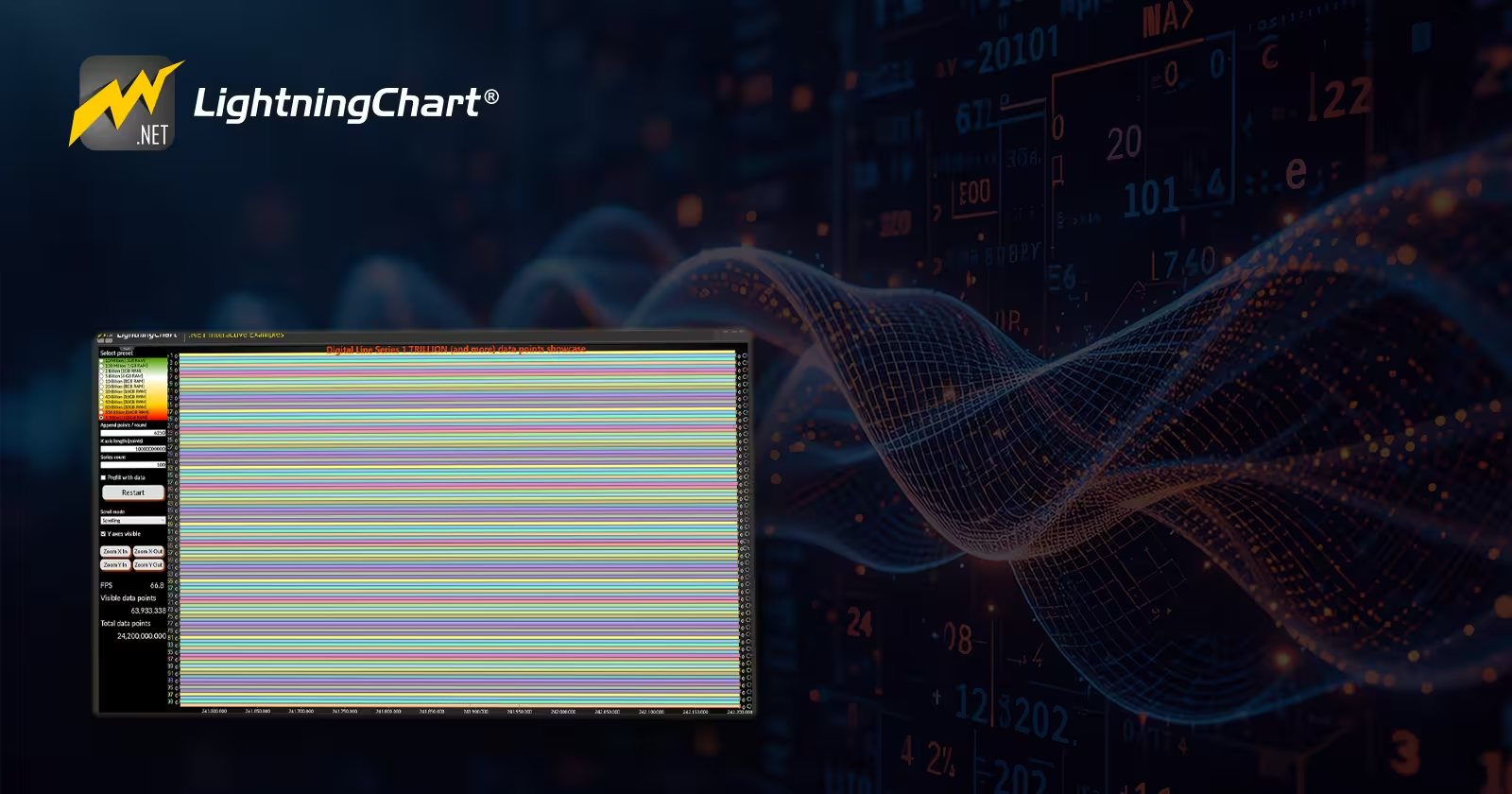
Introduction
Welcome to this new LightningChart .NET article. In this project, we’ll create a multi-channel chart where each channel runs as an independent object (or multiple threads) and add a process with a volume of up to 1 trillion points. We’ll use several UI controls that will allow us to manipulate the process in real time. About LightningChart .NET, the library is a highly optimized charting tool for .NET, especially useful when working with large volumes of data or real-time updates. Unlike more generic charting solutions, LightningChart .NET can smoothly handle millions of data points.
Threads and Concurrency
In programming, a thread is the basic unit of execution within a process. A single program can have multiple threads running in parallel, each tasked with performing specific tasks independently.
Why use threads?
Imagine an application that needs to process huge volumes of information (for example, up to 1 trillion data points in real time) and at the same time respond fluidly to user actions (such as clicks, scrolling, or window resizing). If all this load falls on a single thread, the interface can become slow, unresponsive, or even crash completely. To avoid this, secondary or “background” threads are used, which can handle intensive tasks without compromising the user’s experience.
What is concurrency?
Concurrency allows multiple tasks to be executed simultaneously or alternated between tasks efficiently. In the context of workload-intensive applications, it is common to have a main thread for the graphical interface, while other threads handle operations such as complex calculations, data analysis, or generating large volumes of information. In this project, we used a separate thread dedicated exclusively to generating and processing real-time data, capable of handling up to a trillion data points. This ensures that, even under a massive load of information, the graphical interface remains agile, fluid, and fully interactive.
Sampling Rate
The sampling rate indicates how many samples per second are taken from a continuous signal to convert it into digital data. For example, if you have a temperature sensor and want to record its value 100 times per second, then your sampling rate is 100 Hz (100 samples per second).
Why is it important?
An appropriate sampling rate is essential to accurately represent a signal. If you sample too slowly, you risk missing critical changes or generating imprecise data. On the other hand, sampling too fast may result in an overwhelming amount of data that can strain system resources.
In large-scale data environments (such as those processing up to 1 trillion (1,000,000,000,000) data points), choosing the right sampling rate becomes even more crucial. Efficient sampling ensures meaningful information is captured without overwhelming memory or computing capacity.
In this project, we use the sampling rate to simulate how many samples should have been generated based on the time elapsed, helping maintain a smooth and consistent chart update rhythm. This approach is designed to remain efficient and responsive, even when handling extremely high data volumes.
Well, with this brief introduction, I think we’re ready to move on with the project. Let’s get started!
Project Overview
To follow this project, download the ZIP file with all the necessary resources.
 Download the project to follow the tutorial
Local Setup
- OS: 32-bit or 64-bit Windows Vista or later, Windows Server 2008 R2 or later.
- DirectX: 9.0c (Shader model 3 and higher) or 11.0 compatible graphics adapter.
- Visual Studio: 2022 for development, not required for deployment.
- Platform .NET Framework: installed version 8.0 or newer.
Now go to the next URL and download LightningChart .NET. You’ll then be redirected to a sign-in form where you’ll have to complete a simple sign-up process to get access to your LightningChart account.

After signing in to your account, you can download the SDK “free trial” version that allows you to use important features for this tutorial. When you download the SDK, you’ll have a .exe file like this:

The installation will be a typical Windows process, so please continue with it until it is finished. After the installation, you will see the following programs:

License Manager
In this application, you will see the purchase options. All the projects that you will create with this trial SDK will be available for future developments with all features enabled.

Creating the project
Once you run the example in the “interactive examples” application, you will see the following option
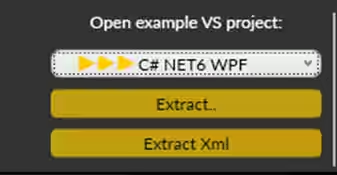
Lightning Chart can generate a project for the current selected chart, using Windows Presentation Foundation (WPF), WinForms, and their NET6 versions.
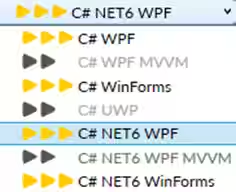
Once you select the extract option, you will have to create a new folder for the project
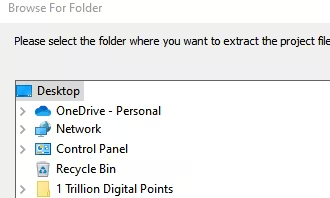
Once the project is saved, Visual Studio will open by itself, and you’ll see a project like this
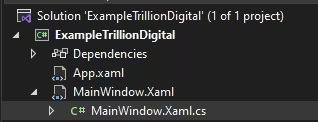
CreateChart
This CreateChart() code creates and configures a high-performance real-time chart using LightningChart, optimized to display massive datasets (up to a trillion points or more). It sets up:
- Smooth rendering and layout for fast updates.
- A scrolling X-axis for live data monitoring.
- Gradient effects to visually distinguish old vs. new data.
- Performance tweaks like memory cleanup and fixed margins.
- Then it adds the chart to the UI and starts data visualization.
Initialize and Configure the Chart
A new LightningChart object is created and updated within a BeginUpdate block for performance.
_chart = new LightningChart();

_chart.BeginUpdate();
_chart.ChartName = "1 Trillion Points";
_chart.ChartRenderOptions.DeviceType = RendererDeviceType.AutoPreferD11;
_chart.ChartRenderOptions.LineAAType2D = LineAntiAliasingType.QLAA;
It sets a title, rendering options like anti-aliasing, and DirectX rendering preferences to optimize performance for huge datasets (like 1 trillion points).
_chart.Title.Font.Size = 25;
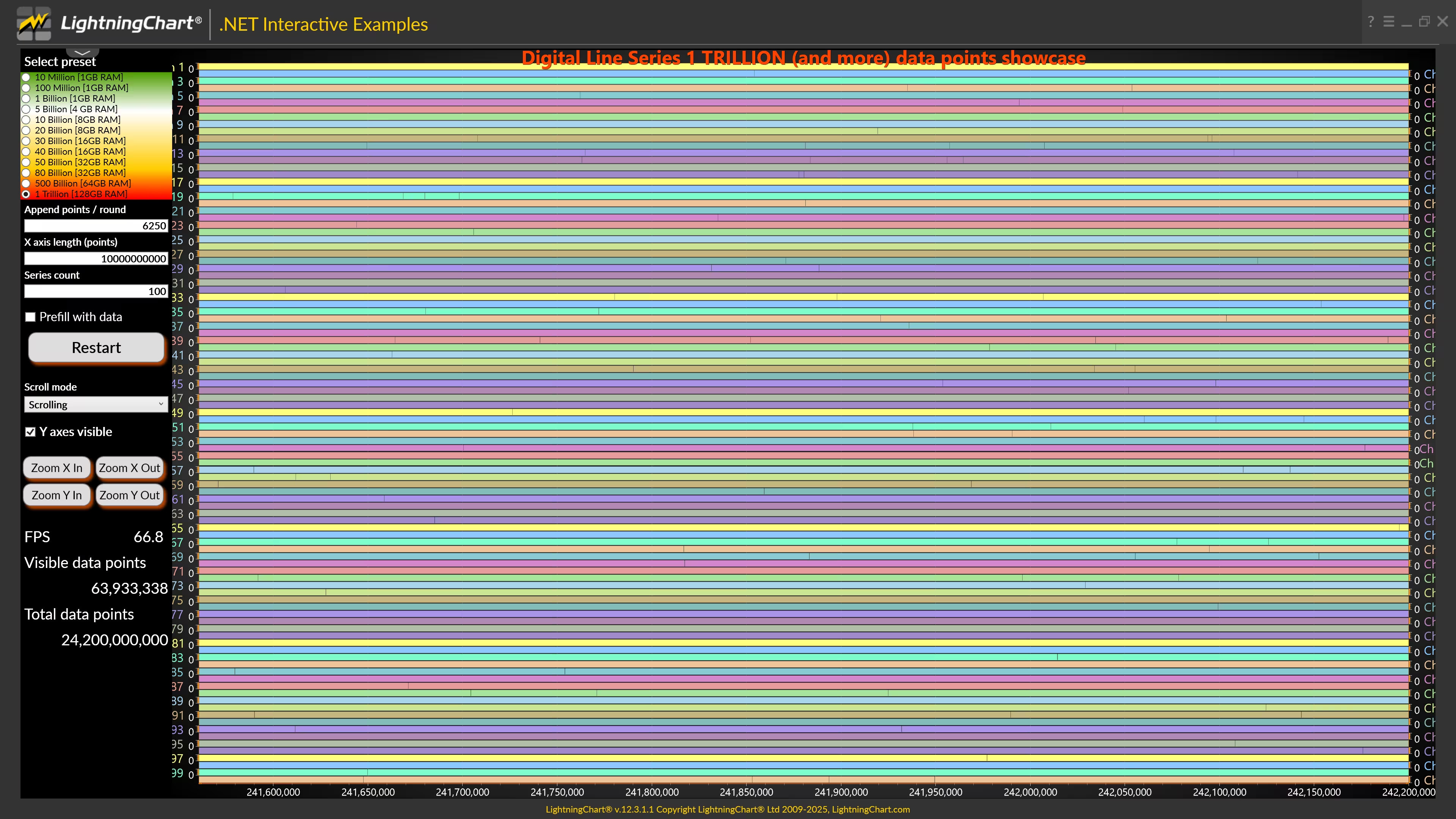
_chart.Title.Text = "Digital Line Series 1 TRILLION (and more) data points showcase";//"Set options and press Start.\nPC with 16GB RAM + fast graphics card is strongly recommended";
//_chart.Title.Color = Color.FromArgb(255, 255, 204, 0);
_chart.Title.Align = ChartTitleAlignment.TopCenter;

ViewXY view = _chart.ViewXY;
Set Up X-Axis for Real-Time Data Scrolling
The X-axis is configured for scrolling, meaning it moves automatically with incoming data. Label formatting, titles, and range are adjusted for clarity. Enables high-performance handling of continuous data by disabling label auto-formatting and setting a fixed range.
//Set real-time monitoring scroll mode
view.XAxes[0].ScrollMode = XAxisScrollMode.Scrolling;
view.XAxes[0].SweepingGap = 0;
view.XAxes[0].ValueType = AxisValueType.Number;
view.XAxes[0].AutoFormatLabels = false;
view.XAxes[0].LabelsNumberFormat = "N0";
view.XAxes[0].Title.Text = "Point number";
view.XAxes[0].SetRange(0, 100000);
view.XAxes[0].MajorGrid.Pattern = LinePattern.Solid;
view.XAxes[0].Units.Text = "Points";
Optimize View Layout and Performance
Enables real-time cleanup of old data (DropOldSeriesData = true) to save memory.
//Set real-time monitoring automatic old data destruction
view.DropOldSeriesData = true;
The Y-axis layout is stacked with custom spacing and positioning to make multiple series readable.
//Set Axis layout to Segmented
view.AxisLayout.YAxesLayout = YAxesLayout.Stacked;
view.AxisLayout.SegmentsGap = 2;
view.AxisLayout.YAxisAutoPlacement = YAxisAutoPlacement.LeftThenRight;
view.AxisLayout.YAxisTitleAutoPlacement = true;
Margins are fixed to prevent layout recalculations, which are expensive with large datasets.
// fix margins to prevent Graph resize, which may take long time for Billion points
view.AxisLayout.AutoAdjustMargins = false;
view.Margins = new Thickness(70, 35, 70, 40);
Add Visual Sweep Effects for Data Movement
Two gradient bands (dark and bright) are created and bound to the X-axis. These bands visually show the sweep or movement of data. One represents “old” data fading out (dark), and the other highlights “new” incoming data (bright).
//Create a dark sweeping gradient band for old page
Band sweepBandDark = new Band(view, view.XAxes[0], view.YAxes[0])
{
    BorderWidth = 0
};
sweepBandDark.Fill.Color = Color.FromArgb(255, 0, 0, 0);
sweepBandDark.Fill.GradientColor = Color.FromArgb(0, 0, 0, 0);
sweepBandDark.Fill.GradientFill = GradientFill.Linear;
sweepBandDark.Fill.GradientDirection = 0;
sweepBandDark.Binding = AxisBinding.XAxis;
sweepBandDark.AllowUserInteraction = false;
view.Bands.Add(sweepBandDark);

//Create a bright sweeping gradient band, for new page
Band sweepBandBright = new Band(view, view.XAxes[0], view.YAxes[0])
{
    BorderWidth = 0
};
sweepBandBright.Fill.Color = Color.FromArgb(0, 0, 0, 0);
sweepBandBright.Fill.GradientColor = Color.FromArgb(150, 255, 255, 255);
sweepBandBright.Fill.GradientFill = GradientFill.Linear;
sweepBandBright.Fill.GradientDirection = 0;
sweepBandBright.Binding = AxisBinding.XAxis;
sweepBandBright.AllowUserInteraction = false;
view.Bands.Add(sweepBandBright);
UI and Final Touches
The legend box is hidden to declutter the UI. The chart update ends with EndUpdate() to render everything in one go, improving efficiency.
 //Don't show legend box
 view.LegendBoxes[0].Visible = false;

 _chart.EndUpdate();
Add Chart to UI and Start Rendering
The chart is added to a UI grid layout at a specific row and column. Finally, it is called Start(), which is a method that begins the live data feed or simulation.
gridMain.Children.Add(_chart);
Grid.SetRow(_chart, 0);
Grid.SetColumn(_chart, 1);
Start();
Start()
The Start() method initializes the chart with a new digital line series, based on user inputs. It ensures a clean setup, generates all necessary data, configures axes and series, and optionally preloads data. It’s designed for high-speed, real-time plotting of binary-style signals across multiple channels.
Reset State and Hook Up Rendering Event
It resets counters for rounds, points, and renders frames. Stops a stopwatch used for performance tracking. Detaches and reattaches the CompositionTarget.Rendering event (this ensures a clean start for rendering). Updates the Start/Stop button text to say “Restart”.
//Start
_iRound = 0;
_pointsAppended = 0;
_framesRenderedCount = 0;

_stopWatch.Stop(); //this is started in the CompositionTarget_Rendering in first round

CompositionTarget.Rendering -= CompositionTarget_Rendering;
CompositionTarget.Rendering += CompositionTarget_Rendering;
buttonStartStop.Content = "Restart";
Read and Validate User Inputs
Retrieves values from input fields for Number of data series to show, Points to append per update round, X-axis length (range of time or point count). If any input is invalid, a message box is shown, and the method exits early.
//Read series count
try
{
    _seriesCount = int.Parse(textBoxSeriesCount.Text);
}
catch
{
    MessageBox.Show("Invalid series count text input");
    return;
}

//Read append count / round
try
{
    _appendCountPerRound = int.Parse(textBoxAppendCountPerRound.Text);
}
catch
{
    MessageBox.Show("Invalid append count");
    return;
}
Generate Input Data Before Charting
Calls CreateInputData() to pre-generate all the data that will be used. This avoids on-the-fly data generation, keeping the real-time charting smooth and fast.
_data = CreateInputData(_seriesCount, _appendCountPerRound);

_chart.BeginUpdate();
Clear Existing Chart Content
Calls helper methods to dispose of old series and Y-axes before drawing new ones. This prevents memory leaks or overlapping visuals from previous runs.
//Clear Data series
DisposeAllAndClear(v.DigitalLineSeries);

//Clear Y axes
DisposeAllAndClear(v.YAxes);
Create New Y-Axes and Data Series
For each series (based on user input), a new Y-axis is created with a custom color, title, and layout. A new digital line series is added, representing binary-like high/low signal lines. Sampling rate and initial timestamps are set for consistent data spacing. The final Y-axis includes a mini scale (small overview window) for better context when zooming or hiding axes.
//Series count of Y axes and SampleDataBlockSeries
for (int seriesIndex = 0; seriesIndex < _seriesCount; seriesIndex++)
{
    Color lineBaseColor = DefaultColors.SeriesForBlackBackgroundWpf[seriesIndex % DefaultColors.SeriesForBlackBackgroundWpf.Length];

    AxisY axisY = new AxisY(v);
    axisY.SetRange(YMin, YMax);

    axisY.Title.Text = string.Format("Ch {0}", seriesIndex + 1);
    axisY.Title.Angle = 0;
    axisY.Title.Color = ChartTools.CalcGradient(lineBaseColor, System.Windows.Media.Colors.White, 50);
    axisY.Units.Visible = false;
    axisY.AllowScaling = false;
    axisY.MajorGrid.Visible = false;
    axisY.MinorGrid.Visible = false;
    axisY.MajorGrid.Pattern = LinePattern.Solid;
    axisY.AutoDivSeparationPercent = 0;
    axisY.Units.Text = "mV";
    axisY.Visible = true;
    axisY.MajorDivTickStyle.Alignment = seriesIndex % 2 == 0 ? Alignment.Near : Alignment.Far;
    axisY.Title.HorizontalAlign = seriesIndex % 2 == 0 ? YAxisTitleAlignmentHorizontal.Left : YAxisTitleAlignmentHorizontal.Right;
Finalize Setup and Optionally Prefill Data
The X-axis is set to span the user-defined length. If the “Prefill” checkbox is checked, it preloads the chart with data, which may take a few seconds but gives immediate visual results. Finally, ends the update block with _chart.EndUpdate() to render everything in one go.
//Prefill with data, this may take several seconds
if (checkBoxPrefill.IsChecked == true)
{
    PrefillChartWithData();
}


_chart.EndUpdate();
CreateInputData()
The CreateInputData() method pre-generates all data points for each series in advance. It builds a 2D array of random digital-like patterns, ensuring that data can be added to the chart quickly and smoothly during real-time visualization.
  uint[][] data = new uint[seriesCount][];
//  System.Threading.Tasks.Parallel.For(0, seriesCount, (seriesIndex) =>
  for(int seriesIndex = 0; seriesIndex < seriesCount; seriesIndex++)
  {
      int dataPointCount = PreGenerateDataForRoundCount * appendCountPerRound;
      uint[] seriesData = new uint[dataPointCount];
      for (int i = 0; i < dataPointCount; i++)
      {
          switch((int)(rdm.NextDouble() * 5))
          {
              case 0:
                  seriesData[i] = 0x00000000;
                  break;
                  case 1:
                  seriesData[i] = 0xFF000000;
                  break;
              case 2:
                  seriesData[i] = 0x000000FF;
                  break;
              case 3:
                  seriesData[i] = 0x0000FF00;
                  break;
              case 4:
                  seriesData[i] = 0x000FF000;
                  break;
              case 5:
                  seriesData[i] = 0xFFFFFFFF;
                  break;
          }
      }
      data[seriesIndex] = seriesData;
  }//);
PrefillChartWithData()
The method PrefillChartWithData() fills the chart with pre-generated digital data before live updates begin. It uses parallel processing for speed, efficiently appends binary-style data, and sets the X-axis to the correct scroll position (so the chart looks active and responsive from the start).
//How many rounds to prefill in the series
int roundsToPrefill = (int)(0.9 * _xLen) / _appendCountPerRound / 32;

//How many points to prefill in the series
int pointCount = roundsToPrefill * _appendCountPerRound / 32;

System.Threading.Tasks.Parallel.For(0, _seriesCount, (seriesIndex) =>
{
    uint[] thisSeriesData = _data[seriesIndex];

    for (int round = 0; round < roundsToPrefill; round++)
    {
        uint[] dataArray = new uint[_appendCountPerRound];
        Array.Copy(thisSeriesData, (round % PreGenerateDataForRoundCount) * _appendCountPerRound, dataArray, 0, _appendCountPerRound);
        _chart.ViewXY.DigitalLineSeries[seriesIndex].AddBits(dataArray, false);
    }
});

_pointsAppended += pointCount * 32 * 32;
_iRound += roundsToPrefill;

//Set X axis real-time scrolling position
double lastX = _pointsAppended * XInterval;
_chart.ViewXY.XAxes[0].ScrollPosition = lastX;
FeedData()
FeedData() pushes the next chunk of data to the chart, advances the view, and adjusts visual effects to match the scroll behavior, making the chart look alive and in motion.
Append New Data to Each Series
For every series, it copies a slice of pre-generated data and appends it using AddBits(). This is done in parallel for speed, simulating a new “frame” of incoming digital signal data.
System.Threading.Tasks.Parallel.For(0, _seriesCount, (seriesIndex) =>
{
    uint[] thisSeriesData = _data[seriesIndex];
    uint[] dataToAppendNow = new uint[_appendCountPerRound];
    Array.Copy(thisSeriesData, (_iRound % PreGenerateDataForRoundCount) * _appendCountPerRound, dataToAppendNow, 0, _appendCountPerRound);
    _chart.ViewXY.DigitalLineSeries[seriesIndex].AddBits(dataToAppendNow, false);
});
Scroll the X-Axis to Show New Data
It updates the scroll position of the X-axis based on how many points have been added so far. It also keeps the chart moving forward in real-time.
_pointsAppended += _appendCountPerRound * 32;

//Set X axis real-time scrolling position
double lastX = _pointsAppended * XInterval;
_chart.ViewXY.XAxes[0].ScrollPosition = lastX;_pointsAppended += _appendCountPerRound * 32;

//Set X axis real-time scrolling position
double lastX = _pointsAppended * XInterval;
_chart.ViewXY.XAxes[0].ScrollPosition = lastX;
Update Sweep Bands Based on Scroll Mode
If the X-axis is in sweeping mode, it shows two gradient bands: 1) one for old data fading out (dark), and 2) one for new data (bright).
if (_chart.ViewXY.XAxes[0].ScrollMode == XAxisScrollMode.Sweeping)
{

    //Dark band of old page fading away
    double pageLen = _chart.ViewXY.XAxes[0].Maximum - _chart.ViewXY.XAxes[0].Minimum;
    double sweepGapWidth = pageLen / 20.0;
    _chart.ViewXY.Bands[0].SetValues(lastX - pageLen, lastX - pageLen + sweepGapWidth);
    if (_chart.ViewXY.Bands[0].Visible == false)
    {
        _chart.ViewXY.Bands[0].Visible = true;
    }


    //Bright new page band
    _chart.ViewXY.Bands[1].SetValues(lastX - sweepGapWidth / 6, lastX);
    if (_chart.ViewXY.Bands[1].Visible == false)
    {
        _chart.ViewXY.Bands[1].Visible = true;
    }
}
If not sweeping, it hides the bands to match the display mode.
else
{
    //Hide sweeping bands if not in sweeping mode
    if (_chart.ViewXY.Bands[0].Visible == true)
    {
        _chart.ViewXY.Bands[0].Visible = false;
    }

    if (_chart.ViewXY.Bands[1].Visible == true)
    {
        _chart.ViewXY.Bands[1].Visible = false;
    }
}
Conclusion
Working with massive data volumes, especially when they involve millions or even trillions of points across multiple real-time channels, is notoriously difficult. But LightningChart .NET transforms this complex challenge into a surprisingly simple and high-performance experience.
From the first steps, such as setting up charts and axes, to real-time data feeds and visual effects, the framework is designed for speed, scalability, and developer convenience. It can dynamically generate dozens (or even hundreds) of digital line series, each with its own Y-axis, style, and layout, all in just a few lines of code.
The library handles axis stacking, label placement, and even optimizations like pre-allocating space to avoid UI resizing delays when plotting large datasets. What LightningChart truly excels at is internal performance tuning.
Features such as bit-packed digital data (AddBits()), parallel data appending, GPU acceleration, and real-time memory management (e.g., automatically removing old data points) allow dozens of series to be updated simultaneously, seamlessly.
Another highlight is its support for visual continuity and responsiveness. Tools like sweeping gradient bands help users visually separate old and new data, while real-time scrolling and customizable prefill options ensure the chart looks real from the moment it appears. It not only displays data but presents it with clarity, fluidity, and context.
LightningChart .NET not only prioritizes performance but also respects the developer’s time and workflow. Whether you’re developing for scientific monitoring, industrial systems, financial indicators, or multi-channel diagnostics, the API is designed to adapt to your needs without overburdening you with complexity.
Continue learning with LightningChart
How to Set Up LightningChart JS in Cursor and Claude Code Using MCP, in Under 5 Minutes
A step-by-step guide to installing the LightningChart JS MCP server so your AI coding agent stops hallucinating chart APIs and starts writing production-ready code from the first prompt. AI coding agents are good at writing chart code. They are less good at writing...
The LightningChart JS Agent Skill: Give Any AI Coding Agent Accurate Charting Knowledge in 60 Seconds
An agent skill is a folder of instructions your AI coding tool picks up automatically. This one teaches any compatible agent how to use LightningChart JS correctly, before it writes a single line of chart code. Agent skills are a relatively new concept and the...
Why AI Coding Agents Get Data Visualization Wrong, and What to Do About It
AI coding assistants are getting good at most parts of application development. Data visualization is one of the areas where they still have a consistent, predictable failure mode. This article explains the mechanics of why it happens and the practical fix. I spent a...



If you have any questions, feel free to contact us!
©LightningChart Ltd 2025. All rights reserved.