








A Guide to Creating a Oscilloscope Chart in WPF
Tutorial
Step-by-step tutorial how to create an oscilloscope chart application in WPF using LightningChart .NET charting components.
Omar Urbano
Software Engineer

Introduction
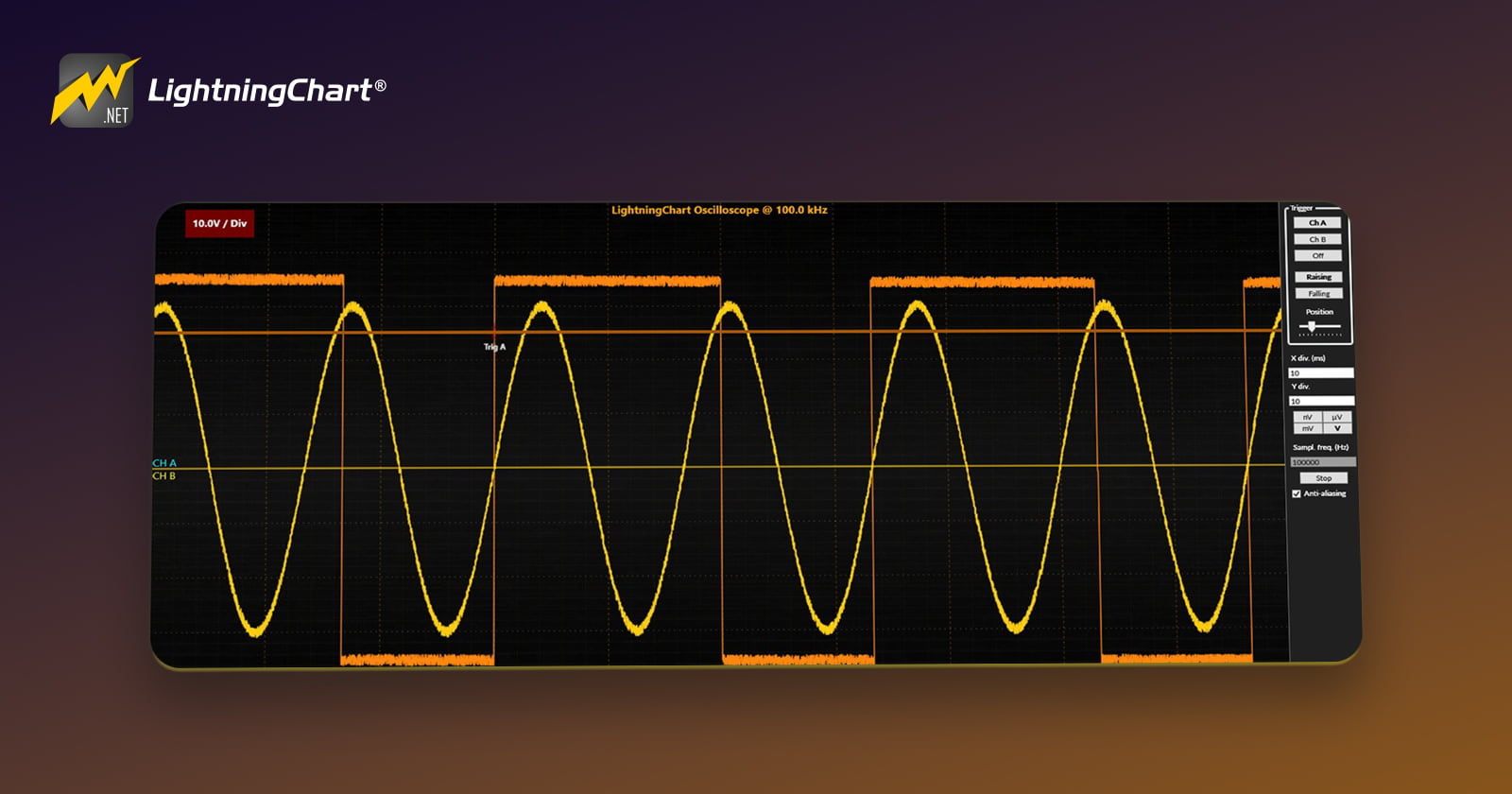
In this article, we will create an oscilloscope using LightningChart .NET. This project will have several user controls that allow modifying the values and the behavior of the waves within the application. We will use the WPF framework to create the user interface, add controls, and display the chart.
What is an oscilloscope?
It is an electronic measuring instrument that allows us to analyze and visualize voltage variations of an electrical signal. With this instrument, one can know how an electrical signal has changed within a predetermined period.

The oscilloscope consists of several components that facilitate the analysis task. The screen shows a graphical representation of the electrical signal. It is very normal to see two-dimensional representations meaning that we will only have X-Y axes, with X being the time variable and voltage being the Y axis.
Several parameters can be adjusted using the UI controls, for example, the time scale and the voltage scale. Many modern oscilloscopes have advanced functions such as spectrum analysis, automatic parameter measurement, and waveform storage.
There are two types of oscilloscopes, analog and digital.
- Analog oscilloscopes capture signals continuously and immediately
- Digital oscilloscopes convert the analog signal to digital
Digital conversion allows for more complex and precise analysis, adding much more complex functions and analysis tools, which could not be performed with a continuous signal. For example, data processing and storage, manipulation of previous time periods, and zooming in on specific areas of the signal.
Project Overview
This project is working with the .NET WPF framework. This framework allows us to work with the user interface and C# code at the same time. This project was created with version 8 of .NET, so I recommend that you install this version or the latest one. You will need Visual Studio 2022 or newer to be able to run it.

In this project, we will add some controls to the oscilloscope application. The UI controls feature a triggers section:

The channel trigger is the function that controls when the oscilloscope is triggered to begin capturing and displaying the signal. The raising and falling properties refer to the edges of the signal in the edge trigger function. These properties determine the type of transition in the signal that activates the trigger:
- Rising Edge: It is triggered when the signal changes from a low level to a high level. That is, the oscilloscope will start capturing the signal when it detects that it is rising.
- Falling Edge: It is triggered when the signal changes from a high level to a low level. The oscilloscope will start capturing the signal when it detects that it is going low.

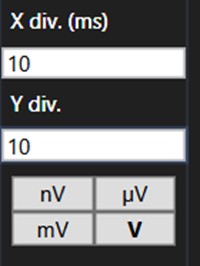
We can also modify the values of the axes, for instance, we can specify the number of milliseconds for the X-axis, the number of volts, and specify a study unit:
- Nanovolts (nV)
- Symbol: nV
- Equivalence: 1 nanovoltio (nV) = 10−910^{-9}10−9 voltios (V)
- Using: This unit is used to measure extremely low voltages, typical in high precision applications such as very small signal research or precision electronics.
- Microvolts (µV)
- Symbol: µV
- Equivalence: 1 microvolt (µV) = 10−610^{-6}10−6 volts (V)
- Using: It is also used to measure low voltages, but an order of magnitude higher than nanovolts. It is common in precise measurement applications and in the analysis of low-level signals.
- Milivolts (mV)
- Symbol: mV
- Equivalence: 1 milivolt (mV) = 10−310^{-3}10−3 voltios (V)
- Using: Millivolts are a common unit for measuring signals in many contexts, including electronic circuits and audio signal testing. It is useful for medium magnitude signals.
- Volts (V)
- Symbol: V
- Equivalence: 1 volt (V) = 10010^0100 volts (V)
- Using: Volts are used to measure higher voltages and are the standard unit in most electrical and electronic applications.
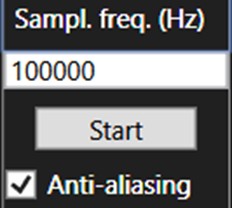
We can modify the sampling frequency by stopping the current signal, assigning the desired value, and restarting the signal process.
Sampling Frequency: This is the rate at which a digital system samples an analog signal. It is expressed in hertz (Hz) and defines how many samples are taken per second. The higher the sampling frequency, the more detailed the digital representation of the analog signal will be.
We can also eliminate or allow the aliasing effect. Aliasing is a phenomenon that occurs when a signal is sampled at a frequency that is insufficient to adequately capture its information, resulting in distortions or “aliases” in the digitized signal.
To prevent aliasing, we apply a low-pass filter to the analog signal before it is sampled. This filter eliminates higher frequencies that are above half the sampling frequency (Nyquist frequency), to prevent them from mixing with lower frequencies.

Markup
Markup enables us to build a user interface with a variety of controls, allowing us to manage the displayed results in the application with great precision. This interface development is done using XAML (Extensible Application Markup Language). While it might initially look like an XML template, XAML is specifically designed for building application interfaces rather than just exchanging data between applications. The interface’s data, graphics, and animations can either be pulled from an external source file or dynamically generated through the code behind it.
Code Behind
The code behind refers to the file containing the executable code responsible for reading, generating, and processing the results the user needs. One of its main purposes is to separate the graphical interface code (like XAML, HTML, CSS, etc.) from the executable code. This separation allows us to divide the work between user interface design and the development of the underlying code, leading to safer, more organized, and faster development.
In the case of WPF (Windows Presentation Foundation), we use the C# programming language. C# is an object/component-oriented language that fits well with this approach. Lightning Chart .NET generates WPF projects with C# code that’s ready for execution. Within this code, you can use LightningChart .NET own tools, which can be easily imported if the LC .NET framework is installed.
 Download the project to follow the tutorial
Local Setup
- OS: 32-bit or 64-bit Windows Vista or later, Windows Server 2008 R2 or later.
- DirectX: 9.0c (Shader model 3 and higher) or 11.0 compatible graphics adapter.
- Visual Studio: 2022 for development, not required for deployment.
- Platform .NET Framework: installed version 8.0 or newer.
Now go to the next URL and download LightningChart .NET. You’ll then be redirected to a sign-in form where you’ll have to complete a simple sign-up process to get access to your LightningChart account.

After signing in to your account, you can download the SDK “free trial” version that allows you to use important features for this tutorial. When you download the SDK, you’ll have a .exe file like this:

The installation will be a typical Windows process, so please continue with it until it is finished. After the installation, you will see the following programs:

License Manager
In this application, you will see the purchase options. All the projects that you will create with this trial SDK will be available for future developments with all features enabled.

XAML Code Review
The design of our application will be contained within the MainWindow.xaml file. For the user interface, we will only focus on creating oscilloscope controls.

<StackPanel Name="stackPanel1">
    <Button Content="Ch A" Margin="8,8,8,4" Name="buttonTriggerChA" Width="75" Click="ButtonTrigger_Click" FontWeight="Bold" />
    <Button Content="Ch B" Margin="8,4,8,4" Name="buttonTriggerChB" Width="75" Click="ButtonTrigger_Click" />
    <Button Content="Off" Margin="8,4,8,8" Name="buttonTriggerOff" Width="75" Click="ButtonTrigger_Click" />
    <Button Content="Raising" Margin="8,8,8,4" Name="buttonRaisingEdge" Width="75" Click="ButtonEdge_Click" FontWeight="Bold" />
    <Button Content="Falling" Margin="8,4,8,0" Name="buttonFallingEdge" Width="75" Click="ButtonEdge_Click" />
    <Label Content="Position" Height="28" HorizontalContentAlignment="Center" Margin="8,8,8,0" Name="label2" Foreground="White"/>
    <Slider Margin="8,0,8,8" Name="sliderXPosition" Width="75" TickPlacement="BottomRight" TickFrequency="10" Maximum="100" Value="30" ValueChanged="SliderXPosition_ValueChanged" SmallChange="1" LargeChange="5" />
</StackPanel>
The A/B/Off channel buttons will trigger the ButtonTrigger_Click method, while the Raising/Falling buttons will work in conjunction with the ButtonEdge_Click method. The position control will be a slider component, which will execute a value-changed event (SliderXPosition_ValueChanged).
<Label Content="X div. (ms)" Height="28" Name="label1" Foreground="White"/>
<TextBox x:Name="textBoxExXDiv" Text="10" TextChanged="TextBoxExXDiv_TextChanged" />
<Label Content="Y div." Height="28" Name="label3" Foreground="White"/>
<TextBox x:Name="textBoxExYDiv" Text="10" TextChanged="TextBoxExYDiv_TextChanged" />
<Grid Height="8"/>
<StackPanel HorizontalAlignment="Center" Name="stackPanel3" Orientation="Horizontal">
    <Button Content="nV" Name="buttonRange_nV" Width="46" Click="ButtonRange_Click" />
    <Button Content="µV" Name="buttonRange_uV" Width="46" Click="ButtonRange_Click" />
</StackPanel>
<StackPanel HorizontalAlignment="Center" Name="stackPanel4" Orientation="Horizontal">
    <Button Content="mV" Name="buttonRange_mV" Width="46" Click="ButtonRange_Click" />
    <Button Content="V" Name="buttonRange_V" Width="46" Click="ButtonRange_Click" FontWeight="Bold" />
</StackPanel>
Text fields will execute a text changed event, while voltage unit buttons will execute the ButtonRange method.
<Label Content="Sampl. freq. (Hz)" Height="28" Name="label11" Foreground="White"/>
<TextBox x:Name="textBoxExSamplingFrequency" Text="100000" TextChanged="TextBoxSamplingFrequencyA_TextChanged"/>
<Grid Height="8"/>
<Button Content="Start" Name="buttonStartStop" Width="75" Click="ButtonStartStop_Click" />
<Grid Height="8"/>
<CheckBox VerticalAlignment="Center" Name="checkBoxEnhancedAA" Checked="CheckBoxEnhancedAA_CheckedChanged" Unchecked="CheckBoxEnhancedAA_CheckedChanged" IsChecked="True" Foreground="White">Anti-aliasing</CheckBox>
The start button will execute the ButtonStartStop method, and the checkbox component will execute the CheckBoxEnhancedAA method.
Oscilloscope Signal Components
We will start by creating our signal component. To create our signal, we will use 4 components:
- SignalGenerator: This component can be used to generate real-time signals. The signal is produced as the sum of different waveforms. Several SignalGenerator components can be linked by a master-slave relationship, to produce a synchronized, multi-channel output.
_genA = new SignalGenerator
{
    Name = "generatorA"
};
_genA.WaveformSines.Clear();
_genA.WaveformRandomNoises.Clear();
_genA.SamplingFrequency = 100000;
_genA.OutputInterval = 2;
_genA.ThreadType = ThreadType.Thread;
_genA.MultiCoreProcessing = true;
_genA.ThreadInvoking = false;
SineComponent
Sine waveform is constructed with Amplitude, Offset, Frequency, and DelayMs parameters.
- Amplitude is the maximum voltage difference from zero level. Note that the total range is bipolar. The peak-to-peak value will be 2 * Amplitude.
- Offset is DC level added to the signal. In other words, positive values shift the signal up and negative values shift it down in the value range.
- Frequency tells the signal cycle count in Hertz. One cycle per second is a frequency of 1 Hertz.
- DelayMs delays in the signal in milliseconds.

SineComponent sineCompA = new SineComponent
{
    Amplitude = 1,
    DelayMs = 0,
    Frequency = 2,
    Offset = 0,
    Enabled = true
};
_genA.WaveformSines.Add(sineCompA);
SquareComponent
Square waveform has one more parameter compared to sine waveforms, Symmetry. The range for Symmetry is 0…1. Symmetry tells how long the signal stays in high state, related to cycle period. With a value of 0.5 the low and high states of the signal are of equal lengths.

SquareComponent squareCompA = new SquareComponent
{
    Amplitude = 35,
    DelayMs = 0,
    Enabled = true,
    Frequency = 30,
    Offset = 0,
    Symmetry = 0.6
};
_genA.WaveformSquares.Add(squareCompA);
RandomNoiseComponent
A noise waveform is a randomly generated signal. Points get randomized between –Amplitude and +Amplitude.

RandomNoiseComponent noiseA = new RandomNoiseComponent
{
    Amplitude = 1,
    Enabled = true
};
_genA.WaveformRandomNoises.Add(noiseA);
CreateChart()
This method will be responsible for configuring our chart object, assigning visual properties, such as the background color and creating our axes.
//Set graph background
_chart.ViewXY.GraphBackground.Color = Color.FromArgb(255, 0, 64, 64);
_chart.ViewXY.GraphBackground.GradientColor = Colors.Black;
_chart.ViewXY.GraphBackground.GradientDirection = 90;
_chart.ViewXY.GraphBackground.GradientFill = GradientFill.Cylindrical;

//Disable automatic axis layouts
_chart.ViewXY.AxisLayout.AutoAdjustMargins = false;
_chart.ViewXY.AxisLayout.XAxisAutoPlacement = XAxisAutoPlacement.Off;
_chart.ViewXY.AxisLayout.YAxisAutoPlacement = YAxisAutoPlacement.Off;
_chart.ViewXY.AxisLayout.XAxisTitleAutoPlacement = false;
_chart.ViewXY.AxisLayout.YAxisTitleAutoPlacement = false;
We will add the ability to zoom by area drawn with the mouse cursor. This area will have a transparent white color, and will help us select a specific area of study:
_chart.ViewXY.ZoomPanOptions.DevicePrimaryButtonAction = UserInteractiveDeviceButtonAction.Zoom;
_chart.ViewXY.ZoomPanOptions.DeviceSecondaryButtonAction = UserInteractiveDeviceButtonAction.Pan;
_chart.ViewXY.ZoomPanOptions.ZoomRectLine.Color = Colors.White;
_chart.ViewXY.ZoomPanOptions.ZoomRectLine.Width = 3;
We set the chart’s X-axis to be very minimalist and non-visible, with no tick marks, labels, or scrolling or scaling capabilities.
AxisX axisX = _chart.ViewXY.XAxes[0];
axisX.Maximum = 0.01;
axisX.SweepingGap = 0;
axisX.ScrollMode = XAxisScrollMode.Triggering;
axisX.SteppingInterval = 0.001;
axisX.MinorGrid.Visible = false;
axisX.AllowScaling = false;
axisX.AllowScrolling = false;
axisX.AxisThickness = 0;
axisX.MajorDivTickStyle.Visible = false;
axisX.MinorDivTickStyle.Visible = false;
axisX.MajorGrid.Color = colorMajorGrid;
axisX.LabelsVisible = false;
axisX.MinorGrid.Visible = false;
axisX.AutoDivSpacing = false;
axisX.MajorDivCount = 10;
axisX.KeepDivCountOnRangeChange = true;
axisX.Title.Visible = false;
axisX.Visible = false;
We will now configure the Y axis, hiding several of its visual features such as the title, labels, and tick marks, while setting properties such as the range, grid color, and minor grid visibility. We also ensure that the axis cannot be scaled or shifted and associate it with an event that handles changes in the range.
AxisY axisY = new AxisY(_chart.ViewXY)
{
    Maximum = 200,
    Minimum = -200,
    AutoDivSpacing = false,
    MajorDivCount = 10
};
axisY.Title.Visible = false;
axisY.Title.Angle = 0;
axisY.Title.HorizontalAlign = YAxisTitleAlignmentHorizontal.Right;
axisY.Title.VerticalAlign = YAxisTitleAlignmentVertical.Top;
axisY.MiniScale.Offset.SetValues(axisY.MiniScale.Offset.X - 10, axisY.MiniScale.Offset.Y);
axisY.MajorGrid.Color = colorMajorGrid;
axisY.MajorDivTickStyle.Visible = false;
axisY.MinorDivTickStyle.Visible = false;
axisY.MinorGrid.Color = Color.FromArgb(40, 255, 255, 255);
axisY.MinorGrid.Visible = true;
axisY.LabelsVisible = false;
axisY.AxisThickness = 0;
axisY.AllowScaling = false;
axisY.AllowScrolling = false;
axisY.RangeChanged += Axis1_RangeChanged;
_chart.ViewXY.YAxes.Add(axisY);
Now we’ll create our two simple series for the chart, setting visual properties such as title, line color, line width, and data formatting.
SampleDataSeries ls1 = new SampleDataSeries(_chart.ViewXY, axisX, axisY);
ls1.Title.Text = "CH A";
ls1.Title.HorizontalAlign = AlignmentHorizontal.Left;
ls1.Title.AllowUserInteraction = false;
ls1.Title.Offset.SetValues(0, -10);
ls1.Title.Visible = true;
ls1.LineStyle.Color = Colors.Cyan;
ls1.Title.Color = ls1.LineStyle.Color;
ls1.LineStyle.Width = 1f;
ls1.LineStyle.AntiAliasing = LineAntialias.None;
ls1.SampleFormat = SampleFormat.SingleFloat;
_chart.ViewXY.SampleDataSeries.Add(ls1);
SampleDataSeries is the line series used for presenting sampled signal data (discrete signal data). This is generally used in real-time DSP applications. Visually, it is like PointLineSeries, so all line and point formatting options apply. As SampleDataSeries has a fixed sample interval, there’s no need to reserve memory to store point X values.
X-axis Triggering
The X-axis position is determined by a series value exceeding or falling below a trigger level. Use the Triggering property to set the triggering options. Triggering can be set active by enabling Triggering.TriggeringActive property.
One series must be set as a triggering series. Accepted triggering series types are PointLineSeries and SampleDataSeries. Set the triggering Y level with Triggering.TriggerLevel. Use Triggering.TriggeringXPosition to order where the level triggered point will be drawn horizontally, as percent of graph width.

// Configure x-axis. triggering
axisX.Triggering.StaticMajorXGridOptions.Visible = true;
axisX.Triggering.StaticMinorXGridOptions.Visible = true;
axisX.Triggering.StaticMinorXGridOptions.DivCount = 5;
axisX.Triggering.TriggerSeriesType = TriggeringSeriesType.SampleDataSeries;
axisX.Triggering.TriggerLineSeriesIndex = 0;
axisX.Triggering.TriggeringActive = true;
axisX.Triggering.TriggerLevel = cls.Value;
axisX.Triggering.TriggeringPositionChanged += new Triggering.TrigPositionChangedHandler(TrigViewOptions_OnTrigPosChanged);

EventMarkerTitle eventLabelTrig1 = new EventMarkerTitle(null)
{
    Text = "Trig A",
    Color = Color.FromArgb(240, 255, 255, 255),
    Font = new WpfFont("Segoe UI", 12.0, true, false)
};
SeriesMarkerPointShapeStyle symbolTrig1 = new SeriesMarkerPointShapeStyle(null, SeriesMarkerPointShape.CrossAim, Colors.Red,
    Color.FromArgb(0, 255, 0, 0), Colors.White, Color.FromArgb(160, 0, 0, 0),
    30, 30, 0, 0, 1, GradientFillPoint.Edge, Direction.Right, null);

SeriesEventMarker trigSeries1Marker = new SeriesEventMarker(
    ls1, symbolTrig1,
    SeriesEventMarkerVerticalPosition.AtYValue,
    0, axisX.Triggering.TriggerLevel, eventLabelTrig1)
{
    //don't show it yet
    Visible = false,
    AllowDragging = false
};
When using a triggered X-axis scroll position, it is usually unsuitable to show the regular X-axis with values and grid because of jumping from one place to another based on the incoming series data.
- Approach 1 – Use static X grid: Hide the regular X-axis objects by setting
XAxis.Visible = false (or LabelsVisible = false, MajorGrid.Visible = falseandMinorGrid.Visible = false). Then, show the static X grid by settingTriggering.StaticMajorXGridOptionsandTriggering.StaticMinorXGridOptions.
- Approach 2: Create another X-axis, with the preferred scale, and set it to the ViewXY collection. Don’t assign the second XAxis for the series. For scale indication, use the Y-axis MiniScale or define an Annotation object to show a range like “200 ms/div”.
PutSamplesToChart
The code updates the chart by adding new sample data to each line series, adjusting event markers, and updating the X-axis scroll position. It ensures the chart is updated efficiently by batching the changes and recalculating the scroll position to include the latest data.
Update Each Line Series with New Samples:
int pointCount = samples[0].Length;
double sampingFrequency = _genA.SamplingFrequency;
int generatorInput = 0;

foreach (PointLineSeriesBase ls in _chart.ViewXY.GetAllLineSeries())
{
    SampleDataSeries discrete = ls as SampleDataSeries;

    float[] sample = new float[pointCount];
    for (int i = 0; i < pointCount; i++)
    {
        sample[i] = (float)samples[generatorInput][i];
    }

    discrete.AddSamples(sample, false);

    //Move tracing hot point
    if (ls.SeriesEventMarkers.Count > 0 && (pointCount > 0))
    {
        ls.SeriesEventMarkers[0].XValue = firstSampleTimeStamp + (pointCount - 1) / sampingFrequency;
        ls.SeriesEventMarkers[0].YValue = samples[generatorInput][pointCount - 1];
    }
    generatorInput++;
}

//Set latest x
_newX = firstSampleTimeStamp + (pointCount - 1) / sampingFrequency;
_chart.ViewXY.XAxes[0].ScrollPosition = _newX;- Iterates through all line series in the chart.
- Casts each line series to
SampleDataSeries. - Creates a new float array (sample) to hold the current set of samples.
- Copies sample data from samples to sample for the current
generatorInput. - Adds the sample data to the discrete series without triggering an immediate redraw (false parameter).
- If the line series has event markers and there are data points, it updates the first event marker’s position to reflect the last sample’s X and Y values.
firstSampleTimeStampand the last sample value are used to update the marker.
Gen_OnStarted
This code resets the chart by clearing all line series data, configuring properties for SampleDataSeries objects, disabling user interaction, clearing event markers, and resetting the X-axis scroll position. Finally, it updates the chart’s title to reflect the current sampling frequency. This setup is likely done to prepare the chart for new data or a fresh display.
Iterate Through Each Line Series:
IList<PointLineSeriesBase> listLines = _chart.ViewXY.GetAllLineSeries();
foreach (PointLineSeriesBase ls in listLines)
{
    ls.Clear();
    if (ls is SampleDataSeries)
    {
        SampleDataSeries discrete = ls as SampleDataSeries;
        discrete.FirstSampleTimeStamp = 1.0 / _genA.SamplingFrequency;
        discrete.SamplingFrequency = _genA.SamplingFrequency;
    }
    ls.AllowUserInteraction = false;
}

_chart.ViewXY.ChartEventMarkers.Clear();
_chart.ViewXY.XAxes[0].ScrollPosition = 0;

string frequencyText = (_genA.SamplingFrequency / 1000.0).ToString("0.0");
_chart.Title.Text = string.Format("LightningChart Oscilloscope @ {0} kHz", frequencyText);- Loops through each line series in the list.
Clear(): Clears all data from the current line series, effectively resetting it.
- Type Checking and Casting:
- If the line series (ls) is of type SampleDataSeries, it performs additional operations:
discrete.FirstSampleTimeStamp = 1.0 / _genA.SamplingFrequency: Sets the timestamp for the first sample based on the sampling frequency.discrete.SamplingFrequency = _genA.SamplingFrequency: Updates the sampling frequency for the series.ls.AllowUserInteraction = false: Disables user interaction with the line series, making it static.
Conclusion
Thank you for coming this far, I hope you liked this oscilloscope chart tutorial. I had to skip the explanation of basic LC .NET functions since they are very recurrent in each article, but they are not complicated to understand. For example, the drawing of the chart (BeginUpdate, EndUpdate).
We mainly focused on the theory of the components that make up the signals within an LC .NET charting application. The oscilloscope topic is one of my favorites since one of my hobbies is music production, and I am used to analyzing digital signals. Although the application is a little different, it is visually familiar to me.
In this interactive oscilloscope chart example, we have a process that generates data points. If you want to apply it to a real study, you can use almost all the code from this project. LC .NET aims to make it easy for us to create each of its charts, requiring only one object with data points, and if we respect that logic, we should only focus on mapping our information and delivering it to the chart.
As mentioned in the code explanation, signal series are very similar to dotted line series, so I recommend looking at the articles that use this type of series. If you have any questions, requests, or comments, I would appreciate it if you contacted us. Bye!
Continue learning with LightningChart
![[Tutorial] How to embed interactive charts in PowerPoint presentations](https://lightningchart.com/wp-content/uploads/2022/12/Interactive-Charts-in-PowerPoint-feature-image.jpg)
[Tutorial] How to embed interactive charts in PowerPoint presentations
Written by a human | Updated on April 9th, 2025Embed interactive charts in PowerPoint presentations Embedding charts within PowerPoint presentations has always been possible but perhaps one of the most ignored possibilities is actually embedding web applications...

Motorsports Analytics
Updated on April 10th, 2025 | Written by human Motorsports Analytics Large companies in the motorsports industry are collecting huge volumes of real-time data coming from different sources on and off the pitch during racing competitions. These data are both...
High-Performance Charting Controls for Fintech App Development
Written by a human | Updated on April 10th, 2025Charting Controls for Fintech Apps Money makes the world go round and as such, tracking and controlling financial transactions and information are some of the most important activities to do for any...



If you have any questions, feel free to contact us!



©LightningChart Ltd 2026. All rights reserved.