








Modern WPF UI Controls for Developing Data Applications
Article
A guide to creating desktop data applications with LightningChart .NET modern WPF UI Controls.
Omar Urbano
Software Engineer

Introduction
If you have been following my content, you will be familiar with my articles about programming with Windows Presentation Foundation (WPF). In each article, I give a brief explanation about the WPF framework, code-behind, and UI. Well, in this article, I will focus a bit more on the theory to clarify and expand previous knowledge on how to use LightningChart .NET modern WPF UI controls.
LightningChart .NET has a variety of 2D and 3D modern WPF UI controls and tools to implement XY charts in WPF, allowing customizing, updating, or modifying the content of the chart directly from the code behind, sending the complete object directly to an XAML component.
An XY chart can be defined as a two-dimensional map that has an X-axis and a Y-axis. LightningChart .NET needs a chart-type object to add the data series. This data series is an array with numeric values that must comply with a format supported by LightningChart.
This array cannot be sent directly to the chart, so it needs to be assigned to a series. This series can be a line or points-lines, bars, areas, polygons, etc. Below we will see each of the series offered by LC .NET modern WPF UI controls and brief lines of code for their implementation.
What is WPF?
Windows Presentation Foundation (WPF) is a framework for developing Windows desktop applications. WPF offers the ability to create graphical interfaces capable of supporting 2D and 3D graphics with the help of components that can be dragged, customized, and configured interactively or through the XAML language. WPF offers an interactive framework that contains a panel of tools and components that we can use to build applications.
XAML stands for eXtensible Application Markup Language and is a language used primarily in Microsoft technologies, such as UWP and Xamarin. If you have worked with HTML, you may feel somewhat familiar with XAML, as each component is declared within tags with visual properties, similar to the styles of HTML components.
In XAML, the word extensible refers to the ability to define custom components to generate unique, rich, and adaptable user interfaces. On the other hand, WPF allows direct communication between XAML components and the code behind, thanks to events, properties, and data binding. This communication executes processes when necessary or when the user executes a component.
- Events: Events are mechanisms that execute an action when they occur. For example, the OnClick event will occur when the user clicks on a button. When this event occurs, any logic created within the event will be activated.
<Button Content="Click Me" Click="Button_Click"/>- Properties: These are attributes that refer to XAML components by using a name or ID. Properties allow accessing components from the code behind as if they were programming objects. In this way, we can modify their content programmatically. It is important to consider the type of data that our component supports to use it correctly through their properties.
<TextBlock x:Name="myTextBlock" Text="Hello"/>

myTextBlock.Text "New Text"- Data Binding: This is one of the most important capabilities of WPF. It allows us to directly link the content of components with any object declared in the code. These allow having an interface with dynamic content, offering better security and stability for applications.
<TextBox Text="{Binding MyProperty}"/>

public string MyProperty { get; set; }
Code Behind

In simple words, the code behind is the programming code associated with the user interface. Unlike some web programming languages where we can find embedded code, WPF allows us to have the code in independent files helping the readability and maintenance of the application.
As mentioned above, WPF keeps the user interface, and the code associated allowing interaction with each component from both sides. While the user interface defines the components and their visual properties, the code behind manages each of the events supported by the framework, updates the content, or validates the actions performed by the user.
The code behind uses C# object-oriented programming which gives access to most classes, libraries, methods, and functions that WPF framework offers. Therefore, you will be able to access databases, files, images, HTTP requests, etc., with the ability to process and generate results on the client side.
Advantages of code-behind:
- Clarity: Makes it easier to understand the application flow by keeping the logic separate from the interface.
- Ease of use: Allows developers to work on business logic without interfering with the visual design.
- Direct interaction: You can easily access controls and their properties.
SampleDataBlockSeries
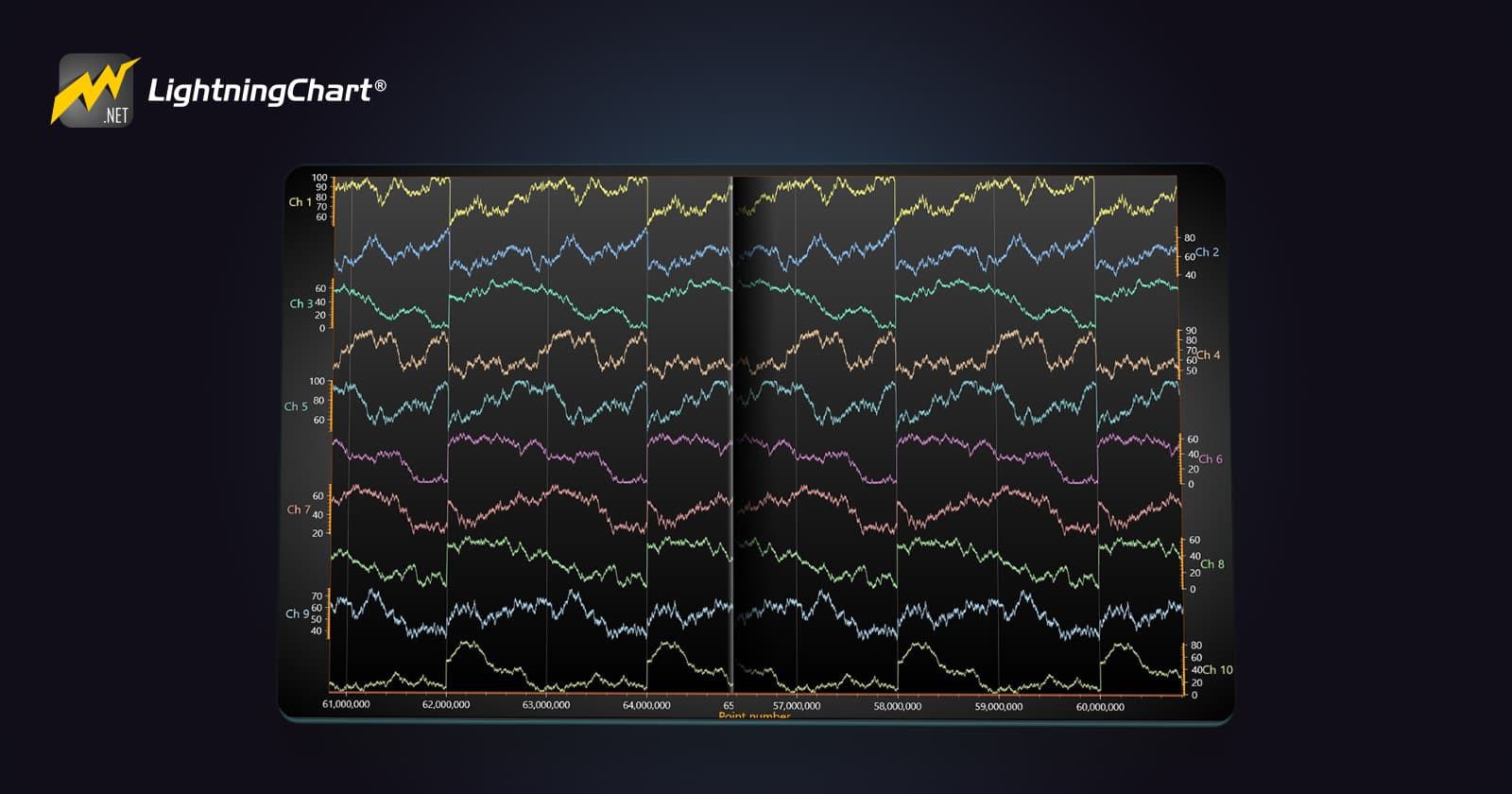
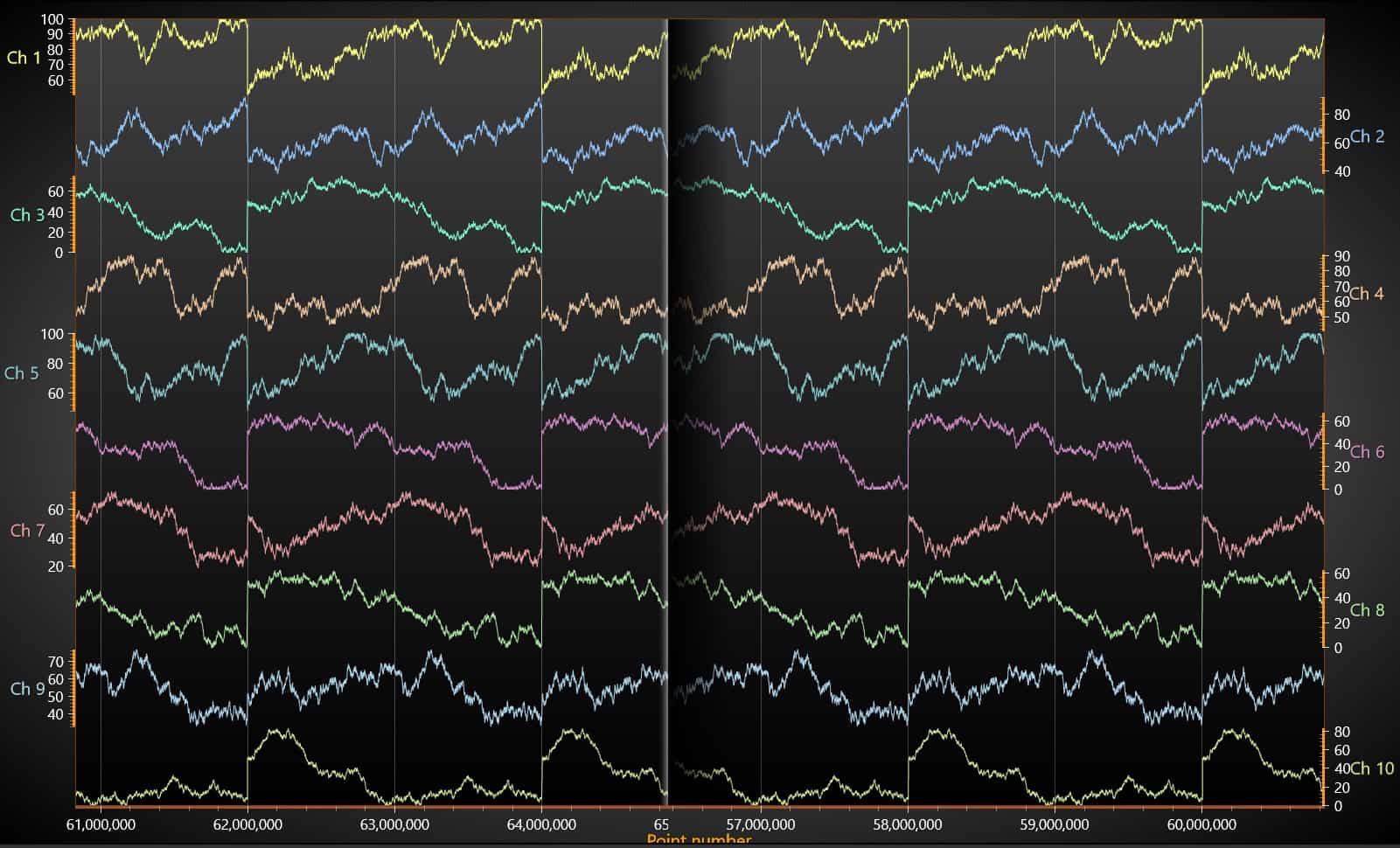
The SampleDataBlockSeries is an enhanced version of the SampleDataSeries and is specifically designed for real-time and streaming data applications. It maximizes performance while minimizing CPU and memory usage, enabling the simultaneous rendering of a vast number of data points.
As indicated by its name, data is organized into blocks that are managed individually in memory, eliminating the requirement for large contiguous memory spaces. This makes SampleDataBlockSeries ideal for real-time medical monitoring applications like ECG/EKG and EEG, as well as for industrial monitoring, telemetry, and waveform vibration analysis.
Implementation:
ViewXY view = _chart.ViewXY;

//Set real-time monitoring scroll mode
view.XAxes[0].ScrollMode = XAxisScrollMode. Scrolling;
view.XAxes[0].SweepingGap = 0;
view.XAxes[0].ValueType = AxisValueType. Number;
view.XAxes[0].AutoFormatLabels = false;
view.XAxes[0].Labels NumberFormat = "NO";
view.XAxes[0].Title.Text = "Point number";
view.XAxes[0].SetRange(0, 100000);
view.XAxes[0].MajorGrid. Pattern LinePattern. Solid;
view.XAxes[0].Units.Text = "Points";
It is necessary to create a ViewXY object. For streaming purposes, it’s necessary to use the scrolling mode, since we will display data coming from left to right.
Band sweepBand Dark = new Band (view, view. XAxes[0], view. YAxes[0])
{
	BorderWidth = 0
};
sweepBandDark. Fill. Color Color. FromArgb(255, 0, 0, 0);
sweepBandDark. Fill. GradientColor = Color.FromArgb(0, 0, 0, 0);
sweepBandDark. Fill. GradientFill = GradientFill.Linear;
sweepBandDark. Fill. GradientDirection = 0;
sweepBandDark. Binding = AxisBinding.XAxis;
sweepBandDark.AllowUserInteraction = false;
view.Bands.Add(sweepBandDark);
PointLineSeries
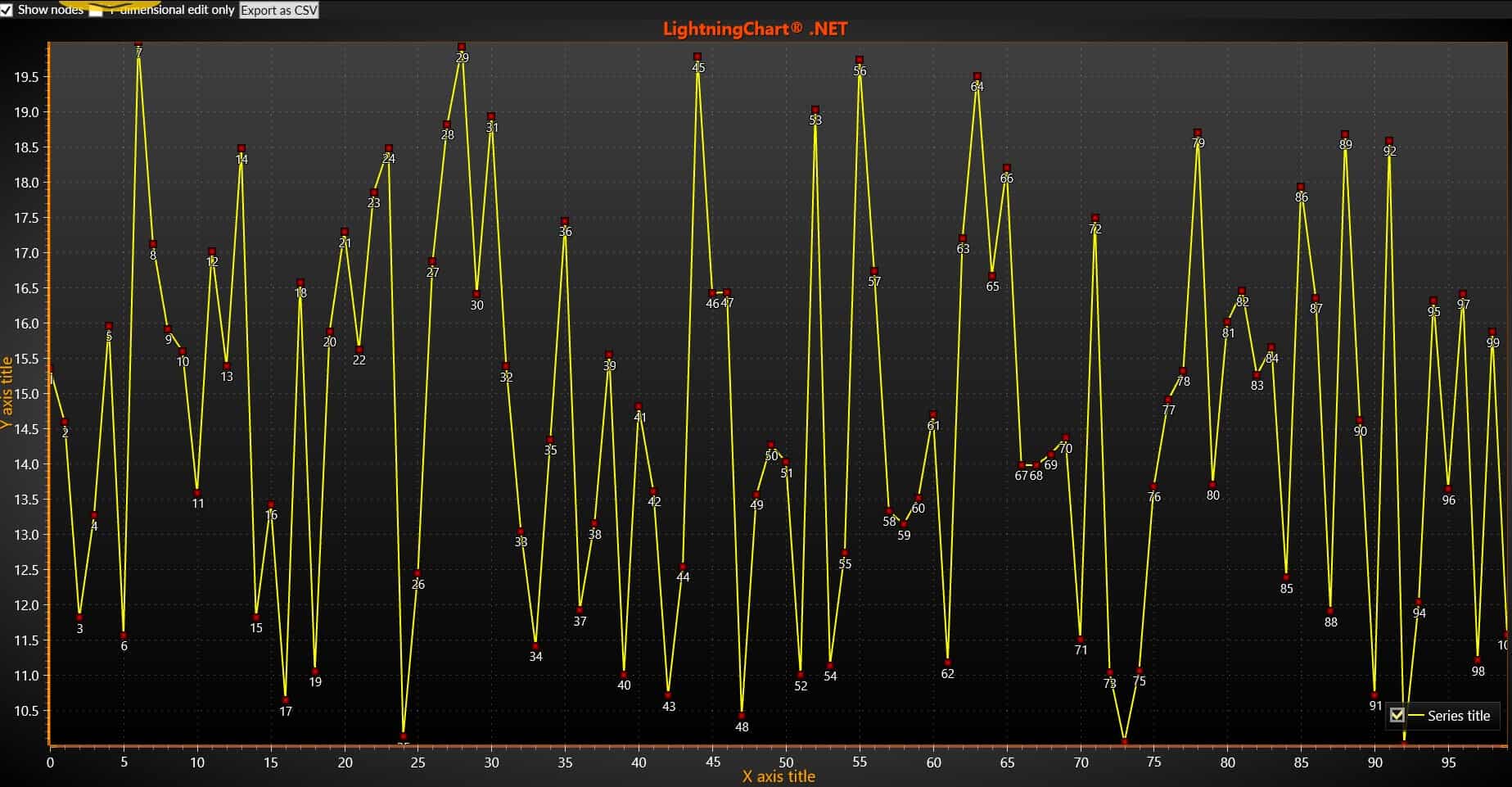
As part of modern WPF UI controls, the PointLineSeries are specifically designed to visualize data that varies in intervals, making it ideal for data sets with non-uniform increments of value or time. This series provides the versatility to display data in multiple formats: a continuous line, discrete points (scatter), or a combination of both, known as a point line representation.
Users can modify aspects such as line styles, colors, point sizes, and more, allowing for a detailed visual representation that meets specific analytical needs. This series also supports additional features such as tooltips, labels, and legends, which improves the interactivity and clarity of the visualized data.
PointLineSeries is an excellent choice for situations where flexibility and detail are paramount, such as scientific research, financial analysis, or any application where understanding variable ranges is crucial.
Implementation:
// Configure x-axis.
AxisX axisX = _chart. ViewXY.XAxes[0];
axisX.SetRange(0, 60);
axisX.ScrollMode = XAxisScrollMode.None;
axisX.ValueType = AxisValueType.Number;

//Chart has one Y axis ready to go. Just set the range
_chart.ViewXY.YAxes[0].SetRange(0, 800);|
When a ViewXY type of chart is created, by default we have access to X-Y axes (index 0). We just need to configure them, a base configuration specifies the range, scroll mode and value-type of each axis. The PointLineSeries class will contain the data set array where each member will be equal to a data point.
//Add point line series
PointLineSeries pointLineSeries = new PointLineSeries (_chart. ViewXY, _chart. ViewXY.XAxes[0], _chart.ViewXY. YAxes[0])
{
	//Make points visible
	PointsVisible = true
};
DigitalLineSeries
DigitalLineSeries is a specialized type of line series designed to display a line that alternates between two Y-values, such as 0 and 1. This series is optimized for high performance and is the most memory-efficient option among all series types.
This series simplifies configuration by focusing solely on the line itself, omitting individual data point markers. This series offers minimal customization options, providing only two properties for appearance adjustments: Color and Width. This makes it an excellent choice for applications where simplicity and performance are key, such as digital signal representation and binary data visualization.

Implementation
The Digital line series uses arrays of units as input data where each value corresponds to 32 bits of data. This type of series can be only used with a Linear axis and DirectX11 engine.
DigitalLineSeries dls = new DigitalLineSeries (_chart.ViewXY, axisX, yAxis);
_chart.ViewXY.DigitalLineSeries.Add(dls);
dls.Color = DefaultColors. Series ForBlackBackgroundWpf[iSeriesCounter++ % DefaultColors.SeriesForBlackBackgroundWpf.Length];
dls. Title.Color = Chart Tools. CalcGradient(dls. Color, Colors. Transparent, 50);
dls. Title.Text = "DigitalLineSeries";
dls. Title.Visible = true;
dls. Title. HorizontalAlign = AlignmentHorizontal.Right;
dls. Title.VerticalAlign = AlignmentVertical.Center;
dls. Title.AutoPlacement = true;
dls. SamplingFrequency = (double)32 / iPointCount; // stretch Value over all range
dls. FirstSampleTimeStamp = 0;
dls.DigitalLow = -5;
dls.DigitalHigh = 5;
dls.Width = 2;
dls.AddBits(new uint[] { 2773350416 }, false);
AreaSeries
An area series is a type of chart that visualizes data by filling the space between a baseline and the plotted values. This creates a shaded area, which helps to illustrate the volume of data over a specific range, making it easy to see trends and changes over time.
To incorporate an area series into your chart, you simply add AreaSeries objects to an AreaSeries list. The baseline for the filled area can be defined using the BaseValue property, allowing you to set where the area begins.
You can customize the appearance of the area chart with the Fill property to choose the desired fill style, while the LineStyle and PointStyle properties allow for adjustments to the line and point appearances. We can use exceed and decreed limits similarly to how they are used in a HighLowSeries, which helps in defining thresholds for the data.

Implementation
AreaSeries series = new AreaSeries (_chart. ViewXY, _chart. ViewXY.XAxes[0], chart. ViewXY.YAxes[0]);
series.Fill.Color = GradientColors[i];
series.Fill.GradientFill = GradientFill.Solid;
series.Fill. GradientDirection = 90;
series.LineStyle. Color = SolidColors[4];
series. LineStyle.Width = 2f;
series. Highlight = Highlight. None;
series.AllowUserInteraction = false;
series. Title.Text = "Series " + (i + 1).ToString();
BarSeries
BarSeries enable the visualization of data through horizontal or vertical bars, making it easy to compare different values immediately. To store the values for a BarSeries, you can use the values array property.
To add new values to the series, utilize the “AddValue” method. If you need to update an existing value at a specific index, you can use the “SetValue” method to modify it accordingly.
To customize the appearance of the bars, adjust the BarViewOptions property within the chart.ViewXY settings. This allows you to control various display aspects, enhancing the overall presentation of the bar chart.

Implementation
int seriesLength = specularColors.Length;
for (int i = 0; i < seriesLength; i++)
{
	BarSeries 3D barSeries = new BarSeries 3D(_chart.View3D, Axis3DBinding. Primary, Axis3DBinding. Primary, Axis3DBinding.Primary)
	{
		Shape shapes[i],
		BarWidth = 2 ((i % 2) + 1)
	};
	barSeries. BarDepth = barSeries.BarWidth;
	barSeries. Material. DiffuseColor = diffuseColors[i];
	barSeries. Material. SpecularColor = specularColors[i];
	barSeries. Material. SpecularPower = 20;
	barSeries.BaseLevel = 0;
	barSeries.Title.Text = "Bar series " + (i + 1).ToString();
	_chart.View3D.BarSeries 3D.Add(barSeries);
}
The BarSeries3D and the BarSeries may contain one or more bars. The visual properties will affect the entire series, but the values can apply to each bar. Bar series data can be added as BarSeriesValue3D structures containing x, y, z axes as well as text fields.
BarSeriesValue3D[] values = new BarSeriesValue3D[addSeriesLength];
for (int i = 0; i < addSeriesLength; i++)
{
	values[i] = new BarSeriesValue3D(i + 1, 10f + 1f Math. Sin(_x + series Index 10.0i 100.0), 20, "");
}
_x += 0.025f;
IntensityMeshSeries (Heatmap)
This type of chart IntensityMeshSeries is akin to IntensityGridSeries with one key distinction: the nodes in this series can be placed freely in X-Y space, allowing for non-rectangular arrangements.
You can control the visibility of wireframe lines using the WireframeType property, and if you want to display the individual nodes, simply set ShowNodes to true. This flexibility makes IntensityMeshSeries suitable for a variety of data visualization scenarios where irregular layouts are needed.

Implementation
//Create intensity mesh series
_intensityMesh = new IntensityMeshSeries (_chart. ViewXY, chart. ViewXY.XAxes[0], chart.ViewXY.YAxes[0])
{
	ContourLineType = ContourLineTypeXY.None,
	Optimization IntensitySeriesOptimization. DynamicData,
	ShowNodes = checkBox ShowNodes. IsChecked.Value
};
StockSeries
A stock chart is a graphical representation of a stock’s price movements over time. It provides investors and traders with visual insights into price trends, patterns, and market behavior, helping them make informed decisions about buying or selling stocks.
Stock charts serve various purposes, including:
- Trend Analysis: Identifying upward or downward trends to make informed trading decisions.
- Pattern Recognition: Recognizing specific chart patterns (like head and shoulders or double tops) that can signal potential price movements.
- Decision-Making: Providing a visual context for making buy or sell decisions based on historical price performance and market behavior.
StockSeries provides a way to visualize stock market data using either candlestick or stock bar formats. You can add multiple StockSeries objects to a single chart by utilizing the StockSeries list property, allowing for the comparison of different stock data within the same view.
To choose the display style, use the Style property. The available options include Bars, CandleStick, and OptimizedCandleStick, enabling you to select the format that best suits your data presentation needs.

Implementation
Create a data array and set the array items. Each item has the following fields:
- Date: DateTime value (year, month, day)
- Open: Opening value of the day Close
- Close: value of the day
- Low: The lowest value during the day
- High: The highest value during the day
- Transaction: The total trading sum
- Volume: Count of shares traded
Keep the data always in ascending order by Date value (oldest date first).
// Create data array
StockSeriesData[] data = new StockSeriesData[] {
    new StockSeriesData(2010, 09, 01, 24.35, 24.76, 24.81, 23.82, 269210, 6610451.55),
    new StockSeriesData(2010, 09, 02, 24.85, 24.66, 24.85, 24.53, 216395, 5356858.225),
    new StockSeriesData(2010, 09, 03, 24.80, 24.84, 25.07, 24.60, 164583, 4084950.06),
    new StockSeriesData(2010, 09, 06, 24.85, 25.01, 25.12, 24.84, 118367, 2950889.31)
};

// Assign the data array to series
chart.ViewXY.StockSeries[0].DataPoints = data;
Setting X axis to date display:
chart.ViewXY.XAxes[0].ValueType = AxisValueType.DateTime;
chart.ViewXY.XAxes[0].LabelsAngle = 90;
chart.ViewXY.XAxes[0].LabelsTimeFormat =
    System.Globalization.CultureInfo.CurrentCulture.DateTimeFormat.ShortDatePattern;
chart.ViewXY.XAxes[0].MajorDiv = 24 * 60 * 60; // Major div is one day in seconds
chart.ViewXY.XAxes[0].AutoFormatLabels = false;

// Set datetime origin
chart.ViewXY.XAxes[0].DateOriginYear = data[0].Date.Year;
chart.ViewXY.XAxes[0].DateOriginMonth = data[0].Date.Month;
chart.ViewXY.XAxes[0].DateOriginDay = data[0].Date.Day;
Modern WPF UI Controls for 3D Charts
LightningChart .NET can generate fully customizable 3D objects. For instance, the camera allows visualizing the 3D chart from different angles. It is also possible to use XAML controls to modify the 3D views.

When using 3D charts, you have access to a third axis or dimension (Z axis), which will add a new value to each point in the data set:

PointLineSeries3D

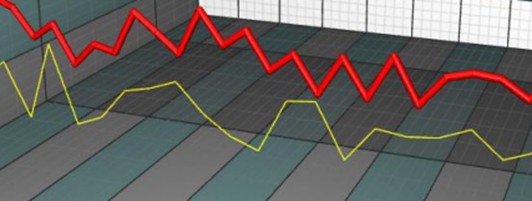
PointLineSeries3D allows presenting points and lines in 3D space. For points, there are many basic 3D shapes available. Points relate to a line, if the LineVisible property is set to true. Points can be shown as real 3D points, or as 2D shapes.

The lines can be rendered as shaded 3D lines or as a one-pixel wide hair line. When having a lot of data in the series, setting LineOptimization = Hairline is recommended to avoid performance issues.
Adding points:
PointLineSeries3D supports three different point formats:
- Points property (SeriesPoint3D array)
- PointsCompact property (SeriesPointCompact3D array)
- PointsCompactColored property (SeriesPointCompactColored3D array)
PointsCompact and PointsCompactColored structures are very memory efficient, allowing up to 100 million data points visualization with simple point styles.
Points:
By using the Points property, all the advanced coloring options of points are supported. SeriesPoint3D structure consists of the following fields:
- double X: X-axis value
- double Y: Y-axis value
- double Z: Z-axis value
- Color: individual data point color, only applies when IndividualPointColors is enabled, or MultiColorLine is enabled.
- Float sizeFactor: size factor multiplies the size defined by PointStyle.Size. Only applies when using IndividualPointSizes is enabled.
- object Tag: freely assignable auxiliary object, for example, to attach some details.
Series points must be added to the code. Use the AddPoints(…) method to add points to the end of existing points.
SeriesPoint3D[] pointsArray = new SeriesPoint3D[3];
pointsArray[0] = new SeriesPoint3D(50, 50, 50);
pointsArray[1] = new SeriesPoint3D(30, 50, 20);
pointsArray[2] = new SeriesPoint3D(80, 50, 80);

chart.View3D.PointLineSeries3D[0].AddPoints(pointsArray);
SurfaceGridSeries3D
SurfaceGridSeries3D allows visualizing data as a 3D surface. In SurfaceGridSeries3D, nodes are equally spaced in X dimension, and in Z dimension as well.
Calculation

Setting surface grid data
- Set the X range by using RangeMinX and RangeMaxX properties, to order the minimum and maximum value based on the assigned X axis.
- Set the Z range by using RangeMinZ and RangeMaxZ properties, to order the minimum and maximum value based on the assigned Z axis.
- Set SizeX and SizeZ properties to give the grid a size as columns and rows.
- Set Y values for all nodes:
for (int nodeIndexX = 0; nodeIndexX < columnCount; nodeIndexX++)
{
    for (int nodeIndexZ = 0; nodeIndexZ < rowCount; nodeIndexZ++)
    {
        Y = //some height value.
        gridSeries.Data[iNodeX, iNodeZ].Y = Y;
    }
}
gridSeries.InvalidateData(); // Notify to refresh when the new values are ready
Surfaces can be created from bitmap images by using the SetHeightDataFromBitmap method. The surface gets the size of the bitmap (if no anti-aliasing or resampling is used).
For each bitmap image pixel, red, green, and blue values are summed. The greater the sum, the higher the height data value for that node will be. Black and dark colors get lower values while bright and white colors get higher values.

Wireframe Mesh
Use WireframeType to select the wireframe style. The options are:
- None: no wireframe
- Wireframe: a solid color wireframe. Use WireframeLineType.Color to set the color.
- WireframePalettedByY: wireframe coloring follows SurfacePoint’s Y field ContourPalette.
- WireframePalettedByY: the wireframe coloring follows SurfacePoint’s Value field, ContourPalette
- WireframeSourcePointColored: the wireframe coloring follows the color of the surface nodes
- Dots: solid color dots are drawn in the node positions
- DotsPalettedByY: dots are drawn in the node positions, and colored by ContourPalette according to the Y field of SurfacePoints
- DotsPalettedByValue: dots are drawn in the node positions, and colored by ContourPalette according to the Value field of SurfacePoints
- DotsSourcePointColored: dots are drawn in the node positions, and coloring follows the color of the surface nodes

Conclusion
LightningChart .NET offers seamless integration with modern WPF UI controls, ensuring high compatibility and performance. As discussed earlier, WPF allows user interface components to be manipulated directly from the code-behind, and LC .NET leverages this effortlessly. Its chart component functions as an encapsulated object that can be displayed in the user interface by simply adding it to a XAML component.
Designed to work independently, the chart component is fully configurable and customizable through code, enabling dynamic control via algorithms. This creates a sustainable project with excellent readability and easy maintenance. Adjustments to the user interface are only necessary when controls that modify the chart are required.
Modern WPF UI controls, combined with WPF’s event-handling capabilities, enable interactive chart manipulation. For instance, moving the mouse, right-clicking, or adjusting a slider can trigger updates to the chart’s output based on input values.
LightningChart .NET fully integrates with these modern WPF UI controls, requiring only simple input to facilitate interaction. Additionally, its interactive examples tool provides various sample projects that demonstrate how to connect WPF UI components with the chart. I encourage you to explore this tool and experiment with the charts that interest you. Bye!
Continue learning with LightningChart
Real-time data visualization with WebSockets
Written by a human | Updated on April 10th, 2025WebSockets Data Visualization in Real-Time These days it is ever increasingly common that people require web solutions for their applications and services. Data visualization is not an exception to this, as...
Why Performance Matters in Data Visualization?
Written by a human | Updated on April 10th, 2025Performance in Data VisualizationI was doing a Google search a couple of days ago and particularly, I wanted to know what are the options for developers who need to visualize large amounts of data points within...

Geospatial data visualization with Google Maps & LightningChart
Written by a human | Updated on April 10th, 2025Geospatial Data Visualization This article showcases and describes a particular use case of LightningChart JS for geospatial data visualization. LightningChart JS is a JavaScript charting tool designed for...



If you have any questions, feel free to contact us!



©LightningChart Ltd 2026. All rights reserved.