





Creating a Solar Energy Monitoring System Dashboard in C#
Tutorial
Tutorial how to create a solar energy monitoring system dashboard in C# with LightningChart .NET charting components.
Omar Urbano
Software Engineer


Introduction
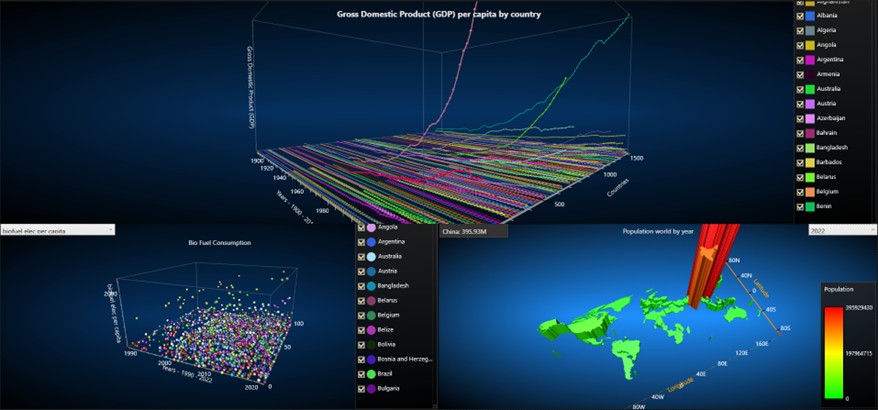
In this article we will create a solar energy monitoring dashboard using 3D charts. We will use the X-Y-Z chart with the series of points and lines, but we will use different configurations to be able to create a scatter chart and a Line chart.
We will add a tooltip for each data point to show the location and value properties. Finally, we will add a 3D world map to represent the population of each country by year, with polygons of different heights and colors, with green being the lowest value, and red being the highest.
To feed our energy monitoring system dashboard, we will work with a dataset with estimated information from the year 1900 to the year 2022, grouped by countries of the world. This information corresponds to primary energy consumption, per capita, and population. But before we start, how about we read a little theory?
What is the purpose of an energy monitoring system dashboard?

Real-time monitoring provides data on energy consumption, allowing users to see how much energy is being used at any given time. It also allows us to have complex data visualization in an easy-to-understand format, using charts and graphs to highlight trends and patterns in energy usage.
With the help of data visualization, users can track performance against benchmarks or targets, helping to identify areas for improvement or energy savings. A dashboard also allows us to alert users to unusual spikes or dips in energy usage, which may indicate inefficiencies or potential problems with the object of study.
This type of software, stores information collected over many time periods, allowing users to analyze historical data to understand usage patterns over time, aiding in forecasting and strategic planning.
By monitoring energy consumption, users can better manage costs and potentially identify ways to reduce expenses. Organizations can track their progress toward sustainability initiatives and regulatory compliance by monitoring energy usage and emissions.
In short, a energy monitoring system dashboard functions as a centralized data source, which helps us with the historical analysis of human behavior in relation to energy consumption in a specific area or region.
Project Overview
This project is working with the .NET WPF framework. This framework allows us to work with the user interface and C# code at the same time. This energy monitoring system dashboard project was created with version 8 of .NET, so I recommend that you install this version or the latest one. You will need Visual Studio 2022 or newer to be able to run it.
Dataset
Our World in Data maintains a comprehensive Energy dataset that includes key metrics on energy consumption, energy mix, and electricity mix. This dataset is regularly updated, with most metrics published annually.
Data Sources and Processing:
The dataset compiles information from various reputable sources, including:
- Energy Institute (EI)
- U.S. Energy Information Administration (EIA)
- Ember
- The Shift Data portal
Processing involves steps for data ingestion, basic processing, and further refinement, including aggregating regional data and metrics per capita and per GDP. From the original dataset, an Excel workbook has been created, which contains 3 extra sheets:
- Fuel consumption: Information by country, year, iso code. Columns include:
- biofuel_cons_change_pct
- biofuel_cons_change_twh
- biofuel_cons_per_capita
- biofuel_consumption
- biofuel_elec_per_capita
- Population by country: Information by country, year, iso code, and population.
- GDP by country: Information by country, year, iso code, and GDP.
- Only countries with iso code were taken, to exclude annexed regions.
Markup
Markup enables us to build a user interface with a variety of controls, allowing us to manage the displayed results in the application with great precision. This interface development is done using XAML (Extensible Application Markup Language). While it might initially look like an XML template, XAML is specifically designed for building application interfaces rather than just exchanging data between applications. The interface’s data, graphics, and animations can either be pulled from an external source file or dynamically generated through the code behind it.
Code Behind
The code behind refers to the file containing the executable code responsible for reading, generating, and processing the results the user needs. One of its main purposes is to separate the graphical interface code (like XAML, HTML, CSS, etc.) from the executable code. This separation allows us to divide the work between user interface design and the development of the underlying code, leading to safer, more organized, and faster development.
In the case of WPF (Windows Presentation Foundation), we use the C# programming language. C# is an object/component-oriented language that fits well with this approach. Lightning Chart .NET generates WPF projects with C# code that’s ready for execution. Within this code, you can use LightningChart .NET own tools, which can be easily imported if the LC .NET framework is installed.
 Download the project to follow the tutorial
Local Setup
- OS: 32-bit or 64-bit Windows Vista or later, Windows Server 2008 R2 or later.
- DirectX: 9.0c (Shader model 3 and higher) or 11.0 compatible graphics adapter.
- Visual Studio: 2022 for development, not required for deployment.
- Platform .NET Framework: installed version 8.0 or newer.
Now go to the next URL and download LightningChart .NET. You’ll then be redirected to a sign-in form where you’ll have to complete a simple sign-up process to get access to your LightningChart account.

After signing in to your account, you can download the SDK “free trial” version that allows you to use important features for this tutorial. When you download the SDK, you’ll have a .exe file like this:

The installation will be a typical Windows process, so please continue with it until it is finished. After the installation, you will see the following programs:

License Manager
In this application, you will see the purchase options. All the projects that you will create with this trial SDK will be available for future developments with all features enabled.

XAML Code Review
The design of our energy monitoring system dashboard application will be contained within the MainWindow.xaml file. Although it will be something quite simple, we will try to apply some visual properties that give us a “softer” or less aggressive style, applying dark colors that are normally used in modern designs. For the fonts, we will use a slightly gray color, which will give us a more relaxing and comfortable style for the eye.
<!-- Modern style for labels -->
<Style TargetType="Label">
    <Setter Property="Foreground" Value="#E1E1E1"/>
    <Setter Property="FontSize" Value="14"/>
    <Setter Property="Margin" Value="5"/>
</Style>

<!-- Modern style for checkboxes -->
<Style TargetType="CheckBox">
    <Setter Property="Foreground" Value="#E1E1E1"/>
    <Setter Property="Margin" Value="5"/>
</Style>

<!-- Modern style for textboxes -->
<Style TargetType="TextBox">
    <Setter Property="Foreground" Value="#E1E1E1"/>
    <Setter Property="Background" Value="#333333"/>
    <Setter Property="BorderBrush" Value="#444444"/>
    <Setter Property="BorderThickness" Value="1"/>
    <Setter Property="Padding" Value="5"/>
    <Setter Property="FontSize" Value="14"/>
</Style>
We will keep the color palette dark, to avoid aggressive contrasts. To create the energy monitoring system dashboard, we will use the Grid component.

The energy monitoring system dashboard will contain two rows. The first row contains the line chart, and the second one contains the scatter and world map charts.
<Grid Grid.Row="0">
    <Grid.ColumnDefinitions>
        <ColumnDefinition Width="*"/>
    </Grid.ColumnDefinitions>

    <!-- Label centered at the top -->
    <Grid x:Name="xyChart_grid" Grid.Column="0">
        <Grid.ColumnDefinitions>
            <ColumnDefinition Width="439*"/>
        </Grid.ColumnDefinitions>
        <!-- Chart content goes here -->
    </Grid>

    <!-- Label centered at the top -->
    <Label Content="Gross Domestic Product (GDP) per capita by country"

//
<Grid Grid.Row="1">
    <Grid.ColumnDefinitions>
        <ColumnDefinition Width="1.5*"/>
        <ColumnDefinition Width="1.5*"/>
    </Grid.ColumnDefinitions>
    <Grid x:Name="population_world_map_grid" Grid.Column="1"/>
    <Grid x:Name="bubble_chart_grid" Grid.Column="0"/>
Scatter Chart
This chart features several datasets that can be selected using a combo box placed just above the chart canvas. Each item within the combo box will be directly added to the UI element. The tagproperty helps to know what dataset the user wants to visualize in the chart. The FuelDataSetCombBox method will be executed when selecting a dataset within the combo box.
<ComboBox x:Name="FuelDataSetCombBox"
    Grid.Column="0"
    Height="25"
    VerticalAlignment="Top"
    HorizontalAlignment="Left"
    Width="250"
    SelectionChanged="FuelDataSetCombBox_SelectionChanged">
    <ComboBoxItem Content="biofuel consumption change pct" Tag="biofuel_cons_change_pct" IsSelected="True"/>
    <ComboBoxItem Content="biofuel consumption change twh" Tag="biofuel_cons_change_twh"/>
    <ComboBoxItem Content="biofuel consumption per capita" Tag="biofuel_cons_per_capita"/>
    <ComboBoxItem Content="biofuel consumption" Tag="biofuel_consumption"/>
    <ComboBoxItem Content="biofuel elec per capita" Tag="biofuel_elec_per_capita"/>
</ComboBox>
World Map Chart
This chart type features multiple datasets too. Each dataset will be grouped by year and every combo box item from the YearsComboBox element will be added using code when launching the application. So, when selecting a year from the combo box, the YearsCombBox method will be executed. This method will update the chart with the corresponding year dataset.
<ComboBox x:Name="YearsCombBox"
    Grid.Column="1"
    Height="25"
    VerticalAlignment="Top"
    HorizontalAlignment="Right"
    Width="150"
    SelectionChanged="YearsCombBox_SelectionChanged"/>
MainWindow.xaml.cs
This file will contain the execution methods for our chart:
InitializeComponent();
LoadFilesIntoComboBox();
bubbleChart = new ScatterChart(this);
populationWorldMap = new PopulationWorldMap(this); // Pass reference if needed
pointLineChart = new PointLineChart();

var selectedItem = FuelDataSetCombBox.SelectedItem as ComboBoxItem;
string tagValue = selectedItem.Tag as string;
string content = selectedItem.Content as string;

bubble_chart_grid.Children.Clear();
bubble_chart_grid.Children.Add(bubbleChart.CreateChart(tagValue, content));
population_world_map_grid.Children.Clear();
population_world_map_grid.Children.Add(populationWorldMap.CreateChart(int.Parse(YearsCombBox.Items[0].ToString())));
xyChart_grid.Children.Clear();
xyChart_grid.Children.Add(pointLineChart.CreateChart());
LoadFilesIntoComboBox will be executed once the application starts. This method will read the PopulationByCountry JSON file, and add each year as a new item in the YearsComboBox component:
string projectDirectory = Path.GetFullPath(Path.Combine(AppDomain.CurrentDomain.BaseDirectory, @"..\..\..\"));
string relativePath = $"Data\\PopulationbyCountry.json"; // Replace with your actual relative path
string filePath = Path.Combine(projectDirectory, relativePath);
string jsonData = File.ReadAllText(filePath);

// Deserialize the JSON data
var countryDataList = JsonConvert.DeserializeObject<List<CountryDataPopulation>>(jsonData);

// Extract distinct years
var distinctYears = countryDataList.Select(data => data.year).Distinct().ToList();

foreach (var year in distinctYears)
{
    YearsCombBox.Items.Add(year);
}
When a year is selected, this will rebuild the chart by executing the CreateChart() method:
private void YearsCombBox_SelectionChanged(object sender, SelectionChangedEventArgs e)
{
    if (YearsCombBox.SelectedItem != null)
    {
        string selectedFileName = YearsCombBox.SelectedItem.ToString();

        if (selectedFileName != null)
        {
            population_world_map_grid.Children.Clear();
            populationWorldMap = new PopulationWorldMap(this);
            var chart = populationWorldMap.CreateChart(int.Parse(selectedFileName));
            population_world_map_grid.Children.Add(chart);
            populationNumber.Text = string.Empty;
The FuelDataSet method will do the same previously mentioned behavior. It will rebuild the scatter chart by sending the item name and value selected from the combo box component.
private void FuelDataSetCombBox_SelectionChanged(object sender, SelectionChangedEventArgs e)
{
    if (FuelDataSetCombBox.SelectedItem != null)
    {
        var selectedItem = FuelDataSetCombBox.SelectedItem as ComboBoxItem;
        string tagValue = selectedItem.Tag as string;
        string content = selectedItem.Content as string;

        if (tagValue != null)
        {
            bubble_chart_grid.Children.Clear();
            bubbleChart = new ScatterChart(this);
            var chart = bubbleChart.CreateChart(tagValue, content);
            bubble_chart_grid.Children.Add(chart);
Support methods
Within each component, we will find support methods to generate our data.
LoadJsonFile():This method will process each of our JSON files, returning a list of theGroupedCountryDataclass:
public class CountryData
{
    [JsonPropertyName("country")]
    public required string country { get; set; }

    [JsonPropertyName("year")]
    public required int year { get; set; }

    [JsonPropertyName("iso_code")]
    public required string iso_code { get; set; }

    [JsonPropertyName("gdp")]
    public long gdp { get; set; }
}

public class GroupedCountryData
{
    public required string Country { get; set; }
    public required List<CountryData> CountryData { get; set; }
}
This class will have one or more variables depending on the data used.
public static List<GroupedCountryData> LoadJsonFile(string filePath)
{
    try
    {
        // Read the JSON file content
        string jsonString = File.ReadAllText(filePath);

        // Deserialize the JSON content into a list of countries objects
        List<CountryData> dataList = JsonSerializer.Deserialize<List<CountryData>>(jsonString,
            new JsonSerializerOptions
            {
                PropertyNamingPolicy = JsonNamingPolicy.CamelCase
            });

        // Grouping by country
        List<GroupedCountryData> groupedData = dataList
            .GroupBy(data => data.country)
            .Select(group => new GroupedCountryData
            {
                Country = group.Key,
                CountryData = group.ToList()
            })
            .ToList();

        return groupedData;
PointLineChart.CreateChart() / Scatter Chart
In general, this method creates a 3D chart that displays GDP data by country and offers customization options for appearance and interactivity. It loads the data from a JSON file, processes it, and configures the chart properties to improve the visualization in the energy monitoring system dashboard.
The same logic is used in the scatter chart. There are two important points that differentiate the scatter chart. The lines between points are hidden and the Z value of each point will be variable, meaning that each series will not have a specific location on the Z axis, which creates the effect of scattering all the points.
- File Path Setup
- File Path Construction: It constructs the file path to a JSON file containing GDP data.
string projectDirectory = Path.GetFullPath(Path.Combine(AppDomain.CurrentDomain.BaseDirectory, @"..\..\..\"));
string relativePath = $"Data\\FuelConsumption.json"; // Replace with your actual relative path
string filePath = Path.Combine(projectDirectory, relativePath);- Load Data
- Loading Data: The LoadJsonFile method reads the JSON file into a list of GroupedCountryData, which likely holds information about GDP by country.
List<GroupedCountryData> dataList = LoadJsonFile(filePath);- Chart Initialization
- Chart Creation: A new instance of a LightningChart is created, and rendering is disabled temporarily to allow batch updates to properties.
_chart = new LightningChart();

// Disable rendering, strongly recommended before updating chart properties.
_chart.BeginUpdate();- Chart Configuration
- View Configuration: The chart is set to 3D view and the chart title is cleared. Since we are using WPF labels, we need to set titles and names as empty strings to not display default Lightning Chart titles.
//Set active view
_chart.ActiveView = ActiveView.View3D;

//Chart name
_chart.ChartName = string.Empty;
_chart.Title.Text = string.Empty;- Annotation Setup
Annotations: The annotation object is initialized; in this way we can make use of this property to each data point. Its visibility is initially set to false, and user interaction is disabled.
//Add an annotation to show targeted point data
Annotation3D targetValueLabel = new Annotation3D(view3D, Axis3DBinding.Primary, Axis3DBinding.Primary, Axis3DBinding.Primary)
{
    TargetCoordinateSystem = AnnotationTargetCoordinates.AxisValues,
    LocationCoordinateSystem = CoordinateSystem.RelativeCoordinatesToTarget
};
targetValueLabel.LocationRelativeOffset.SetValues(40, -70);
targetValueLabel.Visible = false;
targetValueLabel.AllowUserInteraction = false;
targetValueLabel.Style = AnnotationStyle.RoundedCallout;
targetValueLabel.Shadow.Visible = false;
_chart.View3D.Annotations.Add(targetValueLabel);- Chart Appearance
- Styling: The visibility of chart walls is managed, and the background color is set. We can hide the walls of each axis by setting the visible property as false.
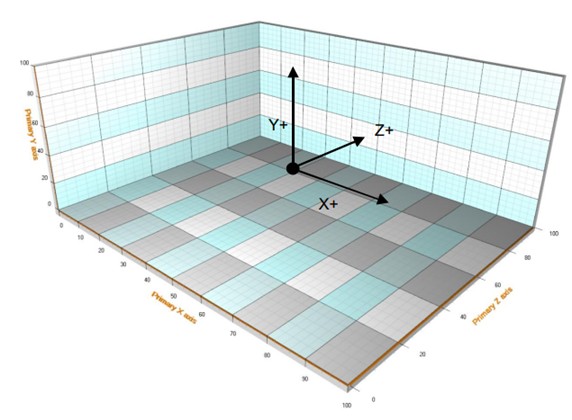
_chart.View3D.WallOnBottom.Visible = false;
_chart.View3D.WallOnBack.Visible = false;
_chart.View3D.WallOnFront.Visible = false;
_chart.View3D.WallOnLeft.Visible = false;
_chart.View3D.WallOnRight.Visible = false;
_chart.ChartBackground.Color = Color.FromArgb(150, 0, 31, 64);
_chart.View3D.FrameBox.Style = FrameBox.FrameBoxStyle.AllEdges;
_chart.View3D.FrameBox.LineColor = Color.FromArgb(50, 214, 214, 214);
_chart.View3D.YAxisPrimary3D.AxisColor = Color.FromArgb(150, 214, 214, 214);
_chart.View3D.ZAxisPrimary3D.AxisColor = Color.FromArgb(150, 214, 214, 214);
_chart.View3D.XAxisPrimary3D.AxisColor = Color.FromArgb(150, 214, 214, 214);
_chart.View3D.YAxisPrimary3D.Title.Color = Color.FromArgb(255, 214, 214, 214);
_chart.View3D.ZAxisPrimary3D.Title.Color = Color.FromArgb(255, 214, 214, 214);
_chart.View3D.XAxisPrimary3D.Title.Color = Color.FromArgb(255, 214, 214, 214);- Data Processing
Data Extraction: The code extracts GDP values and computes their minimum and maximum for later use in setting axis ranges. Using LINQ, we can filter the data points that are below the minimum number in the entire data set.
In this way, we don’t need to create data points with empty values that could affect the performance of the chart. The minimum and maximum values in the entire data set will be stored continuously. We need to have the correct min and max values to set the ranges for X-Y axes. The AddSeriesWithData method will create the line point series for each country.
foreach (var country in dataList)
{
    // Create a Random object
    Random rand = new Random();

    // Generate random values for Alpha, Red, Green, and Blue
    byte red = (byte)rand.Next(0, 256);   // Red value between 0 and 255
    byte green = (byte)rand.Next(0, 256); // Green value between 0 and 255
    byte blue = (byte)rand.Next(0, 256);  // Blue value between 0 and 255

    var filteredPoints = country.CountryData.Where(cd => double.Parse(GetPropertyValue(cd, dataset).ToString()) > 0.0).ToList();

    if (filteredPoints.Count > 0)
    {
        var YValues = filteredPoints.Select(g => double.Parse(GetPropertyValue(g, dataset).ToString()));
        var XValues = filteredPoints.Select(g => g.year);
        maxY = maxY < YValues.Max() ? YValues.Max() : maxY;
        minY = minY > YValues.Min() ? YValues.Min() : minY;
        maxX = maxX < XValues.Max() ? XValues.Max() : maxX;
        minX = minX > XValues.Min() ? XValues.Min() : minX;

        AddSeriesWithData(Color.FromArgb(255, red, green, blue), filteredPoints, i * 10, dataset);
        i++;
}- Mouse Event Handling and Axis Range Setup
- Mouse Event: A mouse move event handler is attached to the chart; this will help to evaluate if the cursor is over a point. We can specify the text for each axis by using the title property of the X-Y-Z AxisPrimary3D object. The minX and maxX are numbers, so these will help us to the text below the X axes.
_chart.MouseMove += new MouseEventHandler(_chart_MouseMove);
view3D.YAxisPrimary3D.SetRange(minY, maxY);
view3D.XAxisPrimary3D.SetRange(minX, maxX);
view3D.ZAxisPrimary3D.Title.Text = "";
view3D.YAxisPrimary3D.Title.Text = namecontent;
view3D.XAxisPrimary3D.Title.Text = $"Years - {minX} - {maxX}";- Finalization
- Rendering: The rendering of the chart is enabled again, and the fully configured chart is returned.
// Allow chart rendering.
_chart.EndUpdate();

return _chart;
AddSeriesWithData
This method will be executed for each country, and it will create a line point series within the energy monitoring system dashboard:
//Add 3D point-line series
PointLineSeries3D pointLineSeries3D = new PointLineSeries3D(_chart.View3D, Axis3DBinding.Primary, Axis3DBinding.Primary, Axis3DBinding.Primary);
pointLineSeries3D.PointStyle.Shape3D = PointShape3D.Box;
pointLineSeries3D.PointStyle.Size3D.SetValues(0.3, 0.3, 0.3);
pointLineSeries3D.Material.DiffuseColor = pointColor;
pointLineSeries3D.LineVisible = true;
pointLineSeries3D.LineStyle.AntiAliasing = LineAntialias.Normal;
pointLineSeries3D.LineStyle.Color = pointColor;
pointLineSeries3D.LineStyle.Width = 0.1f;
pointLineSeries3D.PointsVisible = true;
pointLineSeries3D.IndividualPointColors = true;
pointLineSeries3D.Title.Color = pointColor;
pointLineSeries3D.AllowUserInteraction = true;
pointLineSeries3D.Highlight = Highlight.Blink;
pointLineSeries3D.Title.Text = countryData.Select(x => x.country).FirstOrDefault();
_chart.View3D.PointLineSeries3D.Add(pointLineSeries3D);
PointLineSeries3D allows presenting points and lines in 3D space. For points, there are many basic 3D shapes available. Points relate to a line if the LineVisible property is set to rue. Once the series is created, we need to add data points, for that reason we sent a list object with the country data:
SeriesPoint3D[] points = new SeriesPoint3D[countryData.Count];
var i = 0;

foreach (var data in countryData)
{
    points[i].X = data.year;
    points[i].Y = data.gdp;
    points[i].Z = zAxisValue;
    points[i].Tag = data.country;
    points[i].Color = pointColor;
    i++;
}

pointLineSeries3D.Points = points;
The tag property will contain the country name, and this will be displayed in annotations. For the scatter chart, the Z value will have a random value between 0 and 100. This random value will be applied to all points in the entire data set, generating the scatter effect. Since we don’t have lines for this chart, the points will look like bubbles inside the 3D box:
var value = double.Parse(GetPropertyValue(data, propertyName).ToString());
points[i].X = data.year;
points[i].Y = value;
points[i].Z = random.Next(0, 100);
points[i].Tag = data.country;
i++;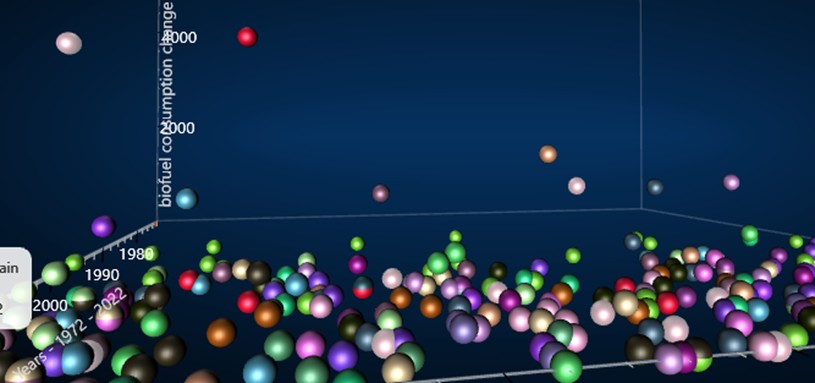
_chart_MouseMove
When the mouse is moved over the chart, the event MouseMove will be fired. This method evaluates if the mouse is pointing to a PointLineSeries3D object:
if (obj != null)
{
    if (obj is PointLineSeries3D)
    {
        PointLineSeries3D pointLineSeries3D = obj as PointLineSeries3D;

        int pointIndex = pointLineSeries3D.LastHitTestIndex;
        pointLineSeries3D.Points[pointIndex].Color = ChartTools.CalcGradient(pointLineSeries3D.Title.Color, Colors.White, 50);
        pointLineSeries3D.Tag = pointIndex; //Store info of point index that is highlighted

        SeriesPoint3D point = pointLineSeries3D.Points[pointIndex];

        targetValueLabel.TargetAxisValues.SetValues(point.X, point.Y, point.Z);
        targetValueLabel.Text = "Country: " + point.Tag.ToString()
            + "\nYear: " + point.X.ToString()
            + "\nCon.: " + point.Y.ToString();

        targetValueLabel.Fill.Color = Color.FromArgb(220, 255, 255, 255);
        targetValueLabel.TextStyle.Color = Color.FromArgb(255, 51, 51, 51);
        targetValueLabel.Fill.GradientColor = Color.FromArgb(220, 255, 255, 255);
        targetValueLabel.BorderVisible = false;
        targetValueLabel.Visible = true;
    }
}
If is true, a new annotation object will be created, adding text concatenated with the point values. To show this annotation, the visible property will be set as true. We can specify visual properties, like background color, text color, font size, and other properties for the energy monitoring system dashboard.
PopulationWorldMap.CreateChart()
The initialization of the chart is basically the same as we explained above. So, we will focus on the important points of this chart. This chart gets the values from the world map, such as the coordinates of each country and some values, through the WorldLow.md file.
An MD file is a Markdown file, which uses the Markdown markup language to format text. Markdown is designed to be easy to read and write, making it a popular choice for writing documentation, readme files, and even blog posts.
MD files typically have a .md extension and can include elements like headings, lists, links, images, and code blocks. When rendered, Markdown is converted into HTML, making it visually appealing for web content. You can create and edit MD files using plain text editors or specialized Markdown editors.
//Get country data from ViewXY.Maps
List<CountryData> listCountries = GetCountryData(filteredData);
double dMaxPopulation = 0;
foreach (CountryData country in listCountries)
{
    if (country.Population > dMaxPopulation)
    {
        dMaxPopulation = country.Population;
    }

    foreach (PointFloat[] path in country.BorderPaths)
    {
        Color color;
        m_palette.GetColorByValue(country.Population, out color);

        Polygon3D polygon = AddPolygon(country.CountryName, color, path, country.Population);
        m_dictCountryDataByPolygon.Add(polygon, country);
    }

}
This code processes country data to find the maximum population, assigns colors based on population, creates polygons representing country borders, and stores the relationships between polygons and their corresponding country data.
It is likely part of a larger application dealing with geographic visualization or mapping. All these values will be stored in a dictionary, that will be used by the chart once the app is initialized:
m_dictCountryDataByPolygon = new Dictionary<Polygon3D, CountryData>();This code configures a 3D chart’s axes to represent geographic coordinates (longitude and latitude) and population data, ensuring clear labeling, proper ranges, and formatting suitable for visual representation. Each axis is set up to provide an intuitive understanding of the data being visualized:
_chart.View3D.XAxisPrimary3D.Title.Text = "Longitude";
_chart.View3D.XAxisPrimary3D.ValueType = AxisValueType.MapCoordsDegNESW;
_chart.View3D.XAxisPrimary3D.KeepDivCountOnRangeChange = false;
_chart.View3D.XAxisPrimary3D.SetRange(-180, 180);
_chart.View3D.XAxisPrimary3D.MajorDiv = 10;
_chart.View3D.XAxisPrimary3D.MinorDivTickStyle.Visible = false;
_chart.View3D.XAxisPrimary3D.AutoDivSpacing = false;
_chart.View3D.XAxisPrimary3D.LabelsNumberFormat = "0";

_chart.View3D.YAxisPrimary3D.Title.Text = "Population, million people";

_chart.View3D.YAxisPrimary3D.KeepDivCountOnRangeChange = false;
_chart.View3D.YAxisPrimary3D.SetRange(0, dMaxPopulation / 1000000.0);
_chart.View3D.YAxisPrimary3D.MajorDiv = 100;
_chart.View3D.YAxisPrimary3D.AutoDivSpacing = false;
_chart.View3D.YAxisPrimary3D.AutoFormatLabels = false;
_chart.View3D.YAxisPrimary3D.LabelsNumberFormat = "0";

_chart.View3D.ZAxisPrimary3D.Title.Text = "Latitude";
_chart.View3D.ZAxisPrimary3D.KeepDivCountOnRangeChange = false;
_chart.View3D.ZAxisPrimary3D.SetRange(-90, 90);
_chart.View3D.ZAxisPrimary3D.MajorDiv = 10;
_chart.View3D.ZAxisPrimary3D.AutoDivSpacing = false;
_chart.View3D.ZAxisPrimary3D.ValueType = AxisValueType.MapCoordsDegNESW;
_chart.View3D.ZAxisPrimary3D.MinorDivTickStyle.Visible = false;
_chart.View3D.ZAxisPrimary3D.LabelsNumberFormat = "0";
We can set the default position of the camera and hide walls of the 3D models that we don’t need:
_chart.View3D.Camera.MinimumViewDistance = 20;
_chart.View3D.Camera.ViewDistance = 90;
_chart.View3D.Camera.RotationX = 50;
_chart.View3D.Camera.RotationY = 0;
_chart.View3D.Camera.RotationZ = 0;
_chart.View3D.Camera.OrientationMode = OrientationModes.XYZ_Mixed;

_chart.View3D.WallOnBottom.Visible = false;
_chart.View3D.WallOnBack.Visible = false;
_chart.View3D.WallOnFront.Visible = false;
_chart.View3D.WallOnLeft.Visible = false;
_chart.View3D.WallOnRight.Visible = false;
The rendering update is finalized, and we returned the chart object to the main window to be added to the XAML grid component:
_chart.EndUpdate();

return _chart;
CreateColorPalette
This method creates a color gradient based on population data for a 3D chart. It sets up a surface grid series to represent population visually, defines color steps corresponding to minimum, midpoint, and maximum population values, and integrates the color palette into the chart. This helps users quickly understand population distributions visually through color coding.
private void CreateColorPalette(List<CountryDataPopulation> countrypopulation)
{
    //Add surface grid series, to show the value-range palette in the legendbox.
    SurfaceGridSeries3D sgs = new SurfaceGridSeries3D(_chart.View3D, Axis3DBinding.Primary, Axis3DBinding.Primary, Axis3DBinding.Primary);
    //sgs.Visible = false;
    sgs.Title.Text = "Population";
    sgs.ContourLineType = ContourLineType3D.None;
    sgs.WireframeType = SurfaceWireframeType3D.None;
    _chart.View3D.YAxisPrimary3D.Units.Text = "";
    _chart.View3D.SurfaceGridSeries3D.Add(sgs);

    //Create color steps based on population
    ValueRangePalette palette = new ValueRangePalette(sgs);

    var min = countrypopulation.Min(cd => cd.population);
    var max = countrypopulation.Max(cd => cd.population);

    palette.Steps.Clear();
    palette.Steps.Add(new PaletteStep(palette, Colors.Lime, min));
    palette.Steps.Add(new PaletteStep(palette, Colors.Yellow, max/2));
    palette.Steps.Add(new PaletteStep(palette, Colors.Red, max));
    palette.Type = PaletteType.Gradient;
    sgs.ContourPalette = palette;
    m_palette = palette;
}
GetCountryData
This method processes a list of countries and their populations, extracting relevant data from map layers and returning a list of CountryData objects. First, we need to find and load the md file inside the project:
List<CountryData> list = new List<CountryData>();

string projectDirectory = Path.GetFullPath(Path.Combine(AppDomain.CurrentDomain.BaseDirectory, @"..\..\..\"));
string relativePath = $"Maps\\WorldLow.md"; // Replace with your actual relative path
string path = Path.Combine(projectDirectory, relativePath);

if (path != "")
{
    _chart.ViewXY.Maps.Path = Path.GetDirectoryName(path);
}
The geographic vector data is stored in LightningChart map files, with .md extension. LightningChart is delivered with a set of map files. The X-axis is used for Longitude, and the Y-axis for latitude. The map coordinates are decimal degrees, with latitude origin at the equator and longitude origin at Greenwich, U.K.
foreach (MapLayer layer in _chart.ViewXY.Maps.Layers)
{
    if (layer is RegionLayer)
    {
        //Get all countries from the layer.
        RegionLayer rl = (RegionLayer)layer;
        foreach (MapItem region in rl.Items)
        {
            CountryData data = new CountryData();

            Dictionary<string, string> dict = region.GetInfo();
            Dictionary<string, string>.KeyCollection keys = dict.Keys;
            foreach (string key in keys)
            {
Once we have stored the map, we can access the layers objects and get the dictionary of data. We can extract values from the dictionary by using the key properties. We can get the population using the key “PEOPLE” and the country name by using the key “SOVEREIGNT”:
Dictionary<string, string> dict = region.GetInfo();
Dictionary<string, string>.KeyCollection keys = dict.Keys;
foreach (string key in keys)
{
    string strValue;
    if (dict.TryGetValue(key, out strValue))
    {
        // We will get population from JSON File, not from map md file
        //if (key == "PEOPLE")
        //{
        //    int iPopulation = 0;
        //    try
        //    {
        //        string strIntegerPart = strValue.Split('.')[0];
        //        iPopulation = int.Parse(strIntegerPart);
        //    }
        //    catch
        //    {
        //    }
        //    data.Population += iPopulation;
        //}
        if (key == "SOVEREIGNT")
        {
            data.CountryName = strValue;
            var population = countrypopulation.Where(country => country.country == strValue).Select(country => country.population).FirstOrDefault();
            data.Population = population;
        }
In this case, we don’t need to use the default population values, because we will use the data set grouped by year. In this case, we just need to make a query, where the value “SOVEREIGNT” is equal to the country property of our data set. At the end of this method, we will return the list of country data to be used in the create chart method:
            if (data.Population > 0 && data.CountryName != "Indeterminate")
            {
                list.Add(data);
            }
        }
    }
}

return list;
AddPolygon
This method creates a 3D polygon based on given parameters, adjusts its properties such as color and height, and incorporates it into a 3D chart view while ensuring it’s interactable via mouse events. This method is executed by country, creating the 3D object for each country:
foreach (PointFloat[] path in country.BorderPaths)
{
    Color color;
    m_palette.GetColorByValue(country.Population, out color);

    Polygon3D polygon = AddPolygon(country.CountryName, color, path, country.Population);
    m_dictCountryDataByPolygon.Add(polygon, country);
}

//

private Polygon3D AddPolygon(string title, Color color, PointFloat[] edgePoints, double height)
{
    Polygon3D polygon = new Polygon3D(_chart.View3D);
    byte alpha = 255;
    if (height > 500000000)
    {
        alpha = 100;
    }

    polygon.Material.DiffuseColor = Color.FromArgb(alpha, color.R, color.G, color.B);

    int pointsCount = edgePoints.Length;

    Polygon3DPoint[] points = new Polygon3DPoint[pointsCount];

    for (int i = 0; i < pointsCount; i++)
    {
        points[i].X = edgePoints[i].X;
        points[i].Z = edgePoints[i].Y;
    }
    polygon.Points = points;
    polygon.YMin = 0;


    double maxY = height / 1000000.0;
    if (maxY < 2.0) //Prevent rendering in zero plane
    {
        maxY = 2.0;
    }

    polygon.YMax = maxY;

    polygon.MouseClick += new MouseEventHandler(polygon_MouseClick);

    _chart.View3D.Polygons.Add(polygon);

    return polygon;
The mouse click event is added to each polygon 3D, so, when the user clicks in a polygon, the population value will be shown in the populationNumber text field XAML component:
private void polygon_MouseClick(object sender, MouseEventArgs e)
{
    Polygon3D polygon = (Polygon3D)sender;
    CountryData data = m_dictCountryDataByPolygon[polygon];
    _mainWindow.populationNumber.Text = data.CountryName + ": " + FormatToMillions(data.Population);
}
Conclusion
Generating 3D charts may seem complex, but LC .NET makes the job much easier leaving us only with the concern of generating a third value for the Z axis. In cases like the line chart, the Z value is simply an order of each line on the Z axis.
In the case of the scatter chart, the Z axis serves as a dispersion effect, assigning different values to each point regardless of whether they belong to the same series. By hiding the lines, we can show only the points and vice versa.
This C# code efficiently creates a dynamic 3D chart to visualize GDP data by country using the LightningChart .NET library We start by building a file path to a JSON data source, then load and process the data to extract the relevant GDP values and year information.
The energy monitoring system dashboard chart application is set up for optimal appearance and functionality, including annotations, axis settings, and interactivity through mouse events. By using random colors for each country’s data series, the chart improves visual distinction and user engagement.
This approach provides a clear and informative representation of economic data, making it a valuable tool for analysis and presentation. If you compare the interactive examples from LC .NET, you’ll see a very different design style than this dashboard. Of course, since they are examples, a more general configuration is used.
But the other purpose of this energy monitoring system dashboard project is to demonstrate that LC .NET allows us to create quite striking custom styles, making use of lighting effects, shadows, transparencies, etc. I hope you enjoyed this article.
Continue learning with LightningChart
Creating a Smith Chart Application in .NET
Written by a human | Updated on April 9th, 2025Smith Charts The Smith chart is a diagram designed for the study and resolution of problems with transmission lines. This diagram is aimed at electrical and electronic engineers specializing in radio frequency....
Nbody Simulation Data Visualization
Written by a human | Updated on April 9th, 2025N-body Simulation Nbody simulation is maybe one of the most advanced data visualization types out there. The truth is that we’re not talking anymore about visualizing traditional data with a business focus and it...
Data Visualization Components for React Applications
Written by a human | Updated on April 9th, 2025React Data Visualization Components React is one of the most popular front-end development frameworks on the web in the year 2022. It is a free and open-source front-end JS library that is used to build interactive...





If you have any questions, feel free to contact us!
©LightningChart Ltd 2026. All rights reserved.