





Reviewing 11 WPF Themes for Charting Applications | LC .NET
Tutorial
Written by a Human
Discover 11 WPF themes in LightningChart .NET designed to enhance your charting app’s UI and deliver a visually stunning user experience.
Omar Urbano
Software Engineer

Introduction
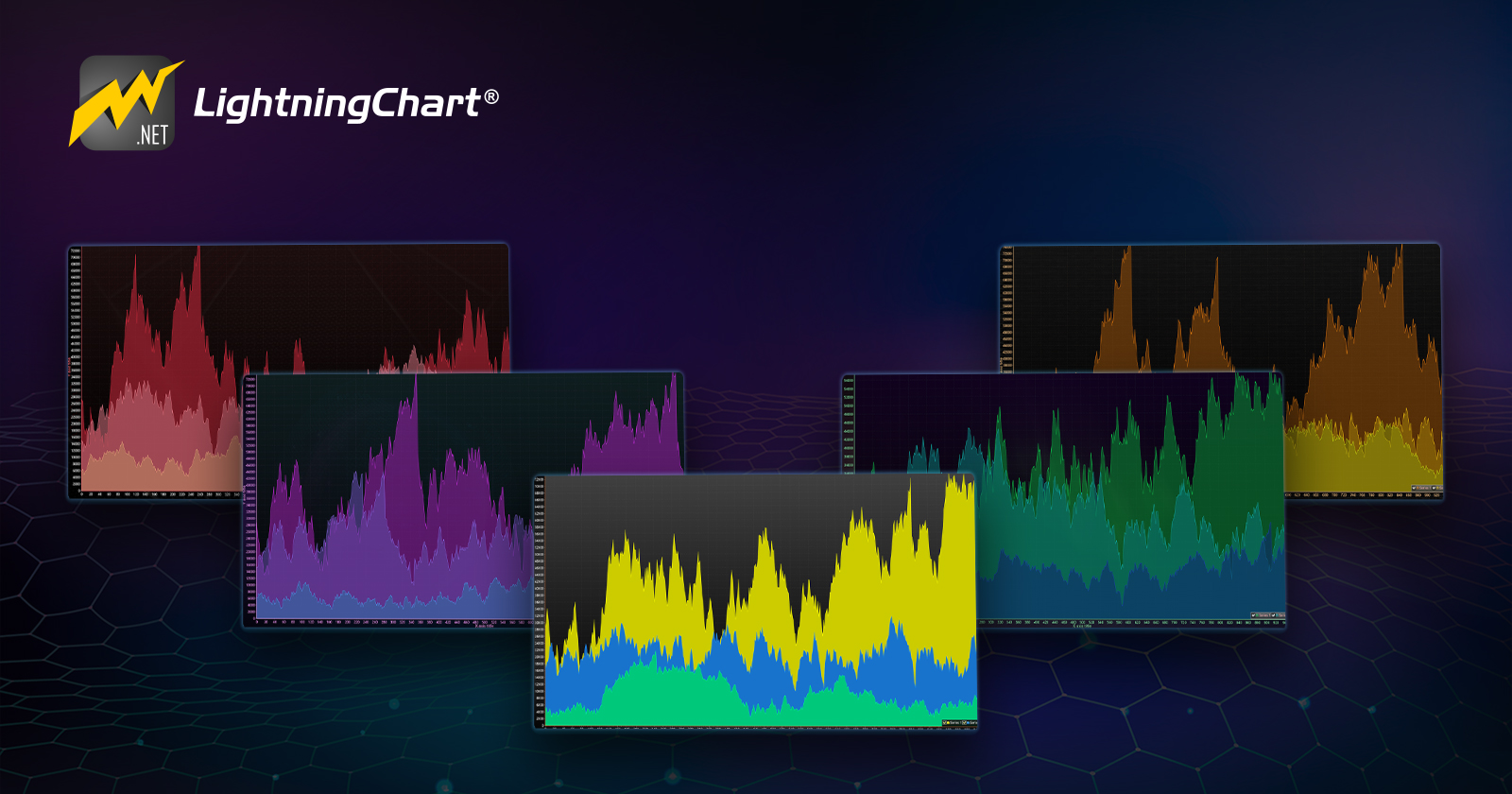
This time we’ll set programming aside for a moment and focus on the visual library and available WPF themes that LightningChart .NET offers us. This will be a brief article, but it will serve as a detailed catalog of all the available WPF themes for your charting applications.
As with all LC .NET exercises, we’ll make use of the interactive examples tool. This way, we can generate projects almost instantly and preview any theme we want. Therefore, I recommend installing it and looking at the installation section.
What are themes in graphical interfaces?
When we talk about themes in graphical interfaces, we’re basically referring to the application’s look & feel, in other words, how it looks and feels visually. It’s like dressing up your program: you choose the main colors, button styles, backgrounds, fonts, etc., and all of that together gives the app its personality.
In WPF, the available themes are not just about “painting things blue or black”. It includes rules that apply across all controls in your application, so everything looks consistent and balanced from user experience viewpoint. For example, a dark theme makes the window background black with light text, while a light theme does the opposite, using white and soft greys. There are also custom themes, like the ones companies use to make the app match their brand identity.
In LightningChart .NET, themes are especially important because you don’t just want to show a nice-looking chart, you also want it to blend in with the rest of your application. It wouldn’t make much sense to have your entire app in dark mode and suddenly have a bright white chart pop up, right? Themes help charts integrate smoothly, both in color and in style, and they also let you play around with predefined or custom palettes.
How do themes for WPF applications enhance the user experience and application aesthetics?
The beauty of the themes for WPF is that they don’t just make a charting application “look nice” but improve how the user interacts with it daily. The user experience gets better because a good theme brings consistency: all the buttons, menus, and charts follow the same style, which makes navigation more intuitive.
For example, with a dark theme, the entire system sticks to the same color logic, so users don’t get confused or distracted by odd contrasts. It also helps in terms of accessibility, since a well-designed theme can make text easier to read or highlight important elements more effectively.
On the other hand, there’s the aesthetics. WPF themes give your desktop charting application its identity. It makes it feel modern, professional, or even aligned with your company’s brand. In the case of data-driven applications, like those that use LightningChart .NET, aesthetics is key: a chart with the right colors doesn’t just look better, it also makes the information easier to interpret.
With a well-chosen palette, patterns stand out immediately, and the user can understand what’s happening much faster. Themes in WPF aren’t just “decoration”, they’re a combination of design and functionality that make your application more comfortable to use and more pleasant to look at.
WPF Themes
WPF themes are a requirement if you want your application to look modern and pleasant to use. These days, the bare minimum is for an app to support both light and dark modes, and ideally to adapt automatically to the system’s settings. It’s no longer enough to just have a white background with black text: users expect your app to breathe the same style as Windows 11 and feel integrated into their desktop.
DarkTheme
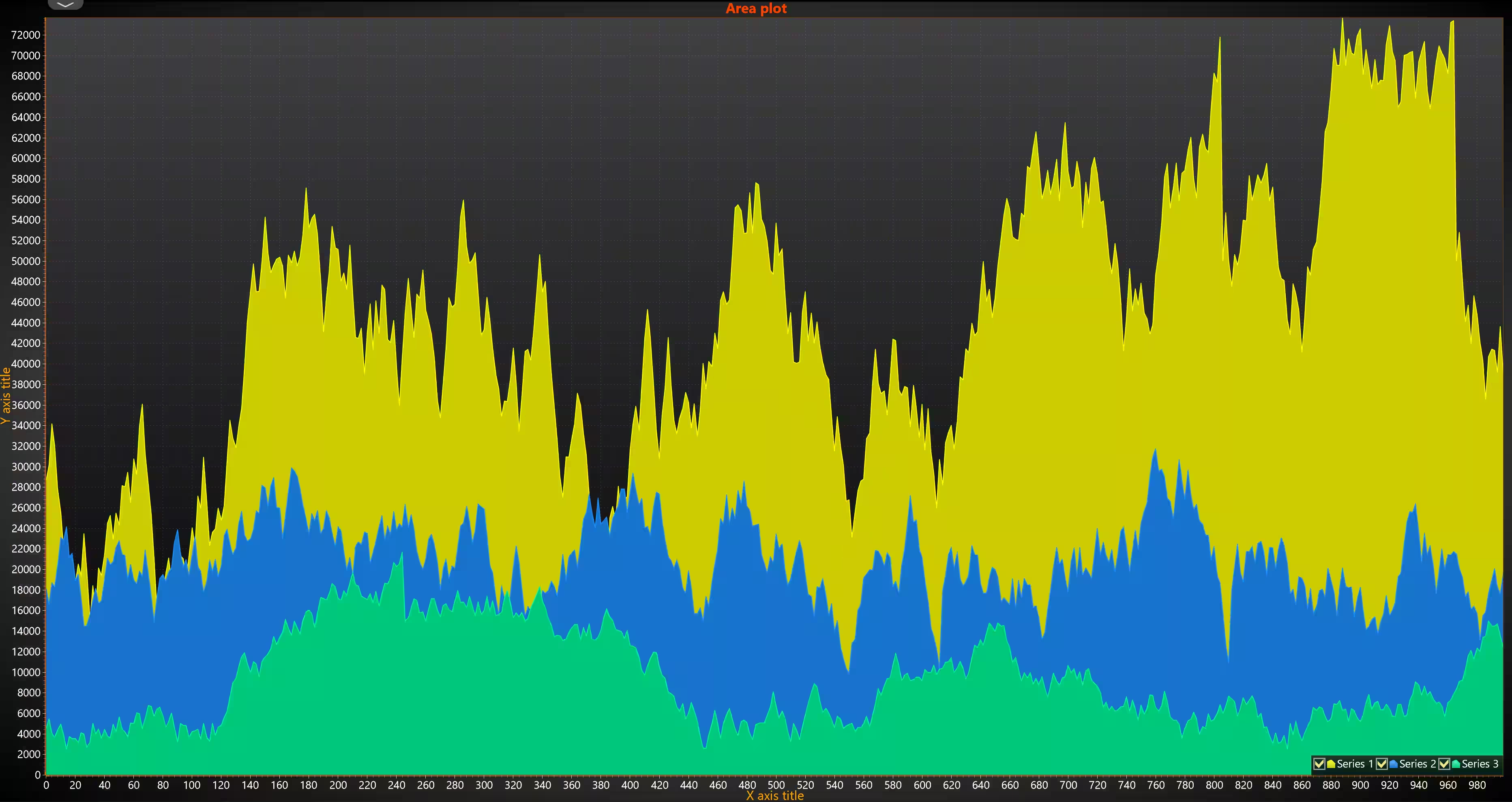
The Dark theme gives your charts a modern and elegant look, like those professional dashboards you often see in tech movies. The background turns dark, almost black, which makes everything else (lines, bars, points, text) stand out much more.
Your data colors appear more vivid and easier to distinguish, while texts and legends remain clear without straining your eyes. It’s like moving from a traditional whiteboard to a sleek digital display where everything pops and is instantly understandable briefly.
private void CreateChart()
{
    // Clear any gridChart's children.
    gridChart.Children.Clear();

    if (_chart != null)
    {
        // If a chart is already created, dispose it.
        _chart.Dispose();
        _chart = null;
    }

    _chart.ColorTheme = ColorTheme.Dark;
}
LightGray Theme
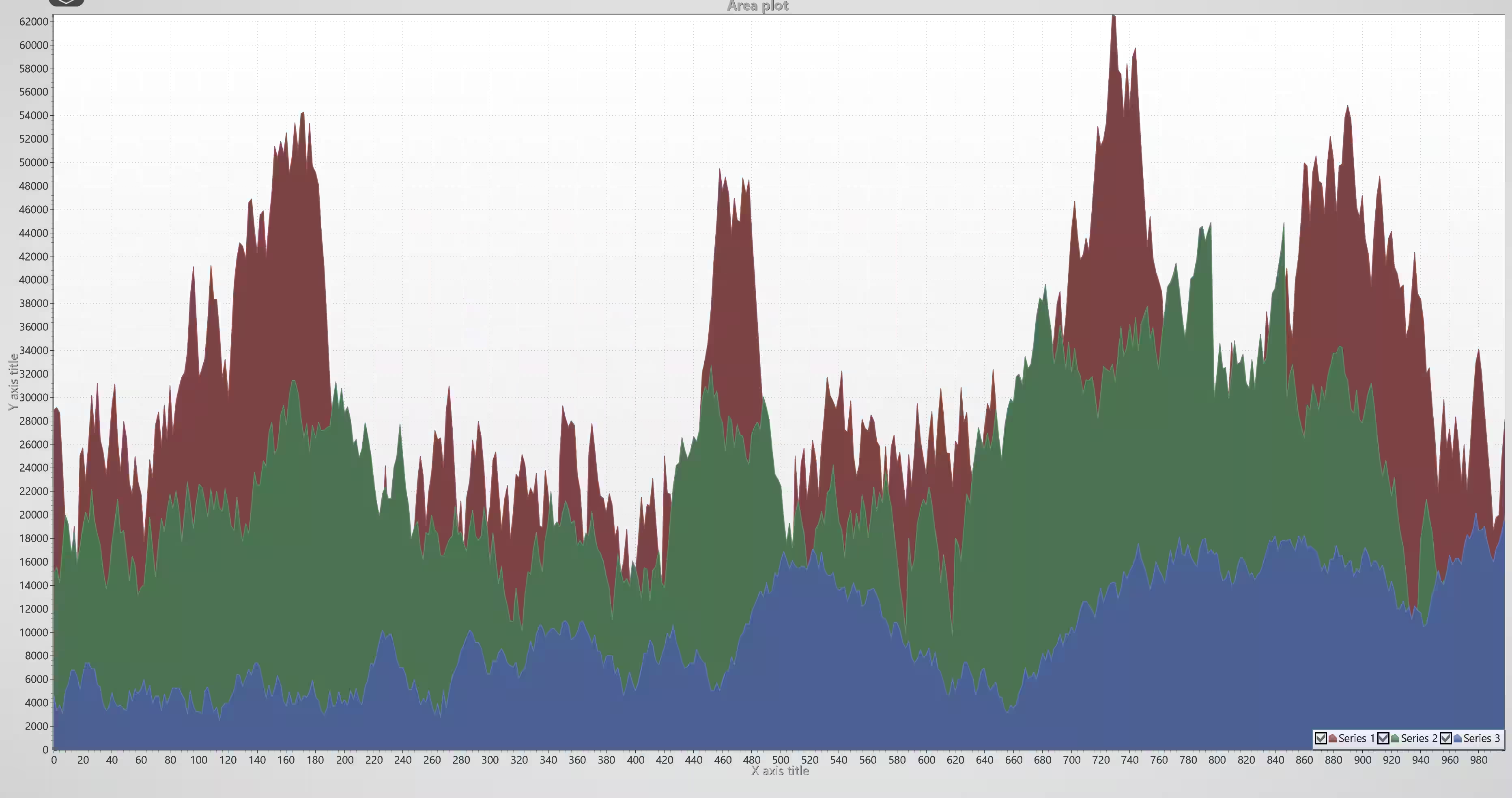
The LightGray theme gives the chart a clean and professional look, but softer than a completely white background. The entire background turns light gray, which reduces harsh contrast and helps prevent eye strain during long periods of data analysis.
The data series (in this case red, green, and blue) stand out clearly against this soft background, while the axes and grid lines remain visible yet discreet, without drawing attention away from the data.
This theme is perfect when you want your chart to be clear and easy to read, without looking too dark or heavy. It conveys a sense of order and neutrality, like working on a “clean whiteboard” where the data truly takes center stage.
private void CreateChart()
{
    // Clear any gridChart's children.
    gridChart.Children.Clear();

    if (_chart != null)
    {
        // If a chart is already created, dispose it.
        _chart.Dispose();
        _chart = null;
    }

    _chart.ColorTheme = ColorTheme.LightGray;
}
SkyBlue
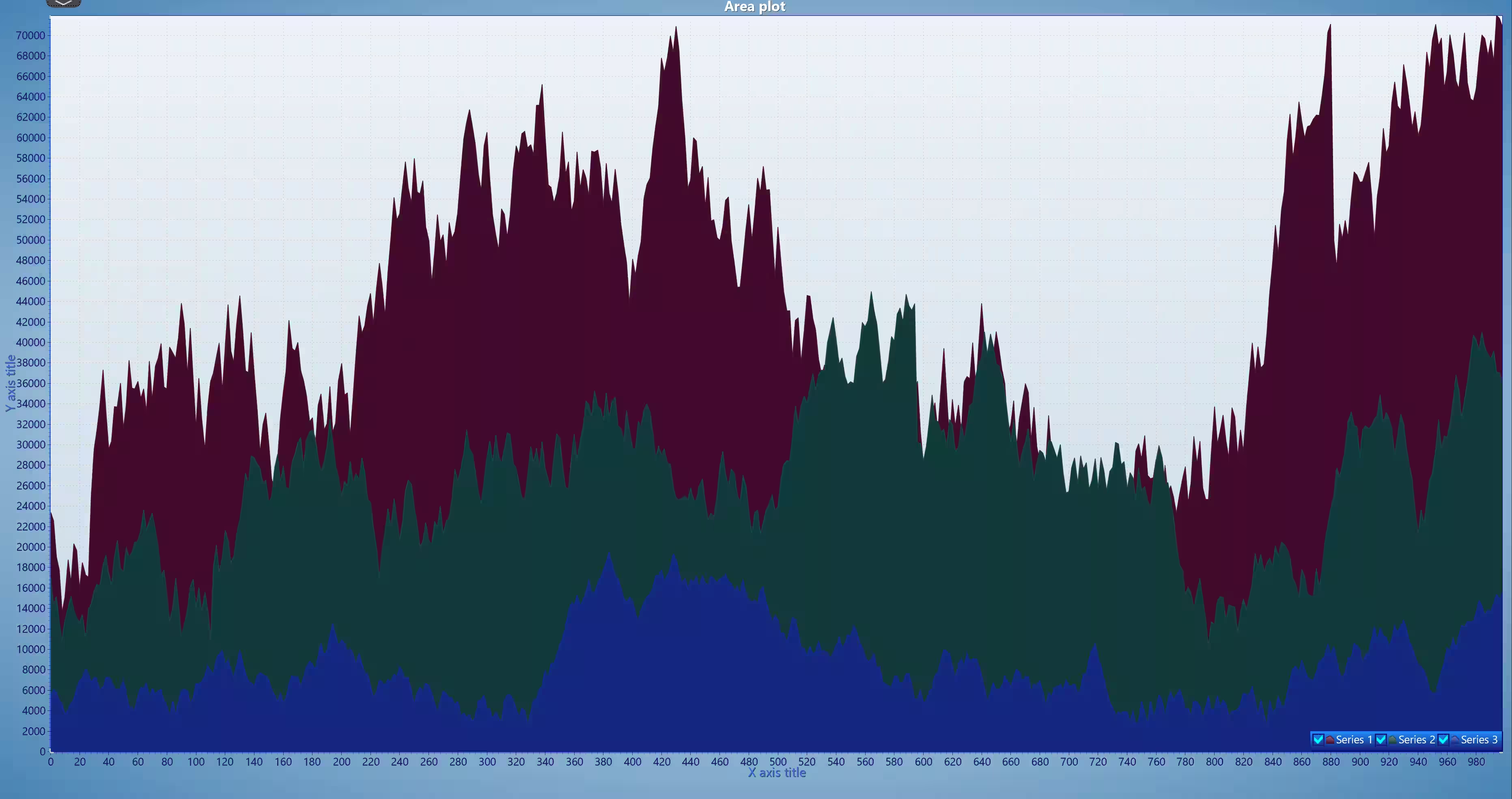
The SkyBlue theme is very similar to LightGray, as it keeps a light background in the chart, making it easy to read and distinguish the values or colored areas for each data series. Its main difference lies in the incorporation of a light blue in the axes and a soft bluish gray in the chart’s background, adding a touch of freshness and modernity to the design.
The SkyBlue color palette is carefully balanced, offering high contrast between visual elements with reduced brightness, which allows the eyes to remain comfortable during long data analysis sessions. In addition, it avoids the use of black or dark gray tones that could cause visual fatigue, favoring a lighter and clearer experience.
private void CreateChart()
{
    // Clear any gridChart's children.
    gridChart.Children.Clear();

    if (_chart != null)
    {
        // If a chart is already created, dispose it.
        _chart.Dispose();
        _chart = null;
    }

    _chart.ColorTheme = ColorTheme.SkyBlue;
}
TurquoiseHexagon Theme
Probably one of the most striking and eye-catching themes, Turquoise Hexagon offers a modern and futuristic style. Like something out of a science fiction movie, it combines bright green and blue tones over an almost completely black background, creating a dramatic contrast that makes every visual element stand out. This theme is not only aesthetically appealing but also improves the readability of complex charts and dense data thanks to its high contrast and vibrant colors.
Recommended use cases:
- Gaming dashboards and HUDs. This theme is ideal for immersive interfaces where the futuristic look and high contrast enhance the user experience.
- Modern financial analysis. It makes it easier to spot trends, peaks, and patterns in complex data without losing clarity.
- High-performance hardware monitoring. Clear and attractive to highlight critical metrics such as temperature, CPU/GPU usage, and energy consumption.
- IoT and real-time system visualizations. Allows for quick distinction of different signals or alerts within a dark, sleek environment.
- Tech presentations and demos. It adds a professional and modern touch, leaving a strong visual impact on the audience.
Its color combination and futuristic style make it an excellent option for any application or dashboard that aims to stand out both in aesthetics and functionality.
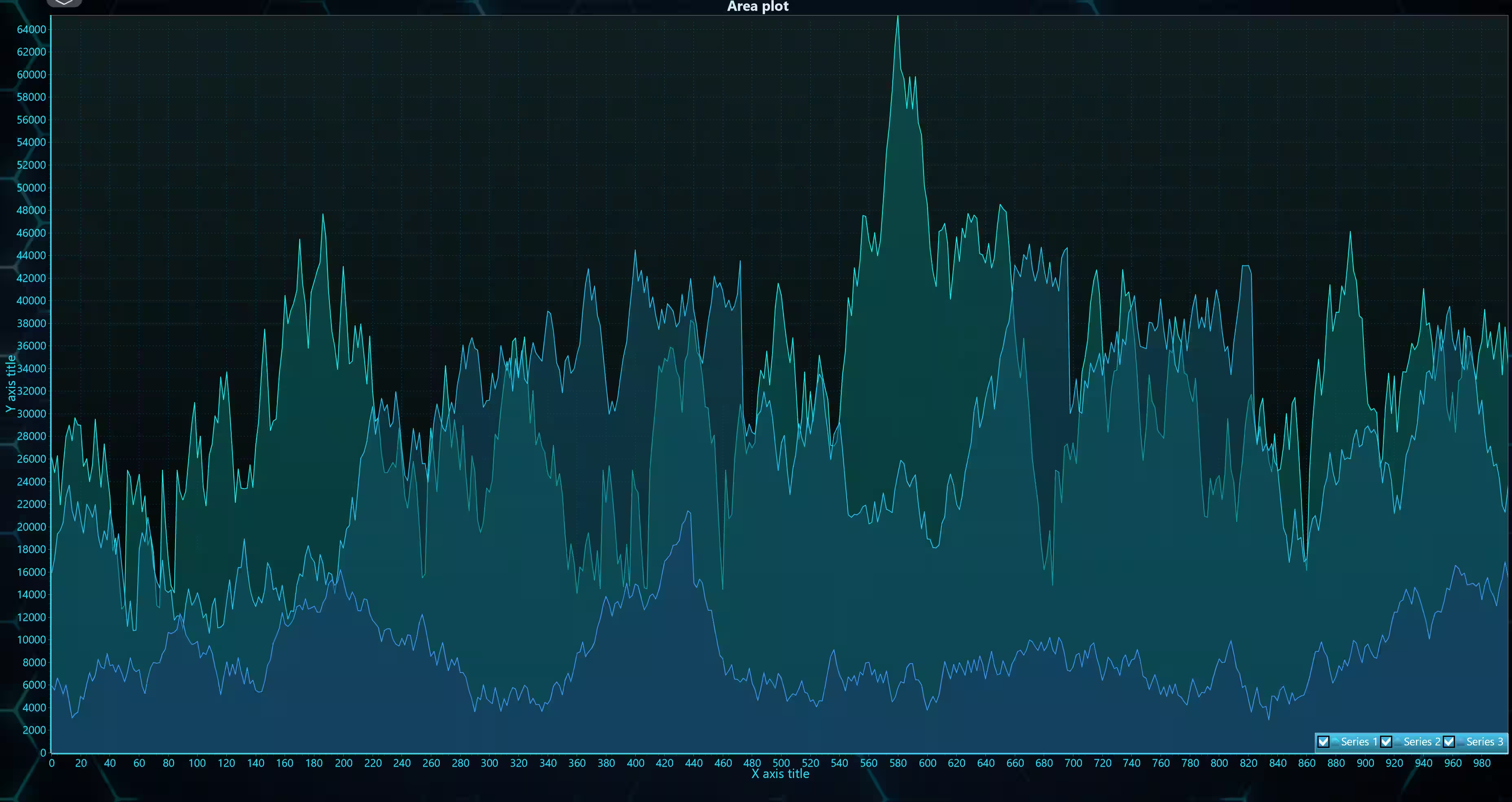
private void CreateChart()
{
    // Clear any gridChart's children.
    gridChart.Children.Clear();

    if (_chart != null)
    {
        // If a chart is already created, dispose it.
        _chart.Dispose();
        _chart = null;
    }

    _chart.ColorTheme = ColorTheme.TurquoiseHexagon;
}
Magma Theme
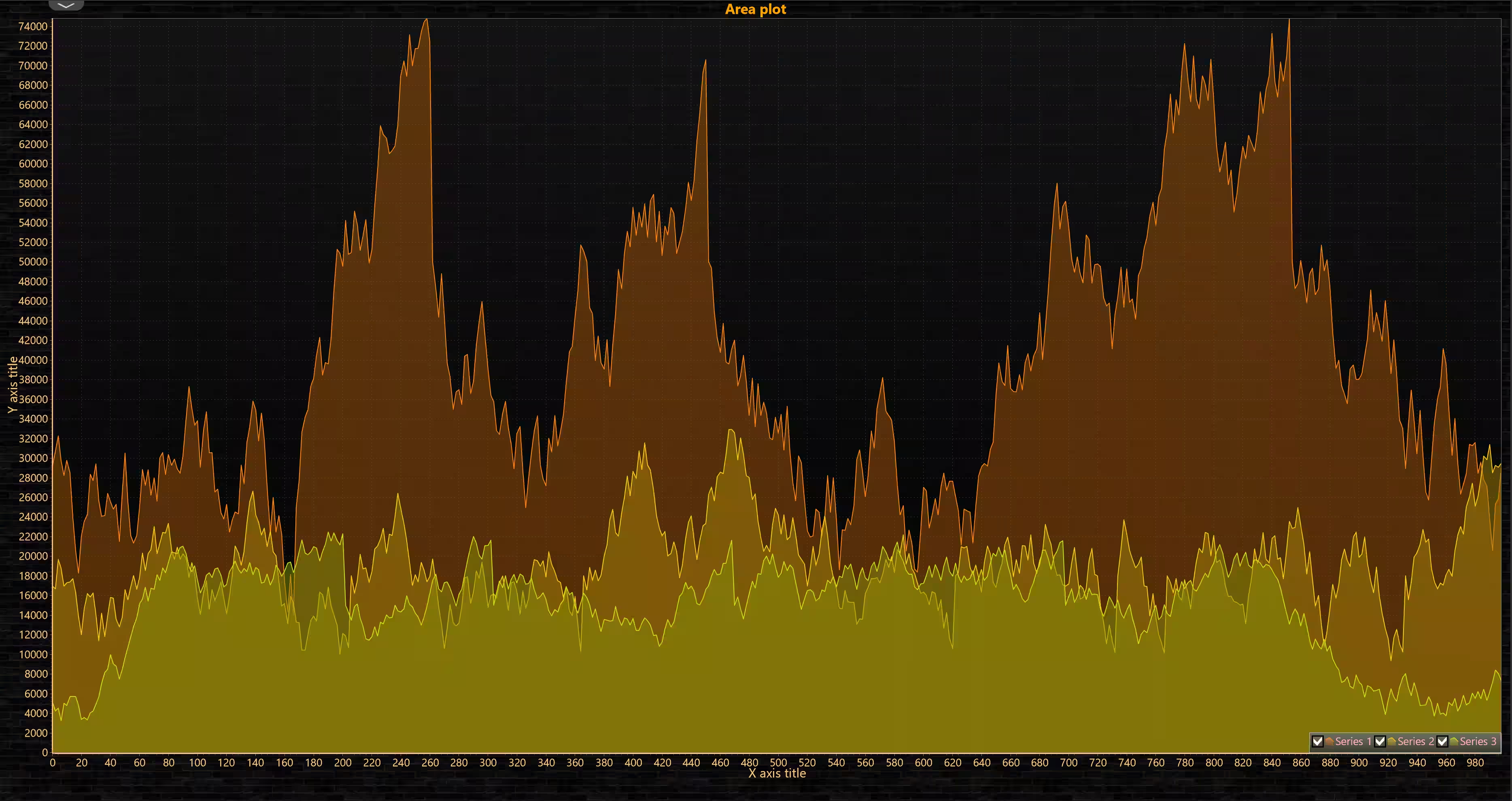
The Magma theme is a variant of Turquoise Hexagon, but reinterpreted in warm tones of red, orange, and yellow, perfectly reflecting its name. It maintains the same modern and futuristic style as its predecessor, with a dark, almost black background that allows the intense colors to stand out dramatically.
This combination of warm tones creates a sense of energy, dynamism, and visual alertness, making graphical elements and data series easy to distinguish even in high-density information environments.
Recommended use cases:
- Futuristic gaming and HUDs: The vibrant red palette provides a dramatic and engaging effect for immersive interfaces.
- Critical monitoring dashboards: Ideal for systems where alert, temperature, or performance indicators must stand out immediately.
- Financial or risk data visualizations: Helps highlight peaks, losses, or priority situations clearly.
- High-performance hardware monitoring: Red tones allow quick identification of critical CPU, GPU, or energy-intensive system states.
- Modern tech presentations: Its bold and striking aesthetic ensures charts and dashboards capture the audience’s attention.
In essence, it is a variant of Turquoise Hexagon, but its color palette makes it perfect for tech analysis applications, video games, and virtually any system that needs to look modern, aggressive, and impactful.
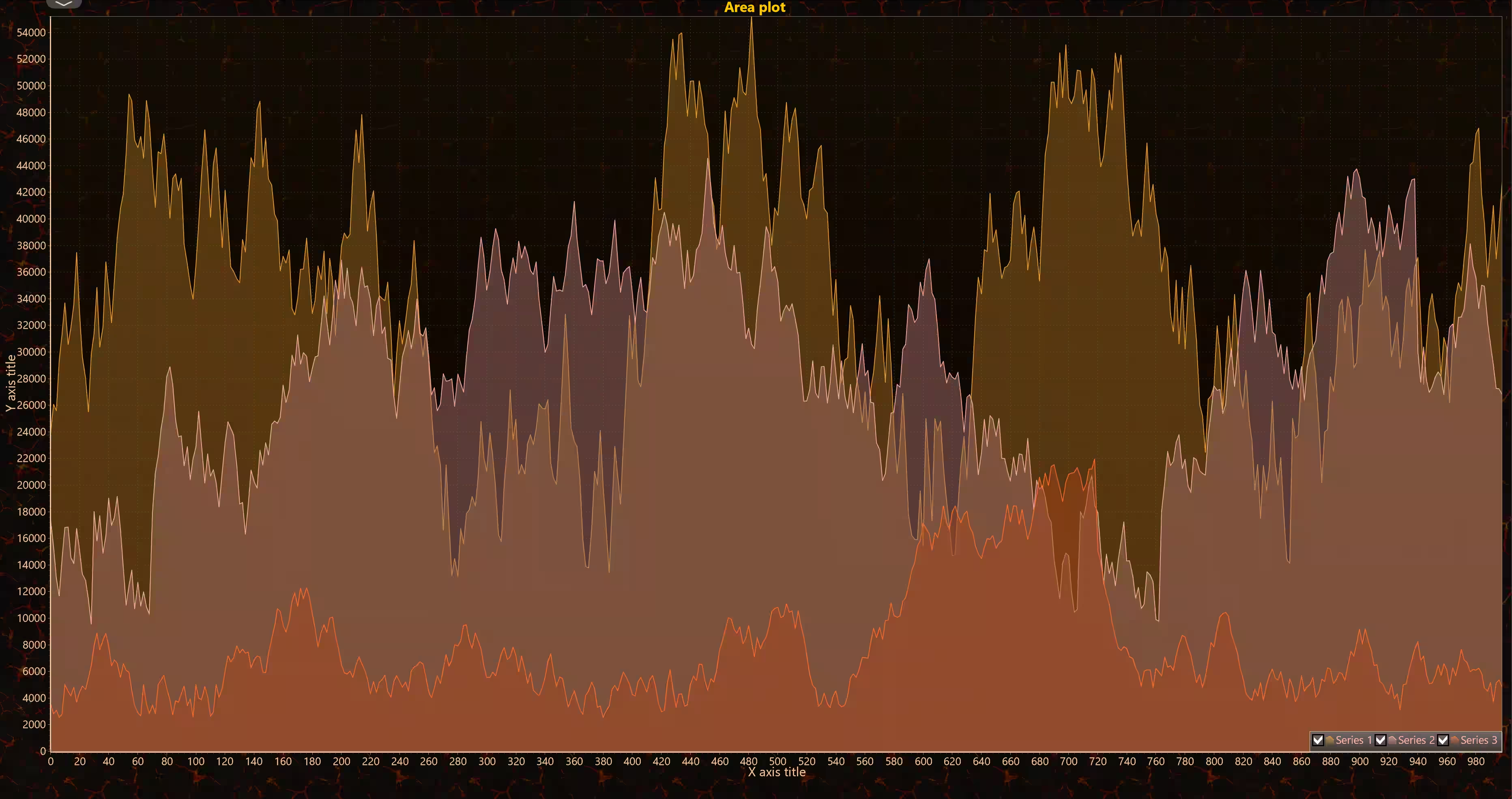
private void CreateChart()
{
    // Clear any gridChart's children.
    gridChart.Children.Clear();

    if (_chart != null)
    {
        // If a chart is already created, dispose it.
        _chart.Dispose();
        _chart = null;
    }

    _chart.ColorTheme = ColorTheme.Magma;
}
Auroras Theme
The Auroras theme retains the dark, almost black background of its predecessors but stands out due to its color palette inspired by the northern lights. Each series or data point in the chart uses shades of green, violet, pink, and blue, creating a vibrant and elegant visual effect.
It is ideal for modern dashboards, complex data visualizations, or applications that seek a striking and sophisticated style without sacrificing clarity. As a variant of the other two charts mentioned earlier, its use can be very similar, and its implementation will largely depend on the color palette of the system generating it.
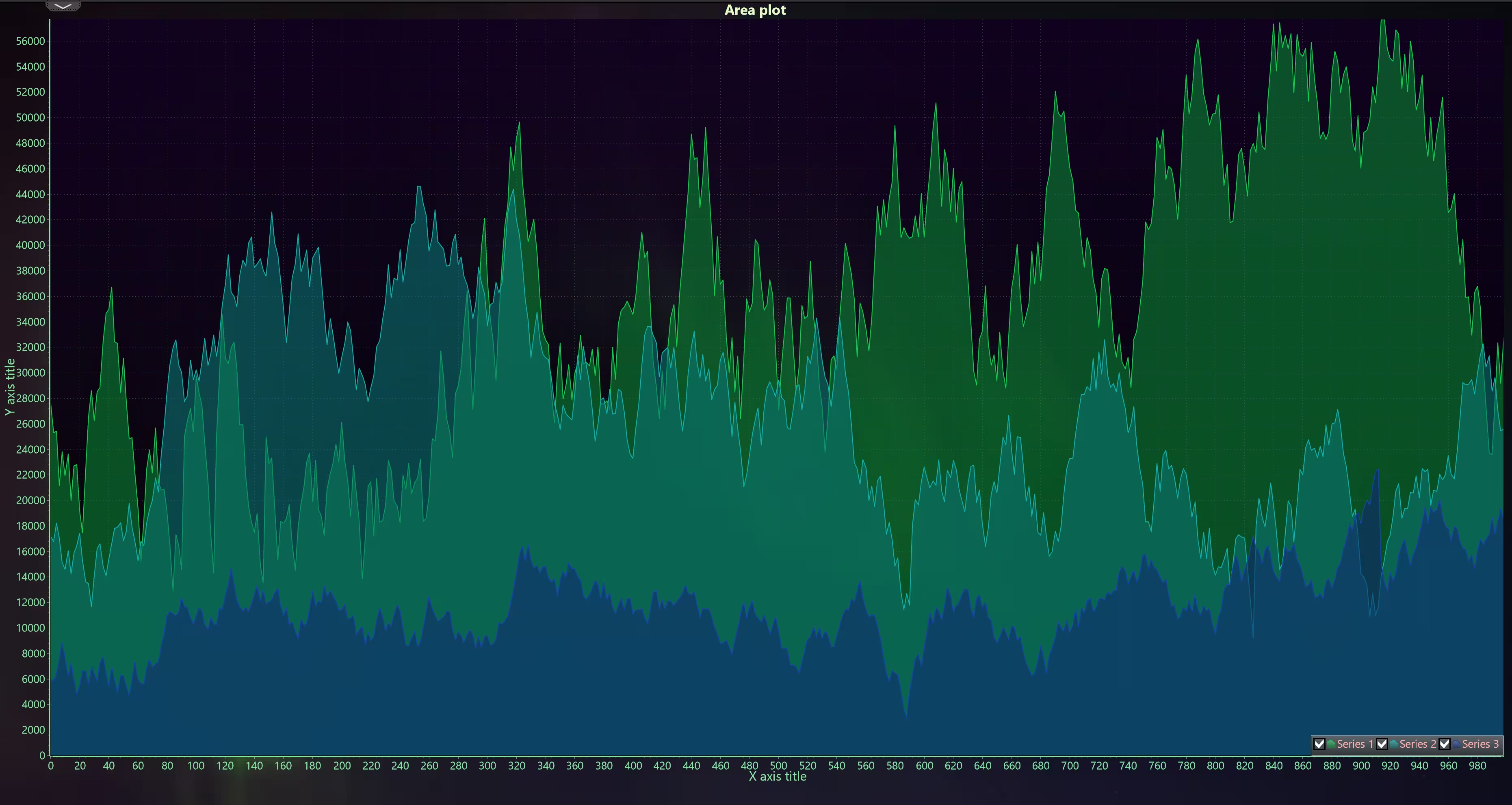
private void CreateChart()
{
    // Clear any gridChart's children.
    gridChart.Children.Clear();

    if (_chart != null)
    {
        // If a chart is already created, dispose it.
        _chart.Dispose();
        _chart = null;
    }

    _chart.ColorTheme = ColorTheme.Auroras;
}
Red Carbon Theme
The Red Carbon theme is a variant of Magma, but with a color palette focused on deeper, more intense reds over a rich black background. This combination creates high contrast and a striking visual effect, clearly highlighting each data series or point in the chart.
Its bold, modern style makes it ideal for gaming dashboards, critical system monitoring, or any application that aims for a visually impactful and attention-grabbing design.
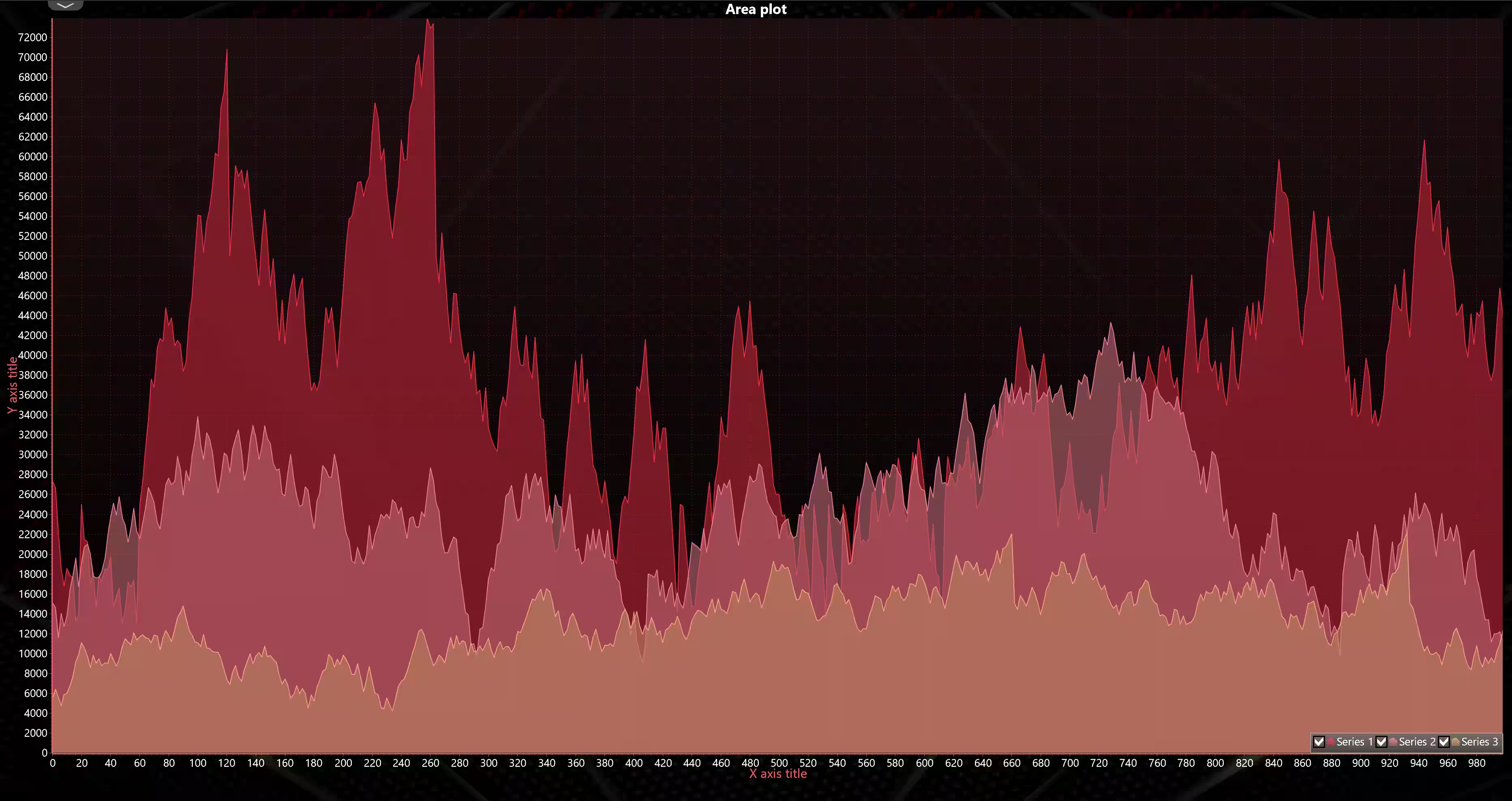
private void CreateChart()
{
    // Clear any gridChart's children.
    gridChart.Children.Clear();

    if (_chart != null)
    {
        // If a chart is already created, dispose it.
        _chart.Dispose();
        _chart = null;
    }

    _chart.ColorTheme = ColorTheme.RedCarbon;
}
World Cyber Space Theme
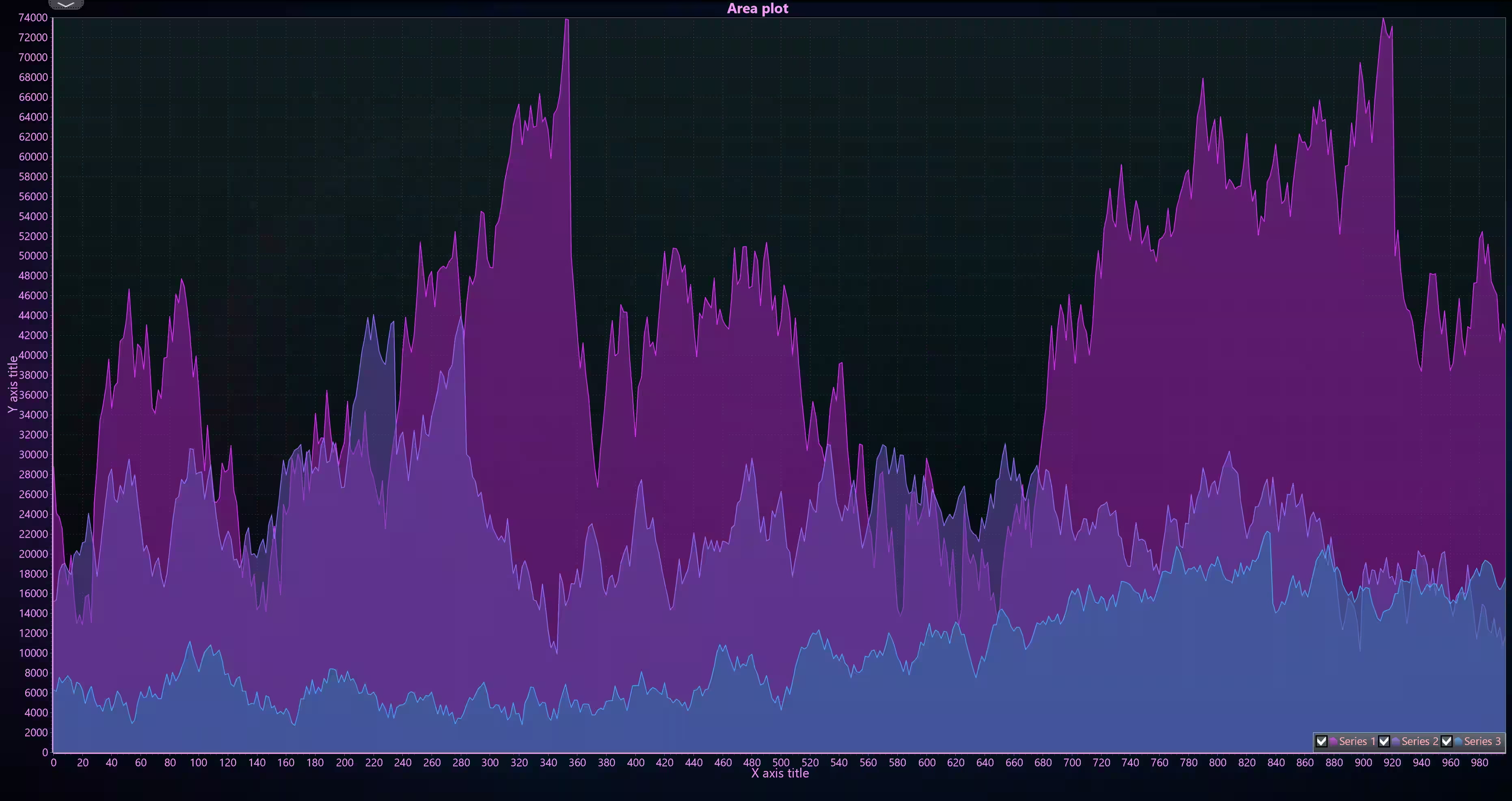
This theme is inspired by cyberpunk and futuristic aesthetics, where dark tones are contrasted with neon lights, commonly seen in digital interfaces, science fiction movies, and virtual world simulations.
Applications for this style
- Hacking or cybersecurity simulation interfaces: colors reminiscent of digital systems and virtual networks.
- Technology data analysis dashboards: highlight critical metrics with a futuristic and professional look.
- Futuristic gaming and HUDs: especially for sci-fi games or virtual environments.
- Network and system visualizations: ideal for displaying connections, data flows, or real-time activities.
- Tech presentations and innovation events: this theme’s “cyberpunk” digital aesthetic captures attention and conveys modernity.
private void CreateChart()
{
    // Clear any gridChart's children.
    gridChart.Children.Clear();

    if (_chart != null)
    {
        // If a chart is already created, dispose it.
        _chart.Dispose();
        _chart = null;
    }

    _chart.ColorTheme = ColorTheme.WorldCyberSpace;
}
Custom Dynamic Theme
LightningChart allows creating custom color themes by updating CustomDynamicTheme property. There are two ways to do this. Either get the custom theme to a variable and update that, or set ColorTheme to CustomDynamicTheme and update its properties.
// Method 1
ThemeBasics theme = _chart.CustomDynamicTheme;
theme.BackgroundColor = Colors.Black;
theme.ChartTitleColor = Colors.Green;
_chart.CustomDynamicTheme = theme;
_chart.UpdateCustomTheme();

// Method 2
_chart.ColorTheme = ColorTheme.CustomDynamicTheme;
_chart.CustomDynamicTheme.ChartTitleColor = Colors.Green;
_chart.UpdateCustomTheme();
Some themes use automatic coloring for axes and series. To manually set axis or series colors, disable MultiColorAxis or MultiColorSeries respectively, then set the colors. Interactive Examples demo application has ThemeCreator, which allows investigating the color themes and creating new ones.
ThemeBasics theme = _chart.CustomDynamicTheme;
theme.MultiColorAxis = false;
theme.AxisColor = Colors.Blue;
_chart.CustomDynamicTheme = theme;
ThemeBasics theme = _chart.CustomDynamicTheme;
theme.MultiColorAxis = false;
theme.AxisColor = Colors.Blue;
_chart.CustomDynamicTheme = theme;
Brushed Metal Theme
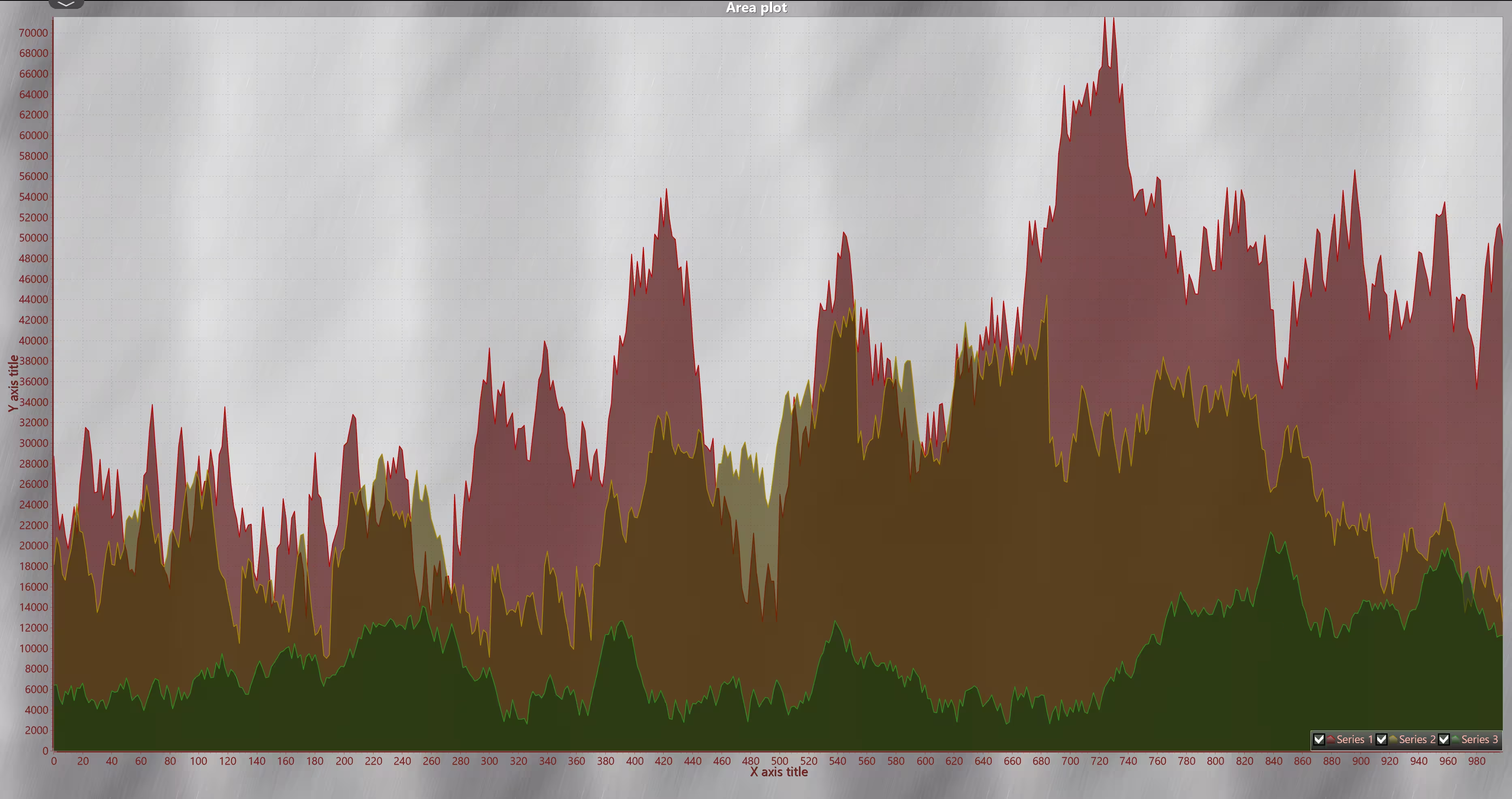
Brushed Metal is a variant of the LightGray theme, designed with a softer brightness and a high-contrast color palette. Its distinctive feature is the chart background, which simulates the texture of a metallic surface, as if the diagrams were projected onto brushed steel.
This style conveys a sober and professional aesthetic, creating a sense of technical and industrial analysis, making it ideal for engineering applications, manufacturing, or environments where visual robustness is key.
private void CreateChart()
{
    // Clear any gridChart's children.
    gridChart.Children.Clear();

    if (_chart != null)
    {
        // If a chart is already created, dispose it.
        _chart.Dispose();
        _chart = null;
    }

    _chart.ColorTheme = ColorTheme.BrushedMetal;
}
Paper Theme
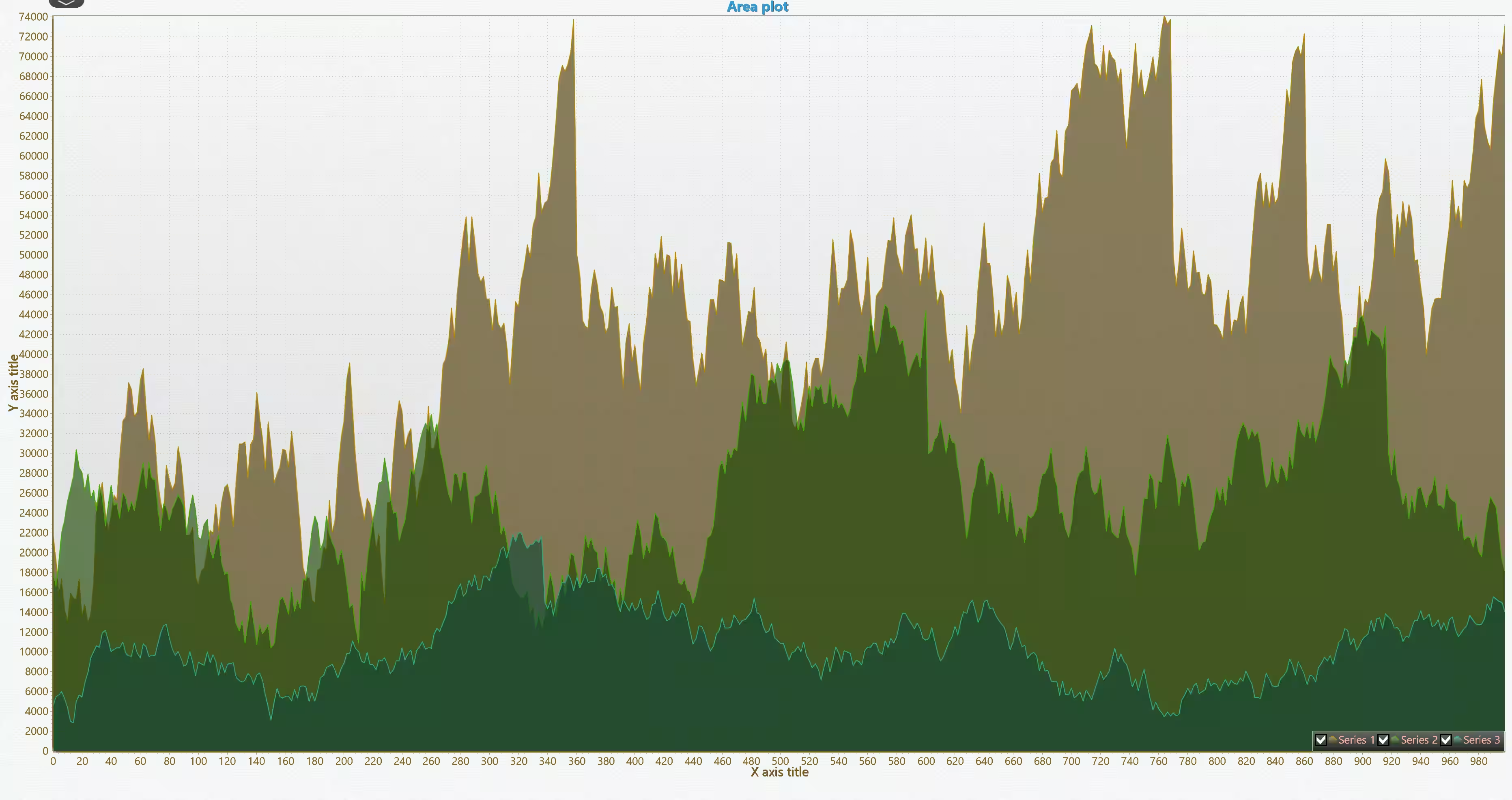
Papel is a variant of the LightGray theme, but instead of evoking metal or industrial surfaces, it conveys the feeling of viewing a diagram on a study sheet. The light background mimics the texture and brightness of paper, while the colors used in the series maintain a clean and soft style, making reading and prolonged analysis comfortable without causing visual fatigue.
This theme is ideal for educational dashboards, academic presentations, or environments where a light, simple, and familiar appearance is desired, like charts drawn directly on a worksheet.
private void CreateChart()
{
    // Clear any gridChart's children.
    gridChart.Children.Clear();

    if (_chart != null)
    {
        // If a chart is already created, dispose it.
        _chart.Dispose();
        _chart = null;
    }

    _chart.ColorTheme = ColorTheme.Paper;
}
Conclusion
Thank you for making it this far. LightningChart .NET WPF themes don’t just change the appearance of a chart, they also transform the user experience. With a simple theme switch, we can go from a light and relaxing style like LightGray or SkyBlue to bolder and more modern options such as Turquoise Hexagon, Magma, or World Cyber Space. This flexibility allows each dashboard or application to adapt to the context, audience, and type of data being displayed.
Proper colors and contrasts not only make information easier to interpret, but they also attract users and make the interface more pleasant and professional. A well-chosen theme can keep the eyes comfortable during long analysis sessions, intuitively highlight critical information, and even convey a product’s identity and style.
In short, the ability to switch themes quickly makes LightningChart .NET a very powerful tool: it helps dashboards look more appealing, improves data comprehension, and enables software to stand out from others in both functionality and aesthetics. Thank you very much, see you in the next article!
Continue learning with LightningChart
Visualizing 10 Million Data Points in the Browser (2026): The Technical Deep-Dive
Ten Million Data Points in the Browser: How WebGL Makes Mass Datasets Interactive Ten million data points. That number used to mean a database problem, not a front-end problem. Now research teams want to explore it interactively in a browser. Trading desks want...
Elliott Wave Theory in Trading
Financial markets often appear chaotic, but many traders believe that price movements follow recurring patterns driven by human psychology. One of the most influential approaches based on this idea is the Elliott Wave Theory. Developed nearly a century ago, it remains one of the most widely studied methods of technical analysis.
The Head and Shoulders Pattern in Technical Analysis
The Head and Shoulders Pattern in Technical Analysis The Head and Shoulders Pattern in Technical Analysis The Head and Shoulders pattern is one of the most recognized and widely used chart patterns in technical analysis. It is considered a reliable reversal pattern...



If you have any questions, feel free to contact us!
©LightningChart Ltd 2025. All rights reserved.