





LightningChart .NETWPF World Population 3D Map
TutorialCreating a WPF world population 3D map project with LightningChart .NET
Written by a human | Updated on April 23rd, 2025
Intro to WPF World Population 3D Maps
The purpose of this tutorial is to walk you through how to create a WPF word population 3D map using the 3D surface series and coordinate calculation tools. The population levels will be represented with polygons of different heights, to show the magnitude of each value in comparison with others.
In this case, we will be able to visualize the population of each country by considering its height, all this, shown within this interactive WPF 3D map.
Why is important to choose the right tools for creating 3D maps?
Depending on your project’s needs, you may require specific features for your 3D map charts. LightningChart .NET features Polygon3D objects that allow presenting a 2D polygon, stretched to a given Y-range. They can be created to show simple polygons or more complex objects, for example, different regions of the world map.
What is LightningChart .NET?
LightningChart .NET is a high-performance charting library compatible with WPF, UWP, and WinForms. It features hundreds of chart types such as medical charts, scientific, trading charts, and more. LightningChart .NET is performance-oriented and its charting controls support high-end capabilities including a massive amount of data intake, real-time charts, a high FPS rate, and more.
Project Overview
The following chart is a WPF world population 3D map and uses Polygon3D Series. As you can see, the height of each country indicates its population level. It is also worth mentioning that we will use a 3D chartXY, which adds the Z axis to a two-dimensional chart, allowing us to rotate the object to obtain different perspectives of the data.

 Download the project to follow the tutorial
Local Setup
For this project, we need to take into count the following requirements to compile the project.
- OS: 32-bit or 64-bit Windows Vista or later, Windows Server 2008 R2 or later.
- DirectX: 9.0c (Shader model 3 and higher) or 11.0 compatible graphics adapter.
- Visual Studio: 2010-2019 for development, not required for deployment.
- Platform .NET Framework: installed version 4.0 or newer.
Now go to the next URL and download LightningChart .NET. You’ll then be redirected to a sign-in form where you’ll have to complete a simple sign-up process. When you’re done with the registration process, you’ll have access to your LightningChart account.

After you sign into your account, you will be able to download the SDK. This SDK will be a “free trial” version, but you will be able to use many important features for this WPF world population 3d map tutorial. When you download the SDK, you’ll have a .exe file like this:

The installation will be a typical Windows process, so please continue with it until it is finished. After the installation, you will see the following programs:

License Manager
In this application, you will see the purchase options. All the projects that you will create with this trial SDK, will be available for future developments with all features enabled.

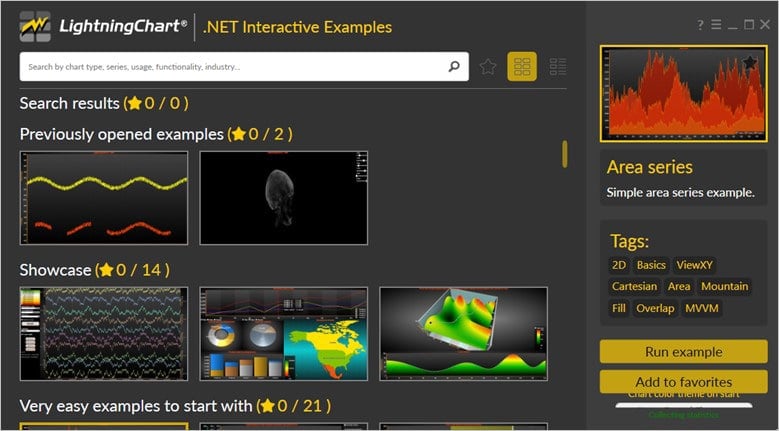
LightningChart .NET Interactive Examples
Now you can see 100+ interactive visualizations available for WPF, WinForms, and/or UWP.
Visual Studio Project
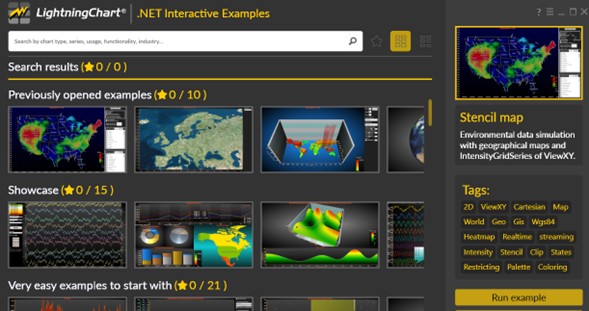
Now let’s work with Visual Studio. The main difference between using the LightningChart visualizer and Visual Studio is that we will be able to analyze and experiment with many features within the source code. In the LC visualizer, select the Population Polygon and run the example:
In the top-right zone of the windows, you will see the following options:
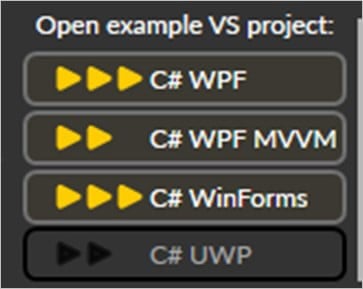
For the trial SDK, we will be able to use the WPF framework. After clicking the framework to use, we will need to specify a folder where the project will be created:

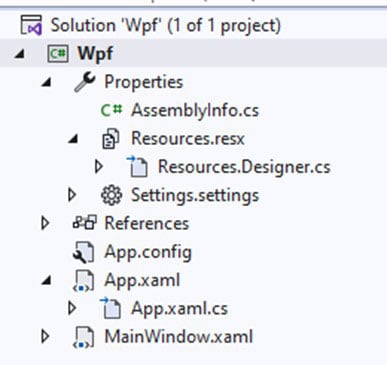
Finally, the WPF world population 3D map project will be created and Visual Studio will be opened and ready for executing the digital signal processing filters application.
Code Review
The main code will be wrapped inside MainWindow.xaml.cs. Here we will find the code for UI controls.
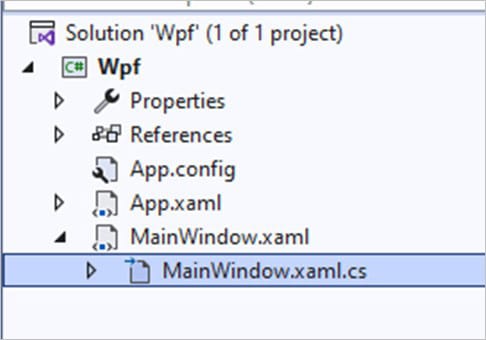
Inside the code we will check two methods that will create the properties that we need to correctly draw the chart. The interactive example is built with various user controls, to manipulate and change the visual properties of the chart. These controls are not required to generate this graph, so we will focus on the code responsible for generating the object.
CreateChart()
We will start with the InitializeComponent method. This will allow us to load our XAML template and access the objects within it.
InitializeComponent();
CreateChart();
The CreateChart method will construct the chart object, which will be displayed within an XAML frame. We need to create a LightningChart-type object. This constructor will allow us to create an instance of a chart, specify the type of chart, and access different properties.
_chart = new LightningChart
{
    ChartName = "Population Polygon Chart"
};
_BeginUpdate
The BeginUpdate function will allow us to stop drawing the chart, which will allow us to set up the properties that we want to customize. As long as the update is not closed, the chart will not show the changes we make, this will help with the performance of the chart construction.
_chart.BeginUpdate();Chart Type
We need to specify the active chart view or the type of chart that will be created. In this case, we use the XY view. There are several types of views:
- XY
- 3D
- Pie3D
- Polar
- Smith
_chart.ActiveView = ActiveView.ViewXY;Chart Properties
We can start by assigning a background color to the chart. Within CreateChart, we will find a method called CreateColorPalette. This method will allow us to generate the gradient of the legend box based on the population numbers.
_chart.ChartBackground.Color = Colors.DodgerBlue;SurfaceGridSeries
First we need to add a surface grid series which we will add to our chart using the Add function. SurfaceGridSeries3D allows you to view data as a 3D surface. In SurfaceGridSeries3D, nodes are equally spaced in the X dimension and also in the Z dimension.
SurfaceGridSeries3D sgs = new SurfaceGridSeries3D(_chart.View3D, Axis3DBinding.Primary, Axis3DBinding.Primary, Axis3DBinding.Primary);
//sgs.Visible = false;
sgs.Title.Text = "Population";
sgs.ContourLineType = ContourLineType3D.None;
sgs.WireframeType = SurfaceWireframeType3D.None;
_chart.View3D.YAxisPrimary3D.Units.Text = "";
_chart.View3D.SurfaceGridSeries3D.Add(sgs);
Coloring SurfaceGridSeries
Now we will create a color palette, which will be added to our surface grid series.
ValueRangePalette palette = new ValueRangePalette(sgs);

palette.Steps.Clear();
palette.Steps.Add(new PaletteStep(palette, Colors.Lime, 10000000));
palette.Steps.Add(new PaletteStep(palette, Colors.Yellow, 50000000));
palette.Steps.Add(new PaletteStep(palette, Colors.Red, 500000000));
palette.Type = PaletteType.Gradient;
sgs.ContourPalette = palette;
m_palette = palette;
With the ValueRangePalette property, define color steps to color values of the WPF world population 3D map. You can use ValueRangePalette to:
- Fill
- Wireframe
- Contour lines
Each step has a height value and corresponding color. The palette is defined with the MinValue, Type, and Steps properties. There are two options:
- Uniform and Gradient.
- Minimum value: -50
- Type: Uniform
- Steps:
- Steps[0]: Maximum value: -10, Color: Blue
- Steps[1]: Maximum value: 10, Color: Teal
- Steps[2]: Maximum value: 25, Color: Green
- Steps[3]: Maximum value: 35, Color: Yellow
- Steps[4]: Maximum value: 60, Color: Red
- Steps[5]: Maximum value: 100, Color: White
Values below the first step value are colored with the first step color.
Adding Data
Now we will obtain the values of each country and to do that, we have to use the GetCountryData method.
List<CountryData> list = new List<CountryData>();

string path = Environment.CurrentDirectory + @"\Maps\" + DefaultMap + ".md";
if (path != "")
{
    _chart.ViewXY.Maps.Path = System.IO.Path.GetDirectoryName(path);
}

_chart.ViewXY.Maps.Type = DefaultMap;
We will extract the values from the markdown documentation file. Depending on where you have the LC .NET framework installed, the root path will change, in my case it is the following:
“C:\LightningCharts\Charts\Population Polygon Chart\Wpf\ExamplePopulationPolygons3D\bin\Debug\Maps”
The DefaultMap variable refers to a world map:
private const Map.MapType DefaultMap = Map.MapType.WorldLow;Map Selection
LightningChart .NET offers the following maps

Once the data has been extracted, you will be able to see a loop that will map all the values:
foreach (MapLayer layer in _chart.ViewXY.Maps.Layers)
{
    if (layer is RegionLayer)
    {
        //Get all countries from the layer.
        RegionLayer rl = (RegionLayer)layer;
        foreach (MapItem region in rl.Items)
        {
            CountryData data = new CountryData();

            Dictionary<string, string> dict = region.GetInfo();
            Dictionary<string, string>.KeyCollection keys = dict.Keys;
            foreach (string key in keys)
            {
                string strValue;
                if (dict.TryGetValue(key, out strValue))
                {
                    if (key == "PEOPLE")
                    {
                        int iPopulation = 0;
                        try
                        {
                            string strIntegerPart = strValue.Split('.')[0];
                            iPopulation = int.Parse(strIntegerPart);
                        }
                        catch
                        {
                        }
                        data.Population += iPopulation;
                    }
                    else if (key == "SOVEREIGNT")
                    {
                        data.CountryName = strValue;
                    }
In the end, the GetCountryData method will return a list of the CountryData struct. This object will contain the name of the country, population, and an array of points that represent the Border Paths:
public struct CountryData
{
    public string CountryName;
    public int Population;

    public PointFloat[][] BorderPaths;
}
Individual Country Color Assignment
Returning to GetCountryData, we can configure the population values and assign a color to each country, based on the numerical value in relation to the color palette that we previously configured (with the help of the GetColorByValue function).
List<CountryData> listCountries = GetCountryData();
double dMaxPopulation = 0;
foreach (CountryData country in listCountries)
{
    if (country.Population > dMaxPopulation)
    {
        dMaxPopulation = country.Population;
    }

    foreach (PointFloat[] path in country.BorderPaths)
    {
        Color color;
        m_palette.GetColorByValue(country.Population, out color);

        Polygon3D polygon = AddPolygon(country.CountryName, color, path, country.Population);
        m_dictCountryDataByPolygon.Add(polygon, country);
    }

}
The AddPolygon function will create the country polygons and assign them the color obtained by GetColorByValue. It will use the points or Border Paths to establish the values of the X-Z axes, while the Y axis will be delimited by the population value within the WPF world population 3D map.
Configuring Axis
Finally, we come to the part where we configure visual properties of each of the axes for the wpf world population 3D map. This part is quite simple, and you can follow the LC .NET documentation to know each of the properties.
_chart.View3D.WallOnBottom.Visible = false;

_chart.View3D.XAxisPrimary3D.Title.Text = "Longitude";
_chart.View3D.XAxisPrimary3D.ValueType = AxisValueType.MapCoordsDegNESW;
_chart.View3D.XAxisPrimary3D.KeepDivCountOnRangeChange = false;
_chart.View3D.XAxisPrimary3D.SetRange(-180, 180);
_chart.View3D.XAxisPrimary3D.MajorDiv = 10;
_chart.View3D.XAxisPrimary3D.MinorDivTickStyle.Visible = false;
_chart.View3D.XAxisPrimary3D.AutoDivSpacing = false;
_chart.View3D.XAxisPrimary3D.LabelsNumberFormat = "0";
For the X axis we will assign the name “Longitude” and the values shown will be Map coordinates, degrees, with N, E, S, W indication.
_chart.View3D.YAxisPrimary3D.Title.Text = "Population, million people";

_chart.View3D.YAxisPrimary3D.KeepDivCountOnRangeChange = false;
_chart.View3D.YAxisPrimary3D.SetRange(0, dMaxPopulation / 1000000.0);
_chart.View3D.YAxisPrimary3D.MajorDiv = 100;
_chart.View3D.YAxisPrimary3D.AutoDivSpacing = false;
_chart.View3D.YAxisPrimary3D.AutoFormatLabels = false;
_chart.View3D.YAxisPrimary3D.LabelsNumberFormat = "0";
For the Y axis, we will assign the name “Population, million people” and the range will be delimited by the maximum population value.
_chart.View3D.ZAxisPrimary3D.Title.Text = "Latitude";
_chart.View3D.ZAxisPrimary3D.KeepDivCountOnRangeChange = false;
_chart.View3D.ZAxisPrimary3D.SetRange(-90, 90);
_chart.View3D.ZAxisPrimary3D.MajorDiv = 10;
_chart.View3D.ZAxisPrimary3D.AutoDivSpacing = false;
_chart.View3D.ZAxisPrimary3D.ValueType = AxisValueType.MapCoordsDegNESW;
_chart.View3D.ZAxisPrimary3D.MinorDivTickStyle.Visible = false;
_chart.View3D.ZAxisPrimary3D.LabelsNumberFormat = "0";
The Z axis will be called “Latitude” and the data type will be the same as the X axis.
_chart.View3D.Camera.MinimumViewDistance = 20;
_chart.View3D.Camera.ViewDistance = 90;
_chart.View3D.Camera.RotationX = 50;
_chart.View3D.Camera.RotationY = 0;
_chart.View3D.Camera.RotationZ = 0;
_chart.View3D.Camera.OrientationMode = OrientationModes.XYZ_Mixed;

//Allow chart rendering
_chart.EndUpdate();


gridChart.Children.Add(_chart);
Finally, we assign an initial position to the camera, close the chart update, and add it to the XAML grid so that it is displayed to the user.
Conclusion
Here’s the final WPF world population 3D map application:
Thanks for getting here. This WPF world population 3D map chart has been a great exercise for managing 3D objects located in a two-dimensional plane. We could summarize the code in the following steps:
- Create a 3D type chart.
- We choose the type of map within the LC .NET catalog.
- We create a palette in the form of a combo box. This will be used to assign colors to the countries.
- We extract the data from a source and map the values.
- We assign the colors of the palette with the
GetColorByValuefunction. - We create the polygons with the
AddPolygontool. - We configure the 3 axes and add the chart to the XAML grid.
The ability to display 3D elements with a volume according to a specific value is truly spectacular. Remember that we need to create a 3D type chart. When creating a 3D object, we can access its three axes and configure them. We can hide the axes or assign visible ranges, which will give the illusion of being within a two-dimensional plane. The palettes tool will help us set colors for each range of values, and assign the gradient effect to simulate intensity. We can also manipulate the camera, assign the distance and initial rotation.
In the following articles we will have examples of how to use an image and apply a color palette to simulate weather conditions.
Thank you, bye.

Omar Urbano
Software Engineer


Continue learning with LightningChart
Why Performance Matters in Data Visualization?
Written by a human | Updated on April 10th, 2025Performance in Data VisualizationI was doing a Google search a couple of days ago and particularly, I wanted to know what are the options for developers who need to visualize large amounts of data points within...

Geospatial data visualization with Google Maps & LightningChart
Written by a human | Updated on April 10th, 2025Geospatial Data Visualization This article showcases and describes a particular use case of LightningChart JS for geospatial data visualization. LightningChart JS is a JavaScript charting tool designed for...
![[Tutorial] How to embed interactive charts in PowerPoint presentations](https://lightningchart.com/wp-content/uploads/2022/12/Interactive-Charts-in-PowerPoint-feature-image.jpg)
[Tutorial] How to embed interactive charts in PowerPoint presentations
Written by a human | Updated on April 9th, 2025Embed interactive charts in PowerPoint presentations Embedding charts within PowerPoint presentations has always been possible but perhaps one of the most ignored possibilities is actually embedding web applications...



If you have any questions, feel free to contact us!



©LightningChart Ltd 2026. All rights reserved.