








LightningChart .NETWPF Box Plot Chart
TutorialImplementation of a WPF Box Plot Chart with LightningChart .NET
Written by a human | Updated on April 23rd, 2025
WPF Box Plot Chart
In this article, we’ll walk through a quick and easy exercise using LightningChart .NET. We’ll create a WPF project that displays a Box and Whisker chart. If you’re new to LightningChart .NET, this is a great way to get started with this powerful library. To build the chart, we’ll use the interactive examples tool, which will help us set up the project automatically. Before we dive in, just make sure your PC meets the technical requirements for working with LightningChart .NET.
While the chart itself might not be the most visually exciting, the code review is definitely worth your attention. Creating this chart involves working with polygons, so you’ll get hands-on experience with creating and manipulating shapes—skills that will come in handy when you’re working with drawings or shapes on a Cartesian plane.
What is LightningChart’s WPF graph?
LightningChart’s WPF graph, known as LightningChart for WPF, is a powerful data visualization tool designed specifically for Microsoft Windows Presentation Foundation (WPF). WPF charts can easily be integrated into your Microsoft Visual Studio toolbox.
You can add them to your software project using drag-and-drop, XAML, or code-behind. Once added, the WPF graph becomes a key part of the user interface (UI) in your Windows desktop application, making it an invaluable tool for software developers.
What is WPF?
Windows Presentation Foundation (WPF) is a framework designed for creating applications with sophisticated user interfaces. It consists of two main components: Markup, where you define the structure and appearance, and code-behind, where you manage the application’s logic and behavior.
Project Video Demo
Today we will create the application using the WPF box plot series in LightningChart .NET.
 Download the project to follow the tutorial
Markup
Markup enables us to build a user interface with a variety of controls, allowing us to manage the displayed results in the application with great precision. This interface development is done using XAML (Extensible Application Markup Language). While it might initially look like an XML template, XAML is specifically designed for building application interfaces rather than just exchanging data between applications.
The interface’s data, graphics, and animations can either be pulled from an external source file or dynamically generated through the code behind.
<Window
	xmlns="http://schemas.microsoft.com/winfx/2006/xaml/presentation"
	Title="Window with Button"
	Width="250" Height="100">

  <!-- Add button to window -->
	<Button Name="button">Click Me!</Button>

</Window>
The creation of some controls can be almost the same as that of HTML tags, in other cases, properties such as style is limited to the declaration of a property within a tag.
Code Behind
The code behind refers to the file containing the executable code responsible for reading, generating, and processing the results the user needs. One of its main purposes is to separate the graphical interface code (like XAML, HTML, CSS, etc.) from the executable code. This separation allows us to divide the work between user interface design and the development of the underlying code, leading to safer, more organized, and faster development.
In the case of WPF (Windows Presentation Foundation), we use the C# programming language. C# is an object/component-oriented language that fits well with this approach. Lightning Chart .NET generates WPF projects with C# code that’s ready for execution. Within this code, you can use LightningChart .NET own tools, which can be easily imported if the LC .NET framework is installed.
Box Plot Diagram
The box plot, also known as a whisker diagram, is a type of graph used to analyze detailed data. It features a rectangular shape that represents data grouped into segments, with lines extending from the box ends, often called whiskers. This type of graph is commonly used in fields like medicine, science, and education.
A box plot visually summarizes data distribution across five key aspects:
- It starts with the minimum value.
- Next is the first quartile.
- The second quartile, also known as the median, follows.
- Then comes the third quartile.
- Finally, it ends with the maximum value.

What do the quartiles represent for the diagram?
What do the quartiles represent in the diagram?
- The First Quartile (Q1) marks the value that is greater than 25% of the data in the distribution.
- The Second Quartile, also known as the median, is the value right in the middle of the ordered data set, splitting it into two equal halves.
- The Third Quartile (Q3) is the value that is greater than 75% of the data in the distribution.
Sometimes, we might spot outliers, which are represented as individual points outside the “whiskers” of the box plot. Box plots are super helpful for comparing data distributions, making it easier to identify key values, groups, and segments in different areas of research.
Local Setup
For this project, we need to consider the following requirements to compile the project.
- OS: 32-bit or 64-bit Windows Vista or later, Windows Server 2008 R2 or later.
- DirectX: 9.0c (Shader model 3 and higher) or 11.0 compatible graphics adapter.
- Visual Studio: 2010-2019 for development, not required for deployment.
- Platform .NET Framework: installed version 4.0 or newer.
Now go to the next URL and download LightningChart .NET. You’ll then be redirected to a sign-in form where you’ll have to complete a simple sign-up process to get access to your LightningChart account.

After signing in to your account, you can download the SDK “free trial” version that allows you to use important features for this WPF 3D Sphere chart tutorial. When you download the SDK, you’ll have a .exe file like this:

The installation will be a typical Windows process, so please continue with it until it is finished. After the installation, you will see the following programs:

License Manager
In this application, you will see the purchase options. All the projects that you will create with this trial SDK, will be available for future developments with all features enabled.

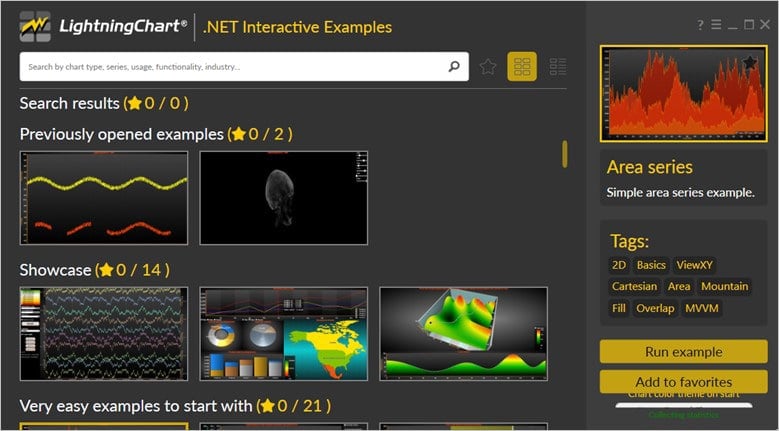
LightningChart .NET Interactive Examples
You can see 100+ interactive visualizations for WPF, WinForms, and/or UWP.
Visual Studio Project
The main difference between the LightningChart visualizer and Visual Studio is that we can analyze and experiment with many features within the source code. In the LC visualizer, select the “Box and Whiskers Plot” example and run it:

In the top-right zone of the windows, you will see the following options:
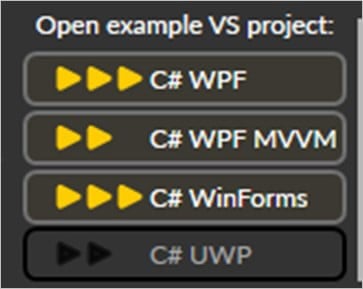
The SDK trial allows us to use the WPF framework. After selecting the right framework, we need to specify a folder where to create the project:

After creating the project, Visual Studio will open and be ready for execution.
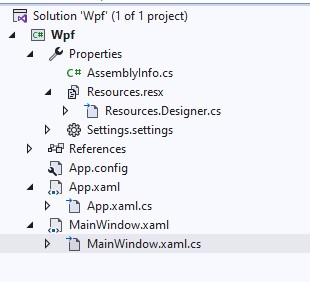
XAML Code Review
The main XAML code will be wrapped inside MainWindow.xaml.cs and contains the code of the sphere GUI controls.
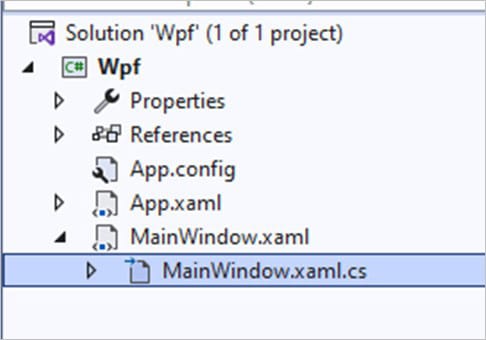
Inside the code, we will check two methods for creating the properties needed to draw the chart correctly. The interactive example is built with various user controls to manipulate and change the visual properties of the chart. These controls are not required to generate this graph, so we will focus on the code responsible for generating the object.
CreateChart()
This method will be responsible for configuring our chart, adding the axes, groups, colors, etc. We will create our chart:
// Create a new chart.
_chart = new LightningChart();

//Disable rendering, strongly recommended before updating chart properties
_chart.BeginUpdate();
The BeginUpdate function will allow us to stop drawing the chart, which will allow us to set up the properties that we want to customize. Now we will assign a title to our chart:
//Chart name
_chart.ChartName = "Box and whiskers plot";
If the value is false, the box will be hidden. Now we will add the boxes and whiskers (Later we will review the AddBoxAndWhiskers method):
//Add boxes with whiskers
AddBoxAndWhiskers(45, 60, 69, 84, 95, 1, 0.5, "Group A", Colors.Yellow);
AddBoxAndWhiskers(54, 59, 62, 69, 79, 2, 0.5, "Group B", Colors.Magenta);
AddBoxAndWhiskers(56, 68, 76, 82, 97, 3, 0.5, "Group C", Colors.Orange);
AddBoxAndWhiskers(49, 65, 72, 76, 93, 4, 0.5, "Group D", Colors.SteelBlue);
The arguments sent are the following:
<param name="minimum">Minimum</param>
<param name="lowerQuartile">Lower quartile</param>
<param name="median">Median</param>
<param name="upperQuartile">Upper quartile</param>
<param name="maximum">Maximum</param>
<param name="categoryX">X value the box is centered to</param>
<param name="widthX">Width as X axis range</param>
<param name="caption">Box caption</param>
<param name="fillColor">Fill color</param>
Custom Ticks
Color customTickColor = Color.FromArgb(50, 255, 255, 255);
axisX.CustomTicks.Add(new CustomAxisTick(axisX, 1, "A", 10, true, customTickColor, CustomTickStyle.TickAndGrid));
axisX.CustomTicks.Add(new CustomAxisTick(axisX, 2, "B", 10, true, customTickColor, CustomTickStyle.TickAndGrid));
axisX.CustomTicks.Add(new CustomAxisTick(axisX, 3, "C", 10, true, customTickColor, CustomTickStyle.TickAndGrid));
axisX.CustomTicks.Add(new CustomAxisTick(axisX, 4, "D", 10, true, customTickColor, CustomTickStyle.TickAndGrid));
axisX.CustomTicksEnabled = true;
axisX.AutoFormatLabels = false;
You can manually set the positions of the axis ticks by enabling CustomTicks with CustomTicksEnabled = true and specifying the positions in the CustomTicks list property. The CustomAxisTicks class lets you customize each tick, grid line, or both.
Use the Style property to choose between Tick, Grid, or TickAndGrid. You can also set the color of a tick or grid line using the `Color` property and adjust the tick length with the Length property.
The grid line pattern will follow the settings from the MajorGrid.Pattern and PatternScale properties of the axis.
The CustomAxisTick class includes the AxisValue and LabelText properties. When using custom ticks, make sure to disable AutoFormatLabels to display your custom label texts.

Axes Setup
To access the X axis, we just need to select index zero from the XAxes list. Since we are only using a chart with a single X axis, it will be assigned by default to index zero:
AxisX axisX = _chart.ViewXY.XAxes[0];
axisX.SetRange(0, 5);
axisX.ScrollMode = XAxisScrollMode.None;
axisX.ValueType = AxisValueType.Number;
axisX.Title.Text = "Groups";
The range will be from 0 to 5, this is because we will only have 4 boxes, and we will use a separation range between the start and the end.

The scroll mode offers us 5 behavior options for scrolling the X-axis
- None: The X-axis is not automatically scrolled.
- Scrolling: The X-axis will be scrolled when the scroll position approaches the end of the graph.
- Stepping: Steps the view with Step when the scroll position reaches the end of the graph.
- Sweeping: Previous traces will be left in the background and new traces will be swept over it.
Triggering: The X-axis minimum and maximum are set by the detected level trigging position.
AxisY axisY = _chart.ViewXY.YAxes[0];
axisY.SetRange(40, 100);
axisY.Title.Text = "Weight (kg)";
The Y-axis configuration is simpler since we only need to show the vertical value of each object. The focus of the Y axis will be set between the values 40 and 100, which are the minimum and maximum numbers of our boxes.
_chart.EndUpdate();

gridChart.Children.Add(_chart);
Once we have finished configuring our chart, we close the EndUpdate() update process, and add the chart object to our XAML grid so that it is displayed.
AddBoxAndWhiskers
In order to create a box, we need to use the series of polygons:
PolygonSeries polygon = new PolygonSeries(_chart.ViewXY, _chart.ViewXY.XAxes[0], _chart.ViewXY.YAxes[0]);
polygon.Fill.Color = fillColor;
polygon.Fill.GradientColor = ChartTools.CalcGradient(fillColor, Colors.Black, 20);
polygon.Fill.GradientFill = GradientFill.Cylindrical;
polygon.Fill.GradientDirection = 0;
polygon.Behind = true;
polygon.Border.Color = Colors.White;
polygon.Border.Width = 1;
polygon.AllowUserInteraction = false;
polygon.Title.Visible = true;
polygon.Title.Text = caption;
polygon.Title.Color = ChartTools.CalcGradient(fillColor, Colors.White, 70);
The PolygonSeries renders a fill and a borderline by the given border path. It sets the filling preferences in the Fill property. You can use the Border property of the PolygonSeries to set the border line style.
Setting data to a Polygon
Set the path points in the Points property. PolygonSeries has an automatic path-closing feature. If the last point is not connected to the first point, the chart will do that automatically. The following shows how to assign the points of the previous picture’s transparent teal polygon’s path:
PointDouble2D[] polygonPath = new PointDouble2D[4];
polygonPath[0].X = categoryX - widthX / 2.0;
polygonPath[0].Y = lowerQuartile;
polygonPath[1].X = categoryX + widthX / 2.0;
polygonPath[1].Y = lowerQuartile;
polygonPath[2].X = categoryX + widthX / 2.0;
polygonPath[2].Y = upperQuartile;
polygonPath[3].X = categoryX - widthX / 2.0;
polygonPath[3].Y = upperQuartile;
polygon.Points = polygonPath;
Setup median and whiskers
In order to create the medians and whiskers, we will need to use a collection of lines:
LineCollection lineCollectionMedian = new LineCollection(_chart.ViewXY, _chart.ViewXY.XAxes[0], _chart.ViewXY.YAxes[0]);
lineCollectionMedian.LineStyle.Color = Colors.White;
lineCollectionMedian.AllowUserInteraction = false;
lineCollectionMedian.LineStyle.Width = 1;
lineCollectionMedian.LineStyle.AntiAliasing = LineAntialias.None;
A LineCollection is a handy way to group line segments, each connecting two points, A and B. With the ability to include thousands of segments, it’s perfect for efficiently rendering lots of distinct lines. While PointLineSeries, FreeformPointLineSeries, and SampleDataSeries are ideal for continuous polylines with millions of points, LineCollection shines when managing separate line segments.
You can personalize your lines using the LineStyle property, letting you tweak the color, style, and width. Define your line segments in the Lines property, and to make them visible, simply add your LineCollection object to the ViewXY.LineCollections list property.
Setting data to a LineCollection
The SegmentLine structure consists of four fields:
lineCollectionMedian.Lines =
    new SegmentLine[]
    {
        new SegmentLine(categoryX - widthX / 2.0, median, categoryX + widthX / 2.0, median), //median line
		new SegmentLine(categoryX, maximum, categoryX, upperQuartile), //upper whisker
		new SegmentLine(categoryX - widthX / 8.0, maximum, categoryX + widthX / 8.0, maximum), //upper whisker end
		new SegmentLine(categoryX, minimum, categoryX, lowerQuartile), //lower whisker
		new SegmentLine(categoryX - widthX / 8.0, minimum, categoryX + widthX / 8.0, minimum) //lower whisker end
	};
Conclusion
This chart will seem simple, but it can be somewhat complex to understand, this is because the creation of boxes, medians, and whiskers is based on the manipulation of polygons. The boxes are a data point, whose number of polygons on the X-axis is extended in width by the sum of several polygons specified in the AddBoxAndWhiskers method call.
AddBoxAndWhiskers(45, 60, 69, 84, 95, 1, 0.5, "Group A", Colors.Yellow);The same for the height of the boxes.

This is an important point! This chart allows the creation and manipulating of polygons within a Cartesian plane. If we slightly modify a value, we can generate a new geometric shape:

In the case of medians and whiskers, they are a set of lines that are drawn on the X-axis in relation to their Y-axis value. Once the point is positioned, the width, color and position of the line is assigned. Therefore, if we make a slight modification, we will obtain a different line:

With the help of the polygon series, we can create our own geometric shapes, and create new types of charts with shapes that help us to better understand an analysis case.

Omar Urbano
Software Engineer


Continue learning with LightningChart
Angular Bubble Chart
Written by a human | Updated on April 11th, 2025Angular Bubble Chart App Hello there, in this tutorial, we'll use Visual Studio Code and typescript to build a brand-new Angular template from scratch. Also, we'll modify a bubble chart's characteristics to fit the...
DataGrid Heatmap Monitoring
Written by a human | Updated on April 10th, 2025JavaScript Monitoring DataGrid Heatmap In our previous articles, we worked on TypeScript projects and as we know, we need a web browser to visualize all those projects. In other cases, you may need to create a...

DataGrid Monitoring
Written by a human | Updated on April 10th, 2025JavaScript DataGrid Monitoring Application In this article, we will carry out an exercise of an XY chart that updates in real-time using the new LC JS DataGrid monitoring component. DataGrid is an additional...



If you have any questions, feel free to contact us!



©LightningChart Ltd 2026. All rights reserved.