








LightningChart .NETWPF 2D Heatmap
TutorialCreate a WPF 2D heatmap for advanced data analysis.
Written by a human | Updated on April 14th, 2025
Introduction to WPF 2D heatmaps
Hi again! As part of my article tutorials for WPF data visualization, we will create a 2D heatmap using LightningChart .NET interactive examples tool. As you know, a heatmap is a graphical representation of data in which colors are used to represent different values. This technique is typically used to highlight significant changes or values in a study based on the intensity of colors used.
Usually, the highest values are associated with intense colors, such as red colors, while the lowest values are associated with less intense colors (blues, greens, grays, etc.). In this article, we will create a 2D heatmap, although it is also common to see heatmaps in 3D modeling.
We will usually see 2D heatmaps of two types:
- Spatial 2D heatmap that represents the intensity or magnitude of certain changes in a global map. The most common example is the representation of temperature changes on the world map (Flat View).
- Grid 2D heatmap is a two-dimensional map that represents a category for each dimension.
Both categories can be combined to show the difference in magnitudes of each class. Heatmaps are commonly used in temperature maps, but they are also very useful in business and computing.
For example, with 2D heatmaps, you can visualize the actions of users on websites, allowing you to quickly identify their behavior thanks to the intensity of the colors.
In business, the risks of some actions can be analyzed, based on data collected over a period of time. High-risk values can be represented in red and lower-risk values in green. This can generate a strong psychological effect on partners, helping to determine what decisions to make.
Finally, in branches of engineering and mechanics, the conditions of a piece of equipment can be determined based on values such as temperature, which can represent those values above the average with intense colors.
In appearance, a 2D heatmap may not be very attractive compared to other charts, since it can be confusing, but its importance is very high since it can demonstrate the risks in an object of study based on the intensity of colors.
We previously worked with heatmaps using the LightningChart JS library and Visual Studio Code, so I recommend that you visit that article as a complement to this one.
Project Overview
This WPF 2D heatmap will be created using the IntensityGridSeries. You can also access this chart via the LightningChart .NET Interactive Examples application.

 Download the project to follow the tutorial
Local Setup
For this project, we need to take into count the following requirements to compile the project.
- OS: 32-bit or 64-bit Windows Vista or later, Windows Server 2008 R2 or later.
- DirectX: 9.0c (Shader model 3 and higher) or 11.0 compatible graphics adapter.
- Visual Studio: 2010-2019 for development, not required for deployment.
- Platform .NET Framework: installed version 4.0 or newer.
Now go to the next URL and download LightningChart .NET. You’ll then be redirected to a sign-in form where you’ll have to complete a simple sign-up process. When you’re done with the registration process, you’ll have access to your LightningChart account.

After you sign into your account, you will be able to download the SDK. This SDK will be a “free trial” version, but you will be able to use many important features for this WPF 2D Heatmap tutorial. When you download the SDK, you’ll have a .exe file like this:

The installation will be a typical Windows process, so please continue with it until it is finished. After the installation, you will see the following programs:

License Manager
In this application, you will see the purchase options. All the projects that you will create with this trial SDK, will be available for future developments with all features enabled.

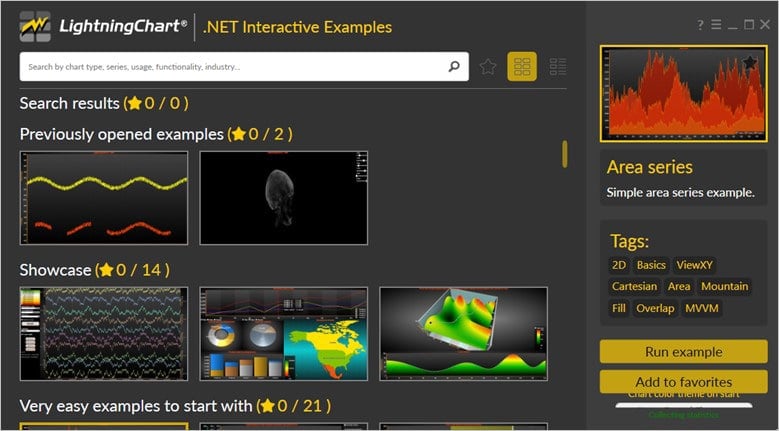
LightningChart .NET Interactive Examples
Now you can see 100+ interactive visualizations available for WPF, WinForms, and/or UWP.
Visual Studio Project
Now let’s work with Visual Studio. The main difference between using the LightningChart visualizer and Visual Studio is that we will be able to analyze and experiment with many features within the source code. In the LC visualizer, select the 2D heatmap chart and run the example:

In the top-right zone of the windows, you will see the following options:
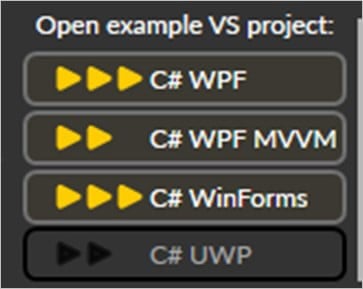
For the trial SDK, we will be able to use the WPF framework. After clicking the framework to use, we will need to specify a folder where the project will be created:

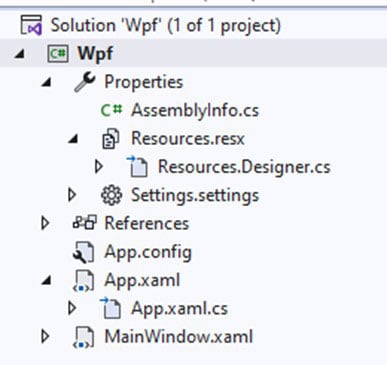
Finally, the 2D heatmap project will be created and Visual Studio will be opened and ready for executing the digital signal processing filters application.
Code Review
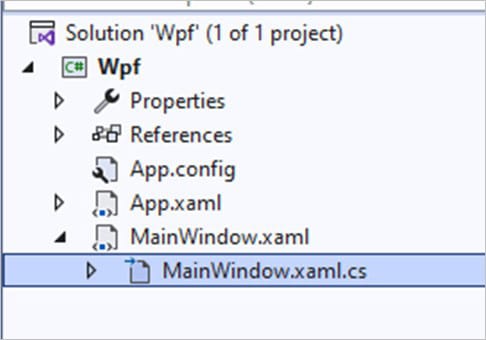
The main code will be wrapped inside MainWindow.xaml.cs. Here we will find the code for UI controls.
Inside the code, we will check two methods that will create the properties that we need to correctly draw the 2D heatmap chart. The interactive example is built with various user controls, to manipulate and change the visual properties of the chart. These controls are not required to generate this graph, so we will focus on the code responsible for generating the object.
CreateChart()
This main method will create the 2D heatmap chart object:
_chart = new LightningChart();We need to disable the control repaints while we update the chart properties. BeginUpdate() will help us with control repaints.
_chart.BeginUpdate();LightningChart 2D heatmaps have the following main views: ViewXY, View3D, ViewPie3D, ViewPolar, ViewSmith. The visible view can be changed by setting the ActiveView property. The default view is ViewXY.
_chart.ActiveView = ActiveView.ViewXY;
            _chart.ChartName = "Heat map chart";
We can have access to the X and Y axes, and assign those objects to an AxisX/AxisY object.
// Configure x-axis.
            _chart.ViewXY.XAxes[0].ValueType = AxisValueType.Number;
            _chart.ViewXY.XAxes[0].ScrollMode = XAxisScrollMode.None;
            _chart.ViewXY.XAxes[0].SetRange(0, 100);

            // Configure y-axis.
            _chart.ViewXY.YAxes[0].SetRange(0, 100);
ValueType has the following options available:
- Number: Regular numeric format for integer and decimal presentation. When AutoFormatLabels is disabled, LabelsNumberFormat applies. Default value.
- Time: For the time of day presentation. When AutoFormatLabelsis disabled, LabelsTimeFormat applies.
- DateTime: Date presentation, with optional time of day. When AutoFormatLabels is disabled, LabelsTimeFormat applies here as well, similarly to Time type.
- SetRange: Set the value range of an axis by giving values to Minimum and Maximum properties. The minimum should be less than the Maximum. When trying to set Minimum > Maximum, or vice versa, the internal limiter will limit the values near the other value. To set both values simultaneously, use SetRange(…) method. Passing Minimum > Maximum in SetRange automatically flips these values so that Minimum < Maximum.
Configure Legend Box
Legend boxes can be placed automatically or manually. Automatic placement allows them to be aligned to the left/top/right/bottom side of the 2D heatmap segments, or on margins. Control the position with Position property.
//Configure legend
            _chart.ViewXY.LegendBoxes[0].Layout = LegendBoxLayout.Vertical;
            _chart.ViewXY.LegendBoxes[0].Offset = new PointIntXY(-15, -70);

            // Configure legend box.
            _chart.ViewXY.LegendBoxes[0].Layout = LegendBoxLayout.Vertical;
Position options are: TopCenter, TopLeft, TopRight, LeftCenter, RightCenter, BottomLeft, BottomCenter, BottomRight, Manual.
Preparing IntensityGridSeries for data
IntensityGridSeries allows visualizing an M x N array of nodes, colored by an assigned value-range palette. The colors between nodes are interpolated.
IntensityGridSeries is an evenly-spaced, rectangular series in X and Y dimensions. This series allows rendering contour lines, contour line labels, and wireframes as well.
_intensityGrid = new IntensityGridSeries(_chart.ViewXY, _chart.ViewXY.XAxes[0], _chart.ViewXY.YAxes[0])
            {
                ContourLineType = ContourLineTypeXY.None,
                Optimization = IntensitySeriesOptimization.DynamicData,
                LegendBoxUnits = "°C",
                LegendBoxValuesFormat = "0"
            };
            _intensityGrid.Title.Text = "Heat map";
            _intensityGrid.AllowUserInteraction = false;
            _chart.ViewXY.IntensityGridSeries.Add(_intensityGrid);
Creating intensity grid data from a bitmap file
Use the SetHeightDataFromBitmap method to achieve this.
The series Data array property gets the size of the bitmap size (if no anti-aliasing or resampling is used). For each bitmap image pixel, red, green, and blue values are summed. The greater the sum, the greater will be the data value for that node. Black and dark colors get lower values and bright and white colors get higher values.

The main image will be located in the resources folder
private void SetExampleData()
        {
            // Load example data from resource stream.
            string strResourceImage = "Ground400x240.jpg";
            string baseDirectory = Environment.CurrentDirectory;
            System.Drawing.Bitmap bitmap = new System.Drawing.Bitmap(baseDirectory + @"\Resources\" + strResourceImage);
            CreateIntensitySeriesData(bitmap);
        }
Fill Styles
private void ApplyFillStyle()
        {
            if (_constructing == true)
            {
                return;
            }

            // Disable rendering, strongly recommended before updating chart properties.
            _chart.BeginUpdate();

            if (radioButtonSourceDataColoring.IsChecked == true)
            {
                _intensityGrid.Fill = IntensityFillStyle.FromSurfacePoints;
            }
            else if (radioButtonValueColoringGradient.IsChecked == true)
            {
                _intensityGrid.Fill = IntensityFillStyle.Paletted;
                _intensityGrid.ValueRangePalette.Type = PaletteType.Gradient;
            }
            else if (radioButtonValueColoringSolid.IsChecked == true)
            {
                _intensityGrid.Fill = IntensityFillStyle.Paletted;
                _intensityGrid.ValueRangePalette.Type = PaletteType.Uniform;
            }
            else if (radioButtonSingleColor.IsChecked == true)
            {
                _intensityGrid.Fill = IntensityFillStyle.Toned;
            }
Use the Fill property to select the filling style. The following options are available:
- None: By using this, no filling is applied. This selection is useful with wireframe meshes.
- FromSurfacePoints: The colors of the Data property nodes are used.
- Toned: ToneColor applies.
- PalettedByY: Coloring by Y values by palette.
- PalettedByValue: Coloring by SurfacePoint’s Value fields by palette.
- Bitmap: A bitmap image is stretched to cover the whole 2D heatmap surface. Set the bitmap image in the BitmapFill property. BitmapFill property has sub-properties to mirror the image vertically and horizontally.
Enable the FullInterpolation property to use an enhanced interpolation method in the fill. Note that it will cause more CPU and GPU usage. By using full interpolation, the fill quality is better but can be seen only when the data array size is quite small.
Contour lines
Contour lines: Contour lines can be used with fill and wireframe properties. By setting the ContourLineType property, contour lines can be drawn with different styles:
- None: no contour lines are shown.
- FastColorZones: The lines are drawn as thin zones on the palette step end. Allows very powerful rendering, which suits very well for continuously updated or animated surfaces. Steep value changes are shown as thin lines, while gently sloping height differences are shown with thick zones. Each line uses the same color defined with the
ContourLineStyle.Colorproperty. The zone width can be set by theFastContourZoneRangeproperty. The value is in the Y-axis range.
- FastPalettedZones: Like
FastColorZones, but line coloring followsValueRangePaletteoptions
- ColorLine: Like
FastColorZones, but the contour lines are actual lines. Rendering takes longer and is not recommended for continuously updated or animated 2D heatmap surfaces. The line width can be adjusted withContourLineStyle.Width property.
- PalettedLine: Like
ColorLine, but line coloring followsValueRangePalette options.
private void ApplyContourLinesStyle()
        {
            if (_constructing == true)
            {
                return;
            }

            // Disable rendering, strongly recommended before updating chart properties.
            _chart.BeginUpdate();

            if (radioButtonContourNone.IsChecked == true)
            {
                _intensityGrid.ContourLineType = ContourLineTypeXY.None;
            }
            else if (radioButtonContourFastZones.IsChecked == true)
            {
                _intensityGrid.ContourLineType = ContourLineTypeXY.FastColorZones;
            }
            else if (radioButtonContourFastPalettedZones.IsChecked == true)
            {
                _intensityGrid.ContourLineType = ContourLineTypeXY.FastPalettedZones;
            }
            else if (radioButtonContourLines.IsChecked == true)
            {
                _intensityGrid.ContourLineType = ContourLineTypeXY.ColorLine;
            }
            else if (radioButtonContourPalettedLines.IsChecked == true)
            {
                _intensityGrid.ContourLineType = ContourLineTypeXY.PalettedLine;
            }
Final WPF 2D Heatmap Application
The logic of this project is based on a grid-type 2D heatmap. If we select the option that allows us to observe the wireframe, we will see each of the generated nodes.

The highest values will have a red color and the lowest ones will have a purple color. For this example, the values within the intensity range are proportional to the color intensity of each pixel in the image. If you upload an image with a black background, it will have a purple color in the heat map, because it is the darkest color in the intensity range.

For example, we can identify the areas of the human face with the highest temperature, just by observing the intense skin tones. In the following image, we can notice that the hottest areas of the face are between 40-50 degrees Celsius (which is quite high for humans, but it could be said that it is an acceptable range for demonstration purposes), while the coldest areas are between 30 degrees Celsius.

The LC .NET library allows us to identify colors and generate our own adjustments to make a gradient layer, which helps us identify the intensity of many study cases, such as temperature, vibration, etc. I recommend you try creating this WPF 2D heatmap for yourself. The interactive examples tool allows you to configure each chart to your liking and generate the code for your own use. Remember that the interactive examples application is free.
Thank you!

Omar Urbano
Software Engineer


Continue learning with LightningChart

Motorsports Analytics
Updated on April 10th, 2025 | Written by human Motorsports Analytics Large companies in the motorsports industry are collecting huge volumes of real-time data coming from different sources on and off the pitch during racing competitions. These data are both...
High-Performance Charting Controls for Fintech App Development
Written by a human | Updated on April 10th, 2025Charting Controls for Fintech Apps Money makes the world go round and as such, tracking and controlling financial transactions and information are some of the most important activities to do for any...
Data Visualization in Medical & Healthcare Applications
Written by a human | Updated on April 10th, 2025Charting Controls for Medical Healthcare Data Visualization Applications The fact that data and data visualization are everywhere in today's world, makes me wonder how data visualization impacts medical...



If you have any questions, feel free to contact us!



©LightningChart Ltd 2026. All rights reserved.