





Creating Reservoir Visualizations for Oil and Gas Apps
Tutorial
Written by a Human
In this tutorial, we will be creating reservoir visualizations in C# for developing data apps for the Oil and Gas industry.
Omar Urbano
Software Engineer


Introduction
In this article, we will talk about applications for data visualization and rendering with charts focused on the gas and oil extraction industry. I decided to change the traditional article format a bit, so we will focus on a brief explanation of various types of charts, their application, and their relationship with the topic of study.
To create the projects for this article, I recommend downloading the LightningChart .NET interactive examples application. This app will allow you to generate a WPF project for each of the charts mentioned, so you can experiment with each of them. Let’s get started!
What are reservoir visualizations used for in the oil and gas industry?
In the oil and gas industry, reservoir visualizations are key tools for exploration, development, and optimization of hydrocarbon production. They are primarily used for geological and geophysical analysis, reservoir modeling, drilling planning, and real-time monitoring.
Reservoir visualizations help geologists and geophysicists understand the subsurface structure, including the location and extent of rock formations that contain oil or gas. In relation to reservoir modeling, three-dimensional (3D) models are created to simulate how a reservoir behaves under different production conditions.
By understanding the distribution and properties of fluids in the reservoir (such as oil, gas, and water), visualizations allow engineers to optimize recovery methods, such as water or gas injection, to maximize production and extend the reservoir’s lifespan.
With current technologies, visualizations also enable monitoring of the reservoir’s evolution during production. This includes integrating sensor and drilling data, helping to identify operational issues such as the emergence of low-production zones or water accumulation.
What data is used in reservoir visualizations?
Reservoir visualizations in the oil and gas industry use data from various sources, such as:
- Geological data: Rock properties (porosity, permeability), rock type, and geological structure.
- Geophysical data: Seismic information (2D and 3D), gravimetry, and magnetometry.
- Drilling and well data: Depth, location, pressure, temperature, and resistivity profile of the wells.
- Fluid data: Hydrocarbon composition (oil, gas, and water) and its distribution in the reservoir.
- Production data: Production rate history and recovery techniques employed.
- Simulation data: Three-dimensional reservoir models and fluid flow simulations.
Reservoir Visualization Challenges

What are the main challenges in visualizing very large reservoir models?
When working with datasets, the main issue will be data storage. When dealing with geophysical and geographical information, it is common for sensors or measuring instruments to generate thousands or millions of data points. These values are monitored over a long period, usually throughout the entire extraction process. Now, once this challenge is considered, the next hurdle will be having software capable of processing millions of data points.
Suppose our software cannot read millions of data points without encountering performance, rendering, or accuracy issues. In that case, the extraction project will face serious problems that could jeopardize human lives and the entire project. This is where software that takes full advantage of all the available resources on the servers running it is needed. RAM, CPU, and GPU must be used optimally, which means not all systems that use graphics will be able to function properly.
Why is there a need to increase the size and detail of reservoir visualizations?
Enhancing the size and detail of reservoir visualizations is crucial for improving geological understanding and the overall structure of the reservoir. It allows for more precise identification of productive zones, better drilling and production optimization, and accurate fluid behavior simulations within the reservoir.
Additionally, it helps detect potential risks such as problematic areas or leaks, facilitates informed decision-making regarding development and extraction strategies, and integrates advanced data to refine model accuracy. These improvements collectively enhance operational efficiency, minimize risks, and maximize the optimal use of resources.
Project Overview
Feel free to download the ZIP file to follow this reservoir visualization project. We’ll be creating multiple reservoir visualizations including a surface chart, a LiDAR visualization, a spectrum 3D chart, and a 3D contouring visualization.

 Download the project to follow the tutorial
Local Setup
- OS: 32-bit or 64-bit Windows Vista or later, Windows Server 2008 R2 or later.
- DirectX: 9.0c (Shader model 3 and higher) or 11.0 compatible graphics adapter.
- Visual Studio: 2022 for development, not required for deployment.
- Platform .NET Framework: installed version 8.0 or newer.
Now go to the next URL and download LightningChart .NET. You’ll then be redirected to a sign-in form where you’ll have to complete a simple sign-up process to get access to your LightningChart account.

After signing in to your account, you can download the SDK “free trial” version that allows you to use important features for this tutorial. When you download the SDK, you’ll have a .exe file like this:

The installation will be a typical Windows process, so please continue with it until it is finished. After the installation, you will see the following programs:

License Manager
In this application, you will see the purchase options. All the projects that you will create with this trial SDK will be available for future developments with all features enabled.

Reservoir Visualization Example #1: Surface Chart

The surface chart is useful for visualizing the structure and distribution of a surface, simulating fluid flow, analyzing geophysical parameters, detecting anomalies, and planning drillings. It facilitates decision-making, optimizes production, and helps identify problematic areas within reservoirs.
A surface chart (or surface plot) is a type of three-dimensional chart that represents data on a mesh of points (or grid) in three dimensions (X, Y, Z).
if (_chart3D != null)
{
    (_chart3D.Parent as Grid).Children.Remove(_chart3D);

    // If a chart is already created, dispose it.
    _chart3D.Dispose();
    _chart3D = null;
}
Creating a New Chart. A new LightningChart instance is created. The BeginUpdate method is called to optimize the chart’s creation by preventing updates to the UI during the configuration phase.
LightningChart chart = new LightningChart();
chart.BeginUpdate();
Set 3D View and Chart Properties
- The
ActiveViewis set toView3D, which indicates that the chart will be displayed in 3D. - The camera angle and chart dimensions are configured to define the 3D view, including the rotation of the camera (
RotationXandRotationY), the chart’s width and depth, and the camera’s orientation mode. - The title of the chart is set to inform users about interactive behavior (mouse interaction).
chart.ActiveView = ActiveView.View3D;
chart.ChartName = "Surface chart";
View3D v = chart.View3D;
v.Camera.RotationX = 50;
v.Camera.RotationY = -20;
v.Dimensions.Width = 120;
v.Dimensions.Depth = 120;
v.Camera.OrientationMode = OrientationModes.XYZ_Mixed;

chart.Title.Text = "Press left mouse button down on the surface to start, release mouse button over surface to end";
Create a Surface Grid (for 3D data)
SurfaceGridSeries3D surface = new SurfaceGridSeries3D(v, Axis3DBinding.Primary, Axis3DBinding.Primary, Axis3DBinding.Primary)
{
    WireframeType = SurfaceWireframeType3D.WireframePalettedByY,
    ContourLineType = ContourLineType3D.None,
    ColorSaturation = 90,
    AllowCellTrace = true
};- A
SurfaceGridSeries3Dobject is created to display a 3D surface chart. The grid series is configured with specific properties like: WireframeType: Determines how the grid wireframe is rendered (using a palette based on the Y axis).ContourLineType: Specifies no contour lines will be drawn.ColorSaturationz: Controls the color intensity of the surface.AllowCellTrace: Allows tracking and interaction with individual cells in the surface grid.
Event Handlers and Interaction Setup
surface.TraceCellChanged += surface_MouseTraceCellChanged;
surface.MouseDown += new MouseEventHandler(surface_MouseDown);
surface.MouseUp += new MouseEventHandler(surface_MouseUp);
surface.AllowUserInteraction = true;
surface.Highlight = Highlight.None;
surface.SetRangesXZ(-30, 90, 100, 200);
surface.ContourPalette = CreatePalette(surface);
surface.Title.Text = "Lidar scan";- Event handlers are attached to the surface grid for mouse interaction (when a cell is traced, or mouse buttons are pressed/released).
AllowUserInteractionis enabled to allow the user to interact with the chart.- Highlights are set to None, meaning there will be no highlighted effects on the surface grid.
Set Data for the Surface Grid
int columns = 80;
int rows = 50;

SurfacePoint[,] data = new SurfacePoint[columns, rows];

for (int i = 0; i < columns; i++)
{
    for (int j = 0; j < rows; j++)
    {
        data[i, j].Y = 50.0 + 25.0 * Math.Sin(3 + 0.005 * (i * j)) + 20.0 * Math.Sin(j * 0.2);
    }
}- The code defines a 2D array (data) to store surface points (height data).
- A mathematical formula is used to generate the height (Y) for each point in the grid based on its coordinates (i, j), producing a wave-like surface.
- The
surface.Dataproperty is set with this data, and the surface grid is added to the chart’s 3D view.
Create and Configure Cross-Section Path (Optional)
PointLineSeries3D crossSectionPath = new PointLineSeries3D(v, Axis3DBinding.Primary, Axis3DBinding.Primary, Axis3DBinding.Primary)
{
    PointsVisible = true,
    LineVisible = false
};
crossSectionPath.PointStyle.Size3D.SetValues(2, 2, 2);
crossSectionPath.PointStyle.Shape3D = PointShape3D.Sphere;
crossSectionPath.AllowUserInteraction = false;
crossSectionPath.Visible = false;
crossSectionPath.ShowInLegendBox = false;
crossSectionPath.IndividualPointSizes = true;
crossSectionPath.IndividualPointColors = true;- This code creates a
PointLineSeries3Dto represent a cross-section of the 3D surface. - The cross-section will show points as spheres but won’t display lines or allow interaction.
- The series is added to the 3D view, but it is initially hidden (Visible = false).
Set Axes for 3D View
v.PointLineSeries3D.Add(crossSectionPath);

v.XAxisPrimary3D.SetRange(surface.RangeMinX, surface.RangeMaxX);
v.XAxisPrimary3D.Title.Text = "X location [m]";

v.YAxisPrimary3D.SetRange(0, 100);
v.YAxisPrimary3D.Title.Text = "Elevation [m]";
v.YAxisPrimary3D.Units.Text = "m";

v.ZAxisPrimary3D.SetRange(surface.RangeMinZ, surface.RangeMaxZ);
v.ZAxisPrimary3D.Title.Text = "Z location [m]";- The axes for the 3D view (X, Y, and Z) are configured with titles and ranges:
- X and Z ranges are set based on the surface data’s minimum and maximum values.
- The Y axis is fixed between 0 and 100, and it represents elevation.
Reservoir Visualization Example #2: Large Surface Chart
A large surface chart handles large volumes of data or high-resolution meshes, optimizing performance to represent complex details, such as reservoir models. The main difference lies in the scale and resolution of the data, with large surface charts being more detailed and suitable for complex datasets.

Creating a large surface chart
With a large surface chart, we can map and plan various tasks within a larger and more complex geographic region or area. The following code creates a new LightningChart object and begins its configuration without rendering.
_chart = new LightningChart
{
    ChartName = "Large surface chart"
};
Configure 3D View and Camera. Sets the chart to 3D view and configures dimensions and camera properties.
//Setup dimensions
_chart.View3D.Dimensions.Width = 200;
_chart.View3D.Dimensions.Height = 20;
_chart.View3D.Dimensions.Depth = 160;

//Setup camera
_chart.View3D.Camera.MinimumViewDistance = 10;
Hide Walls, Axes, and Optimize Rendering
List<WallBase> listWalls = _chart.View3D.GetWalls();
foreach (WallBase wall in listWalls)
{
    wall.Visible = false;
}
Hides walls and axes in the 3D view and disables anti-aliasing for better performance.
Final Setup and Add to UI
_chart.EndUpdate();

comboBoxSurfaceSource.SelectedIndex = 2;

comboBoxSurfaceSource_SelectionChanged(null, null);

ApplySurfaceStyle();

gridChart.Children.Add(_chart);

Start();
Finalizes the chart’s setup, adds it to the UI, and triggers updates based on UI controls (like combo box selection). Calls Start() to begin any necessary operations.
Reservoir Visualization Example #3: LiDAR Chart
The LiDAR (Light Detection and Ranging) chart is useful in the oil and gas industry for mapping and modeling terrain and infrastructure structures with high precision. It allows for the creation of detailed topographic maps of exploration areas, facilitates drilling planning and facility construction, and monitors terrain changes due to seismic activity or extraction.
Additionally, it aids in risk management and enhances safety by identifying terrain features that are difficult to detect with other methods.

LiDAR uses 3D laser data to create accurate topographic models of the terrain, making it ideal for planning and monitoring in the oil and gas industry. The surface chart, on the other hand, represents variations in 3D data, such as fluid distribution or geophysical parameters, but is not focused on the terrain.
Creating the LiDAR chart
File Loading and Configuration. Retrieves all the file paths from the specified directory (_file).
string[] files = Directory.GetFiles(_file);Configure the PointLineSeries3D Chart
PointLineSeries3D _pls3d;
_pls3d = new PointLineSeries3D();
_pls3d.AllowUserInteraction = false;
_pls3d.LineVisible = false;
_pls3d.ShowInLegendBox = false;
_pls3d.PointsType = PointsType3D.CompactPointsColor;
_pls3d.PointStyle.ShapeType = ShapeType.Shape2D;
_pls3d.PointStyle.Shape2D.Shape = LightningChartLib.WPF.Charting.Shape.Triangle;
_pls3d.PointsOptimization = PointsRenderOptimization3D.Pixels;- A
PointLineSeries3Dis created and configured:- The user cannot interact with the points.
- Points are displayed as triangles (
Shape.Triangle). - Line segments connecting points are hidden (
LineVisible = false). - Optimization is enabled for pixel-based rendering of points (
PointsRenderOptimization3D.Pixels).
Prepare Data Storage and Initial Setup
List<(int, int)> corners = new List<(int, int)>();
int rowslenght = 1;
int columnslenght = 1;
IFormatProvider provider = new CultureInfo("en-US");

IList<string[]> data = new List<string[]>();- corners store the corner coordinates of the LiDAR data.
rowslenghtandcolumnslenghtstore the dimensions of the data grid.- data holds the data from the files.
Read the LiDAR Data
for(int i = 0; i < (CBLoadOnlyOne.IsChecked == true ? 1 : files.Length); i++)
{
    data.Add(File.ReadAllLines($@"{files[i]}"));
}
This loop reads the LiDAR data from files and stores it in the data list. The checkbox CBLoadOnlyOne determines whether to load one file or all files.
Parse and Convert Data to 3D Points
for (int file = 0; file < (CBLoadOnlyOne.IsChecked == true ? 1 : files.Length); file++)
{
    SeriesPointCompactColored3D[] _SeriesPoints3D = new SeriesPointCompactColored3D[(data[file].Length - 6) * (data[file].Length - 6)];
    string[] columns = data[file][1].Split(' ');
    columnslenght = int.Parse(columns[1]);
    string[] rows = data[file][1].Split(' ');
    rowslenght = int.Parse(rows[1]);
    string[] xllcorn = data[file][2].Split(' ');
    string[] zllcorn = data[file][3].Split(' ');
    string[] cellsize = data[file][4].Split(' ');
    string[] NODATA_value = data[file][5].Split(' ');
    double emptyspace = double.Parse(NODATA_value[1], provider);
    int xStart = int.Parse(xllcorn[4]);
    int zStart = int.Parse(zllcorn[4]);
    float cells = float.Parse(cellsize[5], provider);
    corners.Add((xStart, zStart));
    for (int i = 6; i < data[file].Length; i++)
    {
        string[] cols = data[file][i].Split(' ');
        for (int x = 0; x < cols.Length; x++)
        {
            if (float.TryParse(cols[x], NumberStyles.Float, provider, out float yval))
            {
                if (yval != emptyspace)
                {
                    _SeriesPoints3D[(i - 6) * (data[file].Length - 6) + x].X = xStart + x * cells;
                    _SeriesPoints3D[(i - 6) * (data[file].Length - 6) + x].Z = zStart + 1000 - i * cells;
                    _SeriesPoints3D[(i - 6) * (data[file].Length - 6) + x].Y = yval;

                    switch (_VariableWhatToDo)
                    {
                        case '*':
                            _SeriesPoints3D[(i - 6) * (data[file].Length - 6) + x].Color = ChartTools.ColorToInt(ChartTools.ColorHSVA(_Startcolor + yval * _Multiplier, _Saturation, _Value, _Alpha));
                            break;
                        case '+':
                            _SeriesPoints3D[(i - 6) * (data[file].Length - 6) + x].Color = ChartTools.ColorToInt(ChartTools.ColorHSVA(_Startcolor + yval + _Multiplier, _Saturation, _Value, _Alpha));
                            break;
                        case '-':
                            _SeriesPoints3D[(i - 6) * (data[file].Length - 6) + x].Color = ChartTools.ColorToInt(ChartTools.ColorHSVA(_Startcolor + yval - _Multiplier, _Saturation, _Value, _Alpha));
                            break;
                    }
                }
                else
                {
                    _emptys++;
                }
            }


        }
    }
    _pls3d.IndividualPointColors = true;
    _pls3d.AddPoints(_SeriesPoints3D, false);
}
The LiDAR data is parsed into a 2D grid. For each point in the grid, the coordinates (X, Y, Z) are calculated, and color is assigned based on the elevation and selected operation (*, +, -).
Determine the Boundaries of the Data
int xmin = int.MaxValue;
int zmin = int.MaxValue;
int xmax = int.MinValue;
int zmax = int.MinValue;
for (int i = 0; i < corners.Count; i++)
{
    if (xmin > corners[i].Item1)
    {
        xmin = corners[i].Item1;
    }

    if (xmax < corners[i].Item1)
    {
        xmax = corners[i].Item1;
    }

    if (zmin > corners[i].Item2)
    {
        zmin = corners[i].Item2;
    }

    if (zmax < corners[i].Item2)
    {
        zmax = corners[i].Item2;
    }
}
This loop calculates the minimum and maximum X and Z coordinates to set the chart boundaries.
Update the Chart
Updates the chart’s 3D view with the new point series (PointLineSeries3D). Sets the X, Y, and Z axis ranges based on the boundaries of the data.
_chart.BeginUpdate();
if (CBAppend.IsChecked == false)
{
    _chart.View3D.PointLineSeries3D = new PointLineSeries3DList();
    _chart.View3D.SurfaceGridSeries3D = new SurfaceGridSeries3DList();
}

_chart.View3D.PointLineSeries3D.Add(_pls3d);
_chart.View3D.XAxisPrimary3D.SetRange(xmin, xmax + columnslenght);
_chart.View3D.YAxisPrimary3D.SetRange(0, 100);
_chart.View3D.ZAxisPrimary3D.SetRange(zmin, zmax + rowslenght);
Update Point Count and Chart Title
Counts the total number of points added to the chart and updates the chart title to display the point count (excluding empty points).
int point = 0;
for (int i = 0; i < _chart.View3D.PointLineSeries3D.Count; i++)
{
    point += _chart.View3D.PointLineSeries3D[i].PointCount;
}

_chart.Title.Text = "Point Count: " + (point - _emptys).ToString();
Adjust Dimensions of the Chart
Sets the 3D chart’s dimensions based on the data range for X, Y, and Z axes.
_chart.View3D.Dimensions.SetValues(200 * (zmax + columnslenght - zmin) / 1000, 200, 200 * (xmax + rowslenght - xmin) / 1000);Finalizing the Update
Ends the update and renders the final chart on the UI.
 Dispatcher.Invoke(() =>
 {
     _chart.EndUpdate();
 });
Reservoir Visualization Example #4: Spectrum 3D Chart
How is the chart useful in the oil and gas industry? A 3D spectrum chart displays how frequencies or energies vary across three dimensions, allowing for the representation of complex spectral data.

This chart helps interpret seismic data in three dimensions by visualizing the frequencies of seismic waves and their propagation through rock formations. In this way, it facilitates the visualization of anomalies and underground features by representing how seismic waves interact with different types of rocks and fluids in the reservoir.
As a result, it allows for the analysis of subsurface properties and the adjustment of drilling strategies, helping to identify the best areas for drilling and reduce risks.
Creating the Spectrum 3D Chart
Creating a New Chart. Creates a new LightningChart object and begins configuring it without rendering.
Disable Rendering During Updates. This disables chart rendering while properties are being updated, which improves performance and avoids flickering during the chart configuration process.
_chart = new LightningChart
{
    ChartName = "Spectrum 3D chart"
};

//
_chart.BeginUpdate();
Set the Active View to 3D. The chart is set to display in 3D mode.
Setup Background Appearance. The background chart is configured:
- GradientColor: A black color for the gradient center.
- Color: A dark gray color for the outer background.
- GradientFill: A radial gradient fill effect for the background.
_chart.ActiveView = ActiveView.View3D;

//
_chart.ChartBackground.GradientColor = Colors.Black;
_chart.ChartBackground.Color = Colors.DimGray;
_chart.ChartBackground.GradientFill = GradientFill.Radial;
Hide All Walls Except the Bottom. This section hides all 3D walls except the bottom one, which is kept visible. This creates a more open view, focusing only on the bottom surface.
_chart.View3D.WallOnBack.Visible = false;
_chart.View3D.WallOnLeft.Visible = false;
_chart.View3D.WallOnRight.Visible = false;
_chart.View3D.WallOnTop.Visible = false;
_chart.View3D.WallOnFront.Visible = false;
_chart.View3D.WallOnBottom.Visible = true;
Setup the Primary X-Axis (Frequency). The X-axis (representing frequency) is configured:
- Orientation: The axis is oriented in the XY plane.
- CornerAlignment: Axis labels are placed outside the chart.
- Tick Alignment: Major tick labels are aligned to the far side of the axis.
- Label Color: The labels are set to a semi-transparent white color.
- Tick Color: Orange color is used for the ticks.
- Title: The axis title is set to “Frequency (Hz)” with yellow color.
_chart.View3D.XAxisPrimary3D.Orientation = PlaneXAxis3D.XY;
_chart.View3D.XAxisPrimary3D.CornerAlignment = AxisAlignment3D.Outside;
_chart.View3D.XAxisPrimary3D.MajorDivTickStyle.Alignment = Alignment.Far;
_chart.View3D.XAxisPrimary3D.LabelsColor = Color.FromArgb(200, 255, 255, 255);
_chart.View3D.XAxisPrimary3D.MajorDivTickStyle.Color = Colors.Orange;
_chart.View3D.XAxisPrimary3D.Title.Text = "Frequency (Hz)";
_chart.View3D.XAxisPrimary3D.Title.Color = Colors.Yellow;
Setup the Primary Y-Axis (Power Spectrum). The Y-axis (representing the power spectrum) is configured similarly to the X-axis with:
- Orientation on the XY plane.
- Labels and ticks aligned outside and far, with color adjustments.
- Title text is set to “Power spectrum P(f)” with yellow color.
_chart.View3D.YAxisPrimary3D.Orientation = PlaneYAxis3D.XY;
_chart.View3D.YAxisPrimary3D.CornerAlignment = AxisAlignment3D.Outside;
_chart.View3D.YAxisPrimary3D.MajorDivTickStyle.Alignment = Alignment.Far;
_chart.View3D.YAxisPrimary3D.LabelsColor = Color.FromArgb(200, 255, 255, 255);
_chart.View3D.YAxisPrimary3D.MajorDivTickStyle.Color = Colors.Orange;
_chart.View3D.YAxisPrimary3D.Title.Text = "Power spectrum P(f)";
_chart.View3D.YAxisPrimary3D.Title.Color = Colors.Yellow;
Setup the Primary Z-Axis (Time). The Z-axis (representing time) is set up with:
- Reversed: The axis is reversed, meaning the values increase in the opposite direction.
- Color: Labels are white with a slight transparency.
- Title: “Time” is set as the title with yellow color.
- Grid Strips: Adds grid strips to the bottom wall (based on the XZ grid).
_chart.View3D.ZAxisPrimary3D.Reversed = true;
_chart.View3D.ZAxisPrimary3D.LabelsColor = Color.FromArgb(200, 255, 255, 255);
_chart.View3D.ZAxisPrimary3D.Title.Text = "Time";
_chart.View3D.ZAxisPrimary3D.Title.Color = Colors.Yellow;
_chart.View3D.ZAxisPrimary3D.ValueType = AxisValueType.Time;
_chart.View3D.ZAxisPrimary3D.MajorDivTickStyle.Color = Colors.Orange;
_chart.View3D.WallOnBottom.GridStrips = WallGridStripXZ.X;
Setup Legend Box. Configures the chart’s legend box:
- Colors: The series title and value labels are white.
- Position: The legend is positioned at the top-right of the chart.
- Style: The fill style is set to None (transparent), with no shadow or border width.
_chart.View3D.LegendBox.SeriesTitleColor = Colors.White;
_chart.View3D.LegendBox.ValueLabelColor = Colors.White;
_chart.View3D.LegendBox.SurfaceScales.ScaleBorderColor = Colors.White;
_chart.View3D.LegendBox.Position = LegendBoxPosition.TopRight;
_chart.View3D.LegendBox.Offset.SetValues(0, 0);
_chart.View3D.LegendBox.Fill.Style = RectFillStyle.None;
_chart.View3D.LegendBox.Shadow.Visible = false;
_chart.View3D.LegendBox.BorderWidth = 0;
Set up the Camera. The camera is set to control the view of the 3D chart:
- Rotation: The camera’s rotation along the X, Y, and Z axes is set to specific angles.
- Target: The camera’s target point is set in 3D space at coordinates (-9.5, -10, -5.8).
- View Distance: The distance from the camera to the target is set to 163 units.
_chart.View3D.Camera.RotationX = 18.6;
_chart.View3D.Camera.RotationY = -23.6;
_chart.View3D.Camera.RotationZ = 0;
_chart.View3D.Camera.Target.SetValues(-9.5f, -10f, -5.8f);
_chart.View3D.Camera.ViewDistance = 163;
Finalize Chart Rendering. Ends the update process and renders the chart with all the properties set above.
_chart.EndUpdate();Reservoir Visualization Example #5: Value-based 3D Contouring
A Value-based 3D Contouring is a three-dimensional representation of a reservoir visualization that displays contour surfaces of numerical data across three dimensions (X, Y, Z). In this chart, the contours or surfaces represent constant levels of a specific value, such as density, temperature, pressure, or any other variable measured in a dataset.
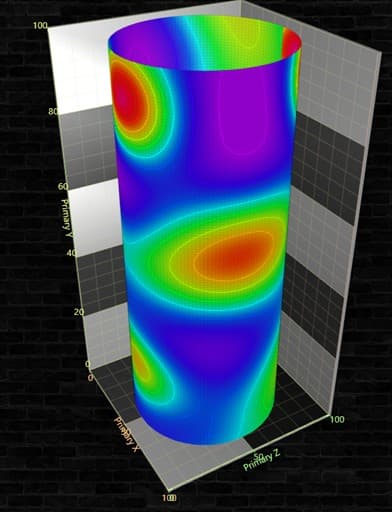
Contours are lines or surfaces that connect points with the same value, showing how a variable changes in a three-dimensional space. In the gas industry, it is used to represent phenomena such as pressure variation, temperature, fluid saturation, or porosity in oil and gas reservoirs, assisting in decision-making for drilling and production optimization.
Creating the Spectrum 3D Chart
Initialize the Chart: The method begins by creating a new LightningChart object, which is a charting library for 3D visualizations. The chart is set to use a 3D view (ActiveView.View3D).
_chart = new LightningChart
{
    ActiveView = ActiveView.View3D
};
Set 3D View Parameters:
- The chart’s 3D view (
View3D) is configured. Specific settings are applied to the camera, including the minimum view distance and the current view distance. - Additionally, the height of the 3D view’s dimensions is set to 200 units.
View3D view3D = _chart.View3D;
view3D.Camera.MinimumViewDistance = 50;
view3D.Dimensions.Height = 200;
view3D.Camera.ViewDistance = 350;
Create Surface Mesh. A SurfaceMeshSeries3D object is created to represent a 3D surface mesh on the chart. The mesh is set to use primary axes for binding data. Various properties are set, including:
- Contours: Defining the contour line style as paletted lines.
- Wireframe: Setting the type of wireframe and its appearance.
_mesh = new SurfaceMeshSeries3D(view3D, Axis3DBinding.Primary, Axis3DBinding.Primary, Axis3DBinding.Primary)
{

    //CONTOURS
    ContourLineType = ContourLineType3D.PalettedLineByValue,
    ContourLineWidth = 1.5,

    //WIREFRAME
    WireframeType = SurfaceWireframeType3D.Wireframe
};
Set Wireframe and Fill Properties: The wireframe style is configured with a specific line width, color (set as a semi-transparent black), and offset values. The mesh’s fill style is set to paletted by value, with a color saturation of 80%.
_mesh.WireframeLineStyle.Width = 1;
_mesh.WireframeLineStyle.Color = Color.FromArgb(20, Colors.Black.R, Colors.Black.G, Colors.Black.B);
_mesh.WireframeOffset.SetValues(0, 0, 0);

//FILL
_mesh.ColorSaturation = 80;
_mesh.Fill = SurfaceFillStyle.PalettedByValue;
Create Geometry and Values:
- The method
CreateGeometryPipeis called to generate pipe geometry, populating arrays (x, y, z) with data. - Then,
CreateValuesWaterDropsgenerates the values for the surface mesh, populating the values array. - The mesh is updated with the generated data using
UpdateMesh.
double[,] x = null;
double[,] y = null;
double[,] z = null;
double[,] values = null;

//Create pipe geometry
CreateGeometryPipe(out x, out y, out z);

//Generate values over the pipe
CreateValuesWaterDrops(out values);

UpdateMesh(x, y, z, values);
Final Setup and Rendering:
- The 3D surface mesh is added to the view’s surface mesh series.
- The primary Y-axis label is set to represent temperature in Celsius (°C).
- Rendering is allowed to start by calling
EndUpdate.
view3D.SurfaceMeshSeries3D.Add(_mesh);

view3D.YAxisPrimary3D.Units.Text = "°C";

//Allow rendering
_chart.EndUpdate();
Conclusion
The exploration of geographical areas, the extraction of gases, oil, and other resources is a complex and delicate job. Without a doubt, it is an area of human engineering that demands the best personnel, software, machinery, and equipment available.
While we don’t delve deeply into this topic, my goal was to showcase the various charts that LC .NET offers for geophysical and geographical analysis. LightningChart’s main objective is to provide analytical tools capable of consuming and processing millions of data points without performance issues that could affect an ongoing project.
LC .NET aims to make use of all the resources available on a server, utilizing available RAM, CPU, and GPU resources. Thanks to C#, we can access each component at our disposal, generate our own data processing methods, and receive constant support from the .NET framework.
The 3D rendering provided by LC .NET is incredibly powerful, and in each of the examples shown, it demonstrates the ease with which we can implement our data into these charts.
Although there is a learning curve, the interactive examples tool provides more than half of the work, generating a functional project where we only need to implement our data reading and processing logic.
Within the .NET tutorial catalog, there are exercises with LiDAR, Surface, and other 3D charts. You can download each of these and implement them into dashboards to improve monitoring. There are also articles that explain and provide dashboard projects, which you can obtain and work with. Thank you!
Continue learning with LightningChart

Best JavaScript Charting Libraries
Written by a human | Updated on April 9th, 2025Reviewing 5 of the most popular JS charting libraries In all my previous articles I have been working with LightningChart for JS and .NET. However, in my experience, I have worked with other libraries related to...

Understanding Multithread Application with LightningChart .NET
Written by a human | Updated on April 9th, 2025Multithreaded chart applications with LightningChart .NET data visualization control Getting an application to run smoothly using background threads can really make a big difference. Unloading non-essential...

How to Create a Strip Chart
Written by a human | Updated on April 9th, 2025What is a Strip chart application and what are the modern equivalents to it? Before computers exist or were taking their first steps, a Strip chart was a way to visualize an analog electrical signal. Voltage was...





If you have any questions, feel free to contact us!
©LightningChart Ltd 2026. All rights reserved.