








LightningChart JSCreating a React JS Pie Chart with LightningChart JS
TutorialLearn how to create a React JS Pie chart with LightningChart JS
Written by a human | Updated on April 14th, 2025
React JS Pie Chart
Hi, this is Omar again and we’re back with React JS. For this exercise, we’ll create a Pie chart, using LightningChart JS. As in previous React JS articles, we will first explain how to create a project from scratch. We’ll also see how to install the LCJS library and implement a Pie chart object.
What is React JS?
Well, React JS is a framework created by Facebook and developed with great emphasis on implementing user interfaces. When you’re focusing on user interfaces, it is recommended to use React JS for the view layer using a model-view-controller pattern.
Project Overview
In this article we will do the initial setup of our React project and a brief implementation of LightningChart JS, to show the use of libraries within this project. For more information on JS pie charts, you can visit the latest interactive Pie Chart example or interact with it right here:
 Download the project to follow the tutorial
Installing React JS
In order to install React JS using commands, you will need to have Node JS and the NPM command interface installed. In previous Node JS articles, we have explained how to install it or you can also visit the NPM documentation page.
Already having NPM installed, we can execute the React JS installation command. First, we need to open a command prompt as administrator and run the following command:
npm i -g create-react-appThe above command will download the complete react library. Once React is installed, we will see a list of React commands which serves as a confirmation of a successful installation.

Now we will create a react project. We will execute the following command from the command prompt:
npx create-react-app lc-react-app“lc-react-app” will be the name of our React bar chart project, you can change the name to your needs.
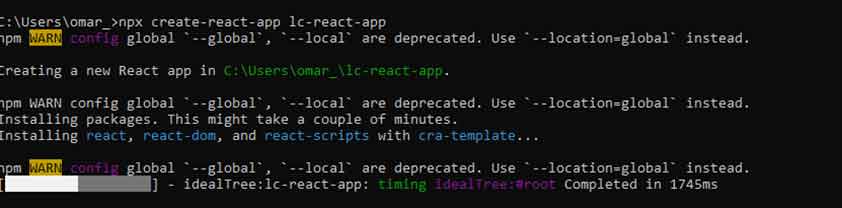
When the project has been created, the path where the project has been stored will be displayed. I recommend cutting and pasting the project into an easily accessible path.

Project Configuration
Before we begin, we’ll need to install the Lightning Charts JS library. Open your React bar chart project with Visual Studio Code:
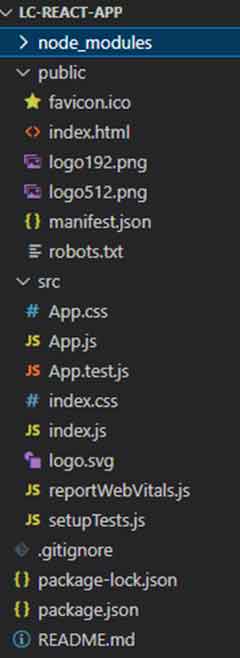
Your project should look the same or similar to the image above. Now open a new terminal so you can install LightningChart JS.
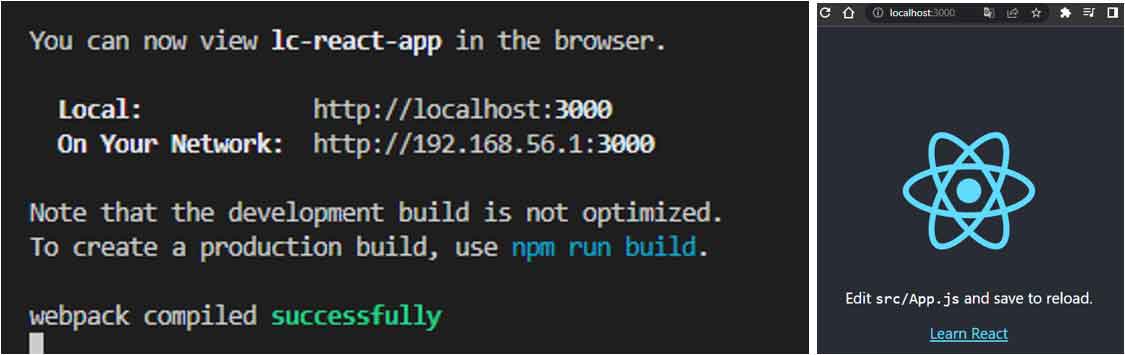
npm i @arction/lcjsThe npm i @arction/lcjs command will install the Lightning Charts JS library into our project. If we execute the command npm start, we will be able to compile and view our page on a local server:
Pie Chart
Before we start working with the code to create the React JS pie chart, we have to understand the files on which we will work. Unlike Angular, where our views and logic are grouped by component, React starts with a simpler structure.

The first thing we will see will be two JS files, index.js and App.js. These files have a default name but can be renamed according to your needs. The index file will contain the code to render the view created by the App.js file. App.js contains our logic in charge of building the react pie chart object that we will render.
The CSS files will modify the style of the objects generated in their corresponding JS files. An App.test.js file is generated when we create a React project. This file corresponds to our App.js file and can be used to test our code using the npm test command. The basic idea is that there is a .test file for each generated JS file.
PieChart.JS
For this project, we will create a new file called PieChart.js. This file will contain the code that will generate our React JS Pie chart. We do it separately to keep our chart code organized instead of embedding everything within the App.js file.

Importing Classes
We’ll start by importing the necessary LightningChart JS classes. The way to import components is the same as used in Angular.
import { lightningChart, LegendBoxBuilders, SliceLabelFormatters, Themes } from '@arction/lcjs'
import React, { useRef, useEffect } from 'react'
Pie Chart Object
Now we have to create an object that contains our React JS pie chart and can be exported to other instances. Using the Effect Hook allows you to run side effects like fetching, direct DOM updating, and timers. Inside the useEffect function, we’ll encapsulate the Pie chart logic.
const Chart = (props) => {
    const { data, id } = props
    const chartRef = useRef(undefined)

    useEffect(() => {
To create a Pie object, we need to use the method Pie.
const pie = lightningChart()
        .Pie({
            theme: Themes.cyberSpace,
            container: id
        })
        .setTitle('Project Time Division')
        .setMultipleSliceExplosion(true)
We can declare some properties like theme and container.
- Theme: A collection of default implementations can be accessed by Themes. The color theme of the chart components must be specified when it is created and can’t be changed afterward without destroying and recreating the component.
- Container: The DOM Element or its ID that will contain the React JS pie chart. If there is no such element found, the chart will not work. If nothing was provided, LCJS will automatically append a new DIV element on the document for the chart.
- setMultipleSliceExplosion: Set if it is allowed for multiple Slices to be ‘exploded’ at the same time or not. When a Slice is exploded, it is drawn differently from the non-exploded state. Usually slightly “pushed away” from the center of the Pie Chart (as you can see from the project overview). Note that this does not affect the state of already exploded Slices!
Creating Slices & Formatting
To create slices, we need an array object.
const data = [
        {
            name: 'Planning',
            value: 40,
        },
        {
            name: 'Development',
            value: 120,
        },
        {
            name: 'Testing',
            value: 60,
        },
        {
            name: 'Review',
            value: 24,
        },
        {
            name: 'Bug Fixing',
            value: 90,
        },
    ]
Each object inside this array should contain the name and value of the slice.
const slices = data.map((item) => pie.addSlice(item.name, item.value))We can use the map property to add each slice one by one. The addSlice method will help us to create the slice item based on the values that we assigned in the array object.
pie.setLabelFormatter(SliceLabelFormatters.NamePlusRelativeValue)- SliceLabelFormatters: This is a function that generates the text of the
Labelsper Slice. It includes:- Name: Slice Label formatter for ${name}.
-
- NamePlusRelativeValue:
- Slice Label formatter for ${name}: ${(relativeValue * 100).toFixed(1)}%.
- NamePlusRelativeValue:
-
- NamePlusValue:
-
- Slice Label formatter for ${name}: ${Math.round(animatedValue)}.
-
- NamePlusValue:
pie.addLegendBox(LegendBoxBuilders.VerticalLegendBox)
        // Dispose example UI elements automatically if they take too much space. This is to avoid bad UI on mobile / etc. devices.
        .setAutoDispose({
            type: 'max-width',
            maxWidth: 0.3,
        })
.add(pie)- addLegendBox: This is a collection of available LegendBox builders. To build legend boxes, you must pass one of these to the method:
addLegendBox(). This method can be accessed through Charts, Dashboard, Etc. The legend boxes can be created as horizontal or vertical boxes.
pie.addLegendBox(LegendBoxBuilders.VerticalLegendBox)- setAutoDispose: Interface for describing the auto dispose mode of a UI element. It can be used to set a condition, where the UI element is automatically disposed of, removing it from view. Use with the
[[UIElement.setAutoDisposeMode]].
.setAutoDispose({
            type: 'max-width',
            maxWidth: 0.8,
        })
The Return function will destroy the graphic when the component is unmounted. The chart will be stored inside a container (id). The class name chart will be used to apply for the CSS class located in the App.css file.
return () => {
        // Destroy chart.
        console.log('destroy chart')
        chartRef.current = undefined
        }
    }, [id])

    return <div id={id} className='chart'></div>
}

export default Chart
Rendering Chart
To render our chart object, we need to import it into our App.js file:
import React, { useEffect, useState } from 'react';
import './App.css'
import Chart from './PieChart'

const App = (props) => {
  return <div className='fill'>
    <Chart id='chart'/>
  </div>
}
The App constant will return the Chart object. Also, we can apply a CSS Class for the body. The CSS class is located in the App.css file. The App constant will be exported to the index.js file.
import React from 'react';
import ReactDOM from 'react-dom/client';
import './index.css';
import App from './App';
import reportWebVitals from './reportWebVitals';

const root = ReactDOM.createRoot(document.getElementById('root'));
root.render(
  <React.StrictMode>
    <App />
  </React.StrictMode>
);
The last step is to import our App.js into the index.js. The way to import/export objects between JS files is similar in almost all cases. For Index files, we need to apply some react properties, because here is where we will manipulate the DOM.
React Strict Mode:
Strict mode checks are run in development mode only, they do not impact the production build.
Conclusion
In conclusion, this article provides a comprehensive guide for developers looking to integrate pie charts into their React applications using LightningChart JS. Key aspects of creating a React JS pie chart, such as importing necessary classes, using the Effect Hook, and adding slice properties, are thoroughly discussed.
I also describe advanced features like `SliceLabelFormatters`, `addLegendBox`, and `setAutoDispose`, providing insights into customizing and enhancing the pie chart’s functionality and appearance.
For developers interested in creating interactive and visually appealing pie charts in their React applications, this guide stands as an essential resource. It not only covers the basics but also goes into advanced features, ensuring a comprehensive understanding of implementing pie charts with React JS and LightningChart JS.
So, this is a valuable resource for those developers working with React JS in their projects and are focused on data visualization and user interface design.

Omar Urbano
Software Engineer


Continue learning with LightningChart

What Is LiDAR Data Visualization?
LiDAR Data Visualization The LiDAR method conveys another yet complex level of data visualization as it is widely used in demanding industries that require plotting, e.g., topographic or cartography 3D data. But the use of LiDAR goes further as it is also used...
Android
Written by a human | Updated on April 9th, 2025Android Charts Here's a new article I'm really excited about...this time, we will create an android charts data visualization application. For this application, we will work with Android Studio and LightningChart JS...

Create a JavaScript Scatter Plot
Written by a human | Updated on April 9th, 2025LightningChart JS This is a quick technical look into some interesting features of LightningChart JS XY charts and how to create an embedded scatter chat and add custom interactions to it using LightningChart JS....



If you have any questions, feel free to contact us!



©LightningChart Ltd 2026. All rights reserved.