








LightningChart PythonThyroid Disease Analysis Python App
TutorialLearn how to conduct a step-by-step Python thyroid disease analysis application using LightningChart Python.
Written by a human | Updated on April 23rd, 2025
Thyroid Disease Analysis in Python
The thyroid is a small gland located in front of a human’s neck. It produces hormones that affect a lot of organs in the body. Two of the main thyroid diseases which we will analyze in this article will be:
- Hyperthyroidism, which happens when the thyroid gland makes more thyroid hormones than your body needs
- Hypothyroidism happens when the thyroid gland does not make enough thyroid hormones
Why is it important to track these diseases
As thyroid hormones affect almost all organs, thus thyroid diseases can affect heart rate, mood, metabolism, bone health, and pregnancy.
LightningChart Python

For this task, we use the LightningChart Python library. It provides a wide range of tools for creating graphs that can be useful for thyroid disease analysis and predictions in Python. In this project, we will use:
- XY Charts (Link to docs)
- In combination with Line Series (Link to docs)
- 3D Charts (Link to docs)
- Stacked Bar Charts (Link to docs)
- Grouped Bar Chart (Link to docs)
- Box Plots (Link to docs)
- Pie Chart (Link to docs)
LightningChart provides easily-to-initialize charts that are also easily and widely customizable, so we will use this library for the visualizations.
Datasets
There are numerous datasets, which you can find at different healthcare institution portals (e.g. data.gov) or dataset-related sites (e.g. kaggle.com). In this project, we will use the dataset “Thyroid Disease Analysis Data” from Kaggle, and perform some basic analysis with different types of visualization. We will also create a model which will predict the patient outcomes.
Setting Up Python Environment
To create a thyroid disease analysis application in Python, first, we need to set up our Python environment.
1. The first step is installing Homebrew itself
I recommend using Homebrew package manager as it is popular and has a lot of packages. Moreover, it is arguably more convenient than installing Python using .dmg. You can skip this step if it is already installed on your Mac. Enter Terminal app and copy/paste this string:
/bin/bash -c "$(curl -fsSL https://raw.githubusercontent.com/Homebrew/install/HEAD/install.sh)"Important note: the installation of Homebrew is not fast, it usually takes between 5 to 15 minutes.
2. Installation of Python
This command will install the latest stable version of Python.
brew install pythonNOTE: if you don’t want to use Homebrew, you can access the official Python website, select the latest stable version downloader for MacOS (its named macOS 64-bit universal2 installer), and follow the installation instructions. You can check the version using python3 –version in the terminal. If it displays Unknown command error, it is most likely due to PATH variables. Refer to this guide to fix it.
Installation of Python on Windows
I recommend using the tool Winget. To install the Python package, open cmd or PowerShell as Administrator and type:
winget install Python.Python.3NOTE: if you don’t want to use Winget, You can access the official Python website, select the latest stable version downloader for Windows
(it is named Windows installer (64-bit)) and follow the installation instructions. You can verify the installation of Python and pip by typing python --version and pip --version respectively. If it displays command' is not recognized error, it is most likely due to PATH variables. Refer to this guide to fix.
3. Installation of IDE
For IDE (integrated development environment), I recommend using PyCharm as it is clean and powerful. However, the full version is paid so you can also use VSCode. Optionally, you may want to set up Venv (Python virtual environment) to install packages there and not clutter the Python installation. The environment-creating instructions are:
4. Setting up jupyter notebook
For PyCharm (ONLY PROFESSIONAL VERSION): Just create an .ipynb file and start coding. The IDE will install everything needed on its own.

For Visual Studio Code
- Install Jupyter extension:

- Select and open the working directory
- Create venv (
⇧⌘PorCtrl-⇧-P). Very recommended! - Refer to the following article (starting from “Workspace Trust” paragraph)
5. Libraries Used
- Jupyter: A very nice library for data analysis, supports both executable code blocks and markdown blocks. With it, you can create clear and visual analysis reports.
- Pandas: In this project, we will mainly use the two-dimensional data frame data structure provided by Pandas. It can be easily created from a .CSV or Excel file.
- NumPy: NumPy is provided with Pandas and it is a fundamental package for scientific computing in Python. It provides support for arrays, mathematical functions, and linear algebra operations.
- XGBoost: XGBoost a popular machine learning algorithm that is highly efficient and effective for classification and regression tasks. It is an implementation of gradient boosted decision trees designed for speed and performance.
- LightningChart: LightningChart is the main library used in the project for creating different types of charts in Python. It provides highly customizable graph-building tools, including simple XY charts, 3D charts, Bar charts, Spider charts, and Map charts.
6. Installing and importing libraries
Type in terminal to install libraries:
pip install pandas lightningchart xgboost graphvizBefore you start
Please install Graphviz on your pc.
# For MacOS
brew install graphviz

# For Windows
widget install graphviz
Then, when started coding, write this code to import libraries:
import lightningchart as lc
import pandas as pd
import numpy as np
Handling and Processing Data
Note that you can see the complete code inside .ipynb files in GitHub, here will be the summary.
Reading data from the csv file
The file with data is contained under /data folder.
df = pd.read_csv("data/thyroidDF.csv")
df  # this will display the dataframe after cell
Deleting irrelevant data
We need to delete invalid column where almost all of it is NaN values:
df = df.drop('TBG', axis=1)Dividing age into bins
We need to assign each entry a relevant age bin (we will need it later):
ages = df["Age"]
print("Min age: ", min(ages), "\nMax: ", max(ages))
Also, we can remove other columns that we don’t need as they are not used for analysis.
df.drop(['TSH_measured','T3_measured','TT4_measured','T4U_measured','FTI_measured','TBG_measured'
,'referral_source','patient_id'],axis=1 ,inplace=True)
df.shape  # (a, b) where a = rows, b = cols
Outcome Mapping
We also need to change the outcomes to more approachable common types. Target metadata (from Kaggle):
The diagnosis consists of a string of letters indicating diagnosed conditions.
A diagnosis "-" indicates no condition requiring comment.  A diagnosis of the
form "X|Y" is interpreted as "consistent with X, but more likely Y".  The
conditions are divided into groups where each group corresponds to a class of
comments.
Letter  Diagnosis
------  ---------
hyperthyroid conditions:
A   hyperthyroid
B   T3 toxic
C   toxic goitre
D   secondary toxic

hypothyroid conditions:
E   hypothyroid
F   primary hypothyroid
G   compensated hypothyroid
H   secondary hypothyroid

binding protein:
I   increased binding protein
J   decreased binding protein

general health:
K   concurrent non-thyroidal illness

replacement therapy:
L   consistent with replacement therapy
M   underreplaced
N   overreplaced

antithyroid treatment:
O   antithyroid drugs
P   I131 treatment
Q   surgery

miscellaneous:
R   discordant assay results
S   elevated TBG
T   elevated thyroid hormones
As we are not interested in miscellaneous results, we need the values ranging from A to H (first letter if there are more than 1) or -. Add other data cleaning (see notebook).
df = df[df['target'].isin(['A', 'AK', 'B', 'C', 'C|I', 'D', 'D|R', 'E', 'F', 'FK', 'G', 'GI', 'GKJ', 'GK', 'H', 'H|K', '-'])]

values_map = {
    '-':"Negative",
    'A':'Hyperthyroid','AK':"Hyperthyroid",'B':"Hyperthyroid", 'C':"Hyperthyroid",'C|I': 'Hyperthyroid', 'D':"Hyperthyroid", 'D|R':"Hyperthyroid",
    'E': "Hypothyroid", 'F': "Hypothyroid", 'FK': "Hypothyroid", "G": "Hypothyroid", "GK": "Hypothyroid", "GI": "Hypothyroid", 'GKJ': 'Hypothyroid', 'H|K': 'Hypothyroid',
}
df['target'] = df['target'].map(values_map)
df['target']
Creating and customizing charts
data_pie = [
    {'name': 'Negative', 'value': int((df['target']=="Negative").sum())},
    {'name': 'Hyperthyroid', 'value': int((df['target']=="Hyperthyroid").sum())},
    {'name': 'Hypothyroid', 'value': int((df['target']=="Hypothyroid").sum())}
]
pie_chart = lc.PieChart(  # pie chart init
    labels_inside_slices=False,
    title='Disease Count',
    theme=lc.Themes.White
)
pie_chart.add_slices(data_pie)

pie_chart.open()
Stacked Bar Chart based on sex:
outcome_counts_by_sex = df.groupby(['sex', 'target'], observed=True).size().unstack(fill_value=0)
result = []
for target in df['target'].unique():  # make json-like formation of data
    values = outcome_counts_by_sex[target].tolist()
    result.append({
        'subCategory': target,
        'values': values
    })
barchart_stacked = lc.BarChart(  # initialize bar chart
    vertical=True,
    theme=lc.Themes.White,
    title='Diagnosis By Sex',
)
barchart_stacked.set_data_stacked(df['sex'].unique().tolist(), result)  # set data
barchart_stacked.add_legend().add(barchart_stacked)  # add legend
barchart_stacked.open() 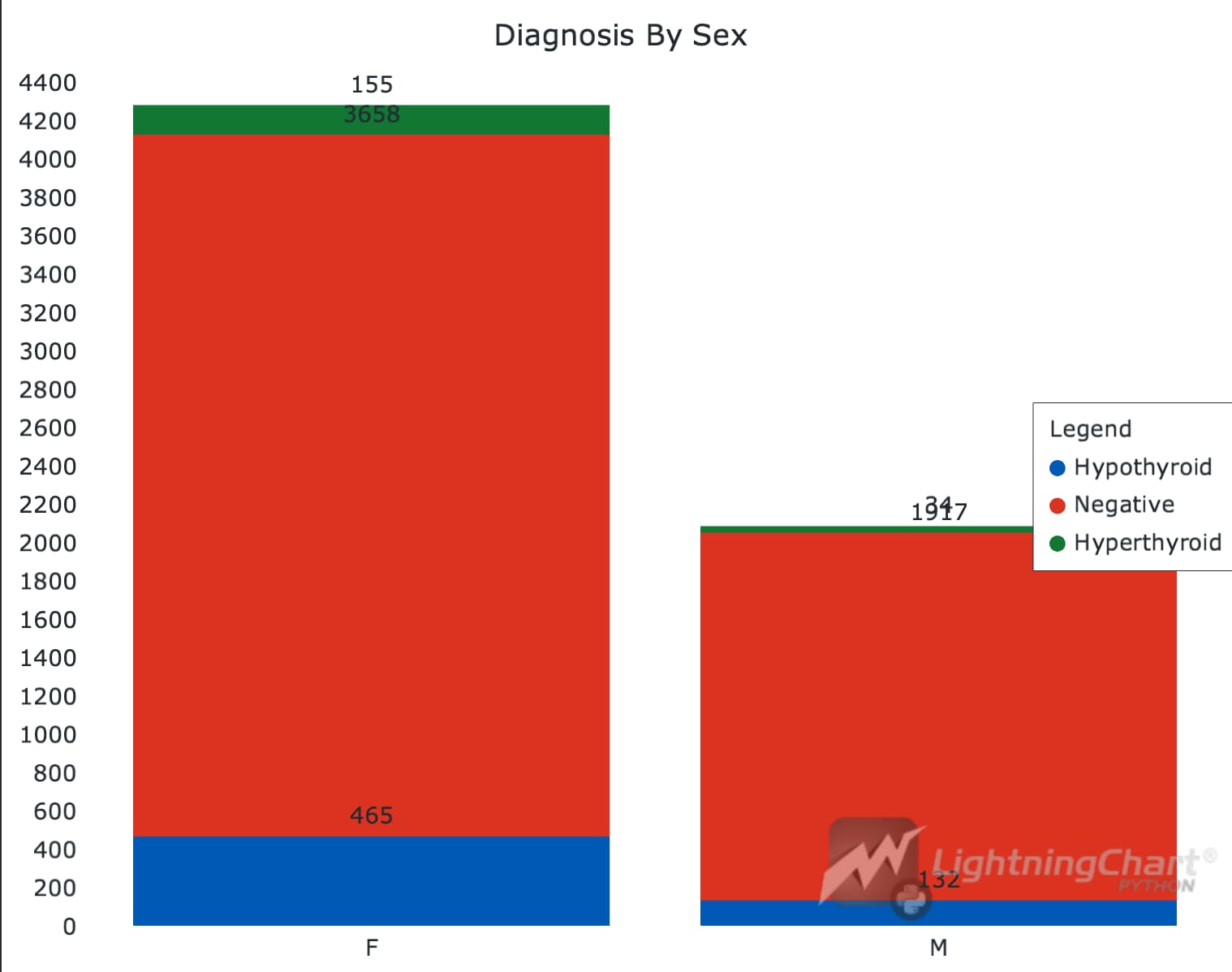
Grouped Bar Chart based on age
bins = [0, 40, 60, 100]
labels = ['0-40', '41-60', '61-100']

df["age_range"] = pd.cut(df["age"], bins=bins, labels=labels, right=True)

result = []
for target in df['target'].unique():  # make json-like formation of data
    values = outcome_counts_by_age[target].tolist()
    result.append({
        'subCategory': target,
        'values': values
    })
barchart_grouped = lc.BarChart(  # initialize bar chart
    vertical=True,
    theme=lc.Themes.White,
    title='Diagnosis By Age',
)
barchart_grouped.set_data_grouped(labels, result)  # set data
barchart_grouped.set_sorting('alphabetical').set_animation_category_position(False)
barchart_grouped.add_legend().add(barchart_grouped)  # add legend
barchart_grouped.open() 
Boxplots
df_for_t3 = df.dropna(subset=['T3'])
t3_val_neg = df_for_t3[df_for_t3['target'] == 'Negative']['T3'].tolist()
t3_val_hyper = df_for_t3[df_for_t3['target'] == 'Hyperthyroid']['T3'].tolist()
t3_val_hypo = df_for_t3[df_for_t3['target'] == 'Hypothyroid']['T3'].tolist()
boxplt_t3 = lc.BoxPlot(  # init box plot
    data=[t3_val_neg, t3_val_hyper, t3_val_hypo],
    theme=lc.Themes.White,
    title='T3',
    xlabel='Negative (Left), Hyperthyroid (Middle), Hypotyroid (Right)',
    ylabel='Values'
)
boxplt_t3.open()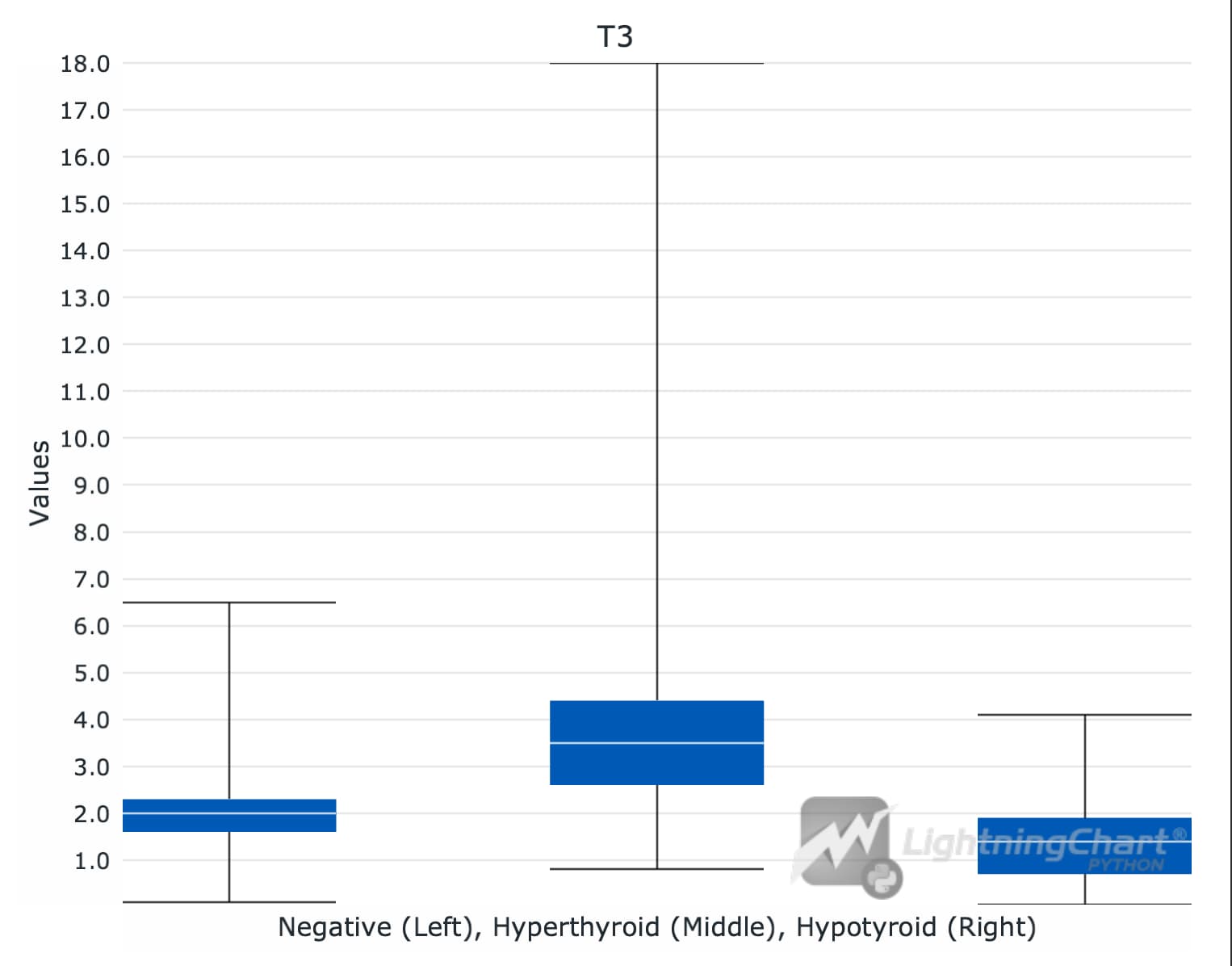
tsh_val_neg = df[df['target'] == 'Negative']['TSH'].tolist()
tsh_val_hyper = df[df['target'] == 'Hyperthyroid']['TSH'].tolist()
tsh_val_hypo = df[df['target'] == 'Hypothyroid']['TSH'].tolist()
boxplt_tsh = lc.BoxPlot(  # init box plot
    data=[tsh_val_neg, tsh_val_hyper, tsh_val_hypo],
    theme=lc.Themes.White,
    title='TSH',
    xlabel='Negative (Left), Hyperthyroid (Middle), Hypotyroid (Right)',
    ylabel='Values'
)
boxplt_tsh.open()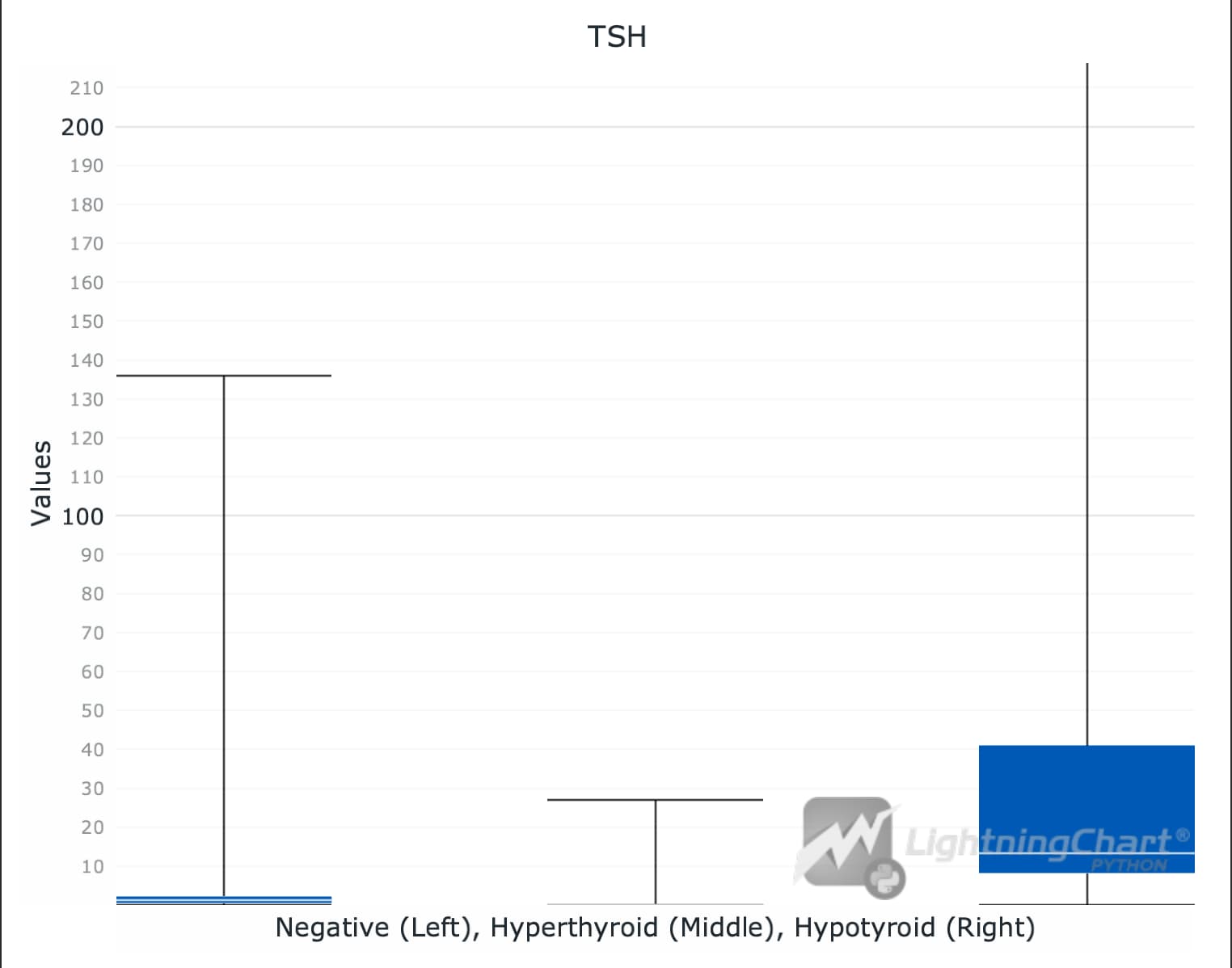
Correlation Matrix
numeric_columns = ['age', 'TSH', 'T3', 'TT4', 'T4U', 'FTI']
data_numeric = df[numeric_columns]
correlation_matrix = data_numeric.corr()
print(correlation_matrix)

---

Output:

          age       TSH        T3       TT4       T4U       FTI
age  1.000000 -0.020178 -0.185715 -0.031869 -0.097642  0.022881
TSH -0.020178  1.000000 -0.201585 -0.324683  0.105799 -0.341080
T3  -0.185715 -0.201585  1.000000  0.570440  0.207202  0.492500
TT4 -0.031869 -0.324683  0.570440  1.000000  0.302134  0.834241
T4U -0.097642  0.105799  0.207202  0.302134  1.000000 -0.232331
FTI  0.022881 -0.341080  0.492500  0.834241 -0.232331  1.000000
Prediction Modelling
In this part of the article we will create a simple gradient-boosting tree. The model will use 75% of our data to train and it will try to predict remaining 25%. We will also assess the results of predictions.
columns = ['age', 'on_thyroxine', 'thyroid_surgery', 'TT4', 'T3', 'T4U', 'FTI', 'TSH', 'target']  # these will be our features + target
training_df = df.loc[:, columns]  # extract needed columns

training_df.replace('f', 0, inplace=True)
training_df.replace('t', 1, inplace=True)

diagnosis_map = {'Negative': 0,
             'Hypothyroid': 1,
             'Hyperthyroid': 2}
training_df['target'] = training_df['target'].replace(diagnosis_map)  # same with target

training_df['target'] = training_df['target'].astype(np.int64)
training_df['on_thyroxine'] = training_df['on_thyroxine'].astype(np.int64)
training_df['thyroid_surgery'] = training_df['thyroid_surgery'].astype(np.int64)

x = training_df.loc[:, training_df.columns != 'target']  # features
y = training_df['target']  # columns
training_df.dtypes
from xgboost import XGBClassifier
from sklearn.utils.class_weight import compute_sample_weight
sample_weights = compute_sample_weight( # we use sklearn's weight balance method
class_weight='balanced',
y=y_train
)
XGB = XGBClassifier( # you can experiment with values, refer to the XGB docs
objective='multi:softmax',
missing=1,
early_stopping_rounds=15,
learning_rate=0.1,
max_depth=5,
eval_metric=['merror','mlogloss'],
seed=52
)
XGB.fit(x_train, y_train, eval_set=[(x_train, y_train), (x_test, y_test)], sample_weight=sample_weights) # train the model
results = XGB.evals_result()
epochs = len(results['validation_0']['mlogloss'])
x_values = list(range(0, epochs))
dashboard_XGB = lc.Dashboard(columns=1, rows=2) # create a dashboard as we need 2 charts
chartMlog = dashboard_XGB.ChartXY( # first chart
column_index=0,
row_index=0,
title='Logarithmic Loss'
)
series_train = chartMlog.add_line_series().append_samples( # series with train results
x_values=x_values,
y_values=results['validation_0']['mlogloss']
).set_name("Train").set_line_color(lc.Color(100, 200, 250))
series_test = chartMlog.add_line_series().append_samples( # series with test results
x_values=x_values,
y_values=results['validation_1']['mlogloss']
).set_name("Test").set_line_color(lc.Color(255, 165, 0))
chartMlog.get_default_x_axis().set_title("epoch")
chartMlog.get_default_y_axis().set_title("mlogloss")
chartMlog.add_legend().add(chartMlog)
chartMerror = dashboard_XGB.ChartXY( # same for 2nd chart
column_index=0,
row_index=1,
title='Mean Error'
)
series_train1 = chartMerror.add_line_series().append_samples(
x_values=x_values,
y_values=results['validation_0']['merror']
).set_name("Train").set_line_color(lc.Color(100, 200, 250))
series_test1 = chartMerror.add_line_series().append_samples(
x_values=x_values,
y_values=results['validation_1']['merror']
).set_name("Test").set_line_color(lc.Color(255, 165, 0))
chartMerror.get_default_x_axis().set_title("epoch")
chartMerror.get_default_y_axis().set_title("merror")
chartMerror.add_legend().add(chartMlog)
dashboard_XGB.open()
The first graph shows the Mean Logarithmic Loss function. It is used for binary classification models, which ours is. Our decision tree decides between two options based on a condition. We will see it in the next step. Mean error is a simpler function that calculates the sum of errors for all points. The errors descending on our graphs are good. It shows that in later epochs, the model predicts more precisely.
Decision Tree Example
On the tree you can see how the model decides in which category to put the entries.
from xgboost import plot_tree
import matplotlib.pyplot as plt
from matplotlib.pylab import rcParams

rcParams['figure.figsize'] = 25,15
plot_tree(XGB)
fig = plt.gcf()
plt.show()
Feature Importance
Another useful metric is feature importance. There are a few types of importance, in this example it is gain. From XGBoost documentation:
– ‘weight’: the number of times a feature is used to split the data across all trees.
– ‘gain’: the average gain across all splits the feature is used in.
– ‘cover’: the average coverage across all splits the feature is used in.
– ‘total_gain’: the total gain across all splits the feature is used in.
– ‘total_cover’: the total coverage across all splits the feature is used in.
importance = XGB.get_booster().get_score(importance_type='gain')

chart = lc.BarChart(   # feature importance chart
    vertical=False,
    theme=lc.Themes.White,
    title='Feature Importance (Gain)'
)
chart.set_sorting('descending')
chart.set_data(importance)
chart.open()
Analysis
Most likely diabetes depends on the number of pregnancies, but the dependence is not that strong.
Model Evaluation
from sklearn.metrics import confusion_matrix, classification_report
y_pred = XGB.predict(x_test)
print('\n-== Confusion Matrix ==-\n')
print(confusion_matrix(y_test, y_pred))
print('\n-===== Classification Report =====-\n')
print(classification_report(y_test, y_pred))

Output:

-== Confusion Matrix ==-

[[1385    4   11]
 [   2  145    0]
 [   6    0   38]]

-===== Classification Report =====-

              precision    recall  f1-score   support

           0       0.99      0.99      0.99      1400
           1       0.97      0.99      0.98       147
           2       0.78      0.86      0.82        44

    accuracy                           0.99      1591
   macro avg       0.91      0.95      0.93      1591
weighted avg       0.99      0.99      0.99      1591
The evaluations show that our model predicts quite well, with the lowest precision of 0.78. For more info on how to read these parameters, refer to the notebook (analysys.ipynb).
Conclusion
In this guide, we did thyroid disease visualization, analysis, and prediction in Python. We used Jupyter Notebook along with libraries lightningchart, pandas and xgboost.
We did:
- Data handling and cleaning
- Different visualizations – Pie Chart, Box Plots, Bar Charts.
- Prediction modeling and its performance analysis
Now, we can ‘feed’ our model more data without labels and get quite reliable results.
Benefits of using LightningChart
LightningChart provides a lot of ready-made options for creating graphs. Otherwise, we would have a headache creating proper charts for the Python vital signs dashboard, whilst LightningChart has powerful tools to create XY charts with a huge amount of points in almost no time.
There are lots of other tools in the library, you can review various code snippets for different tasks at LightningChart Python Guide.

Georgii Gibizov
Data Science Python Developer


Continue learning with LightningChart
Streaming Data Visualization with WebSockets (2026): The Complete Tutorial
Every WebSocket tutorial on the internet shows the same thing: a server sends a random number every second, a chart updates. It works. The demo looks great. Then you deploy to production, your IoT sensors push 800 updates per second across twelve channels, and the...

Best ScottPlot Alternative in 2026: GPU Rendering, 3D Charts, Cross-Language Support
ScottPlot is genuinely excellent for what it is: a free, MIT-licensed, actively developed .NET plotting library with an honest focus on interactive large-dataset display. The GDI+ rasterized renderer — which draws the entire chart as a pixel bitmap rather than...
Using Fibonacci Tools in Trading: A Practical Guide for Market Analysis
Using Fibonacci Tools in Trading: A Practical Guide for Market AnalysisTechnical traders rely on various tools to identify potential support, resistance, and price targets. Among the most widely used are Fibonacci tools, which are based on the mathematical sequence...



If you have any questions, feel free to contact us!



©LightningChart Ltd 2026. All rights reserved.