








Creating an Open Meteo Weather Application with LightningChart Python
Tutorial
Assisted by AI
Learn to integrate the open meteo weather application with LightningChart in Python for powerful weather visualizations and data analysis.
Soroush Sohrabian
Software Developer

Introduction to the Project
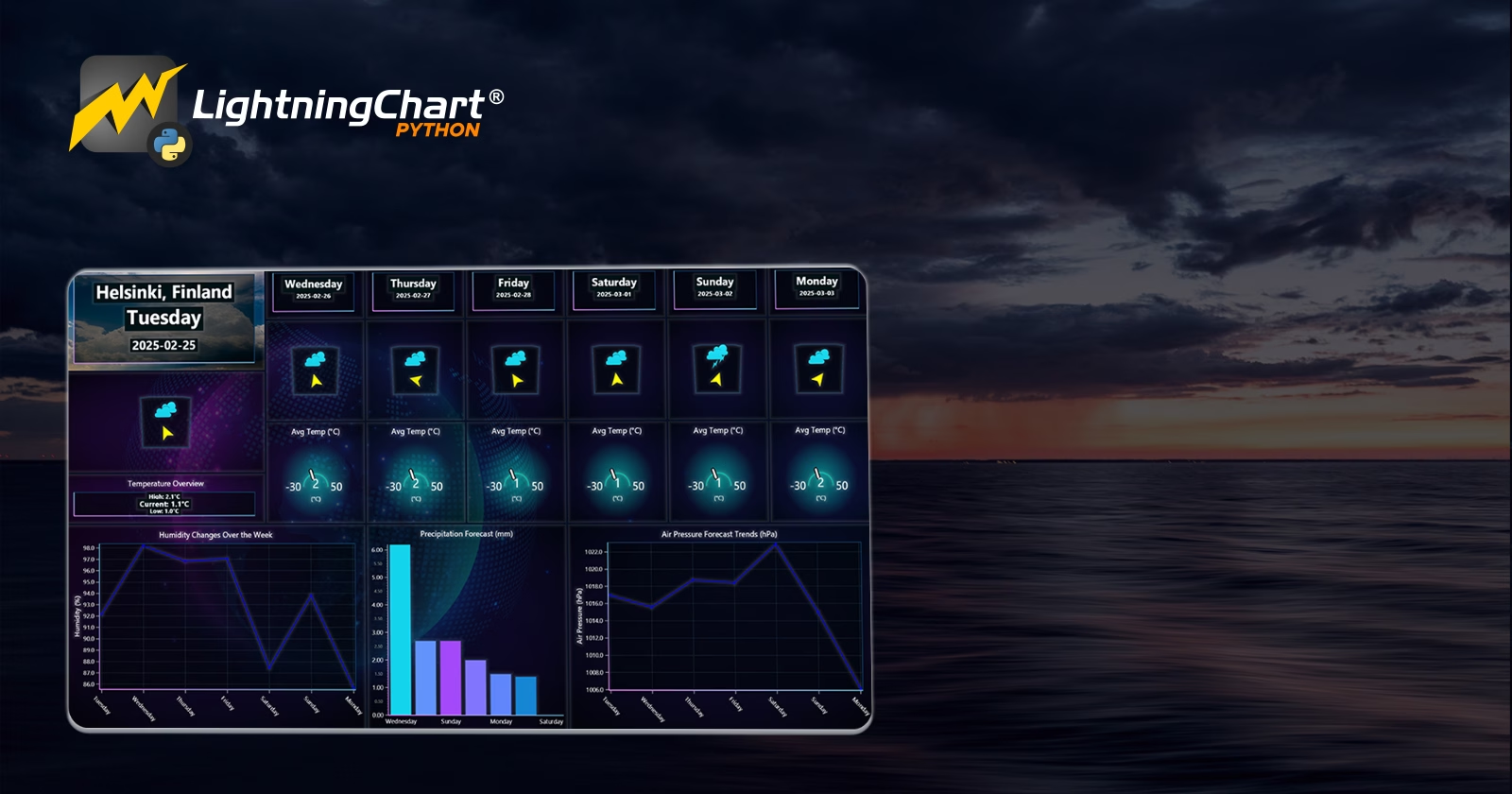
This project develops a Historical Weather Application using LightningChart Python and Open-Meteo API to visualize historical, real-time and forecasting weather data. The goal is creating an interactive dashboard that provides different weather parameters like temperature, humidity, wind speed, pressure, and precipitation trends for Helsinki, Finland.
About the Dataset and Open-Meteo
We used Open-Meteo’s Historical Weather API, which provides past and real-time weather data. Open-Meteo offers free weather data with high precision and supports multiple weather parameters such as:
- Temperature (°C)
- Precipitation (mm)
- Wind Speed and Direction (km/h, °)
- Humidity (%)
- Soil Moisture and Soil Temperature (for deeper insights)
- Air Pressure
- Cloud Coverage
The dataset covers the past 24 hours and provides hourly forecasts, which makes it ideal for monitoring weather patterns.
LightningChart Python
LightningChart Python is a high-performance data visualization library that offers real-time and different interactive charting. It allows the creation of 2D and 3D visualizations that makies it ideal for real-time weather monitoring.

Features and Chart Types Used in the Project
In this project, we used several LightningChart components:
- Gauge Chart: Displays real-time temperature.
- Polar Chart: Shows wind direction and speed.
- 3D Chart: Visualizes weather conditions dynamically.
- Bar Chart: Represents soil temperature, moisture, and cloud coverage.
- Multi-Line Chart: Monitors environmental trends like pressure, humidity, and wind speed.
Performance Characteristics
LightningChart Python provides:
- GPU acceleration that enables smooth visualization even with large datasets.
- Real-time updates which makes it ideal for monitoring live weather changes.
- Low CPU and memory usage which improves dashboard responsiveness.
Setting Up Python Environment
Before running the project, install Python and the other required libraries using:
pip install requests pandas lightningchart trimesh pytzOverview of Libraries Used
- NumPy & Pandas – Handling and processing numerical data.
- LightningChart – Creating real-time, interactive visualizations.
- Trimesh: For 3D weather condition models.
- Requests: To fetch data from the Open-Meteo API.
- pytz: To manage timezone conversions.
Setting Up Your Development Environment
- Set up a virtual environment:
python -m venv rf_analysis_env
source rf_analysis_env/bin/activate # On Windows: rf_analysis_env\Scripts\activate- Use Visual Studio Code (VSCode) for a streamlined development experience.
Loading and Processing Data
To create this Open Meteo weather application, we will fetch the weather data using the following function:
def fetch_weather_data():
    API_URL = "https://api.open-meteo.com/v1/forecast"
    params = {
        "latitude": 60.1699,
        "longitude": 24.9384,
        "hourly": "temperature_2m,precipitation,wind_speed_10m",
        "past_days": 1,
        "forecast_days": 0,
        "timezone": "auto",
    }
    response = requests.get(API_URL, params=params)
    return pd.DataFrame(response.json()["hourly"])
Handling and Preprocessing the Data
- Convert timestamps to local Helsinki time.
- Handle missing values and outliers.
- Aggregate hourly data for daily analysis.
Visualizing Data with LightningChart Python
Here are some examples that shows how we created key visualizations:
Wind Direction & Speed (Polar Chart)
polar_chart = dashboard.PolarChart(column_index=0, row_index=0, row_span=4, column_span=4)
polar_chart.set_title("Current Wind Direction & Speed")
polar_chart.add_heatmap_series(sectors=12, annuli=5)
Real-Time Temperature (Gauge Chart)
gauge_chart = dashboard.GaugeChart(column_index=10, row_index=0, row_span=4, column_span=2)
gauge_chart.set_title("Current Temperature (°C)")
gauge_chart.set_interval(start=-30, end=50).set_value(0)
3D Weather Condition Visualization
chart_3d = dashboard.Chart3D(row_index=0, column_index=8, row_span=4, column_span=2)
chart_3d.set_title("Current Weather Condition")
chart_3d.set_camera_location(0, 1, 5)
Environmental Data Trends (Multi-Line Chart)
line_chart = dashboard.ChartXY(column_index=4, row_index=4, row_span=4, column_span=8)
line_chart.set_title("Environmental Data Trends")
series = line_chart.add_line_series(data_pattern="ProgressiveX")
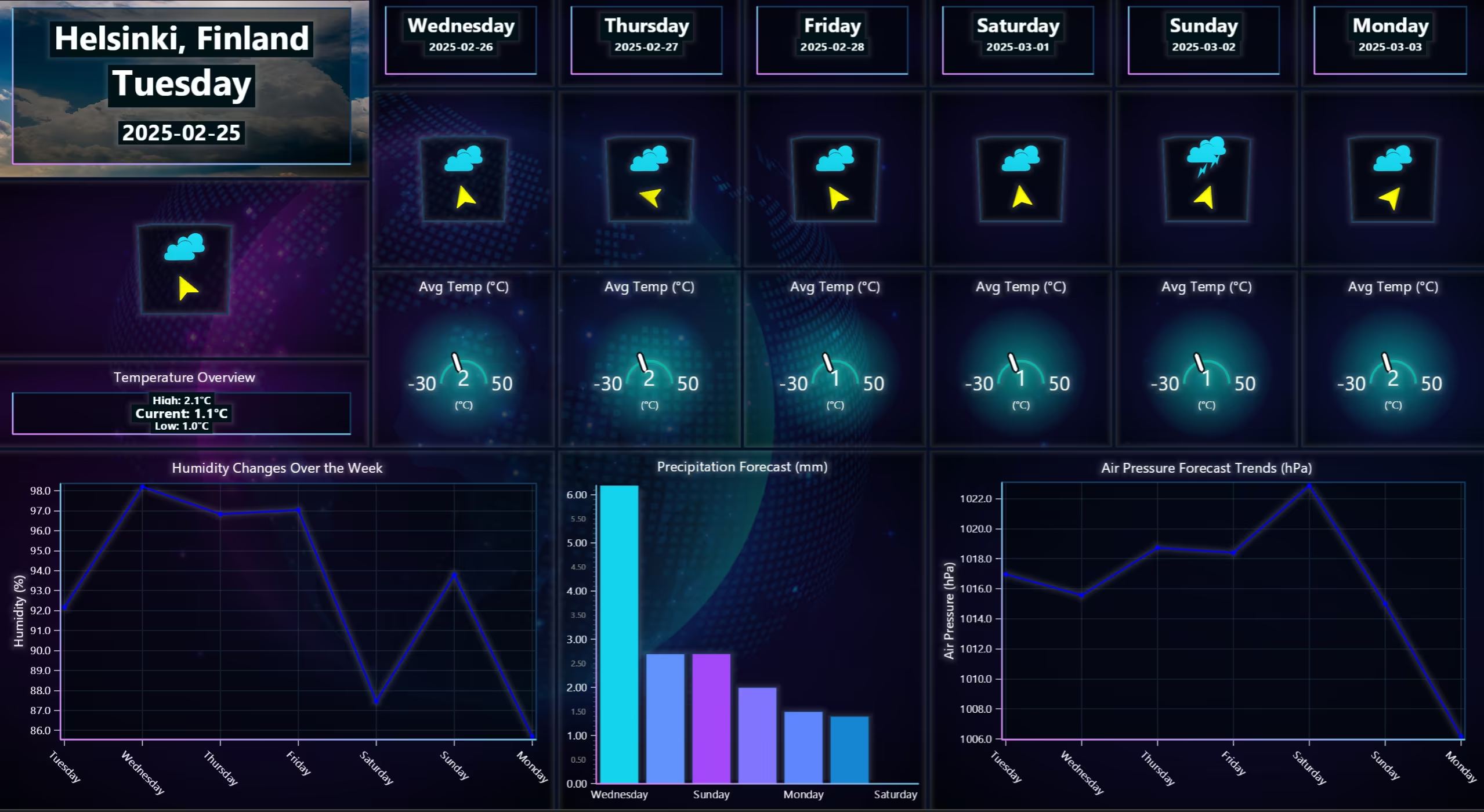
Weekly Forecasting Dashboard
The following dashboard displays how the Open Meteo weather application compiles using the Open Meteo API.
Customizing the Open Meteo Weather Application Visualizations
- Color Palettes: Used different gradient colors to show better data intensities.
- Legends & Labels: Improved readability of weather parameters.
Conclusion
This Open Meteo weather application project demonstrates how to leverage LightningChart Python with Open-Meteo API to visualize a real-time, historical and forecasting weather monitoring system. The dashboard visualizes weather trends that enable us to improve data-driven decision-making for weather analysis.
Continue learning with LightningChart
Data Visualization Components for React Applications
Written by a human | Updated on April 9th, 2025React Data Visualization Components React is one of the most popular front-end development frameworks on the web in the year 2022. It is a free and open-source front-end JS library that is used to build interactive...
What Is LiDAR Data Visualization?
LiDAR Data Visualization The LiDAR method conveys another yet complex level of data visualization as it is widely used in demanding industries that require plotting, e.g., topographic or cartography 3D data. But the use of LiDAR goes further as it is also used...
Android
Written by a human | Updated on April 9th, 2025Android Charts Here's a new article I'm really excited about...this time, we will create an android charts data visualization application. For this application, we will work with Android Studio and LightningChart JS...



If you have any questions, feel free to contact us!



©LightningChart Ltd 2026. All rights reserved.