








LightningChart PythonVisualization of ECG Signal Processing in Python
TutorialCreate an ECG signal processing application with LightningChart Python
Written by a human | Updated on April 23rd, 2025
Visualizing ECG Signal Processing in Python
Electrocardiogram analysis (ECG analysis) is a process of recording, processing, and analyzing a patient’s heart’s electrical activity. This activity is recorded from a patient using electrodes placed on the skin.
Though, it is important to note, that ECG doesn’t equal heart rate as by analyzing ECG data it is possible to get a comprehensive picture of the heart’s activity. This includes timing and strength of the heartbeats and it can reveal not only heart rate but also rhythm and the presence of arrhythmias, heart attacks, and other diseases.

Processing ECG data is a complex thing. It consists of recording signals, filtering, digitalization, and actions related to analyzing. They include calculation of the heart rate, diagnosing the rhythm, and generating a report.
The importance of monitoring and analyzing heart data is huge, as by seeing the detailed condition of the heart it is possible to prevent lethal diseases, or if diseases occur, take the right steps to treat them. These diseases include arrhythmias (tachycardia, bradycardia), myocardial ischemia, cardiomyopathy, pericarditis, and Wolff-Parkinson-White syndrome.
LightningChart Python

For this task, we may use the LightningChart library. It provides a wide range of tools for creating graphs that can be useful for ECG signal processing in Python.
In this project, we will mainly use:
- XY charts (XY charts documentation)
- Dashboard functionality (dashboard documentation)
LightningChart uses GPUs for faster rendering, so it is possible to ‘feed’ it a huge sample of data (which will be the case in this project).
Setting Up Python Environment
First, for ECG signal processing in Python, we need to set up our Python environment. For the installation of Python on Mac, I recommend using the Homebrew package manager as it is popular and has a lot of packages. Moreover, it is arguably more convenient than installing Python using .dmg.
1. The first step is installing Homebrew itself
You can skip this step if it is already installed on your Mac. Enter Terminal app and copy/paste this string:
/bin/bash -c "$(curl -fsSL https://raw.githubusercontent.com/Homebrew/install/HEAD/install.sh)"Important note: the installation of Homebrew is not fast, it usually takes between 5 to 15 minutes.
2. Installation of Python
This command will install the latest stable version of Python.
brew install pythonNOTE: if you don’t want to use Homebrew, you can access the official Python website, select the latest stable version downloader for MacOS (its named macOS 64-bit universal2 installer), and follow the installation instructions. You can check the version using python3 –version in the terminal. If it displays Unknown command error, it is most likely due to PATH variables. Refer to this guide to fix it.
Installation of Python on Windows
I recommend using the tool Winget. To install the Python package, open cmd or PowerShell as Administrator and type:
winget install Python.Python.3NOTE: if you don’t want to use Winget, You can access the official Python website, select the latest stable version downloader for Windows
(it is named Windows installer (64-bit)) and follow the installation instructions. You can verify the installation of Python and pip by typing python --version and pip --version respectively. If it displays command' is not recognized error, it is most likely due to PATH variables. Refer to
this guide to fix.
3. Installation of IDE
For IDE (integrated development environment), I recommend using PyCharm as it is clean and powerful. However, the full version is paid so you can also use VSCode. Optionally, you may want to set up Venv (Python virtual environment) to install packages there and not clutter the Python installation. The environment-creating instructions are:
- PyCharm – https://www.jetbrains.com/help/pycharm/creating-virtual-environment.html#python_create_virtual_env
- VSCode – https://code.visualstudio.com/docs/python/environments
Then, using the terminal (IDEs have integrated terminals) install the needed packages:
pip install PyQt5 PyQt5-sip PyQt5-Qt5 PyQtWebEngine pandas lightningchart4. Libraries Used
Pandas
In this project, we will mainly use the two-dimensional data frame data structure provided by Pandas. It can be easily created from a .CSV or Excel file.
PyQt
PyQt is a Python library for developing GUI applications. It is the easiest GUI app library to use with LightningChart Python.
LightningChart
LightningChart Python is the main library used in the project for ECG signal processing in Python. It provides highly customizable graph-building tools, including simple XY charts, 3D charts, Bar charts, Spider charts, and Map charts. However, this time we will use only XY charts and the Dashboard component of the LightningChart library.
Loading and Processing Data
You can find lots of medical data, including ECG data for analysis in Python, on the PhysioNet website. Here, you can download .hea and .dat pairs.
- .dat files are the data itself
- .hea contains the header for each corresponding .dat file
After that, we need to convert the waveform data into CSV files, this can be done using the “wfdb” and “pandas” Python packages.
import wfdb
import pandas as pd

# path to file pair
record_name = 'data/0100'

# read the record
record = wfdb.rdrecord(record_name)

# extract signal data and column names
signal_data = record.p_signal
column_names = record.sig_name

# create a dataframe
df = pd.DataFrame(signal_data, columns=column_names)

# dave df to a CSV file
csv_file_path = 'data/nibp.csv'
df.to_csv(csv_file_path, index=False)

print(f"Data successfully written to {csv_file_path}")
To access the ready-made CSV files, visit the GitHub documentation for this article. Now we are ready to write an application for ECG processing in Python.
Visualizing Data with LightningChart
1. First, we need to import needed packages:
import sys
import threading
import pandas as pd
from PyQt5.QtCore import *
from PyQt5.QtWidgets import *
from PyQt5.QtWebEngineWidgets import *
import lightningchart as lc
2. Creating a class for the PyQt window:
window_width = 1600
window_height = 900

class App(QMainWindow):
    def __init__(self, url):
        super(App, self).__init__()  # Call the base class constructor
        self.setWindowTitle("Medical Dashboard")  # Set the window title
        self.setGeometry(100, 100, window_width, window_height)  # Set the window geometry

        self.web_view = QWebEngineView()  # Create a web view widget
        self.setCentralWidget(self.web_view)  # Set the web view as the central widget

        self.web_view.setUrl(QUrl(url))  # Load the medical dashboard URL
3. Setups for LightningChart graphs. First, set your LC Python license key (free):
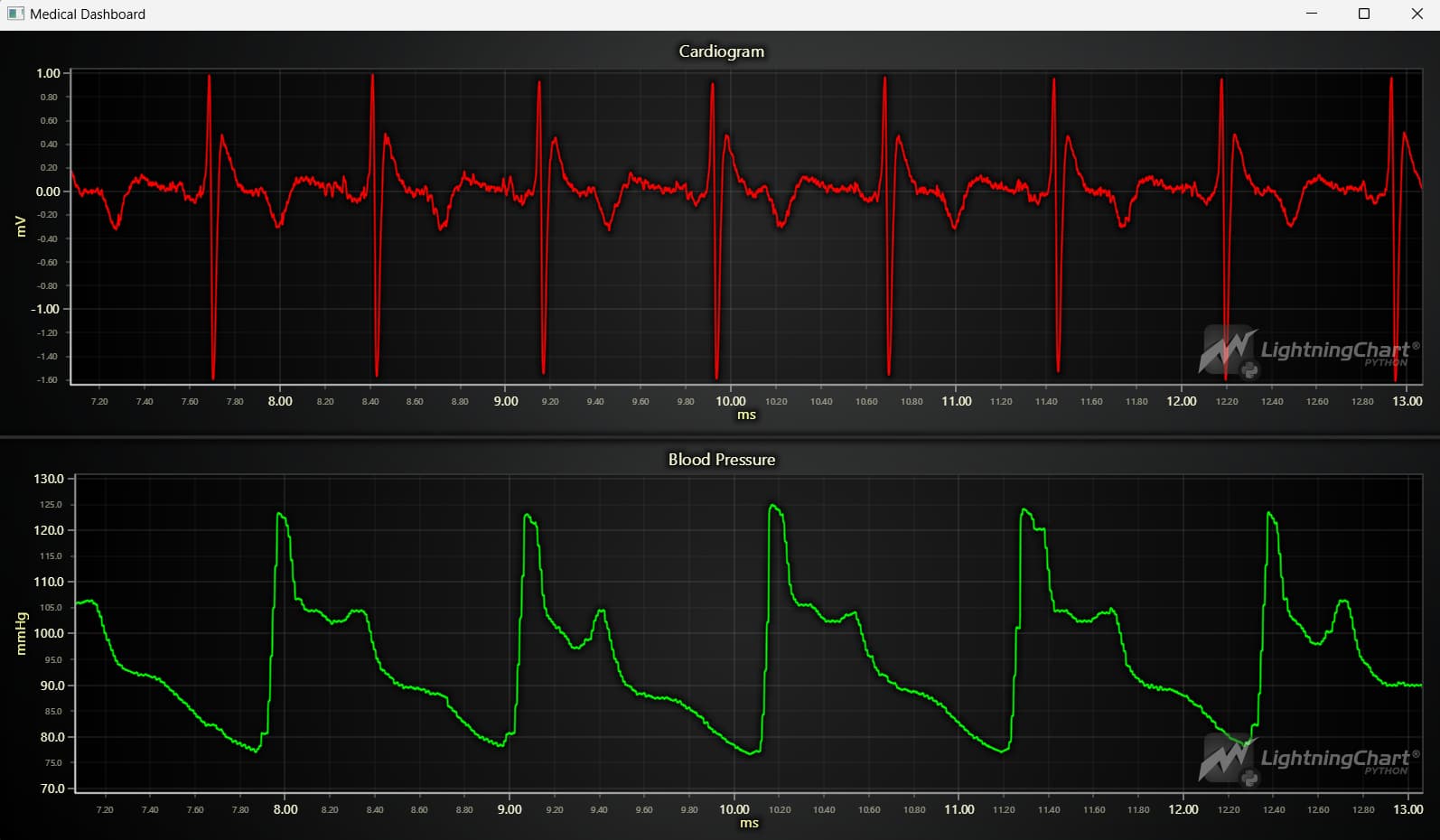
lc.set_license("<your_license_key>")LightningChart provides a wide range of setups. To use with PyQt, we need to create a dashboard. Important: In this example, we also have blood pressure in our dashboard.
dashboard_columns_amount = 1
dashboard_rows_amount = 2

if __name__ == "__main__":
    # Initialize dashboard
    dashboard = lc.Dashboard(columns=dashboard_columns_amount, rows=dashboard_rows_amount, theme=lc.Themes.Dark)
    nibp_file_path = 'data/nibp.csv'  # Put CSV data inside
    ecg_file_path = 'data/ecg.csv'    # 'data' folder
    df_nibp = pd.read_csv(nibp_file_path)  # Read CSV files  to DataFrames using pandas
    df_nibp = df_nibp[0:40000]  # Cut the record to 40 seconds
    df_ecg = pd.read_csv(ecg_file_path)
    df_ecg = df_ecg[0:40000]
    y_ecg = df_ecg['ECG']  # Extract Ys from DataFrame
    y_nibp = df_nibp['NIBP']
    x = df_ecg['time']  # Extract Xs from DataFrame

    # Create arrays from Xs and Ys
    xs = []
    ys_ecg = []
    ys_nibp = []
    for i in range(len(x)):
        xs.append(x[i])
        ys_ecg.append(y_ecg[i])
        ys_nibp.append(y_nibp[i])
We can create the needed graphs inside our dashboard when the prerequisites are ready.
    chart_nibp = dashboard.ChartXY(column_index=0, row_index=1, title='Blood Pressure')

    series_nibp = chart_nibp.add_line_series(data_pattern='ProgressiveX')
    series_nibp.set_line_color(lc.Color(0, 255, 0))

    x_axis_nibp = chart_nibp.get_default_x_axis()
    y_axis_nibp = chart_nibp.get_default_y_axis()
    x_axis_nibp.set_scroll_strategy(strategy='progressive')
    x_axis_nibp.set_interval(start=-3, end=3, stop_axis_after=False)
    y_axis_nibp.set_default_interval(start=70, end=130)
    y_axis_nibp.set_title('mmHg')
    x_axis_nibp.set_title('ms')
Now to the difficult part. In order to emulate the real-time ECG, we need to add data ‘gradually’ to our chart. In this example, we add 10 points to the graph per tick. You can experiment with this number to change the speed of scrolling.
    # Set max sample count.
    # It is basically the amount of memory used by the chart before dropping older points
    series_ecg.set_max_sample_count(10000)
    series_nibp.set_max_sample_count(10000)

    # Function for gradually adding data
    def generate_data():
        for point in range(0, len(x), 10):
            series_ecg.add(xs[point:point + 10], ys_ecg[point:point + 10])
            series_nibp.add(xs[point:point + 10], ys_nibp[point:point + 10])

    # Initialize the real-time dashboard server and get the URL
    url = dashboard.open_live_server()
    # Create a thread which will generate and append data to the dashboard
    thread = threading.Thread(target=generate_data, args=()).start()

    # Create PyQt app
    app = QApplication(sys.argv)
    dashboard_app = App(url)
    dashboard_app.show()
    sys.exit(app.exec())
Conclusion
In this guide, we created an app for ECG signal processing in Python. We used powerful libraries lightningchart, pandas, PyQt. With the ready graphs, we are now all set to perform ECG analysis on our graphs. It can be used to detect various diseases and also for machine learning.
Benefits of using LightningChart
LightningChart provides a lot of ready-made options for creating graphs. Otherwise, we would have a headache creating proper charts for Python heart rate displaying, whilst LightningChart has powerful tools to create XY charts and make them progressive. Moreover, due to the GPU usage of LightningChart, the progressive charts look smooth on powerful machines and we can use such big samples of ECG data. There are a lot of other tools in the library, you can review various code snippets for different tasks at LightningChart Python Guide.

Georgii Gibizov
Data Science Python Developer


Continue learning with LightningChart
Create a JavaScript Pie Chart with NodeJS, TypeScript & LightningChart
Written by a human | Updated on April 10th, 2025JavaScript Pie Chart with NodeJS & TypeScript Today, we are going to do a short tutorial on how to generate a pie chart using Node JS, TypeScript, and LigningCharts JS. To see how to get LightningChart JS for...
Real-time data visualization with WebSockets
Written by a human | Updated on April 10th, 2025WebSockets Data Visualization in Real-Time These days it is ever increasingly common that people require web solutions for their applications and services. Data visualization is not an exception to this, as...
Why Performance Matters in Data Visualization?
Written by a human | Updated on April 10th, 2025Performance in Data VisualizationI was doing a Google search a couple of days ago and particularly, I wanted to know what are the options for developers who need to visualize large amounts of data points within...



If you have any questions, feel free to contact us!



©LightningChart Ltd 2026. All rights reserved.