








LightningChart JS.NET MVC tutorial for creating a web charting application
TutorialStep-by-step tutorial how to implement a .NET MVC charting app project using JS charts.
Written by a human | Updated on April 11th, 2025
.NET MVC Line Chart Application
For this article, we will create a new .NET MVC web application using LightningChart JS. For this example, I worked with Visual Studio 2022 and .NET 6.0. If you have a lower version of Visual Studio, probably some windows may look different but the logic applies to any version.
This is the first article related to MVC .NET, so we will create a project from scratch for an easy Line Chart. Before we start, it would be nice to explain what MVC is:
MVC (Model-View-Controller) is a type of software architecture whose main objective is to separate the layers of business logic and user interface.
- The model layer is the lowest layer and is responsible for the data.
- The controller layer is the one that contains code that controls the interaction between the model and the view.
- The view layer is the one that is in charge of showing the data to the user allowing the user to interact with the application, send requests, and configure the environment to the extent that it is permitted.
In other articles, we have worked with Angular, a framework that uses the same pattern but the difference with .NET, is that .NET uses C# as the main code for Model and Controller layers, and HTML, CSS, and JavaScript for the View layer.
This is my favorite way to work with web applications, but as we know, for mobile development, Angular could be a better option depending on many aspects.
Project Overview
For this article, we’ll be creating a line chart application using .NET MVC. The tutorial covers creating the project from scratch, setting up the template, as well an explanation of all the code.
 Download the project to follow the tutorial
Create Project
You can download the .NET MVC project template, but you can do the following steps in case you want to learn how to create a new project from zero.
1. Open VS and select “Create a new Project”, you will see a window like this:

2. Filter by “Web” and select “Model-View-Controller”:

3. Enter the project name:

4. Depending on your VS version, you can choose what .NET version you want.
This decision might depend on the supported .NET version of the server that will host the application.
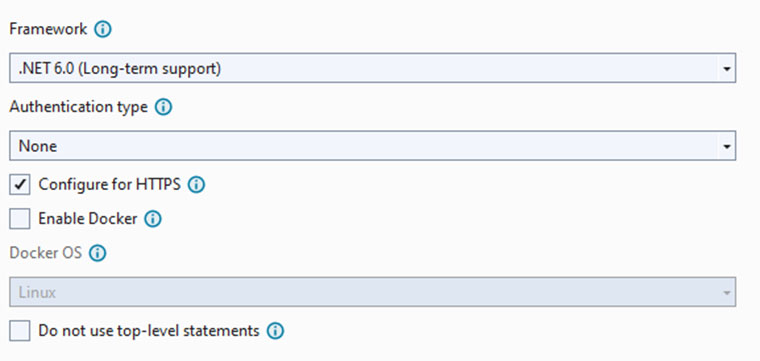
.NET MVC Project
Once the project was created, you will see the following structure:

Each layer will have its own folder with the layer name (Controllers, Models, Views). Inside the “controllers” folder we can have different cs files. The idea is to have a controller for each module of our web application.
In this case, we only have the HOME module but, for example, if you have a client module, you should have a [ClientController] file. In the Models folder, we will have all our classes, interfaces, structs, enums, etc.
In the views folder, we will have cshtml files, which will be related to the interfaces within each controller, and will have the function of being the views, which in turn, will inherit properties returned by their interfaces.
The wwwroot folder will contain all the necessary assets for the interface of our .NET MVC web application.
Code: Model-Controller
We need to create and maintain the data for the line chart. Here is where we need to work with Models.

Models Folder
In the Models folder, add a new item (right-click – add – new item). Name the file “linedata”.
namespace LCMVCTemplate.Models
{
    public class linedata
    {
        public linedata(int x, int y)
        {
            X = x;
            Y = y;
        }
        //setting the name while serializing to JSON
        public int? X = null;
        //setting the name while serializing to JSON
        public int? Y = null;

    }
}
The class [linedata] will contain the X-Y coordinates for the line chart. Line Chart is an X-Y chart type, for that reason, we only need those values in the class.
Inside the [HomeController], we need to create the following method:
private List<linedata[]> GenerateLineSeries(int seriesCount, int pointsPerSeries)
        {
            Random r = new Random();
            List<linedata[]> lineSeries = new List<linedata[]>();

            for (int i = 0; i < seriesCount; i++)
            {
                linedata[] points = new linedata[pointsPerSeries];
                for (int j = 0; j < pointsPerSeries; j++)
                {
                    points[j] = new linedata(j, r.Next(10, 100));
                }
                lineSeries.Add(points);
            }
            return lineSeries;
        }
The method will create points with random values for all the series specified in the [seriesCount] parameter. All the points will be stored in the linedata[] array.
The Index interface will be related to the Index page(view). Inside the interface, we can execute methods to return values to the view. In this case, we execute the previous method that will return two series with a maximum of 50 lines.
public IActionResult Index()
        {
            var point = GenerateLineSeries(2, 50);
            string data_array = JsonConvert.SerializeObject(point);
            ViewData["DataPoints"] = data_array;
            return View();
        }
We need to use JSON objects for the views (we can use other methods like @razor), so we can convert the array object to a JSON object by using the Newtonsoft.Json package.
To transfer the JSON object from the controller to the view, we need to use ViewData (dynamic type).
Code: View
The “Index.cshtml” is the file related to the Index interface (HomeController), and here is where we will construct our chart. In this case, we are working with LC JS, and for that reason, we are creating the chart in the view layer.
1. Creation of the Line series color selectors:
<label for="colorpickerData1">Color Picker Data Series 1:</label>
    <input type="color" id="colorData1" value="#0000ff">

    <label for="colorpickerData2">Color Picker Data Series 2:</label>
    <input type="color" id="colorData2" value="#ff0022">
2. Creation of the Thickness control of the line series:
<label for="Thickness">Line Thickness Series 1:</label>
    <input type="text" id="thickboxSeries1" value="2" pattern="\d*" maxlength="2" style="width:100px;">

    <label for="Thickness">Line Thickness Series 2:</label>
    <input type="text" id="thickboxSeries2" value="2" pattern="\d*" maxlength="2" style="width:100px;">
3. Creation of the submit button:
<input type="submit" class="row button" value="View Chart" onclick="submit()" style="margin-left: 8px"> <br />4. Importing CSS and IIFE’s files:
The “target” div will be the container for our chart.
<div id="target" class="row content"></div>
    <script src="~/iifes/lcjs.iife.js"></script>
    <script src="~/iifes/xydata.iife.js"></script>
5. Embed JS code
As a traditional HTML page, we will embed our JavaScript code between the script tags:
<script type="text/javascript">6. Getting the JSON from controller:
let chartcollection = @Html.Raw(ViewData["DataPoints"]);7. Get values from UI controllers:
function submit() {
        // Get the color values from ColorPicker
        setcolorData1 = document.getElementById("colorData1").value;
        setcolorData2 = document.getElementById("colorData2").value;
        // Get the color values from Textbox
        set_thickness1 = document.getElementById("thickboxSeries1").value;
        set_thickness2 = document.getElementById("thickboxSeries2").value;
        let Hex_colorData1;
        let Hex_colorData2;
        //get the color value from the color generator.
        if (setcolorData1 == null) {
            Hex_colorData1 = '#0000ff';
            Hex_colorData2 = '#ff0022';
        } else {
            Hex_colorData1 = setcolorData1;
            Hex_colorData2 = setcolorData2;
        }
8. Extracting required parts from LightningCharts JS:
const {
            lightningChart,
            SolidFill,
            SolidLine,
            ColorHEX,
            Themes
        } = lcjs //Note: arction/lcjs is not needed here, when using IIFE assembly
9. Creating the chart XY object:
const chart = lightningChart().ChartXY({
            theme: Themes.light,
            container: 'target'
        })
.setTitle('Line Series Chart') // Set chart title- Theme: A collection of default library color theme implementations.
- Container: HTML object where the chart JS object will be rendered.
- setTitle: title of the chart.
10. Mapping data points from the JSON object
const data = [];
        // iterate over array and check array values.

        for (var j in chartcollection[0]) {
            data.push({
                "x": chartcollection[0][j].X,
                "y": chartcollection[0][j].Y,
            });
        }
11. Adding line series to the chart object:
const lineSeries = chart.addLineSeries()
            .setName('Series 1')
            .setStrokeStyle((stroke) => stroke.setFillStyle(new SolidFill({ color: ColorHEX(Hex_colorData1) })).setThickness(Number(set_thickness1)))
            .add(data)

        const lineSeries2 = chart.addLineSeries()
            .setName('Series 2')
            .setStrokeStyle((stroke) => stroke.setFillStyle(new SolidFill({ color: ColorHEX(Hex_colorData2) })).setThickness(Number(set_thickness2)))
.add(data2)- setName: Name of the current line series.
- setStrokeStyle: Function to configure style properties for the line.
- setFillStyle-SolidFill-Color: We can specify the color of the line series.
- setThickness: Thickness of the line.
12. Adding Legend Box:
const legend = chart
            .addLegendBox()
            // Dispose example UI elements automatically if they take too much space. This is to avoid bad UI on mobile / etc. devices.
            .setAutoDispose({
                type: 'max-width',
                maxWidth: 0.3,
            })

        legend.add(chart)
Conclusion
This was my first implementation of LightningCharts JS with .NET MVC. It was quite nice to work with this kind of project after a long time, and even nicer to be able to use LC JS in such a simple and easy way.
I had no compatibility issues and just had to import the IIFE files to make it work. Taking advantage of the power that C# gives us, I imagine the large number of processes that can be associated with each chart, as well as the implementation of the graphs within existing web applications.
Do not limit your .NET MVC application development to only a basic line chart and get creative implementing more charts. Check out the list of available JS charts and graphs. I invite you to try any of the charts shown in the interactive examples. In most, you’ll just have to copy and paste the code inside the script tag and assign a container div.
See all the charts you can create with a .NET MVC app + LightningChart JS:
This was my first implementation of LightningCharts JS with .NET MVC. It was quite nice to work with this kind of project after a long time, and even nicer to be able to use LC JS in such a simple and easy way.
I had no compatibility issues and just had to import the IIFE files to make it work. Taking advantage of the power that C# gives us, I imagine the large number of processes that can be associated with each chart, as well as the implementation of the graphs within existing web applications.
Do not limit your .NET MVC application development to only a basic line chart and get creative implementing more charts.
Check out the list of available JS charts and graphs. I invite you to try any of the charts shown in the interactive examples.
In most, you’ll just have to copy and paste the code inside the script tag and assign a container div.
See all the charts you can create with a .NET MVC app + LightningChart JS:

Omar Urbano
Software Engineer


Continue learning with LightningChart
Create a JavaScript Pie Chart with NodeJS, TypeScript & LightningChart
Written by a human | Updated on April 10th, 2025JavaScript Pie Chart with NodeJS & TypeScript Today, we are going to do a short tutorial on how to generate a pie chart using Node JS, TypeScript, and LigningCharts JS. To see how to get LightningChart JS for...
Real-time data visualization with WebSockets
Written by a human | Updated on April 10th, 2025WebSockets Data Visualization in Real-Time These days it is ever increasingly common that people require web solutions for their applications and services. Data visualization is not an exception to this, as...
Why Performance Matters in Data Visualization?
Written by a human | Updated on April 10th, 2025Performance in Data VisualizationI was doing a Google search a couple of days ago and particularly, I wanted to know what are the options for developers who need to visualize large amounts of data points within...



If you have any questions, feel free to contact us!



©LightningChart Ltd 2026. All rights reserved.