








Creating a JavaScript Racing Dashboard with LightningChart JS
Tutorial
Written by a Human
In this tutorial Learn how to create a racing dashboard for car telemetry analytics with LightningChart JS.
Omar Urbano
Software Engineer

Introduction
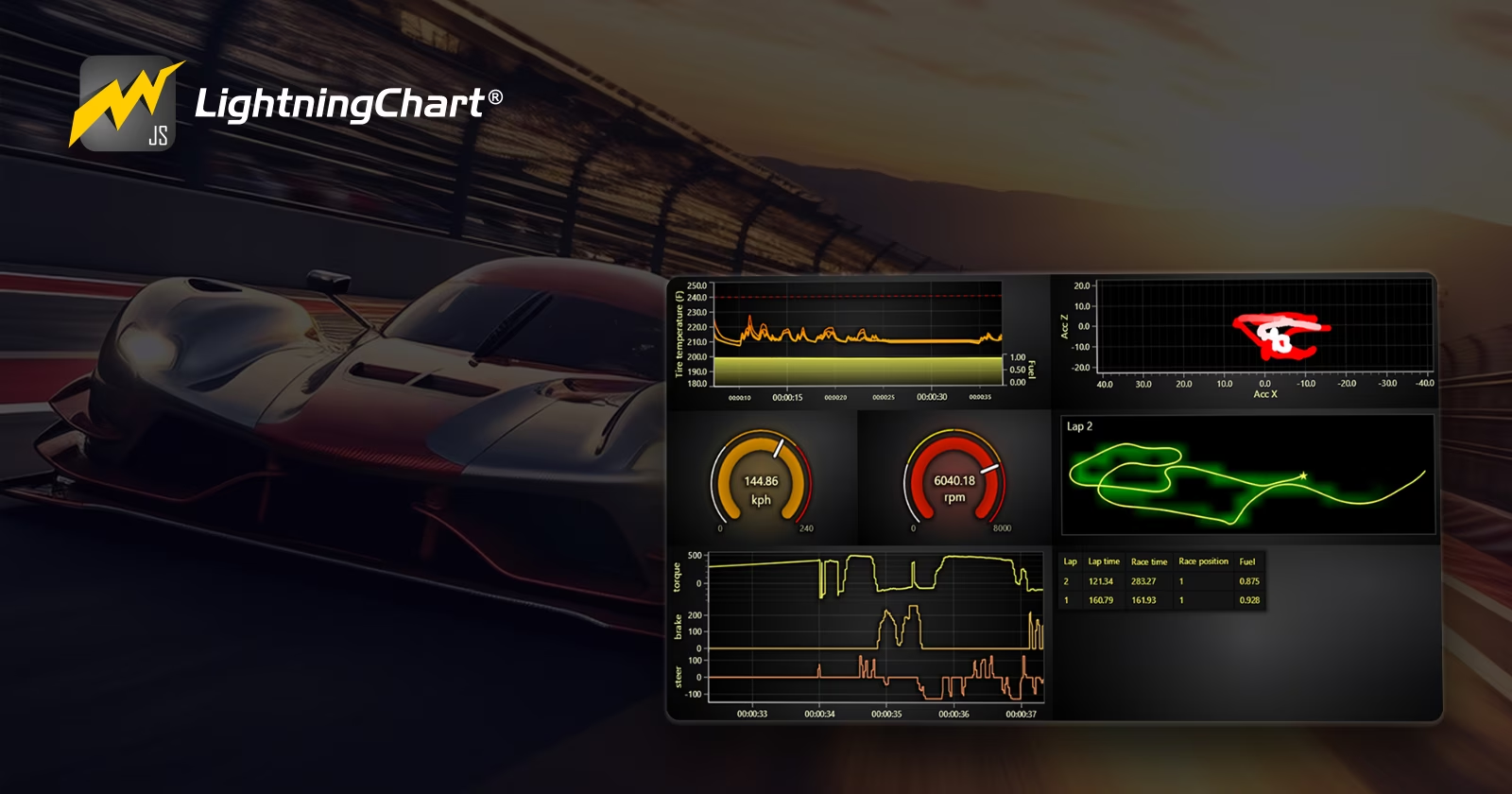
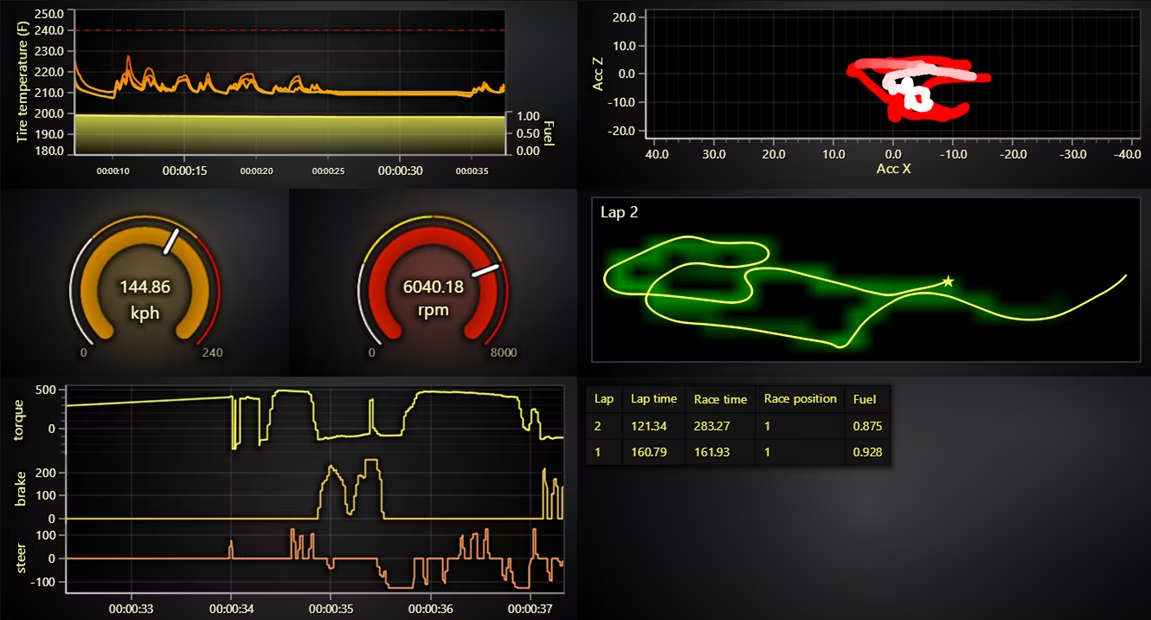
We’re back with LightningChart JS, my favorite library for data analysis, so, I’m very happy to work with this racing dashboard project. There is another article with a racing chart, but now, we will create a more complete dashboard with amazing processes. This example brings the excitement of motorsports to life with LightningChart JS, showcasing how powerful and dynamic data visualization can enhance race analytics. Imagine a dashboard that replays a multi-lap sports car race, providing in-depth insights into critical performance metrics such as:
- Torque, braking, and steering
- Speed and engine RPM
- Tire temperatures and fuel levels
- Accelerations along the XZ planes
- Lap times and race position
Motorsports is a data-intensive industry, requiring the ability to analyze multiple parameters simultaneously within a shared time window. Whether it’s real-time monitoring during a race or analyzing past performances, LightningChart JS delivers the speed and precision needed for both scenarios. This example integrates several visualization techniques to present race data effectively:
- Fast-scrolling line charts for torque, braking, and steering over a 5-second window.
- Dynamic gauges displaying real-time speed and engine revolutions.
- Heat-based line series to track tire temperatures (hot zones glow orange/red).
- Time-fading scatter plots for XZ accelerations, where fresh data appears bright and fades over time.
- Racetrack visualization with a moving marker to indicate the current car position.
- Heatmap overlay showing time lost or gained relative to the last lap.
- Data grid summarizing lap times, race positions, and fuel levels.
With LightningChart JS, motorsports teams, analysts, and enthusiasts can gain deep insights into racing performance, making data-driven decisions faster and more efficiently than ever before.
With that said, let’s get started!
Project Overview
To follow this racing dashboard project, download the ZIP file with all the necessary resources.
 Download the project to follow the tutorial
Template Setup
1. Download the template provided to follow the tutorial.
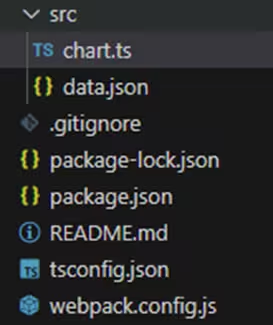
2. After downloading the template, you’ll see a file tree like this:
3. Open a new terminal and run the npm install command
4. It is important to keep the configuration in the tsconfig.json file. This configuration will help you to import JSON files as data objects.
Getting Started
We recommend you use and update to the most recent versions of LightningChart JS and XYData. This is because some LightningChart JS tools do not exist in previous versions. In the project’s package.json file you can find the LightningChart JS dependencies:
"dependencies": {
"@arction/lcjs": "^5.2.1",
"@arction/xydata": "^1.4.0",
"@lightningchart/lcjs": "^7.0.2",
}
1. Importing libraries
We will start by importing the necessary libraries to create our chart.
import {
	lightningChart,
	Themes,
} from "@lightningchart/lcjs";
2. Add license key (free)
Once the LightningChart JS libraries are installed, we will import them into our chart.ts file. Note you will need a trial license, which is free.
let license = undefined
try {
    license = 'xxxxxxxxxxxxx'
} catch (e) {}
Fetching data
const exampleContainer = document.getElementById('chart') || document.body
if (exampleContainer === document.body) {
    exampleContainer.style.width = '100vw'
    exampleContainer.style.height = '100vh'
    exampleContainer.style.margin = '0px'
}
const lc = lightningChart({license:license})
fetch(new URL('https://lightningchart.com/js-charts/interactive-examples/examples/assets/0514/racing-data.json'))
    .then((r) => r.json())
    .then((data) => {
        let iData = 0
        const listeners = []
        while (data[iData].lap_number < 1) {
            iData++
        }
        iData -= 500
        const update = () => {
            for (let i = 0; i < 10; i += 1) {
                const sample = data[iData]
                sample.time = performance.now()
                listeners.forEach((clbk) => clbk(sample, iData))
                iData++
                if (iData >= data.length) break
            }
            if (iData < data.length) {
                requestAnimationFrame(update)
            }
        }
        setTimeout(update, 500)
        const onData = (clbk) => {
            listeners.push(clbk)
} requestAnimationFrame.Tire temperatures
1. Create and Style a Container
const containerTireTemperatures = document.createElement('div')
        exampleContainer.append(containerTireTemperatures)
        containerTireTemperatures.style.position = 'absolute'
        containerTireTemperatures.style.left = '0px'
        containerTireTemperatures.style.top = '0px'
        containerTireTemperatures.style.width = '50%'
        containerTireTemperatures.style.height = '30%'
const chartTireTemperatures = lc - A div element (
containerTireTemperatures) is created and added toexampleContainer. - It is positioned absolutely at the top-left corner, taking up 50% width and 30% height.
2. Initialize a Chart
.ChartXY({
                container: containerTireTemperatures,
                defaultAxisX: { type: 'linear-highPrecision' },
                theme: Themes.darkGold,
            })
.setTitle('') - A
ChartXYinstance (chartTireTemperatures) is created inside the container.
const isDarkTheme = chartTireTemperatures.getTheme().isDark
        if (isImageFill(chartTireTemperatures.engine.getBackgroundFillStyle())) {
            chartTireTemperatures.engine.setBackgroundFillStyle(new SolidFill({ color: ColorRGBA(0, 0, 0) }))
} - It uses a dark gold theme and a high-precision linear X-axis.
3. Configure Axes
chartTireTemperatures.axisX
            .setTickStrategy(AxisTickStrategies.Time)
            .setScrollStrategy(AxisScrollStrategies.progressive)
            .setDefaultInterval((state) => ({
                end: state.dataMax ?? 0,
                start: (state.dataMax ?? 0) - 30_000,
                stopAxisAfter: false,
            }))
        chartTireTemperatures.axisY
            .setTitle('Tire temperature')
            .setAnimationScroll(false)
            .setUnits('F')
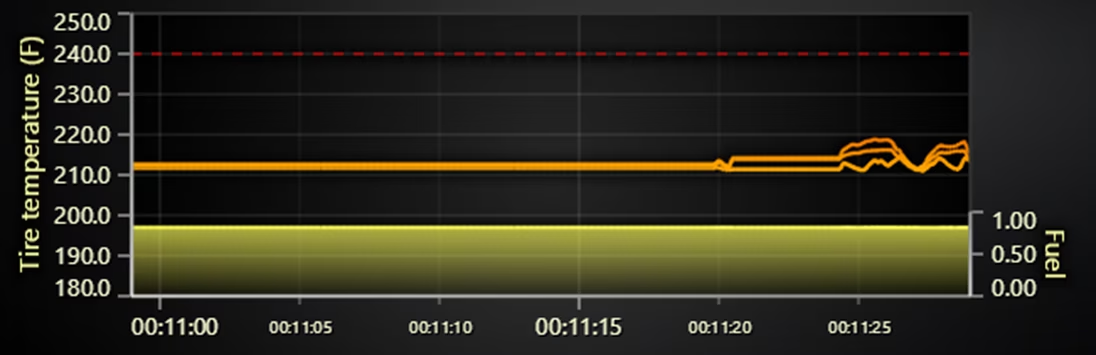
.setInterval({ start: 180, end: 250 }) - The X-axis uses a time-based tick strategy and progressive scrolling.
- The Y-axis (for tire temperature) is labeled in Fahrenheit, has a range of 180–250°F, and disables scroll animation.
4. Set Up Temperature Line Styling
const temperatureStroke = new SolidLine({
            thickness: 2,
            fillStyle: new PalettedFill({
                lookUpProperty: 'y',
                lut: new LUT({
                    interpolate: true,
                    steps: [
                        { value: 176, color: ColorHEX('#ffffff') },
                        { value: 212, color: ColorHEX('#ffa500') },
                        { value: 240, color: ColorHEX('#ff0000') },
                    ],
                }),
            }),
}) - The temperature series uses a color gradient (white → orange → red) based on values.
- A red dashed line is added at 240°F as a reference.
5. Add Tire Temperature Series
chartTireTemperatures.axisY
            .addConstantLine()
            .setValue(240)
            .setPointerEvents(false)
            .setStrokeStyle(
                new DashedLine({
                    thickness: 1,
                    fillStyle: new SolidFill({ color: ColorHEX('#ff0000') }),
                }),
            )
        const tireTemperaturesSeriesList = [
            'tire_temp_front_left',
            'tire_temp_front_right',
            'tire_temp_rear_left',
'tire_temp_rear_right', - Four temperature series (one per tire) are created.
- Data points are progressively appended in real time as
onDatareceives updates.
6. Add Fuel Data Series
const fuelAxis = chartTireTemperatures
            .addAxisY({ opposite: true })
            .setTitle('Fuel')
            .setLength({ pixels: 50 })
            .setTickStrategy(AxisTickStrategies.Numeric, (strategy) =>
                strategy.setTickStyle((ticks) => ticks.setGridStrokeStyle(emptyLine)),
            )
            .setInterval({ start: 0, end: 1 })
        const fuelSeries = chartTireTemperatures
            .addPointLineAreaSeries({
                dataPattern: 'ProgressiveX',
                axisY: fuelAxis,
                automaticColorIndex: 0,
            })
            .setMaxSampleCount(200_000)
onData((sample) => fuelSeries.appendSample({ x: sample.time, y: sample.fuel })) - A secondary Y-axis for fuel level is added with a short length and no grid lines.
- A fuel series is created, appending real-time fuel data with
onData.
Gauge charts
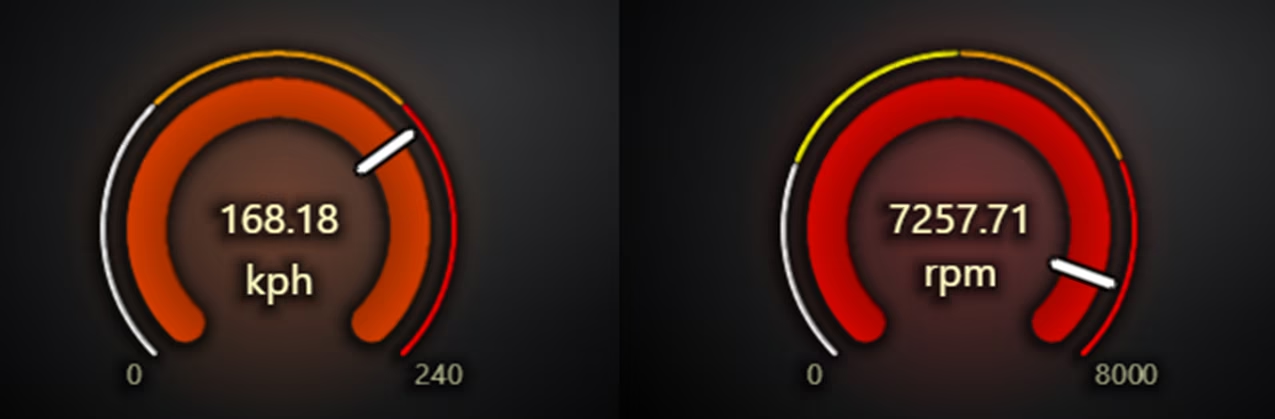
Creating the speed gauge
1. Creating the container
const containerSpeedGauge = document.createElement('div')
exampleContainer.append(containerSpeedGauge) - A <div> is created as a container for the speed gauge and added to
exampleContainer(a predefined element in the document).
2. Styling the container
exampleContainer.append(containerSpeedGauge)
        containerSpeedGauge.style.position = 'absolute'
        containerSpeedGauge.style.left = '0px'
        containerSpeedGauge.style.top = '30%'
        containerSpeedGauge.style.width = '25%'
containerSpeedGauge.style.height = '30%' - Positions the gauge on the left (0px) and 30% from the top of the screen.
- Sets the size to 25% width and 30% height of its parent container.
3. Creating the gauge
const speedGauge = lc
            .Gauge({
                container: containerSpeedGauge,
                theme: Themes.darkGold,
}) - Initializes a gauge using LightningChart JS inside
containerSpeedGauge. - Applies the Dark Gold theme for aesthetics.
4. Configuring the Gauge
.setTitle('')
            .setUnitLabel('kph')
            .setPadding(0)
            .setBarThickness(20)
            .setTickFont((font) => font.setSize(14))
            .setValueLabelFont((font) => font.setSize(20))
            .setUnitLabelFont((font) => font.setSize(20))
            .setNeedleLength(30)
.setNeedleThickness(5) - Hides the title.
- Labels the gauge with the unit “kph” (kilometers per hour).
- Adjusts font sizes, needle length/thickness, and bar thickness for better visualization.
5. Setting Value Ranges and Colors
.setValueIndicators([
                { start: 0, end: 80, color: ColorHEX('#ffffff') },
                { start: 80, end: 160, color: ColorHEX('#ffa500') },
                { start: 160, end: 240, color: ColorHEX('#ff0000') },
            ])
            .setValueIndicatorThickness(3)
The speed gauge is divided into three zones:
- 0-80 kph → White (Normal speed)
- 80-160 kph → Orange (Moderate speed)
- 160-240 kph → Red (High speed)
6. Formatting and Background Styling
.setTickFormatter((value) => (value > 0 && value < 240 ? '' : value.toFixed(0)))
.setInterval(0, 240) - Removes minor tick labels, keeping only 0 and 240.
- Sets the gauge range from 0 to 240 kph.
if (isImageFill(speedGauge.engine.getBackgroundFillStyle())) {
            speedGauge.engine.setBackgroundFillStyle(new SolidFill({ color: ColorRGBA(0, 0, 0) }))
} - It ensures the background is solid black instead of an image.
Speed gauge chart
1. Creating the Container
const containerRPMGauge = document.createElement('div')
exampleContainer.append(containerRPMGauge) - Another <div> is created for the RPM gauge and added to
exampleContainer.
2. Styling the Container
containerRPMGauge.style.width = '25%'
containerRPMGauge.style.height = '30%'
containerRPMGauge.style.position = 'absolute'
containerRPMGauge.style.left = '25%'
containerRPMGauge.style.top = '30%' - Positioned to the right of the speed gauge (left = 25%).
3. Creating the Gauge
const rpmGauge = lc
            .Gauge({
                container: containerRPMGauge,
                theme: Themes.darkGold,
}) - Initializes an RPM gauge with the Dark Gold theme.
4. Configuring the RPM Gauge
.setTitle('')
.setUnitLabel('rpm')
.setPadding(0)
.setBarThickness(20)
.setTickFont((font) => font.setSize(14))
.setValueLabelFont((font) => font.setSize(20))
.setUnitLabelFont((font) => font.setSize(20))
.setNeedleLength(30)
.setNeedleThickness(5) - Similar styling as the speed gauge but labeled as “rpm”.
5.Setting Value Ranges and Colors
.setValueIndicators([
                { start: 0, end: 2000, color: ColorHEX('#ffffff') },
                { start: 2000, end: 4000, color: ColorHEX('#FFFF00') },
                { start: 4000, end: 6000, color: ColorHEX('#ffa500') },
                { start: 6000, end: 8000, color: ColorHEX('#ff0000') },
            ])
            .setValueIndicatorThickness(3)
The RPM gauge ranges from 0 to 8000 with different color-coded zones:
- 0-2000 → White (Idle)
- 2000-4000 → Yellow (Normal)
- 4000-6000 → Orange (High)
- 6000-8000 → Red (Redline)
6.Formatting and Background Styling
.setTickFormatter((value) => (value > 0 && value < 240 ? '' : value.toFixed(0)))
.setInterval(0, 240) - Removes minor tick labels, keeping only 0 and 8000.
if (isImageFill(rpmGauge.engine.getBackgroundFillStyle())) {
            rpmGauge.engine.setBackgroundFillStyle(new SolidFill({ color: ColorRGBA(0, 0, 0) }))
} - Ensures a solid black background.
7.Updating the Gauges with Real-Time Data
onData((sample) => {
            speedGauge.setValue((sample.speed ?? 0) * 3.6)
            rpmGauge.setValue(sample.current_engine_rpm ?? 0)
}) onData()function listens for new telemetry data.- Updates the speed gauge by converting raw speed (m/s) to km/h (*3.6).
- Updates the RPM gauge directly from the received
current_engine_rpmvalue.
Time Series Chart
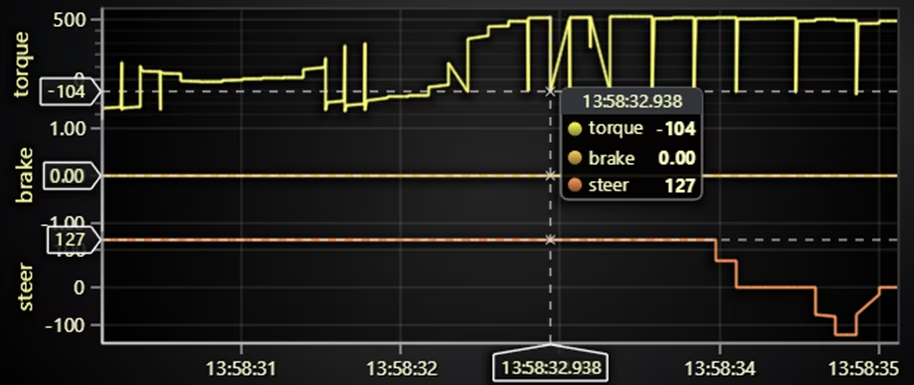
This code dynamically creates a real-time time-series chart using LightningChart JS to visualize three key vehicle parameters:
- Torque
- Brake
- Steering
Each parameter is plotted as a progressive line series, updating dynamically with new data points over time. The chart scrolls continuously, displaying the latest data while keeping a 5-second historical window.
1. Creating and Styling the Chart Container
const containerTimeSeries = document.createElement('div')
exampleContainer.append(containerTimeSeries) - A new <div> is created as the container for the chart and added to
exampleContainer.
containerTimeSeries.style.position = 'absolute'
        containerTimeSeries.style.left = '0px'
        containerTimeSeries.style.top = '60%'
        containerTimeSeries.style.width = '50%'
containerTimeSeries.style.height = '40%' - Positions the chart at the bottom left (0px from left, 60% from top).
- Sets the size to 50% width and 40% height of the parent container.
2. Initializing the Chart
const chartTimeSeries = lc
            .ChartXY({
                container: containerTimeSeries,
                defaultAxisX: { type: 'linear-highPrecision' },
                theme: Themes.darkGold,
            })
.setTitle('') - Create an XY chart inside
containerTimeSeries. - Use “
linear-highPrecision” for the X-axis to ensure high-accuracy time tracking. - Applies the Dark Gold theme for a modern, professional appearance.
- No title is set for the chart.
3. Configuring the X-Axis (Time-based Scrolling)
chartTimeSeries.axisX
            .setTickStrategy(AxisTickStrategies.Time)
            .setScrollStrategy(AxisScrollStrategies.progressive)
            .setDefaultInterval((state) => ({
                end: state.dataMax ?? 0,
                start: (state.dataMax ?? 0) - 5_000,
                stopAxisAfter: false,
})) - Configure the X-axis to display time using
AxisTickStrategies.Time. - Uses a progressive scrolling strategy (
AxisScrollStrategies.progressive), meaning the chart will continuously move forward as new data arrives. - The default interval ensures that the chart always displays the last 5 seconds of data:
start = latest data – 5000 ms (5 seconds)
end = latest data (real-time update)
4. Ensuring a Black Background
if (isImageFill(chartTimeSeries.engine.getBackgroundFillStyle())) {
            chartTimeSeries.engine.setBackgroundFillStyle(new SolidFill({ color: ColorRGBA(0, 0, 0) }))
} - If the background is an image, it replaces it with a solid black fill to ensure a clean, high-contrast UI.
5. Removing the Default Y-Axis
chartTimeSeries.axisY.dispose() - Removes the default Y-axis because we will create individual Y-axes for each data series (torque, brake, and steering).
6. Creating Y-Axes and Adding Data Series
const timeSeriesList = ['torque', 'brake', 'steer'].map((key, i) => { - Iterates through an array of three parameters (torque, brake, and steer), creating a Y-axis and series for each.
- Creating the Y-Axis for Each Parameter
const axisY = chartTimeSeries
                .addAxisY({ iStack: -i })
                .setTitle(key)
                .setAnimationScroll(false)
.setScrollStrategy(AxisScrollStrategies.fitting) - Creates a new Y-axis for each parameter using
addAxisY(). iStack: -i ensures that the Y-axes do not overlap and are properly stacked.- The Y-axis is titled with the parameter name (e.g., “Torque”).
Disables animation scroll for smooth real-time updates.
UsesAxisScrollStrategies.fittingto auto-scale the Y-axis based on the data range. - Creating a Line Series for Each Parameter
const series = chartTimeSeries
                .addPointLineAreaSeries({ dataPattern: 'ProgressiveX', axisY })
                .setMaxSampleCount(200_000)
.setAreaFillStyle(emptyFill) - Adds a new line series to the chart, assigned to its corresponding Y-axis.
- Uses “
ProgressiveX” data pattern, meaning:
The X-values increase progressively (real-time updates). - Sets maximum stored samples to 200,000 (prevents memory overflow).
- No area filled (keeps the lines clean and easy to read).
- Listens to new telemetry data (
onData()) and appends it to the respective series
onData((sample) => {
                series.appendSample({ x: sample.time, y: sample[key] })
}) - Each data point consists of:
x:sample.time→ Time of the measurement.
y:sample[key]→ Value of the corresponding parameter (torque, brake, or steering).
Scatter chart
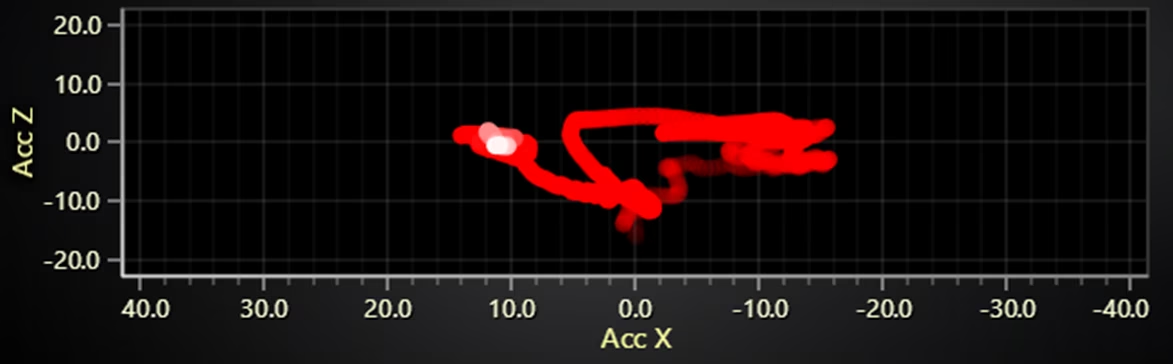
1. Create and Style the Container
const containerScatter = document.createElement('div')
        exampleContainer.append(containerScatter)
        containerScatter.style.width = '50%'
        containerScatter.style.height = '30%'
        containerScatter.style.top = '0px'
        containerScatter.style.right = '0px'
containerScatter.style.position = 'absolute' - Create a <div> container to hold the scatter plot and append it to
exampleContainer. - Positioning:
Top-right corner (top: 0px, right: 0px).
50% width and 30% height of the parent container.
Absolute positioning ensures precise placement.
2. Initialize the Scatter Plot Chart
const chartScatter = lc
            .ChartXY({
                container: containerScatter,
                theme: Themes.darkGold,
            })
.setTitle('') - Creates a new XY chart inside
containerScatter. - Uses “Dark Gold” theme for a modern look.
- No chart title is set (empty string).
- Ensure a Black Background
if (isImageFill(chartScatter.engine.getBackgroundFillStyle())) {
            chartScatter.engine.setBackgroundFillStyle(new SolidFill({ color: ColorRGBA(0, 0, 0) }))
} - If the background is an image, it replaces it with a solid black fill for better contrast.
3. Configure Axes for Acceleration Data
chartScatter.axisX.setTitle('Acc X').setDefaultInterval({ start: 40, end: -40 }).setScrollStrategy(AxisScrollStrategies.expansion)
chartScatter.axisY.setTitle('Acc Z').setDefaultInterval({ start: -20, end: 20 }).setScrollStrategy(AxisScrollStrategies.expansion) - X-axis represents Acceleration-X, ranging from -40 to 40.
- Y-axis represents Acceleration-Z, ranging from -20 to 20.
- Uses
AxisScrollStrategies.expansion, allowing dynamic adjustments when new data extends beyond the current range. - Disable Scroll Animation for Real-Time Updates
chartScatter.forEachAxis((axis) => axis.setAnimationScroll(false)) - Ensures smooth real-time updates by disabling scrolling animations on all axes.
- Set Background Color Based on Theme
chartScatter.setSeriesBackgroundFillStyle(
            new SolidFill({ color: ColorHEX(isDarkTheme ? '#000000' : '#ffffff') })
) - If dark mode is enabled, background is black (000000).
- Otherwise, the background is white (#ffffff).
4. Add Data Series and Handle Real-Time Updates
Create the Scatter Series
const seriesScatter = chartScatter
            .addPointLineAreaSeries({ dataPattern: null, lookupValues: true })
            .setStrokeStyle(emptyLine)
            .setPointFillStyle(transparentFill)
            .setPointSize(10)
            .setPointShape(PointShape.Circle)
.setEffect(false) - Adds a scatter series to the chart.
- Data pattern is null, meaning it accepts arbitrary points instead of continuous time-based data.
- Sets point size to 10 and shape to circle.
- No stroke or fill initially, allowing for dynamic styling.
- New Data Points in Real-Time
onData((sample) =>
            seriesScatter.appendSample({
                x: sample.acceleration_x,
                y: sample.acceleration_z,
                lookupValue: sample.time,
            }),
) - Listens to new data(
onData) and appends it to the scatter series. - Each data point has:
x: it refers to thesample.acceleration_x, in other words is the acceleration along X-axis.
y: it refers to thesample.acceleration_z, in other words is the acceleration along Z-axis.lookupValue: it refers to thesample.timeused for time-based color fading. - Applying a Time-Based Fading Effect
setInterval(() => {
            seriesScatter.setPointFillStyle(
                new PalettedFill({
                    lookUpProperty: 'value',
                    lut: new LUT({
                        interpolate: true,
                        steps: [
                            { value: performance.now(), color: ColorHEX(isDarkTheme ? '#ffffff' : '#000000') },
                            { value: performance.now() - 1000, color: ColorHEX('#ff0000') },
                            {
                                value: performance.now() - 10_000,
                                color: ColorHEX('#ff000000'),
                            },
                        ],
                    }),
                }),
            )
}, 100) - Every 100ms, updates the color of the points based on their age:
The newest points (performance.now()) are bright (white/black, depending on theme).
1-second-old points fade to red (#ff0000).
10-second-old points become transparent (#ff000000), effectively disappearing.
Heat chart
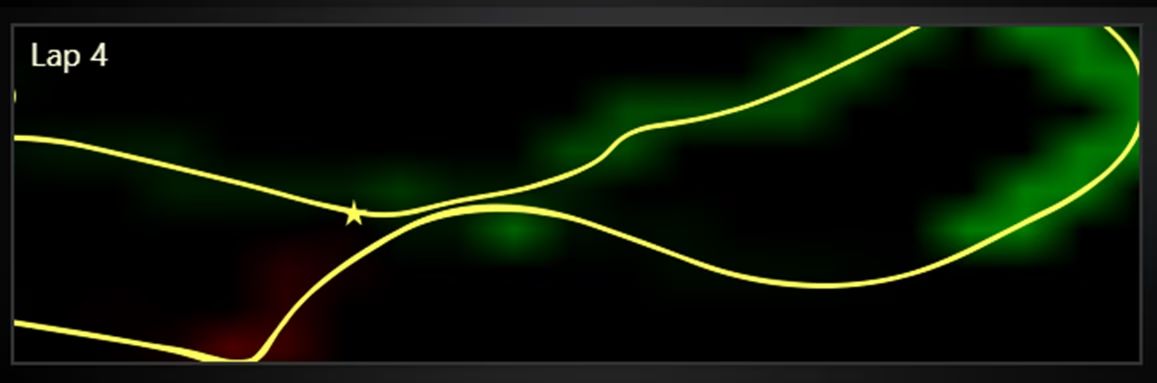
This code creates a real-time heatmap that visualizes the time delta (difference) between the current and previous fastest lap in a racing telemetry system. It overlays a track path and updates dynamically.
1. Create and Style the Heatmap Container
const containerHeatmap = document.createElement('div')
        exampleContainer.append(containerHeatmap)
        containerHeatmap.style.width = '50%'
        containerHeatmap.style.height = '30%'
        containerHeatmap.style.top = '30%'
        containerHeatmap.style.right = '0px'
containerHeatmap.style.position = 'absolute' - Creates a <div> container and appends it to
exampleContainer. - Positions it in the top-right (30% from the top, right-aligned).
- Takes up 50% of the width and 30% of the height.
2. Initialize and Configure the Heatmap Chart
const chartHeatmap = lc
            .ChartXY({
                container: containerHeatmap,
                theme: Themes.darkGold,
            })
            .setTitle('')
            .setTitlePosition('series-left-top')
.setCursorMode(undefined) - Creates an XY chart inside
containerHeatmap. - Uses “Dark Gold” theme for the chart.
- Positions the title at the top-left of the series area.
- Disables the default cursor mode for cleaner visualization.
- Ensure a Black Background (for Dark Mode)
if (isImageFill(chartHeatmap.engine.getBackgroundFillStyle())) {
            chartHeatmap.engine.setBackgroundFillStyle(new SolidFill({ color: ColorRGBA(0, 0, 0) }))
} - It removes axis tick marks and grid lines to make the heatmap cleaner.
chartHeatmap.forEachAxis((axis) => axis.setTickStrategy(AxisTickStrategies.Empty).setStrokeStyle(emptyLine)) 3. Create the Heatmap Grid and Track Path
- Define Track Bounds
const trackBounds = {
            x: { min: -950, max: 1000 },
            y: { min: -200, max: 750 },
        }
Define the track’s X and Y boundaries for the heatmap grid.
- Create the Heatmap Grid
const heatmapColumns = 30
        const heatmapRows = 12
        const seriesHeatmap = chartHeatmap
            .addHeatmapGridSeries({
                columns: heatmapColumns,
                rows: heatmapRows,
                dataOrder: 'columns',
            })
            .setStart({ x: trackBounds.x.min, y: trackBounds.y.min })
            .setEnd({ x: trackBounds.x.max, y: trackBounds.y.max })
.setWireframeStyle(emptyLine) - Creates a heatmap grid with 30 columns and 12 rows.
- Defines starting and ending points based on
trackBounds. - Removes wireframes (grid lines) for a clean look.
- Set Color Gradient for Lap Time Differences
.setFillStyle(
                new PalettedFill({
                    lut: new LUT({
                        interpolate: true,
                        steps: [
                            { value: -5, color: ColorHEX('#00ff00') },
                            { value: 0, color: ColorHEX(isDarkTheme ? '#000000' : '#ffffff') },
                            { value: 5, color: ColorHEX('#ff0000') },
                        ],
                    }),
                }),
) - Uses a color gradient to show time deltas:
- Green (#00ff00) → Faster lap times.
- Black/White (#000000 / #ffffff) → No change.
- Red (#ff0000) → Slower lap times.
4. Draw the Track Path and Update in Real-Time
- Track Path and Latest Position
const seriesHeatmapTrack = chartHeatmap
            .addPointLineAreaSeries({ dataPattern: null, automaticColorIndex: 0 })
            .setPointFillStyle(emptyFill)
        const seriesHeatmapLatest = chartHeatmap
            .addPointLineAreaSeries({ dataPattern: null, automaticColorIndex: 0 })
            .setPointSize(15)
.setPointShape(PointShape.Star) seriesHeatmapTrack: Draws the Full Track Path.seriesHeatmapLatest: Marks the latest position with a star shape (size: 15px).
- Update the Heatmap with New Data
if (typeof sample.lap_number === 'number') chartHeatmap.setTitle(`Lap ${sample.lap_number + 1}`) - Updates the chart title to show the current lap number.
- Add the Current Position to the Track Path
seriesHeatmapTrack.appendSample({
                x: sample.position_x,
                y: sample.position_z,
}) - Appends the current position (x, y) to the track path.
- Mark the Latest Position
seriesHeatmapLatest.setSamples({
                xValues: [sample.position_x],
                yValues: [sample.position_z],
}) - Marks the latest position with a star on the heatmap.
- Map Position to Heatmap Grid
const iX = Math.round(
                ((heatmapColumns - 1) * (sample.position_x - trackBounds.x.min)) / (trackBounds.x.max - trackBounds.x.min),
            )
const iY = Math.round(((heatmapRows - 1) * (sample.position_z - trackBounds.y.min)) / (trackBounds.y.max - trackBounds.y.min)) - Converts x and y position into grid cell indices (iX, iY).
5. Compare Lap Times and Update Heatmap
if ((!prev || iX !== prev.iX || iY !== prev.iY) && sample.lap_number > 0) {
                let closestPerLap = new Array(10).fill(undefined)
                for (let i = 0; i < iSample; i++) {
                    const s2 = data[i]
if (s2.lap_number >= sample.lap_number) break - If the car enters a new grid cell, compare it to the previous laps.
- Loops through previous samples to find the closest matching position in earlier laps.
- Find the Fastest Previous Lap at This Location
const s2 = data[i]
                    if (s2.lap_number >= sample.lap_number) break
                    const delta =
                        (s2.position_x - sample.position_x) ** 2 +
                        (s2.position_z - sample.position_z) ** 2 +
                        (s2.current_lap_time - sample.current_lap_time) ** 2 // NOTE: current lap time purpose is for positions where lap has duplicate x/z positions (crossings/bridges)
                    const curClosest = closestPerLap[s2.lap_number]
if (!curClosest || curClosest.delta > delta) closestPerLap[s2.lap_number] = { delta, sample: s2 } - Finds the closest historical position and calculates time delta
const fastestPrevious = closestPerLap[0]?.sample
                if (fastestPrevious) {
                    const timeDelta = sample.current_lap_time - fastestPrevious.current_lap_time
                    seriesHeatmap.invalidateIntensityValues({
                        iColumn: iX,
                        iRow: iY,
                        values: [[timeDelta]],
                    })
} - If a previous lap exists at this position, compute the time difference.
- Update the heatmap color at that grid cell.
Table
This code creates a data grid (table) inside a web page using the LC Library. The table dynamically updates with race lap data when new samples are received.
1. Create and Style the Table Container
const containerTable = document.createElement('div')
        exampleContainer.append(containerTable)
        containerTable.style.width = '50%'
        containerTable.style.height = '40%'
        containerTable.style.top = '60%'
        containerTable.style.right = '0px'
containerTable.style.position = 'absolute' - A <div> is created and appended to
exampleContainer. - The table container is 50% width, 40% height and is positioned at 60% from the top and aligned to the right.
2. Initialize the Table
const table = lc
            .DataGrid({
                container: containerTable,
                theme: Themes.darkGold,
            })
.setTitle('') - A
DataGridtable is created insidecontainerTableusing the dark gold theme. - The title is set to an empty string.
3. Set Table Headers
table.setRowContent(0, ['Lap', 'Lap time', 'Race time', 'Race position', 'Fuel']) - The first row (header) is populated with column names:
Lap Number
Lap Time
Total Race Time
Race Position
Fuel Level
4. Update Table on New Data
onData((sample) => {
            table.setRowContent(1, [
                sample.lap_number + 1,
                sample.current_lap_time?.toFixed(2) ?? '',
                sample.current_race_time?.toFixed(2) ?? '',
                sample.race_position,
                sample.fuel?.toFixed(3) ?? '',
]) - When new race data (sample) is received, row 1 is updated.
- Data is formatted into two decimal places
using.toFixed(2).
5. Store and Display Previous Laps
if (prevSample && sample.lap_number > prevSample.lap_number) {
                let i = 1
                let already = false
                do {
                    const lap = sample.lap_number - i
                    if (lap < 0) break
                    const lastSample = dataReversed.find((s) => s.lap_number === lap)
                    table.setRowContent(1 + i, [
                        lastSample.lap_number + 1,
                        lastSample.current_lap_time?.toFixed(2) ?? '',
                        lastSample.current_race_time?.toFixed(2) ?? '',
                        lastSample.race_position,
                        lastSample.fuel?.toFixed(3) ?? '',
]) - If a new lap starts, previous laps are added to the table.
6.Highlight the Best Lap
table.setRowBackgroundFillStyle(
                        1 + i,
                        lastSample.current_lap_time <= bestTime && !already
                            ? new SolidFill({ color: ColorHEX('#00ff00aa') })
                            : table.getTheme().dataGridCellBackgroundFillStyle,
                    )
                    already = already || lastSample.current_lap_time <= bestTime
i++ - The fastest lap is highlighted in green (#00ff00aa).
- The
prevSamplevariable is updated for the next data entry.
Initializing the chart
Run the npm start command in the terminal to visualize the chart in a local server.
Conclusion
Working with LightningChart JS makes creating dynamic real-time charts and tables incredibly easy and efficient. Instead of dealing with complex manual renderings or slow performance issues, LightningChart optimizes everything under the hood, allowing you to focus on what matters: your data. Here are some of the points I would like to highlight throughout the project creation process:
- Fast and efficient: Handles real-time updates without delays, even for large data sets.
- Simplifies complex charts: No tedious setups needed; just plug in your data and you’re good to go!
- Beautiful themes: Pre-built themes (like Dark Gold) make your charts look professional right out of the box.
- Smart auto-scaling: Dynamically adapts axes and layouts for the best viewing experience.
- Interactive and responsive: Provides seamless scrolling, zooming, and animations for better user engagement.
With LightningChart JS, you don’t need to be a charting expert to create high-performance, visually appealing dashboards. Whether you’re tracking race laps, analyzing sensor data, or visualizing business insights, this library helps you turn raw numbers into stunning, meaningful visuals, effortlessly.I hope you enjoyed this article. Remember to follow us on all our social networks, where you can watch video tutorials and articles with Python, Node JS, Angular, .NET, etc. Bye!
Continue learning with LightningChart
javascript candlestick chart
Written by a human | Updated on April 11th, 2025What is a JavaScript Candlestick Chart? A candlestick chart is a type of price chart used in technical analysis, which shows a security's high, low, open, and closing prices over a given time frame. It was...
Sweeping Line Chart for Medical Healthcare
Written by a human | Updated on April 11th, 2025Sweeping Line Chart for Medical Healthcare Hi again, today we'll be creating a Sweeping Line Chart most commonly used in the medical and healthcare industry for displaying changes in a particular variable over time. The...
Angular Bubble Chart
Written by a human | Updated on April 11th, 2025Angular Bubble Chart App Hello there, in this tutorial, we'll use Visual Studio Code and typescript to build a brand-new Angular template from scratch. Also, we'll modify a bubble chart's characteristics to fit the...



If you have any questions, feel free to contact us!



©LightningChart Ltd 2026. All rights reserved.