





Creating a DJI drone data analysis application of flight performance in JavaScript
Tutorial
Written by a Human
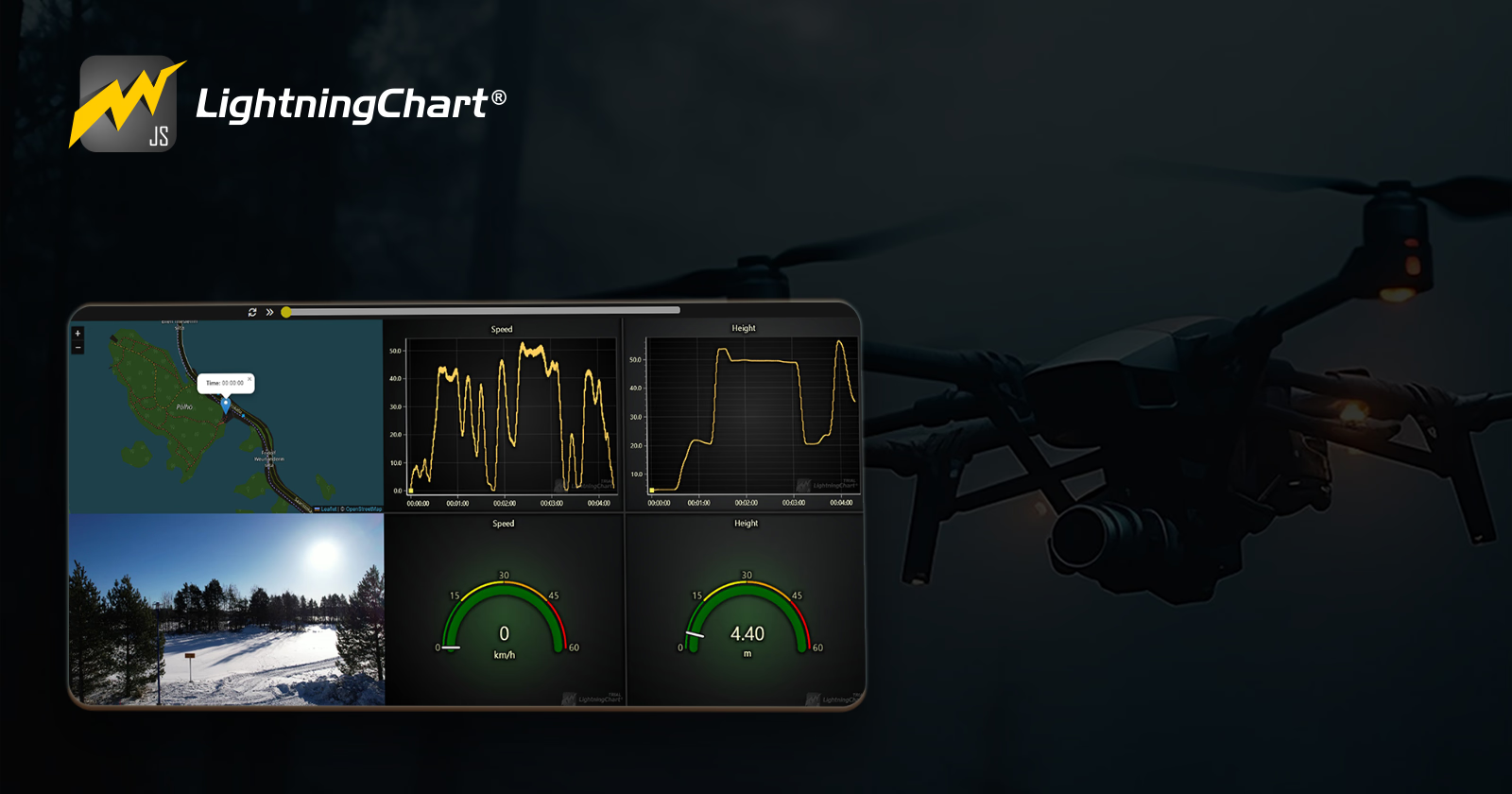
Master drone data analysis with LightningChart JS, utilizing its powerful charts to create stunning visualizations and gain in-flight insights.
Jesse Lipponen
Software developer

Introduction
Hi! I’m Jesse and in this article, we will create a drone data visualization project using the LightningChart JS library. This project was created using LightningChart JS V. 7.0.1.
In this project we flew a drone and recorded it which gave us the data needed to create the project. I really liked doing this project because it allows us to learn how to utilize something like “Leaflet.js” to display the GPS coordinates of the drone accurately on the map.
Project Overview
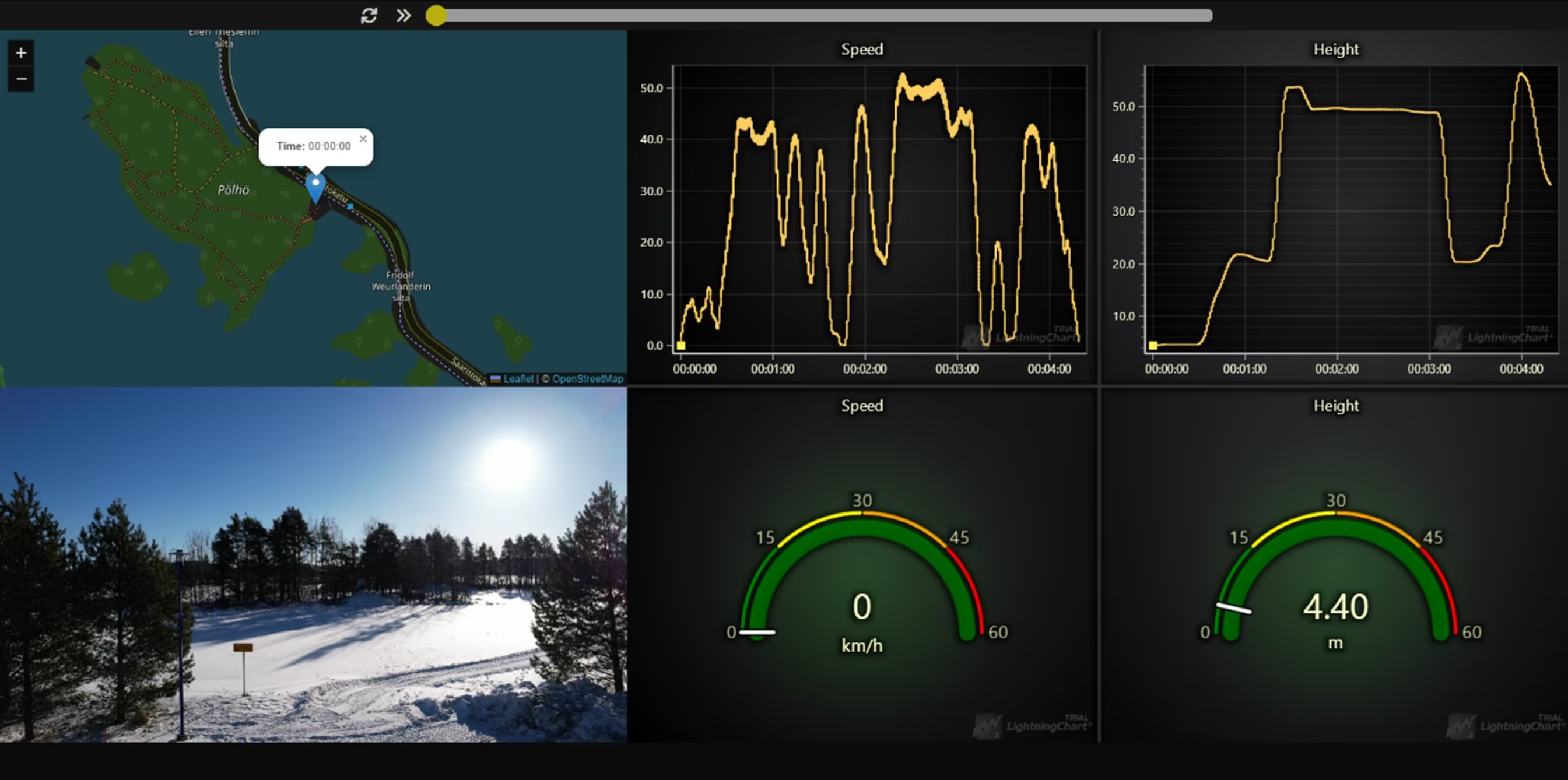
In this project, we will create an HTML file where we’ll display the necessary components we create in JavaScript: Dashboard, XY, Gauge, Point Charts, leaflet.js map, and the video panel.
The only things we will create in HTML are the Play/Pause, reset buttons, the containers that decide where the dashboard and map are located on the page, and the video panel.
 Download the project to follow the tutorial
Getting started
First, we must create the containers for the dashboard and map in our HTML file.
<div class="main">
      <div class="left">
        <div class="map" id="map"></div>
        <div class="video" id="video">
          <video id="myVideo" width="" height="360" preload="metadata">
            <source src="DJI_0260.mp4" type="video/mp4">
          </video>
        </div>
      </div>
      <div class="dashboard" id="dashboard">
      </div>
    </div>
Importing libraries and license key
Add this to your HTML file:
<script src="https://cdn.jsdelivr.net/npm/@lightningchart/[email protected]/dist/lcjs.iife.js"></script>// Extract required parts from LightningChartJS.
/// <reference path="lcjs.iife.d.ts" />
const { lightningChart, AxisTickStrategies, ColorCSS, } = lcjs;
const lc = lightningChart({
license: "xxxxx",
licenseInformation: {
appTitle: "LightningChart JS Trial",
company: "LightningChart Ltd."
},
})Creating the DJI Drone Data Analysis Application
In this section, we will create charts needed for the drone data analysis and the dashboard.
Dashboard
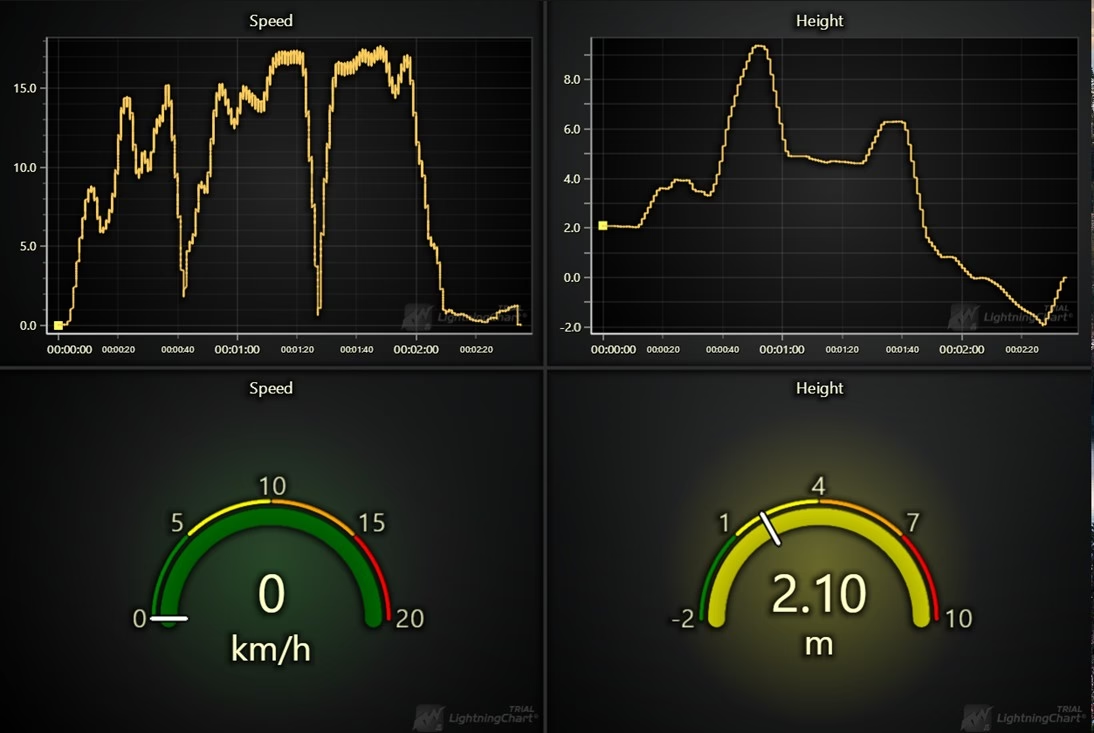
This is what the dashboard looks like with all the charts inside it.
This is how we create the dashboard and charts.
// Create the dashboard
const grid = lc.Dashboard({
  numberOfRows: 2,
  numberOfColumns: 2,
  container: "dashboard",
})
XY Chart
During the creation of the charts, you can decide their position on the dashboard with the “Column index/span” and “Row Index/Span”.

// Create the charts inside of the dashboard
const chart = grid.createChartXY({
  columnIndex: 0,
  rowIndex: 0,
  columnSpan: 1,
  rowSpan: 1,
})
Gauge Chart

const chart3 = grid.createGaugeChart({
  columnIndex: 0,
  rowIndex: 1,
  columnSpan: 1,
  rowSpan: 1,
})
Leaflet map
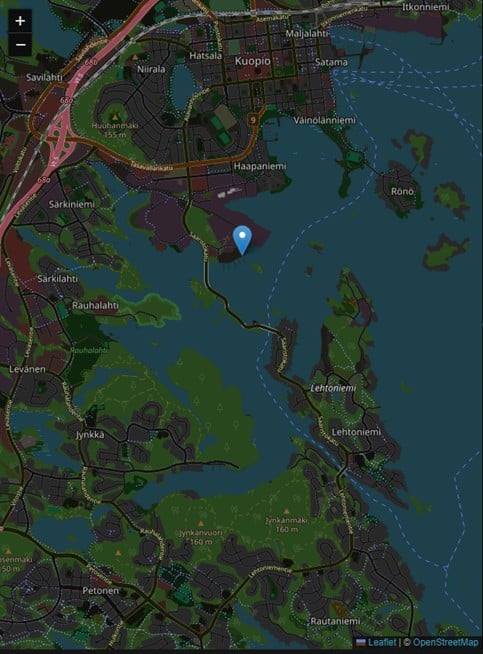
After creating the dashboard and the charts inside it, we can create the map. We need to add the necessary code to our HTML file and our JS file.
<!-- HTML -->
<link rel="stylesheet" href="https://unpkg.com/[email protected]/dist/leaflet.css"
     integrity="sha256-p4NxAoJBhIIN+hmNHrzRCf9tD/miZyoHS5obTRR9BMY="
     crossorigin=""/>

  <script src="https://unpkg.com/[email protected]/dist/leaflet.js"
     integrity="sha256-20nQCchB9co0qIjJZRGuk2/Z9VM+kNiyxNV1lvTlZBo="
     crossorigin=""></script>
</head>
// JS
var map = L.map('map').setView([62.868537, 27.67014], 1);
L.tileLayer('https://tile.openstreetmap.org/{z}/{x}/{y}.png', {
maxZoom: 20,
attribution: '© <a href="http://www.openstreetmap.org/copyright">OpenStreetMap</a>'
}).addTo(map);Trackbar and buttons
Now we can create the trackbar and buttons in our HTML file. We will also assign functions that we create later to be called upon when the button is clicked.
<body class="box">

  <div class="container">
     <div class="trackbar-container">
      <button id="resetbutton" onclick="resetTrackbar()"><i class="fa-solid fa-arrows-rotate"></i></button>
      <button id="Button" onclick="togglePlayPause()"><i class="fa-solid fa-angles-right"></i></button>
      <input type="range" class="slider" id="myRange">
    </div>
Linking the main JS file
Make sure to link index.js to your HTML file.
<script src="index.js"></script>Parsing the data for the map
Within the script.js, we will parse the data we need to create a marker on the map. To do this, we need to parse the drone’s Longitude and latitude data from our CSV file. We are also parsing the timestamp, so the marker shows how long the drone was flying for.
fetch('DJI_0251.CSV')
  .then(response => response.text())
  .then(csvText => {
    const rows = csvText.trim().split('\n');

    data = rows.slice(1).map(row => { // Initialize data globally
      const values = row.split(',');
      return {
        x: parseFloat(values[13].replace(/["']+/g, '')),
        y: parseFloat(values[14].replace(/["']+/g, '')),
        time: values[0].replace(/["']+/g, '') // Parse the timestamp
      };
    });
Creating the marker and the flight trail
Here, we create the marker and bind a pop up to it that displays the length of the flight route in minutes. We also add an event listener to the trackbar that moves the marker depending on its value.
dataPoints = data.map(point => [point.x, point.y]); // Initialize dataPoints globally

    polyline = L.polyline([], {color: 'red'}).addTo(map); // Initialize an empty polyline

    marker = L.marker(dataPoints[0]).addTo(map) // Initialize marker globally
      .bindPopup(`<b>Time:</b> ${data[0].time}`).openPopup();

    // Update the range slider's max value
    var slider = document.getElementById('myRange');
    slider.max = data.length - 1;

    slider.addEventListener('input', function() {
      isManualMove = true; // Set the flag to true when the trackbar is moved manually
      var index = slider.value;
      marker.setLatLng(dataPoints[index]);
      marker.getPopup().setContent(`<b>Time:</b> ${data[index].time}`).openOn(map);

      // Add the current marker position to the polyline
      polyline.addLatLng(dataPoints[index]);

    // Zoom the map to the polyline
    map.fitBounds(L.latLngBounds(dataPoints));
  })
  .catch(error => console.error('Error fetching CSV data:', error));
Creating the video element in HTML
<div class="video" id="video">
          <video id="myVideo" width="" height="360" preload="metadata">
            <source src="DJI_0260.mp4" type="video/mp4">
          </video>
Variables needed for the video and trackbar to function as desired
We need to declare these variables because the way we are doing this is that if we move the trackbar manually, the video moves along with it, but if we press the play button, the trackbar moves along with the video instead. We’re doing it this way because it allows the video to play smoothly while being able to skip the video ahead by moving the trackbar slider
let isPlaying = false; // Flag to track if the video is playing
let isManualMove = false; // Flag to track if the trackbar is being moved manually
Synchronizing the video with the slider
// Synchronize video playback
      const video = document.getElementById('myVideo');
      const videoDuration = video.duration;
      const videoTime = (index / slider.max) * videoDuration;
      video.currentTime = videoTime;
Play/Pause button
Here we create the function assigned to our play/pause button. This function makes the button play or stop playing the video.
function togglePlayPause() {
  const video = document.getElementById('myVideo');
  if (isPlaying) {
      video.pause();
      isPlaying = false;
      document.getElementById('Button').innerHTML = '<i class="fa-solid fa-angles-right"></i>';
  } else {
      video.playbackRate = 1.0; // Set the playback rate
      video.play().catch(error => console.error('Error playing video:', error));
      isPlaying = true;
      document.getElementById('Button').innerHTML = '<i class="fa-solid fa-pause"></i>';
  }
}

//
function moveSlider() {
    const slider = document.getElementById('myRange'); // Get the slider element
    if (parseInt(slider.value) + 1 <= parseInt(slider.max)) { // Check if the next increment is within the max value
        slider.value = parseInt(slider.value) + 1; // Increment the slider value by 1
        slider.dispatchEvent(new Event('input')); // Trigger the input event to update the data
        playInterval = requestAnimationFrame(moveSlider); // Continue the animation frame
    } else {
        slider.value = slider.max; // Set the slider to the max value if the increment exceeds the max
        slider.dispatchEvent(new Event('input')); // Ensure it reaches the max value
        cancelAnimationFrame(playInterval); // Stop the animation frame
        isPlaying = false; // Update the flag to indicate it's paused
        document.getElementById('Button').innerHTML = '<i class="fa-solid fa-angles-right"></i>'; // Change icon to play
    }
}
Reset button
This function is assigned to the reset button and that is exactly what it does.
function resetTrackbar() {
  const slider = document.getElementById('myRange'); // Get the slider element
  const video = document.getElementById('myVideo'); // Get the video element
  slider.value = 0; // Reset the slider to the beginning
  polyline.setLatLngs([]); // Clear the polyline
  marker.setLatLng(dataPoints[0]); // Reset the marker to the starting point
  marker.getPopup().setContent(`<b>Time:</b> ${data[0].time}`).openOn(map); // Reset the popup content
  video.currentTime = 0; // Reset the video to the beginning
  video.pause(); // Pause the video
  isPlaying = false; // Update the flag to indicate it's paused
  document.getElementById('Button').innerHTML = '<i class="fa-solid fa-angles-right"></i>'; // Change icon to play
}
Setting up the charts
After we create the dashboard and the charts in “index.js,” we will add the line and point series for both XY charts.
const pointSeries = chart.addPointSeries()
const lineSpeed = chart.addLineSeries()
const pointseries2 = chart2.addPointSeries()
const lineHeight = chart2.addLineSeries()
Converting the timestamp to a usable time
Here we are creating a function for converting the timestamp to total milliseconds so we can use the LC JS library to display the time correctly on our XY charts.
// Fetch the CSV file
fetch('DJI_0260.CSV')
  // Convert the response to text
  .then(response => response.text())
  .then(csvText => {
    // Split the CSV text into rows
    const rows = csvText.trim().split('\n');

    // Function to convert timestamp to total milliseconds
    function parseTimestamp(timestamp) {
      let time, milliseconds;
      if (timestamp.includes(',')) {
        [time, milliseconds] = timestamp.split(',');
      } else {
        time = timestamp;
        milliseconds = '0';
      }
      const [hours, minutes, seconds] = time.split(':').map(parseFloat);
      if (isNaN(hours) || isNaN(minutes) || isNaN(seconds) || isNaN(parseFloat(milliseconds))) {
        console.error("Invalid time components:", { hours, minutes, seconds, milliseconds });
        return NaN;
      }
      return (hours * 3600 + minutes * 60 + seconds) * 1000 + parseFloat(milliseconds);
    }
Parsing the data and adding it to the line series
Now we are parsing the data and using the previously created function to parse the timestamp to milliseconds. Then we add the parsed values to the line series created for the “speed” XY chart.
// Process each row (excluding the header)
    data4 = rows.slice(1).map(row => {
      // Split the row into individual values
      const values = row.split(',');

      return {
        x: parseTimestamp(values[0].replace(/["']+/g, '')), // Parse timestamp
        y: parseFloat(values[20].replace(/["']+/g, '')),
      };
    });

    lineSpeed.add(data4.map(point => ({
      x: point.x,
      y: point.y,
    })));
Displaying the time correctly
We add this code to our chart settings that our time on the x axis of the XY chart is displayed correctly.
chart.axisX.setTickStrategy( AxisTickStrategies.Time)
chart2.axisX.setTickStrategy( AxisTickStrategies.Time)
Adding data to the point series
We created the point series on top of the line series so there is a dot on the line that moves along the line as the trackbar moves. Here we make sure that the dot starts at the first value.
if (data.length > 0) {
      pointSeries.add({
        x: data4[0].x,
        y: data4[0].y,
      });
    }

    // Set initial point value
    pointSeries.add(data4[0].x);
Making the dot move on the line
Now we add an event listener to the trackbar so as it moves it updates the point series value and adds a new dot while removing the previous one.
NOTE: This whole process from the line series to the point series can pretty much be copy pasted for the second chart if you change the “data” variable name.
// Add event listener to the trackbar
    const trackbar2 = document.getElementById('myRange');
    trackbar2.addEventListener('input', (event) => {
      const index = event.target.value;
      if (index < data4.length) {
        // Update point value
        pointSeries.add(data4[index].x);

        // Remove the previous dot from pointSeries
        pointSeries.clear();

        // Add the new dot to pointSeries
        pointSeries.add({
          x: data4[index].x,
          y: data4[index].y,
        });
      }
    });
Gauge chart real-time data
Now we parse the speed data from the csv file and add an event listener to the trackbar so it updates the gauge chart’s value as it moves. This same code is also repeated for the second gauge chart.
const data1 = rows.slice(1).map(row => {
      const values = row.split(',');
      return {
        x: parseFloat(values[20].replace(/["']+/g, '')),
      };
    });

    // Initialize chart3 with the first value
    chart3.setValue(data1[0].x);

    // Add event listener to the trackbar
    const trackbar = document.getElementById('myRange');
    trackbar.addEventListener('input', (event) => {
      const index = event.target.value;
      if (index < data1.length) {
        chart3.setValue(data1[index].x);
      }
    });
Synchronize the chart data with video playback
// Function to update the charts
function updateCharts(index) {

  // Update chart3
  chart3.setValue(data1[index].x);

  // Update chart4
  chart4.setValue(data2[index].x);

  // Update pointSeries
  pointSeries.clear();
  pointSeries.add({
    x: data4[index].x,
    y: data4[index].y,
  });

  // Update pointseries2
  pointseries2.clear();
  pointseries2.add({
    x: data3[index].x,
    y: data3[index].y,
  });
}
Updating the slider and chart data when the video is playing
Here we add the code so when pressing play and the video starts playing, the slider moves along with the video so everything is in sync.
// Update the slider position based on video playback
document.getElementById('myVideo').addEventListener('timeupdate', function() {
  if (!isManualMove) { // Only update the slider if it's not being moved manually
    const video = document.getElementById('myVideo');
    const videoDuration = video.duration;
    const currentTime = video.currentTime;
    const slider = document.getElementById('myRange');
    const index = Math.round((currentTime / videoDuration) * slider.max);
    slider.value = index;
    marker.setLatLng(dataPoints[index]);
    marker.getPopup().setContent(`<b>Time:</b> ${data[index].time}`).openOn(map);

    // Add the current marker position to the polyline
    polyline.addLatLng(dataPoints[index]);

    // Update the charts
    updateCharts(index);
  }
});

// Reset the manual move flag after the slider change is complete
document.getElementById('myRange').addEventListener('change', function() {
  isManualMove = false; // Reset the flag after the manual move is complete
});
Chart settings
These are the settings that we’re using for the charts to look good:
// Chart settings
chart4.setTitle("Height")
chart4.setAngleInterval(180, 0)
chart3.setTitle("Speed")
chart3.setAngleInterval(180, 0)
chart.setTitle("Speed")
chart2.setTitle("Height")

const pointSeries = chart.addPointSeries()
const lineSpeed = chart.addLineSeries()
const pointseries2 = chart2.addPointSeries()
const lineHeight = chart2.addLineSeries()
chart4.setInterval(0, 60)
chart3.setInterval(0, 60)
pointSeries.setPointSize(10)
pointseries2.setPointSize(10)
chart3.setBarThickness(20)
chart3.setNeedleThickness(5)
chart3.setUnitLabel("km/h")
chart3.setValueIndicators([
  { start: 0, end: 15, color: ColorCSS('green') },
  { start: 15, end: 30, color: ColorCSS('yellow') },
  { start: 30, end: 45, color: ColorCSS('orange') },
  { start: 45, end: 60, color: ColorCSS('red') },
])
.setValueIndicatorThickness(5)
.setGapBetweenBarAndValueIndicators(5)
.addEventListener('resize', (event) => {
  const size = Math.min(event.width, event.height)
  const fontSizeBig = Math.round(size / 10)
  const fontSizeSmaller = Math.round(size / 20)
  chart3.setUnitLabelFont((font) => font.setSize(fontSizeSmaller))
  chart3.setTickFont((font) => font.setSize(fontSizeSmaller))
  chart3.setValueLabelFont((font) => font.setSize(fontSizeBig))
})
chart4.setUnitLabel("m")
chart4.setValueIndicators([
  { start: 0, end: 15, color: ColorCSS('green') },
  { start: 15, end: 30, color: ColorCSS('yellow') },
  { start: 30, end: 45, color: ColorCSS('orange') },
  { start: 45, end: 60, color: ColorCSS('red') },
])
.setValueIndicatorThickness(5)
.setGapBetweenBarAndValueIndicators(5)
.setBarThickness(20)
.setNeedleThickness(5)
.addEventListener('resize', (event) => {
  const size = Math.min(event.width, event.height)
  const fontSizeBig = Math.round(size / 10)
  const fontSizeSmaller = Math.round(size / 20)
  chart4.setUnitLabelFont((font) => font.setSize(fontSizeSmaller))
  chart4.setTickFont((font) => font.setSize(fontSizeSmaller))
  chart4.setValueLabelFont((font) => font.setSize(fontSizeBig))
})


chart.axisX.setTickStrategy( AxisTickStrategies.Time)
chart2.axisX.setTickStrategy( AxisTickStrategies.Time)
Final Application
Here you can see a video of the final working drone data analysis application:
Conclusion
This project was pretty difficult at times and the hardest parts for me were figuring out how to parse the data from the CSV file and how to get the map to properly display the drone’s flight path as the slider moved.
The use of Point series on top of the Line series is genius since it allows us to display the data in real time on both the Gauge and XY Charts. The most complex part of the project was to synchronize the video playback with the slider and charts.
This application is designed to be highly beneficial for users who need to monitor and display the coordinates and telemetry data of various vehicles, such as drones, cars or even planes. In this project, we focus on visualizing two parameters: speed and altitude. To effectively show these parameters, we use two different types of charts: XY Chart and Gauge Chart.
Using these different chart types, users can better understand the vehicle’s performance and behaviour.
Continue learning with LightningChart

How to Create a Strip Chart
Written by a human | Updated on April 9th, 2025What is a Strip chart application and what are the modern equivalents to it? Before computers exist or were taking their first steps, a Strip chart was a way to visualize an analog electrical signal. Voltage was...
Data Visualization Template for Electron JS | LightningChart®
Updated on April 4th, 2025 | Written by humanAre you already building cross-platform applications with Electron JS? In some of our previous articles, we’ve worked on TypeScript projects where we created pie charts and vibration chart applications. And as we...
Bar chart race JavaScript
Updated on April 14th, 2025 | Written by humanBar chart race JavaScript When I wrote this article, the COVID-19 pandemic was at its peak point. Today, things are much better thanks to vaccinations that continued their steady positive global effect. With this bar...





If you have any questions, feel free to contact us!
©LightningChart Ltd 2026. All rights reserved.