





LightningChart JSJavaScript Heatmaps Visualization Library
TutorialReviewing more than 8 different JavaScript heatmaps in LightningChart JS
Written by a human | Updated on April 11th, 2025
JavaScript heatmaps
Heatmaps are a type of charting component that uses color-coded cells to represent values in a dataset. Each cell in a heatmap corresponds to a specific data point or value. The color grading within the cell indicates the magnitude of that value. Colors are used to represent different values based on the specific application. The meaning of higher or lower values varies depending on the context. For instance, in temperature data, red might indicate heat and blue might signify coolness. In other cases, lighter colors may suggest no immediate action is needed, while brighter colors could signal that attention is required.
By visually grouping similar data points together, heatmaps can help identify clusters or hotspots of activity within the data. Heatmaps are widely used in engineering, science, medical fields, vibration analysis, finance, marketing, instrumentation, and several others industries where large amounts of data must be analyzed to identify trends or patterns. Heatmaps also highlight outliers and anomalies in data making them they are a valuable tool for data analysis. For example, JavaScript heatmaps that analyzes website traffic data can use color to represent traffic levels. Pages with high incoming traffic will be represented by a darker red shade.
This would immediately draw the viewer’s attention to the anomaly, allowing for further investigation into the cause of the unusual activity. In this article, we will explore the basics of creating heatmaps in LightningChartJS. We will discuss:
- types of JavaScript heatmaps,
- how to prepare data for use in a heatmap,
- how to create and customize a heatmap using popular JS libraries
Are you new to JavaScript heatmaps? Or are you an experienced developer wanting to improve your skills? This article will give you the knowledge and tools you need to make strong and interactive charts for your web applications.

- The map shows a 10m x 10m example of Zurich heat island intensity.
- The areas in red indicate hot spots and blue areas represent cooler areas.
Creating Heatmaps with LightningChart JS
Let’s get started creating heatmaps with LightningChart JS.
const chart = lightningChart().ChartXY({})We will now add a heatmap to the chart. Some properties of the Heatmap Series can only be configured when it is created. Some of these arguments are mandatory, while some are optional, and are wrapped in a single object parameter:
const heatmap = chart.addHeatmapGridSeries({
    columns: 100,
    rows: 100
});
Heatmap Grid Chart

When the HeatmapGrid Series is created, a minimum of two properties must be specified. Here’s a list of some of the properties:
- column: this property defines the amount of data values along the X dimension.
- rows: this property defines the amount of data values along the Y dimension.
Configuring these two properties is enough to create a fully functioning HeatmapGrid series. More information about this series can be found in the API documentation.
heatmap.invalidateIntensityValues([
            [0, 0, 0, 0, 0],
            [0, 0, 0, 0, 0],
            [0, 0, 0, 0, 0],
    ]);
Heatmap Bilinear Interpolation Chart
This example demonstrates how bilinear interpolation enhances the HeatmapGrid Series visual effect. The Bilinear interpolation smooths the transitions between data points by calculating intermediate values, creating a more refined visual output effect. This technique is particularly useful in heatmaps, as it makes patterns easier to interpret by reducing abrupt changes between grid cells.
In the image below, the heatmap on the left uses bilinear interpolation, producing a smoother appearance, while the one on the right has interpolation disabled, displaying the raw, pixelated data. Bilinear interpolation can be turned on or off depending on the desired visual effect.

Below you can see the code that specifies the heatmap pixel interpolation mode.
heatmapSeries.setPixelInterpolationMode("disabled");

heatmapSeries.setPixelInterpolationMode("bilinear");
Heatmap Spectrogram Chart
This example showcases a simple heatmap spectrogram. A spectrogram is a visual representation of the spectrum of frequencies. Most spectrograms are used to display audio signals and in this example, the spectrogram loads and visualizes different channels of an audio file. The spectrogram shows frequency on the Y-axis and time on the X-axis. The colors in the heatmap mean the amplitude of the frequency at the specified time.

Scrolling Heatmap Chart
The JavaScript Heatmaps Scrolling Grid Series visualizes three-dimensional data (X, Y, color). It can easily handle millions of data points even on low-end devices.
chartXY.addHeatmapScrollingGridSeries({
          resolution: 100,
     })
This example displays the live speed of incoming data as data points per second.
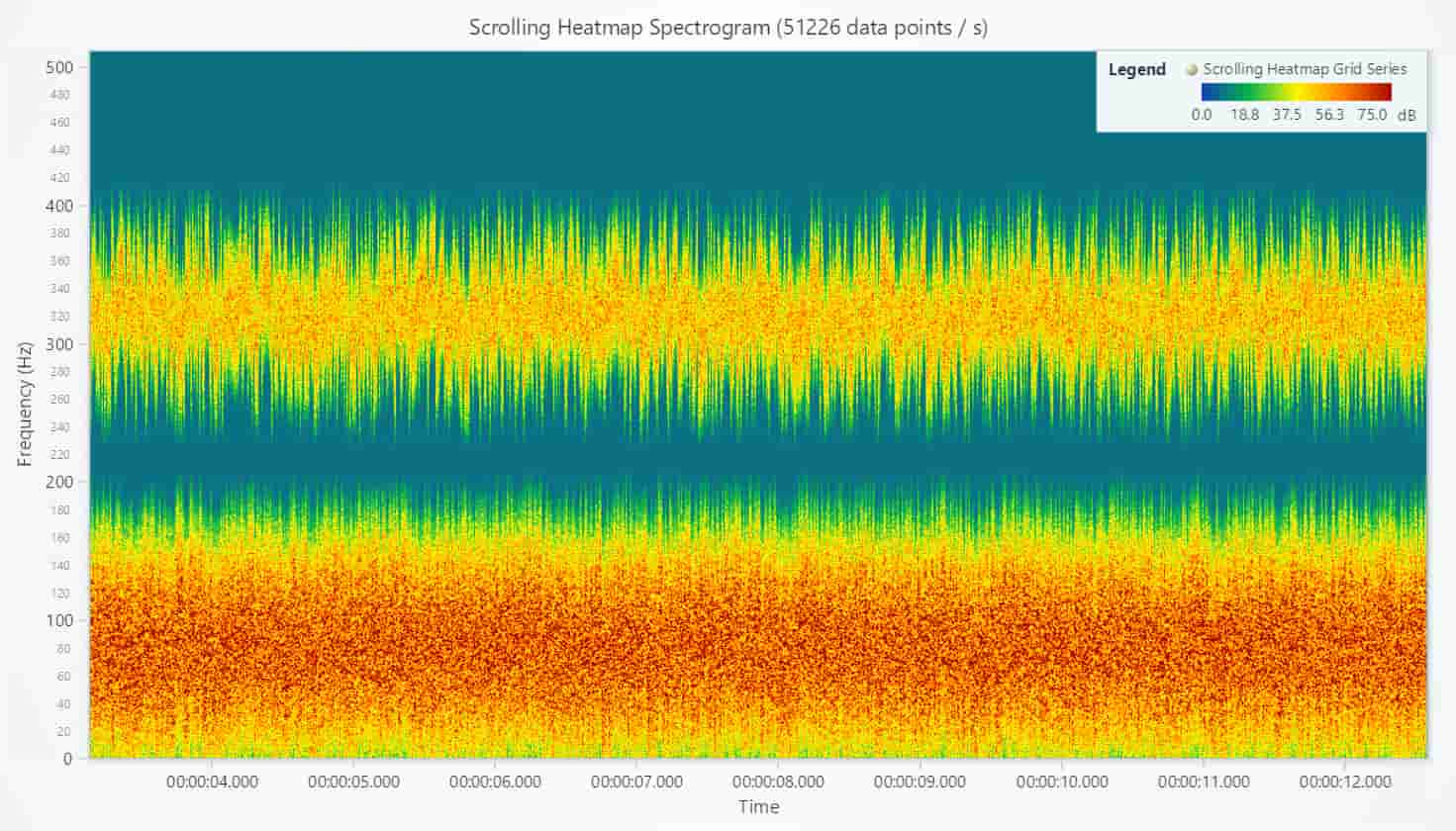
When HeatmapScrollingGridSeries is created, there is only one property that must be specified always:
- resolution: the amount of data value along the non-scrolling dimension.
This is the only configuration needed to create a fully functional scrolling heatmap grid series capable of handling tens of millions of data points.
heatmap.addIntensityValues([
          [0, 1, 2, 3, 4, 5, 6, 7, 8, 9],
          [0, 1, 2, 3, 4, 5, 6, 7, 8, 9],
   ]);
Heatmap Scrolling Grid Series Data Cleaning
Data cleaning means removing unwanted observations from your dataset, including duplicated or irrelevant observations. It is possible to enable the automatic data-cleaning property by configuring the minDataPointCount property.
Specifying minDataPointCount enables a “lazy cleaning” of the data. Automatic data cleaning is essential in streaming applications that run for long periods or may even run indefinitely. In LightningChart JS, this is configured with the setDataCleaning method:
heatmapGridSeries.setDataCleaning({
 minDataPointCount: 1000,
      });
Audio Spectrogram 2D & 3D Chart
This example showcases the SurfaceScrollingGridSeries feature of LightningChart JS.

This chart works similarly to the SurfaceGridSeries with the difference that the SurfaceScrollingGridSeries is designed for applications that push new data samples in while pushing old samples out. For this reason, its data modification API is different. SurfaceScrollingGridSeries is the 3D variant of HeatmapScrollingGridSeries. This is highlighted in this example by displaying the same data in both 2D and 3D at the same time on top of another.
This example visualizes the frequency spectrum of a short audio clip (about 9 seconds long) of a truck driving. The visualization is done in real time, simulating applications that measure, analyze, and display audio metrics in real time. An example of such a type of application is the LightningChart Audio analysis showcase. Each spectrogram in this application displays ~35 samples per second, each sample having 308 data points. With 4 spectrograms, this sums to about 10,000 data points per second.
Animated Geographical Temperature Chart
An example of geographical data visualization of a 2D heatmap on top of a map image.

This example displays a heatmap dataset of temperature grid measurements of the United States. In geographical data visualization, grid measurements mean data points that are waylaid with regular latitude and longitude steps. The data set used in this example has 500 columns (longitude) and 400 rows (latitude). This translates to roughly 12 km between longitude measurements and 6 km between latitude measurements. The total number of measurements is 200,000 data points.
The visualization is done by laying a predefined picture of a map under the heatmap, which is styled with transparent colors. This approach is simple, but only suitable when the geographical view is predefined. LightningChart JS can also be combined with mapping solutions such as Leaflet, which allows the combination of interactive, dynamic maps and the data visualization power of LightningChart.
Real-Time Geographical Data Visualization
This example also generates a random dataset showcasing the real-time capabilities of LightningChart JS. This heatmap visualization is animated continuously with a smooth 60 Hz refresh rate. Traditionally, this application type does not exist on web pages because it requires too much processing power and results in a bad user experience. However, Lightningchart JS high-performance heatmaps enable running this example in even the most stressful use cases on desktop, mobile, and tablet devices while leaving plenty of resources for the rest of the web page tasks.

Distance Intensity Chart
This is a heatmap example based on a real-life usage scenario of LightningChart JS in the field of Fiber Analysis.
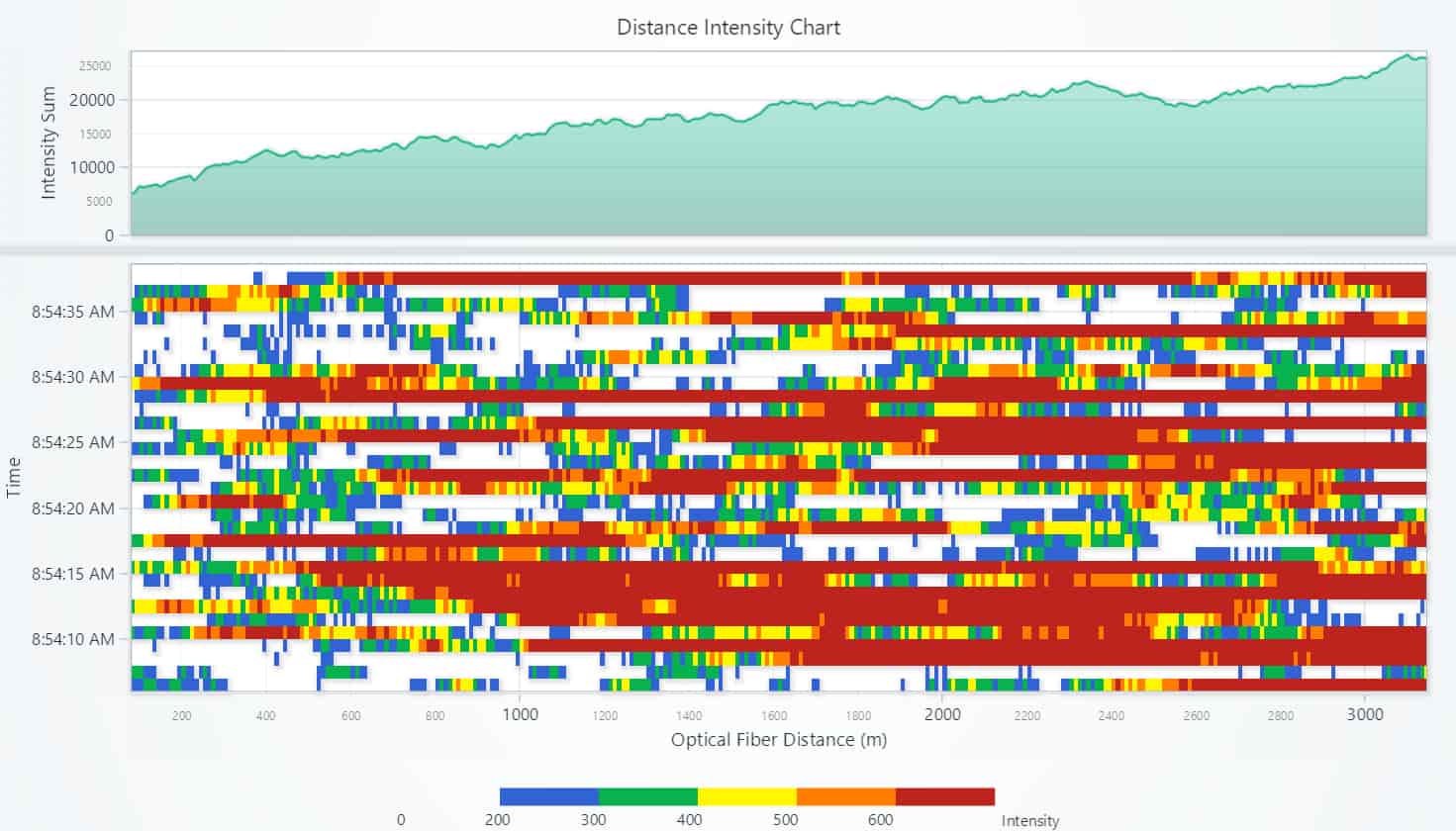
Fiber Analysis refers to the assessment of fiber quality to analyze attenuation and other fiber optic performance metrics during a single point in time or across a time period. This example showcases an example dashboard for analyzing fiber properties over a short time (~30 seconds).
The metrics are gathered at several locations across the fiber to help spot problem locations (the total fiber length is more than 3 kilometers). The primary metric, intensity, is recorded for each location along the fiber (meters) and for various time steps. The intensity value is abstract, meaning that it could reflect many different values for different analysis purposes. A common property in fiber metrics to analyze is Attenuation.
The color of each sample is colored in a heat map grid series based on a color lookup table, which makes identifying hot spots convenient (for example, orange is bad, blue is ok). The data used in the example is randomly generated each time the example is run.
3D Surface Grid Chart
This example showcases the SurfaceGridSeries feature of LightningChart JS. The below image is with simple color shading:

The below image is with Phong color shading:

SurfaceGridSeries is used to visualize a dataset within a grid. To interpret the data, imagine a grid that is laid on the plane between X and Z axes. Similarly to the Heatmap JavaScript Grid Series, the Surface Grids are split into columns (X-axis) and rows (Z-axis). The SurfaceGridSeries has a data point for each intersection between a column and a row.
In this example, the surface grid has 1024 columns and 1,024 rows, summing up to a total of 1,048,576 data points. Each of these data points is associated with a height (Y-axis) value. Additionally, the surface is dynamically colored based on each data point’s Y value. To highlight the similarity, a 2D Heatmap Grid Series with the same data set and palette is displayed on the left side.
Finally, this example also showcases the available selection of 3D color shading styles (simple or Phong). By default, surface series uses simple color shading, which displays all colors as they are. To improve depth perception, Phong shading can be enabled to simulate the behavior of light in the scene.
Conclusion
This article has outlined the key steps needed to create initial JavaScript heatmaps, including the different types of heatmaps, using the JavaScript library LightningChartJS. By following these steps and experimenting with different customizations and features, developers can create dynamic and engaging heatmaps that enhance data analysis and decision-making.
In conclusion, JavaScript heatmaps are a powerful tool for visualizing large datasets and driving data-driven decision-making. With the help of specialized JavaScript tools and libraries, creating professional-quality interactive charts has never been easier. We hope this tutorial has been useful in outlining the key steps needed to create your own initial JavaScript heatmaps, and we encourage you to continue exploring and experimenting with this versatile and essential data visualization tool.

Ajay Koli
LightningChart Team


Shweta Singh
LightningChart Team

Continue learning with LightningChart
Volumetric Data Visualization
This article provides an overview of Volume Data, and the techniques which can be used to visualize it.

JavaScript Data Visualization With LightningChart JS
Written by a human | Updated on April 9th, 2025LightningChart JS LightningChart JS is the top contestant for next-generation JavaScript data visualization tools for web and mobile applications. From the start, it has been engineered to deal with maximum-size...
The Complete Guide to JavaScript Charts
Written by a human | Updated on April 9th, 2025JavaScript Charting Libraries Charting libraries are at a high peak and their development and usage are becoming even more popular in languages like JavaScript. As proof, there are a lot of JavaScript charting...





If you have any questions, feel free to contact us!
©LightningChart Ltd 2026. All rights reserved.