








LightningChartHow to use the Aroon Technical Indicator in LightningChart Trader
ArticleLearn how to work with the Aroon indicator in the LightningChart JS Trader.
Written by a human | Updated on April 22nd, 2025
How to use Aroon?
Aroon technical indicator is used in trading charts and is designed to reveal if a stock is trending and to determine how strong that trend is. The Aroon technical indicator consists of two separate indicator lines: Aroon-Up measuring the uptrend and Aroon-Down measuring the downtrend.
This article will show you how to use Aroon indicator to easily add and configure it in trading chart applications built with LightningChart Trader for both .NET and JavaScript. For more general and theoretical information about the Aroon indicator, feel free to check my previous article about it.
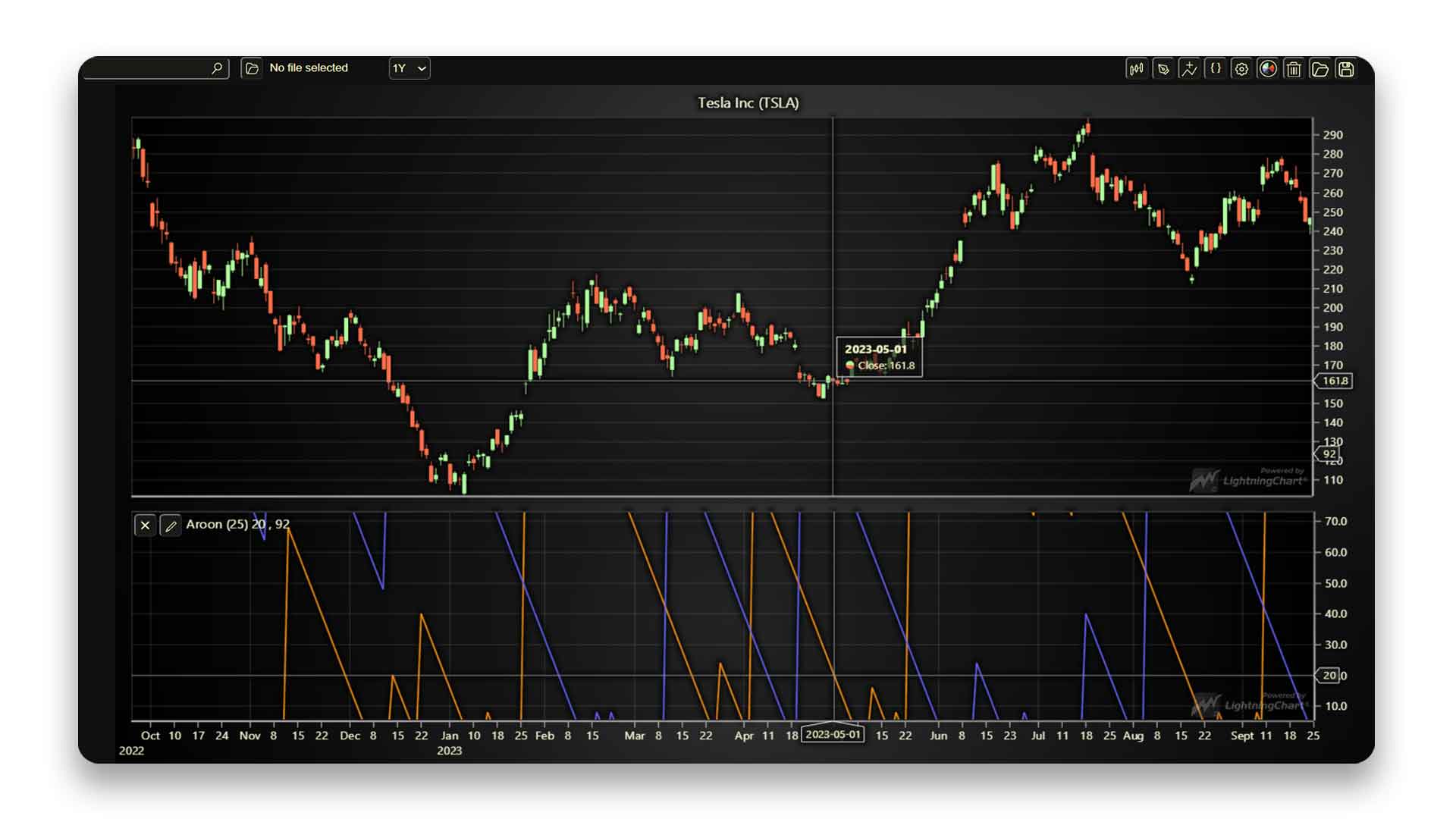
At the bottom of the chart, you can see the Aroon technical indicator (purple and orange lines).
Adding Aroon
There are two ways to add Aroon to a LightningChart Trader application: using the indicator menu in the top-right corner of the chart or creating the indicator using code. The indicator menu is the easiest way, but using it generates the Aroon indicator with the default settings.
If you need settings other than the default ones, the indicator needs to be modified after adding it. So, when creating the Aroon indicator using code, it is possible to generate it with any desired combination of settings.

Aroon in the indicator menu, .NET on the left, and JS on the right. In JS Trader Aroon can be found under the Trend Indicators section.
Adding Aroon using code
In .NET, create Aroon and add it to chart’s indicator collection:
Aroon aroon = new Aroon();
_chart.Indicators.Add(aroon);
In JavaScript, simply create the Aroon via the addAroon() method:
_chart.indicators().addAroon()Modifying Aroon
Despite consisting of two separate lines, Aroon is a rather simple indicator to use. Still, it has some settings that can be used to modify its behavior as well as its visual appearance. The available settings and how to change them differ slightly between .NET and JS LightningChart Trader versions.
Currently, all the Aroon’s modifications in the .NET Trader must be made using code. In the LightningChart JS Trader, Aroon can be modified in code but also via the user interface, as there is a separate settings menu available.
When modifying the settings using code, the adjustable properties can be accessed at any time after the indicator object has been created. For example:
LightningChart .NET Trader
Aroon aroon = new Aroon();
aroon.PeriodCount = 25;
aroon.AroonUpLineColor = Colors.Yellow;
aroon.LineWidth = 2;
_chart.Indicators.Add(aroon);
LightningChart JS Trader
const aroon = chart.indicators().addAroon()
aroon.setPeriodCount(25)
aroon.setAroonUpLineColor('#FFFF00')
aroon.setLineWidth(2)
Notice that in the above .NET code, the settings are being modified while creating the Aroon indicator. However, this is not mandatory as the settings can be modified at any time after creating the indicator.
In the LightningChart JS Trader, the settings menu can be found in the top-left corner of the chart to which the Aroon indicator belongs. In most cases, this is one of the charts below the main price chart. The settings menu allows adjusting all the properties while running the application without writing any extra code.

The settings menu in JS Trader. The menu opens when the Indicator settings button is pressed.
The following tables show all the available properties and methods for Aroon.
LightningChart .NET
The following tables show all the available properties and methods for the Aroon indicator.
LightningChart JS
Removing Aroon
Removing the Aroon indicator from the chart is a simple process. Again, this can be done in code in both versions, as well as via the user interface in the LightningChart JS Trader.
In .NET, call the chart’s RemoveAndDisposeIndicator() method:
_chart.RemoveAndDisposeIndicator(aroon);dispose() for the indicator:aroon.dispose()The above methods will remove the Aroon indicator and all references to it. In the LightningChart JS Trader, Aroon can also be removed via the Remove Indicator button in the top-left corner, next to the Indicator settings button. This button essentially does the same thing as calling dispose() in code.

Removing Aroon indicator via the user interface in JS Trader.
Conclusion
The Aroon technical indicator is a straightforward indicator that helps traders identify stock trends and strengths. Using the LightningChart Trader, we saw how to easily manipulate the indicator within a chart: adding, editing, and removing it.
The way how to use Aroon indicator can be done via code or using the UI interface whether you’re using the .NET or JS Trader versions.
Aroon is one of the 100+ built-in technical indicators available in the LightningChart Trader chart library for creating financial and trading applications.

Lasse Portin
Senior Developer


Continue learning with LightningChart
How to Set Up LightningChart JS in Cursor and Claude Code Using MCP, in Under 5 Minutes
A step-by-step guide to installing the LightningChart JS MCP server so your AI coding agent stops hallucinating chart APIs and starts writing production-ready code from the first prompt. AI coding agents are good at writing chart code. They are less good at writing...
The LightningChart JS Agent Skill: Give Any AI Coding Agent Accurate Charting Knowledge in 60 Seconds
An agent skill is a folder of instructions your AI coding tool picks up automatically. This one teaches any compatible agent how to use LightningChart JS correctly, before it writes a single line of chart code. Agent skills are a relatively new concept and the...
Why AI Coding Agents Get Data Visualization Wrong, and What to Do About It
AI coding assistants are getting good at most parts of application development. Data visualization is one of the areas where they still have a consistent, predictable failure mode. This article explains the mechanics of why it happens and the practical fix. I spent a...



If you have any questions, feel free to contact us!



©LightningChart Ltd 2026. All rights reserved.