





LightningChart PythonFlow Cytometry Data Analysis in Python
TutorialImplementation of a flow cytometry white blood cell analysis with LightningChart Python
Written by a human | Updated on April 23rd, 2025
Flow Cytometry Data Analysis in Python
White blood cells are a part of a body’s immune system. These cells are made in the bone marrow and are also found in blood. The main part of analyzing white cells is checking their number and types. Different types of cells play different roles in immune systems. For example, basophils deal with allergies, and T cells are activated after vaccinations. That is why it is important to perform white blood cell analysis, it can help to determine the ability of an organism to deal with different diseases.
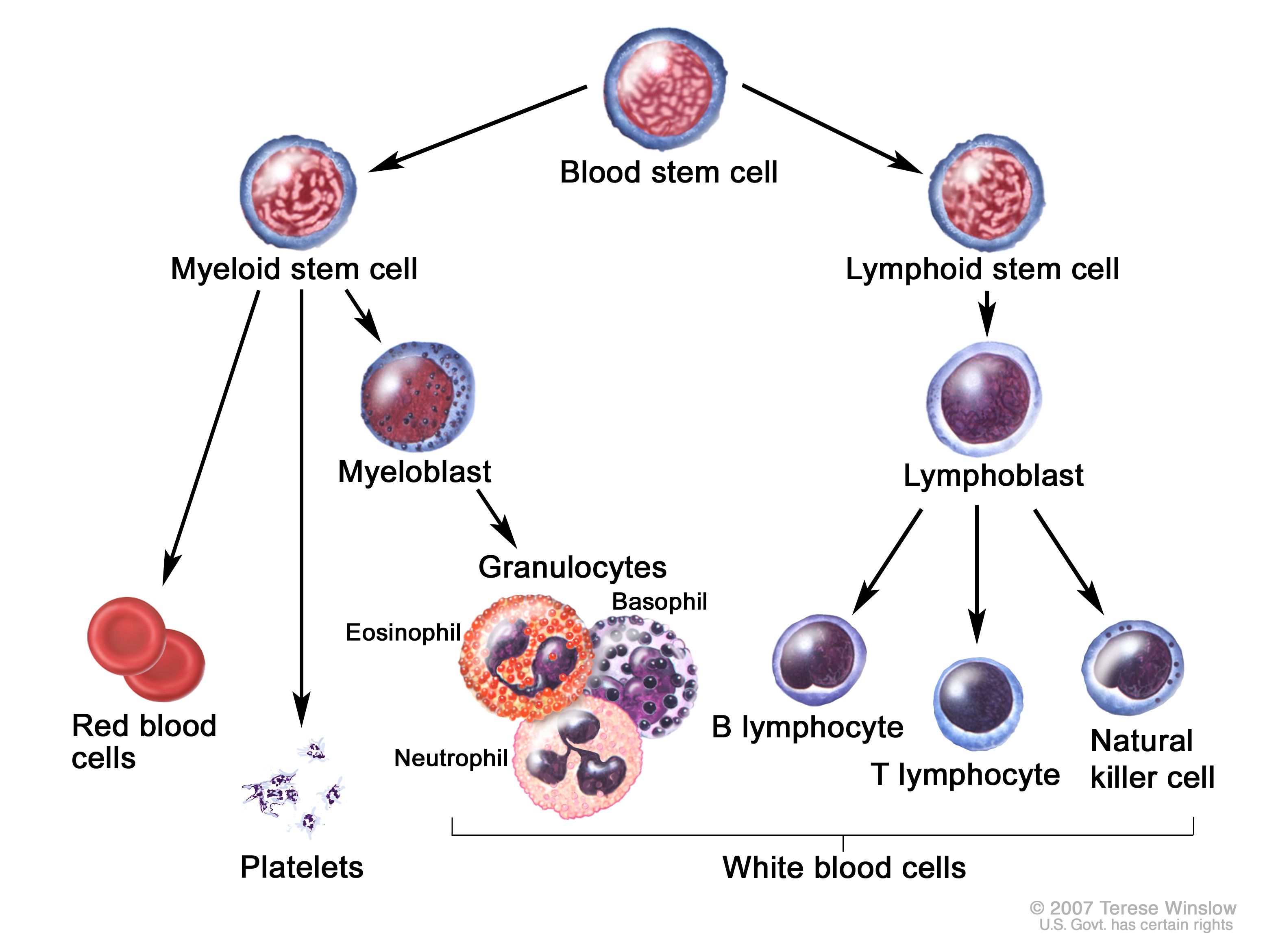
What is a flow cytometry chart?
Flow cytometry is a lab test of the characteristics of cells and other particles. We won’t delve into the process as our main focus is visualizing and analyzing white blood cell flow charts. If you are interested, follow the links below the article.
There are several flow cytometry charts, and the main type of chart to classify cells is an SSC(FSC) scatter plot consisting of points on the plane where x is FSC and y is SSC. FSC (Forward Scatter) detects scatter along the laser and SSC (Side Scatter) measures scatter at a 90° angle from the laser. Based on these metrics, it is possible to divide cells into types.

LightningChart Python

For this task, we may use the LightningChart library. It provides a wide range of tools for creating graphs useful for flow cytometry data analysis in Python. In this project, we will mainly use:
- XY charts (XY charts documentation)
- Point Series (dashboard documentation)
LightningChart uses GPUs for faster rendering, so it is possible to ‘feed’ it a huge sample of data (which will be the case in this project). The dataset consists from 90.000 points.
Setting Up Python Environment
First, for the flow cytometry data analysis, we need to set up our Python environment. For the installation of Python on Mac, I recommend using the Homebrew package manager as it is popular and has a lot of packages. Moreover, it is arguably more convenient than installing Python using .dmg.
1. The first step is installing Homebrew itself
You can skip this step if it is already installed on your Mac. Enter Terminal app and copy/paste this string:
/bin/bash -c "$(curl -fsSL https://raw.githubusercontent.com/Homebrew/install/HEAD/install.sh)"Important note: the installation of Homebrew is not fast, it usually takes between 5 to 15 minutes.
2. Installation of Python
This command will install the latest stable version of Python.
brew install pythonNOTE: if you don’t want to use Homebrew, you can access the official Python website, select the latest stable version downloader for MacOS (its named macOS 64-bit universal2 installer), and follow the installation instructions. You can check the version using python3 –version in the terminal. If it displays Unknown command error, it is most likely due to PATH variables. Refer to this guide to fix it.
Installation of Python on Windows
I recommend using the tool Winget. To install the Python package, open cmd or PowerShell as Administrator and type:
winget install Python.Python.3NOTE: if you don’t want to use Winget, You can access the official Python website, select the latest stable version downloader for Windows
(it is named Windows installer (64-bit)) and follow the installation instructions. You can verify the installation of Python and pip by typing python --version and pip --version respectively. If it displays command' is not recognized error, it is most likely due to PATH variables. Refer to
this guide to fix.
3. Installation of IDE
For IDE (integrated development environment), I recommend using PyCharm as it is clean and powerful. However, the full version is paid so you can also use VSCode. Optionally, you may want to set up Venv (Python virtual environment) to install packages there and not clutter the Python installation. The environment-creating instructions are:
- PyCharm – https://www.jetbrains.com/help/pycharm/creating-virtual-environment.html#python_create_virtual_env
- VSCode – https://code.visualstudio.com/docs/python/environments
Then, using the terminal (IDEs have integrated terminals) install the needed packages:
pip install pandas lightningchart4. Libraries Used
Pandas
In this project, we will mainly use the two-dimensional data frame data structure provided by Pandas. It can be easily created from a .CSV or Excel file.
LightningChart
LightningChart Python is the main library used in the project for flow cytometry data analysis. It provides highly customizable graph-building tools, including simple XY charts, 3D charts, Bar charts, Spider charts, and Map charts. However, this time we will use only XY charts and Point Series.
Firstly, we need to import pandas and lightningchart libraries.
import pandas as pd
import lightningchart as lc
Loading and Processing Data
You can find lots of medical data, including flow cytometry data analysis datasets at the ImmPort website. Here, you can search for flow cytometry data by using respective keywords, e.g. “flow cytometry white cells”
❗ Important note: Unfortunately, the dataset used was created manually from multiple files, thus you may have trouble finding data for different cells in a single file on ImmPort. The data was combined out of files under study accessions STDY2310, STDY2370, and SDY1630.
For performing flow cytometry white blood cell analysis we need the SSC(FSC); Y-axis is SSC, X-axis is FSC. Along with these two metrics, KDE (kernel density estimation) data is provided for each point. It is needed to color the chart based on the concentration of points on it.
Thus, the csv looks like this:

To extract data from a .csv file inside data frame we need to use pd.read_csv function. After this, we need to convert data frame columns to lists.
df = pd.read_csv('data/flowcytometry.csv')
fscs = df['FSC'].tolist()
sscs = df['SSC'].tolist()
kde = df['KDE'].tolist()
Also, it is a good idea to normalize KDE data (change the range from 0 to 1)
min_kde = min(kde)
max_kde = max(kde)
normalized_kde = [(x - min_kde) / (max_kde - min_kde) for x in kde]
Visualizing Data with LightningChart
Let’s initialize the ChartXY and Point series from the LightningChart library.
chart = lc.ChartXY(
    theme=lc.Themes.White,
    title='Flow Cytometry Chart'
)

series = chart.add_point_series(
    lookup_values=True,
)
Lookup values is the values based on which we will paint the points. Then, we need to ‘feed’ data and provide lookup values, which will be KDE values to show high concentration points.
series.append_samples(
    x_values=fscs,
    y_values=sscs,
    lookup_values=normalized_kde
)
series.set_individual_point_color_enabled()
Next, we will provide the series with colors, based on which we will paint the points (red = high concentration, yellow = mild concentration, blue = low concentration). You can experiment with these values to make the chart more appealing to you
series.set_palette_colors(
    steps=[
        {'concentration': 0, 'color': lc.Color(0, 0, 255, 128)},
        {'concentration': 0.15, 'color': lc.Color(204, 204, 0, 128)},
        {'concentration': 0.5, 'color': lc.Color(255, 140, 0, 128)},
        {'concentration': 1, 'color': lc.Color(255, 0, 0, 128)},
    ],
    look_up_property='concentration',
    percentage_values=True
)
Also, we can add axis titles.
chart.get_default_x_axis().set_title("FSC")
chart.get_default_y_axis().set_title("SSC")
The last thing is this code which will open the chart in your browser.
chart.open()This is the resulting flow cytometry data analysis application:

Analyzing
We can further analyze this chart and highlight groups of cells.

Conclusion
In this guide, we visualized white blood cell flow cytometry in Python. We used libraries lightningchart and pandas. With the ready graphs, we can further perform white blood cell analysis. It can also be used for machine learning.
Benefits of using LightningChart
LightningChart provides a lot of ready-made options for creating graphs. Otherwise, we would have a headache creating proper charts for Python heart rate displaying, whilst LightningChart has powerful tools to create XY charts and make them progressive. Moreover, due to the GPU usage of LightningChart, the progressive charts look smooth on powerful machines and we can use such big samples of ECG data. There are a lot of other tools in the library, you can review various code snippets for different tasks at LightningChart Python Guide.

Georgii Gibizov
Data Science Python Developer


Continue learning with LightningChart
Nbody Simulation Data Visualization
Written by a human | Updated on April 9th, 2025N-body Simulation Nbody simulation is maybe one of the most advanced data visualization types out there. The truth is that we’re not talking anymore about visualizing traditional data with a business focus and it...
Data Visualization Components for React Applications
Written by a human | Updated on April 9th, 2025React Data Visualization Components React is one of the most popular front-end development frameworks on the web in the year 2022. It is a free and open-source front-end JS library that is used to build interactive...

What Is LiDAR Data Visualization?
LiDAR Data Visualization The LiDAR method conveys another yet complex level of data visualization as it is widely used in demanding industries that require plotting, e.g., topographic or cartography 3D data. But the use of LiDAR goes further as it is also used...





If you have any questions, feel free to contact us!
©LightningChart Ltd 2026. All rights reserved.