








LightningChart JSSeismic Data Visualization App in JS
TutorialStep-by-step tutorial on how to create a seismic data visualization application
Written by a human | Updated on April 24th, 2025
Seismic Data Visualization Application in JavaScript
In this article, we’ll be working with an XY line seismic data visualization application. We’ll be using seismological data collected from 1970 to 2014. This global data was provided by the United Nations Office for Disaster Risk Reduction (UNDRR), and you can find it on humdata.org. In this chart, we’ll map a JSON file and perform some date-to-millisecond conversions. Before we dive into the code, I’d like to briefly explain the concept of line charts.
What is a Line Chart?
A line plot is created by connecting data points distributed across the chart. Line charts are particularly well-suited for seismic visualization, allowing us to track changes in magnitude and frequency over specified periods. By employing seismic JavaScript charts, we can create interactive plots that provide clear and accessible insights into earthquake patterns. This enables users to analyze significant seismic events and discern critical information such as peak magnitudes, frequency of occurrences, and temporal trends.
There are three types of line charts: single-line, multiple-line, and composite line charts.
- A single-line chart displays a single line that represents the relationship between two variables.
- A multi-line chart contains multiple lines, showing changes across several variables at the same time.
- A composite line chart is more complex, as it can depict different data sets—such as sales trends across three different industries over the same timeline.
Furthermore, we will explore how seismic JavaScript plots can be utilized to represent complex datasets visually. By effectively presenting earthquake data visualization, we can make informed decisions regarding disaster preparedness and response strategies. Understanding these concepts and leveraging advanced visualization techniques not only improves our grasp of seismic phenomena but also empowers researchers, policymakers, and the general public to better appreciate the significance of seismic data.
Project Overview
Here you can see the final seismic data visualization application which is powered by LightningChart JS.

 Download the project to follow the tutorial
Template Setup
1. Download the template provided to follow the tutorial.
2. After downloading the template, you’ll see a file tree like this:

3. Open a new terminal and run the npm install command
4. It is important to keep the configuration in the tsconfig.json file. This configuration will help you to import JSON files as data objects.
Getting Started
We recommend you use and update to the most recent versions of LightningChart JS and XYData. This is because some LightningChart JS tools do not exist in previous versions. In the project’s package.json file you can find the LightningChart JS dependencies:
"dependencies": {
"@lightningchart/lcjs": "^6.0.3",
"@arction/xydata": "^1.4.0",
}
1. Importing libraries
We will start by importing the necessary libraries to create our chart.
const lcjs = require('@lightningchart/lcjs')
const { lightningChart, AxisTickStrategies, Themes } = lcjs
2. Add license key (free)
Once the LightningChart JS libraries are installed, we will import them into our chart.ts file. Note you will need a trial license, which is free. We would then add it to a variable that will be used for creating the seismic data visualization object.
let license = undefined
try {
    license = 'xxxxxxxxxxxxx'
} catch (e) {}
Creating the charts
const chart = lightningChart({license:license})
    .ChartXY({
        theme: Themes.darkGold,
    })
    .setTitle('Seismic Data')
– Theme: defines the look and feel of your JS treemap chart. Note that you must specify the color theme of the chart components beforehand.
Now, we need to add a LineSeries:
const lineSeries = chart.addLineSeries().setName('Seismic Data')addLineSeries: Method for adding a new LineSeries to the seismic data visualization application. This series type visualizes a list of Points (pair of X and Y coordinates), with a continuous stroke. LineSeries is optimized for massive amounts of data.
Mapping JSON Data
The line series requires an array of objects as its data source. Each object should include both X and Y properties. As a reminder, we imported the JSON data at the start of the seismic data visualization app file.
{
    "type":"FeatureCollection",
    "features":[
       {
          "type":"Feature",
          "properties":{
             "DateTime":"1970/01/04 17:00:40.20",
             "Latitude":24.139,
             "Longitude":102.503,
             "Depth":31,
             "Magnitude":7.5,
             "MagType":"Ms",
             "NbStations":90,
             "Gap":null,
             "Distance":null,
             "RMS":0,
             "Source":"NEI",
             "EventID":1970010440
          },
All the objects we need are inside the “features” array, so we need to start from there to extract the values we need:
let points = [];

data.features.map(e => {
    const y = e.properties.Magnitude;
    const x = getTime(e.properties.DateTime);
    points.push({ y, x });
});
We need both the magnitude and date-time values. This object will then be pushed into the points array. The getTime function will convert the date-time string into a millisecond integer value.
function getTime(date: string)
{
    var d=date;
    var d1=d.split(" ");
    var dateStr=d1[0].split("/");
    var time=d1[1].split(":");
    var sec=time[2].split(".");

    return new Date(parseInt(dateStr[0]), parseInt(dateStr[1])-1, parseInt(dateStr[2]), parseInt(time[0]), parseInt(time[1]), parseInt(time[2]), parseInt(sec[1])).getTime()
}
Date time axis needs date values as milliseconds, for that reason, we need to make that conversion to each date-time value. If we want to set a dynamic range for X and Y axes, we’ll have to get minimum and maximum values from the points array:
const maxMagnitude = points.reduce((p, c) => p.y > c.y ? p : c);
const minMagnitude = points.reduce((p, c) => p.y < c.y ? p : c);

const maxDate = points.reduce((p, c) => p.x > c.x ? p : c);
const minDate = points.reduce((p, c) => p.x < c.x ? p : c);
For example, if the minimum magnitude is equal to six and maximum is equal to nine, the Y axis will start from six and will end at nine:

chart.getDefaultAxisY()
.setScrollStrategy()
.setInterval({ start: minMagnitude.y, end: maxMagnitude.y+0.1, stopAxisAfter: false })
.setTitle('Seismic Magnitude')

// Use DateTime TickStrategy for this Axis
chart.getDefaultAxisX().setTitle('Date')
.setTickStrategy(AxisTickStrategies.DateTime)
.setInterval({
    start: minDate.x,
    end: maxDate.x,
})- TickStrategy: DateTime. This axis tick strategy is designed to display the date and time. Axis values are interpreted as UNIX timestamps, similar to the JavaScript Date API. The DateTimeTickStrategy supports the following axis interval ranges.
- Minimum: 1 second (1000 milliseconds)
- Maximum: 1000 years (a very large number)
Finishing the Chart
We almost finish with the seismic data visualization application, we have formatted the JSON data source, and now we need to add this to the chart:
// Adding points to the series
lineSeries.add(points);
It’s that simple! Just by using the add function, we can display our data source on the seismic data visualization application. Now, let’s add a tooltip box to each point on the chart:
lineSeries.setCursorResultTableFormatter((builder, series, xValue, yValue) => {
    return builder
        .addRow('Seismic Data')
        .addRow('Date: ' + series.axisX.formatValue(xValue))
        .addRow('Magnitude: ' + yValue.toFixed(2))
})
The setCursorResultTableFormatter function lets us create a table with multiple rows, each displaying the information we want. By default, we can retrieve the X-Y values of each point and combine them with any label we choose.
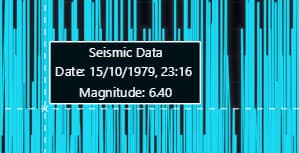
Finally, run the NPM START command on a new terminal to open the project on your local host.
Conclusion
Thanks for making it this far! We’ve previously worked with line charts to create this seismic data visualization application. In this app example, we added various tools and functions that can help you create more complex chart applications.
The goal of this seismic data visualization app exercise was to demonstrate how to work with a data source. LightningChart JS is designed to simplify chart implementations with advanced features. For this seismic data visualization application, all you need is an array object in a simple X-Y format. When working with date values, LightningChart JS requires the dates to be converted into numeric values (milliseconds).
JavaScript makes many of these conversions easier, as it’s efficient in data manipulation. For the rest of the chart code, you’ll notice the logic is similar to other projects we’ve done. First, create an instance of LightningChart, specify the type of chart (XY, Bars, Spider, etc.), create a data series, configure the axes, and finally, add the data source.
The most creative part will be customization, as LightningChart JS allows you to adjust colors, annotations, legend boxes, and more. That’s why I recommend checking out our other posts. Thanks again, goodbye!

Omar Urbano
Software Engineer


Continue learning with LightningChart
Create a JavaScript Pie Chart with NodeJS, TypeScript & LightningChart
Written by a human | Updated on April 10th, 2025JavaScript Pie Chart with NodeJS & TypeScript Today, we are going to do a short tutorial on how to generate a pie chart using Node JS, TypeScript, and LigningCharts JS. To see how to get LightningChart JS for...
Real-time data visualization with WebSockets
Written by a human | Updated on April 10th, 2025WebSockets Data Visualization in Real-Time These days it is ever increasingly common that people require web solutions for their applications and services. Data visualization is not an exception to this, as...
Why Performance Matters in Data Visualization?
Written by a human | Updated on April 10th, 2025Performance in Data VisualizationI was doing a Google search a couple of days ago and particularly, I wanted to know what are the options for developers who need to visualize large amounts of data points within...



If you have any questions, feel free to contact us!



©LightningChart Ltd 2026. All rights reserved.