








LightningChart .NETCreating a .NET XYZ Axis Graph Example Application
TutorialLearn more about 3D cartesian plots with an XYZ Axis Graph.
Written by a human | Updated on April 15th, 2025
What is an XYZ axis graph?
An XYZ-axis graph allows you to plot points, lines, and surfaces in three dimensions. These dimensions are identified as axes, and data points are positioned anywhere along these XYZ axes:
- The X-axis: Typically runs horizontally.
- Y-axis: Usually, vertical.
- Z-axis: works of the depth, perpendicular to both X and Y axes.
3D Coordinate Systems
But when talking about an XYZ-axis graph, we need to review the cartesian coordinate system. In brief, this is a framework used in mathematics for performing calculations related to 3D graph spacing such as measurements, distances, and angles.
Three-Dimensional Graphic
In a 3D space, we require an “extra” axis to complete the 3D coordinate system, as mentioned before, this is often referred to as the z-axes or as multivariable graphing. These 3 axes are perpendicular to each other and co-exist in a 3D space. Here’s an example of the cartesian map with each of the axes well-labeled:
Surface Plots
When graphic in three dimensions a 3D surface plot, certain types of data are essential. Typically, you need X, Y, and Z Data Points, for instance:
- X and Y: These are typically the grid coordinates where your surface plot will be defined. They can be regular (forming a uniform grid) or irregular.
- Z: This represents the surface’s value at each (X, Y) point. It’s essentially the height or depth of the surface at those coordinates.
In this XYZ-axis graph example, we will also add 2 extra properties:
- Top Contours.
- Bottom fill.
In the top contours, we will show only the contours of the values of each range from 0 to 100, without showing the fill values and without generating the 3D volume.
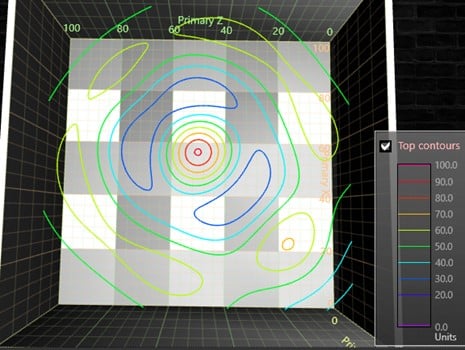
In the bottom fill of the 3D plot, we will show the complete data with its gradients but without the 3D shape.

These two properties will help us have a 2D and 3D view of the same XYZ axis graph object.

Surface plotting helps us identify areas within a range of values, using colors and patterns to divide the model into different areas. These 3D plot objects have their 3 dimensions with irregular shapes, because the zones form lower or higher curves on the Y axis, based on the values assigned to these zones.

Project Overview
We’ll be creating a surface plot with contours and flat projections. This XYZ axis graph is created using LightningChart .NET using the view3D and XYZ properties.

 Download the project to follow the tutorial
Local Setup
For this project, we need to take into count the following requirements to compile the project.
- OS: 32-bit or 64-bit Windows Vista or later, Windows Server 2008 R2 or later.
- DirectX: 9.0c (Shader model 3 and higher) or 11.0 compatible graphics adapter.
- Visual Studio: 2010-2019 for development, not required for deployment.
- Platform .NET Framework: installed version 4.0 or newer.
Now go to the next URL and download LightningChart .NET. You’ll then be redirected to a sign-in form where you’ll have to complete a simple sign-up process. When you’re done with the registration process, you’ll have access to your LightningChart account.

After you sign into your account, you will be able to download the SDK. This SDK will be a “free trial” version, but you will be able to use many important features for this XYZ axis graph tutorial. When you download the SDK, you’ll have a .exe file like this:

The installation will be a typical Windows process, so please continue with it until it is finished. After the installation, you will see the following programs:

License Manager
In this application, you will see the purchase options. All the projects that you will create with this trial SDK, will be available for future developments with all features enabled.

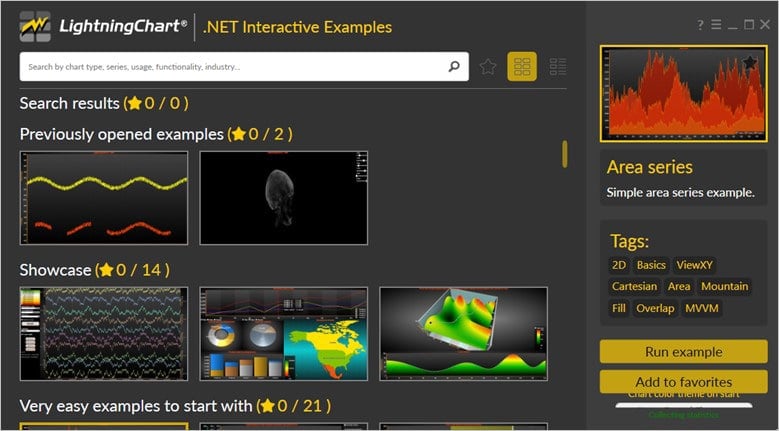
LightningChart .NET Interactive Examples
Now you can see 100+ interactive visualizations available for WPF, WinForms, and/or UWP.
Visual Studio Project
Now let’s work with Visual Studio. The main difference between using the LightningChart visualizer and Visual Studio is that we will be able to analyze and experiment with many features within the source code. In the LC visualizer, select the XYZ axis graph (Surface with contours flat projection) and run the example:
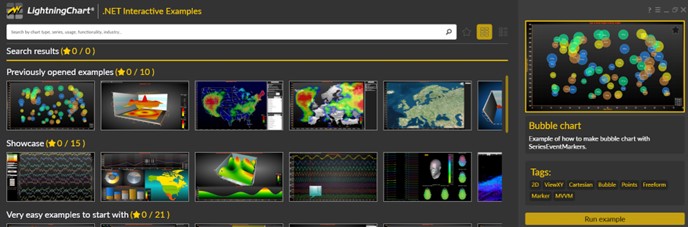
In the top-right zone of the windows, you will see the following options:
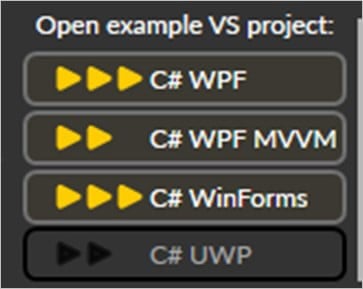
For the trial SDK, we will be able to use the WPF framework. After clicking the framework to use, we will need to specify a folder where the project will be created:
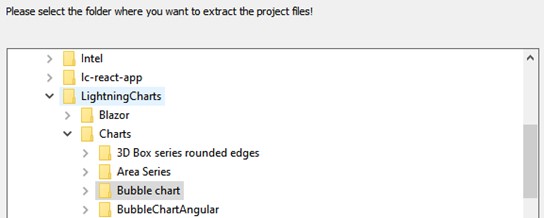
Finally, the WPF XYZ Axis graph project will be created and Visual Studio will be opened and ready for executing the digital signal processing filters application.
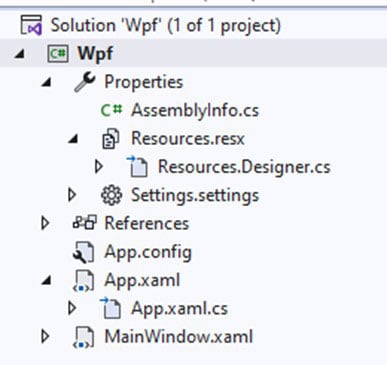
Code Review
The main code will be wrapped inside MainWindow.xaml.cs. Here we will find the code for UI controls.
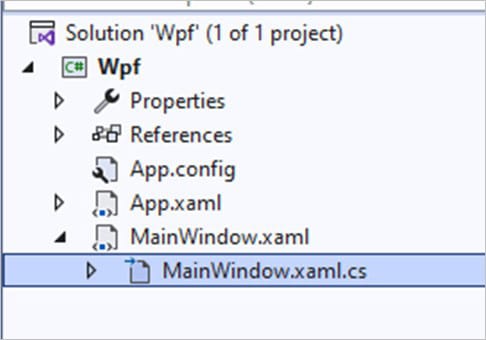
Inside the code, we will check two methods that will create the properties that we need to correctly draw the WPF XYZ axis graph. The interactive example is built with various user controls, to manipulate and change the visual properties of the chart. These controls are not required to generate this graph, so we will focus on the code responsible for generating the object.
CreateChart()
We will start with the InitializeComponent method. This will allow us to load our XAML template and access the objects within it.
InitializeComponent();

CreateChart(); // Create chart.
The CreateChart method will construct the WPF XYZ Axis Graph object, which will be displayed within an XAML frame. We need to create a LightningChart-type object. This constructor will allow us to create an instance of a chart, specify the type of chart, and access different properties.
_chart = new LightningChart();The BeginUpdate function will allow us to stop drawing the chart, which will allow us to set up the properties that we want to customize. As long as the update is not closed, the chart will not show the changes we make, this will help with the performance of the chart construction.
_chart.BeginUpdate();ViewXY
We need to get the active chart view, or the type of chart that will be created. To create the XYZ axis graph, we use the 3D view but there are several types of views available:
- XY
- 3D
- Pie3D
- Polar
- Smith
_chart.ActiveView = ActiveView.View3D;Now we assign a name to the surface plot:
_chart.ChartName = "Surface with contours flat projection";Setting the camera view:
_chart.View3D.Camera.RotationX = 8.8;
_chart.View3D.Camera.ViewDistance = 150;
Camera type, location, distance, and target together determine the 3D plane XYZ viewpoint. Use RotationX, RotationY, RotationZ, and ViewDistance to set the camera position in the 3D model space.
Target the camera in the preferred direction by setting the Target property. RotationX, RotationY, and Rotation Z can be limited by setting boundaries via
- RotationXMinimum
- RotationXMaximum
- RotationYMinimum
- RotationYMaximum
- RotationZMinimum
- RotationZMaximum properties

SurfaceGridSeries3D
SurfaceGridSeries3D allows visualizing data as a 3D surface. In the SurfaceGridSeries3D, nodes are equally spaced in the X dimension, and in the Z dimension as well. Node distances are automatically calculated as:

The properties of the XYZ axis graph object and the flat objects are almost the same. In the case of flat objects, we will only have to manipulate the Y values to create them that way.
// Top Contours
SurfaceGridSeries3D flatProjectionTop = new SurfaceGridSeries3D(_chart.View3D, Axis3DBinding.Primary, Axis3DBinding.Primary, Axis3DBinding.Primary)
{
    Fill = SurfaceFillStyle.None,
    ContourLineType = ContourLineType3D.PalettedLineByValue,
    WireframeType = SurfaceWireframeType3D.None
};

// 3D Surface Grid
SurfaceGridSeries3D dataSurface = new SurfaceGridSeries3D(_chart.View3D, Axis3DBinding.Primary, Axis3DBinding.Primary, Axis3DBinding.Primary)
{
    Fill = SurfaceFillStyle.PalettedByY,
    ContourLineType = ContourLineType3D.None,
    WireframeType = SurfaceWireframeType3D.None
};

// Bottom fill
SurfaceGridSeries3D flatProjectionBottom = new SurfaceGridSeries3D(_chart.View3D, Axis3DBinding.Primary, Axis3DBinding.Primary, Axis3DBinding.Primary)
{
    Fill = SurfaceFillStyle.PalettedByValue,
    ContourLineType = ContourLineType3D.None,
    WireframeType = SurfaceWireframeType3D.None
};
The main difference between the three objects is the fill and contour properties.
Fill. Use the Fill property to select the filling style of the surface. The following options are available:
- None: No filling is applied. This selection is useful with wireframe meshes.
- FromSurfacePoints: The colors of the Data property nodes are used.
- Toned: ToneColor applies
- PalettedByY: Coloring by Y values by palette.
- PalettedByValue: Coloring by SurfacePoint’s Value fields by palette.
Contour lines. Contour lines allow quick interpretation of height data without filling the surface with paletted fill. Contour lines can be used combined with fill and wireframe. By setting the ContourLineType property, contour lines can be drawn with different styles:
- None: No contour lines are shown
- FastColorZones: The lines are drawn as thin vertical zones. Allows very powerful rendering, which suits well for continuously updated or animated surfaces.
- ColorLineByY and ColorLineByValue: Contour lines are made with actual lines. Rendering takes longer than FastColorZones. The line width can be adjusted with ContourLineStyle.Width property. Contour lines can also be shifted with WireframeOffset property, to remove possible Z-fighting with filling.
- PalettedLineByY and PalettedLineByValue: Like ColorLineByY and ColorLineByValue, but line coloring follows ContourPalette options.
Wireframe. Use WireframeType to select the wireframe style. The options are:
- None: No wireframe
- Wireframe: a solid color wireframe. Use WireframeLineStyle.Color to set the color.
- WireframePaletted: the wireframe coloring follows ValueRangePalette.
- WireframeSourcePointColored: the wireframe coloring follows the color of grid nodes.
- Dots: solid color dots are drawn in the grid node positions.
- DotsPaletted: dots are drawn in the grid node positions and colored by ValueRangePalette.
- DotsSourcePointColored: dots are drawn in the grid node positions; coloring follows the color of grid nodes.
The wireframe line style (color, width, and pattern) can be edited by using WireframeLineStyle.
Adding the last properties to SurfaceGridSeries3D
flatProjectionBottom.SetRangesXZ(10, 90, 10, 90);
flatProjectionBottom.SetSize(columns, rows);
flatProjectionBottom.ContourPalette = CreatePalette(flatProjectionBottom, 100, 255);
flatProjectionBottom.ColorSaturation = 80;
flatProjectionBottom.Title.Text = "Bottom fill";
Set the value range by giving values to Minimum and Maximum properties, note that the Minimum must be less than the maximum. When trying to set the Minimum > Maximum, or vice versa, an internal limiter will limit the values near the other value. To set both values simultaneously, use the SetRange(…) method.
Passing the Minimum > Maximum in SetRange automatically flips these values so that Minimum < Maximum. SetRangesXZ sets values for X and Z axes at the same time, this is a very CPU-efficient way compared to doing it individually.
CreatePalette
CreatePalette is a method that will allow us to generate the gradient of each object.
ValueRangePalette palette = new ValueRangePalette(ownerSeries);

palette.Steps.Clear();
palette.Steps.Add(new PaletteStep(palette, Color.FromArgb(alpha, 0, 0, 0), 0));
palette.Steps.Add(new PaletteStep(palette, Color.FromArgb(alpha, 255, 255, 0), 30 * yRange / 100.0));
palette.Steps.Add(new PaletteStep(palette, Color.FromArgb(alpha, 255, 204, 0), 45 * yRange / 100.0));
palette.Steps.Add(new PaletteStep(palette, Color.FromArgb(alpha, 255, 128, 0), 60.0 * yRange / 100.0));
palette.Steps.Add(new PaletteStep(palette, Color.FromArgb(alpha, 255, 0, 0), 100.0 * yRange / 100.0));
palette.Type = PaletteType.Uniform;
With the ValueRangePalette property, you can define color steps to color values in the XYZ axis graph. You can use ValueRangePalette to:
- Fill
- Wireframe
- Contour lines
Each step has a height value and corresponding color. The palette is defined with the MinValue, Type, and Steps properties. There are two options which are Uniform and Gradient.
- Minimum value: -50
- Type: Uniform
- Steps:
- Steps[0]: Maximum value: -10, Color: Blue
- Steps[1]: Maximum value: 10, Color: Teal
- Steps[2]: Maximum value: 25, Color: Green
- Steps[3]: Maximum value: 35, Color: Yellow
- Steps[4]: Maximum value: 60, Color: Red
- Steps[5]: Maximum value: 100, Color: White
Values below the first step value are colored with the first step color.
WaterDropSurfaceDataGenerator
The WaterDropSurfaceDataGenerator class generates and returns water drop surface data:
double[,] data = WaterDropSurfaceDataGenerator.Generate(
    200, //size as nodes, in both X and Y
    new double[] { 0.2, 0.5, 0.7 }, //Drop X positions in scale 0...1
    new double[] { 0.2, 0.5, 0.7 }, //Drop Z positions in scale 0...1
    new double[] { 10, 40, 5 }, //Amplitudes, as Y axis values
    50, //Offset level (mid-Y)
    15); //Volatility, wave generating density
Once we have the data, we will use those values to assign Y values to each object:
for (int nodeX = 0; nodeX < columns; nodeX++)
{
    for (int nodeZ = 0; nodeZ < rows; nodeZ++)
    {
        //Set data surface Y
        dataSurface.Data[nodeX, nodeZ].Y = data[nodeX, nodeZ];

        //Set flat surface Y to contant, and use Value field instead
        flatProjectionTop.Data[nodeX, nodeZ].Value = data[nodeX, nodeZ];
        flatProjectionTop.Data[nodeX, nodeZ].Y = flatProjectionTopY - 2;

        //Set flat surface Y to contant, and use Value field instead
        flatProjectionBottom.Data[nodeX, nodeZ].Value = data[nodeX, nodeZ];
        flatProjectionBottom.Data[nodeX, nodeZ].Y = flatProjectionBottomY;
    }
}
Use the InvalidateData() method to notify the chart that this series needs an update:
flatProjectionTop.InvalidateData();
dataSurface.InvalidateData();
flatProjectionBottom.InvalidateData();
Finally, we close the chart update and add it to the XAML grid so that it is displayed to the user
_chart.EndUpdate();

//Chart parent must be set
chartGrid.Children.Add(_chart);
Conclusion: XYZ Axis Graph
In this exercise, we created a coordinate plane XYZ axis graph and saw several LC.NET tools. SurfaceGridSeries3D allows us to display data in a 3D model drawing a grid with 3 axes (X, Y, Z). With the creation of a 3D plane XYZ object, it is necessary to configure a camera, which allows us to explore our object from different angles.
The LC .NET camera allows us to rotate around an axis and establish a distance view. To color our 3D object, we need to create a color palette, which will create RGB colors that will be assigned to the wireframe of our grid.
In this exercise, we created 3 objects of type SurfaceGridSeries3D, which are superimposed on each other, with the difference that only one has depth and the others are only flat. This shows us that it is possible to have multiple objects within the same chart.
I hope you liked this tutorial. Thank you, bye.

Omar Urbano
Software Engineer


Continue learning with LightningChart

Data Visualization in Medical & Healthcare Applications
Written by a human | Updated on April 10th, 2025Charting Controls for Medical Healthcare Data Visualization Applications The fact that data and data visualization are everywhere in today's world, makes me wonder how data visualization impacts medical...
Creating a Smith Chart Application in .NET
Written by a human | Updated on April 9th, 2025Smith Charts The Smith chart is a diagram designed for the study and resolution of problems with transmission lines. This diagram is aimed at electrical and electronic engineers specializing in radio frequency....
Nbody Simulation Data Visualization
Written by a human | Updated on April 9th, 2025N-body Simulation Nbody simulation is maybe one of the most advanced data visualization types out there. The truth is that we’re not talking anymore about visualizing traditional data with a business focus and it...



If you have any questions, feel free to contact us!



©LightningChart Ltd 2026. All rights reserved.