








WPF Trading application with US 2019-2024 Stock Data with LightningChart .NET
Tutorial
Written by a Human
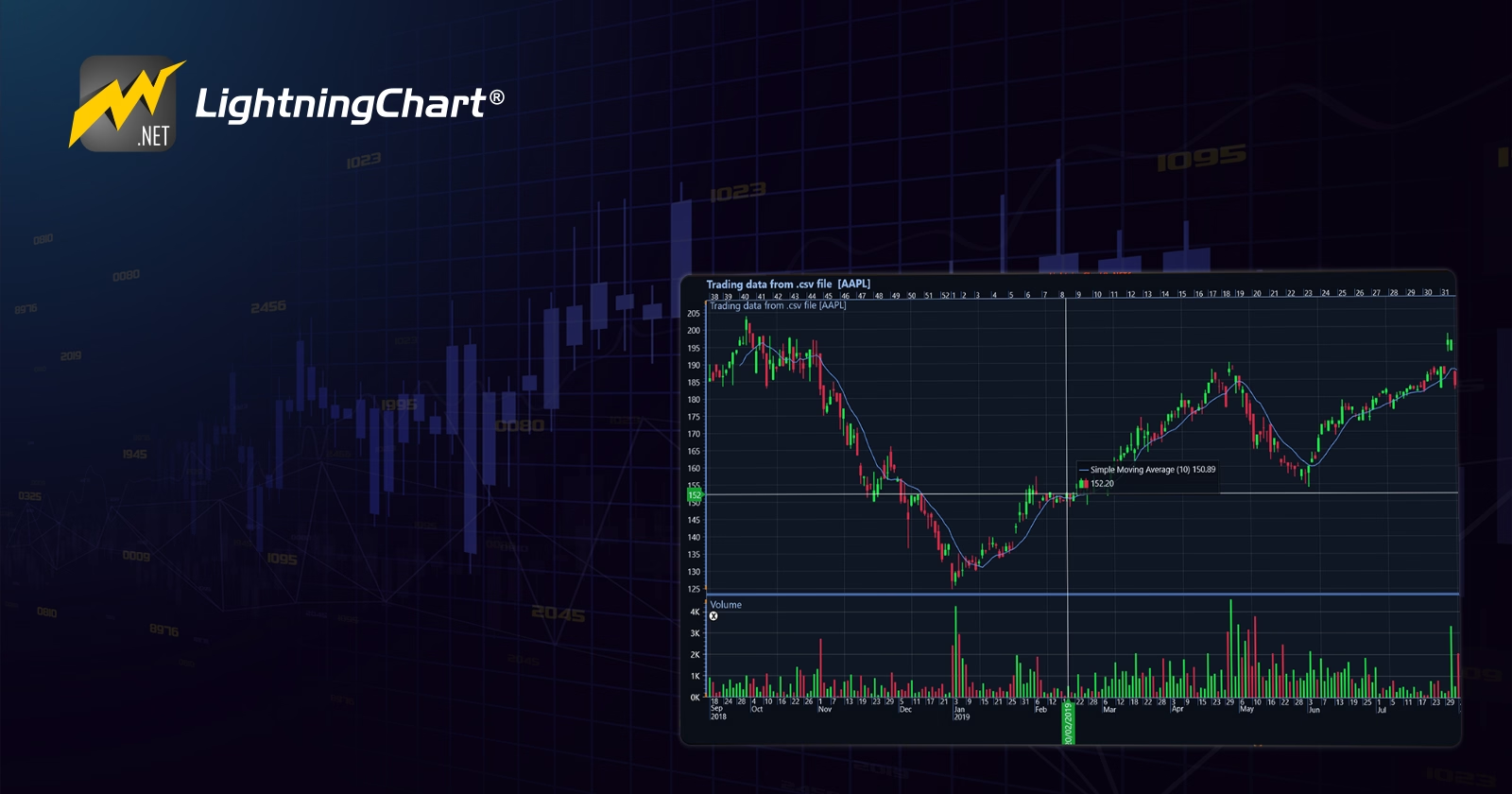
In this tutorial, we will be creating a WPF Trading application with US 2019-2024 Stock Data with LightningChart .NET.
Omar Urbano
Software Engineer

Introduction
Hello, in this article, we will work with the Trading library of Lightning Chart .NET. We will create a WPF application and generate three datasets from a CSV file. It is important to know that you will need either a demo or a full license of LC .NET Trading. If you don’t have one, you can contact us to obtain a license.
I also recommend installing the interactive examples tool, as it will help you generate a ready-to-run project for this and other charts. Without further ado, let’s get started!
What is a Trading Application?
A trading application is an app or platform used to buy and sell financial assets, such as stocks, cryptocurrencies, currencies (Forex), and more. Both individual traders and companies use it to execute market transactions.
What does a trading application do?
- Help us buy and sell assets in real-time or with scheduled orders.
- Displays live prices and charts to track the market.
- Offers analysis tools such as indicators and financial news.
- Manage investments by showing profits, losses, and open positions.
- Automates trading with bots or algorithms.
- Ensures security with authentication and data encryption.
- Connects with brokers and markets through APIs.
Analysis Tools in a Trading Application
Within these applications, we can find various tools that help us understand market fluctuations. These tools allow us to identify market changes through visual indicators. Below, we list some of them.
Envelopes
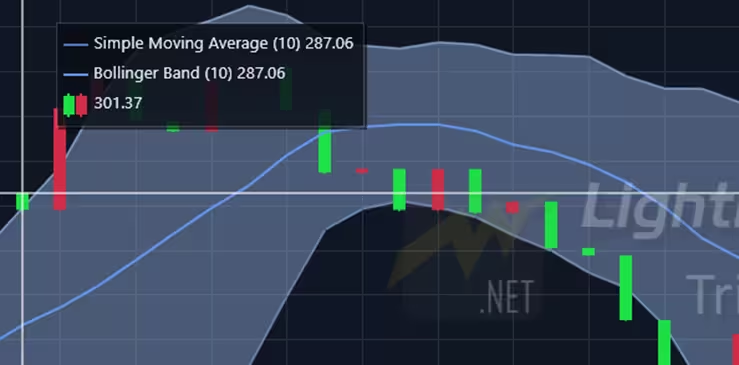
Envelopes are a technical indicator that helps identify trends and potential buy or sell points. They are based on moving averages and create two lines (one upper and one lower) around the price, forming a kind of “channel.”
How do Envelopes work?
- They are calculated by taking a moving average (simple or exponential) and adding a fixed percentage above and below.
- The upper line acts as resistance (when the price reaches it, it may go down).
- The lower line acts as support (when the price reaches it, it may go up).
Moving Averages
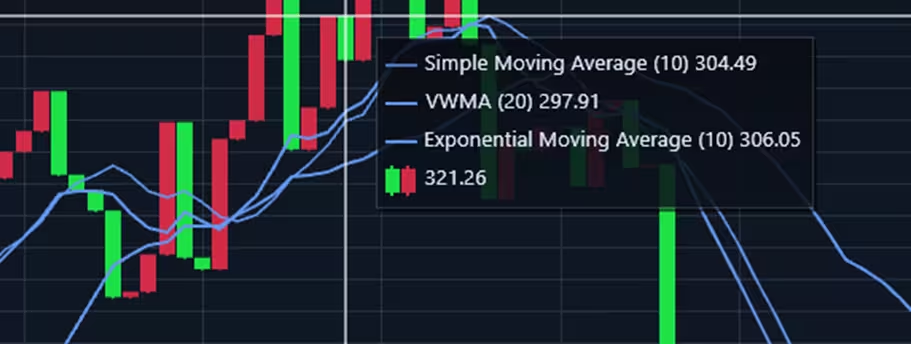
Moving averages are a technical trading indicator that smooths price movements to help identify trends. They essentially average an asset’s prices over a certain period, filtering out market “noise.”
Types of Moving Averages
- Simple Moving Average (SMA): Calculates the average price over a specific period (e.g., a 50-day SMA = average of the last 50 days).
- Exponential Moving Average (EMA): Gives more weight to recent prices, reacting more quickly to trend changes.
- Weighted Moving Average (WMA): Like the EMA but uses a different calculation that also prioritizes recent prices.
Oscillators – Money Flow
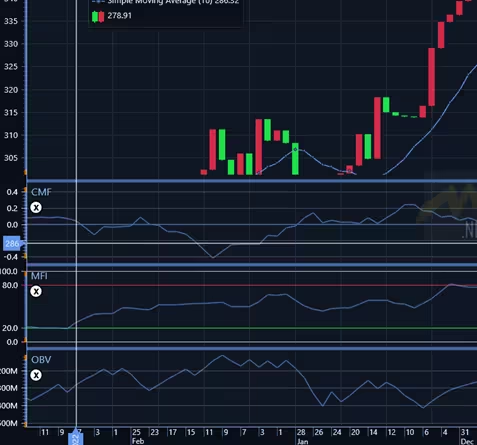
A Money Flow oscillator is a type of technical indicator that measures buying and selling pressure in a financial asset by combining price and volume. It is very useful for detecting whether an asset is overbought or oversold and for anticipating potential trend changes.
Types of Money Flow Oscillators
- Money Flow Index (MFI) – The most popular. Like the RSI but takes volume into account.
- Chaikin Money Flow (CMF) – Measures the accumulation and distribution of money in an asset.
- On-Balance Volume (OBV) – Tracks the relationship between volume and price movement.
How does the Money Flow Index (MFI) work?
- Calculate the Typical Price = (High + Low + Close) / 3. 2
- Multiply the Typical Price by the volume → This gives the Money Flow.3.
- Compare positive and negative Money Flows to obtain an index between 0 and 100.
Oscillators – Price
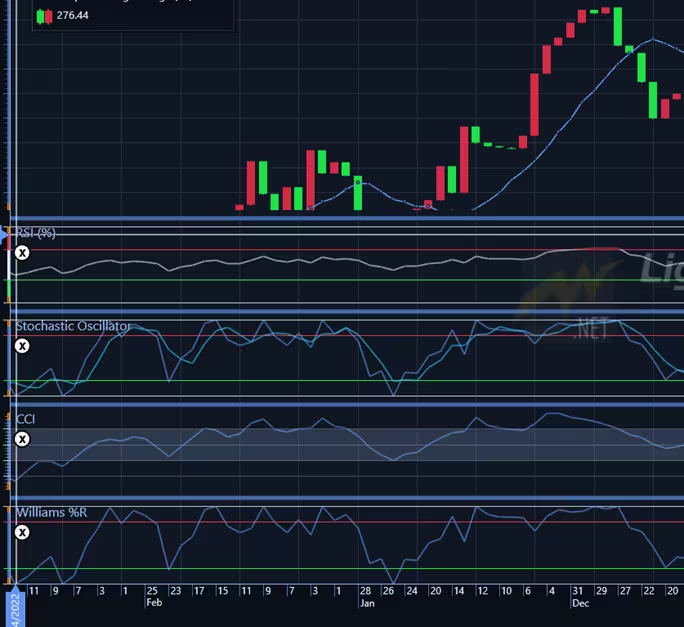
Price oscillators are technical indicators that analyze price movements to determine whether an asset is overbought or oversold, helping to identify potential trend reversals. They operate by oscillating within a fixed range, usually between 0 and 100.
Main Price Oscillators
- Relative Strength Index (RSI) → Measures the speed and magnitude of price changes.
- Stochastic Oscillator → Compares the closing price with its range over a given period.
- Commodity Channel Index (CCI) → Measures the deviation of the price from its average.
- Williams %R → Similar to the Stochastic Oscillator but inverted.
How Do They Work?
1.Detect Overbought and Oversold Conditions:
- RSI above 70 → Overbought (possible decline).
- RSI below 30 → Oversold (possible rise).
2.Identify Divergences:
- If the price rises but the oscillator falls, it may indicate a trend reversal.
3.Generate Trading Signals:
- Crosses with key levels (e.g., RSI crossing 50 indicates a trend change).
- Crosses between lines (e.g., the Stochastic Oscillator uses %K and %D to generate signals).
Statistics
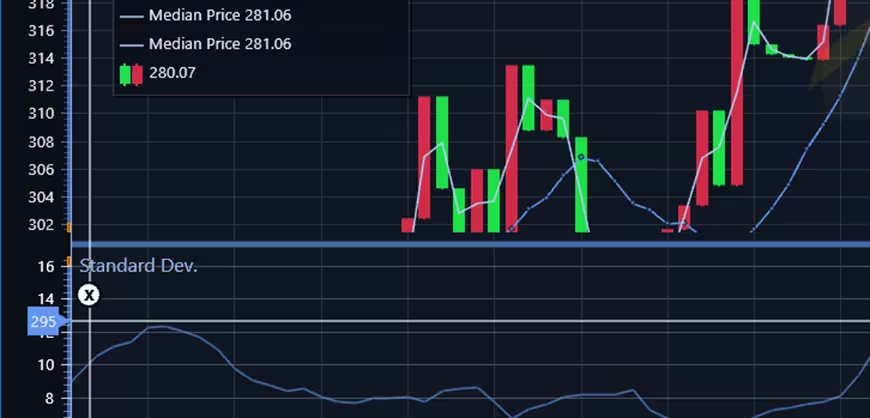
It refers to the use of numerical data and probabilities to analyze market behavior, evaluate strategies, and make more informed decisions.
Key Statistical Concepts in Trading
- Mean (Average): Calculates the average value of prices over a period. Example: Moving Average.
- Variance and Standard Deviation: Measure how much prices deviate from the mean, helping to assess volatility.
- Frequency Distribution: Shows how prices are distributed over time. It can help identify recurring patterns.
- Regression and Correlation:
Regression: Helps predict future prices based on past data.
Correlation: Measures the relationship between two assets (e.g., Gold and the U.S. dollar have an inverse correlation). - Sharpe Ratio: Evaluates the risk-adjusted return of an investment.
Trend Indicators
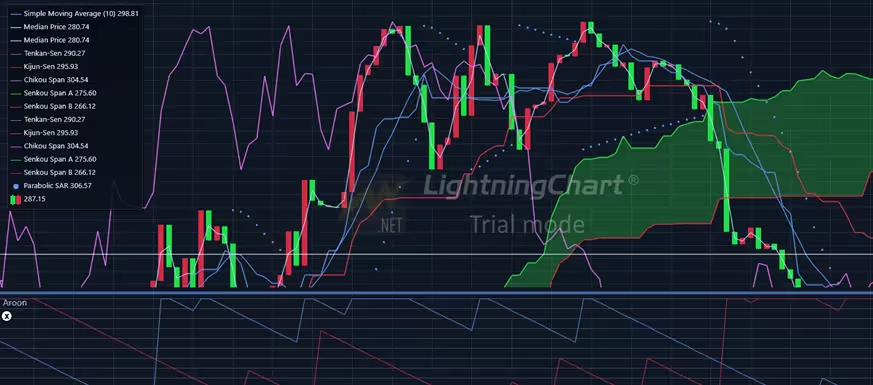
Trend indicators are trading tools that help identify the primary direction of the market (uptrend, downtrend, or sideways). They are based on mathematical calculations of prices to smooth out noise and reveal movement patterns.
Volatility
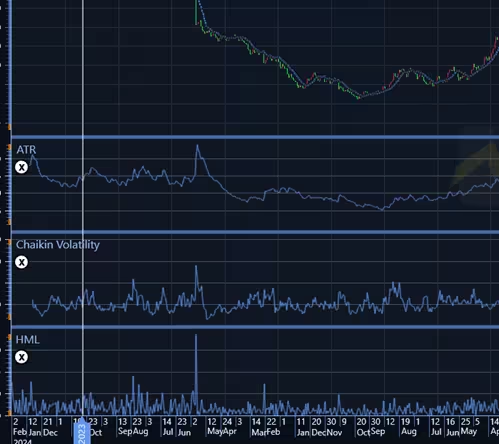
Volatility measures how much and how quickly the price of an asset changes over a period. A market with high volatility experiences sharp and rapid movements, while one with low volatility has more stable and predictable changes.
Types of Volatility
- Historical: Based on past price movements, measured using standard deviation.
- Implied: Expected future volatility, calculated from option prices.
- Realized: The actual observed volatility over a given period.
Key Volatility Indicators
- Bollinger Bands: Expand with high volatility and contract with low volatility.
- ATR (Average True Range): Measures the average range of price movements over a period.
- VIX Index: Measures expected volatility in the stock market (known as the “fear index”).
Project Overview
To follow this trading application in WPF project, download the ZIP folder with all the necessary resources.
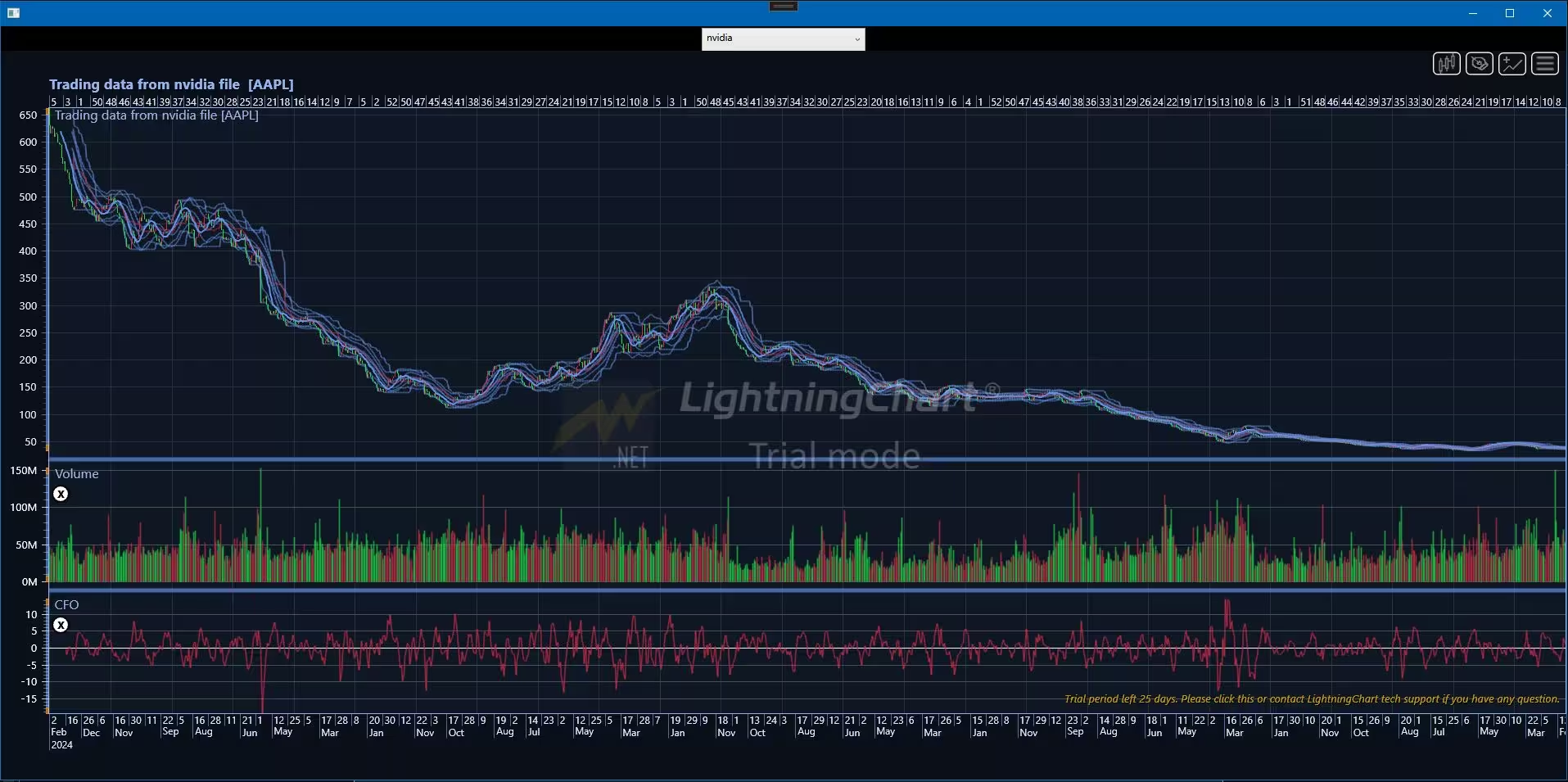
 Download the project to follow the tutorial
Local Setup
- OS: 32-bit or 64-bit Windows Vista or later, Windows Server 2008 R2 or later.
- DirectX: 9.0c (Shader model 3 and higher) or 11.0 compatible graphics adapter.
- Visual Studio: 2022 for development, not required for deployment.
- Platform .NET Framework: installed version 8.0 or newer.
Now go to the next URL and download LightningChart .NET. You’ll then be redirected to a sign-in form where you’ll have to complete a simple sign-up process to get access to your LightningChart account.

After signing in to your account, you can download the SDK “free trial” version that allows you to use important features for this tutorial. When you download the SDK, you’ll have a .exe file like this:

The installation will be a typical Windows process, so please continue with it until it is finished. After the installation, you will see the following programs:

License Manager
In this application, you will see the purchase options. All the projects that you will create with this trial SDK will be available for future developments with all features enabled.

Creating the project
Once you run the example in the “interactive examples” application, you will see the following option
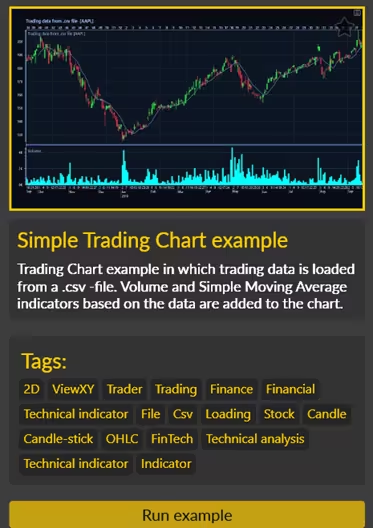
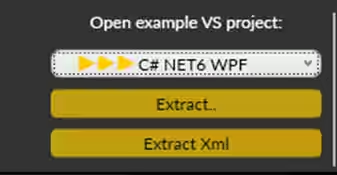
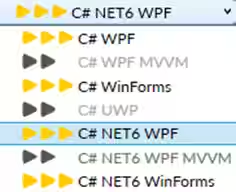
Lightning Chart can generate a project for the current selected chart, using Windows Presentation Foundation (WPF), WinForms, and their NET6 versions.
About Dataset
For this project, I used the 2019-2024 US Stock Market Data from Kaggle. This data set provides an in-depth analysis of market dynamics over a five-year period, highlighting price fluctuations and trading volumes across a diverse portfolio. It encompasses multiple sectors, including energy commodities like natural gas and crude oil, metals such as copper, platinum, silver, and gold, cryptocurrencies like Bitcoin and Ethereum. It also includes major stock indices and companies, including the S&P 500, Nasdaq 100, Apple, Tesla, Microsoft, Google, Nvidia, Berkshire Hathaway, Netflix, Amazon, and Meta Platforms. This dataset is a valuable resource for identifying trends and patterns in global markets.
Generating a Fintech Analysis Chart
To create a fintech analysis chart with the columns Date, Open, Close, High, Low, Volume, you need to select a financial asset from the dataset for analysis.
Available Asset Options by Category:
- Cryptocurrencies: Bitcoin, Ethereum
- Commodities: Gold, Silver, Oil, Natural Gas, Copper, Platinum
- Stock Indices: S&P 500, Nasdaq 100
- Stocks: Apple, Tesla, Microsoft, Google, Nvidia, Berkshire, Netflix, Amazon, Meta
Each asset includes closing price (Price) and volume (Vol.), but the values for Open, High, and Low are missing.
How to Structure the Schema
For any financial asset, you can follow this approach:
- Date: Use the Date column directly.
- Close: Use the closing price column (*_Price).
- Volume: Use the transaction volume column (*_Vol.).
- Open, High, Low: If direct data is unavailable, estimate them as follows:
- Open: Use the previous day’s closing price.
- High: The highest value between the current price and the previous day’s price.
- Low: The lowest value between the current price and the previous day’s price.
Example with Bitcoin
If you choose Bitcoin_Price and Bitcoin_Vol., the structure would be:
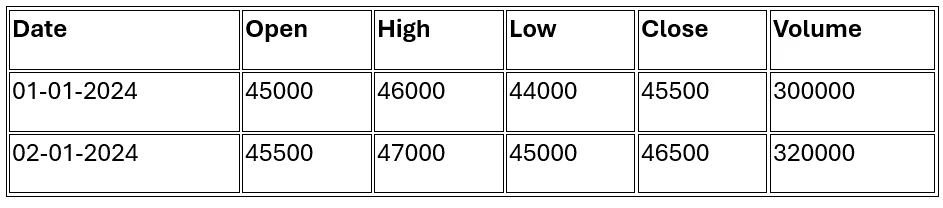
Calculating Open, High, and Low
For Bitcoin (or any other asset), you can calculate the missing values as follows:
- Open: Use the Bitcoin_Price from the previous day.
- High: Take the maximum between the current day’s Bitcoin_Price and the previous day’s Bitcoin_Price.
- Low: Take the minimum between the current day’s Bitcoin_Price and the previous day’s Bitcoin_Price.
Formula Representation
- Open = Bitcoin_Price_previous_day
- High = max(Bitcoin_Price_current, Bitcoin_Price_previous_day)
- Low = min(Bitcoin_Price_current, Bitcoin_Price_previous_day)
MainWindow
1. Constructor (ExampleTraderSimple) – Setting Up the Window
When the window opens, the constructor initializes the UI and creates the trading chart.
public partial class ExampleTraderSimple : Window, IDisposable
{
    private TradingChart _chart = null;
    GenerateDataset generateDataset = new GenerateDataset();
    public ExampleTraderSimple()
    {
        InitializeComponent();
        CreateChart();
} - Calls
InitializeComponent()to load UI components. - Calls
CreateChart()to set up the trading chart.
2.CreateChart() – Setting Up the Trading Chart
This method creates, configures, and adds data to the trading chart.
Creating the Chart:
_chart = new TradingChart();
// Disable rendering
_chart.BeginUpdate();
_chart.ChartName = "SimpleChart";
// Add TradingChart to a parent container
(Content as Grid).Children.Add(_chart); - A new instance of
TradingChartis created. - This object will display stock price movements and technical indicators.
- Temporarily pauses rendering to improve performance while making updates.
- Adds
_chartto the window’s UI so that it becomes visible. - The Content of the window is assumed to be a Grid, so the chart is added as a child element.
Configuring Chart Appearance
// Configuring appearance
_chart.SetAppearance(Appearance.Blue);
_chart.ShowSearchBar = false;
_chart.ShowTimeRangeSelection = false; - Sets a blue theme for the chart.
- Hides the search bar and time range selectionto simplify the interface.
Adding Technical Indicators
// Creating technical indicators and adding them to the chart
SimpleMovingAverage sma = new SimpleMovingAverage
{
    LineWidth = 1.5,
    PeriodCount = 10,
    Title = "Simple Moving Average"
};
_chart.Indicators.Add(sma); - Adds a Simple Moving Average (SMA) indicator to the chart.
LineWidth = 1.5→ Thickness of the SMA line.PeriodCount = 10→ SMA is calculated over 10 data points.Title = "Simple Moving Average"→ Display name on the chart.
Volume volume = new Volume
{
    Color = Colors.Aqua
};
_chart.Indicators.Add(volume); - Adds a volume indicator (which shows how many shares were traded).
- Color = Aqua → The bars in the volume indicator will appear in aqua color.
Getting the Selected Stock from the Dropdown
Gets the selected company from the ComboBox. If nothing is selected, selectedValue remains empty.
string selectedValue = string.Empty;
if (CompanyComboBox.SelectedItem is ComboBoxItem selectedItem)
{
    selectedValue = selectedItem.Content.ToString();
}
Fetching and Processing Stock Data
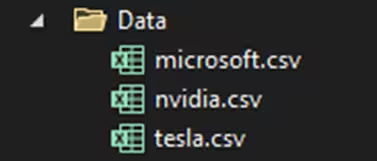
var res = generateDataset.GetStockData(selectedValue); Calls generateDataset.GetStockData(selectedValue). This method retrieves stock price data from the company file
Converting Raw Data to Chart Format
OhlcData[] wpfData = res.Select(d => new OhlcData
{
    DateTime = d.DateTime,
    Open = d.Open,
    High = d.High,
    Low = d.Low,
    Close = d.Close,
    Volume = d.Volume,
    OpenInterest = d.OpenInterest
}).ToArray();
OhlcData[] data = wpfData;
Converts the fetched stock data into an array of OHLC (Open-High-Low-Close) data. Each OhlcData entry contains:
- DateTime → Timestamp of the stock price.
- Open, High, Low, Close → Price details.
- Volume → Number of shares traded.
- OpenInterest → Open contracts in derivatives trading.
// Set data to the chart
_chart.SetData(data, "AAPL", $"Trading data from {selectedValue} file"); - Loads the processed OHLC data into
_chart - The second parameter “AAPL” is a placeholder symbol (it might be changed based on the selected company).
- The third parameter displays where the data came from.
GenerateDataSet
The GenerateDataset class is responsible for reading stock data from a CSV file, processing it into OHLC format, and returning it as an array of OhlcData objects.
Reading the CSV File
var rawData = new List<(DateTime Date, double Price, double Vol)>();
string baseDirectory = AppDomain.CurrentDomain.BaseDirectory;
string projectDirectory = Directory.GetParent(baseDirectory).Parent.Parent.FullName;
string filePath = Path.Combine(projectDirectory, "Data", $"{dataset}.csv"); - Gets the base directory of the application.
- Moves up three levels to reach the project root folder.
- Constructs the full path of the CSV file located in the “Data” folder.
var lines = File.ReadAllLines(filePath).Skip(1); - Reads all lines from the CSV file.
- Skips the first line, assuming it’s a header (column names).
Parsing the CSV Data
var lines = File.ReadAllLines(filePath).Skip(1); - Splits the line by commas (,) to extract values.
- Skips lines with missing data (less than 3 columns)
DateTime date = DateTime.ParseExact(parts[0].Trim(), new[] { "d/M/yyyy", "dd-MM-yyyy" }, - Date: Parses the date using multiple formats (d/M/yyyy, dd-MM-yyyy).
double price = double.Parse(parts[1].Trim(), CultureInfo.InvariantCulture); - Price: Converts the second column into double.
// Convert Volume to ulong, rounding if necessary
ulong volume = ulong.Parse(parts[2].Trim().Split('.')[0], CultureInfo.InvariantCulture); - Volume: Parses the third column into an ulong (removing decimal points).
rawData.Add((date, price, volume)); - Adds the parsed data as a tuple (Date, Price, Volume) to the rawData list.
Converting to OHLC Data
List<OhlcData> ohlcList = new List<OhlcData>();
- Creates a list to store OHLC (Open-High-Low-Close) formatted stock data.
for (int i = 0; i < rawData.Count; i++)
{
var current = rawData[i];- Loops through the sorted
rawDatalist to process each entry into OHLC format. - Calculating Open, High, Low, Close Values Open Price (Closing price of the previous day, or current price for the first entry)
// Open: The closing price of the previous day (or the same if it is the first data point)
double open = (i < rawData.Count - 1) ? rawData[i + 1].Price : current.Price;- If it’s not the first entry, the open price = previous day’s close.
- If it is the first entry, use the same price (since there’s no previous day).
High & Low Prices
// High and Low: The maximum and minimum between the current price and the opening price
double high = (i < rawData.Count - 1) ? Math.Max(current.Price, rawData[i + 1].Price) : current.Price;
double low = (i < rawData.Count - 1) ? Math.Min(current.Price, rawData[i + 1].Price) : current.Price;- High = Maximum price between today and the previous day.
- Low = Minimum price between today and the previous day.
Close Price & Volume
// Closing price and volume
double close = current.Price;
ulong volume = (ulong)current.Vol; - Close price = current day’s price.
- Volume is directly assigned.
Creating an OhlcData Object
ohlcList.Add(new OhlcData
{
    DateTime = current.Date,
    Open = open,
    High = high,
    Low = low,
    Close = close,
    Volume = volume,
    OpenInterest = 0 // Assuming OpenInterest is not used in this case
});
Conclusion
Lightning Chart Trading provides a fast, easy, and efficient solution for visualizing financial data without the need to configure charts from scratch. Thanks to its optimized structure, we only need to generate an ohlcList object with mapped data from a CSV dataset.
Key Benefits:
- The chart updates automatically when assigning data to ohlcList.
- No need to manually define each bar or candlestick—the library interprets OHLC data directly.
- Technical indicators and analysis tools can be easily added and configured by simply instantiating them and adding them to the chart collection.
- Optimal performance ensures smooth visualization with minimal latency, as data is processed efficiently.
Why Use LightningChart .NET Trading?
It allows us to focus on data logic instead of worrying about rendering complexity, making it an ideal tool for real-time trading visualization and financial analysis. Additionally, analysis tools are automatically generated, enabling the development of Fintech solutions without prior knowledge of technical indicator creation. Previously, I have worked on theoretical articles about Fintech tools and indicators, which I recommend checking out as they can complement this project. I hope you found this article helpful—thank you, and goodbye!
Continue learning with LightningChart
Real-time data visualization with WebSockets
Written by a human | Updated on April 10th, 2025WebSockets Data Visualization in Real-Time These days it is ever increasingly common that people require web solutions for their applications and services. Data visualization is not an exception to this, as...
Why Performance Matters in Data Visualization?
Written by a human | Updated on April 10th, 2025Performance in Data VisualizationI was doing a Google search a couple of days ago and particularly, I wanted to know what are the options for developers who need to visualize large amounts of data points within...

Geospatial data visualization with Google Maps & LightningChart
Written by a human | Updated on April 10th, 2025Geospatial Data Visualization This article showcases and describes a particular use case of LightningChart JS for geospatial data visualization. LightningChart JS is a JavaScript charting tool designed for...




If you have any questions, feel free to contact us!
©LightningChart Ltd 2025. All rights reserved.