








Creating a WPF Ternary Plot Application with LightningChart .NET
Tutorial
Written by a Human
In this tutorial, we will be creating a Ternary plot application in WPF with free ZIP project for download.
Omar Urbano
Software Engineer

Introduction
Hello, I’m back with a brief article about LightningChart .NET where we’ll create a ternary plot using LightningChart .NET. It might not be a very complex development, but it will serve as practice or an introduction to understanding the basic logic of LightningChart .NET chart components, so you can implement it in your projects.
Before we start, I want to thank you for your great support in reading my articles and downloading the projects attached to each one. Remember, you can leave comments, requests, doubts, and questions via LinkedIn. Let’s get started
What is a ternary plot?
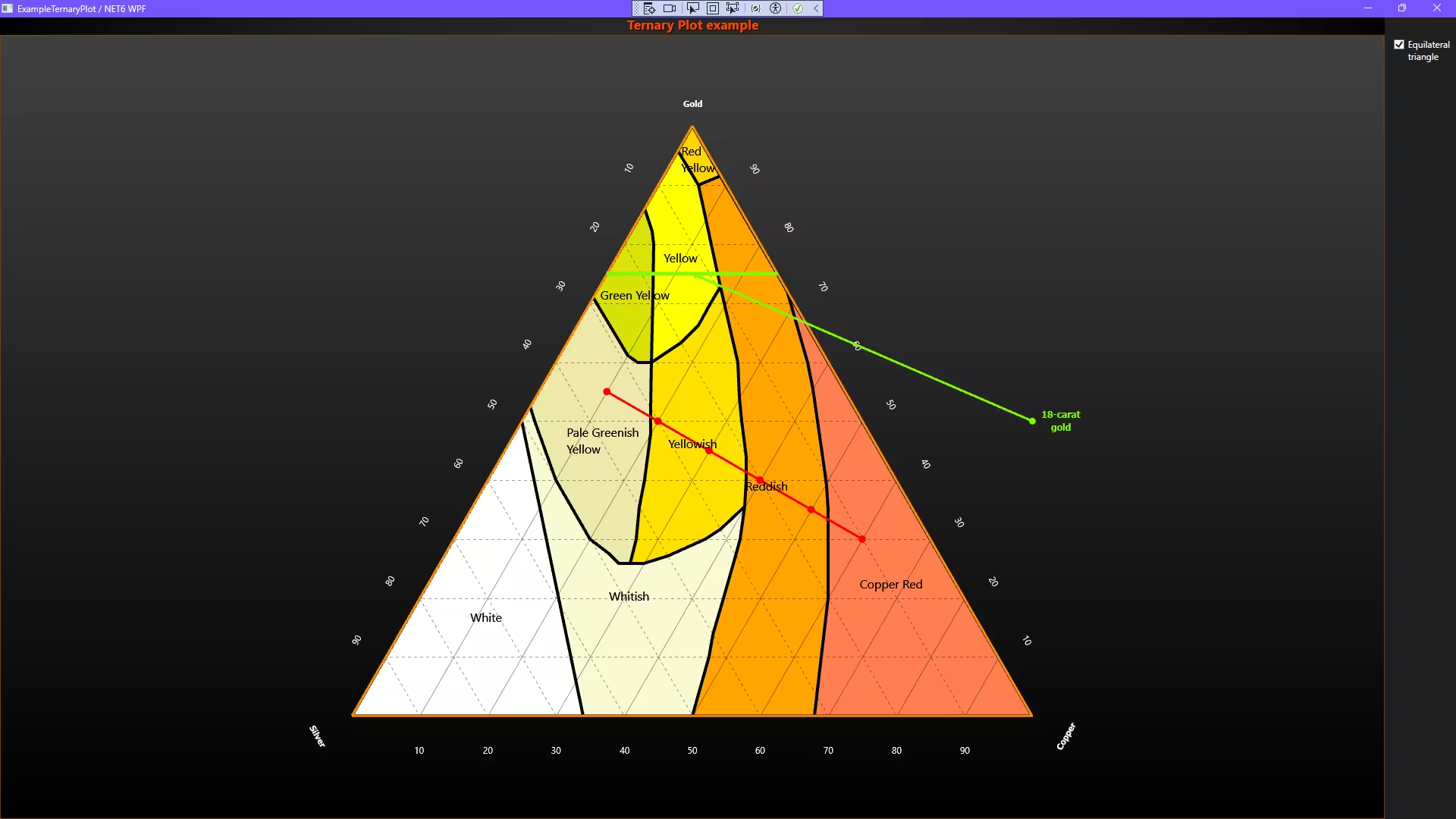
A ternary plot is a visualization diagram used to represent the composition of three components in a system. It’s like an equilateral triangle divided into sections, where each vertex represents one of the three elements. As you move inside the triangle, you can see how the proportion of each component changes.
Instead of using a bar or line chart, the ternary plot is ideal when you want to show how three things interact with each other.
Ternary plot usage
It is widely used in chemistry, especially in the representation of material mixtures, such as in the oil industry (for example, to show the mixture of crude oil). It’s also common in biology, engineering, geology, and even in the creation of metal alloys.
Let’s imagine the following: we’re going to build something, and we need to specify the volumes of fine sand, coarse sand, and gravel for our mixtures. A ternary chart will help us easily visualize how the mixture changes depending on how much of each type of sand we add. It’s a great way to see the relationship between three variables at the same time.
Project Overview
To follow this ternary plot project, download the ZIP file with all the necessary resources.
 Download the project to follow the tutorial
Local Setup
- OS: 32-bit or 64-bit Windows Vista or later, Windows Server 2008 R2 or later.
- DirectX: 9.0c (Shader model 3 and higher) or 11.0 compatible graphics adapter.
- Visual Studio: 2022 for development, not required for deployment.
- Platform .NET Framework: installed version 8.0 or newer.
Now go to the next URL and download LightningChart .NET. You’ll then be redirected to a sign-in form where you’ll have to complete a simple sign-up process to get access to your LightningChart account.

After signing in to your account, you can download the SDK “free trial” version that allows you to use important features for this tutorial. When you download the SDK, you’ll have a .exe file like this:

The installation will be a typical Windows process, so please continue with it until it is finished. After the installation, you will see the following programs:

License Manager
In this application, you will see the purchase options. All the projects that you will create with this trial SDK will be available for future developments with all features enabled.

Creating the project
Once you run the example in the “interactive examples” application, you will see the following option
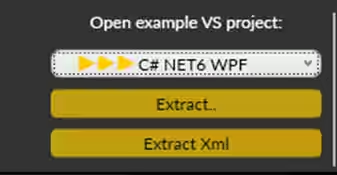
Lightning Chart can generate a project for the current selected chart, using Windows Presentation Foundation (WPF), WinForms, and their NET6 versions.
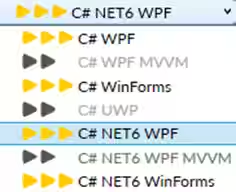
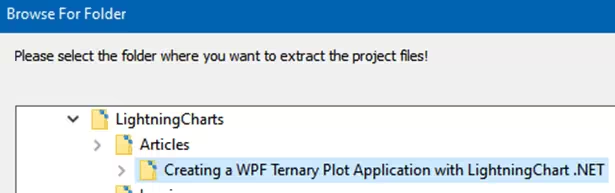
Once you select the extract option, you will have to create a new folder for the project
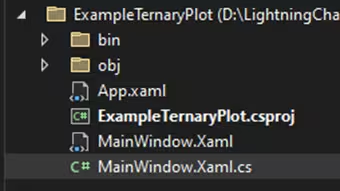
Once the project is saved, Visual Studio will open by itself, and you’ll see a project like this
CreateTernaryChart
Cleaning of the gridChart component
// Clear any gridChart's children.
gridChart.Children.Clear(); gridChart.Children.Clear(): removes all the child elements of thegridChartcontrol, which is where the ternary chart will be displayed. This is useful to prevent the overlap of old charts when creating a new one.
Definition of the Phases and Limits of the Ternary Chart
// create some polygons to be used in Ternary Plot as Phase-boundaries
CreateTernaryPhaseBoundaries(ref ternaryPhaseBoundaries, ref phaseNames, ref phaseColor);
Here, the function CreateTernaryPhaseBoundaries is defined, which generates the phase boundaries within the ternary plot. The boundaries determine the areas of the chart where the combinations of the three components (in this case, Silver, Copper, and Gold) will be represented, and colors are assigned to those phases.
Creation and Customization of the TernaryChart Object
_ternaryChart = new TernaryChart(gridChart, "Ternary Plot example", true, ternaryPhaseBoundaries, phaseNames, phaseColor)
{
    // several ternary graph features could be changed
    AxisTitleA = "Silver",
    AxisTitleB = "Copper",
    AxisTitleC = "Gold",
    GridColor = Color.FromArgb(100, 0, 0, 0)
};
The TernaryChart object is created, and its attributes are customized, such as the title, axis colors, and the grid. Additionally, the phases and colors are passed so that they are displayed on the chart.
TernaryChart(gridChart, “Ternary Plot example”, …) creates the ternary chart.AxisTitleA,AxisTitleB, andAxisTitleCdefine the names of the axes, which represent the three phases of the chart.-
GridColorsets the color of the chart’s grid. In this case, a semi-transparent gray color.
Adding Data Points to the Chart
The data points are defined and then added to the ternary chart. Each point is an instance of TernaryPoint and contains the proportions of the three components (Silver, Copper, and Gold) at that specific point. Several data points are created with specific combinations of Silver, Copper, and Gold.
AddData(ternaryPoints, Colors.Red, true) adds these points to the chart, with a red color to make them clearly visible.
TernaryPoint[] ternaryPoints = new TernaryPoint[] {
	new TernaryPoint(10, 60, 30),
  new TernaryPoint(15, 50, 35),
  new TernaryPoint(20, 40, 40),
  new TernaryPoint(25, 30, 45),
  new TernaryPoint(30, 20, 50),
  new TernaryPoint(35, 10, 55)
  };
_ternaryChart.AddData(ternaryPoints, Colors.Red, true);
Conversion of Ternary Coordinates to XY Coordinates
// use TernaryChart.ConvertTernaryCoord2XY to convert ternary-point coordinates to xy-coordinates.
// E.g. draw 75% gold content line using absolute LightningChart coordinates
PointDouble2D lineStartXY = _ternaryChart.ConvertTernaryCoord2XY(new TernaryPoint(25, 0, 75));
PointDouble2D lineEndtXY = _ternaryChart.ConvertTernaryCoord2XY(new TernaryPoint(0, 25, 75));
PointDouble2D Cu100 = _ternaryChart.ConvertTernaryCoord2XY(new TernaryPoint(0, 100, 0));
PointDouble2D Au50 = _ternaryChart.ConvertTernaryCoord2XY(new TernaryPoint(25, 25, 50));
Some operations on the chart may require the conversion of ternary coordinates (A, B, C) to XY coordinates for precise locations in the chart space:
ConvertTernaryCoord2XYconverts the coordinates of a ternary point to XY coordinates that the system can use to draw on the chart’s surface. These points are then used to plot lines or place annotations.
Adding Visual Elements and Interactivity
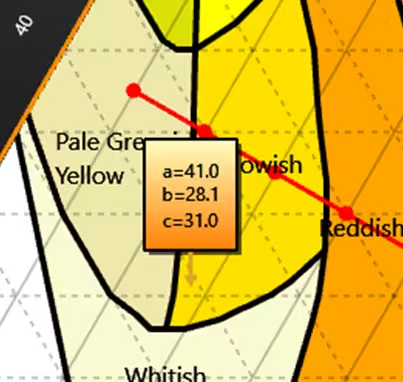
Visual elements such as lines and annotations are added, and interactivity is enabled to display the ternary values when the user hovers the mouse over the chart.
- Dashed lines: A
LineCollectionobject is created, which is used to draw a dashed line between two points on the chart.
// access LightningChart control under TernaryChart
ViewXY viewXY = _ternaryChart._chart.ViewXY;
// add SegmentLine directly to LightningChart
LineCollection linesSegment = new LineCollection(viewXY, viewXY.XAxes[0], viewXY.YAxes[0]);
linesSegment.LineStyle.Color = Colors.LawnGreen;
linesSegment.LineStyle.Width = 5;
linesSegment.ShowInLegendBox = false;
linesSegment.AllowUserInteraction = false;
linesSegment.Lines = new SegmentLine[] { new SegmentLine(lineStartXY.X, lineStartXY.Y, lineEndtXY.X, lineEndtXY.Y) };
viewXY.LineCollections.Add(linesSegment);
// also add annotation
AnnotationXY annotAxisValues2 = new AnnotationXY(viewXY, viewXY.XAxes[0], viewXY.YAxes[0])
{
    Style = AnnotationStyle.Arrow,
    LocationCoordinateSystem = CoordinateSystem.AxisValues,
    Text = "18-carat
gold"
}; - Annotations: An annotation with an arrow style is created, which is placed on the chart to mark an important point, such as 18-carat gold in this case.
annotAxisValues2.TextStyle.Color = Colors.LawnGreen;
annotAxisValues2.TextStyle.MultiLineTextHorizontalAlign = AlignmentHorizontal.Center;
annotAxisValues2.TextStyle.Font = new WpfFont("Tahoma", 12.0, true, false);
annotAxisValues2.ArrowLineStyle.Color = Colors.LawnGreen;
annotAxisValues2.TargetAxisValues.X = (lineStartXY.X + lineEndtXY.X) / 2;
annotAxisValues2.TargetAxisValues.Y = (lineStartXY.Y + lineEndtXY.Y) / 2;
annotAxisValues2.LocationAxisValues.X = Cu100.X;
annotAxisValues2.LocationAxisValues.Y = Au50.Y;
annotAxisValues2.Anchor.X = 0.0f;
annotAxisValues2.Anchor.Y = 0.5f;
viewXY.Annotations.Add(annotAxisValues2); - Interactivity: The functionality is enabled so that the chart displays the ternary values (A, B, C) at the location where the mouse is positioned.
// Show Ternary-Value (a,b,c) At Mouse Location
_ternaryChart.ShowTernaryValueAtMouseLocation = true;
// Axes labels must be updated after chart has got its rendering size
_ternaryChart._chart.Loaded += _chart_Loaded;
// checkBox to manipulate TernaryChart scale
checkBoxEquilateral.Content = "Equilateral
triangle";
checkBoxEquilateral.IsChecked = _ternaryChart.AxesEquallyScaled;
CreateTernaryPhaseBoundaries
The CreateTernaryPhaseBoundaries function aims to define the boundaries of the different phases in a ternary chart. A ternary chart has three axes, each representing a different component. In this case, each phase is represented as a polygon within the chart, and each polygon is associated with a specific name and color.
Definition of Phase Names and Colors
The function begins by assigning names and colors to each phase that will be represented in the ternary chart. Each phase is associated with a color and a descriptive name. These phases can represent different combinations of the three components (in this case, they likely represent combinations of materials or elements).
phaseNames = new string[9] { "White", "Copper Red", "Red
Yellow", "Reddish", "Yellow", "Yellowish", "Whitish", "Green Yellow", "Pale Greenish
Yellow" };
phaseColor = new Color[9] { Colors.White, Colors.Coral, Colors.Gold, Colors.Orange, Colors.Yellow, Color.FromArgb(255, 255, 225, 0),
                          Colors.LightGoldenrodYellow, Color.FromArgb(220, 245, 255, 0), Colors.PaleGoldenrod };
Initialization of Phase Boundaries (Polygons)
phaseBoundariesTriplet = new TernaryPoint[phaseNames.Length][]; The function then creates a two-dimensional structure of TernaryPoint, which will represent the boundaries of each phase. A TernaryPoint is a point on the ternary chart, represented by three values (A, B, C) that indicate the proportions of the three components.
Definition of the Points for Each Phase
The points that form each of the polygons corresponding to each phase are defined. These points are in ternary coordinate format, meaning each point is represented by three values (A, B, C), which indicate the proportions of each component.
// Polygon #0, "White"
phaseBoundariesTriplet[0] = new TernaryPoint[] { new TernaryPoint(100, 0, 0), new TernaryPoint(50, 0, 50), new TernaryPoint(66, 34, 0) };
// Polygon #1, "Copper Red"
phaseBoundariesTriplet[1] = new TernaryPoint[] { new TernaryPoint(32, 68, 0), new TernaryPoint(0, 100, 0), new TernaryPoint(0, 28, 72),
                                                  new TernaryPoint(3, 37, 60), new TernaryPoint(4.5, 40, 55.5), new TernaryPoint(6.6, 43.4, 50),
                                                  new TernaryPoint(9.9, 49.1, 41), new TernaryPoint(10.7, 50.3, 39), new TernaryPoint(12.5, 52.5, 35),
                                                  new TernaryPoint(15, 55, 30), new TernaryPoint(20, 60, 20), new TernaryPoint(26, 64, 10)  };
The “White” phase is represented by a triangle defined by three points:
• (100, 0, 0) (100% of the first component, 0% of the other two).
• (50, 0, 50) (50% of the first and third components, 0% of the second).
• (66, 34, 0) (66% of the first component, 34% of the second, 0% of the third).
Repetition for Other Phases
The process described in the previous sections is repeated for each of the remaining phases. Each phase has its own set of points that define its area within the ternary chart.
Conclusion
For this project, I will slightly change the structure of the conclusion, highlighting key points of optimization, performance, and scope. The code generated in this project has a solid structure, designed with its main objective in mind. That is the creation of a ternary chart that visualizes different phases through polygons, each associated with a name and color.
1. Optimization in Phase Definition
The code is efficient in how it handles phase definitions. It uses a two-dimensional array (TernaryPoint[][] phaseBoundariesTriplet) to store the boundaries of each phase. This approach is concise and allows for easy addition of new phases or modification of existing ones without the need to restructure the code.
2. Ease of Modification and Expansion
Since each phase is represented by a set of points (TernaryPoint[]), along with its associated name and color, the code is easily extensible. If more phases need to be added in the future or existing phase characteristics need to be modified, it is only necessary to adjust the phaseNames and phaseColor arrays, in addition to adding or removing points in the phaseBoundariesTriplet array.
3. Reusability of Logic
The code reuses the logic for defining phases with their respective boundaries and properties. The way the points for each phase are defined repetitively makes the code maintenance easy, as there is no unnecessary duplication of complex structures.
4. Clear and Effective Visualization
The integration of the ternary chart visualizes the phases clearly, using a representative color for each phase, which makes the chart intuitive and easy to interpret.
5. Customization Possibilities
The code also demonstrates the possibility of customizing the phases with different combinations of colors and names, allowing this ternary chart to adapt to different contexts or visualization needs.
6. Scalability
Although the current code handles 9 phases, the structure is designed to be easily scalable. Increasing the number of phases or the complexity of the polygons does not negatively affect performance, as the code does not depend on heavy processes, and the arrays are efficiently handled in memory.
Scope of the Code
This code has great potential for use in various applications:
- Visualization of Component Combinations: It is useful for representing combinations of three substances in fields such as chemistry, materials science, or alloy engineering.
- Education and Analysis: Perfect for teaching or analyzing ternary charts and how compositions change with the proportions of the three components.
- Chemical or Metallurgical Industry: Applicable in industries working with mixtures of three components, such as metal alloy manufacturing or chemical products.
- Simulation and Optimization: It can be used in simulations to analyze how variations in proportions affect a specific outcome.
I hope this conclusion is much more informative and useful to you. I will try to make changes in my future articles, so your feedback will be essential for these changes. Thank you very much for your attention and support.
Continue learning with LightningChart
Which JavaScript Chart Library Do AI Coding Agents Actually Recommend, and Does It Matter?
In this article Why AI coding agents have strong library preferences What the defaults actually are (and the data behind them) When the defaults work fine When they quietly fail you What to do instead: giving your agent better information The keyword angle nobody is...
How to Set Up LightningChart JS in Cursor and Claude Code Using MCP, in Under 5 Minutes
A step-by-step guide to installing the LightningChart JS MCP server so your AI coding agent stops hallucinating chart APIs and starts writing production-ready code from the first prompt. AI coding agents are good at writing chart code. They are less good at writing...
The LightningChart JS Agent Skill: Give Any AI Coding Agent Accurate Charting Knowledge in 60 Seconds
An agent skill is a folder of instructions your AI coding tool picks up automatically. This one teaches any compatible agent how to use LightningChart JS correctly, before it writes a single line of chart code. Agent skills are a relatively new concept and the...