








ImageLayer Chart Application for Optical Semiconductor Measurement System
Tutorial
Written by a Human
In this tutorial, we will be creating an imageLayer chart application for optical semiconductor measurement system.
Omar Urbano
Software Engineer

Introduction
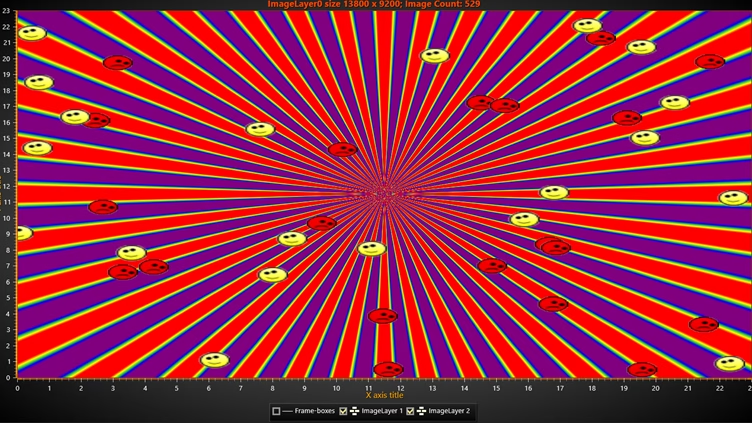
In today’s article, we will work with a chart included in the latest version of LightningChart .NET and apply interactive examples. This is a 2D/XY chart that demonstrates the new “ImageLayer” functionality. The ImageLayer consists of two image layers composed of many bitmaps.
Two image layers: This means the image is divided into two levels or layers, which can be manipulated independently. Each layer can contain different elements of the image, such as text, effects, or different parts of the image. Each bitmap is a representation of the image using a pixel grid, where each pixel has an associated value that defines its color or intensity. The mentioned layers are made up of a large number of these pixels that compose the digital image.
This is common in digital image editing, such as when using graphic design software (e.g., Photoshop), where layers can be added, edited, or moved without affecting the entire image. Now, if we wanted a more complex case study, we could relate this type of chart to optical measurement systems.
When you talk about a “chart” in the context of optical measurement systems, it refers to a type of graph or visual representation used to measure or evaluate different optical parameters. Optical measurement systems are used to analyze various aspects of images, light, or the optical quality of an image, and “charts” are tools to verify the accuracy, resolution, and other attributes of these systems.
What is the semiconductor industry?
The semiconductor industry is dedicated to manufacturing and designing electronic chips that are essential for nearly all modern devices, such as phones, computers, cars, and household appliances. Semiconductors are materials, like silicon, that allow control over the flow of electricity, making it possible for devices to function.
This industry is key to technological advancement, as it improves device performance and is used in areas such as artificial intelligence, 5G, and electric vehicles. Moreover, it holds great economic and political significance due to its influence on global trade.
What are optical semiconductor measurement systems?
Optical measurement systems are tools that use light technology (typically laser or visible light) to measure physical characteristics of objects or surfaces.
Instead of directly touching the object, these systems analyze how light interacts with it, such as reflection, refraction, or dispersion, to obtain precise data about its shape, size, position, or surface characteristics.
- 3D Cameras and Scanners: Capture high-precision images of objects and convert them into three-dimensional models to measure dimensions or detect defects.
- Optical Microscopes: Used to measure very small objects at the microscopic level, such as cells or electronic components.
- Interferometers: Measure distances or displacements with extremely high precision, using light interference.
- Lasers and Distance Meters: Measure distances or the shape of an object by sending a laser beam and measuring the time it takes to reflect.
This type of measurement is useful in fields such as manufacturing, quality inspection, medicine, and scientific research, due to its precision and the fact that it doesn’t require physical contact with the objects being measured.
Two-layer chart and optical semiconductor measurement systems
Now, if we try to relate a ‘chart’ with ‘two image layers composed of many bitmaps’ in an optical measurement system, we could do so in the following way:
1.Resolution or Image Quality Measurement
In an optical system, ‘charts’ can be used to test the resolution, contrast, and sharpness of an optical system. For this, the image generated by the chart could be broken down into several layers, perhaps representing different types of data, such as contrast, focus, or color information. Each layer of the image (in terms of bitmaps) could be associated with different aspects of the measurement, and the bitmaps would help represent how each of these image elements behaves or is measured in the optical system.
2.Analysis of Optical Aberrations or Distortions:
In the case of complex optical systems, such as lenses or cameras, charts can show test patterns (e.g., lines, circles, or grids) that allow the identification of distortions. The images composed of bitmaps (with their different layers) would be used to observe how those patterns behave in the presence of aberrations, such as geometric distortions, vignetting, or poor focus. The different bitmaps or layers could represent variations in light intensity or the details of distortions in various areas of the image.
3.Representation of Multiple Data
If two image layers are used in an optical chart, they could be representing different data obtained from a measurement system. For example, one layer might show the original image captured by an optical system, while the other layer might display data from an additional measurement, such as an evaluation of resolution or color errors.
These layers composed of bitmaps would be used to compare and assess the performance of the optical system. A chart of this type could be a way to represent and analyze different aspects of the images processed by the system. The bitmaps would serve to break the image into pixels, and the layers would allow for separating or comparing different aspects of the measurement more efficiently.
Project Overview
Feel free to download the ZIP file to follow this semiconductor measurement system project.
 Download the project to follow the tutorial
Local Setup
- OS: 32-bit or 64-bit Windows Vista or later, Windows Server 2008 R2 or later.
- DirectX: 9.0c (Shader model 3 and higher) or 11.0 compatible graphics adapter.
- Visual Studio: 2022 for development, not required for deployment.
- Platform .NET Framework: installed version 8.0 or newer.
Now go to the next URL and download LightningChart .NET. You’ll then be redirected to a sign-in form where you’ll have to complete a simple sign-up process to get access to your LightningChart account.

After signing in to your account, you can download the SDK “free trial” version that allows you to use important features for this tutorial. When you download the SDK, you’ll have a .exe file like this:

The installation will be a typical Windows process, so please continue with it until it is finished. After the installation, you will see the following programs:

License Manager
In this application, you will see the purchase options. All the projects that you will create with this trial SDK will be available for future developments with all features enabled.

Creating the project
Once you run the example in the “interactive examples” application, you will see the following option
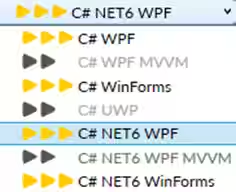
LightningChart .NET can generate a project for the current selected chart, using Windows Presentation Foundation (WPF), WinForms, and their NET6 versions.
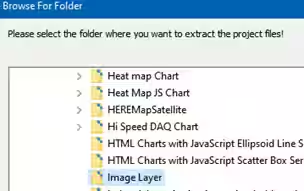
Once you select the extract option, you will have to create a new folder for the project
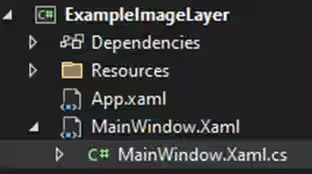
Once the project is saved, Visual Studio will open by itself and you’ll see a project like this
CreateChart
This code creates a chart with multiple image layers using the LightningChart library. Chart Initialization: It initializes a LightningChart object, sets its name, and starts the update process (_chart.BeginUpdate()).
_chart = new LightningChart
{
    ChartName = "ImageLayer creation from multiple images"
};
// Disable rendering, strongly recommended before updating chart properties.
_chart.BeginUpdate();
Adding Image Layers
// Add first layer.
ImageLayer layer1 = new ImageLayer(_chart.ViewXY, _chart.ViewXY.XAxes[0], _chart.ViewXY.YAxes[0]);
layer1.Title.Text = "ImageLayer 1";
layer1.UseColorPaletteOptimization = true;
layer1.ConversionThreadPriority = ThreadPriority.Lowest;
layer1.ProgressEvent += LayerProgressEvent;
_chart.ViewXY.ImageLayers.Add(layer1);
// Add second layer (for several smiley faces)
ImageLayer layer2 = new ImageLayer(_chart.ViewXY, _chart.ViewXY.XAxes[0], _chart.ViewXY.YAxes[0]);
layer2.Title.Text = "ImageLayer 2";
layer2.UseColorPaletteOptimization = true;
layer2.ConversionThreadPriority = ThreadPriority.Normal;
layer2.ProgressEvent += LayerProgressEvent;
_chart.ViewXY.ImageLayers.Add(layer2); - Two
ImageLayerobjects (layer1 and layer2) are added to the chart. - Each layer is associated with the
ViewXY(the chart’s 2D view) and its X and Y axes. - Titles, color optimization, and conversion thread priorities are set for both layers.
- A progress event handler (
LayerProgressEvent) is attached to each layer.
Legend Box Configuration
// configure LegendBox
_chart.ViewXY.AutoSpaceLegendBoxes = true;
_chart.ViewXY.LegendBoxes[0].Position = LegendBoxPositionXY.BottomCenter;
_chart.ViewXY.LegendBoxes[0].Offset.SetValues(0,0); - The
LegendBoxis set to automatically adjust its position. - The first legend box is positioned at the bottom center with no offset.
Finalization
After configuring the chart, the update process is ended (_chart.EndUpdate()), and the chart is added to the gridChart’s children collection.
// Allow chart rendering.
_chart.EndUpdate();
gridChart.Children.Add(_chart);
LayerProgressEvent
This code defines a progress event handler (LayerProgressEvent) for an image layer in a chart, where it handles updates during image layer processing and prevents UI freezing due to frequent updates.
Performance Optimization (Stopwatch)
if (150 < _stopWatch.ElapsedMilliseconds || e.Finished)
{
The event handler uses a Stopwatch (_stopWatch) to ensure that updates happen only after a certain period (150 milliseconds). This prevents the event handler from being triggered too frequently, which could overwhelm the UI thread.
Event Handler Execution
Dispatcher.BeginInvoke(
new Action(
    delegate
    {
If more than 150 milliseconds have passed since the last event or if the image layer processing is finished (e.Finished), the code proceeds to update the UI asynchronously using Dispatcher.BeginInvoke.
UI Updates
if (sender == _chart.ViewXY.ImageLayers[0])
{
    _chart.Title.Text = string.Format("ImageLayer0 size {0} x {1}; Image Count: {2}",
    _iSizeX * _collumnCount, _iSizeY * _rowCount, e.LayerImageCount);
Inside the BeginInvoke, the UI is updated on the main thread (to avoid the UI from freezing).
Layer Information
If the event is for the first image layer (sender == _chart.ViewXY.ImageLayers[0]), the chart’s title is updated with information about the image layer’s size and the number of images in the layer (e.LayerImageCount).
Memory Check
var availableMemory = _computerInfo.AvailablePhysicalMemory;
if (availableMemory < _computerInfo.TotalPhysicalMemory * _pctAvailableMemoryThreshold)
{
    // stop loading images
    _stop = true;
    PerformanceCounter ramCounter = new PerformanceCounter("Process", "Private Bytes",
    Process.GetCurrentProcess().ProcessName, true);
    double currentRAM = ramCounter.NextValue() / 1024 / 1024 / 1024; // GB of memory used
The available physical memory of the system is checked against a predefined threshold (_pctAvailableMemoryThreshold). If available memory is below this threshold, use:
- Stop Image Loading: The flag _stop is set to true, halting further image loading.
RAM Usage Information
A message box is shown, displaying the current memory usage of the application and a warning about low available memory.
MessageBox.Show(string.Format(
"Currently App is using {0:0.0} GB of memory" +
"Less than {1:0.0} % Physical Memory available." +
"Aborting image loading.", currentRAM, _pctAvailableMemoryThreshold * 100));
Visual Update
            _chart.InvalidateVisual();
        }
    }
), System.Windows.Threading.DispatcherPriority.Normal);
 _stopWatch.Restart();
After updating the title and potentially showing the memory warning, the InvalidateVisual method is called to request a visual update of the chart. Finally, Stopwatch is restarted to track the next interval.
GenerateImageAddToLayer
This method sets up an image layer system on a chart and generates image data, adding them to the chart’s image layers.
Variable Initialization
_stop = false;
_threadInProgress = false;
_imageLayer = _chart.ViewXY.ImageLayers[0];
_imageLayer2 = _chart.ViewXY.ImageLayers[1];
_stop and _threadInProgress are flags initially set to false.
_stop It controls if the image generation should continue, and _threadInProgress tracks the thread state.
_imageLayer and _imageLayer2 are set to the first two image layers of the chart.
Calculating Grid Dimensions
_collumnCount = (int)Math.Ceiling(Math.Sqrt(_iImageCount));
_rowCount = (int)Math.Ceiling(Math.Sqrt(_iImageCount));
_xUnit = 1.0 / _iSizeX;
_yUnit = 1.0 / _iSizeY;
The method calculates the number of columns and rows for the grid based on the total number of images (_iImageCount). _xUnit and _yUnit are calculated as the unit size for each image along the X and Y axes based on the image size (_iSizeX, _iSizeY).
Chart Setup
_imageLayer.Clear();
_imageLayer2.Clear();
_chart.ViewXY.LineCollections.DisposeAllAndClear();
_chart.ViewXY.XAxes[0].SetRange(0, _iSizeX * _collumnCount * _xUnit);
_chart.ViewXY.YAxes[0].SetRange(0, _iSizeY * _rowCount * _yUnit);
The chart is updated, starting with clearing the image layers and line collections, resetting the chart’s axes range, and setting up the grid.
Line Collection for Image Frames
LineCollection lc = new LineCollection(_chart.ViewXY, _chart.ViewXY.XAxes[0], _chart.ViewXY.YAxes[0]);
lc.AllowUserInteraction = false;
lc.LineStyle.Color = Colors.White;
lc.LineStyle.Width = 1;
lc.Title.Text = "Frame-boxes";
_chart.ViewXY.LineCollections.Add(lc);
A LineCollection (lc) is created to draw frames around each image. The line color is set to white, and the line width is set to 1. The collection is then added to the chart.
Generating Frame Boxes
for (int i = 0; i < _iSizeY * _rowCount; i += _iSizeY)
{
    for (int j = 0; j < _iSizeX * _collumnCount; j += _iSizeX)
    {
        double left = j * _xUnit;
        double right = left + _iSizeX * _xUnit;
        double top = (_iSizeY * _rowCount - i) * _yUnit;
        double bottom = top - _iSizeY * _yUnit;
        SegmentLine[] imageBox = new SegmentLine[]
        {
            new SegmentLine(left, top, right, top),
            new SegmentLine(right, top, right, bottom),
            new SegmentLine(right, bottom, left, bottom),
            new SegmentLine(left, bottom, left, top),
        };
        listSegment.AddRange(imageBox);
    }
}
The code loops through all the grid positions to generate a series of line segments that will form a box around each image. The boxes are calculated based on the current grid position, and the line segments are added to a list (listSegment).
Display Settings and Finalization
lc.Lines = listSegment.ToArray();
lc.Visible = (bool)showFrame.IsChecked;
_imageLayer.Visible = (bool)showIL1.IsChecked;
_imageLayer2.Visible = (bool)showIL2.IsChecked;
_chart.EndUpdate();
The visibility of the frame collection (lc) and the two image layers (_imageLayer and _imageLayer2) is set based on checkboxes (showFrame, showIL1, showIL2). The chart is finalized with the EndUpdate() method to apply the changes.
Background Thread for Image Generation
A new thread is created to start generating images in the background without blocking the UI. The ImageLayerThread method is invoked within the new thread.
// start background thread for adding images to layers
_thread = new Thread(new ThreadStart(ImageLayerThread));
_thread.Name = "ImageDataGenerator - CreateImages";
_thread.Priority = ThreadPriority.BelowNormal;
_thread.Start();
ImageLayerThread
This method adds images and generates sinusoidal Siemens start patterns. The images are created in a background thread, and the UI thread remains responsive, if an error occurs during image generation, the layers are cleared, and an error message is shown.
Thread Initialization
_threadInProgress = true;
_imageLayer.StartAddingImages();
_imageLayer2.StartAddingImages();
The method starts by marking that a thread is in progress (_threadInProgress = true) to let the main window know that an image-generating background thread has started. It then begins adding images to the image layers (_imageLayer.StartAddingImages() and _imageLayer2.StartAddingImages()).
Load Smiley Images
_imageSmileySad = GetBitmapFrame("SmileySadRed.png");
_imageSmileyHappy = GetBitmapFrame("SmileyHappy.png");
Two images (SmileySadRed.png and SmileyHappy.png) are loaded into memory using the GetBitmapFrame() method. A loop creates 40 random smiley images (either “sad” or “happy”) with random positions and adds them to the second image layer (_imageLayer2).
for (int im = 0; im < 40; im++)
{
    // put bitmap to Image-data container with size and position information
    LayerImageData imageData = new LayerImageData();
    if (im % 2 == 0)
        imageData.Image = _imageSmileySad;
    else
        imageData.Image = _imageSmileyHappy;
    imageData.PositionX = random.Next(_iSizeX * _collumnCount) * _xUnit;
    imageData.PositionY = random.Next(_iSizeY * _rowCount) * _yUnit;
    imageData.SizeX = 1;
    imageData.SizeY = 1;
    // add image to ImageLayer
    _imageLayer2.AddImageData(imageData);
}
The images (smiley faces) are randomly placed on the image layer by assigning positions and sizes to the LayerImageData container. These images are added to _imageLayer2. Once all the smiley images have been added, the second image layer finishes adding images (_imageLayer2.EndAddingImages(0)).
// no sub-layers for 2nd layer
_imageLayer2.EndAddingImages(0);
Generate Siemens Star Image Data
for (int i = 0; i < _iSizeY * _rowCount; i += _iSizeY)
{
    for (int j = 0; j < _iSizeX * _collumnCount; j += _iSizeX)
    {
        // create 2D array of data
        for (int row = 0; row < _iSizeY; row++)
        {
            for (int iCol = 0; iCol < _iSizeX; iCol++)
            {
                // sinusoidal Siemens star
                dPhase = Math.Atan2(j + iCol - xCenter, i + row - yCenter) * iCycles;
                dInt = (dMaxIntensityValue - dMinIntensityValue) * (Math.Cos(dPhase) + 1);
                aData[row][iCol] = dInt;
            }
        }
A 2D jagged array (aData) is created to store pixel intensity values. A loop generates data representing a sinusoidal Siemens star pattern. For each grid location, intensity values are calculated using trigonometric functions based on the position.
Convert Data to Bitmap
          // convert Double-array to bitmap
          BitmapFrame bitmap = ChartTools.ConvertDoubleArrayToIndexed8Bitmap(aData,
new Color[] { Colors.Purple, Colors.Blue, Colors.LimeGreen, Colors.Yellow, Colors.Red },
dMinIntensityValue, dMaxIntensityValue);
The generated 2D array (aData) is converted into a bitmap using the ChartTools.ConvertDoubleArrayToIndexed8Bitmap() method, mapping the intensity values to colors.
LayerImageData imageData = new LayerImageData();
imageData.Image = bitmap;
imageData.PositionX = (j + _iSizeX / 2) * _xUnit;
imageData.PositionY = (_iSizeY * _rowCount - (i + _iSizeY / 2)) * _yUnit;
imageData.SizeX = _iSizeX * _xUnit;
imageData.SizeY = _iSizeY * _yUnit;
// add image to ImageLayer
_imageLayer.AddImageData(imageData);
The generated bitmap is wrapped into a LayerImageData container with position and size information, then added to the first image layer (_imageLayer).
Conclusion
We have reviewed a brief example of the capabilities of LightningChart (in its latest version) and how it can work efficiently with rendering and multitasking using threads. LC .NET allows us to take advantage of all the benefits that .NET offers, along with the tools provided by LC .NET to create, modify, or customize any 2D and 3D chart.
This was a great example to demonstrate working with multiple threads, which is why I decided to explain the most important methods in this project. These methods work together to create and manage a chart with image layers. The process starts by setting up the chart and its layers, where images are added at specific positions with some randomization (like smiley faces).
It handles background tasks efficiently, making sure the UI doesn’t freeze while images are generated. The ImageLayerThread method runs in the background, adding smileys and a cool sinusoidal pattern to the layers.
If something goes wrong, like running out of memory or encountering an error, it stops the process and clears everything up. Overall, the code manages image layers dynamically, optimizes performance, and ensures the user interface stays smooth.
This code could be part of a larger system used to simulate optical measurements, visualize patterns, and test the performance of optical systems, such as cameras, sensors, or lenses. It ensures efficient data handling and visualization, making it a good fit for applications like optical testing, simulation, and calibration. Thanks!
Continue learning with LightningChart
React Charting Performance
Here's a scenario that plays out across development teams every few months. Someone builds a React dashboard, picks Recharts or Victory because they're popular, the devs love them, and the first demo looks great. Then the dataset gets bigger. Or the data starts...

Javascript Charting Library comparison 2026
Every year someone publishes a listicle of JavaScript charting libraries. They screenshot a demo, note the GitHub stars, paste in the npm install command, and call it a day. Then you follow their recommendation, get six months into your project, and discover that your...

Visualizing 10 Million Data Points in the Browser (2026): The Technical Deep-Dive
Ten Million Data Points in the Browser: How WebGL Makes Mass Datasets Interactive Ten million data points. That number used to mean a database problem, not a front-end problem. Now research teams want to explore it interactively in a browser. Trading desks want...



If you have any questions, feel free to contact us!



©LightningChart Ltd 2026. All rights reserved.