





Create a WPF Seismic Spectrogram chart with LightningChart .NET
Tutorial
Written by a Human
In this tutorial, we will learn how to create a WPF seismic spectrogram application in WPF using LightningChart .NET charting library.
Omar Urbano
Software Engineer

Introduction
Hello, I’m Omar, and welcome to a new article on LightningChart and .NET. In this article, we will work with a 3D chart in which we will simulate real-time study. To achieve this, we will use a dataset obtained from Kaggle, which contains records of various events in India.
In this dataset, we will find location, magnitude, and depth data. Since we will be simulating real-time data, we will generate a time range based on our actual time.
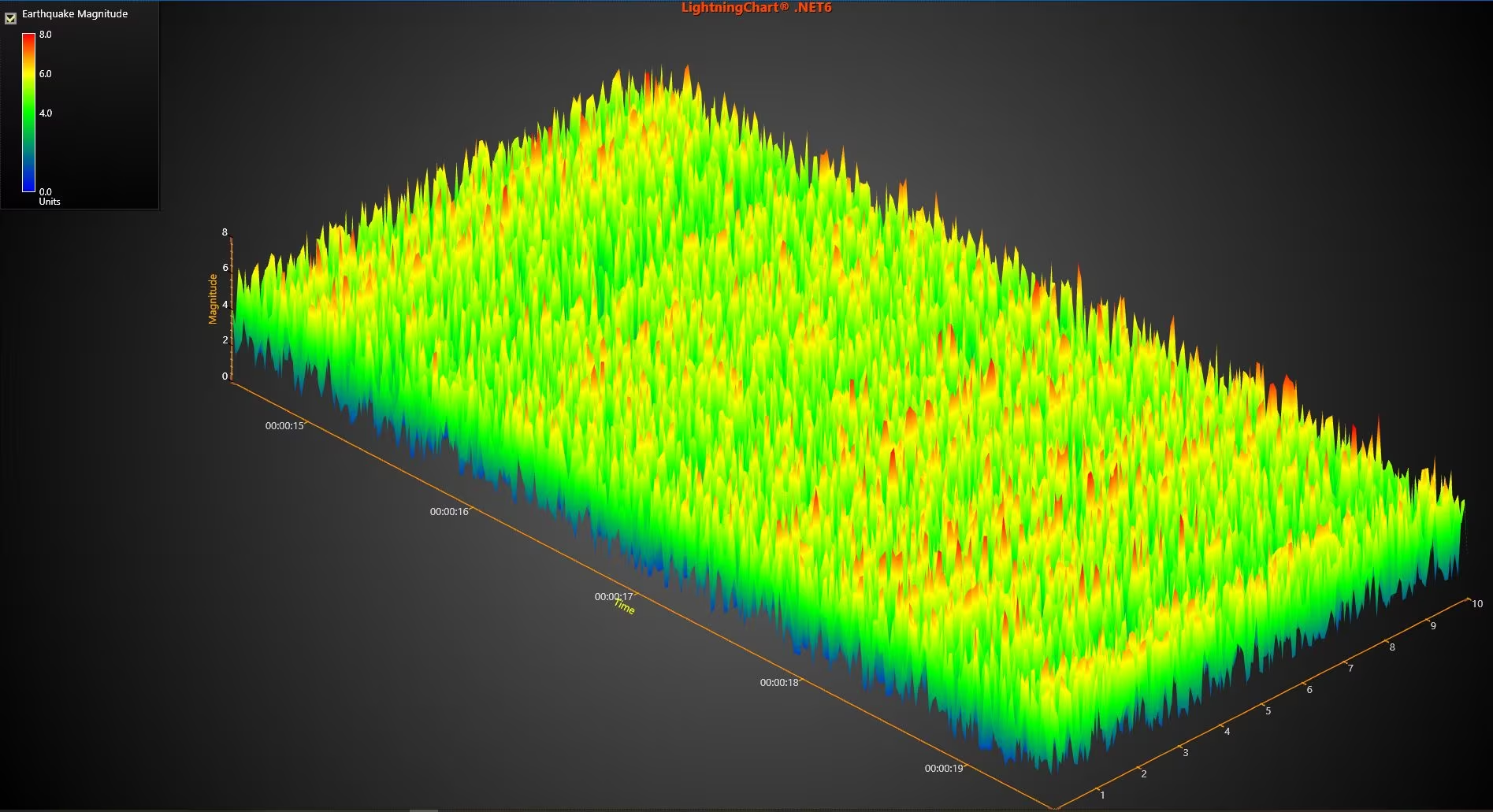
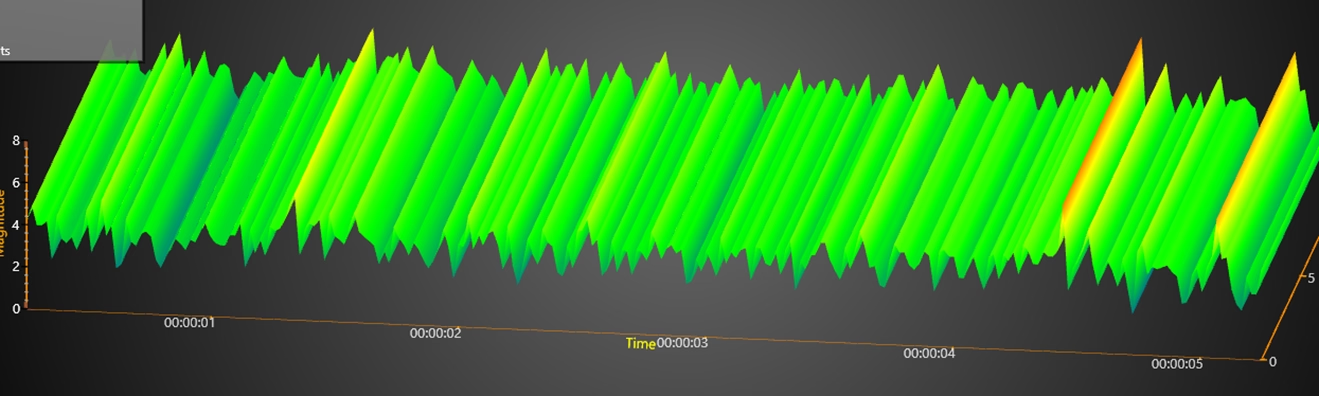
We will use the magnitude data to establish a range of peaks, while the Z-axis will be simulated using a brief calculation based on magnitude. This calculation will serve as a variable to simulate greater “noise” in the displayed peaks.
The goal of this chart is to demonstrate how we can read a dataset and stream it in real-time on a three-axis chart.
What is a seismic spectrogram chart?
A spectrogram is a visual representation of how the frequency spectrum of a signal varies over time. It is commonly used in the analysis of audio signals, vibrations, seismic signals, and other signal processing applications.
Components of a Spectrogram:
- X-axis (horizontal): Represents time.
- Y-axis (vertical): Represents frequency.
- Z-axis (or color in 2D): Amplitude or signal power (dB or arbitrary units).
- Colors or Intensity: Represent the amplitude or power of each frequency at a given moment.
How a Spectrogram Generated
A spectrogram is obtained by applying the Short-Time Fourier Transform (STFT) to segments of the signal to calculate its spectral content at different moments.
Examples of Spectrogram Applications
- Audio and speech analysis: To detect speech patterns, identify sounds, or study acoustic signal quality.
- Predictive maintenance: To analyze vibrations in motors and detect early failures.
- Medicine: Used in EEG (electroencephalograms) and brain wave analysis.
- Seismology: To study earthquakes and geological activity.
What is a seismic spectrogram?
A seismic spectrogram is a visual representation of the energy of ground vibrations in relation to time and frequency. It is used in seismology to analyze seismic activity, detect earthquakes, and study phenomena such as volcanic eruptions or underground explosions.
Properties:
- X-axis (horizontal): Time (seconds, minutes, hours, or days).
- Y-axis (vertical): Frequency (Hz).
- Color or Z-axis: Amplitude of the seismic signal (vibration intensity, usually in dB).
To obtain a seismic spectrogram, the signal is processed using the Short-Time Fourier Transform (STFT), which allows analysis of how frequencies change over time. More intense colors in the spectrogram indicate higher energy at certain frequencies.
This helps identify seismic events, such as earthquakes or volcanic eruptions, and differentiate between natural and artificial events, like explosions. This type of analysis is crucial in seismology and can also be applied to other fields, such as predictive maintenance in industrial machinery.
Project Overview
Feel free to download the ZIP file to follow this semiconductor measurement system project.
 Download the project to follow the tutorial
Local Setup
- OS: 32-bit or 64-bit Windows Vista or later, Windows Server 2008 R2 or later.
- DirectX: 9.0c (Shader model 3 and higher) or 11.0 compatible graphics adapter.
- Visual Studio: 2022 for development, not required for deployment.
- Platform .NET Framework: installed version 8.0 or newer.
Now go to the next URL and download LightningChart .NET. You’ll then be redirected to a sign-in form where you’ll have to complete a simple sign-up process to get access to your LightningChart account.

After signing in to your account, you can download the SDK “free trial” version that allows you to use important features for this tutorial. When you download the SDK, you’ll have a .exe file like this:

The installation will be a typical Windows process, so please continue with it until it is finished. After the installation, you will see the following programs:

License Manager
In this application, you will see the purchase options. All the projects that you will create with this trial SDK will be available for future developments with all features enabled.

Creating the project
Once you run the example in the “interactive examples” application, you will see the following option
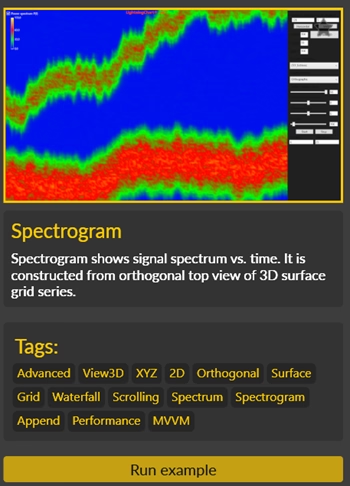
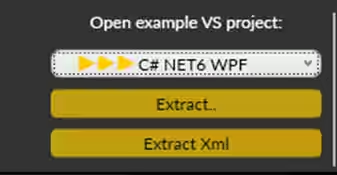
Lightning Chart can generate a project for the current selected chart, using Windows Presentation Foundation (WPF), WinForms, and their NET6 versions.
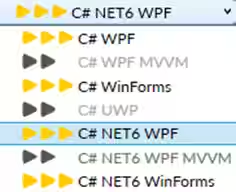
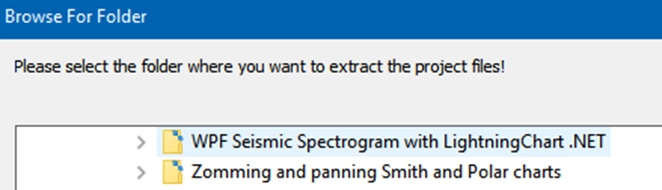
Once you select the extract option, you will have to create a new folder for the project
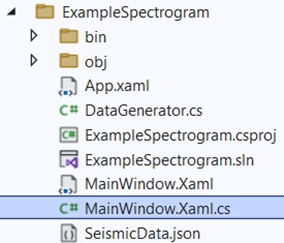
Once the project is saved, Visual Studio will open by itself, and you’ll see a project like this
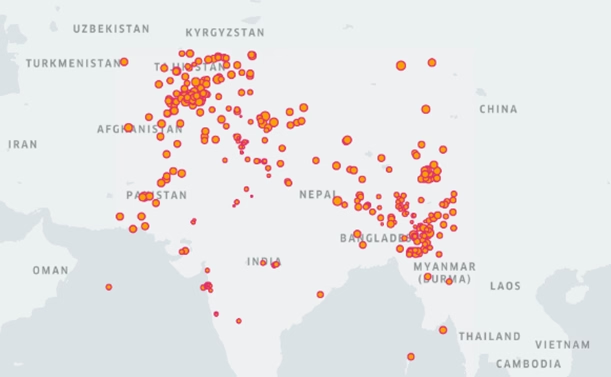
About Dataset: Visualizing India’s Seismic activity
For this project, you can use the India’s Seismic Activity Kaggle dataset. This dataset includes a record of the date, time, location, depth, and magnitude of every earthquake since 1st August 2019.
The magnitude refers to the amplitude or size of the seismic waves generated by an earthquake source. This dataset corresponds to the study of the geographical area of India and is designed to be used on a 2D map, so we will focus solely on the magnitude data. Within the project of this article, you will find a CSV file with all the information and its JSON format for reading on .NET.
MainWindow
Chart Initialization and Cleanup
We will create the LightningChart graph, but first, we ensure that no previous graph remains in the gridChart container. If a previous graph exists, it is destroyed to avoid resource conflicts.
private void CreateChart()
{
    gridChart.Children.Clear();
    if (_chart != null)
    {
        _chart.Dispose();
        _chart = null;
    }
    _chart = new LightningChart
    {
        ChartName = "Spectrogram chart"
}; gridChart.Children.Clear(): Ensures that any previous chart components are removed from thegridChartcontainer._chart.Dispose(): If_chartis not null, it releases the memory of the previous chart.- Creating a new chart: The
_chartobject of type LightningChart is instantiated and assigned a name identifying it as “Spectrogram chart.”
Chart Configuration (Appearance and Axes)
In this section, the visual options of the chart are configured, including the background, axes, legends, and the appearance of values. Everything is organized in a 3D environment. Additionally, properties are adjusted to ensure the chart looks appealing and remains functional.
_chart.BeginUpdate();
_chart.ActiveView = ActiveView.View3D;
_chart.ChartBackground.GradientColor = Colors.Black;
_chart.ChartBackground.Color = Colors.DimGray;
_chart.ChartBackground.GradientFill = GradientFill.Radial;
foreach (var wall in _chart.View3D.GetWalls())
{
    wall.Visible = false;
}
_chart.View3D.XAxisPrimary3D.Orientation = PlaneXAxis3D.XZ;
_chart.View3D.XAxisPrimary3D.CornerAlignment = AxisAlignment3D.Outside;
_chart.View3D.XAxisPrimary3D.MajorDivTickStyle.Alignment = Alignment.Far;
_chart.View3D.XAxisPrimary3D.ValueType = AxisValueType.Time;
_chart.View3D.XAxisPrimary3D.LabelsColor = Color.FromArgb(200, 255, 255, 255);
_chart.View3D.XAxisPrimary3D.MajorDivTickStyle.Color = Colors.Orange;
_chart.View3D.XAxisPrimary3D.MinorDivTickStyle.Visible = false;
_chart.View3D.XAxisPrimary3D.Title.Text = "Time";
_chart.View3D.XAxisPrimary3D.Title.Color = Colors.Yellow; - X, Y, and Z Axes: Configured to represent time and magnitudes, with different ranges and colors for each.
- Legend: The legend’s display is adjusted with titles, colors, and positioning.
Interactive Adjustments and Finalization
This section ensures that the chart includes interactive options and is added to the user interface container, providing a better user experience.
_chart.View3D.Camera.SetPredefinedCamera(PredefinedCamera.TopOrthographicXZ);
_chart.View3D.ZoomPanOptions.DeviceSecondaryButtonAction = UserInteractiveDeviceButtonAction3D.None;
_chart.SizeChanged += _chart_SizeChanged;
_chart.EndUpdate();
gridChart.Children.Add(_chart); - Camera: Configured to view the chart from a top orthographic perspective.
- Zoom and Pan: Interaction options are adjusted, disabling some default actions.
- Resize Event: The chart is subscribed to an event that handles size changes.
- Finalization: The chart update is completed and added to the gridChart user interface container.
MaximizeViewPort
This code is designed to adjust the dimensions of the chart’s 3D view based on the actual size of its container (_chart.ActualWidth and _chart.ActualHeight). The goal is to maximize the visible area of the chart while maintaining the correct aspect ratio for optimal visualization.
Initial Configuration
The code starts by updating the chart and preparing some variables that will be used for dimension calculations.
float MarginPixels = 70f;
float fAspectRatio = (float)(_chart.ActualWidth / _chart.ActualHeight); - MarginPixels: Defines the margin left at the edges of the chart to prevent it from occupying the entire container space.
- fAspectRatio: Calculates the chart’s aspect ratio (the ratio between the chart’s width and height) to proportionally adjust the 3D view dimensions.
Horizontal or Vertical Condition
The code then decides which dimensions to assign based on whether the chart is oriented horizontally or vertically, controlled by the m_bIsHorizontal variable. Depending on this orientation, the Width and Depth dimensions of the chart’s 3D view are adjusted accordingly.
if (fAspectRatio >= 1)
{
    _chart.View3D.Dimensions.Depth = fAspectRatio * 200f * ((float)_chart.ActualWidth - 2f * MarginPixels) / (float)_chart.ActualWidth;
    _chart.View3D.Dimensions.Width = 200f * ((float)_chart.ActualHeight - 2f * MarginPixels) / (float)_chart.ActualHeight;
}
else
{
    _chart.View3D.Dimensions.Width = 200f * ((float)_chart.ActualHeight - 2f * MarginPixels) / (float)_chart.ActualHeight / fAspectRatio;
    _chart.View3D.Dimensions.Depth = 200f * ((float)_chart.ActualWidth - 2f * MarginPixels) / (float)_chart.ActualWidth;
} - Aspect Ratio Greater Than or Equal to 1: If the chart is wider than it is tall, the depth (Depth) and width (Width) are calculated based on the margins and the actual size of the chart, ensuring the proper aspect ratio is maintained.
- Aspect Ratio Less Than 1: If the chart is taller than it is wide, the calculation is reversed, adjusting the dimensions so that the visual proportions are maintained correctly.
- If
m_bIsHorizontalis false (vertical): Here, the process is like the horizontal case, but the calculations for width Width and depth Depth are reversed depending on whether the aspect ratio is greater than or less than 1.
The key difference is the assignment of dimensions, which adjusts based on whether the chart is taller than it is wide (aspect ratio less than 1) or vice versa.
RowDataGenerator_started
This code manages the initialization and configuration of a 3D chart, related to the real-time data visualization of seismic values.
Initial Configuration of the X Axis and Data Range
The values for the X axis of the chart (time) and other visualization parameters are calculated and configured.
int iXWidthSec = 5;
int resolution = 128;
DeleteAllSeries();
_chart.BeginUpdate();
double dAxisXMin = _rowDataGenerator1.IntervalMs / 1000.0 - iXWidthSec;
double dAxisXMax = 0;
m_dStepX = _rowDataGenerator1.IntervalMs / 1000.0;
_chart.View3D.XAxisPrimary3D.SetRange(dAxisXMin, dAxisXMax);
m_dCurrentX = dAxisXMax; iXWidthSec: Controls the width of the chart’s time window in seconds.
dAxisXMinanddAxisXMax: Set the range for the X axis (in this case, the range is centered around the data interval).
m_dStepX: Represents the time step between each data point to be visualized.
Configuration of the 3D Chart Surface (SurfaceGridSeries3D)
A 3D surface series is created and configured to represent the data on the chart.
if (_surface == null)
{
    _surface = new SurfaceGridSeries3D(_chart.View3D, Axis3DBinding.Primary, Axis3DBinding.Primary, Axis3DBinding.Primary);
    _surface.ContourPalette = CreatePalette(_surface);
    _surface.Title.Text = "Earthquake Magnitude";
    _surface.DisableDepthTest = true;
    _surface.ColorSaturation = 100.0;
    _chart.View3D.SurfaceGridSeries3D.Add(_surface);
}
_surface.InitialValue = 10;
_surface.WireframeType = SurfaceWireframeType3D.None;
_surface.ContourLineType = ContourLineType3D.None;
int iSizeX = (int)(iXWidthSec * 1000.0 / _rowDataGenerator1.IntervalMs);
_surface.SetSize(iSizeX, resolution);
_surface.SuppressLighting = true;
_surface.SetRangesXZ(_chart.View3D.XAxisPrimary3D.Minimum, _chart.View3D.XAxisPrimary3D.Maximum, _chart.View3D.ZAxisPrimary3D.Minimum, _chart.View3D.ZAxisPrimary3D.Maximum);
_surface.Material.EmissiveColor = Color.FromArgb(255, 0, 40, 0);
_surface.BaseColor = Colors.White; SurfaceGridSeries3D: Used to create a 3D data representation in the form of a surface.
- Contour and Color Palette: The color palette and visual properties of the surface are set.
- Axis Ranges: The ranges for the X and Z axes are adjusted based on the chart to ensure that the data is represented correctly.
Configuration of Data Generator (RowDataGenerator)
Finally, the parameters of the data generator are adjusted to define how the data series will be generated. This includes settings for data frequency, intervals, and how data points are created for the chart’s 3D visualization.
_chart.EndUpdate();
_rowDataGenerator1.RowLength = resolution;
_rowDataGenerator1.MinValue = 1;
_rowDataGenerator1.MaxValue = 95;
_rowDataGenerator1.Variation = 6; _rowDataGenerator1: The object responsible for generating the data to be visualized on the chart.
- Data Generation Parameters: The characteristics of the generated data are adjusted, such as the row size, minimum and maximum values, and the variation they will have.
RowDataGenerator_started
This code defines a class called DataGenerator that simulates the generation of real-time seismic data for visualization. The class loads seismic data from a JSON file and generates it at periodic intervals using a DispatcherTimer.
Load and Store Seismic Data from a JSON File
The code loads seismic data from a JSON file in the EarthquakeData format. If the file does not exist, an exception is thrown. The data is deserialized into a list of EarthquakeData objects.
string projectRoot = Directory.GetParent(AppDomain.CurrentDomain.BaseDirectory).Parent.Parent.Parent.FullName;
string jsonFilePath = Path.Combine(projectRoot, "SeismicData.json");
_earthquakeData = LoadJsonData(jsonFilePath);
_currentIndex = 0;
_dispatcherTimer = new DispatcherTimer();
_dispatcherTimer.Tick += m_dispatcherTimer_Tick;
_rowLength = 10;
_minValue = 0.0;
_maxValue = 8.0;
_variation = 0.0;
Here, we will create variables that will be useful for adding variations to our magnitudes. These variables will help simulate real-time fluctuations in seismic data for a more dynamic and realistic visualization.
Periodic Seismic Data Generation
This code is inside an event handler for the timer (DispatcherTimer). The timer is triggered at regular intervals defined by the IntervalMs property. Each time the timer “ticks” (i.e., each time the time interval passes), the GenerateData() method is called, which is responsible for generating a set of seismic data.
public double[] GenerateData()
{
    if (_earthquakeData == null || _earthquakeData.Count == 0)
        return Array.Empty<double>();
    var currentData = _earthquakeData[_currentIndex];
    double[] result = new double[_rowLength];
    for (int i = 0; i < _rowLength; i++)
    {
        result[i] = Math.Clamp(currentData.Magnitude + (_variation / 100.0 * (_maxValue - _minValue) * (new Random().NextDouble() - 0.5)), _minValue, _maxValue);
        //result[i] = Math.Clamp(currentData.Magnitude, _minValue, _maxValue);
    }
    NewDataGenerated?.Invoke(new NewDataGeneratedEventArgs(result));
    _currentIndex = (_currentIndex + 1) % _earthquakeData.Count;
    return result;
}
GenerateData returns an array of generated values (based on the magnitude of an earthquake and other defined parameters), which are used for updates in the interface or for further processing. This allows the system to continuously simulate and display updated seismic data at regular intervals.
Variation Calculation
This calculation aims to generate a numerical value based on the magnitude of an earthquake (currentData.Magnitude), adjusted by a variation value (_variation), ensuring that the generated value stays within a specific range (_minValue to _maxValue). This helps simulate realistic fluctuations in seismic data.
result[i] = Math.Clamp(currentData.Magnitude + (_variation / 100.0 * (_maxValue - _minValue) * (new Random().NextDouble() - 0.5)), _minValue, _maxValue);
If you want to display the real magnitude data, you can use the commented line
//result[i] = Math.Clamp(currentData.Magnitude, _minValue, _maxValue); The visual result will be more stable reading
Start and Stop Data Generation
public void Start()
{
    if (!_dispatcherTimer.IsEnabled)
    {
        _dispatcherTimer.Interval = TimeSpan.FromMilliseconds(_interval);
        _dispatcherTimer.Start();
        Started?.Invoke(this, EventArgs.Empty);
    }
}
public void Stop()
{
    if (_dispatcherTimer.IsEnabled)
    {
        _dispatcherTimer.Stop();
        Stopped?.Invoke(this, EventArgs.Empty);
    }
}
Start Method
This method starts with the timer if it is not already running. It first checks if the timer is enabled (i.e., if it is already running) using !_dispatcherTimer.IsEnabled.
If it is not active, it sets the time interval for each “tick” of the timer (based on the IntervalMs value) and then starts the timer with _dispatcherTimer.Start(). It also triggers the Started event, allowing other parts of the code (such as the user interface or processing logic) to know that data generation has begun.
Stop Method
This method stops the timer if it is running. It checks if the timer is active (_dispatcherTimer.IsEnabled) and, if so, stops it with _dispatcherTimer.Stop(). Then, it triggers the Stopped event, indicating that data generation has ended.
Conclusion
LightningChart is an excellent choice for data visualization in .NET, especially when dealing with complex and dynamic charts like earthquake spectrograms. Its straightforward integration, optimization for 3D charts, and high performance make it the ideal tool for developing visually appealing and efficient applications.
The ability to manage large data volumes, combined with ease of customizing the interactive experience, ensures that any project using LightningChart will have a robust and efficient solution. Here are some important points to consider:
- Ease of Implementation: Its integration with .NET is direct and simple, allowing for quick creation of interactive charts.
- Performance Optimization: It handles large data volumes and complex charts smoothly, ensuring real-time experience fast.
- High Customization: It offers extensive options for customizing the visualization, from axes to the legend, enhancing user interactivity.
- Scalability: It is ideal for projects that need to scale and handle large amounts of data without compromising performance.
The most complex part of this project was calculating the data and generating the timers, allowing us to easily and simply implement a 3D chart. The implementation of a 3D chart doesn’t differ much between this and other examples, so if you’ve already worked with 3D charts, this implementation will surely feel very familiar.
Thank you for getting this far, I hope this article was of interest to you. I invite you to visit all our content on YouTube and our blog. Bye!
Continue learning with LightningChart
Using Fibonacci Tools in Trading: A Practical Guide for Market Analysis
Using Fibonacci Tools in Trading: A Practical Guide for Market AnalysisTechnical traders rely on various tools to identify potential support, resistance, and price targets. Among the most widely used are Fibonacci tools, which are based on the mathematical sequence...
Chart.js vs Highcharts vs LightningChart – Which Should You Choose?
If you've been searching for a JavaScript charting library, you already know the problem: comparison articles tend to list features and stop there. Nobody tells you what actually happens at 500,000 data points, or what a Highcharts license costs a team of ten...
7 Best FusionCharts Alternatives in 2026: Faster, Cheaper, More Capable
FusionCharts has been in enterprise JavaScript charting since the early 2000s and built a genuinely broad product, 90+ chart types, over 1,000 interactive maps, multi-language support that most competitors don't come close to matching, and a track record with over...




If you have any questions, feel free to contact us!
©LightningChart Ltd 2025. All rights reserved.