





Dashboard Implementation of a Naval Vessel’s Marine Engine Condition Monitoring Application
Tutorial
Written by a Human
Marine engine condition monitoring application project using WPF chart controls.

Omar Urbano
Software Engineer

Introduction
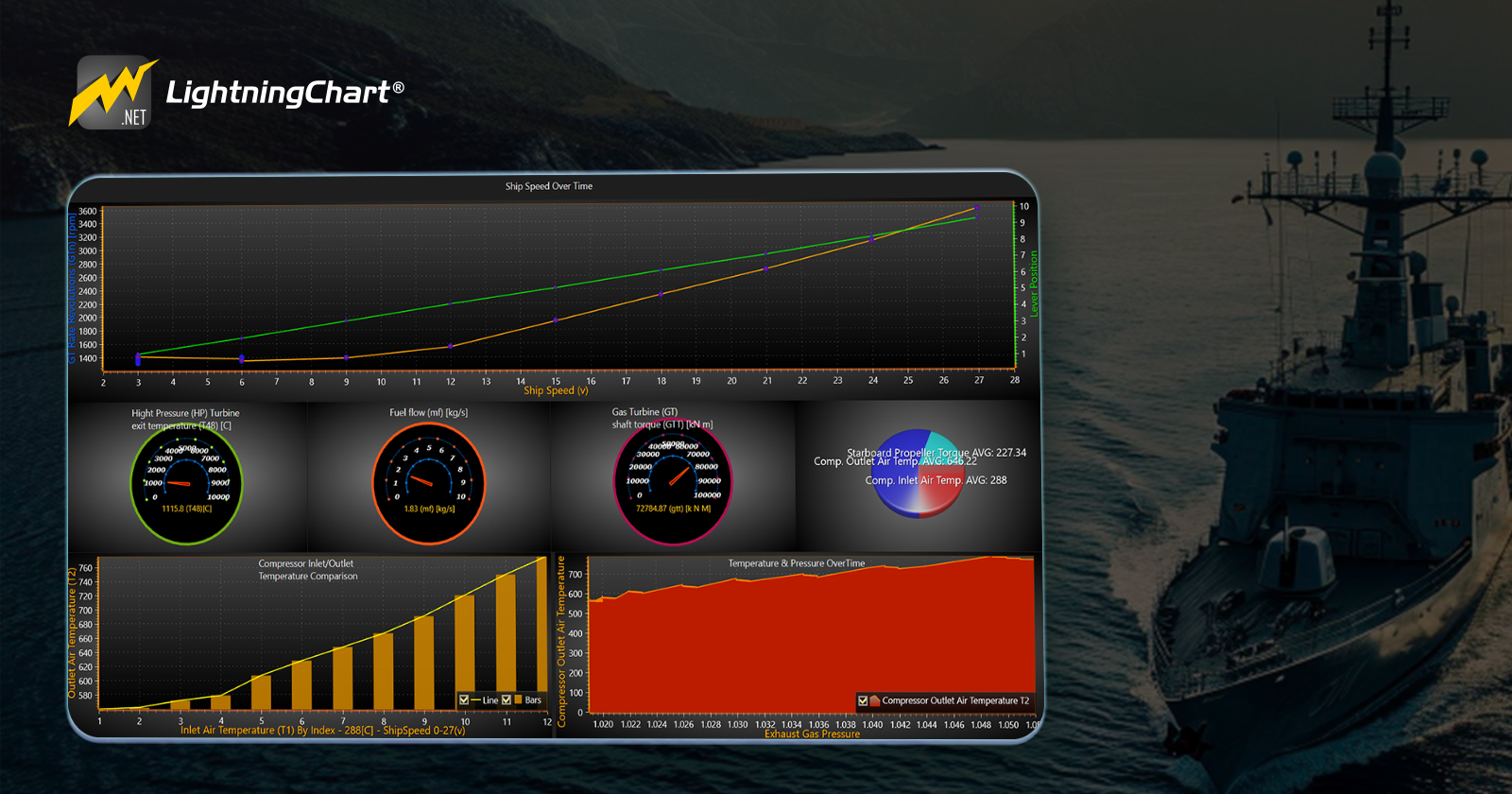
I’m Omar again, and in this article, we will create a marine engine condition monitoring dashboard for a naval vessel with the help of LightningChart .NET charting components and WPF NET 8.
Before starting the project, consider the technical requirements so that you don’t have compatibility problems. The main objective of this dashboard is to generate a template to experiment with different types of charts relevant to the naval industry. In this example, to create the marine engine condition monitoring application, I will use line, radial, bar, and area charts.
Marine Engine Condition Monitoring

Before starting with the code, I would like to briefly explain some concepts shown in this dashboard, as well as explain the structure of this project.
What is the ship’s speed?
The speed of a ship may vary depending on the type of vessel and its purpose.
- Cargo ships: Typically travel at speeds between 12 to 25 knots (22 to 46 km/h or 14 to 29 mph).
- Cruise ships: Generally, cruise at speeds of around 18 to 22 knots (33 to 41 km/h or 20 to 25 mph).
- Naval ships: Can vary, but many modern destroyers and frigates can reach speeds of 30 knots (56 km/h or 34 mph) or more.
- Speedboats: Designed for high-speed travel, these can exceed speeds of 50 knots (93 km/h or 58 mph).
What is the compressor degradation coefficient (kMc)?
The compressor degradation coefficient (kMck_{Mc}kMc) is a parameter used to quantify the impact of performance degradation on a compressor over time. It is often used in various engineering fields, especially in the context of gas turbines and other rotating machinery where compressors play a crucial role.
Key Points About kMck_{Mc}kMc:
- Purpose: It measures how much the performance of a compressor deteriorates due to factors like wear, fouling, or damage. This helps in assessing the need for maintenance or replacement.
- Usage: In predictive maintenance and performance analysis, kMck_{Mc}kMc helps to estimate how much the compressor’s efficiency and capacity have decreased compared to its original performance.
- Units: The coefficient itself is typically dimensionless, as it represents a relative measure of degradation.
- Calculation: kMck_{Mc}kMc is often determined through empirical data and performance testing. It can be part of more complex performance models and degradation prediction algorithms.
- Context: The exact definition and application of kMck_{Mc}kMc can vary depending on the industry and specific engineering models used.
What is the turbine degradation coefficient (kMt)?
The turbine degradation coefficient (kMtk_{Mt}kMt) is a parameter used to quantify the extent of performance degradation in a turbine over time. This coefficient helps in evaluating how much the efficiency and overall performance of the turbine have diminished due to factors such as wear, fouling, erosion, or other types of damage.
In practical terms, a higher kMtk_{Mt}kMt indicates more significant degradation, meaning the turbine is operating less efficiently than when it was new. If you have a specific context or type of turbine in mind, additional details can be provided tailored to that application.
What is the turbine engine thrust torque (GTT)?
The term “thrust torque” (often abbreviated as GTT or sometimes referred to as TTT) is not a standard term widely recognized across all engineering disciplines. However, it can be interpreted in specific contexts where it may refer to the torque generated by a propulsion system in relation to the thrust produced.
- Formula: Torque(T)=Thrust×Radius
- Definition: Thrust torque typically refers to the torque generated by a propulsion system, such as a jet engine or a propeller, in relation to the thrust it produces. In a propulsion system, torque and thrust are related but represent different aspects of the system’s performance.
- Relation to Thrust: In jet engines or propellers, thrust is the force that propels the vehicle forward, while torque is a measure of rotational force. For a propeller-driven aircraft, thrust torque can be understood as the torque applied to the propeller shaft to produce the required thrust.
What are the revolutions per minute in a gas generator (GGn) [rpm]?
In a gas generator (GGn), the revolutions per minute (RPM) refer to the rotational speed of the gas generator’s shaft. This shaft is typically connected to the core of the gas turbine engine and is crucial for its operation.
What is turbine injection control (TIC) [%]?
Turbine Injection Control (TIC) is a parameter used in gas turbine engines to regulate the amount of fuel or other substances injected into the turbine to control its performance. TIC is typically expressed as a percentage and indicates the relative amount of fuel or other injectants being delivered compared to the maximum possible amount.
Project Overview
This project is working with the .NET WPF framework. This framework allows us to work with the user interface and C# code at the same time. This project was created with version 8 of .NET, so I recommend that you install this version or the latest one. You will need Visual Studio 2022 or newer to be able to run it.

 Download the project to follow the tutorial
About the Dashboard Application
Dashboard Structure
Within the Project, you will find an Excel file with various sheets corresponding to a specific chart type. I will now explain the structure of each chart.
Line Chart
- Purpose: Show the trend over time.
- Recommended Columns: Ship speed (v) or GT rate of revolutions (GTn) vs. Lever Position.
- Configuration:
- X-axis: Ship speed
- Y-axis: GT rate of revolutions (GTn)
- Y-axis: Lever Position
Gauge Charts
- Purpose: Display status or performance within a range.
- Columns: Metrics that represent performance or current state.
- Configuration:
- Gauge 1: Gas Turbine (GT) shaft torque (GTT)
- Gauge 2: High Pressure (HP) Turbine exit temperature (T48)
- Gauge 3: Fuel flow (mf) [kg/s]
Bar Chart
- Purpose: Compare different categories or discrete values.
- Columns: Various metrics that can be compared across different instances.
- Configuration:
- X-axis: GT Compressor inlet air temperature (T1)
- Y-axis: GT Compressor outlet air temperature (T2)
- Alternatively, use metrics like Starboard Propeller Torque (Ts) for different ship speeds.
Pie Chart
- Purpose: Show the proportion of different categories or components.
- Columns: Metrics that can be categorized into parts of a whole.
- Configuration:
- Slices: Different metrics or performance indicators like GT Compressor inlet air temperature (T1), GT Compressor outlet air temperature (T2), etc.
Area Series Chart
- Purpose: Visualize the cumulative value over time and compare different metrics.
- Columns: Metrics that vary over time and can be stacked.
- Configuration:
- X-axis: Index
- Y-axis: Multiple metrics such as GT Compressor inlet air temperature (T1), GT Compressor outlet air temperature (T2), and GT exhaust gas pressure (Pexh).
This structure provides a comprehensive view of the data, facilitating the analysis of key performance indicators for the marine engine condition monitoring application.
Why did I choose these parameters for data collection?
Even though I am not an expert on Naval Vessels, I decided to simulate situations where the condition of crucial components in complex systems was being measured. That’s when the idea came to me to research Naval Vessel’s Marine Engines, learn more about them, and at the same time learn about a topic that is unfamiliar to me.
I researched and read some information about key components in such vessels. I’ve previously worked in the oil, food, and other industries as an industrial air compressor maintenance technician, so I have some knowledge of similar or slightly related components. Below are the points I decided to include in the monitoring dashboard and the reasons behind them:
1. Turbine Temperature: Temperature is one of the most important parameters because it indicates whether the turbine is operating within its safe range. Excessive temperatures can damage the engine’s internal parts and reduce its lifespan. It also helps prevent overheating, which could lead to catastrophic failures.
2. Fuel Flow: Fuel flow regulates the amount of energy the gas generator receives. Monitoring it ensures that the engine receives enough fuel to operate at its optimal power and efficiency level. Insufficient fuel flow could result in malfunction, reduced efficiency, or even system failures.
3. Turbine Injector Control: The turbine injectors control the amount and mixture of fuel entering the combustion chamber. If they are not functioning properly, it could cause poor combustion, reducing efficiency and negatively impacting the generator’s performance. Additionally, poor injector control could lead to excessive pollutant emissions.
4. Gas Generator RPM (GGn): RPM indicates the rotational speed of the turbine and the generator. Maintaining a constant speed within the optimal range is crucial for system stability and to avoid damage from overspeed or underspeed, which can occur if not properly monitored.
5. Turbine Engine Thrust Torque (GTT): Thrust torque is the measure of the force generated by the turbine to move the generator. Monitoring it helps ensure the turbine is producing the right amount of power for the generator to operate efficiently. A low thrust torque may indicate mechanical issues, such as excessive friction or wear in the turbine components.
How do I process this marine engine condition monitoring data, and what sensors were analyzed?
Unfortunately, this data was obtained from a public dataset on the internet, but I am currently working on the development of electronic monitoring modules for a glass manufacturing plant in my city. The process is quite personal, so I might be wrong, but I hope it is useful to you.
It is worth mentioning that the dashboard developed in .NET uses data processing logic that could be useful to you at a more advanced stage once you obtain sensor values.
Sensor Assembly:
At this point, it is necessary to analyze which sensors can withstand the environmental conditions (temperature, surface, dust levels, humidity, etc.). Let me mention the types of sensors you could use for each component:
Turbine Temperature – Temperature Sensors (Thermocouples or RTDs):
– Thermocouples are common sensors for measuring high temperatures in turbines.
– They can withstand high temperatures and provide accurate readings.
– RTDs (Resistive Temperature Detectors) are also used in some applications, as they are more precise within a moderate temperature range but are less common in gas turbines.
Fuel Flow – Mass or Volumetric Flow Sensors:
– Flow meters such as ultrasonic flow meters, electromagnetic flow meters, or Coriolis mass flow meters are used.
– These sensors can measure the amount of fuel passing through pipes in terms of volume or mass, which is key for controlling the amount of fuel entering the turbine.
Turbine Injector Control – Pressure and Temperature Sensors on the Injector:
– To monitor the functioning of the fuel injectors, pressure and temperature sensors are used in the injection system.
– These sensors help ensure that fuel is injected correctly and under ideal conditions for proper combustion.
Gas Generator RPM (Revolutions per minute) – Speed Sensors (Encoders or Tachometers):
– Rotational encoders or tachometers are used to measure the rotational speed of the turbine shaft. These sensors provide precise RPM readings and allow control of the generator speed, preventing overspeed or under speed.
Turbine Engine Thrust Torque (GTT) – Torque Sensors (Torque Transducers):
– To measure the thrust torque, torque sensors are used, which are designed to measure the rotational force generated by the turbine.
– These sensors are typically mounted on the turbine shaft and can measure both torque and the generated power.
As an important note, I assume that the temperature, kinetic ranges, and other factors are much higher than what we would normally sense in daily life. Therefore, you would need to research with industrial sensor manufacturers which models could offer you sensors that can withstand such conditions.
As a recommendation, you could work with smaller components that allow you to experiment. I would recommend using more accessible sensors that can help you develop your programming logic. Many industrial sensors share similar logic to microcontrollers such as the ESP 32 and
Arduino. Therefore, your development wouldn’t be far off from what would be a real-world practice (except for assembly pieces and dynamic ranges).
Data Processing and Microcontrollers
Once one has the sensors, which will depend on one’s own budget, there are various data processing options to choose from:
1. Embedded Sensors: These sensors work as independent modules, where within a small casing (steel box, structure, or other materials) you will find the sensor, a microprocessor (e.g., ESP 32, ARDUINO), and electrical components (wires, resistors, batteries, etc.). These modules aim not to rely on a computer and can sense on their own once powered.
How the data is collected and transmitted will depend on the programming logic added to the microprocessor. Some sensors do not require a microprocessor because they already come with one integrated, so the first example applies to embedded sensors that you create yourself.
2. Integrated Sensors: As I mentioned earlier, these sensors do not come with a built-in microcontroller and require an external microprocessor, which (at this point) will be in a remote location, and communication is carried out via wiring, Wi-Fi, or Bluetooth. The microprocessor will be responsible for receiving the sensed data, and the logic you generate will create an active response (e.g., a JSON Blob), which you can use to identify each parameter and use it later.
For example, the ESP 32 and Arduino can be programmed through the ESP or Arduino IDE, which works perfectly on a PC.
Programming
At this point, you will have several options to obtain and store data from your sensors. You will need a server, a central computer that receives the signals from your sensors. Each sensor will be a port, and you will need access to each port to consume its active responses.
For example, C# offers the System.IO.Ports tool, which allows you to access a specific port and get the active response from the sensor (e.g., JSON Blob). Once you have obtained that response, you will need to process these responses and store them in a database, flat file, or any other source you prefer.
If you require the monitoring to be visible on the web, you will need to implement a web socket, which is like a web service that receives responses and HTTP requests, but in a more agile way than a traditional web service. A web socket will always be active and will receive data second by second. This web socket should be on the web server.
How often do these sensors report?
Once your infrastructure is set up, the data transmission speed and activity periods will depend on the quality and power of the sensors, the microcontroller programming, the server’s power, and the quality of your code. You can schedule tasks that will run your web socket or API at specific hours and/or days.
Do you set alarms or thresholds with these parameters to flag irregularities?
Yes, it is possible, a fundamental part of monitoring is to inform about issues or irregularities in the components. Let’s say your turbine has a maximum temperature of 150°C and a minimum of 80°C. One can set this temperature range within the API. Any value above or below this range should trigger an alarm. What I do is, use C#, alert via email, and UI (dashboard) to the engineers or supervisors. Also, one can implement an alarm that triggers via PLCs when the computer receives a dangerous signal.
Can your program predict potential failures and generate trends based on the collected measurements?
The dashboard in this article is quite basic, and its purpose is more educational. However, in a more real-world development, you can certainly implement algorithms based on the collected data.
As I mentioned earlier, based on the technical sheet of each component, you should set ranges. I think the easiest part is detecting numerical values, the way you alert will be the most complex part. Implementing alarm systems, email message sending, mobile apps, or other options will be the real challenge.
Does your system have a backup protocol in case of a power outage or blackout?
I’m not an expert in electricity, but I can share a real case. Currently, in my development, we don’t need to worry much about this issue since the plant has its own battery backup system. If the city power goes out, these batteries activate, with enough autonomy to last for a day.
Now, on a more local level, the servers where your data is hosted should have protection systems for power fluctuations, such as uninterruptible power supplies (UPS). These will help keep your servers stable if the local power source switches to battery power.
Is it able to suggest adjustments for optimizing injection or adjustments to improve fuel efficiency?
I believe this area is more suited for other specialists. I suppose that, with historical levels of temperature, vibration, noise, etc., a mechanical
engineer and even a chemical engineer could recommend the use or replacement of mechanical and chemical components (lubricants, for example). This task requires analyzing various factors, from lubrication and fuel type to the environment surrounding the component.
Have you incorporated any parameters related to air pollution, and if so, how are they measured?
I have used some sensors to measure the level of gases in the environment, alongside temperature sensors. There are gas sensors, particulate matter sensors, volatile organic compounds, electrochemical sensors, optical sensors (laser or scattered light), NDIR sensors (non-dispersive infrared), and metal-oxide semiconductor (MOS) sensors. I haven’t used any of these, as many are difficult to obtain or are expensive. I researched some models that you might want to check out, which could help you in more detail:
- Electrochemical: Alphasense (CO, NO2, O3, SO2), Figaro TGS-5340 (VOCs, H2).
- Laser/Optical: Plantower PMS5003 (PM2.5, PM10), Honeywell HPMA115S0 (PM2.5, PM10).
- NDIR (Non-dispersive Infrared): MH-Z19 (CO2), Senseair S8 (CO2), K-30 (CO2).
- MOS (Metal-oxide Semiconductors): Figaro TGS Series (various gases and VOCs), CCS811 (VOCs, CO2).
Local Setup
- OS: 32-bit or 64-bit Windows Vista or later, Windows Server 2008 R2 or later.
- DirectX: 9.0c (Shader model 3 and higher) or 11.0 compatible graphics adapter.
- Visual Studio: 2022 for development, not required for deployment.
- Platform .NET Framework: installed version 8.0 or newer.
Now go to the next URL and download LightningChart .NET. You’ll then be redirected to a sign-in form where you’ll have to complete a simple sign-up process to get access to your LightningChart account.

After signing in to your account, you can download the SDK “free trial” version that allows you to use important features for this tutorial. When you download the SDK, you’ll have a .exe file like this:

The installation will be a typical Windows process, so please continue with it until it is finished. After the installation, you will see the following programs:

License Manager
In this application, you will see the purchase options. All the projects that you will create with this trial SDK will be available for future developments with all features enabled.

Markup
Markup enables us to build a user interface with a variety of controls, allowing us to manage the displayed results in the application with great precision. This interface development is done using XAML (Extensible Application Markup Language). While it might initially look like an XML template, XAML is specifically designed for building application interfaces rather than just exchanging data between applications. The interface’s data, graphics, and animations can either be pulled from an external source file or dynamically generated through the code behind it.
Code Behind
The code behind refers to the file containing the executable code responsible for reading, generating, and processing the results the user needs. One of its main purposes is to separate the graphical interface code (like XAML, HTML, CSS, etc.) from the executable code. This separation allows us to divide the work between user interface design and the development of the underlying code, leading to safer, more organized, and faster development.
In the case of WPF (Windows Presentation Foundation), we use the C# programming language. C# is an object/component-oriented language that fits well with this approach. Lightning Chart .NET generates WPF projects with C# code that’s ready for execution. Within this code, you can use LightningChart .NET own tools, which can be easily imported if the LC .NET framework is installed.
XAML Code Review
The design of our application will be contained within the MainWindow.xaml file. Although it will be something quite simple, we will try to apply some visual properties that give us a “softer” or less aggressive style, applying dark colors that are normally used in modern designs.
For the fonts, we will use a slightly gray color, which will give us a more relaxing and comfortable style to the eye.
<!-- Modern style for labels -->
<Style TargetType="Label">
    <Setter Property="Foreground" Value="#E1E1E1"/>
    <Setter Property="FontSize" Value="14"/>
    <Setter Property="Margin" Value="5"/>
</Style>

<!-- Modern style for checkboxes -->
<Style TargetType="CheckBox">
    <Setter Property="Foreground" Value="#E1E1E1"/>
    <Setter Property="Margin" Value="5"/>
</Style>

<!-- Modern style for textboxes -->
<Style TargetType="TextBox">
    <Setter Property="Foreground" Value="#E1E1E1"/>
    <Setter Property="Background" Value="#333333"/>
    <Setter Property="BorderBrush" Value="#444444"/>
    <Setter Property="BorderThickness" Value="1"/>
    <Setter Property="Padding" Value="5"/>
    <Setter Property="FontSize" Value="14"/>
</Style>
We will keep the color palette dark, to avoid aggressive contrasts. To create the dashboard, use the Grid component.
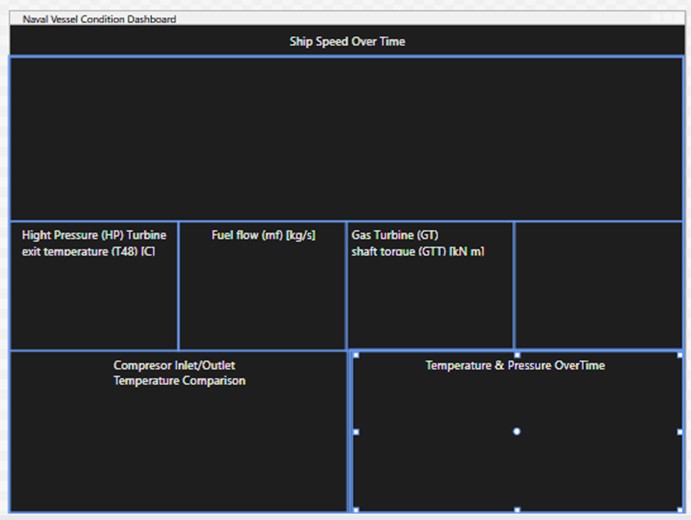
This grid will contain 3 rows. The first row will display the line chart:
<Grid Grid.Row="0" Margin="0,0,0,0">
    <Grid.ColumnDefinitions>
        <ColumnDefinition Width="*"/>
    </Grid.ColumnDefinitions>
    <Label Content="Ship Speed Over Time" Margin="0,0,0,176" HorizontalAlignment="Center"/>
    <Grid Name="shipSpeedOverTime_grid" Grid.Column="0" Margin="0,35,0,0"/>
</Grid>
The middle row will correspond to the gauge charts:
<Grid Grid.Row="1" Margin="0,0,0,0">
    <Grid.ColumnDefinitions>
        <ColumnDefinition Width="*"/>
        <ColumnDefinition Width="*"/>
        <ColumnDefinition Width="*"/>
        <ColumnDefinition Width="*"/>
    </Grid.ColumnDefinitions>
    <Grid x:Name="performanceMetricsDistributionPie_grid" Grid.Column="3"/>
    <Grid x:Name="fuelFlow_grid" Grid.Column="1"/>
    <Grid x:Name="highPressureTurbineGauge_grid" Grid.Column="0">
        <!--<Grid.ColumnDefinitions>
            <ColumnDefinition Width="56*"/>
            <ColumnDefinition Width="143*"/>
        </Grid.ColumnDefinitions>-->
    </Grid>
    <Grid x:Name="gasTurbineShartTorque_grid" Grid.Column="2"/>
    <Label Content="Gas Turbine (GT)
shaft torque (GTT) [kN m]" Grid.Column="2" Margin="0,0,0,109" HorizontalAlignment="Center" Width="199"/>
    <Label Content="Hight Pressure (HP) Turbine
exit temperature (T48) [C]" Margin="0,0,0,109" HorizontalAlignment="Center"/>
    <Label Content="Fuel flow (mf) [kg/s]" Grid.Column="1" Margin="0,0,0,110" HorizontalAlignment="Center"/>
</Grid>
The last row will contain the bar, line, and area charts:
<Grid Grid.Row="2">
    <Grid.ColumnDefinitions>
        <ColumnDefinition Width="1.5*"/>
        <ColumnDefinition Width="1.5*"/>
    </Grid.ColumnDefinitions>
    <Grid x:Name="temperature_Pressure_OverTime_grid" Margin="6,0,0,0" Grid.Column="1"/>
    <Grid x:Name="temperature_Comparison_grid" Grid.Column="0"/>
    <Label Content="Compressor Inlet/Outlet
Temperature Comparison" Grid.Column="0" Margin="0,0,0,142" HorizontalAlignment="Center"/>
    <Label Content="Temperature & Pressure OverTime" Grid.Column="1" Margin="0,0,0,142" HorizontalAlignment="Center"/>
</Grid>
MainWindow.xaml.cs
The C# content view of the project will execute each of the chart components of the dashboard. Start by importing and instantiate each of the classes:
Gas_Turbine_Shaft_Torque gas_Turbine_Shaft_Torque = new();
High_Pressure_Turbine_Exit_Temperature high_Pressure_Turbine_Exit_Temperature = new();
Fuel_Flow fuel_flow = new();
Ship_Speed_Over_Time ship_Speed_Over_Time = new();
Performance_Metrics_Distribution performance_Metrics_Distribution = new();
Temperature_Pressure_OverTime temperature_Pressure_Over_Time = new();
Temperature_Comparison temperature_Comparison = new();
Now, clear each of the chart components by using the Clear() function:
public ExampleLidar()
{
    InitializeComponent();
    gasTurbineShartTorque_grid.Children.Clear();
    highPressureTurbineGauge_grid.Children.Clear();
    fuelFlow_grid.Children.Clear();
    shipSpeedOverTime_grid.Children.Clear();
    performanceMetricsDistributionPie_grid.Children.Clear();
    temperature_Comparison_grid.Children.Clear();
    temperature_Comparison_grid.Children.Clear();

    var gasTurbineShartTorque = gas_Turbine_Shaft_Torque.CreateChart();
    var highPressureTurbineGauge = high_Pressure_Turbine_Exit_Temperature.CreateChart();
    var fuelFlowGauge = fuel_flow.CreateChart();
    var shipSpeedOverTimeLine = ship_Speed_Over_Time.CreateChart();
    var performanceMetricsDistributionPie = performance_Metrics_Distribution.CreateChart();
    var temperaturePressureOverTimeArea = temperature_Pressure_Over_Time.CreateViewChart();
    var temperatureComparisonBar = temperature_Comparison.CreateChart();
Now that we’ve removed or cleaned up any execution of the components, run the CreateChart() function, which exists in each of our components and is responsible for orchestrating multiple functions.
gasTurbineShartTorque_grid.Children.Add(gasTurbineShartTorque);
highPressureTurbineGauge_grid.Children.Add(highPressureTurbineGauge);
fuelFlow_grid.Children.Add(fuelFlowGauge);
shipSpeedOverTime_grid.Children.Add(shipSpeedOverTimeLine);
performanceMetricsDistributionPie_grid.Children.Add(performanceMetricsDistributionPie);
temperature_Pressure_OverTime_grid.Children.Add(temperaturePressureOverTimeArea);
temperature_Comparison_grid.Children.Add(temperatureComparisonBar);
Finally, add each component to its corresponding grid.
Support methods
Each component contains support methods that help generate data.
- LoadJsonFile(): This method will process each of our JSON files, returning a list of the CompressorData class:
public class CompressorData
{
    [JsonPropertyName("GasTurbine(GT)_Shaft-Torque(GTT)")]
    public double GasTurbine { get; set; }
}
This class will have one or more variables depending on the data used.
public static List<CompressorData> LoadJsonFile(string filePath)
{
    try
    {
        // Read the JSON file content
        string jsonString = File.ReadAllText(filePath);

        // Deserialize the JSON content into a list of CompressorData objects
        List<CompressorData> dataList = JsonSerializer.Deserialize<List<CompressorData>>(jsonString,
            new JsonSerializerOptions
            {
                PropertyNamingPolicy = JsonNamingPolicy.CamelCase
            });

        return dataList;
    }
    catch (Exception ex)
    {
        Console.WriteLine($"Error reading or parsing file: {ex.Message}");
        return new List<CompressorData>();
    }
GetData
These methods will be responsible for formatting specific values in our list:
public static double[] GetFuelData(List<CompressorData> dataList)
{
    // Extract the GTCompressorOutletAirTemperature(T2) values
    List<double> fueldata = new List<double>();

    foreach (var data in dataList)
    {
        fueldata.Add(data.GasTurbine);
    }

    return fueldata.ToArray();
}
Ship Speed Over Time – Line Chart

To create this chart, use 3 axes (Y-X-Y and the dataset “Ship Speed Over Time.json”, and use the following values:
public class CompressorData
{
    [JsonPropertyName("ShipSpeed(v)")]
    public int ShipSpeed { get; set; }

    [JsonPropertyName("GTRateRevolutions(GTn)[rpm]")]
    public double GTRateRevolutions { get; set; }

    [JsonPropertyName("Lever_position")]
    public double Lever_position { get; set; }
}
Create the chart
//Create new chart
_chart = new LightningChart();
Create the X-axis and set the range to the smallest and largest values within the dataset. Set the scroll mode to “None” and the data type to number:
AxisX xAxis = _chart.ViewXY.XAxes[0];
xAxis.SetRange(dataList.Min(data => data.ShipSpeed) -1, dataList.Max(data => data.ShipSpeed)+1);
xAxis.ScrollMode = XAxisScrollMode.None;
xAxis.ValueType = AxisValueType.Number;
xAxis.Title.Text = "Ship Speed (v)";
Create the Y-axis for Rate Revolutions and similarly to the X-axis, the range will be set by the lowest and highest values in the dataset. Assign the axis and title colors too:
AxisY yAxisRateRev = new AxisY(_chart.ViewXY);
yAxisRateRev.Title.Text = "GT Rate Revolutions (GTn) [rpm]";
yAxisRateRev.SetRange(dataList.Min(data => data.GTRateRevolutions)-100, dataList.Max(data => data.GTRateRevolutions)+100);
yAxisRateRev.AxisColor = Color.FromArgb(255, 255, 162, 0);
yAxisRateRev.Title.Color = Color.FromArgb(255, 255, 162, 0);
_chart.ViewXY.YAxes.Add(yAxisRateRev);
_chart.ViewXY.AxisLayout.YAxisAutoPlacement = YAxisAutoPlacement.LeftThenRight;
Create the Y-axis for the Lever Position:
AxisY yAxisLeverPos = new AxisY(_chart.ViewXY);
yAxisLeverPos.Title.Text = "Lever Position";
yAxisLeverPos.SetRange(dataList.Min(data => data.Lever_position) - 1, dataList.Max(data => data.Lever_position) + 1);
yAxisLeverPos.MajorGrid.Visible = false;
yAxisLeverPos.MinorGrid.Visible = false;
yAxisLeverPos.AxisColor = Color.FromArgb(210, 0, 255, 0);
yAxisLeverPos.Title.Color = Color.FromArgb(210, 0, 255, 0);
_chart.ViewXY.YAxes.Add(yAxisLeverPos);
Create the axis series with the PointLineSeries class by assigning the yAxisRateRev axis that was previously created. You can also assign visual properties such as colors and styles of points and lines. To assign data to the series, use the CreateDataPointsRateRev method. This method only assigns the X-Y values and returns a LightningChart SeriesPoint array. The same process is performed for the “Lever Position” series, except that the Y-axis will have the value of the “Lever_position” element:
PointLineSeries rateRevSeries = new PointLineSeries(_chart.ViewXY, _chart.ViewXY.XAxes[0], yAxisRateRev);
rateRevSeries.LineStyle.Color = Color.FromArgb(255, 255, 162, 0);
rateRevSeries.LineStyle.Width = 2;
rateRevSeries.PointsVisible = true;
rateRevSeries.PointStyle.Color1 = Color.FromArgb(255, 255, 0, 0);
rateRevSeries.PointStyle.Color2 = Color.FromArgb(255, 0, 29, 255);
rateRevSeries.Title.Text = "GTRateRevolutions * Ship Speed";
_chart.ViewXY.PointLineSeries.Add(rateRevSeries);
rateRevSeries.Points = CreateDataPointsRateRev(dataList);

PointLineSeries leverPosSeries = new PointLineSeries(_chart.ViewXY, _chart.ViewXY.XAxes[0], yAxisLeverPos);
leverPosSeries.LineStyle.Color = Color.FromArgb(210, 0, 255, 0);
leverPosSeries.PointsVisible = true;
leverPosSeries.PointStyle.Color1 = Color.FromArgb(255, 255, 0, 0);
leverPosSeries.PointStyle.Color2 = Color.FromArgb(255, 0, 29, 255);
leverPosSeries.PointStyle.Shape = Shape.Rectangle;
leverPosSeries.PointStyle.Angle = 45;
leverPosSeries.Title.Text = "Lever Position * Ship Speed";
_chart.ViewXY.PointLineSeries.Add(leverPosSeries);
leverPosSeries.Points = CreateDataPointsLeverPosition(dataList);

//

foreach (var data in dataList)
{
    series[i].X = data.ShipSpeed;
    series[i].Y = data.GTRateRevolutions;
    i++;
}
Temperature & Pressure Overtime – Area Series

One of the charts featured in the marine engine condition monitoring dashboard is the area chart to visualize the temperature and pressure of the vessel over time. To create this chart, we will use an Area Chart and the compressor’s temperature and gas pressure values.
public class CompressorData
{
    [JsonPropertyName("GTCompressorInletAirTemperature(T1)")]
    public int GTCompressorInletAirTemperature_T1 { get; set; }

    [JsonPropertyName("GTCompressorOutletAirTemperature(T2)")]
    public double GTCompressorOutletAirTemperature_T2 { get; set; }

    [JsonPropertyName("GTExhaustGasPressure(Pexh)[bar]")]
    public double GTExhaustGasPressure { get; set; }
}
Let’s start by creating the LightningChart component, disabling chart rendering until it’s ready, and setting up the mouse zoom behaviors:
// Create a new chart.
_chart = new LightningChart();

// Disable rendering, strongly recommended before updating chart properties.
_chart.BeginUpdate();

_chart.ViewXY.DataCursor.Visible = true;
_chart.Title.Text = "";
_chart.ChartName = "AreaChart";

// Configure zoom and pan behaviour.
_chart.ViewXY.ZoomPanOptions.WheelZooming = WheelZooming.Horizontal;
_chart.ViewXY.ZoomPanOptions.PanDirection = PanDirection.Horizontal;
Now, configure both X and Y-axes:
_chart.ViewXY.XAxes[0].ValueType = AxisValueType.Number;
_chart.ViewXY.XAxes[0].ScrollMode = XAxisScrollMode.None;
_chart.ViewXY.XAxes[0].Title.Text = "Exhaust Gas Pressure";

_chart.ViewXY.YAxes[0].PanningEnabled = false;
_chart.ViewXY.YAxes[0].Title.Text = "Compressor Outlet Air Temperature T2";
To generate the data, use the following methods:
GetTemperaturesreturns an object with the pressure and temperature valuesGroupedByAndAveragegroups value into groups of 10 elements each (groupSizeparameter) and return each group’s average.
List<CompressorData> dataList = LoadJsonFile(filePath);
double[][] yValues = GetTemperatures(dataList);
double[][] yGrouped = GroupByAndAverage(yValues,10);

var data = dataList[i];

result[i] =
[
    data.GTExhaustGasPressure,
    data.GTCompressorOutletAirTemperature_T2
];

//

int numberOfGroups = (int)Math.Ceiling((double)temperatures.Length / groupSize);

// Create an array to hold the averages for each group
double[][] averages = new double[numberOfGroups][];

// Calculate averages for each group
for (int i = 0; i < numberOfGroups; i++)
{
    // Determine the starting index and number of rows for the current group
    int startIndex = i * groupSize;
    int count = Math.Min(groupSize, temperatures.Length - startIndex);

    // Initialize an array to hold the averages for the current group
    averages[i] = new double[temperatures[0].Length];

    // Calculate the average for each column in the current group
    for (int j = 0; j < temperatures[0].Length; j++)
    {
        // Extract the values for the current column and calculate its average
        var columnValues = temperatures.Skip(startIndex).Take(count)
                                        .Select(row => row[j]);
        averages[i][j] = columnValues.Average();
    }
}
Because the amount of data is very large but the difference between values is very small, I decided to create data points with the average of all these values. You can eliminate this process if you want to map the total values or change the number of groupings.
_data.Add(yGrouped);
createAreSeries();
Once the dataset is generated, create the area series or area chart. Similarly to the line chart, you may configure visual aspects such as area color, line color, gradient properties, and name:
AreaSeries series = new AreaSeries(_chart.ViewXY, _chart.ViewXY.XAxes[0], _chart.ViewXY.YAxes[0]);
series.Fill.Color = Color.FromArgb(255, 187, 28, 0);
series.Fill.GradientFill = GradientFill.Solid;
series.Fill.GradientDirection = 90;
series.LineStyle.Color = Color.FromArgb(255, 255, 124, 0);
series.LineStyle.Width = 2f;
series.Highlight = Highlight.None;
series.AllowUserInteraction = false;
series.Title.Text = "Compressor Outlet Air Temperature T2";
Assign X-Y values and add the AreaSeries object to the chart:
double[][] data = _data[0];
int pointCounter = data.Length;

AreaSeriesPoint[] values = new AreaSeriesPoint[pointCounter];
for (int j = 0; j < pointCounter; j++)
{
    values[j].X = data[j][0];
    values[j].Y = data[j][1];
}

series.AddValues(values);
_chart.ViewXY.AreaSeries.Add(series);
Assign the position of the legend box, finish the update, and return the chart object.
// Autoscale view.
_chart.ViewXY.ZoomToFit();

// Configure legend.
_chart.ViewXY.LegendBoxes[0].Position = LegendBoxPositionXY.SegmentBottomRight;

// Allow chart rendering.
_chart.EndUpdate();

return _chart;
Compressor Inlet/Outlet Temperature Comparison – BarChart

This chart will show the increase in the compressor outlet air temperature during acceleration from 0 to 27 knots, with 27 being the maximum speed value recorded.
Similarly to the area chart, the values will be grouped into 12 groups for every 1000 elements. This is done to reduce the number of bars, since the values vary very little from each other. The dataset keeps the inlet temperature at 288 °C, so the value of X will be equal to the index of each group. Let’s start by mapping the data:
double[] yValues = GetOutletTemperatures(dataList);
double[] groupedAveragesY = GroupedByAndAverage(yValues, 1000);
double[] xValues = new double[groupedAveragesY.Count()];
yValues will be equal to an array with the output temperature values:
foreach (var data in dataList)
{
    temperatures.Add(data.GTCompressorOutletAirTemperature_T2);
}GroupedByAndAveragewill group values into groups of 10 elements (groupSize parameter) and return the average of each group.xValueswill contain the number of groupings and will be used to assign a category per grouping.
Let’s create the chart by setting up the X and Y-axes, assigning their names, data type, and ranges.
_chart = new LightningChart
{
    ChartName = "Line and bars chart"
};

// Disable rendering, strongly recommended before updating chart properties.
_chart.BeginUpdate();

// Configure y-axis.
_chart.ViewXY.YAxes[0].SetRange(groupedAveragesY.Min(), groupedAveragesY.Max());
_chart.ViewXY.YAxes[0].Title.Text = "Outlet Air Temperature (T2)";
_chart.Title.Text = "";
// Configure x-axis.
_chart.ViewXY.XAxes[0].ValueType = AxisValueType.Number;
_chart.ViewXY.XAxes[0].ScrollMode = XAxisScrollMode.None;
_chart.ViewXY.XAxes[0].SetRange(xValues.Min(), xValues.Max());
_chart.ViewXY.XAxes[0].Title.Text = "Inlet Air Temperature (T1) By Index - 288[C] - ShipSpeed 0-27(v)";
To create the line over the bars, create a new PointLineSeries and add the X and Y arrays:
PointLineSeries pls = new PointLineSeries(_chart.ViewXY, _chart.ViewXY.XAxes[0], _chart.ViewXY.YAxes[0])
{
    PointsVisible = false
};
pls.AddPoints(xValues, groupedAveragesY, false);
pls.Title.Text = "Line";
_chart.ViewXY.PointLineSeries.Add(pls);
To create the bar chart, use the BarSeries and BarSeriesValue classes. The BarSeriesValue size will be equal to the total of the xValues object:
BarSeriesValue[] bar = new BarSeriesValue[xValues.Count()];
for (int i = 0; i < xValues.Count(); i++)
{
    bar[i].Location = xValues[i];
    bar[i].Value = groupedAveragesY[i];
}
bs.Values = bar;
Assign the location and value of each bar within a loop by using the value of each of the Y-values groups. Finally, add the BarSeries to the chart, assign the legend box position, and grouping type, close the update, and return the chart:
// Configure legend.
_chart.ViewXY.LegendBoxes[0].Position = LegendBoxPositionXY.SegmentBottomRight;

_chart.ViewXY.BarSeries.Add(bs);
_chart.ViewXY.BarViewOptions.Grouping = BarsGrouping.ByLocation;

// Allow chart rendering.
_chart.EndUpdate();

return _chart;
Performance Metrics Distribution Pie

This pie chart displays the average value of the compressor inlet and outlet torque, and the temperature. Start by getting the average values for each category:
List<CompressorData> dataList = LoadJsonFile(filePath);

var inletAir = GetAverage(dataList, "GTCompressorInletAirTemperature_T1");
var outletAir = GetAverage(dataList, "GTCompressorOutletAirTemperature_T2");
var torque = GetAverage(dataList, "StarboardPropellerTorque");
The GetAverage method will filter by the name of each property:
    switch (propertyName)
    {
        case nameof(CompressorData.GTCompressorInletAirTemperature_T1):
            values = dataList.Select(d => (double)d.GTCompressorInletAirTemperature_T1);
            break;

        case nameof(CompressorData.GTCompressorOutletAirTemperature_T2):
            values = dataList.Select(d => d.GTCompressorOutletAirTemperature_T2);
            break;

        case nameof(CompressorData.StarboardPropellerTorque):
            values = dataList.Select(d => d.StarboardPropellerTorque);
            break;

        default:
            throw new ArgumentException("Invalid property name", nameof(propertyName));
    }

    // Calculate the average of the selected property values
    double average = values.Average();
    return average;
}
Once you have a list with the values of the property needed, use the Average function to obtain the average value. Create the pie chart and use the 3D view through the ActiveView property.
The ActiveView enum allows getting special objects, such as the 3D footer, XY chart, Smith chart, and polar chart. Hide the legend box and assign default colors and styles to the 3D footer:
_chart = new LightningChart();

// Disable rendering, strongly recommended before updating chart properties.
_chart.BeginUpdate();

// Change active view to Pie3D view.
_chart.ActiveView = ActiveView.ViewPie3D;

_chart.ChartName = "3D pie chart";
_chart.Title.Text = "";

// Configure background.
_chart.ChartBackground.GradientFill = GradientFill.Radial;
_chart.ChartBackground.GradientColor = Colors.Black;

// Configure 3D pie view.
_chart.ViewPie3D.Style = PieStyle3D.Pie;
_chart.ViewPie3D.Rounding = 40; // Set pie rounding.

// Configure legend.
_chart.ViewPie3D.LegendBox3DPie.Visible = false;
Finally, create the pie chart slices:
// Add pie slice data.
// By using TRUE as a last parameter, the slice will be automatically added to chart.ViewPie3D.Values collection.
_ = new PieSlice($"Comp. Inlet Air Temp. AVG: {Math.Round(inletAir, 2)}", Color.FromArgb(150, 255, 0, 0), inletAir, _chart.ViewPie3D, true);
_ = new PieSlice($"Comp. Outlet Air Temp. AVG: {Math.Round(outletAir, 2)}", Color.FromArgb(150, 0, 0, 255), outletAir, _chart.ViewPie3D, true);
_ = new PieSlice($"Starboard Propeller Torque AVG: {Math.Round(torque, 2)}", Color.FromArgb(150, 0, 255, 255), torque, _chart.ViewPie3D, true);

// Allow chart rendering.
_chart.EndUpdate();

return _chart;
Assign a label with the rounded value, a slice color, the dataset, the chart to which it belongs, and the value true (addToOwner) to add the slices automatically. Close the update and return the chart.
Gauge Charts

Gauge charts are key in the marine engine condition monitoring application. The gauge charts will display the last value reported for high pressure exit temperature, fuel flow, and gas turbine shaft torque.
The gauge charts will be built similarly to previous charts but with slight differences in the configuration. Note that the dataset for each gauge chart will be different for each of them. Get data and create the LightningChart object:
List<CompressorData> dataList = LoadJsonFile(filePath);
double[] data = GetFuelData(dataList);

if (_chart != null)
{
    // If a chart is already created, dispose it.
    _chart.Dispose();
    _chart = null;
}

// Create a new chart.
_chart = new LightningChart
{
    ChartName = "Speedometer gauge chart"
};
The following process configures a polar axis (dial) for the gauge. Multiple properties may be configured including the inner circle radius, axis color, visibility of labels and grid lines, and other stylistic settings. You can then add the axis to the chart.
//Polar axis for needle
AxisPolar dial = new AxisPolar(_chart.ViewPolar)
{
    InnerCircleRadiusPercentage = 10,
    AxisColor = Colors.White,
    AngleOrigin = -40,
    KeepDivCountOnRangeChange = false,
    AmplitudeLabelsVisible = true,
    AngularLabelsVisible = true,
    LabelTicksGap = 0,
    MajorDiv = 20
};
dial.MajorGrid.Visible = false;
dial.MinAmplitude = 0;
dial.MaxAmplitude = _chart.ViewPolar.Axes[0].MaxAmplitude;
dial.MarginInner = 0;
dial.MarginOuter = 0;
dial.AngularAxisCircleVisible = false;
dial.TickMarkLocation = RoundGridTickmarkLocation.Inside;
dial.Visible = false;
_needle = dial;
_chart.ViewPolar.Axes.Add(dial);
An AreaSeriesPolar chart is created to represent the needle of the gauge. It is styled with specific colors and line styles. The needle’s visibility settings are configured.
//Needle
AreaSeriesPolar needle = new AreaSeriesPolar(_chart.ViewPolar, dial)
{
    FillColor = Color.FromArgb(128, 255, 0, 0)
};
needle.LineStyle.Color = Colors.OrangeRed;
needle.LineStyle.Pattern = LinePattern.Solid;
needle.LineStyle.Width = 2f;
needle.ShowInLegendBox = false;
needle.LineVisible = true;
needle.PointsVisible = false;
needle.Visible = true;
The following code defines the shape of the needle using a list of PolarSeriesPoint objects. Each PolarSeriesPoint specifies an angle and amplitude, representing different points along the needle’s path. These points are added to the needle series.
PolarSeriesPoint point;

//Create needle shape
List<PolarSeriesPoint> needleShape = new List<PolarSeriesPoint>();

point = new PolarSeriesPoint
{
    Amplitude = 4,
    Angle = 200
};
needleShape.Add(point);

point = new PolarSeriesPoint
{
    Amplitude = 70,
    Angle = -1
};
needleShape.Add(point);

point = new PolarSeriesPoint
{
    Amplitude = 75,
    Angle = 0
};
needleShape.Add(point);

point = new PolarSeriesPoint
{
    Amplitude = 70,
    Angle = 1
};
needleShape.Add(point);

point = new PolarSeriesPoint
{
    Amplitude = 4,
    Angle = 160
};
needleShape.Add(point);
Create the annotation (mf) label that will be displayed below the needle. The annotation is styled as a transparent rectangle with specific colors and properties. It is set to be non-interactive and added to the chart’s annotation list.
//Create indicator mf
AnnotationPolar mf = new AnnotationPolar(_chart.ViewPolar, _chart.ViewPolar.Axes[0]);
mf.LocationAxisValues.Amplitude = 37;
mf.LocationAxisValues.Angle = 270;
mf.LocationCoordinateSystem = CoordinateSystem.AxisValues;
mf.Style = AnnotationStyle.Rectangle;
mf.BorderVisible = false;
mf.Selected = false;
mf.AllowUserInteraction = false;
mf.BorderLineStyle.Color = Colors.DimGray;
mf.Fill.Color = Colors.Transparent;
mf.Fill.GradientFill = GradientFill.Solid;
mf.TextStyle.Color = Color.FromArgb(255, 248, 195, 23);
_chart.ViewPolar.Annotations.Add(mf);
We have 10 principal angle points, where the minimum angle is -40 degrees and the range between the angle points is -22. As we know, the maximum value of the data set is not greater than 10, so we just need to multiply the highest value of the data set by -22. For example, if the maximum value is 10, the resulting angle point would be -220.
double anglePerPoint = -22; //Angle point
double minimunAngle = 40; // Zero point
double pointsNeeded =  data.Max()/1000 * anglePerPoint;
_needle.AngleOrigin = pointsNeeded - minimunAngle;
_chart.ViewPolar.Annotations[0].Text = Math.Round(data.Max(), 2).ToString() + " (T48)[C]";
We can set the value to the annotation object that was previously created. Close the update and return the chart object.
//Allow chart rendering
_chart.EndUpdate();
//Start();
return _chart;
There are two methods: CreateGaugeScale1 & CreateGaugeScale2. Both methods configure the properties of the outer and inner axes. You can set the colors of the lines and points as well as set the numbers that will be displayed in the axis’ lines.
Create and configure the axis:
//Get default polar axis as main scale for gauge
_gaugeScale = new AxisPolar(_chart.ViewPolar)
{
    AxisColor = Colors.White,
    AngleOrigin = -120f,
    InnerCircleRadiusPercentage = 10
};
_gaugeScale.MajorGrid.Visible = false;
_gaugeScale.LabelTicksGap = 0;
_gaugeScale.TickMarkLocation = RoundGridTickmarkLocation.Inside;
_gaugeScale.AmplitudeLabelsVisible = false;
_gaugeScale.AngularLabelsVisible = false;
_gaugeScale.MajorGrid.Color = Colors.White;
_gaugeScale.MinorGrid.Color = Colors.Blue;
_gaugeScale.AxisThickness = 0;
_gaugeScale.MinAmplitude = 0;
_gaugeScale.MaxAmplitude = 140;
_gaugeScale.KeepDivCountOnRangeChange = false;
_gaugeScale.MajorDiv = 20;
_gaugeScale.Visible = false;
_gaugeScale.AllowUserInteraction = false;
_gaugeScale.Title.Visible = false;
_chart.ViewPolar.Axes.Add(_gaugeScale);
Configure major ticks:
PointLineSeriesPolar majorTickmarks = new PointLineSeriesPolar(_chart.ViewPolar, _gaugeScale)
{
    LineVisible = false,
    ShowInLegendBox = false,
    PointsVisible = true
};
majorTickmarks.PointStyle.Shape = Shape.Circle;
majorTickmarks.PointStyle.Color1 = Color.FromArgb(255, 0, 99, 191);
majorTickmarks.PointStyle.GradientFill = GradientFillPoint.Solid;
majorTickmarks.PointStyle.Width = 5;
majorTickmarks.PointStyle.Height = 5;
Configure minor ticks:
PointLineSeriesPolar minorTickmarks = new PointLineSeriesPolar(_chart.ViewPolar, _gaugeScale)
{
    LineVisible = false,
    ShowInLegendBox = false,
    PointsVisible = true
};
minorTickmarks.PointStyle.Shape = Shape.Circle;
minorTickmarks.PointStyle.Color1 = Color.FromArgb(255, 0, 99, 191);
minorTickmarks.PointStyle.GradientFill = GradientFillPoint.Solid;
minorTickmarks.PointStyle.Width = 2;
minorTickmarks.PointStyle.Height = 2;
Now, add the numbers of ticks and their markers. In this case, I’m using point markers:
for (int i = 0; i < pointCounter; i++)
{
    // marker used for RPM value
    {
        //Create scale label
        PointShapeStyle label = new PointShapeStyle(_chart);
        EventMarkerTitle title = new EventMarkerTitle(_chart)
        {
            Text = (i*1000).ToString(),
            Color = Color.FromArgb(255, 241, 241, 241),
            Font = new WpfFont("Verdana", 10f, true, true)
        };

        //Create major tickmarker for each label
        PolarEventMarker majorTickMarker = new PolarEventMarker(_chart.ViewPolar, _gaugeScale, label, newAngle, _tickmarkAmplitude + 45, title, new PointInt(0, 0));
        majorTickMarker.Label.VerticalAlign = AlignmentVertical.Center;
        majorTickMarker.Symbol.Shape = Shape.Circle;
        majorTickMarker.Symbol.Height = 0;
        majorTickMarker.Symbol.Width = 0;
        _chart.ViewPolar.Markers.Add(majorTickMarker);

        gaugeValue += 20;
    }
The previous process will be executed for each tick marker. If we need an axis to show from 0 to 100, we need to create 11 tick markers. The property title will display the number or value that we want to show in the axis for each angle point. The following code will create minor markers (below the main axis):
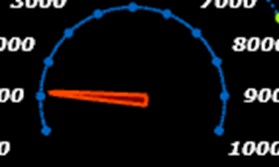
if (i < pointCounter - 1)
{
    //Create minor tickmarkers
    for (int minor = 1; minor < 10; minor++)
    {
        point = new PolarSeriesPoint
        {
            Amplitude = _tickmarkAmplitude,
            Angle = newAngle - (angleStep / 10) * minor
        };
        marksMinor.Add(point);
    }
}

point = new PolarSeriesPoint
{
    Amplitude = _tickmarkAmplitude,
    Angle = newAngle
};
newAngle -= angleStep;
marksMajor.Add(point);
Finally, we just need to add the points to the point line series:
majorTickmarks.AddPoints(marksMajor.ToArray(), false);
minorTickmarks.AddPoints(marksMinor.ToArray(), false);

_chart.ViewPolar.PointLineSeries.Add(majorTickmarks);
_chart.ViewPolar.PointLineSeries.Add(minorTickmarks);
Conclusion
This marine engine condition monitoring dashboard has been one of the longest projects I have worked on. From research and data formatting to the creation of each of these charts. Interpreting each property in the dataset was the most complex part, but I hope it helps you. There are several aspects that I would like to explain.
This dashboard was designed with the idea that you could experiment by adding new components. For this reason, you will see some duplicated methods in each component. In such cases, you will only need to copy and paste the code of a chart you already have, without having to worry too much about reference errors in other classes.
You will have to update the code in the MainWindow file, create the instance of your new component, and assign it a grid cell. This dashboard is a good example of how easy it is to implement a chart. Many of the charts share the same logic, and you only need to use a base configuration to create them.
This allows you to concentrate on the data source, its interpretation, mapping, and formatting of these same data to finally be added to our components. For more complex charts, you will have to work with 3 dimensions or radial values. I hope to be able to do similar work with more complex charts that can help you in your projects.
Finally, most of the work in sensing will be in the implementation of the IT infrastructure, whether it’s setting up a server, developing a monitoring environment, or processing data. Of course, installing sensors can be complex or dangerous depending on the environment in
which they are placed.
I hope my experience and ideas can help you. My recommendation is to start with a medium-sized prototype that allows you to experiment
with low-cost components. This way, you can develop processes that can withstand communication interruptions, power failures, and sensor malfunctions.
Try experimenting with signal quality in different environments. Make sure that the signal from your sensors is not affected by wind, noise, or vibrations. Try to use modern programming frameworks, which are increasingly optimized and powerful, making your development much easier. Bye!
Continue learning with LightningChart

Javascript Charting Library comparison 2026
Every year someone publishes a listicle of JavaScript charting libraries. They screenshot a demo, note the GitHub stars, paste in the npm install command, and call it a day. Then you follow their recommendation, get six months into your project, and discover that your...
Visualizing 10 Million Data Points in the Browser (2026): The Technical Deep-Dive
Ten Million Data Points in the Browser: How WebGL Makes Mass Datasets Interactive Ten million data points. That number used to mean a database problem, not a front-end problem. Now research teams want to explore it interactively in a browser. Trading desks want...
Elliott Wave Theory in Trading
Financial markets often appear chaotic, but many traders believe that price movements follow recurring patterns driven by human psychology. One of the most influential approaches based on this idea is the Elliott Wave Theory. Developed nearly a century ago, it remains one of the most widely studied methods of technical analysis.





If you have any questions, feel free to contact us!
©LightningChart Ltd 2026. All rights reserved.