








Creating a WPF Industrial Pipeline Visualization with LightningChart .NET
Tutorial
Written by a Human
Simulating an industrial pipeline interior view for obstruction detection, corrosion inspection or leak prevention.
Omar Urbano
Software Engineer

Introduction
In this article, we will create a quite interesting chart. While it may not be visually striking, it is extremely useful from an engineering perspective. We will create a chart that simulates an industrial pipeline visualization from its interior perspective. This is mainly useful for:
Detection of obstructions: Accumulations of debris, sediment, rust, scaling, or foreign objects blocking the flow can be identified.
Inspection of corrosion or wear : Metal pipes can suffer from internal corrosion over time. Viewing the interior helps detect wear, pitting, or thinning that could lead to leaks or structural failures.
Leak and failure prevention: Detecting cracks, fissures, or weak points allows for repairs before a major failure or hazardous spill occurs.
Cleanliness verification: In industries like food, pharmaceuticals, or chemicals, it’s crucial to ensure pipes are completely clean and free of contamination.
Assessment of internal welds: If the pipes have been welded, the quality of those joints can be inspected from the inside to ensure there are no defects that could compromise integrity.
Predictive maintenance: With tools like cameras or inspection robots, scheduled monitoring can anticipate problems, reducing downtime due to corrective maintenance.
Regulatory compliance: In many industries (oil, gas, drinking water, etc.), internal inspections are mandatory to comply with safety and health regulations.
So, how could we visualize sediments or foreign components inside a pipe? Well, there are different types of sensors that can help us achieve this goal. From image sensors, ultrasonic sensors, to conductivity sensors, each of them is designed to detect components that are not part of the original pipeline flow. There are sensor models capable of capturing values in three or more axes. This allows us to identify foreign components with greater precision.
With the chart we’re going to create, we will use the 3D tool from LC .NET, which will allow us to generate images with a more precise location of each component found inside the pipeline.
Therefore, we will simulate random values to generate these anomalies, but the example is functional, and you should focus on experimenting with real-time data transmission. Given this brief introduction, let’s get started!
Project Overview
To follow this project, download the ZIP file with all the necessary resources.

 Download the project to follow the tutorial
Local Setup
- OS: 32-bit or 64-bit Windows Vista or later, Windows Server 2008 R2 or later.
- DirectX: 9.0c (Shader model 3 and higher) or 11.0 compatible graphics adapter.
- Visual Studio: 2022 for development, not required for deployment.
- Platform .NET Framework: installed version 8.0 or newer.
Now go to the next URL and download LightningChart .NET. You’ll then be redirected to a sign-in form where you’ll have to complete a simple sign-up process to get access to your LightningChart account.

After signing in to your account, you can download the SDK “free trial” version that allows you to use important features for this tutorial. When you download the SDK, you’ll have a .exe file like this:

The installation will be a typical Windows process, so please continue with it until it is finished. After the installation, you will see the following programs:

License Manager
In this application, you will see the purchase options. All the projects that you will create with this trial SDK will be available for future developments with all features enabled.

Creating the project
Once you run the example in the “interactive examples” application, you will see the following option
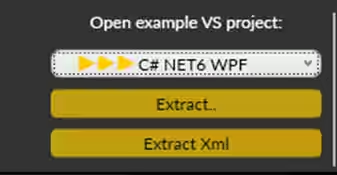
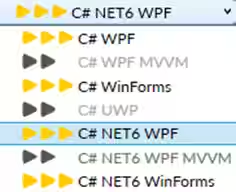
Lightning Chart can generate a project for the current selected chart, using Windows Presentation Foundation (WPF), WinForms, and their NET6 versions.
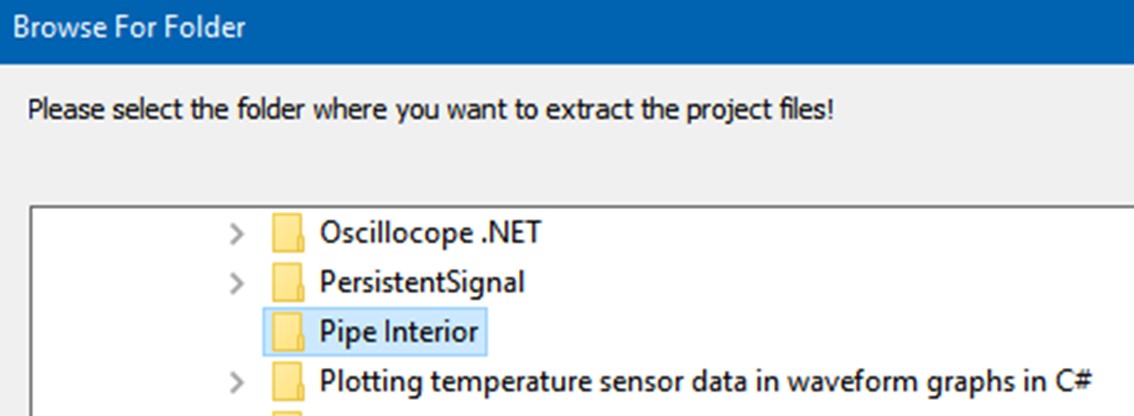
Once you select the extract option, you will have to create a new folder for the project
Once the project is saved, Visual Studio will open by itself, and you’ll see a project like this
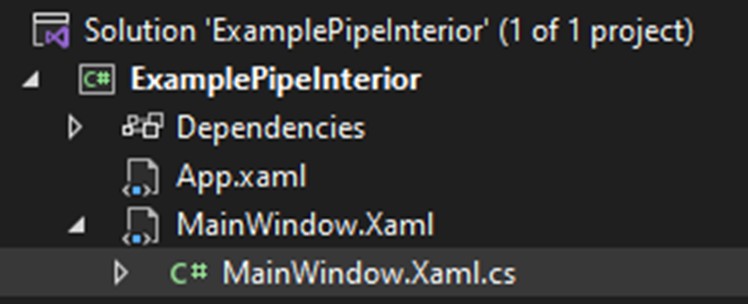
CreateChart
Initialize the Chart and Add it to the UI
We need to create a new 3D chart (LightningChart) and placing it into a grid called chartGrid, so it appears in your user interface.
_chart = new LightningChart();
chartGrid.Children.Add(_chart);
Begin Configuration and Set the Chart to 3D View
We are telling the chart to get ready for updates (which speeds up the setup), switching to 3D mode, and setting the dimensions of the 3D view.
_chart.BeginUpdate();
// Hide walls and axes.
_chart.ActiveView = ActiveView.View3D;
_chart.View3D.Dimensions.SetValues(100, 100, 100);
Hide Unnecessary Visual Elements
We’re turning off chart “walls,” the 3D axes, and the legend box, basically stripping down the visuals to make the chart look clean and focus attention on the actual 3D surface.
foreach (var wall in _chart.View3D.GetWalls())
{
    wall.Visible = false;
}
_chart.View3D.XAxisPrimary3D.Visible = false;
_chart.View3D.YAxisPrimary3D.Visible = false;
_chart.View3D.ZAxisPrimary3D.Visible = false;
// Hide LegendBox.
_chart.View3D.LegendBox.Visible = false;
Disable User Interaction (Zooming and Panning)
This section blocks all the usual interactions like zooming with the mouse or clicking. The chart will stay static unless updated programmatically.
// Disable zooming and panning.
_chart.View3D.ZoomPanOptions.AllowWheelZoom = false;
_chart.View3D.ZoomPanOptions.DevicePrimaryButtonAction = UserInteractiveDeviceButtonAction3D.None;
_chart.View3D.ZoomPanOptions.DevicePrimaryButtonDoubleClickAction = DoubleClickAction3D.Off;
_chart.View3D.ZoomPanOptions.DeviceSecondaryButtonAction = UserInteractiveDeviceButtonAction3D.None;
_chart.View3D.ZoomPanOptions.DeviceTertiaryButtonAction = UserInteractiveDeviceButtonAction3D.None;
Set Camera Inside the Pipe View
We’re setting the camera position and angle to look straight ahead, centered on the origin. This positions the viewer “inside the pipe” a common trick for immersive 3D visuals.
// Setting camera inside the pipe.
_chart.View3D.Camera.RotationX = 0;
_chart.View3D.Camera.RotationY = 0;
_chart.View3D.Camera.RotationZ = 0;
_chart.View3D.Camera.Target.SetValues(0, 0, 0);
_chart.View3D.Camera.MinimumViewDistance = 1;
_chart.View3D.Camera.ViewDistance = 50;
Create the Surface Mesh and Color Palette
We’re creating the 3D surface (mesh) that will represent your “pipe” data, disabling interaction, setting the fill style to show gradients by value, and applying a colorful palette. Finally, we add this mesh to the chart, load data into it (CreatePipeData()), and finish the update.
// Create Surface Mesh for the pipe.
SurfaceMeshSeries3D mesh = new SurfaceMeshSeries3D(_chart.View3D, Axis3DBinding.Primary, Axis3DBinding.Primary, Axis3DBinding.Primary);
mesh.AllowUserInteraction = false;
mesh.ContourLineType = ContourLineType3D.None;
mesh.Fill = SurfaceFillStyle.PalettedByValue;
mesh.WireframeType = SurfaceWireframeType3D.None;
mesh.SetSize(rows, columns);
ValueRangePalette palette = new ValueRangePalette(mesh);
palette.Steps.Clear();
palette.MinValue = 0;
palette.Steps.Add(new PaletteStep(palette, Colors.LightSteelBlue, 0));
palette.Steps.Add(new PaletteStep(palette, Colors.LightCyan, 25));
palette.Steps.Add(new PaletteStep(palette, Colors.LightGoldenrodYellow, 50));
palette.Steps.Add(new PaletteStep(palette, Colors.Orange, 75));
palette.Steps.Add(new PaletteStep(palette, Colors.DarkRed, 100));
mesh.ContourPalette = palette;
_chart.View3D.SurfaceMeshSeries3D.Add(mesh);
CreatePipeData(); // This line seems to be a method call, assuming it's defined elsewhere.
_chart.EndUpdate();
CreatePipeData
We’re starting fresh clearing the old data and setting up the grid by clearing any previous mesh data, then setting up a 2D grid to hold the 3D points for the pipe.
_chart.View3D.SurfaceMeshSeries3D[0].Data = null;
SurfacePoint[,] data = new SurfacePoint[rows, columns];
Fill the Grid with Circular Pipe Coordinates and Color Values
We loop through each point, shaping them into a circular tube using sine and cosine, and assign a random color value. The last column wraps to the first to avoid a seam.
for (int i = 0; i < rows; i++)
{
    for (int j = 0; j < columns; j++)
    {
        data[i, j].X = Math.Sin(j / ((columns - 1) / (2 * Math.PI))) + 50;
        data[i, j].Y = Math.Cos(j / ((columns - 1) / (2 * Math.PI))) + 50;
        data[i, j].Z = i;
        if (j == columns - 1) // Close the pipe without leaving a seam.
        {
            data[i, j].Value = data[i, 0].Value;
        }
        else
        {
            data[i, j].Value = rnd.NextDouble() * 20;
        }
    }
}
Apply the Data to the Mesh
We send the whole data grid to the chart, and it renders the 3D pipe with colors based on your Value.
_chart.View3D.SurfaceMeshSeries3D[0].Data = data;CompositionTarget_Rendering
Throttle the Update Speed
This controls how fast the pipe updates. It checks if enough time has passed based on _speedFactor (like frames per second). If true, it begins a chart update and increments adder — which is tracking how far we’ve gone along the pipe (Z-axis).
 if (_stopwatch.ElapsedMilliseconds - _timeElapsed >= 1000 / _speedFactor || _speedFactor == 100)
{
    _timeElapsed = _stopwatch.ElapsedMilliseconds;
    _chart.BeginUpdate();
    adder++;
}
(Optional) Randomly Add Obstacles to the New Row
Sometimes (based on _obstacleCount), we place a random obstacle, which is just a chunk of columns that will have higher color values and slightly deformed positions to simulate bumps inside the pipe.
// Placing obstacles randomly inside the pipe.
int obstacle = -1;
int obstangleSize = 0; // There is a typo here, it should likely be 'obstacleSize'
if (rnd.Next(0, 101) < _obstacleCount)
{
    obstangleSize = rnd.Next(5, 31); // Typo 'obstangleSize'
    obstacle = rnd.Next(0, obstangleSize > columns ? columns : columns - obstangleSize); // Typo 'obstangleSize'
}
Generate and Insert a New Pipe Row
This builds the next row of points, forming another ring of the pipe. If a point is part of an obstacle, its position and value are slightly distorted. Then, the row is added to the end of the mesh using InsertColumnBack(), and the Z-axis is shifted forward to keep everything moving visually.
SurfacePoint[] row = new SurfacePoint[columns];
for (int i = 0; i < columns; i++)
{
    if (obstacle != -1 && i >= obstacle && i < obstacle + obstangleSize) // Typo 'obstangleSize'
    {
        row[i].X = Math.Sin(i / ((columns - 1) / (2 * Math.PI))) + 50 - rnd.NextDouble() / 5.0;
        row[i].Y = Math.Cos(i / ((columns - 1) / (2 * Math.PI))) + 50 - rnd.NextDouble() / 5.0;
        row[i].Z = rows + adder;
        row[i].Value = 50 + rnd.NextDouble() * 50;
    }
    else
    {
        row[i].X = Math.Sin(i / ((columns - 1) / (2 * Math.PI))) + 50;
        row[i].Y = Math.Cos(i / ((columns - 1) / (2 * Math.PI))) + 50;
        row[i].Z = rows + adder;
        if (i == columns - 1)
        {
            row[i].Value = row[0].Value;
        }
        else
        {
            row[i].Value = rnd.NextDouble() * 20;
        }
    }
}
Conclusion
This project looks very simply, right? Well, this is because LightningChart .NET offers all the required tools to create powerful and easy charts like this. Working with a 3D mesh sounds very complicated, but LC .NET does the hard work for us, leaving us with just the source data.
Now, I would like to mention some important points of the code:
- Real-Time Visualization Loop: The
CompositionTarget_Renderingmethod acts like a game loop — it updates the chart on every frame, creating smooth, continuous animation inside the 3D pipe. - Controlled Update Rate:
_speedFactordynamically controls how frequent updates occur. This lets you fine-tune the animation speed or even pause it entirely. - Obstacle Simulation: Randomly generated “obstacles” introduce variability in the pipe’s surface by altering mesh values and point positions. This adds visual interest and could represent real-world anomalies or data spikes.
- Dynamic Data Insertion: A new row of
SurfacePointsis generated each cycle and inserted into the back of the mesh. This simulates the pipe filling or data moving through it over time. - Seamless Circular Shape: The X/Y coordinates are based on sine and cosine functions, forming a circular tube. Special care is taken to wrap the last point to the first, preventing visual seams in the pipe.
- Z-Axis Progression: With each new row, the Z-axis limits (Minimum and Maximum) shift forward. This keeps the new data visible and ensures smooth scrolling along the pipe’s length.
I hope this article will help you with any amazing project, monitoring important areas of industry. Thank you very much for your attention.
Continue learning with LightningChart
Real-time data visualization with WebSockets
Written by a human | Updated on April 10th, 2025WebSockets Data Visualization in Real-Time These days it is ever increasingly common that people require web solutions for their applications and services. Data visualization is not an exception to this, as...
Why Performance Matters in Data Visualization?
Written by a human | Updated on April 10th, 2025Performance in Data VisualizationI was doing a Google search a couple of days ago and particularly, I wanted to know what are the options for developers who need to visualize large amounts of data points within...

Geospatial data visualization with Google Maps & LightningChart
Written by a human | Updated on April 10th, 2025Geospatial Data Visualization This article showcases and describes a particular use case of LightningChart JS for geospatial data visualization. LightningChart JS is a JavaScript charting tool designed for...



If you have any questions, feel free to contact us!
©LightningChart Ltd 2025. All rights reserved.