








Creating an Industrial Monitoring System in C#
Tutorial
Step-by-step tutorial how to create an industrial monitoring system in C# using LightningChart charting components.
Omar Urbano
Software Engineer

Introduction
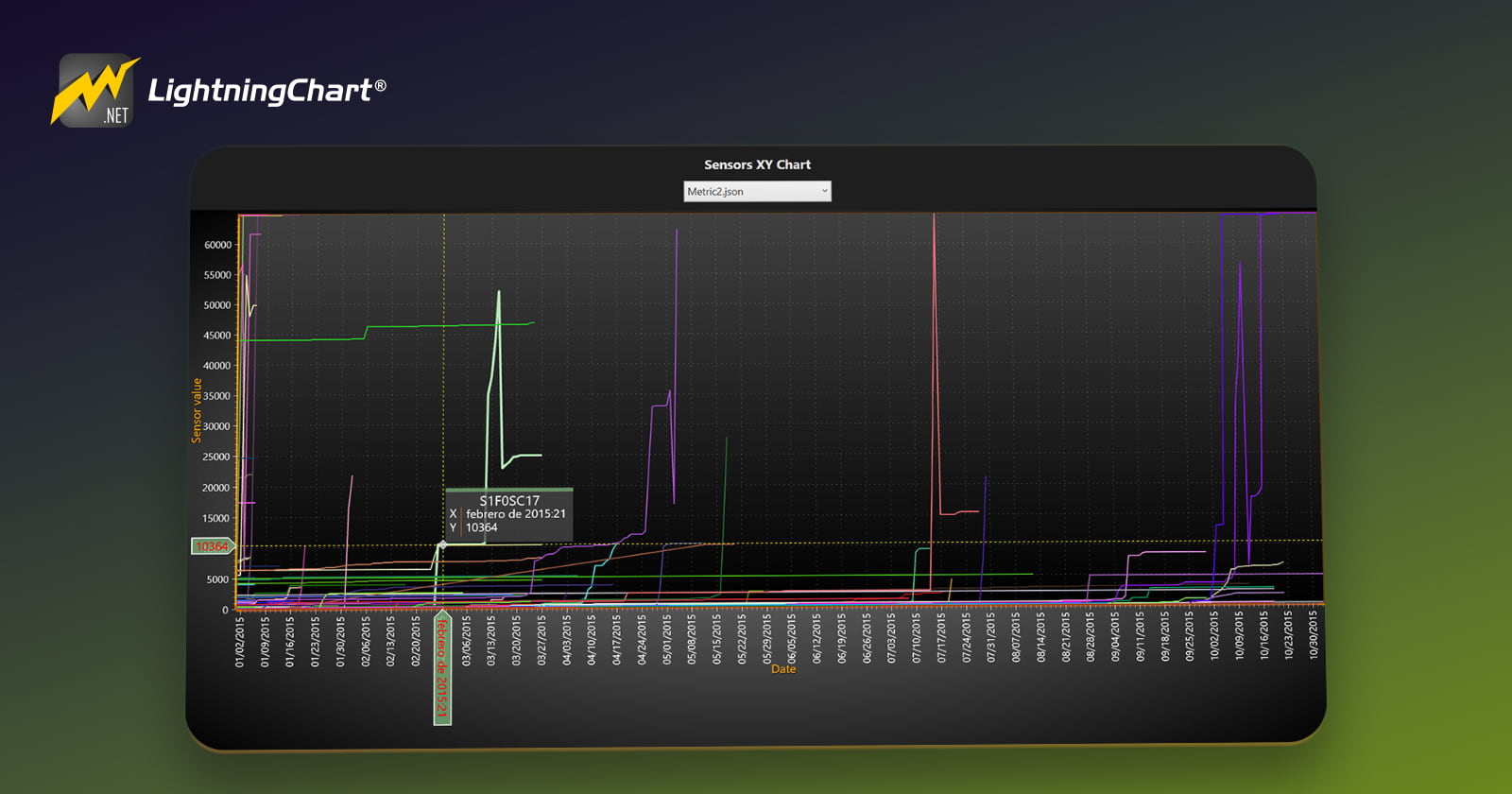
I’m Omar, and I’m back with another .NET and LightningChart .NET tutorial. In this exercise we will use different sets of sensor data to represent their behavior within a two-dimensional line chart to create an industrial monitoring system in C#.
For this article, we will use a dataset provided by the user Himanshu Agarwal found in Kaggle. Before we begin with the description of the dataset and the project, I will review some theory to better understand the context of the project. Let’s get started!
What is an Industrial Monitoring System?

An industrial monitoring system is software designed to review and control operations within an industrial environment. These types of systems use sensors, controllers and other support systems to obtain parameters that help monitor and prevent equipment failures from a remote-control panel.
Industrial monitoring systems have constant communication with temperature, pressure, humidity, vibration sensors, etc. These systems can have various functions in relation to data processing, for example, data analysis, alerts and notifications, integration with systems that offer other analysis tools, and the generation of reports that help in decision making.
What is operational efficiency in industrial monitoring systems?
Operational efficiency is the ability to maximize productivity by avoiding waste and improper consumption of resources. An industrial monitoring system will provide the metrics necessary for the analysis of industrial equipment and processes, allowing the engineering teams to find the weak points of the production process and plan processes that improve productivity.
How can industrial monitoring systems save costs through predictive maintenance?
Since failure prediction is one of the objectives of monitoring systems, it is easy to formulate an answer to this question. By preventing failures in equipment components, maintenance plans can be made, which avoid emergency stops that affect production, preventive services that avoid wear and tear on equipment and components of process lines, and as a result, avoid risks for workers that can generate complicated and legal situations for the plant.
Preventive services will help maintain stable production for each of the machines used in production, as well as extend the lifetime of each of them. A repair can mean a very high cost for the plans established based on a budget, considering the time it takes, and the components required to put the equipment into operation.
Many sensors help to identify components that are failing, such as pipeline valves or automated gates. This can lead to life-threatening accidents, explosions and fires. I think it is easy to conclude how an industrial monitoring system not only helps with equipment parameters. The results of failure prevention maintain stability within the plant, which increases personnel safety, maintenance and/or improves industrial production.
What are SCADA Systems?
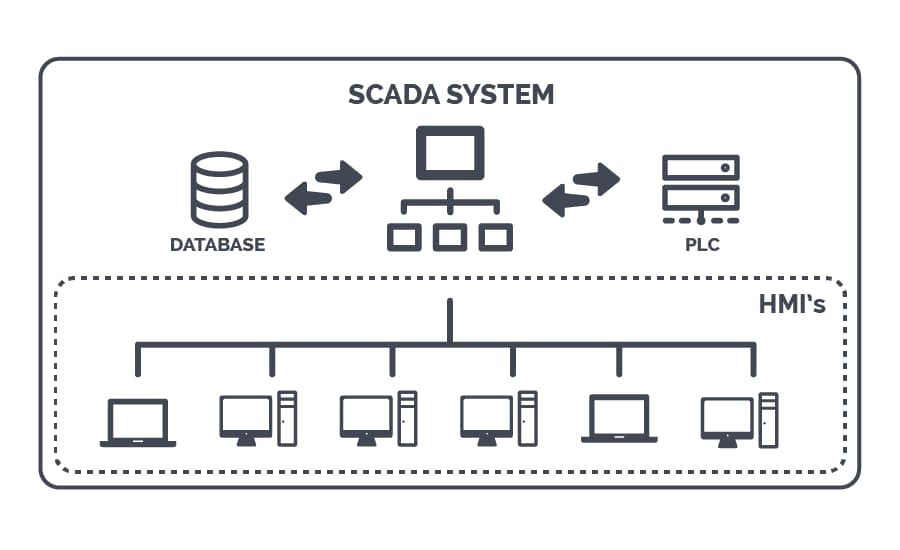
SCADA (Supervisory Control and Data Acquisition) systems are industrial control systems used to monitor and control infrastructure and facility processes. They play a crucial role in various industries, such as manufacturing, energy, water treatment and telecommunications.
Components:
- Field Devices: Sensors and actuators that collect data and perform actions in real-time.
- Remote Terminal Units (RTUs): Devices that gather data from field devices and transmit it to the central system.
- Programmable Logic Controllers (PLCs): Industrial computers that automate control of machinery and processes.
- Communication Infrastructure: Networks (wired or wireless) that transmit data between devices and the central system.
- SCADA Software: Centralized software for data processing, visualization, and management.
What is Asset Tracking?
Asset tracking is the process of monitoring and managing physical assets throughout their lifecycle. It involves using various technologies and methods to keep track of the location, status, and condition of assets, which can include equipment, vehicles, inventory, and other valuable items.
Components:
- Identification Technologies:
- RFID (Radio Frequency Identification): Uses radio waves to automatically identify and track tags attached to assets.
- Barcode Systems: Involves scanning barcodes to record the movement and status of assets.
- GPS: Tracks the real-time location of mobile assets like vehicles.
- Tracking Software:
- Centralized platforms that collect and analyze data from identification technologies, providing insights into asset status and location.
- Data Management:
- Storing and managing data related to asset utilization, maintenance schedules, and lifecycle management.
Project Overview
This project is working with the .NET WPF framework. This framework allows us to work with the user interface and C# code at the same time. This project was created with version 8 of .NET, so I recommend that you install this version or the latest one. You will need Visual Studio 2022 or newer to be able to run it.

Markup
Markup enables us to build a user interface with a variety of controls, allowing us to manage the displayed results in the application with great precision. This interface development is done using XAML (Extensible Application Markup Language). While it might initially look like an XML template, XAML is specifically designed for building application interfaces rather than just exchanging data between applications. The interface’s data, graphics, and animations can either be pulled from an external source file or dynamically generated through the code behind it.
Code Behind
The code behind refers to the file containing the executable code responsible for reading, generating, and processing the results the user needs. One of its main purposes is to separate the graphical interface code (like XAML, HTML, CSS, etc.) from the executable code. This separation allows us to divide the work between user interface design and the development of the underlying code, leading to safer, more organized, and faster development.
In the case of WPF (Windows Presentation Foundation), we use the C# programming language. C# is an object/component-oriented language that fits well with this approach. Lightning Chart .NET generates WPF projects with C# code that’s ready for execution. Within this code, you can use LightningChart .NET own tools, which can be easily imported if the LC .NET framework is installed.
 Download the project to follow the tutorial
Local Setup
- OS: 32-bit or 64-bit Windows Vista or later, Windows Server 2008 R2 or later.
- DirectX: 9.0c (Shader model 3 and higher) or 11.0 compatible graphics adapter.
- Visual Studio: 2022 for development, not required for deployment.
- Platform .NET Framework: installed version 8.0 or newer.
Now go to the next URL and download LightningChart .NET. You’ll then be redirected to a sign-in form where you’ll have to complete a simple sign-up process to get access to your LightningChart account.

After signing in to your account, you can download the SDK “free trial” version that allows you to use important features for this tutorial. When you download the SDK, you’ll have a .exe file like this:

The installation will be a typical Windows process, so please continue with it until it is finished. After the installation, you will see the following programs:

License Manager
In this application, you will see the purchase options. All the projects that you will create with this trial SDK will be available for future developments with all features enabled.

XAML Code Review
The design of our application will be contained within the MainWindow.xaml file. Although it will be something quite simple, we will try to apply some visual properties that give us a “softer” or less aggressive style, applying dark colors that are normally used in modern designs. For the fonts, we will use a slightly gray color, which will give us a more relaxing and comfortable style for the eye.
<!-- Modern style for labels -->
<Style TargetType="Label">
    <Setter Property="Foreground" Value="#E1E1E1"/>
    <Setter Property="FontSize" Value="14"/>
    <Setter Property="Margin" Value="5"/>
</Style>

<!-- Modern style for checkboxes -->
<Style TargetType="CheckBox">
    <Setter Property="Foreground" Value="#E1E1E1"/>
    <Setter Property="Margin" Value="5"/>
</Style>

<!-- Modern style for textboxes -->
<Style TargetType="TextBox">
    <Setter Property="Foreground" Value="#E1E1E1"/>
    <Setter Property="Background" Value="#333333"/>
    <Setter Property="BorderBrush" Value="#444444"/>
    <Setter Property="BorderThickness" Value="1"/>
    <Setter Property="Padding" Value="5"/>
    <Setter Property="FontSize" Value="14"/>
</Style>
We will keep the color palette dark, to avoid aggressive contrasts. To create the dashboard, we will use the Grid component.

This row will contain a combo box component and a grid component. The combo box will load the reference to each data set, and the xyChart_grid will display the chart object. When a data set is selected, the FilesComboBox function will be executed.
<!-- ComboBox placed below the Label -->
<ComboBox Name="FilesComboBox"
    Height="30"
    VerticalAlignment="Top"
    HorizontalAlignment="Center"
    Margin="0,50,0,0"
    Width="200"
    SelectionChanged="FilesComboBox_SelectionChanged">
</ComboBox>

<Grid Name="xyChart_grid" Grid.Column="0" Margin="0,90,0,0">
    <Grid.ColumnDefinitions>
        <ColumnDefinition Width="439*"/>
    </Grid.ColumnDefinitions>
    <!-- Chart content goes here -->
</Grid>
MainWindow.xaml.cs
This file will contain the execution methods for our chart:
private void LoadFilesIntoComboBox()
{
    string projectDirectory = Path.GetFullPath(Path.Combine(AppDomain.CurrentDomain.BaseDirectory, @"..\..\..\"));
    string dataFolderPath = Path.Combine(projectDirectory, "Data");

    if (Directory.Exists(dataFolderPath))
    {
        var files = Directory.GetFiles(dataFolderPath);
        foreach (var file in files)
        {
            FilesComboBox.Items.Add(Path.GetFileName(file));
        }
    }
    else
    {
        MessageBox.Show("The 'Data' folder does not exist.", "Error", MessageBoxButton.OK, MessageBoxImage.Error);
    }
}
LoadFilesIntoComboBox will be executed once the application starts. This will get all the files inside the folder data and will add their file names as selection items for the combo box. The application won’t show any chart until we select one option. The selection changed event will execute the CreateChart method, sending the file name as a parameter:
private void FilesComboBox_SelectionChanged(object sender, System.Windows.Controls.SelectionChangedEventArgs e)
{
    if (FilesComboBox.SelectedItem != null)
    {
        string selectedFileName = FilesComboBox.SelectedItem.ToString();

        if (selectedFileName != null)
        {
            xyChart_grid.Children.Clear();
            var chart = xyChart.CreateChart(selectedFileName);
            xyChart_grid.Children.Add(chart);
        }
Support methods
Within each component, we will find support methods to generate our data.
LoadJsonFile():This method will process each of our JSON files, returning a list of theGroupedSensorDataclass:
public class SensorData
{
    [JsonPropertyName("date")]
    public required string date { get; set; }

    [JsonPropertyName("device")]
    public required string device { get; set; }

    [JsonPropertyName("metric")]
    public int metric { get; set; }
}

public class GroupedSensorData
{
    public required string Device { get; set; }
    public required List<SensorData> SensorData { get; set; }
}
This class will have one or more variables depending on the data used.
public static List<GroupedSensorData> LoadJsonFile(string filePath)
{
    try
    {
        // Read the JSON file content
        string jsonString = File.ReadAllText(filePath);

        // Deserialize the JSON content into a list of CompressorData objects
        List<SensorData> dataList = JsonSerializer.Deserialize<List<SensorData>>(jsonString,
            new JsonSerializerOptions
            {
                PropertyNamingPolicy = JsonNamingPolicy.CamelCase
            });

        // Grouping by device
        List<GroupedSensorData> groupedData = dataList
            .GroupBy(data => data.device)
            .Select(group => new GroupedSensorData
            {
                Device = group.Key,
                SensorData = group.ToList()
            })
            .ToList();

return groupedData;GetDate: This method will format the date string value to our date time format:
private DateTime GetDate(string dateString)
{
    // Define the possible formats
    string[] formats = { "M/d/yyyy", "MM/dd/yyyy", "M/d/yy", "MM/dd/yy" };

    //Convert string to date object
    DateTime.TryParseExact(dateString, formats, CultureInfo.InvariantCulture, DateTimeStyles.None, out DateTime date);

    // Convert the DateTime object to a numeric representation (ticks)
    return date;
}
CreateChart()
This method will construct our chart object, loading the dataset by getting the JSON file with the name of the “dataset” parameter.
string projectDirectory = Path.GetFullPath(Path.Combine(AppDomain.CurrentDomain.BaseDirectory, @"..\..\..\"));
string relativePath = $"Data\\{dataSet}"; // Replace with your actual relative path
string filePath = Path.Combine(projectDirectory, relativePath);

List<GroupedSensorData> dataList = LoadJsonFile(filePath);
We need to disable the rendering by using the BeginUpdate method. This will allow us to update the chart properties without affecting the performance of the application.
//Create new chart
_chart = new LightningChart();

//Disable rendering, strongly recommended before updating chart properties
_chart.BeginUpdate();
_chart.ViewXY.DataCursor.Visible = true;
//Chart name
_chart.ChartName = "Annotations table chart";
_chart.Title.Text = "";
//Hide legend box
_chart.ViewXY.LegendBoxes[0].Visible = false;

// Configure x-axis.
AxisX xAxis = _chart.ViewXY.XAxes[0];
xAxis.ScrollMode = XAxisScrollMode.None;
xAxis.ValueType = AxisValueType.DateTime;
xAxis.Title.Text = "Time";
xAxis.AutoFormatLabels = false;
xAxis.LabelsTimeFormat = "MM/dd/yyyy";
xAxis.LabelsAngle = 90;

xAxis.Title.Text = "Date";
The xAxis will be configured as a date-time axis, assigning the format and angles of labels. The yAxis will be numeric (default value type) with a custom color:
AxisY yAxisRateRev = new AxisY(_chart.ViewXY);
yAxisRateRev.Title.Text = "Sensor value";

yAxisRateRev.AxisColor = Color.FromArgb(255, 255, 162, 0);
yAxisRateRev.Title.Color = Color.FromArgb(255, 255, 162, 0);
_chart.ViewXY.YAxes.Add(yAxisRateRev);
_chart.ViewXY.AxisLayout.YAxisAutoPlacement = YAxisAutoPlacement.LeftThenRight;
ConfigureCharts() will create and add the series to the chart. The rendering will be enabled by using the EndUpdate method. The chart object will be returned to the MainWindow and added to the grid:
ConfigureCharts(dataList, yAxisRateRev, xAxis);

_chart.ViewXY.LegendBoxes[0].Visible = false;

_chart.EndUpdate();

return _chart;ConfigureCharts(): This method will create a series for each sensor in the data set. All the data set was grouped by the “device” property, so, each device will be equal to a series:
public void ConfigureCharts(List<GroupedSensorData> groupedSensorDataList, AxisY axisY, AxisX axisX)
{
    double minX = double.MaxValue;
    double maxX = double.MinValue;
    double minY = double.MaxValue;
    double maxY = double.MinValue;

    foreach (var groupData in groupedSensorDataList)
    {
        SeriesPoint[] points = new SeriesPoint[groupData.SensorData.Count];

        var i = 0;

        foreach (var sensordata in groupData.SensorData)
        {
            //points[i].X = GetDate(sensordata.date);
            points[i].X = axisX.DateTimeToAxisValue(GetDate(sensordata.date));
            points[i].Y = sensordata.metric;

            // Update min and max values for X and Y
            if (points[i].X < minX) minX = points[i].X;
            if (points[i].X > maxX) maxX = points[i].X;
            if (points[i].Y < minY) minY = points[i].Y;
            if (points[i].Y > maxY) maxY = points[i].Y;

            i++;
        }
For each data point, the minimum and maximum values for X and Y will be stored in variables. Inside the loop, we will create a new point line series, assigning ARGB colors with random values, title of each line series:

You can also adjust other visual properties. At the end of the configuration, this new line series will be added to the chart object:
// Create a Random object
Random rand = new Random();

// Generate random values for Alpha, Red, Green, and Blue
byte red = (byte)rand.Next(0, 256);   // Red value between 0 and 255
byte green = (byte)rand.Next(0, 256); // Green value between 0 and 255
byte blue = (byte)rand.Next(0, 256);  // Blue value between 0 and 255

PointLineSeries rateRevSeries = new PointLineSeries(_chart.ViewXY, _chart.ViewXY.XAxes[0], axisY);
rateRevSeries.LineStyle.Color = Color.FromArgb(255, red, green, blue);
rateRevSeries.LineStyle.Width = 2;
rateRevSeries.PointsVisible = false;
rateRevSeries.PointStyle.Color1 = Color.FromArgb(255, red, green, blue);
rateRevSeries.PointStyle.Color2 = Color.FromArgb(255, red, green, blue);
rateRevSeries.Title.Text = $"{groupData.Device}";
_chart.ViewXY.PointLineSeries.Add(rateRevSeries);
rateRevSeries.Points = points;
At the end of the loop, we will have the lowest and highest values of the entire data set, and these will be specifiedin the range of X and Y axes:
axisY.SetRange(minY - 1, maxY + 1);
axisX.SetRange(minX - 1, maxX + 1);
Conclusion
We have reached the end of this industrial monitoring system tutorial; I hope you liked it. Before I dedicated myself to programming, as a young man I worked in the local industry of my hometown, which allowed me to get to know this type of environment and see its weaknesses and virtues.
One of the things that motivated me to study programming was getting to know the control rooms, where some components of the plant were monitored and automated. Many of the definitions include personal content, making this article more special. The industrial monitoring system created in this article is basic, but the main objective is to give ideas on how to consume a dataset generated by sensors.
Although this project is not officially part of a continuity of other articles, that does not mean that the topic of monitoring dashboards has not been covered before. I recommend that you look at the other .NET projects, where I created dashboards with multiple types of charts and more complex datasets. To graph thousands of points through streaming, you need tools that offer high levels of optimization and precision.
This is where LightningChart offers its .NET framework to allow us to take advantage of the power that .NET offers us, as well as its integration with other frameworks on the same platform. The implementation of a chart is based largely on the configuration of its properties, asking us only for a data set in a familiar format, such as an array with two or three properties (X, Y, Z).
Very soon we will be working with a 3D dashboard, and you will see how easy it is to work with this type of charts thanks to LC .NET.
Continue learning with LightningChart
Ionic app development
Written by a human | Updated on April 10th, 2025Beginning Ionic App Development with Capacitor, Angular & LightningChart JS [This is the second part of the article "Data Visualization with Ionic Capacitor, Angular & JS Charts (Part 1)"] In the previous...
Ionic Capacitor
Learn how to use Ionic Capacitor for data visualization and build a mobile charting application with Angular & LightningChart JS
Create a JavaScript Pie Chart with NodeJS, TypeScript & LightningChart
Written by a human | Updated on April 10th, 2025JavaScript Pie Chart with NodeJS & TypeScript Today, we are going to do a short tutorial on how to generate a pie chart using Node JS, TypeScript, and LigningCharts JS. To see how to get LightningChart JS for...



If you have any questions, feel free to contact us!



©LightningChart Ltd 2026. All rights reserved.