








The best OxyPlot alternative for WPF charting components
Article
Written by a Human
Explore the best OxyPlot alternative when creating data visualization applications with WPF charting libraries.
Omar Urbano
Software Engineer

Introduction
Hello, I’m Omar, and in this article, we review OxyPlot and explain some of its pros and cons. We also mentioned the options that LightningChart .NET offers compared to such a library. In this article, we will focus on OxyPlot and its comparison with LightningChart .NET.
OxyPlot Chart Controls
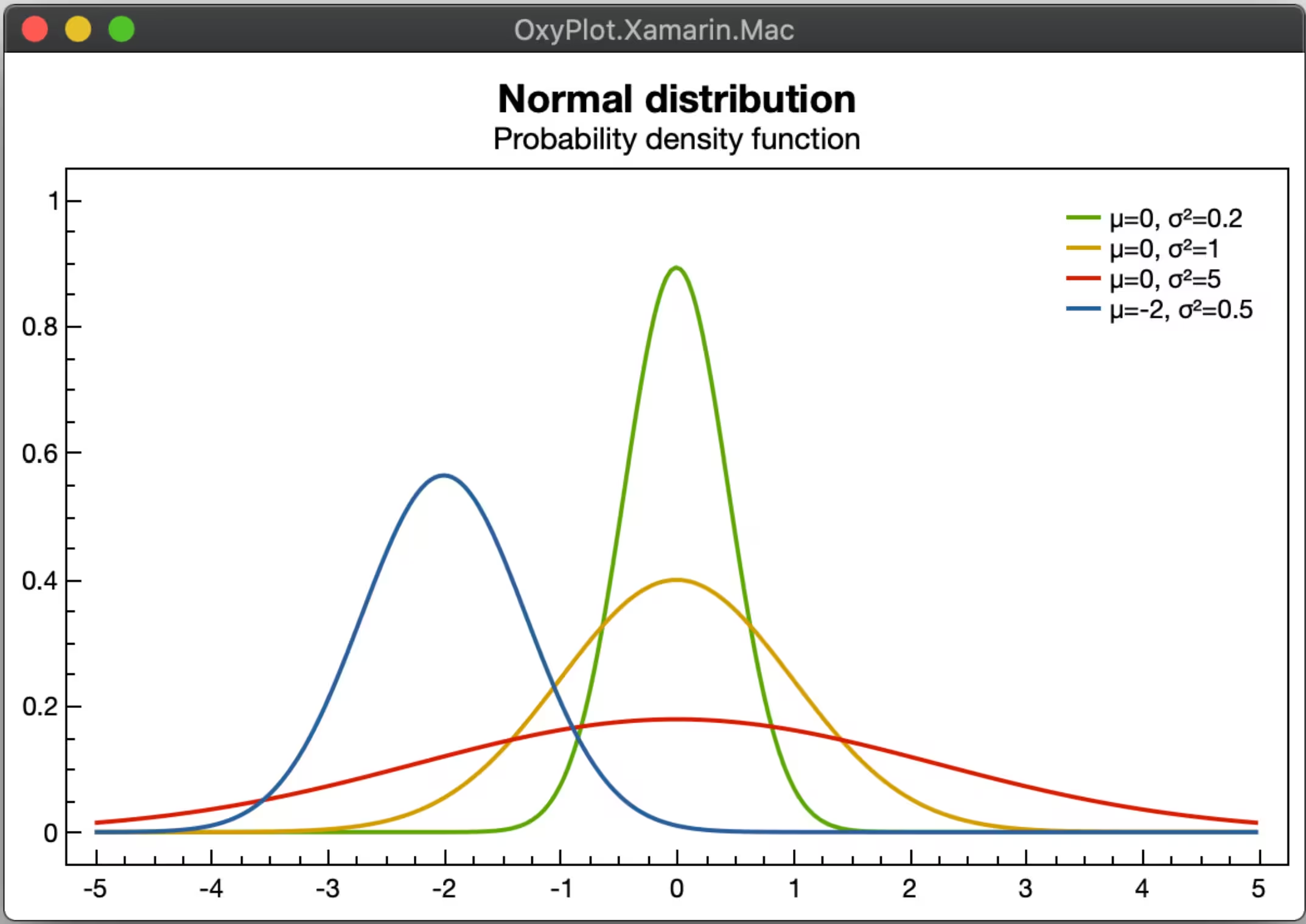
OxyPlot is a charting library that enables the creation of simple interactive graphs. It is commonly used for applications that need to display technical data, such as signals, statistics, measurements, etc.
OxyPlot main features:
- Support for common chart types: line, bar, area, pie, scatter, etc.
- Compatible with WPF, WinForms, Avalonia, MAUI, and more.
- Limited performance with large volumes of data.
- Export to images or PDF.
- Fully customizable.
- Open-source and free.
- Easy to bind with the ViewModel using MVVM.
Notice that OxyPlot does not natively support 3D charts, as it is primarily designed for slow-performance 2D charts with simple customization options. OxyPlot lacks built-in components for three-dimensional visualization surfaces or volumes.
OxyPlot Limitations
Although OxyPlot is open source and allows us to have almost total control over our charts, there are some important things to keep in mind.
- OxyPlot does not natively support 3D charts. It’s primarily designed for high-performance 2D charts with accuracy and customization, but it lacks built-in components for three-dimensional visualization-like surfaces, volumes, or 3D plots.
- Its visual design is very basic (difficult to customize, no animations), which might make your application look outdated compared to modern ones.
- You can’t generate 3D charts, which can be a downside if you’re aiming for more advanced or visually rich data visualizations.
- Using combined charts is somewhat complicated, limiting users who need to perform more complex data analysis.
- Documentation is limited, which could make the learning curve steeper.
- The time interval between updates is very long, which can be inconvenient for .NET frameworks, which are constantly being updated, leading to compatibility issues.
- There are some reported issues related to poor rendering performance, mainly when trying to process many data points.
OxyPlot – Code Implementation
Next, we will look at a brief code implementation, which will help us understand and analyze how complex or simple it can be to create a chart in our project.
OxyPlot Installation
dotnet add package OxyPlot.Coreand OxyPlot.SkiaSharp
Creating the chart and setting up the timer
OxyPlot does not have an “automatic real-time mode” like some other libraries, but you can achieve this using a timer or in response to events. When the window (MainWindow ) starts, an OxyPlot PlotModel object is created to display the chart, a line series (LineSeries) is added, and a DispatcherTimer is set up to trigger an event every 100 milliseconds.
private LineSeries _series;
private DispatcherTimer _timer;
private int _currentX = 0;
public PlotModel MyModel { get; private set; }
public MainWindow()
{
    InitializeComponent();
    DataContext = this;
    MyModel = new PlotModel { Title = "Real Time" };
    _series = new LineSeries();
    MyModel.Series.Add(_series);
    _timer = new DispatcherTimer();
    _timer.Interval = TimeSpan.FromMilliseconds(100);
    _timer.Tick += Timer_Tick;
    _timer.Start();
}
A new point is generated every 100 ms
On each “tick” of the timer (Timer_Tick), a new Y value is calculated using the Math.Sin function, based on a counter _currentX that increments on each cycle. Then, the new point (X, Y) is added to the series.
private void Timer_Tick(object sender, EventArgs e)
{
    double newY = Math.Sin(_currentX * 0.1);
    _series.Points.Add(new DataPoint(_currentX, newY));
    _currentX++;
}
The chart is updated, and old data is managed
After adding the point, if there are more than 100 points in total, the oldest point is removed to keep the chart lightweight.
if (_series.Points.Count > 100)
{
 _series.Points.RemoveAt(0);
}
MyModel.InvalidatePlot(true); InvalidatePlot(true) to reflect the changes on the screen.<Window x:Class="RealTimePlotExample.MainWindow"
xmlns="http://schemas.microsoft.com/winfx/2006/xaml/presentation"
xmlns:x="http://schemas.microsoft.com/winfx/2006/xaml"
xmlns:oxy="http://oxyplot.org/wpf"
Title="Real Time Plot" Height="450" Width="800">
<Grid>
<oxy:PlotView Model="{Binding MyModel}" />
</Grid>
</Window>LightningChart .NET
LightningChart .NET is a commercial library that provides extensive documentation, articles, tutorials, and sample projects. Here’s a breakdown of some of its technical capabilities:
2D Charts
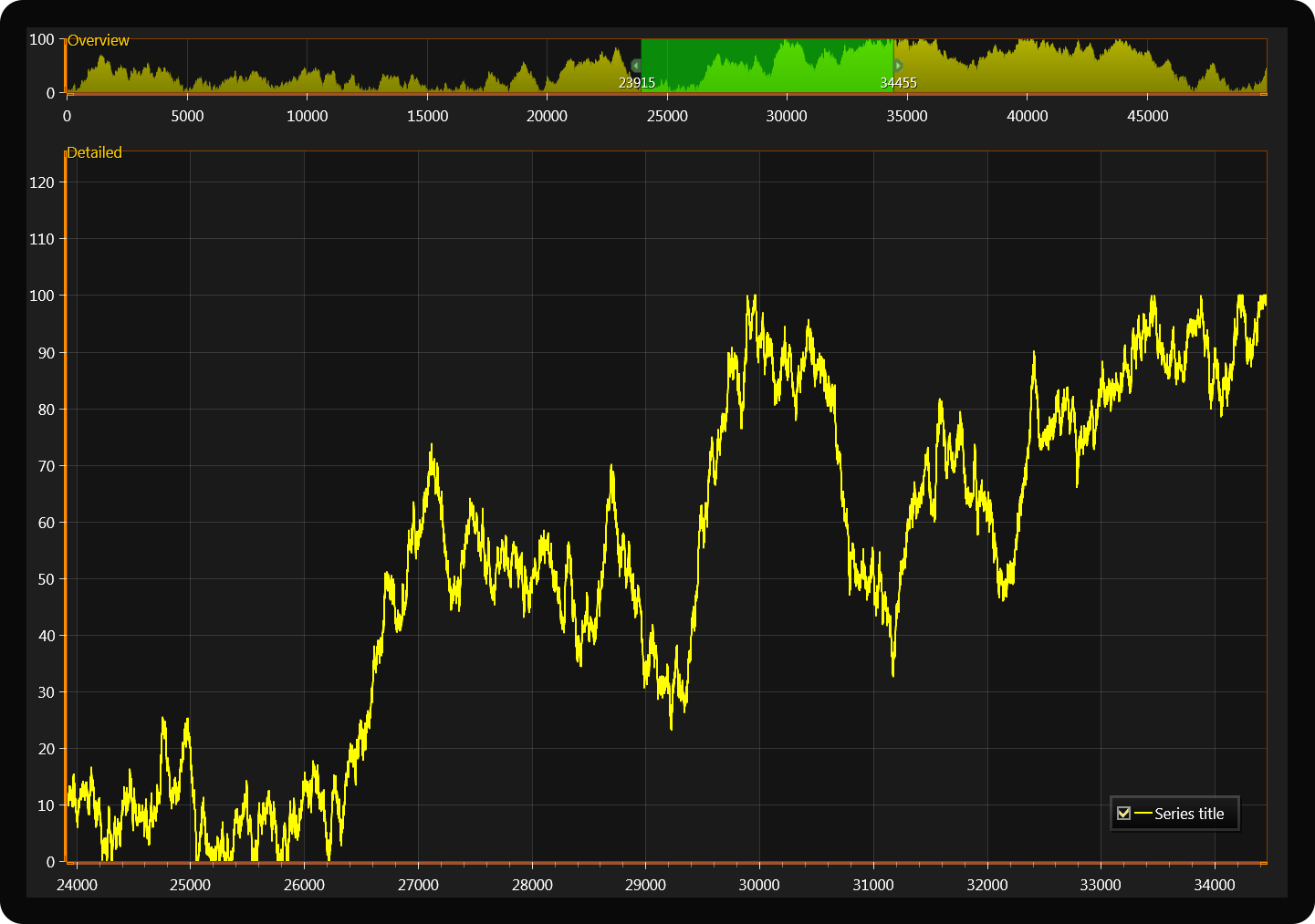
- Line, area, bar, point, column, bubble, candlestick, etc.
- Supports millions of points per series without performance loss.
- GPU-accelerated optimization.
3D Charts
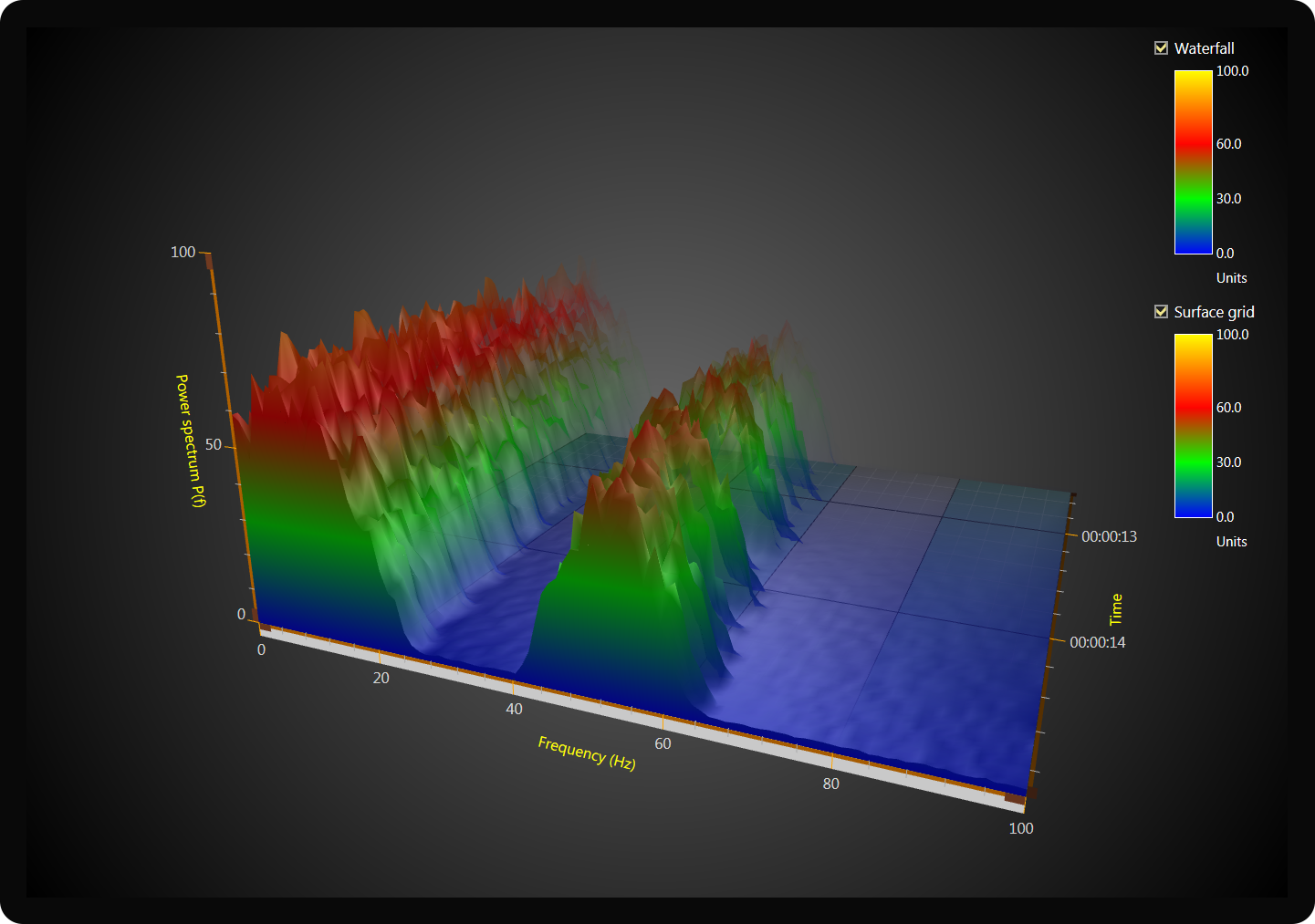
- 3D surfaces (Surface Mesh, Waterfall, PointCloud, 3D Heatmaps).
- Support for rotation, zoom, and camera panning.
- Volumetric rendering, interactive 3D axes, and customizable perspective.
Scientific / Medical Visualization
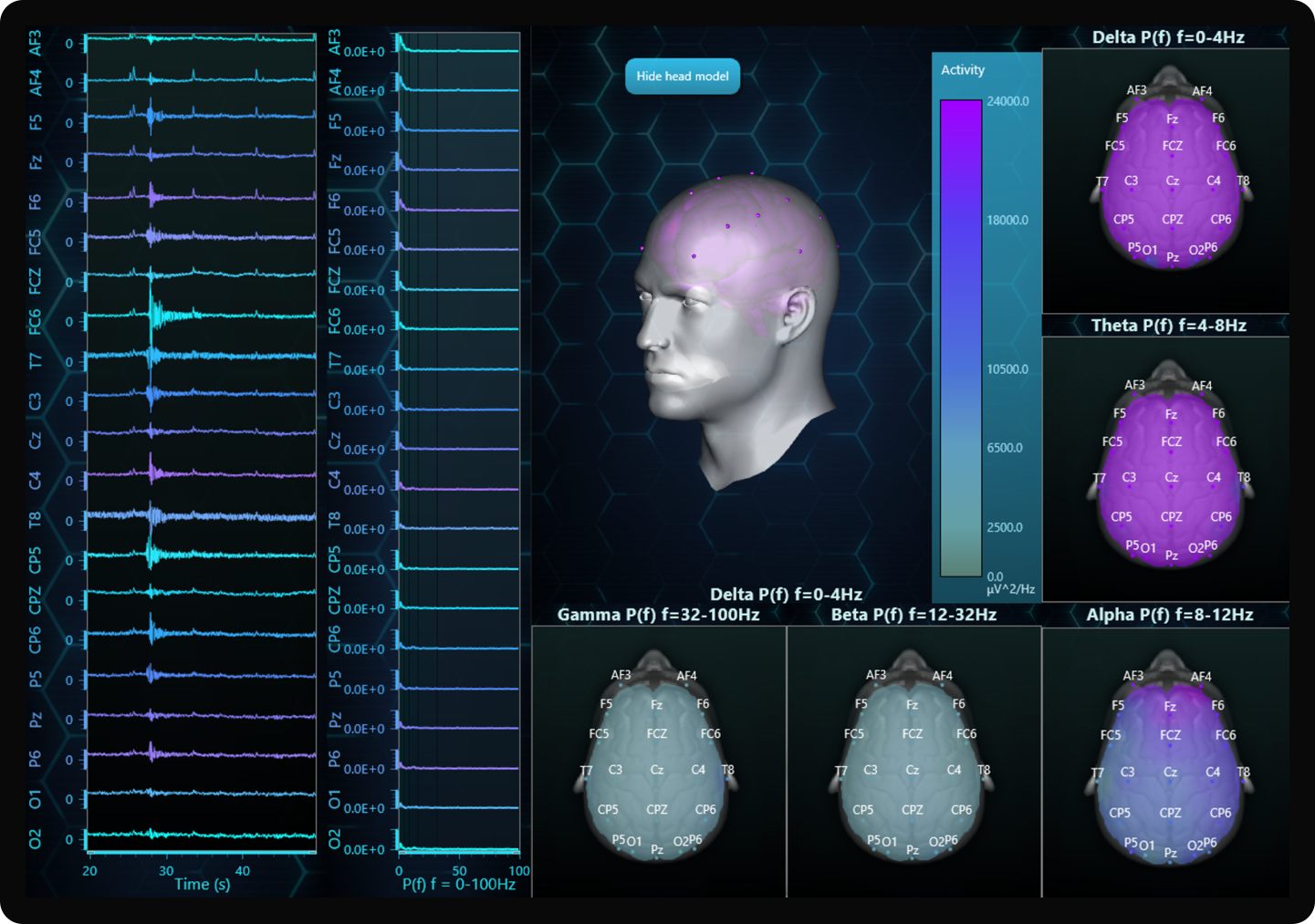
- ECG, EMG, real-time signal monitoring.
- Oscilloscope mode with auto axis adjustment.
- Frequency spectra, FFT (Fast Fourier Transform).
Geospatial Mapping (Maps and GIS)
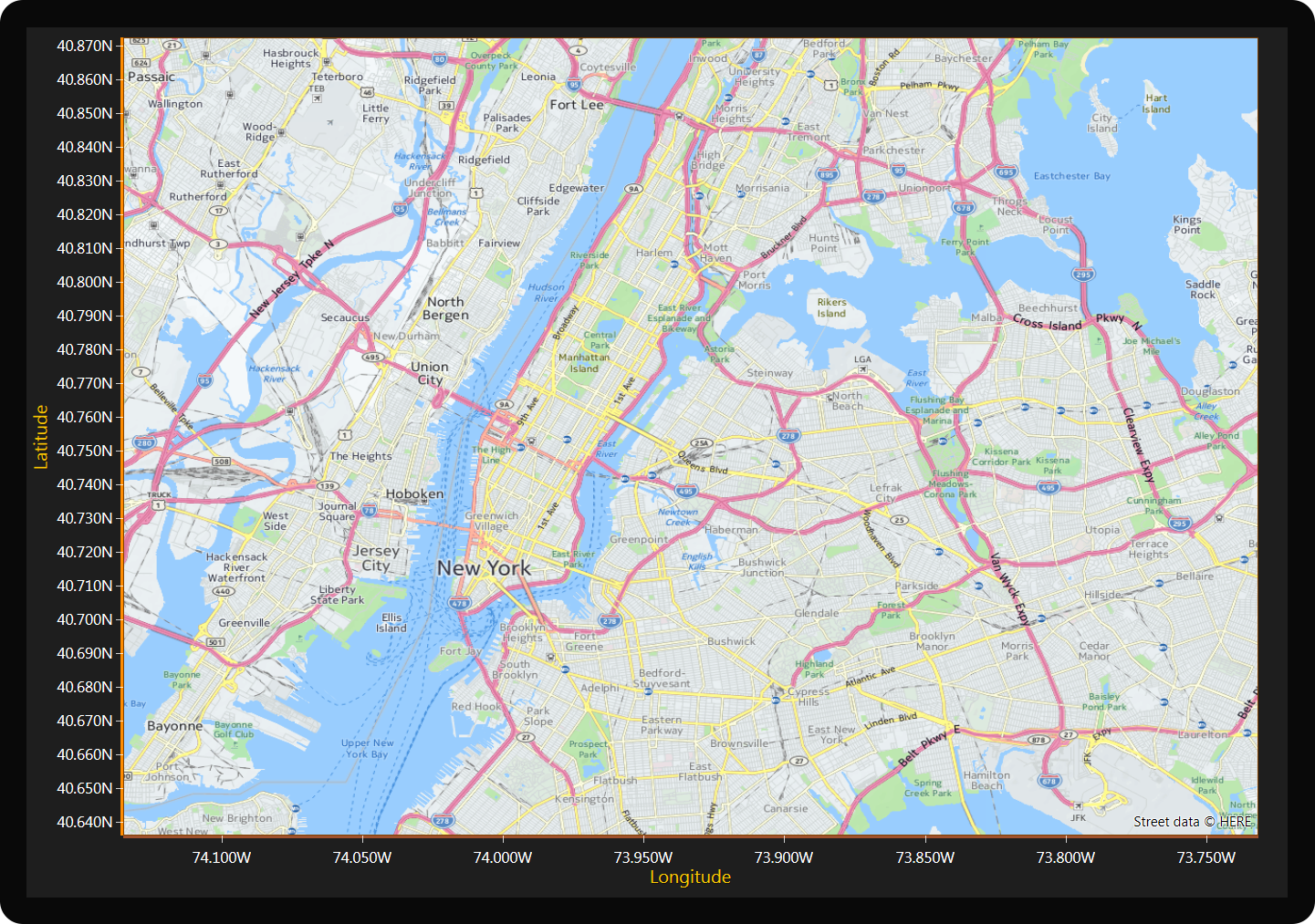
- Display data over heatmaps and geographic data layers.
- Support for Cartesian and geographic coordinates (lat/lon).
Advanced Series Types
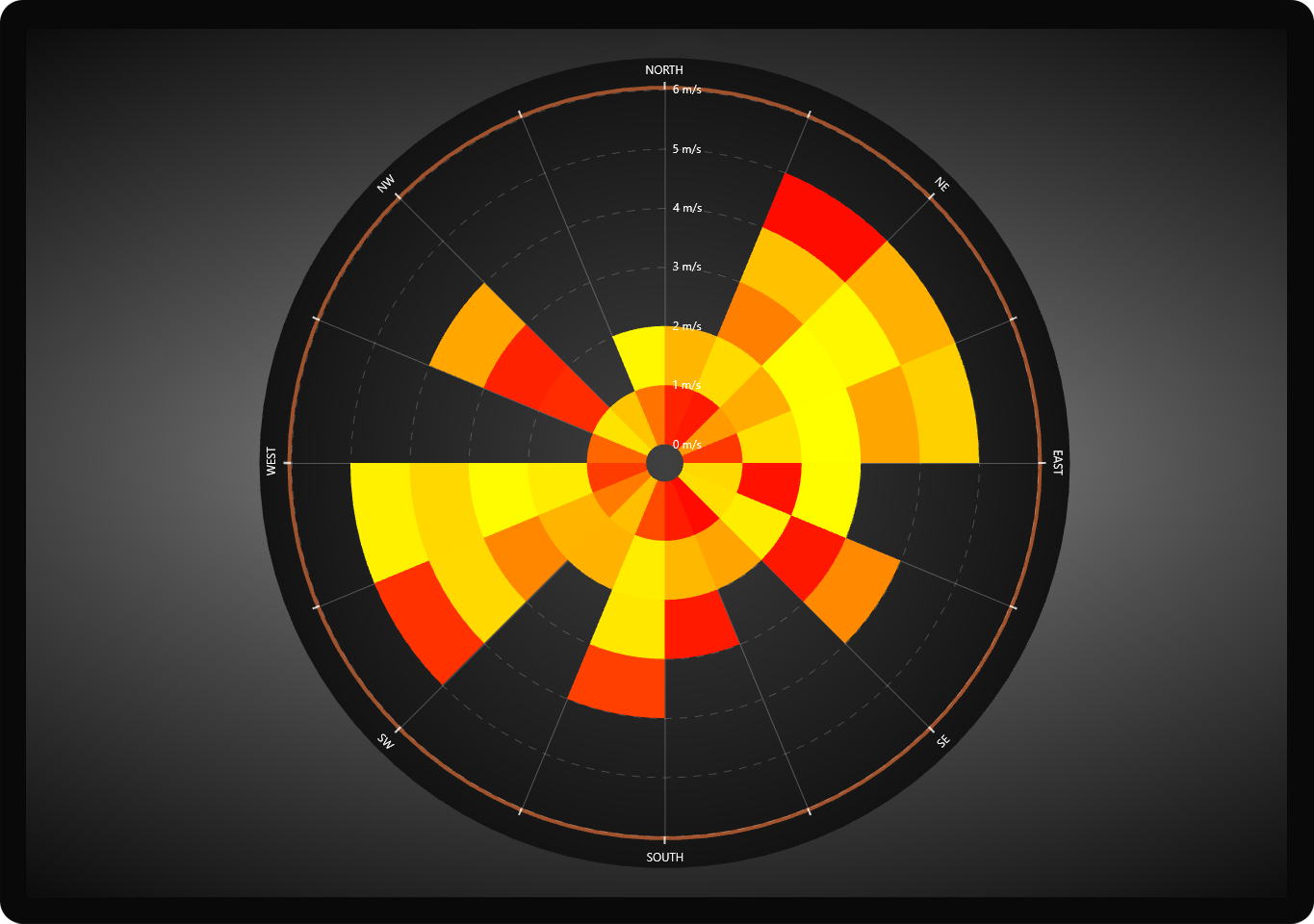
- Polar series, radial series, spline series, Gantt charts, etc.
- Gauges, speedometers, radar charts.
Multichannel / Real-Time

- Simultaneous visualization of hundreds of series or signals.
- Ultra-low latency, ideal for live monitoring and data acquisition systems.
Advanced Interaction
- Tooltips, zoom, pan, point selection.
- Synchronized coordinates, smart cursors, linked charts.
- Nested charts and floating visual windows.
Export
- Export to images, video, or raw data.
- Real-time chart captures for reports or streaming.
Rendering Engine
- Rendering based on DirectX (not just GDI+ or CPU).
- This enables extreme performance, even with millions of visible data points.
Use LightningChart .NET if you need:
- Extreme performance with millions of points.
- Real-time telemetry, oscilloscopes, or signal processing.
- Interactive 3D visualization.
- Scientific or medical visualization tools.
- Professional data analysis capabilities.
LC .NET Performance
LightningChart .NET excels in performance tests.
- Rendering capability: It can display billions of data points in real-time, maintaining update rates of at least 30 FPS on mid-range PCs.
- Performance comparisons: In tests against SciChart, LightningChart has proven to be up to 3000 times faster in certain scenarios and maintains a significant advantage even when SciChart uses resampling techniques.
- 3D chart performance: In visualizations like 3D meshes (MeshModel) and heatmaps, LightningChart has achieved speeds up to 13 times faster than its competitors, with an average of 90 FPS compared to 39.28 FPS in specific tests.
You can read more about performance tests.
Why is LightningChart .NET the best Oxyplot alternative for a WPF library?
OxyPlot is a popular option due to its simplicity and ease of integration, but when a project starts to demand high performance, large volumes of data, or even real-time visualizations, OxyPlot falls short. And that’s where LightningChart .NET comes in.
Why LightningChart?
LightningChart is a charting library specifically designed for scenarios where performance is critical. It is fully GPU-accelerated, meaning it can display millions or even billions of data points without slowing down the application. In comparison, OxyPlot uses only the CPU, which works well for simple, lightweight charts but doesn’t scale well with large amounts of data or real-time updates.
For example, if you need to display live sensor data, medical signals, industrial measurements, or high-frequency financial transactions, LightningChart can maintain a smooth refresh rate (60 FPS or more) even with a large data load. On the other hand, OxyPlot starts to experience performance issues much earlier, with just tens of thousands of points.
How versatile is it?
Another major advantage is the variety of charts that LightningChart offers. In addition to the classics (line, bar, scatter), it also supports 3D charts, heat maps, polar charts, radar charts, and even specialized visualizations like ECG or seismic data. All of this comes ready to use, with many customization options, interactive tools, cursors, zoom, legends, annotations, and more, all GPU-accelerated. OxyPlot, by contrast, has a more minimalist approach. It handles basic 2D charts well and is very useful for simple desktop applications or quick prototypes, but it doesn’t offer 3D visualizations or many advanced options outside of the most common features.
What about support?
LightningChart is a commercial product, which means you have access to professional technical support, detailed documentation, and regular updates. This can make a difference in critical projects or when time is an important factor. OxyPlot, being open source, relies more on the community. It can work well for smaller projects, but if you need guarantees or support in production, LightningChart offers more security.
Conclusion
Once we’ve reviewed the data and features of each library, it’s easy to deduce which one is the more powerful and advanced of the two. This doesn’t mean that OxyPlot is a bad option; it simply depends on the focus of your project, budget, and complexity. However, when considering OxyPlot alternatives, it’s important to weigh what each library offers in terms of performance, documentation, and support.
In summary, if you need something fast, powerful, and professional to handle large volumes of data or real-time visualizations, LightningChart is a very solid option among the available OxyPlot alternatives. On the other hand, if you’re building a simple application where performance isn’t as critical, OxyPlot may be more than sufficient.
Now, if you’re someone who relies 100% on documentation, OxyPlot will be somewhat tedious, as its documentation is very basic, and you’ll have to rely on the community for issues that you can’t resolve immediately. LC .NET offers very comprehensive documentation, including articles, tutorials, sample projects, YouTube videos, and direct technical support. Therefore, if at any point you find yourself in need of a powerful and reliable library, you should look at everything LC .NET and LC JS can offer you as strong OxyPlot alternatives.
Thank you for your attention, bye!
Continue learning with LightningChart
![[Tutorial] How to embed interactive charts in PowerPoint presentations](https://lightningchart.com/wp-content/uploads/2022/12/Interactive-Charts-in-PowerPoint-feature-image.jpg)
[Tutorial] How to embed interactive charts in PowerPoint presentations
Written by a human | Updated on April 9th, 2025Embed interactive charts in PowerPoint presentations Embedding charts within PowerPoint presentations has always been possible but perhaps one of the most ignored possibilities is actually embedding web applications...
Motorsports Analytics
Updated on April 10th, 2025 | Written by human Motorsports Analytics Large companies in the motorsports industry are collecting huge volumes of real-time data coming from different sources on and off the pitch during racing competitions. These data are both...
High-Performance Charting Controls for Fintech App Development
Written by a human | Updated on April 10th, 2025Charting Controls for Fintech Apps Money makes the world go round and as such, tracking and controlling financial transactions and information are some of the most important activities to do for any...



If you have any questions, feel free to contact us!
©LightningChart Ltd 2025. All rights reserved.