








LightningChart .NETWPF Area Chart with Multiple Series
TutorialLearn to create a WPF Area Chart in WPF framework with LightningChart .NET
Written by a human | Updated on April 24th, 2025
WPF Area Chart
In this article, we will make an Area Chart or Area graph using LightningChart .NET and interactive examples application. But… what is an Area Chart? An area chart is a combined line and bar chart. When we join the data points, we get this “spike” effect, leaving a threshold from the X-axis. In this type of plot, many series can be displayed one on top of the other, generating layers that can be represented by different colors. These types of charts are used to show changes in quantities over some time.
Project Overview
In this area chart, we will use an XY-type object, configuring properties such as lines and color palettes. You will mainly use an area chart whenever you need to display elements of a trend within a time frame. and their relative relationship. Additionally, within an area chart, these elements can be compared to the overall trend of the data.
 Download the project to follow the tutorial
Local Setup
For this project, we need to take into count the following requirements to compile the project.
- OS: 32-bit or 64-bit Windows Vista or later, Windows Server 2008 R2 or later.
- DirectX: 9.0c (Shader model 3 and higher) or 11.0 compatible graphics adapter.
- Visual Studio: 2010-2019 for development, not required for deployment.
- Platform .NET Framework: installed version 4.0 or newer.
Now go to the next URL and download LightningChart .NET. You’ll then be redirected to a sign-in form where you’ll have to complete a simple sign-up process. When you’re done with the registration process, you’ll have access to your LightningChart account.

After you sign into your account, you will be able to download the SDK. This SDK will be a “free trial” version, but you will be able to use many important features for this Digital Signal Processing Filters App tutorial. When you download the SDK, you’ll have a .exe file like this:

The installation will be a typical Windows process, so please continue with it until it is finished. After the installation, you will see the following programs:

License Manager
In this application, you will see the purchase options. All the projects that you will create with this trial SDK, will be available for future developments with all features enabled.

LightningChart .NET Interactive Examples
Now you can see 100+ interactive visualizations available for WPF, WinForms, and/or UWP.
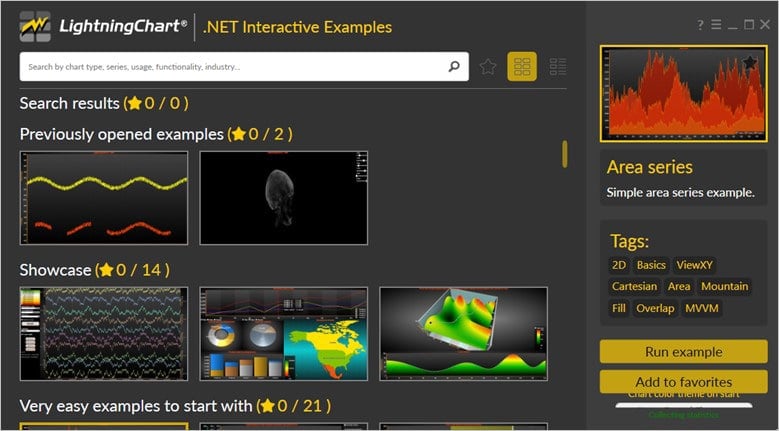
Visual Studio Project
Now let’s work with Visual Studio. The main difference between using the LightningChart visualizer and Visual Studio is that we will be able to analyze and experiment with many features within the source code. In the LC visualizer, select the Area Series chart and run the example:

In the top-right zone of the windows, you will see the following options:
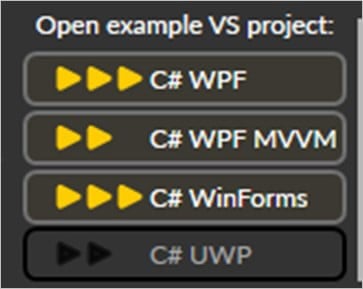
For the trial SDK, we will be able to use the WPF framework. After clicking the framework to use, we will need to specify a folder where the project will be created:
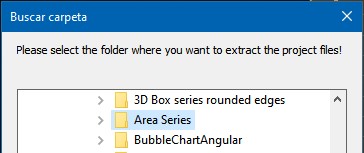
Finally, the 2D heatmap project will be created and Visual Studio will be opened and ready for executing the digital signal processing filters application.
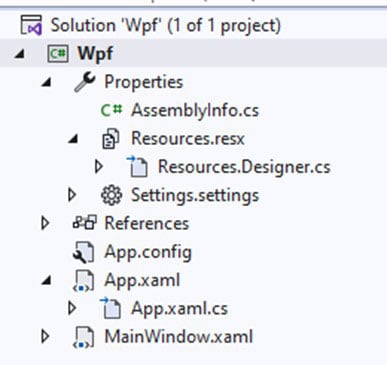
Code Review
The main code will be wrapped inside MainWindow.xaml.cs. Here we will find the code for UI controls.
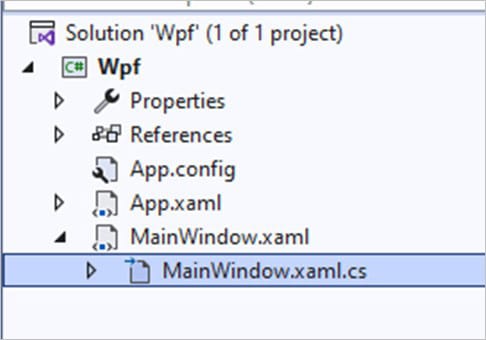
Inside the code, we will check two methods that will create the properties that we need to correctly draw the 2D heatmap chart. The interactive example is built with various user controls, to manipulate and change the visual properties of the chart. These controls are not required to generate this graph, so we will focus on the code responsible for generating the object.
CreateViewChart()
This main method will create the WPF area chart object:
if (_chart != null)
            {
                // If a chart is already created, dispose it.
                _chart.Dispose();
                _chart = null;
            }
            // Create a new chart.
            _chart = new LightningChart();
We need to disable the control repaints while we update the chart properties. BeginUpdate() will help us with control repaints.
_chart.BeginUpdate();Zooming and Panning
When using the final WPF area chart application, the user can easily zoom in and out or pan across the screen. Zooming can be done with the left or right mouse buttons, or by scrolling the mouse wheel. Panning will move both the X and Y axes if the PanDirection is set to “Both”. However, if you define the PanDirection to only Vertical, it will only move the Y-axes, and if you set it to Horizontal, it will only move the X-axes.
_chart.Title.Text = "Area plot";
            _chart.ChartName = "AreaChart";
            // Configure zoom and pan behaviour.
            _chart.ViewXY.ZoomPanOptions.WheelZooming = WheelZooming.Horizontal;
            _chart.ViewXY.ZoomPanOptions.PanDirection = PanDirection.Horizontal;
            _chart.ViewXY.Zoomed += View_Zoomed;
In the previous code snippet, you noticed View_Zoomed. This property updates the range of the X-axis, based on the minimum and maximum values of this established here:
double currentMin = view.XAxes[0].Minimum;
            double currentMax = view.XAxes[0].Maximum;

            if (min > currentMin || max < currentMax)
            {
                if (min > currentMin)
                {
                    currentMin = min;
                }

                if (max < currentMax)
                {
                    currentMax = max;
                }

                _chart.BeginUpdate();
                view.XAxes[0].SetRange(currentMin, currentMax);
                _chart.EndUpdate();
WPF Area Chart Main Views
LightningChart has the following main views:
ViewXYView3DViewPie3DViewPolarViewSmith
The visible view can be changed by setting the ActiveView property. The default view is ViewXY. We can have access to the X and Y-axes and assign those objects to an AxisX/AxisY object.
_chart.ViewXY.XAxes[0].ValueType = AxisValueType.Number;
            _chart.ViewXY.XAxes[0].ScrollMode = XAxisScrollMode.None;
As for types of values, you may choose from any of the following options:
- Number: Regular numeric format for integer and decimal presentation. When AutoFormatLabels is disabled, LabelsNumberFormat applies. This is the default value.
- Time: For time-of-day presentation. When AutoFormatLabels is disabled, LabelsTimeFormat applies.
- DateTime: Date presentation with an optional time of the day. When AutoFormatLabels is disabled, LabelsTimeFormat applies here as well, similarly to the Time value type.
Chart Data
In this part of the code, we generate the data points for the area chart. These data points will be based on the pointCounter property which has a default parameter = 500, and random numbers.
GenerateData(500);
Random rand = new Random();
_data.Add(CalculateData(rand, pointCounter, 25000.0, 50000.0));
_data.Add(CalculateData(rand, pointCounter, 18000.0, 30000.0));
_data.Add(CalculateData(rand, pointCounter, 5000.0, 15000.0));
The results will be stored in the _data list. The _data list is declared at the beginning of the project. This list will contain the series for the X-axis.
.List<double[][]> _data = null;Area Chart with Multiple Series
The OverlapLayout method will create the overlap areas of the chart which are based on the previous data created and stored in the _data list.
AreaSeries series = new AreaSeries(_chart.ViewXY, _chart.ViewXY.XAxes[0], _chart.ViewXY.YAxes[0]);
                series.Fill.Color = GradientColors[i];
                series.Fill.GradientFill = GradientFill.Solid;
                series.Fill.GradientDirection = 90;
                series.LineStyle.Color = SolidColors[4];
                series.LineStyle.Width = 2f;
                series.Highlight = Highlight.None;
                series.AllowUserInteraction = false;
                series.Title.Text = "Series " + (i + 1).ToString();
AreaSeries
About the previous code, the AreaSeries method presents data as a filled area between the base level and the values. So, the AreaSeries is somehow similar to the HighLowSeries but much simpler. The series can be added to the chart by adding the AreaSeries objects to the AreaSeries list.
Gradient Fills
Gradient fills go from a color to a gradient color. The GradientFill property can be set to any of:
- Linear
- Radial
- RadialStretched
- Cylindrical
You can use the GradientDirection to control the fill direction within the Linear and Cylindrical gradients. If you need to define your own gradient color variations, you can create a list of colors using the Color property. This property will take the list as colors and create a gradient from them
public static List<Color> SolidColors = new List<Color> {
            Color.FromArgb(255, 187, 28, 0),
            Color.FromArgb(255, 222, 54, 11),
            Color.FromArgb(255, 199, 86, 10),
            Color.FromArgb(255, 255, 160, 0),
            Color.FromArgb(255, 255, 124, 0)
        };

        public static List<Color> GradientColors = new List<Color> {
            Color.FromArgb(180, SolidColors[0].R, SolidColors[0].G, SolidColors[0].B),
            Color.FromArgb(180, SolidColors[1].R, SolidColors[1].G, SolidColors[1].B),
            Color.FromArgb(180, SolidColors[2].R, SolidColors[2].G, SolidColors[2].B),
            Color.FromArgb(180, SolidColors[3].R, SolidColors[3].G, SolidColors[3].B),
        };
Line Styles
You can use the LineStyle property to control the line color, style, and width. Set the line segments in the Lines property. Add the LineCollection object in the ViewXY.LineCollections list property.
Adding Data
To feed the area chart with our data, the data values must be added using code. The data must be provided in ascending order by X-values, points [i+1].X ≥ Points[i].X. See here an example:
double[][] data = _data[i];
                int pointCounter = data.Length;

                AreaSeriesPoint[] values = new AreaSeriesPoint[pointCounter];
                for (int j = 0; j < pointCounter; j++)
                {
                    values[j].X = data[j][0];
                    values[j].Y = data[j][1];
                }

                series.AddValues(values);
Final WPF Area Chart Application

The development of this WPF area chart is based on the implementation and use of the XY component of LightningChart .NET. This component provides us with various properties, such as the mouse behavior and type of value of the axes. These properties allow us to have a chart whose values are governed by time, or simply use integer or decimal values.
The trick with this chart was to convert chart points, creating a fill of gradient colors from the unions from those points. With this OverlapLayout method, we create these fills for each Line Series. The Fill function allows us to give color and gradients to a series.
I think a pretty cool way to create a gradient is to create a list of custom RGB colors. LightningChart .NET will take care of generating the gradient effect for you. Remember that gradients can be generated linearly, radially, or cylindrically, using the GradientFill property. The color orientation can be adjusted with the property GradientDirection.
In this example, the values are created randomly, but you can use an API that provides you with real values, either from a query in a database or generated by the API itself.
Being an XY type of chart, you will need two types of values that correspond to the X-axis and to the Y-axis. Assigning these values to the chart only requires mapping your array to an instance of [AreaSeriesPoint] and the addValues function will do the rest.
Remember that you can download this project at the beginning of this article, or you can get the interactive examples tool. If you have any questions, please do not hesitate to contact us. Thank you so much!

Omar Urbano
Software Engineer


Continue learning with LightningChart
Nbody Simulation Data Visualization
Written by a human | Updated on April 9th, 2025N-body Simulation Nbody simulation is maybe one of the most advanced data visualization types out there. The truth is that we’re not talking anymore about visualizing traditional data with a business focus and it...
Data Visualization Components for React Applications
Written by a human | Updated on April 9th, 2025React Data Visualization Components React is one of the most popular front-end development frameworks on the web in the year 2022. It is a free and open-source front-end JS library that is used to build interactive...
What Is LiDAR Data Visualization?
LiDAR Data Visualization The LiDAR method conveys another yet complex level of data visualization as it is widely used in demanding industries that require plotting, e.g., topographic or cartography 3D data. But the use of LiDAR goes further as it is also used...



If you have any questions, feel free to contact us!



©LightningChart Ltd 2026. All rights reserved.