Creating a 3D Terrain Modelling Application in C# with LightningChart .NET
Tutorial
3D terrain modelling data application project using WPF chart controls
Omar Urbano
Software Engineer


Introduction
I’m Omar, and in this article, we will use LightningChart .NET and C# to create a 3D terrain modeling application. This application will be capable of reading any JPG or PNG image and generating data points for each pixel, positioning them on a 3D plane.
Each point will have a unique value on the Y-axis, introducing verticality and relief to otherwise flat images. The height of each point will be determined by the intensity of the pixel’s color, with darker colors assigned lower Y-axis values.
The application will also include user controls that allow you to modify the colors of the points, helping to highlight specific areas of the terrain model. It is worth noting that moderately sized images are recommended, as transforming and rendering very large images (over 2,000 pixels) could impact the application’s performance.
Performance will depend on your video card or processor, so results may vary based on the hardware running the project. Before diving deeper into the development, I think it’s essential to go over some definitions to better understand the objectives of this 3D terrain modeling project.
3D Terrain Modelling

A 3D terrain model or 3D topographic map is a three-dimensional representation of a land area. These models attempt to represent the geographic properties of a predetermined area, such as reliefs, elevations, mountains, rivers, lakes, types of terrain, buildings, vegetation, etc.
Where is 3D terrain modelling used?
That said, we can assume the importance of this type of 3D modeling and its various uses. With their help, civil engineering works, urban construction, simulation of natural events, creation of video games and military applications can be planned. These models are based on data obtained from satellite images, laser scanners (LiDAR) or topographic maps.
In order to create these models, there is software specialized in the creation of 3D polygons, with 3D construction and design tools, among which we can refer to AutoCAD, ArcGIS and Blender.
How can LightningChart .NET help us create 3D models?
While Lightning Chart .NET does not allow us to create 3D figures with design tools, it does have 3D rendering support. Therefore, it is possible to create 3D elements with the help of programming data points located on a three-dimensional plane with X, Y, Z values.
This programming process can mean a complex development, but with enough experience, an algorithm can be created that allows us to obtain an expected result. The objective of this project is to provide a base template with which you can start and refine according to the requirements you have.
Project Overview
This project is working with the .NET WPF framework. This framework allows us to work with the user interface and C# code at the same time. This project was created with version 8 of .NET, so I recommend that you install this version or the latest one. You will need Visual Studio 2022 or newer to be able to run it.

Markup
Markup enables us to build a user interface with a variety of controls, allowing us to manage the displayed results in the application with great precision. This interface development is done using XAML (Extensible Application Markup Language). While it might initially look like an XML template, XAML is specifically designed for building application interfaces rather than just exchanging data between applications. The interface’s data, graphics, and animations can either be pulled from an external source file or dynamically generated through the code behind it.
Code Behind
The code behind refers to the file containing the executable code responsible for reading, generating, and processing the results the user needs. One of its main purposes is to separate the graphical interface code (like XAML, HTML, CSS, etc.) from the executable code. This separation allows us to divide the work between user interface design and the development of the underlying code, leading to safer, more organized, and faster development.
In the case of WPF (Windows Presentation Foundation), we use the C# programming language. C# is an object/component-oriented language that fits well with this approach. Lightning Chart .NET generates WPF projects with C# code that’s ready for execution. Within this code, you can use LightningChart .NET own tools, which can be easily imported if the LC .NET framework is installed.
 Download the project to follow the tutorial
Local Setup
- OS: 32-bit or 64-bit Windows Vista or later, Windows Server 2008 R2 or later.
- DirectX: 9.0c (Shader model 3 and higher) or 11.0 compatible graphics adapter.
- Visual Studio: 2022 for development, not required for deployment.
- Platform .NET Framework: installed version 8.0 or newer.
Now go to the next URL and download LightningChart .NET. You’ll then be redirected to a sign-in form where you’ll have to complete a simple sign-up process to get access to your LightningChart account.

After signing in to your account, you can download the SDK “free trial” version that allows you to use important features for this 3D terrain modelling tutorial. When you download the SDK, you’ll have a .exe file like this:

The installation will be a typical Windows process, so please continue with it until it is finished. After the installation, you will see the following programs:

License Manager
In this application, you will see the purchase options. All the projects that you will create with this trial SDK will be available for future developments with all features enabled.

XAML Code Review
The design of our application will be contained within the MainWindow.xaml file. Although it will be something quite simple, we will try to apply some visual properties that give us a “softer” or less aggressive style, applying dark colors that are normally used in modern designs.

For the fonts, we will use a slightly gray color, which will give us a more relaxing and comfortable style to the eye.
<!-- Modern style for labels -->
<Style TargetType="Label">
    <Setter Property="Foreground" Value="#E1E1E1"/>
    <Setter Property="FontSize" Value="14"/>
    <Setter Property="Margin" Value="5"/>
</Style>

<!-- Modern style for checkboxes -->
<Style TargetType="CheckBox">
    <Setter Property="Foreground" Value="#E1E1E1"/>
    <Setter Property="Margin" Value="5"/>
</Style>

<!-- Modern style for textboxes -->
<Style TargetType="TextBox">
    <Setter Property="Foreground" Value="#E1E1E1"/>
    <Setter Property="Background" Value="#333333"/>
    <Setter Property="BorderBrush" Value="#444444"/>
    <Setter Property="BorderThickness" Value="1"/>
    <Setter Property="Padding" Value="5"/>
    <Setter Property="FontSize" Value="14"/>
</Style>
We will keep the color palette dark, to avoid aggressive contrasts. For the buttons, we will add a not-so-bright blue color, with almost invisible edges, avoiding an aggressive design that is very characteristic of “Windows 95”.
<!-- Modern style for buttons -->
<Style TargetType="Button">
    <Setter Property="Background" Value="#007ACC"/>
    <Setter Property="Foreground" Value="White"/>
    <Setter Property="BorderBrush" Value="#005A9E"/>
    <Setter Property="BorderThickness" Value="1"/>
    <Setter Property="Padding" Value="8,4"/>
    <Setter Property="FontSize" Value="14"/>
    <Setter Property="Margin" Value="5"/>
    <Setter Property="Cursor" Value="Hand"/>
    <Setter Property="FontWeight" Value="Bold"/>
</Style>
Our LC .NET chart would take up the most space in our application, adding a second section where the original image will be displayed:

For this we will use the WPF grid element, to which we will assign two columns, one of which will have two rows (One for the buttons and the points counter and the other for the chart).
<Grid Grid.Row="2" Margin="10">
    <Grid.ColumnDefinitions>
        <ColumnDefinition Width="*"/>
        <ColumnDefinition Width="0.3*"/>
    </Grid.ColumnDefinitions>
    <!-- Updated to include two rows in Column 1 -->
    <Grid Grid.Column="0">
        <Grid.RowDefinitions>
            <RowDefinition Height="Auto"/>
            <RowDefinition Height="*"/>
        </Grid.RowDefinitions>
        <!-- Added Label for "Points" -->
        <Label Grid.Row="0" Content="Point Count:" Margin="5"/>
        <Grid x:Name="ChartGrid" Grid.Row="1" Background="Transparent" Margin="0,10,0,0"/>
        <TextBox x:Name="PointsTextBox" Margin="95,5,405,5" Width="100" HorizontalAlignment="Left" IsEnabled="False"/>
        <Button x:Name="UpdateColors" Click="UpdateColors_Click" Content="Apply Changes" Width="160" Margin="0,5,0,5" HorizontalAlignment="Center"/>
        <Button x:Name="LoadImageButton" Content="Load Image" Click="LoadImageButton_Click" Width="160" Margin="385,5,0,5" HorizontalAlignment="Left"/>
    </Grid>
    <Image x:Name="DisplayImage" Grid.Column="1" Margin="10" VerticalAlignment="Center"/>
</Grid>
CreateChart()
This method will create our 3D chart, adding visual properties and encapsulating them in a single constructor.
_chart = new LightningChart();
_chart.ActiveView = ActiveView.View3D;
_chart.View3D.WallOnBack.Visible = false;
_chart.View3D.WallOnBottom.Visible = false;
_chart.View3D.WallOnFront.Visible = false;
_chart.View3D.WallOnLeft.Visible = false;
_chart.View3D.WallOnRight.Visible = false;
_chart.View3D.WallOnTop.Visible = false;
_chart.View3D.XAxisPrimary3D.Visible = false;
_chart.View3D.ZAxisPrimary3D.Visible = false;
_chart.View3D.YAxisPrimary3D.Visible = false;
_chart.View3D.LegendBox.Visible = false;
_chart.Background = System.Windows.Media.Brushes.Black;
_chart.ChartBackground.Color = Colors.Black;
_chart.ChartBackground.GradientFill = GradientFill.Solid;
ChartGrid.Children.Add(_chart);
Many of the properties were set to false since we don’t need to show walls or angles in our 3D plane.

Walls (WallOnFront, WallOnBack, WallOnTop, WallOnBottom, WallOnLeft, WallOnRight) are used to present axis grids and grid strips and to give a base for the axes.
By default, bottom, left, right, back, and front walls are visible. Their AutoHide property is set to true. When rotating the view, the obstructing walls are temporarily hidden so that they don’t block the view of chart contents.
To force a wall visible, set Visible = true and AutoHide = false. Use XGridAxis, YGridAxis, ZGridAxis, GridStripColorX, GridStripColorY, GridStripColor,Z and GridStrips properties to select from which axes the grid is applied, and to modify the coloring of the grid strips. The available properties depend on the wall orientation.
imageToXYZ()
This method will create the X, Y, Z values for each pixel in our image, generating a data set that will be added to our data set.
Finding the Minimum and Maximum z Values:
All pixels in the image are scanned. For each pixel, a z value is calculated based on a formula that weighs the values of the color channels (Red, Green, and Blue). This formula is a way to convert the color to a grayscale with different weights for each channel. minZ and maxZ are updated to reflect the range of z values found in the image.
for (int y = 0; y < height; y++)
{
    for (int x = 0; x < width; x++)
    {
        System.Drawing.Color pixelColor = bitmap.GetPixel(x, y);

        double z = 0.299 * pixelColor.R + 0.587 * pixelColor.G + 0.114 * pixelColor.B;

        if (z < minZ) minZ = z;
        if (z > maxZ) maxZ = z;
    }
}
Processing and Normalizing Pixels
In this pass, all pixels in the image are processed again. For each pixel, the z value is calculated, normalized (i.e. scaled between 0 and 1 based on the z range found in the first pass), and then scaled to a range of 0 to 255.
Finally, the results are added to the results list with the pixel coordinates inverted (y – x are inverted to reflect the change in the coordinate system), and the z, r, g, and b values.
List<string[]> results = new List<string[]>();

for (int y = 0; y < height; y++)
{
    for (int x = 0; x < width; x++)
    {
        System.Drawing.Color pixelColor = bitmap.GetPixel(x, y);
        int r = pixelColor.R;
        int g = pixelColor.G;
        int b = pixelColor.B;

        double z = 0.299 * pixelColor.R + 0.587 * pixelColor.G + 0.114 * pixelColor.B;

        double normalizedZ = (z - minZ) / (maxZ - minZ);
        double scaledZ = normalizedZ;

        // Optionally, clamp the scaled Z values
        if (scaledZ > 255) scaledZ = 255;
        if (scaledZ < 0) scaledZ = 0;

        // Invert the coordinates
        results.Add([$"{height - y - 1}", $"{width - x - 1}", $"{scaledZ}", $"{r}", $"{g}", $"{b}"]);
    }
}
return results;
BuildDataSeries()
In this 3D chart, we will use a series of 3D lines and points. First, we will need to get the data set using the imageToXYZ method:
var data = imageToXYZ(imageURi);Now we will create our series of 3D points, setting some visual properties:
var pls3d = new PointLineSeries3D
{
    AllowUserInteraction = false,
    LineVisible = false,
    ShowInLegendBox = false,
    PointsType = PointsType3D.CompactPointsColor,
    PointStyle = { ShapeType = ShapeType.Shape2D, Shape2D = { Shape = Shape.Circle } },
    PointsOptimization = PointsRenderOptimization3D.Pixels,
    IndividualPointColors = true
};- AllowUserInteraction = false: This disables user interaction with the series (for example, points cannot be clicked).
- LineVisible = false: This makes the lines between the points not visible.
- ShowInLegendBox = false: The series will not appear in the chart legend.
- PointsType = PointsType3D.CompactPointsColor: Defines the type of points as compact and colored.
- PointStyle: Defines the style of the points:
- ShapeType = ShapeType.Shape2D: Points are drawn in 2D (although they are represented in a 3D context).
- Shape2D = { Shape = Shape.Circle }: The points are shaped like a circle.
- PointsOptimization = PointsRenderOptimization3D.Pixels: Optimizes rendering of points at the pixel level.
- IndividualPointColors = true: Allows each point to have an individual color.
We will create some configuration variables for the data:
const int columnslenght = 500;
const int rowslenght = 500;
const int xStart = 10000;
const int zStart = 8000;
const float cells = 20;- columnslenght and rowslenght: The dimensions of the area or grid in terms of columns and rows.
- xStart and zStart: The starting points on the X and Z axes.
- cells: The size of the points in the graph.
An array is created for the points in the series and a list is created to store the corners of the area to be displayed.
var seriesPoints = new SeriesPointCompactColored3D[data.Count];
var corners = new List<(int, int)> { (xStart, zStart) };
Population of points in the series
This snippet iterates over each converted image data, adjusts the coordinates (X, Y, Z) and assigns a color to each point based on their RGB values. The points are added to the seriesPoints series:
for (int i = 0; i < data.Count; i++)
{
    var current = data[i];

    var x = float.Parse(current[0]) * cells;
    var z = float.Parse(current[1]) * cells;
    var y = float.Parse(current[2]) * cells * 2.8f;

    int red = int.Parse(current[3]);
    int green = int.Parse(current[4]);
    int blue = int.Parse(current[5]);
    var hue = getHueColor(red, green, blue);
    var color = ChartTools.ColorToInt(ChartTools.ColorHSVA(hue, 0.5, _Value, _Alpha));

    seriesPoints[i] = new SeriesPointCompactColored3D
    {
        X = x,
        Y = y,
        Z = z,
        Color = color
    };
}

pls3d.AddPoints(seriesPoints, false);
Bounding box calculation
We calculate the range of coordinates (minimum and maximum) on the X and Z axes to determine the display area:
var (xmin, xmax, zmin, zmax) = (int.MaxValue, int.MinValue, int.MaxValue, int.MinValue);

foreach (var (x, z) in corners)
{
    xmin = Math.Min(xmin, x);
    xmax = Math.Max(xmax, x);
    zmin = Math.Min(zmin, z);
    zmax = Math.Max(zmax, z);
}
Chart Update
We will update the chart, setting the axis ranges based on the calculated bounding box and adjusting the chart dimensions. The text box with the number of points is also updated and the chart title is cleared. Finally, the chart update is safely finished.
_chart.BeginUpdate();
_chart.View3D.PointLineSeries3D.DisposeAllAndClear();
_chart.View3D.PointLineSeries3D.Add(pls3d);
_chart.View3D.XAxisPrimary3D.SetRange(xmin, xmax + columnslenght);
_chart.View3D.YAxisPrimary3D.SetRange(0, 100);
_chart.View3D.ZAxisPrimary3D.SetRange(zmin, zmax + rowslenght);
PointsTextBox.Text = seriesPoints.Length.ToString();
_chart.Title.Text = "";
_chart.View3D.Dimensions.SetValues(
    200 * (zmax + columnslenght - zmin) / 1000,
    200,
    200 * (xmax + rowslenght - xmin) / 1000
);

Dispatcher.Invoke(() => _chart.EndUpdate());
getHueColor()
This method converts a color in the RGB (Red, Green, Blue) color space to a hue value in the HSV (Hue, Saturation, Value) color space. This method will be used in mapping each data point, helping to assign a color to each point.
Normalizing RGB values:
// Convert RGB to normalized values
float r = red / 255f;
float g = green / 255f;
float b = blue / 255f;
Red, green, and blue are the values of the color components in the range 0 to 255. They are divided by 255 to normalize them to the range 0 to 1, which is more suitable for calculations in the HSV color space.
Find the maximum and minimum value among the RGB components:
float max = Math.Max(r, Math.Max(g, b));
float min = Math.Min(r, Math.Min(g, b));
float delta = max - min;
float hue = 0f;- max is the maximum value among the normalized red, green, and blue components.
- min is the minimum value.
- delta is the difference between max and min and represents the “width” of the color, which will be important for calculating the hue.
- hue is the value to be calculated and returned.
Calculate the hue if the delta is not zero (i.e. if the color is not gray):
if (delta != 0)
{
    if (max == r)
    {
        hue = 60 * (((g - b) / delta) % 6);
    }
    else if (max == g)
    {
        hue = 60 * (((b - r) / delta) + 2);
    }
    else if (max == b)
    {
        hue = 60 * (((r - g) / delta) + 4);
    }
    if (hue < 0)
    {
        hue += 360;
    }
}
else
{
    // If delta is zero, the color is grayscale
    hue = 0; // or some undefined value
}- If delta is non-zero, the hue components are calculated based on which RGB component (r, g, b) is the maximum.
- If hue turns out to be negative after calculation, it is adjusted by adding 360 to ensure it is in the range of 0 to 360 degrees.
UpdateC()
This method will be executed with the “apply Changes” button and will update the color of the points based on the selected color factor.
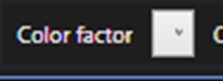
- ‘*’: Adds a value to the starting color based on the point’s Y value and a multiplier.
- ‘+’: Adds a fixed value plus the point’s Y value to the starting color.
- ‘-‘: Subtracts a fixed value from the point’s Y value to modify the starting color.
The following code block updates the color of each data point in each series of the chart in parallel to improve performance, then refreshes the chart to reflect these changes:
Parallel.For(0, pointLines.Count, (i) =>
{
    SeriesPointCompactColored3D[] colored3Ds = pointLines[i].PointsCompactColored;
    for (int x = 0; x < colored3Ds.Length; x++)
    {
        colored3Ds[x].Color = ChartTools.ColorToInt(ChartTools.ColorHSVA(_Startcolor + colored3Ds[x].Y * _Multiplier, _Saturation, _Value, _Alpha));
    }
    _chart.View3D.PointLineSeries3D[i].InvalidateData();
});
break;
Parallel.For runs a loop in parallel across multiple threads. It iterates from 0 to pointLines.Count, with i representing the index of the current point line series. After updating all points in the current series, it calls InvalidateData on the series to signal that the data has changed and needs to be refreshed.
Conclusion
This project excited me a lot, as the result is highly satisfying. You might have thought, upon seeing the final image, that creating such a project would be complex. The truth is, it’s not as difficult as it seems, thanks to LC .NET providing the tools that simplify assigning points and generating the chart.
If you’ve explored other .NET projects, you’ve probably noticed a familiar pattern: create an instance of the LightningChart constructor, set visual properties, define a series type, and assign a data array.
This consistency is a huge advantage because you can easily pull a base project from LC .NET’s interactive examples or articles and adapt the code you need. This saves time and lets you focus on the most important aspect—your data source.
For 3D terrain modeling, the process involves extracting each pixel from an image, identifying its color, and assigning it X, Y, and Z coordinates.
An image represents a two-dimensional plane where Y is the vertical axis and X is the horizontal. In a three-dimensional plane, we introduce the Z-axis to add depth. We assign Z-values based on the intensity of each pixel’s color, which effectively creates the terrain’s heightmap.
To enhance the model, we’ll add extra properties to each point, such as a “cells” multiplier. This multiplier expands the points, producing a larger, more detailed terrain.
You could even create this multiplier as an adjustable option in the app’s UI, making it a great hands-on exercise. Doesn’t the logic sound simple? The code might seem a bit tricky at first, but with refinement and practice, it becomes manageable.
I hope this explanation has been helpful. Thank you very much!
Continue learning with LightningChart

Trend Lines in Trading
Trend lines are among the simplest yet most powerful tools in technical analysis. They help traders visualize market direction, identify potential support and resistance levels, and make more informed trading decisions. Despite their simplicity, trend lines remain a...
Best Python Charting Library in 2026
Python's charting ecosystem is large, overlapping, and regularly misunderstood. Most comparison guides stop at Matplotlib, Plotly, and Seaborn. This one goes further: it covers what happens when your datasets grow large, your update rates increase, or your chart types...

Best TradingView Charting Library Alternative
TradingView's charting libraries are the most visible option for fintech developers. Visibility is not the same as capability. This guide is for developers who have hit the wall on candle count limits, watermark restrictions, branding requirements, real-time...



If you have any questions, feel free to contact us!



©LightningChart Ltd 2026. All rights reserved.