








LightningChart .NETWPF Scatter Chart
TutorialImplementation of a WPF Scatter Chart with LightningChart .NET
Written by a human | Updated on April 23rd, 2025
WPF Scatter Chart
In this article, we’ll explore working with Lightning Chart .NET by creating a scatter chart using the interactive examples tool. This handy tool lets us generate a WPF project from an available example, making it easier to get started.
Before diving in, it’s important to keep in mind the technical requirements needed to work with the LC .NET tool and framework. As with other .NET articles, I’ll briefly explain some key concepts related to WPF and scatter charts, as well as guide you through the installation of the LC .NET tools. I recommend following each step carefully to ensure a smooth experience.
What is LightningChart’s WPF graph?
LightningChart’s WPF graph, known as LightningChart for WPF, is a powerful data visualization tool designed specifically for Microsoft Windows Presentation Foundation (WPF). WPF charts can easily be integrated into your Microsoft Visual Studio toolbox.
You can add them to your software project using drag-and-drop, XAML, or code-behind. Once added, the WPF graph becomes a key part of the user interface (UI) in your Windows desktop application, making it an invaluable tool for software developers.
What is WPF?
Windows Presentation Foundation (WPF) is a framework designed for creating applications with sophisticated user interfaces. It consists of two main components: Markup, where you define the structure and appearance, and code-behind, where you manage the application’s logic and behavior.
Project Overview
Today we will create the application using the WPF scatter chart in LightningChart .NET.

 Download the project to follow the tutorial
Markup
Markup enables us to build a user interface with a variety of controls, allowing us to manage the displayed results in the application with great precision. This interface development is done using XAML (Extensible Application Markup Language). While it might initially look like an XML template, XAML is specifically designed for building application interfaces rather than just exchanging data between applications.
The interface’s data, graphics, and animations can either be pulled from an external source file or dynamically generated through the code behind.
<Window
	xmlns="http://schemas.microsoft.com/winfx/2006/xaml/presentation"
	Title="Window with Button"
	Width="250" Height="100">

  <!-- Add button to window -->
	<Button Name="button">Click Me!</Button>

</Window>
The creation of some controls can be almost the same as that of HTML tags, in other cases, properties such as style is limited to the declaration of a property within a tag.
Code Behind
The code behind refers to the file containing the executable code responsible for reading, generating, and processing the results the user needs. One of its main purposes is to separate the graphical interface code (like XAML, HTML, CSS, etc.) from the executable code. This separation allows us to divide the work between user interface design and the development of the underlying code, leading to safer, more organized, and faster development.
In the case of WPF (Windows Presentation Foundation), we use the C# programming language. C# is an object/component-oriented language that fits well with this approach. Lightning Chart .NET generates WPF projects with C# code that’s ready for execution. Within this code, you can use LightningChart .NET own tools, which can be easily imported if the LC .NET framework is installed.
WPF Scatter Chart
Scatter charts are a great way to explore the relationship between two different variables or data series. Similar to line or bar charts, they are displayed on a two-dimensional plane using X and Y axes. The key difference is that each axis in a scatter chart has its own independent variable. Each data point on the chart represents a pair of values, showing where these two variables intersect on the Cartesian plane. To make sure everything is accurately placed, it’s important to create a uniform scale for both axes. Scatter charts are versatile and can be the basis for other types of charts, like the popular bubble chart.
Scatter charts can have various correlation patterns:
- Linear: The data points for both variables tend to have a linear pattern.
- Non-linear: There is no linear pattern, and they may show complete dispersion within the plane.
- Negative Linear: Same pattern as the linear one, but in an inverted direction, showing a downward trend.
Within each pattern, we can have levels of correlation, which can be moderate or strong correlations.

This means that the greater the correlation strength, the less dispersion or separation there will be for each data point. These types of correlations are known as Pearson’s Linear Correlation Coefficient (R). The R-value helps us gauge the strength and direction of the linear relationship between variables. It ranges from +1 to -1, where +1 indicates a perfect positive correlation, -1 represents a perfect negative correlation, and 0 means there’s no correlation at all.

Local Setup
For this project, we need to consider the following requirements to compile the project.
- OS: 32-bit or 64-bit Windows Vista or later, Windows Server 2008 R2 or later.
- DirectX: 9.0c (Shader model 3 and higher) or 11.0 compatible graphics adapter.
- Visual Studio: 2010-2019 for development, not required for deployment.
- Platform .NET Framework: installed version 4.0 or newer.
Now go to the next URL and download LightningChart .NET. You’ll then be redirected to a sign-in form where you’ll have to complete a simple sign-up process to get access to your LightningChart account.

After signing in to your account, you can download the SDK “free trial” version that allows you to use important features for this WPF Scatter chart tutorial. When you download the SDK, you’ll have a .exe file like this:

The installation will be a typical Windows process, so please continue with it until it is finished. After the installation, you will see the following programs:

License Manager
In this application, you will see the purchase options. All the projects that you will create with this trial SDK, will be available for future developments with all features enabled.

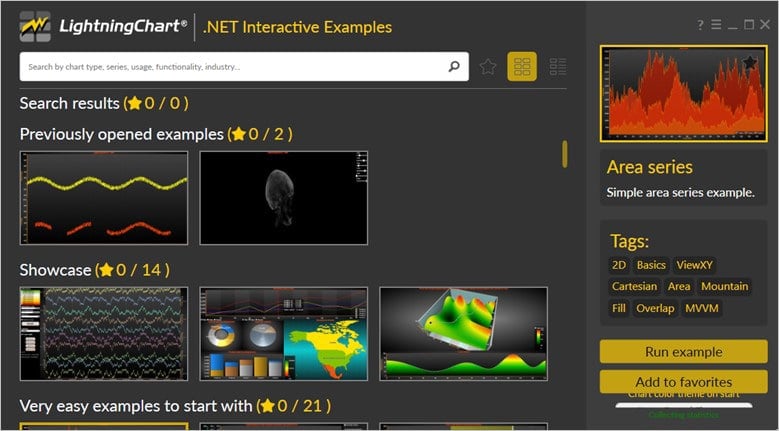
LightningChart .NET Interactive Examples
You can see 100+ interactive visualizations for WPF, WinForms, and/or UWP.
Visual Studio Project
The main difference between the LightningChart visualizer and Visual Studio is that we can analyze and experiment with many features within the source code. In the LC visualizer, select the “wpf scatter chart” example and run it:

In the top-right zone of the windows, you will see the following options:
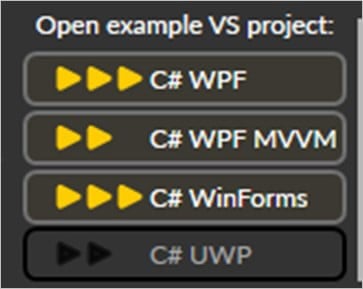
The SDK trial allows us to use the WPF framework. After selecting the right framework, we need to specify a folder where to create the WPF scatter chart project:

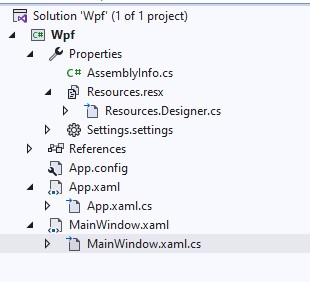
After creating the project, Visual Studio will open and be ready for execution.
XAML Code Review
The main XAML code will be wrapped inside MainWindow.xaml.cs and contains the code of the WPF scatter chart.
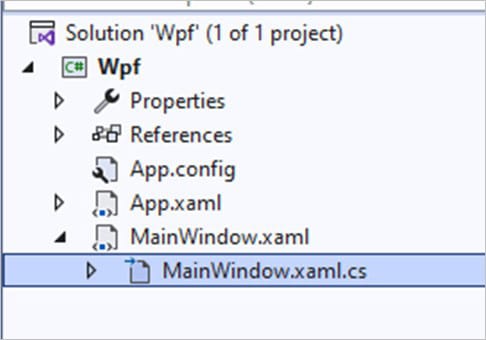
Inside the code, we will check two methods for creating the properties needed to draw the WPF scatter chart correctly. The interactive example is built with various user controls to manipulate and change the visual properties of the chart. These controls are not required to generate this graph, so we will focus on the code responsible for generating the object.
CreateChart()
This method will be responsible for configuring our chart, adding the axes, groups, colors, etc. We will create our chart:
// Create a new chart.
_chart = new LightningChart
{
    ChartName = "Scatter chart"
};

//Disable rendering, strongly recommended before updating chart properties
_chart.BeginUpdate();
The BeginUpdate function will allow us to stop drawing the WPF scatter chart, which will allow us to set up the properties that we want to customize. If we want, we can display a legend box in our chart:
_chart.ViewXY.LegendBoxes[0].Visible = true;
LotsOfDots optimization to take effect:_chart.ViewXY.XAxes[0].ScrollMode = XAxisScrollMode.None;Now we will create a new series where the following process will be executed within a loop for the series number that we specified in the seriesCount variable:
int seriesCount = 1;
for (int seriesIndex = 0; seriesIndex < seriesCount; seriesIndex++)
{
    FreeformPointLineSeries series = new FreeformPointLineSeries(_chart.ViewXY, _chart.ViewXY.XAxes[0], _chart.ViewXY.YAxes[0])
    {
        LineVisible = false,
        PointsVisible = true
    };
We use the FreeformPointLineSeries, which is a versatile tool that can display a simple line, points (like in a scatter plot), or both combined into a point line. This series allows you to draw a line in any direction from the previous point. Plus, all the formatting options from PointLineSeries apply here as well.
To add the series to your chart, simply include FreeformPointLineSeries objects in the FreeformPointLineSeries list. It’s important to note that points in the FreeformPointLineseries aren’t automatically deleted, even if you have DropOldSeriesData enabled, and the points move out of view.
For real-time monitoring in the WPF scatter chart, if you want to automatically remove old series points, you can use a point count limiter. Just set PointCountLimitEnabled to true and define the maximum number of points with the PointCountLimit property. When this limiter is active, the Points array functions like a ring buffer once the limit is reached, with the oldest point always available at OldestPointIndex.
Now let’s configure points properties:
series.PointStyle.Color1 = DefaultColors.SeriesForBlackBackgroundWpf[seriesIndex % DefaultColors.SeriesForBlackBackgroundWpf.Length];
series.PointStyle.Width = 1;
series.PointStyle.Height = 1;
series.PointStyle.Shape = Arction.Wpf.Charting.Shape.Rectangle;
series.PointStyle.GradientFill = GradientFillPoint.Solid;
series.PointStyle.BorderWidth = 0;
series.AllowUserInteraction = false;
series.PointsOptimization = GetOptimizationFromSelection();
_chart.ViewXY.FreeformPointLineSeries.Add(series);PointsOptimization: To efficiently display a large number of scatter points, set PointsOptimization = Pixels. This will render points as 1×1 pixels, which can significantly boost performance, especially when dealing with millions of points. For smaller datasets, say up to 10,000 points, Pixels are definitely faster. Keep in mind that while LotsOfPixels can handle large quantities quickly, it renders all points in a flat layer. If you have multiple translucent points in the same spot, their individual alpha blending won’t be preserved. However, if alpha = 255, the output will look almost identical.
private PointsRenderOptimization GetOptimizationFromSelection()
{
    if (comboBoxOptimization.SelectedIndex == 0)
    {
        return PointsRenderOptimization.None;
    }
    else if (comboBoxOptimization.SelectedIndex == 1)
    {
        return PointsRenderOptimization.Pixels;
    }
    else
    {
        return PointsRenderOptimization.LotsOfPixels;
    }
}
Axes Setup
To access the X axis, we just need to select index zero from the XAxes list. Since we are only using a chart with a single X axis, it will be assigned by default to index zero:
_chart.ViewXY.XAxes[0].ValueType = AxisValueType.Number;
_chart.ViewXY.XAxes[0].SetRange(-1000, 1000);
_chart.ViewXY.YAxes[0].SetRange(-1000, 1000);
Within the WPF scatter chart, the range will be from -1000 to 1000, same range for Y axis.
_chart.EndUpdate();

gridChart.Children.Add(_chart);
Once we have finished configuring our chart, we close the EndUpdate() update process, and add the chart object to our XAML grid so that it is displayed.
AxisY axisY = _chart.ViewXY.YAxes[0];
axisY.SetRange(40, 100);
axisY.Title.Text = "Weight (kg)";
The Y-axis configuration is simpler since we only need to show the vertical value of each object. The focus of the Y axis will be set between the values 40 and 100, which are the minimum and maximum numbers of our boxes.
_chart.EndUpdate();

gridChart.Children.Add(_chart);
Once we have finished configuring our chart, we close the EndUpdate() update process, and add the chart object to our XAML grid so that it is displayed.
Adding number of points
This method will be executed by the “Set Data” button. First, the series of points that was created when the chart was started is cleared. A loop will be executed using the entered value as a limit.

foreach (FreeformPointLineSeries freeformPointLineSeries in _chart.ViewXY.FreeformPointLineSeries)
{
    freeformPointLineSeries.Clear();

    points = new SeriesPoint[pointsCount];

    for (int i = 0; i < pointsCount; i++)
    {
        randomX = (random.NextDouble() - 0.5) * 20.0;
        randomY = (random.NextDouble() - 0.5) * 20.0;

        // Raised to pow 3, max = 1000.
        points[i].X = randomX * randomX * randomX;
        points[i].Y = randomY * randomY * randomY;
    }

    freeformPointLineSeries.Points = points;
The loop will create a data point for each variable and at the end, the resulting array will be added to the freeformPointLineSeries.
Conclusion
To create this WPF scatter chart, it is necessary to use the FreeformPointLineSeries class, which is focused on scatter charts. This class will also allow us to create 3D charts, which we will see later. This type of chart can be one of the easiest to create, which is quite good if you are starting to work with Lightning Chart .Net. If you look closely, LC .NET asks us to configure the object, assigning properties to the axes and creating the series of the type related to the chart we need.
The most complex programming of this WPF scatter chart would be the one that generates the data and stores it in an array with the required format for the series. The advantage of LC .NET and WPF is the ability to use user interface controls. In the end, these controls will only have the objective of generating a parameter, which will be used in the calculation of our data. We must remember to use the BeginUpdate and EndUpdate functions, which will allow us to work and update the chart, stopping all processes in progress.
That’s all for now, thank you very much for your attention!

Omar Urbano
Software Engineer


Continue learning with LightningChart

Geospatial data visualization with Google Maps & LightningChart
Written by a human | Updated on April 10th, 2025Geospatial Data Visualization This article showcases and describes a particular use case of LightningChart JS for geospatial data visualization. LightningChart JS is a JavaScript charting tool designed for...
![[Tutorial] How to embed interactive charts in PowerPoint presentations](https://lightningchart.com/wp-content/uploads/2022/12/Interactive-Charts-in-PowerPoint-feature-image.jpg)
[Tutorial] How to embed interactive charts in PowerPoint presentations
Written by a human | Updated on April 9th, 2025Embed interactive charts in PowerPoint presentations Embedding charts within PowerPoint presentations has always been possible but perhaps one of the most ignored possibilities is actually embedding web applications...

Motorsports Analytics
Updated on April 10th, 2025 | Written by human Motorsports Analytics Large companies in the motorsports industry are collecting huge volumes of real-time data coming from different sources on and off the pitch during racing competitions. These data are both...



If you have any questions, feel free to contact us!



©LightningChart Ltd 2026. All rights reserved.