








Using the Schaff Trend Cycle Indicator for Fintech App Development with LightningChart JS Trader
Article
Assisted by AI
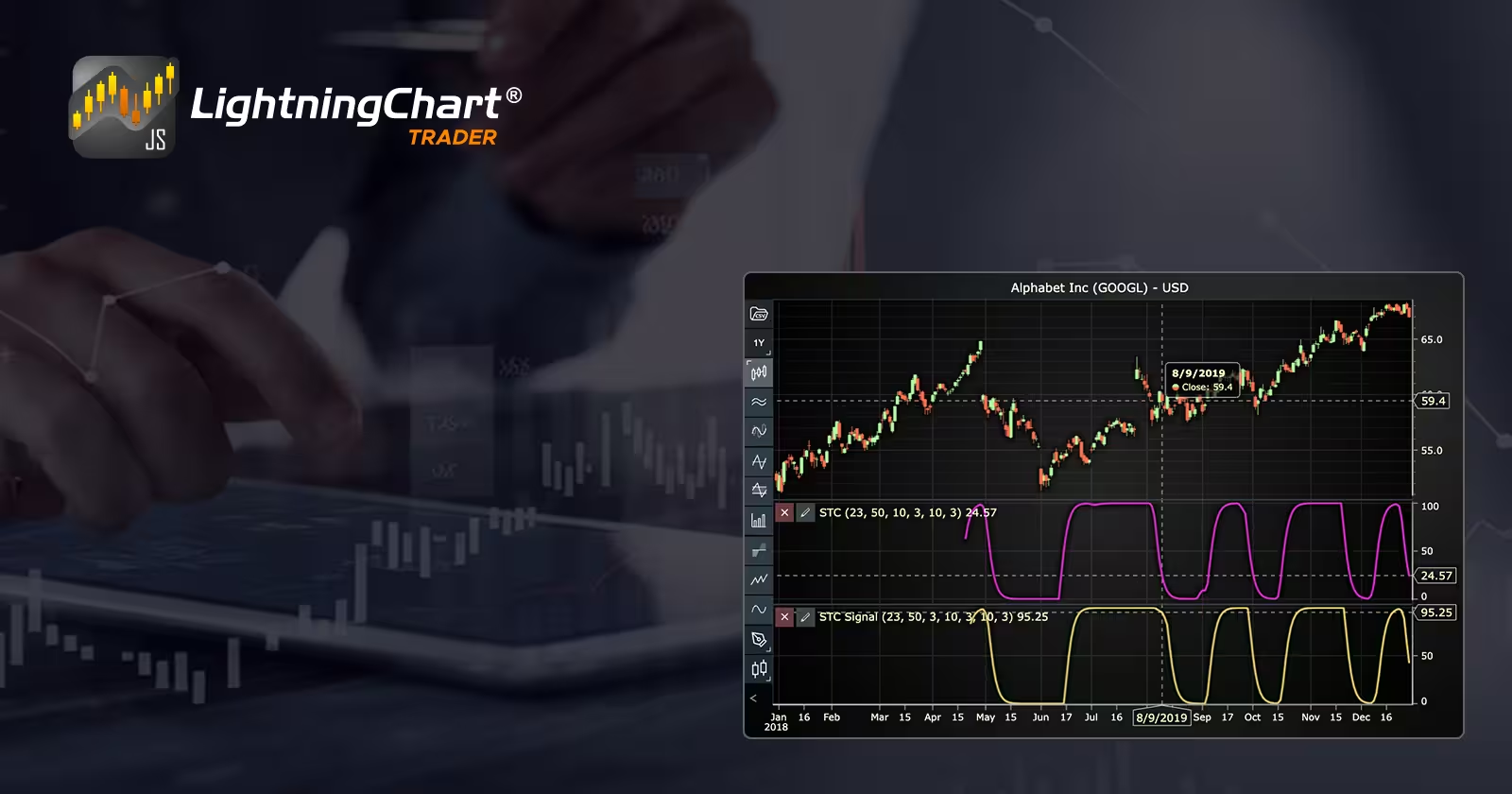
Learn how the Schaff Trend Cycle combines MACD and stochastic logic to deliver faster, smoother momentum signals for fintech trading applications.
Ahmad Omid
Data Science Developer

Introduction
The Schaff Trend Cycle is a momentum oscillator designed to respond faster than traditional trend indicators. Developed by Doug Schaff, it combines two powerful tools: the Slow Stochastic (%D) and the Moving Average Convergence Divergence (MACD). The resulting indicator provides signals that are both smooth and timely, which makes it particularly useful for financial applications that demand real-time responsiveness. In fintech app development, the Schaff Trend Cycle is gaining traction for its ability to quickly detect shifts in trend direction. It delivers more responsive entries and exits compared to classic MACD or stochastic indicators alone.
What is the Schaff Trend Cycle Indicator?
The Schaff Trend Cycle (STC) uses MACD as a foundation and applies stochastic calculations to it. The purpose is to produce a cycle that can reveal turning points in the market earlier than other momentum indicators. While MACD is slow to confirm trends and stochastics can be prone to false signals, the STC attempts to offer the best of both worlds: speed and accuracy.
Schaff Trend Cycle and Schaff Trend Cycle Signal
Both are derived from the same hybrid concept, but they serve different roles in technical analysis. Schaff Trend Cycle typically refers to the main oscillator line calculated by combining stochastic and MACD data. While the Schaff Trend Cycle Signal refers to an additional signal line derived from the STC values, often through a smoothing technique. This signal line is used in crossover strategies, just like the MACD and its signal line. One key distinction in some implementations is that the STC Signal uses the MACD Signal line as the stochastic base, not the raw MACD line. This provides an even more filtered version of the trend, reducing noise.
Formula
A) Schaff trend Cycle(STC)
The STC in LC JS Trader is calculated in the following stages:
1. MACD Line:

Where:
- EMA23(Close): is the 23-period Exponential Moving Average of the closing price.
- EMA50(Close): is the 50-period Exponential Moving Average of the closing price.
- The result measures momentum between short- and long-term trends.
2. Apply the first Stochastic layer to the MACD line using (%K, %D):

Where:
- Lowest MACD in last 10 periods: the lowest MACD value over the last 10 bars.
- Highest: the highest MACD value in the same 10-bar range.
- %K1 shows where the current MACD value sits in its recent range (scaled 0–100).
Then:

Where:
- EMA(3, %K1) smooths the %K1 values using a 3-period EMA.
- This gives a less noisy signal.
3. Apply a second layer of Stochastic to that result:

Where:
- This applies the same logic to the smoothed %D1 line.
- It recalculates its position in its own recent range (last 10 bars).
Then:

Where:
- Final smoothing step.
- The result is the Schaff Trend Cycle value (STC), oscillating between 0 and 100.
B) Schaff trend Cycle Signal (STC Signal)
In this version of the LC JS Trader indicator, the STC Signal modifies the input by using the MACD Signal Line instead of the raw MACD line, as below:
1. Same as above, but uses the MACD Signal line instead of the raw MACD:

Where:
- MACD as before.
- MACD Signal is a 3-period EMA of the MACD line (acts as a smoother trend version).
2. First Stochastic on MACD Signal:

Where:
- Measures how the current MACD Signal compares to its 10-period high/low range
Then:

Where:
- Smooths that value for stability
3. Second Stochastic on %D1:

Where:
- Final smoothing of the signal line.
- The result is the Schaff Trend Cycle Signal, used for crossovers or confirmation.
Calculation Example
Let’s assume we have this data for a stock on a daily chart:
Step 1: MACD and Signal
- EMA(23) = 105.2
- EMA(50) = 104
- MACD (last 10 days): ranges from 0.6 to 2.0
- MACD = 105.2 − 104.0 = 1.2
- MACD Signal (EMA 3) = 1.1
Step 2: First Stochastic (%K1 and %D1)
For STC:

For STC Signal:
- MACD Signal last 10 days: range = 0.7 to 1.3s

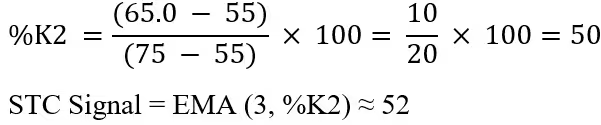
Step 3: Second Stochastic Layer (%K2 and Final Output)
For STC:
- %D1 (last 10 days) ranged from 30 to 70

For STC Signal:
- %D1 ranged from 55 to 75
Final Values:
- STC = 40.0
- STC Signal = 52.0
Interpretation:
- Buy when STC crosses above the STC Signal: Uptrend likely starting.
- Sell when STC crosses below STC Signal: Downtrend may begin.
- Above 75: Overbought
- Below 25: Oversold
- Between 25–75: Neutral or trend continuing
The STC reacts faster than MACD but is smoother than raw stochastics, ideal for real-time trading signals in fintech apps.
How to Create the Technical Indicator Using LC JS Trader
Step 1: Get LightningChart JS Trader
To begin, you’ll need access to LightningChart JS Trader. This specialized library contains all the necessary components for developing advanced technical indicators, including the Schaff Trend Cycle (STC)/Signal indicator. Visit the LightningChart JS Trader page to download the required components and review the documentation.
Step 2: Review the Interactive Example
LightningChart JS Trader includes interactive examples that demonstrate how to create custom technical indicators. These examples do more than just explain; they show you what works in practice.
Start with the documentation and focus on how to add the Schaff Trend Cycle (STC)/Signal indicator to your chart. The interactive examples take you through each step of the process, from importing the right modules to adjusting your chart settings for the best display.
Step 3: Code Explanation
In this step, we’ll examine the code that creates the chart with the Schaff Trend Cycle (STC)/Signal indicator, as shown in the image, using LightningChart JS Trader. The code reveals how to properly initialize a trading chart, apply the indicator, and customize its visual properties to enhance your technical analysis. Understanding these code components helps you see how the different parts work together to produce an effective analysis tool. This knowledge allows you to adapt the implementation for your specific trading requirements.
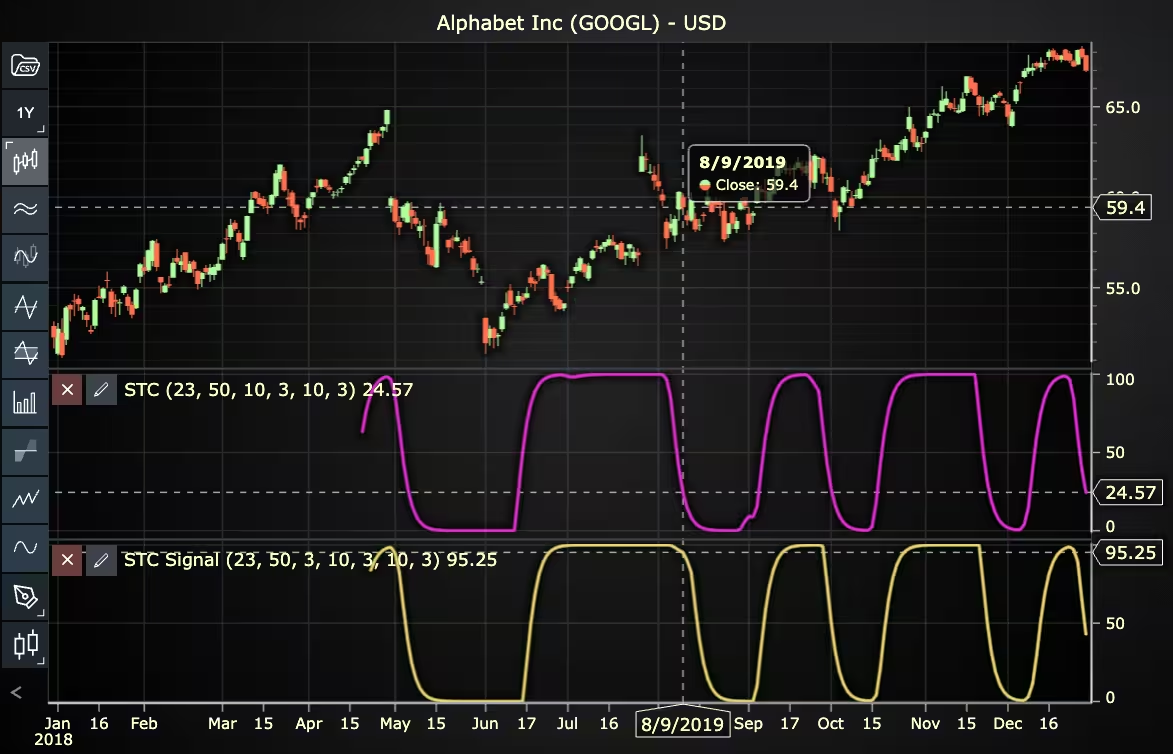
Here’s a detailed breakdown of each section:
A. Importing the Required Libraries:
const lcjsTrader = require('@lightningchart/lcjs-trader')
const lcjs = require('@lightningchart/lcjs')- lcjsTrader: This library provides access to the LightningChart JS Trader functionalities, allowing you to create advanced financial charts.
- lcjs: The main LightningChart JS library, used for general charting functionality.
B. Initializing the Trading Chart:
lcjsTrader.trader(TRADER_LICENSE).then(async (trader) => {
  // Create a trading chart.
  const tradingChart = trader.tradingChart({ loadFromStorage: false, colorTheme: Themes.darkGold })
trader(TRADER_LICENSE): Initializes the LightningChart JS Trader with the provided license key (TRADER_LICENSE). This is required to access the charting functionalities for financial data.
Note you can request a LightningChart JS Trader trial license, which is free.
tradingChart(): This function creates a trading chart with certain options.loadFromStorage: false: This disables the loading of previously stored chart data from local storage, ensuring a fresh chart setup.
C. Adding and Customizing the Indicator
// Add a Schaff trend Cycle indicator
const stc = tradingChart.indicators().addSchaffTrendCycle()
stc.setSource(3)
stc.setMACDPeriodCounts(23, 50)
stc.setFirstStochasticPeriodCounts(10, 3, 3)
stc.setSecondStochasticPeriodCounts(10, 3, 3)
stc.setMACDMovingAverages(0, 0)
stc.setFirstStochasticMovingAverages(0, 0)
stc.setSecondStochasticMovingAverages(0, 0)
stc.setLineColor('#E12DD2')
stc.setLineWidth(3)addSchaffTrendCycle(): STC combines Slow Stochastic (%D) and Moving Average Convergence Divergence (MACD) indicators, creating a signal line that can be used to identify market trend as well as buy and sell signals.stc.setSource(3): Sets the values that the indicator calculations are based on. In this case, calculations based on Close values.stc.setMACDPeriodCounts(23, 50): Sets the short and long time period counts used to calculate the MACD (shortPeriodCount, longPeriodCount).stc.setFirstStochasticPeriodCounts(10, 3, 3): Sets the time period counts used to calculate the first Stochastic (stochasticPeriods, smoothingPeriods, movingAveragePeriods).stc.setSecondStochasticPeriodCounts(10, 3, 3): Sets the time period counts used to calculate the second Stochastic (stochasticPeriods, smoothingPeriods, movingAveragePeriods).stc.setMACDMovingAverages(0, 0): Sets the moving average types used to calculate the MACD (shortMovingAverage, longMovingAverage). In this case, 0 represents the Exponential Moving Average (EMA).stc.setFirstStochasticMovingAverages(0, 0): Sets the moving average types used to calculate the first Stochastic (kMovingAverage, dMovingAverage). In this case, 0 represents the Exponential Moving Average (EMA).stc.setSecondStochasticMovingAverages(0, 0): Sets the moving average types used to calculate the second Stochastic (kMovingAverage, dMovingAverage). In this case, 0 represents the Exponential Moving Average (EMA).stc.setLineColor('#E12DD2'): Sets the color of the STC line to pink.stc.setLineWidth(3): Sets the line width of the indicator to 3 pixels.
// Add a Schaff trend Cycle Signal indicator
const stcs = tradingChart.indicators().addSchaffTrendCycleSignal()
stcs.setSource(3)
stcs.setMACDPeriodCounts(23, 50, 3)
stcs.setFirstStochasticPeriodCounts(10, 3, 3)
stcs.setSecondStochasticPeriodCounts(10, 3, 3)
stcs.setMACDMovingAverages(0, 0, 0)
stcs.setFirstStochasticMovingAverages(0, 0)
stcs.setSecondStochasticMovingAverages(0, 0)
stcs.setLineColor('#E6D56B')
stcs.setLineWidth(3)addSchaffTrendCycleSignal():STC combines Slow Stochastic (%D) and Moving Average Convergence Divergence (MACD) indicators, creating a signal line that can be used to identify market trends as well as buy and sell signals. This version of STC uses the MACD Signal line as the basis for Stochastic calculations.stcs.setSource(3):Sets the values that the indicator calculations are based on. In this case, calculations are based on Close values.setMACDPeriodCounts(23, 50, 3):Sets the short and long time period counts used to calculate the MACD (shortPeriodCount, longPeriodCount, signalPeriodCount).setFirstStochasticPeriodCounts(10, 3, 3):Sets the time period counts used to calculate the first Stochastic (stochasticPeriods, smoothingPeriods, movingAveragePeriods).setSecondStochasticPeriodCounts(10, 3, 3):Sets the time period counts used to calculate the second Stochastic (stochasticPeriods, smoothingPeriods, movingAveragePeriods).stcs.setMACDMovingAverages(0, 0, 0):Sets the moving average types used to calculate the MACD (shortMovingAverage, longMovingAverage, signalMovingAverage). In this case, 0 represents the Exponential Moving Average (EMA).stcs.setFirstStochasticMovingAverages(0, 0):Sets the moving average types used to calculate the first Stochastic (kMovingAverage, dMovingAverage). In this case, 0 represents the Exponential Moving Average (EMA).stcs.setSecondStochasticMovingAverages(0, 0):Sets the moving average types used to calculate the second Stochastic (kMovingAverage, dMovingAverage). In this case, 0 represents the Exponential Moving Average (EMA).setLineColor('#E12DD2'):Sets the color of the STC Signal line to yellow.setLineWidth(3):Sets the line width of the indicator to 3 pixels.
D. Loading Data from a CSV File
    // Reading data from a file.
    await fetch(`${document.head.baseURI}examples/assets/0000/Alphabet Inc (GOOGL).csv`).then((res) => res.text()).then((text) => {
        tradingChart.readCsvString(text, 'Alphabet Inc (GOOGL)')
})fetch(): This function retrieves a CSV file containing historical data for Alphabet Inc. (GOOGL). The CSV file includes pricing information for the company’s stock, which is plotted on the chart.readCsvString(): This function reads the CSV data and interprets it as pricing data for Alphabet Inc. The second argument (‘Alphabet Inc (GOOGL)’) sets the label for the chart, as seen at the top of the chart image.
E. Setting the Currency for the Chart
    tradingChart.setCurrency('USD')
})setCurrency('USD'): This sets the currency of the chart to USD, ensuring that the pricing data is interpreted and displayed in US dollars.
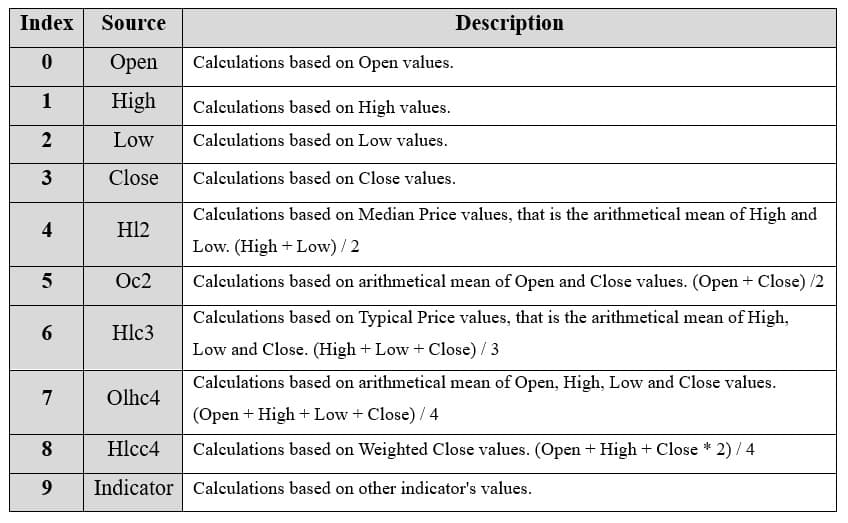
Enumeration Source in LC JS Trader:
To select which values the indicator calculations are based on.
Enumeration of Moving Average Types in LC JS Trader:
- Exponential Moving Average (EMA): 0
- None: 1 (No moving average applied)
- Simple Moving Average (SMA): 2
- Time Series Moving Average (TSMA): 3
- Triangular Moving Average (TMA): 4
- Variable Moving Average (VMA): 5
- Variable Index Dynamic Average (VIDYA): 6
- Volume Weighted Moving Average (VWMA): 7
- Weighted Moving Average (WMA): 8
- Welles Wilder’s Smoothing (WWS): 9
Advantages and Limitations of the Indicator
The Schaff Trend Cycle (STC) offers a unique advantage by combining the strengths of both the MACD and the Stochastic Oscillator. This hybrid approach allows it to detect trend shifts more quickly than traditional MACD, while avoiding the excessive noise often seen with raw stochastics. The result is a smooth, responsive oscillator that can help traders catch earlier entries and exits, which is especially valuable in real-time environments like fintech apps. Because the STC is scaled from 0 to 100, it also provides clear thresholds for overbought and oversold conditions, making it beginner-friendly and easy to automate for alerts or trade triggers.
However, the indicator isn’t without limitations. Like all momentum-based tools, the STC is lagging; it reacts to price, not predicts it. It may give late signals during fast-moving markets or false signals during sideways or choppy price action. Additionally, its sensitivity to input parameters (like MACD and stochastic periods) means that it might need tuning for different assets or timeframes. If settings are not optimized, the indicator can either overreact or underreact to price changes.
Conclusion
The Schaff Trend Cycle and Schaff Trend Cycle Signal provide a fast, flexible method for identifying trends and reversals. By layering stochastic logic on top of MACD smoothing, STC captures momentum shifts earlier than many traditional indicators, making it a smart choice for fintech apps focused on responsive, real-time analytics.
With clear overbought/oversold zones and crossover signals, it works well both as a standalone tool and as part of a larger strategy. When implemented in environments like LC JS Trader, developers gain full control over customization while giving users a powerful, intuitive signal system.
Just remember, like all indicators, it works best when combined with price action, volume, or trend confirmation tools.
Continue learning with LightningChart
Create a JavaScript Pie Chart with NodeJS, TypeScript & LightningChart
Written by a human | Updated on April 10th, 2025JavaScript Pie Chart with NodeJS & TypeScript Today, we are going to do a short tutorial on how to generate a pie chart using Node JS, TypeScript, and LigningCharts JS. To see how to get LightningChart JS for...
Real-time data visualization with WebSockets
Written by a human | Updated on April 10th, 2025WebSockets Data Visualization in Real-Time These days it is ever increasingly common that people require web solutions for their applications and services. Data visualization is not an exception to this, as...
Why Performance Matters in Data Visualization?
Written by a human | Updated on April 10th, 2025Performance in Data VisualizationI was doing a Google search a couple of days ago and particularly, I wanted to know what are the options for developers who need to visualize large amounts of data points within...



If you have any questions, feel free to contact us!



©LightningChart Ltd 2026. All rights reserved.