








Creating a Parabolic Stop and Reverse Indicator for Fintech App Development with LightningChart JS Trader
Article
Assisted by AI
Build a Parabolic Stop and Reverse Indicator for fintech apps to detect trend direction, spot reversals, and improve trading strategy accuracy.
Ahmad Omid
Data Science Developer


Introduction
The Parabolic Stop and Reverse (Parabolic SAR) indicator is a widely used tool in technical analysis. Traders use it to determine the direction of an asset’s price trend and to spot potential reversals. The indicator plots a series of dots, which appear below the price when the trend is bullish, and above the price when the trend is bearish. This visual simplicity makes the parabolic stop and reverse tool easy to read, even for beginner traders.
When a signal reversal occurs in a parabolic stop and reverse setup, it implies a potential turning point in the market. For example, if the dots switch from below the price to above it, this suggests the uptrend may be ending, and a downtrend could begin. These reversals provide traders with cues to adjust their positions, either by locking in profits, tightening stop losses, or entering trades in the opposite direction.
In this blog, we will explore the inner workings of the parabolic stop and reverse indicator, explain its full formula, and demonstrate how to build it using LightningChart JS Trader.
Formula
The core formula for Parabolic SAR is:

Where:
- SARn = current period’s SAR.
- SARn-1 = prior period’s SAR (typically previous day’s SAR).
- AF = Acceleration Factor (starts at 0.02, increases by 0.02 with new highs/lows, max 0.20).
- EP = Extreme Point (highest high of the current uptrend or lowest low of the current downtrend).
Calculation Example
We are looking at a daily chart of a stock:
- Current market price = $101
- Previous SAR (SARn-1) = $100
- Acceleration Factor (AF) = 0.02
- Extreme Point (EP) = $102 (highest price in the ongoing uptrend)
Let’s calculate SARn:
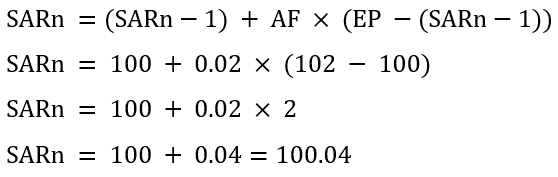
Interpretation:
In this scenario, the Parabolic SAR value for the current day is $100.04. Since the SAR is below the current market price of $101, it confirms that the market is in an uptrend. If this continues, the SAR will climb higher, following the price. If the price ever closes below the SAR value, it signals a potential reversal to a downtrend. At that point, the indicator dots would flip to appear above the price.
This calculated value would be used to update the trailing stop-loss or to confirm that the trader should stay long (buy position), as the trend is still valid.
How to Create the Technical Indicator Using LC JS Trader
Step 1: Get LightningChart JS Trader
To begin, you’ll need access to LightningChart JS Trader. This specialized library contains all the necessary components for developing advanced technical indicators, including the Parabolic SAR indicator. Visit the LightningChart JS Trader page to download the required components and review the documentation.
Step 2: Review the Interactive Example
LightningChart JS Trader includes interactive examples that demonstrate how to create custom technical indicators. These examples do more than just explain; they show you what works in practice.
Start with the documentation and focus on how to add the Parabolic SAR indicator to your chart. The interactive examples take you through each step of the process, from importing the right modules to adjusting your chart settings for the best display.
Step 3: Code Explanation
In this step, we’ll examine the code that creates the chart with the Parabolic SAR indicator, as shown in the image, using LightningChart JS Trader. The code reveals how to initialize a trading chart properly, apply the indicator, and customize its visual properties to enhance your technical analysis. Understanding these code components helps you see how the different parts work together to produce an effective analysis tool. This knowledge allows you to adapt the implementation for your specific trading requirements.
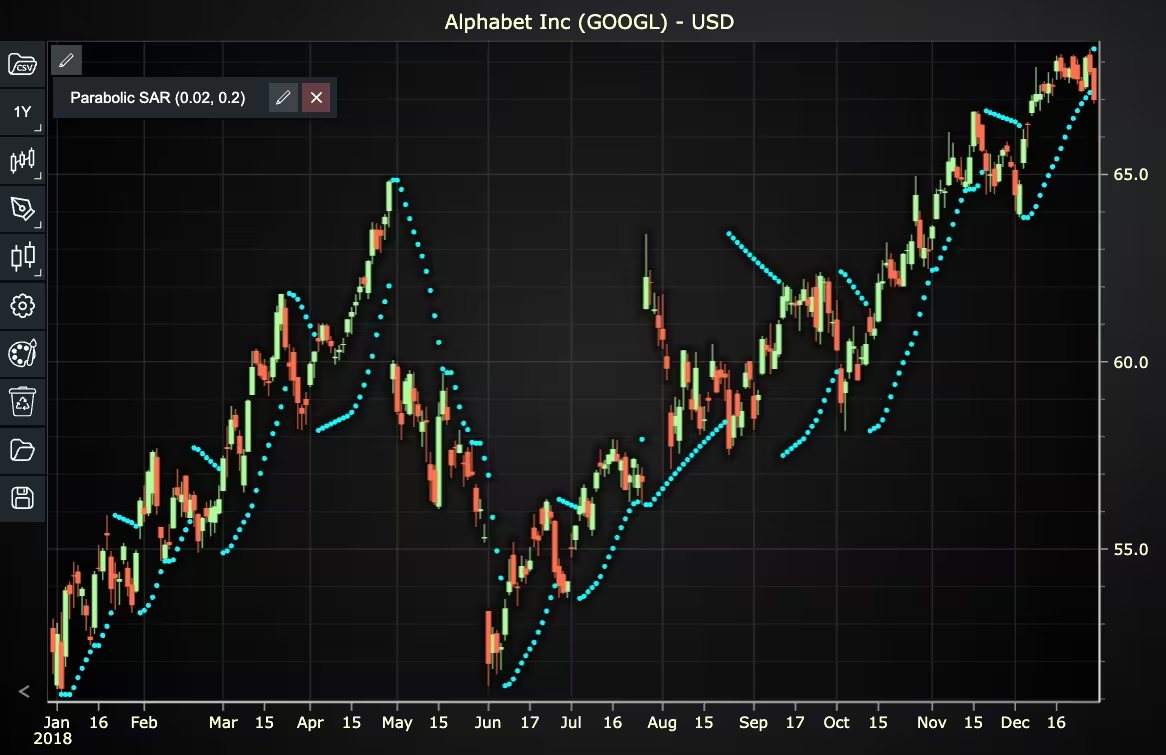
Here’s a detailed breakdown of each section:
A. Importing the Required Libraries:
const lcjsTrader = require('@lightningchart/lcjs-trader')
const lcjs = require('@lightningchart/lcjs')- lcjsTrader: This library provides access to the LightningChart JS Trader functionalities, allowing you to create advanced financial charts.
- lcjs: The main LightningChart JS library, used for general charting functionality.
B. Initializing the Trading Chart:
lcjsTrader.trader(TRADER_LICENSE).then(async (trader) => {
  // Create a trading chart.
  const tradingChart = trader.tradingChart({ loadFromStorage: false, colorTheme: Themes.darkGold })
trader(TRADER_LICENSE): Initializes the LightningChart JS Trader with the provided license key (TRADER_LICENSE). This is required to access the charting functionalities for financial data.
Note you can request a LightningChart JS Trader trial license, which is free.
tradingChart(): This function creates a trading chart with certain options.loadFromStorage: false: This disables the loading of previously stored chart data from local storage, ensuring a fresh chart setup.
C. Adding and Customizing the Indicator
// Add a Parabolic Stop and Reverse indicator
const psar = tradingChart.indicators().addParabolicSAR()
psar.setAccelerationFactor(0.02)
psar.setMaximumAccelerationFactor(0.2)
psar.setPointColor('#FBFF14')
psar.setPointSize(5)addParabolicSAR(): It shows the current trend direction and reveals potential price reversals. PSAR appears either above (trending down) or below (trending up) the trading data as a series of dots.psar.setAccelerationFactor(0.02): This value is used as the initial AF value and as an incremental value. For instance, 0.02 means AF starts from 0.02 and increases to 0.04, 0.06, 0.08, etc.psar.setMaximumAccelerationFactor(0.2): Sets the maximum value for Acceleration Factor. AF cannot go above this value.psar.setPointColor('#FBFF14'): Sets the color of the Parabolic SAR points to yellow.psar.setPointSize(5): Sets the size of the Parabolic SAR points to 5 pixels.
D. Loading Data from a CSV File
    // Reading data from a file.
    await fetch(`${document.head.baseURI}examples/assets/0000/Alphabet Inc (GOOGL).csv`).then((res) => res.text()).then((text) => {
        tradingChart.readCsvString(text, 'Alphabet Inc (GOOGL)')
})fetch(): This function retrieves a CSV file containing historical data for Alphabet Inc. (GOOGL). The CSV file includes pricing information for the company’s stock, which is plotted on the chart.readCsvString(): This function reads the CSV data and interprets it as pricing data for Alphabet Inc. The second argument (‘Alphabet Inc (GOOGL)’) sets the label for the chart, as seen at the top of the chart image.
E. Setting the Currency for the Chart
    tradingChart.setCurrency('USD')
})setCurrency('USD'): This sets the currency of the chart to USD, ensuring that the pricing data is interpreted and displayed in US dollars.
Advantages and Limitations of the Indicator
The parabolic stop and reverse indicator offers a unique way to stay on the right side of a trend. It’s visual, automatic, and trend-following by design. Its greatest strength lies in giving clear signals for entry and exit, particularly in strongly trending markets.
However, it’s not without drawbacks.
The biggest limitation is its performance in sideways markets, where frequent reversals generate false signals, leading to poor trade execution. Also, the indicator’s sensitivity increases as the Acceleration Factor rises. While this helps lock in profits, it can also prematurely exit trades.
Programmatically, the indicator is also more involved than others. The number of conditional checks, from updating the extreme point to switching direction and ensuring SAR values don’t penetrate recent highs or lows, makes implementation more complex.
Conclusion
The parabolic stop and reverse is a powerful tool for spotting trend directions and timing reversals. It’s especially valuable for automated trading systems and fintech apps that need a rules-based, visual way to follow price action.
By understanding its formula and nuances, and implementing it using LightningChart JS Trader, developers and traders alike can unlock smarter, faster, and more precise decision-making.
Whether you’re building a next-gen trading dashboard or refining your entry/exit strategy, mastering the parabolic stop and reverse indicator is a valuable asset in your technical analysis toolkit.
Continue learning with LightningChart
Create a JavaScript Pie Chart with NodeJS, TypeScript & LightningChart
Written by a human | Updated on April 10th, 2025JavaScript Pie Chart with NodeJS & TypeScript Today, we are going to do a short tutorial on how to generate a pie chart using Node JS, TypeScript, and LigningCharts JS. To see how to get LightningChart JS for...
Real-time data visualization with WebSockets
Written by a human | Updated on April 10th, 2025WebSockets Data Visualization in Real-Time These days it is ever increasingly common that people require web solutions for their applications and services. Data visualization is not an exception to this, as...
Why Performance Matters in Data Visualization?
Written by a human | Updated on April 10th, 2025Performance in Data VisualizationI was doing a Google search a couple of days ago and particularly, I wanted to know what are the options for developers who need to visualize large amounts of data points within...



If you have any questions, feel free to contact us!



©LightningChart Ltd 2026. All rights reserved.