








A Guide to Elder's Market Thermometer Indicator with LightningChart JS Trader
Article
Learn how to implement the Elder's Market Thermometer Indicator in your software applications to enhance data analysis capabilities.
Ahmad Omid
Data Science Developer

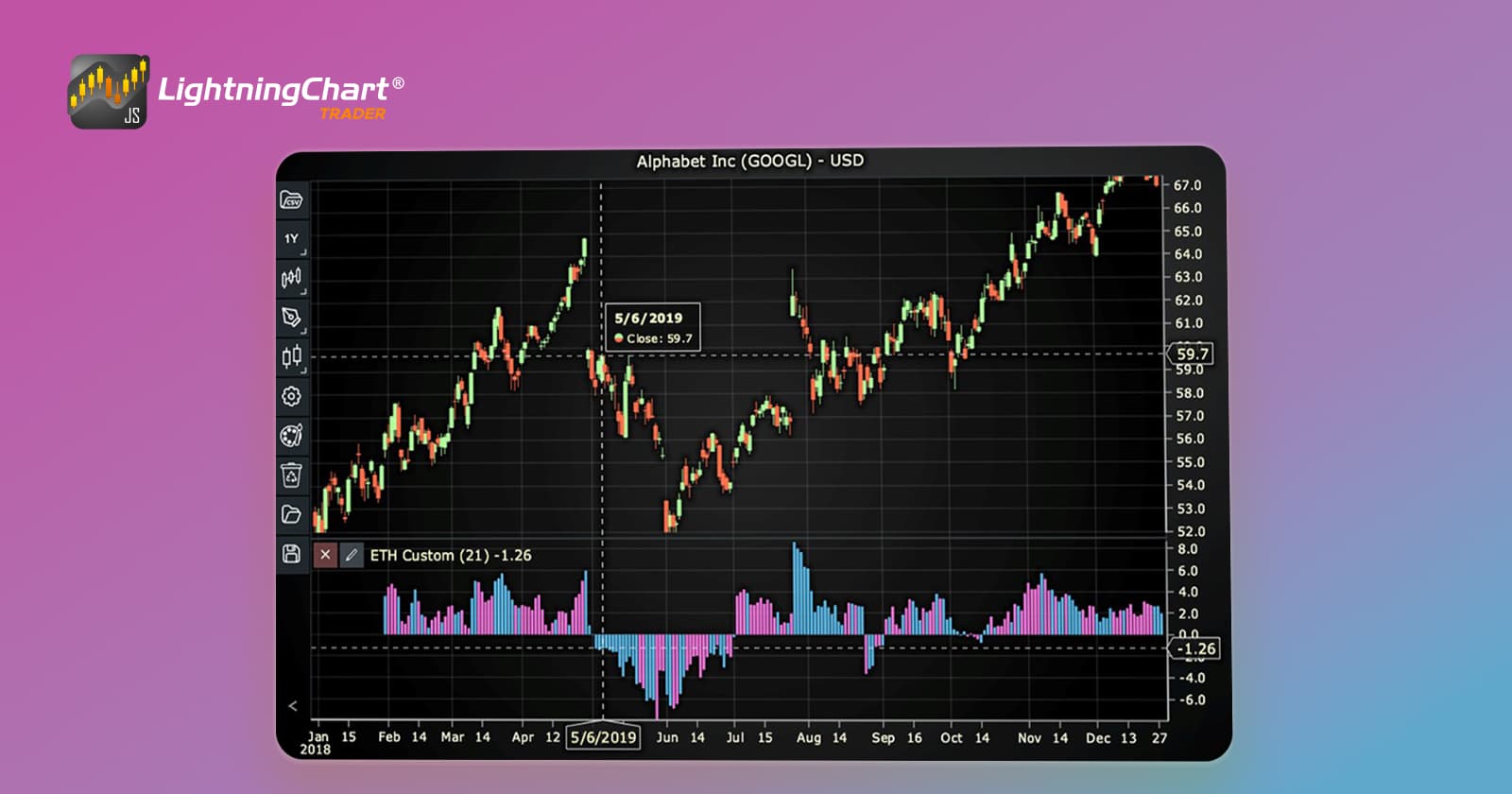
What is the Elder’s Market Thermometer Indicator?
The Elder’s Market Thermometer is a technical indicator designed to measure market volatility by analyzing the range between daily high and low prices. It was introduced by Dr. Alexander Elder, a renowned psychologist and trader, as part of his broader efforts to equip traders with tools to better understand market behavior and identify trading opportunities.
History
Dr. Alexander Elder first introduced the concept of the Market Thermometer in his seminal book, Trading for a Living. The indicator was created to help traders measure market volatility and recognize periods of significant price movement.
By focusing on the range between high and low prices, Elder’s Thermometer offers a straightforward way to gauge market activity without relying solely on complex calculations or external factors.
How Does It Work in Trading?
The Elder’s Market Thermometer tracks the daily volatility of an asset. A higher reading indicates a more volatile market, which can signal heightened trading activity or significant market developments. Conversely, a lower reading suggests reduced volatility and quieter market conditions. By observing these fluctuations, traders can:
- Identify market trends: High volatility often precedes trend reversals or significant breakouts.
- Set stop-loss levels: Understanding the range of price movements can help traders position their stop-loss orders more effectively.
- Adapt trading strategies: Traders can tailor their approaches depending on whether the market is experiencing high or low volatility.
Elder’s Market Thermometer Trading Signals
- High Volatility Periods: When the thermometer shows elevated readings, it suggests increased activity and potential trading opportunities. It’s important to confirm these signals with other indicators or analysis tools.
- Low Volatility Periods: Prolonged low readings may indicate consolidation, often preceding significant breakouts. Traders may prepare for potential shifts in market direction during such phases.
How Does the Elder’s Market Thermometer Indicator Work?
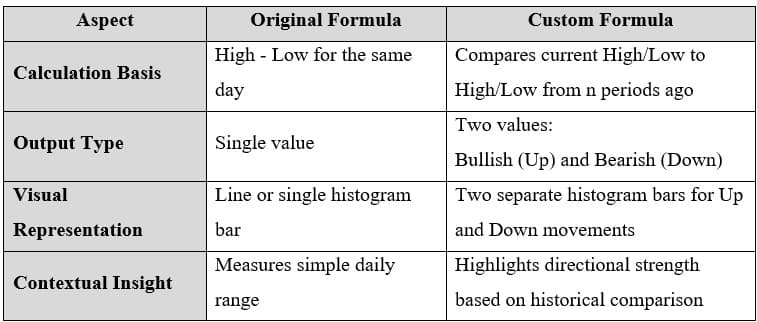
The standard Elder’s Market Thermometer calculates the range between the high and low prices for a given day or period. But the custom version in LightningChart JS Trader, however, introduces additional complexity by comparing current high and low values to those from a previous period (e.g., n days ago). This comparison creates a more dynamic measure of market movement and volatility.
Formula & Code
The original Elder’s Market Thermometer is calculated as the difference between the daily high and low prices:
	for (let i = 0; i < highValues.length; i++) {
    		const thermometerValue = highValues[i] - lowValues[i];
    		values[i] = thermometerValue;
}
Example Calculation: For a single day:
- High: 150
- Low: 140
- Range (Thermometer value): 150 – 140 = 10
LightningChart JS Trader’s Custom Formula and Code
	for (let i = 0; i < highValues.length - n; i++) {
    	    const upTemp = highValues[i + n] - highValues[i];
    	    const downTemp = lowValues[i + n] - lowValues[i];

   	    if (upTemp >= downTemp) {
        	 bullValue = upTemp; // Up bar
      		 bearValue = 0;
    	    } else {
     	  	 bullValue = 0;
       	 bearValue = downTemp; // Down bar
   	    }
}
Example Calculation:
- Day 1 High: 145, Day 5 High: 150
- Day 1 Low: 135, Day 5 Low: 140
const upTemp = 150 - 145; // 5
const downTemp = 140 - 135; // 5

if (upTemp >= downTemp) {
   	   bullValue = 5; // Up bar
    	   bearValue = 0;
} else {
    	   bullValue = 0;
   	   bearValue = 5; // Down bar
}
Result:
- Bullish (Up) Bar: 5
- Bearish (Down) Bar: 0
Comparison Explanation
- Original Thermometer: Measures simple daily volatility by calculating the day’s price range (High – Low).
- Custom Thermometer: Adds a comparative layer by analyzing how current prices differ from historical prices, providing richer insights into market trends.
Interpretation
- Original Thermometer: A high range value indicates significant daily volatility, while a low value suggests a calm market.
- Custom Thermometer: The histogram bars clearly distinguish between upward and downward market movements over time, providing a deeper insight into directional volatility.
How to Create the Technical Indicator Using LC JS Trader
Step 1: Get LightningChart JS Trader
To begin, you’ll need access to LightningChart JS Trader. This library provides the tools necessary to create advanced technical indicators, including the Elder’s Market Thermometer Indicator. Visit the LightningChart JS Trader page to download the required components and review the documentation.
Step 2: Review the Interactive Example
LightningChart JS Trader includes interactive examples that demonstrate how to create custom technical indicators. Start by reviewing the documentation, focusing on how to integrate the Elder’s Market Thermometer Indicator into your chart setup. The interactive examples will guide you through the process of setting up the Elder’s Market Thermometer Indicator, from importing the necessary modules to modify the chart settings.
Step 3: Code Explanation
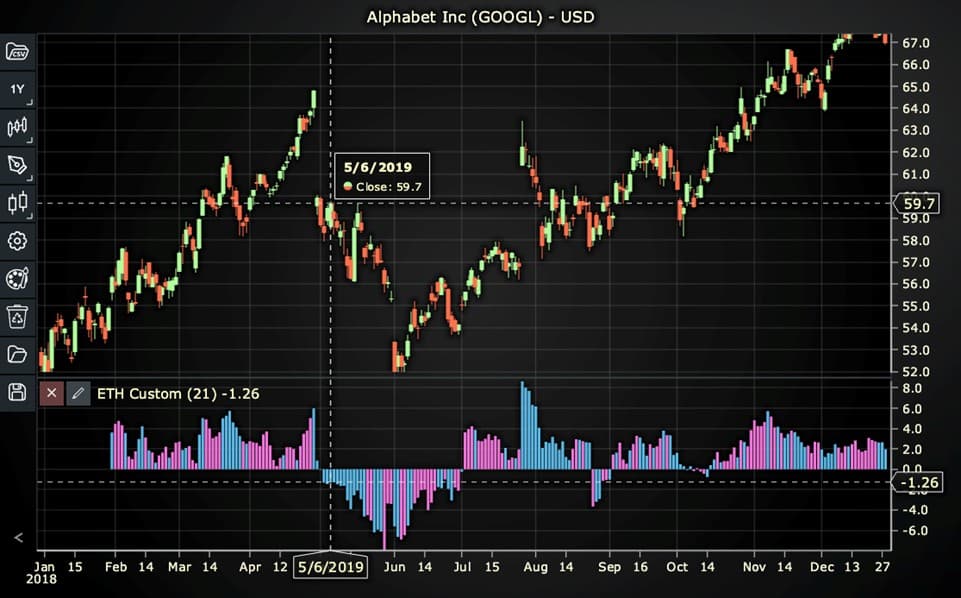
In this step, we will break down the code that creates the chart with the Elder’s Market Thermometer Indicator, as shown in the image, using LightningChart JS Trader. The code demonstrates how to initialize a trading chart, apply the Elder’s Market Thermometer Indicator, and customize its appearance.
Here’s a detailed breakdown of each section:
A. Importing the Required Libraries:
   const lcjsTrader = require('@arction/lcjs-trader')
   const lcjs = require('@arction/lcjs')
const { Themes } = lcjs- lcjsTrader: This library provides access to the LightningChart JS Trader functionalities, allowing you to create advanced financial charts.
- lcjs: The main LightningChart JS library, used for general charting functionality.
- Themes: A property within lcjs that provides access to pre-built themes. In this case, we are using the darkGold theme to style the chart.
B. Initializing the Trading Chart:
   lcjsTrader.trader(TRADER_LICENSE).then(async (trader) => {
    // Create a trading chart.
const tradingChart = trader.tradingChart({ loadFromStorage: false, colorTheme: Themes.darkGold })trader(TRADER_LICENSE): Initializes the LightningChart JS Trader with the provided license key (TRADER_LICENSE). This is required to access the charting functionalities for financial data.
Note you can request a LightningChart JS Trader trial license, which is free.
tradingChart(): This function creates a trading chart with certain options.loadFromStorage: false: This disables the loading of previously stored chart data from local storage, ensuring a fresh chart setup.colorTheme: Themes.darkGold: This applies the darkGold theme to the chart, which influences the background color, gridlines, and other visual elements.
C. Adding and Customizing the Indicator
    // Add an Elder Thermometer Custom Indicator
    const eth = tradingChart.indicators().addElderThermometerCustom()
    eth.setPeriodCount(21)
eth.setBarColors('#5BB8E6', '#F075D9')addElderThermometerCustom(): This version compares current High and Low values to High and Low values from specific time periods ago, and creates a histogram based on the result.
eth.setPeriodCount(21): Sets the number of time periods (n) used to calculate the indicator.
eth.setBarColors('#5BB8E6', '#F075D9'): Sets the colors of the bars. The first one shows the bullish bars and the second shows the bearish one.
D. Loading Data from a CSV File
    // Reading data from a file.
    await fetch(`${document.head.baseURI}examples/assets/0000/Alphabet Inc (GOOGL).csv`).then((res) => res.text()).then((text) => {
        tradingChart.readCsvString(text, 'Alphabet Inc (GOOGL)')
})fetch(): This function retrieves a CSV file containing historical data for Alphabet Inc. (GOOGL). The CSV file includes pricing information for the company’s stock, which is plotted on the chart.readCsvString(): This function reads the CSV data and interprets it as pricing data for Alphabet Inc. The second argument (‘Alphabet Inc (GOOGL)’) sets the label for the chart, as seen at the top of the chart image.
E. Setting the Currency for the Chart
    tradingChart.setCurrency('USD')
})setCurrency('USD'): This sets the currency of the chart to USD, ensuring that the pricing data is interpreted and displayed in US dollars.
Advantages and Limitations of the Indicator
Advantages
- Simplicity: The Elder’s Market Thermometer is easy to understand and implement, making it accessible for traders of all skill levels.
- Volatility Insights: It provides direct insight into market volatility, which is crucial for risk management and strategy development.
- Customizability: The custom version in LightningChart JS Trader enhances the standard indicator by incorporating advanced calculations and visualizations.
- Versatility: Suitable for various markets, including stocks, forex, and commodities.
Limitations
- Lagging Nature: Like most technical indicators, it’s based on historical data and may not always predict future movements accurately.
- Context Dependence: It works best when combined with other indicators or analysis tools for confirmation.
- Potential Noise: High volatility readings might sometimes result from random market fluctuations rather than meaningful trends.
Conclusion
The Elder’s Market Thermometer is a valuable tool for understanding market volatility and identifying trading opportunities. The custom version offered by LightningChart JS Trader further elevates its utility by incorporating comparative calculations and visually intuitive histograms. Leverage the power of the Elder’s Market Thermometer with LightningChart JS Trader to visualize market volatility and unlock new trading insights.
Continue learning with LightningChart
Andrews’ Pitchfork in Technical Analysis
Andrews' Pitchfork is one of the most respected technical analysis tools used by traders to identify potential support and resistance levels, trend direction, and future price paths. Developed by Dr. Alan H. Andrews, the indicator is based on the principle that prices...
React Charting Performance
Here's a scenario that plays out across development teams every few months. Someone builds a React dashboard, picks Recharts or Victory because they're popular, the devs love them, and the first demo looks great. Then the dataset gets bigger. Or the data starts...
Javascript Charting Library comparison 2026
Every year someone publishes a listicle of JavaScript charting libraries. They screenshot a demo, note the GitHub stars, paste in the npm install command, and call it a day. Then you follow their recommendation, get six months into your project, and discover that your...



If you have any questions, feel free to contact us!



©LightningChart Ltd 2026. All rights reserved.