





LightningChart JS TraderComplete Guide to Drawing Tools for Technical Analysis Charts
ArticleAn review of drawing tools for technical analysis using LightningChart JS Trader
Written by a human | Updated on April 24th, 2025
Drawing Tools for Technical Analysis
Technical analysis is a vital part of modern trading, enabling traders to predict market movements and make informed decisions based on past price data and patterns. One of the key elements in technical analysis is the use of drawing tools to mark significant trends, price levels, and patterns on a chart. These tools help traders visualize data in a meaningful way, allowing them to identify opportunities and risks. In this comprehensive guide, we will dive into the world of drawing tools for technical analysis, with a special focus on the capabilities of LightningChart JS Trader.
What Are Drawing Tools for Technical Analysis?
Drawing tools for technical analysis are graphical tools used on trading charts to help traders analyze market data and forecast future price movements. These tools range from basic lines and shapes to more advanced patterns and indicators like Fibonacci retracements and Elliot Waves. Each tool is designed to highlight key data points or trends that can inform trading strategies.
How Are They Used and What Do They Indicate?
Drawing tools are used to track market behavior over time, identify key support and resistance levels, spot trends, and predict possible future price movements. For example, trend lines are often used to identify the general direction of price movement, while Fibonacci retracements can signal areas where price corrections are likely to occur. By using these tools, traders can better understand market dynamics and align their trading strategies accordingly.
LightningChart JS Trader Drawing Tools
LightningChart JS Trader offers an extensive range of drawing tools for technical analysis. Each tool has unique features and applications, allowing traders to tailor their analysis to suit their individual needs. Let’s explore some of the most common drawing tools for technical analysis available in LightningChart JS Trader.

Lines
- Cross Line
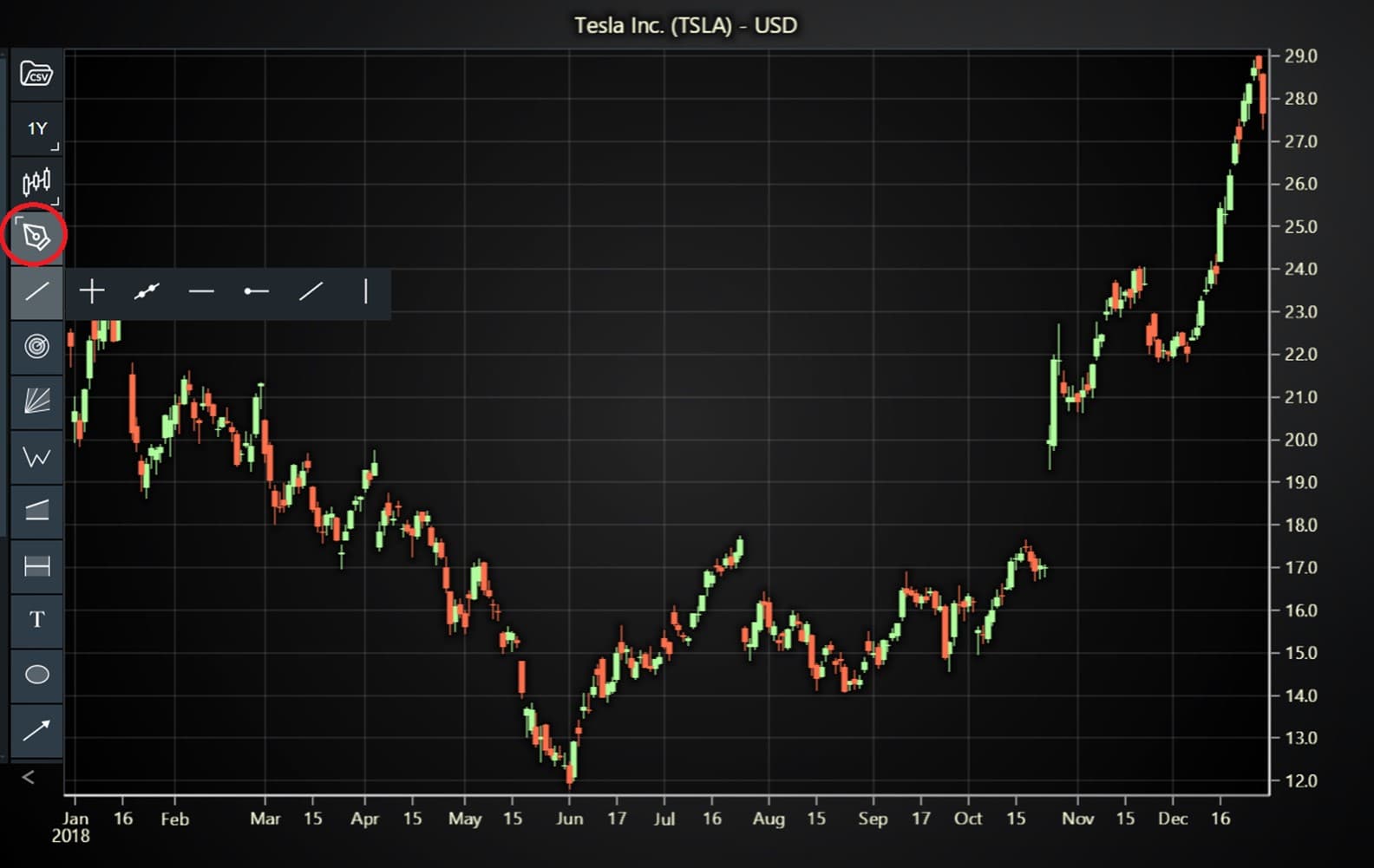
Draws horizontal and vertical lines crossing at the selected point of the chart. - Extended Line
Draws a straight line between two control points, then extends the line to the left and right edges of the chart. Both extensions can be switched on and off. - Horizontal Line
Draws a horizontal line across the whole chart at the selected price level. - Horizontal Ray
Draws a straight line from a selected point to the right edge of the chart. - Trend Line
Draws a straight line between two control points. - Vertical Line
Draws a vertical line across the whole chart.
Fibonaccis
- Fibonacci Arc
Draws a trend line between two control points, followed by multiple arcs intersecting the line at levels 38.2%, 50.0%, 61.8% and 100%. The percentages are based on the length of the line. The arcs are centered at the second control point. - Fibonacci Extension
Fibonacci Extensions are based on three chosen points on chart: the first two points determine the price move while the third point is the end of retracement against that move. Extension lines using Fibonacci ratios are then drawn based on the price moves. Fibonacci Extensions are used to estimate how far the price could move. - Fibonacci Fan
Draws a trend line between two control points, then several Fibonacci fan lines starting from the first point and crossing an “invisible” vertical line at the X-value of the second point based on Fibonacci levels at 38.2%, 50.0% and 61.8%. - Fibonacci Retracements
Draws a trend line between two control points, then several horizontal retracement lines based on selected price range (height) of the trend line. The retracement lines are drawn at Fibonacci levels of 38.2%, 50.0% and 61.8%. - Fibonacci Time Zones
Draws vertical lines corresponding to elapsed time periods based on Fibonacci number sequence. Can be used to spot potential price reversal points.
Patterns
- Cycle Lines
Draws vertical lines corresponding to elapsed time periods between the two control points. Can be used to set up and detect intervals and cycles. - Sine Wave
Draws a sine wave oscillating up and down. Two control points are used to mark the wave top and bottom peaks. Sine waves can be used to identify patterns in a market. - Elliot Wave
Draws a wave pattern between several control points. Consists of both Impulse (12345) and Corrective (ABC) waves. The wave type can be changed via the drawing tool settings menu drawing tool settings menualso after the wave has been drawn. - Correction Wave
Draws a wave pattern between several control points. Consists of three Corrective wave points (ABC). The wave type can be changed via the drawing tool settings menu drawing tool settings menualso after the wave has been drawn. - Double Combo Wave
Draws a wave pattern between several control points. Consists of three wave points (WXY). The wave type can be changed via the drawing tool settings menu drawing tool settings menualso after the wave has been drawn. - Impulse Wave
Draws a wave pattern between several control points. Consists of five Impulse wave points (12345). The wave type can be changed via the drawing tool settings menu drawing tool settings menualso after the wave has been drawn. - Triangle Wave
Draws a wave pattern between several control points. Consists of five Triangle wave points (ABCDE). The wave type can be changed via the drawing tool settings menu drawing tool settings menualso after the wave has been drawn. - Triple Combo Wave
Draws a wave pattern between several control points. Consists of five wave points (WXYXZ). The wave type can be changed via the drawing tool settings menu drawing tool settings menualso after the wave has been drawn. - Head and Shoulders
Draws a baseline with three peaks. - XABCD Pattern
Draws a five point pattern to the chart.
Channels
- Flat Top/Bottom
Draws a line between two points and another horizontal line above or below it. The area between the lines is then colored. - Linear Regression
Calculates and draws a linear regression line between two control points. Then draws two channel lines, one above and one below the regression line based on the selected channel type. Available channel types include standard deviations (a set number of standard deviations between the linear regression line and the channel lines), Raff channel (Upper line and lower line distances are based on the most projecting top or bottom), and no channel (only the linear regression line is drawn). - Parallel Channel
Draws a line between two points and another parallel line above or below it, thus forming a channel. The middle value of the channel is displayed with a dashed line. The channel lines can be extended to the edge of the chart. - Pitchfork
Pitchfork, also known as Andrews Pitchfork, can be used to identify support and resistance levels for a stock’s price. It places three control points on the chart and draws a line from the first point through the midpoint of the other points.
Measurement
- Date Range
Measures the date range, bar count, and total volume between two points on the chart. - Price Range
Measures the price change between two price levels on the chart. The lines marking the levels can be extended to the edge of the chart.
Text
- Plain Text
Text that can be freely positioned anywhere on the chart. Text color and font size can be modified. - Text Box
Text box that can be freely positioned anywhere on the chart. Text and text box colors, as well as font size and border width can be modified.
Shapes
- Ellipse
Draws an ellipse to the chart. A control point is place on the top, bottom, left and right points of the ellipse, allowing adjusting its size and shape. - Rectangle
Draws a rectangle to the chart. A control point is placed on two opposite corners of the rectangle, allowing adjusting its size and shape. - Triangle
Draws a triangle to the chart. A control point is on each of the triangle’s corners, allowing adjusting its size and shape.
Symbols & Objects
- Arrow
Draws an arrow pointing to one of the four directions (up, down, left, right). Can be freely positioned anywhere on the chart. Arrow color depends on the selected direction, though it can be freely modified after the direction has been set.
The Role of LightningChart JS Trader in Financial Analysis

Financial analysis involves examining historical data to forecast future trends, make informed decisions, and assess risk. In this domain, applications like LightningChart JS Trader serve a critical role by providing real-time, high-performance data visualization tools that help traders and analysts better interpret complex datasets. It enables traders to track market trends using built-in indicators.
The platform’s ability to handle large datasets and real-time updates makes it essential for fast decision-making in dynamic markets. Additionally, its customization options allow users to create tailored charts and apply statistical indicators, enhancing both the precision of analysis and risk management. This tool helps streamline financial analysis and supports more informed, data-driven trading strategies.
How to Work with Drawing Tools in LC JS Trader
Step 1: Get LightningChart JS Trader
To begin, you’ll need access to LightningChart JS Trader. This library provides the tools necessary to create advanced technical indicators and drawing tools. Visit the LightningChart JS Trader page to download the required components and to review the documentation.
Step 2: Review the Interactive Example
LightningChart JS Trader includes interactive examples that demonstrate how to create custom technical indicators and drawing tools. Start by reviewing the documentation, focusing on how to integrate the drawing tools into your chart setup. The interactive examples will guide you through the process of setting up the drawing tools, from importing the necessary modules to modify the chart settings. In LightningChart JS Trader, drawing tools for technical analysis can be added and modified through both the user interface and programmatically via code, offering flexibility to traders.
Step 3: Adding Drawing Tools
Via User Interface:
The simplest method is using the UI. The “Drawing Tools” button in the toolbar opens a categorized list of tools. After selecting a tool, users can left-click to position it on the chart. Some tools, like trend lines, require multiple clicks to set control points. To cancel, simply right-click during the process. Notably, enabling the Magnetic property allows tools to snap to data points automatically.
Via Code:
Drawing tools can also be added in code using methods such as addTrendLine(), under chart.drawingTools() method, which requires specifying the X- and Y-values of control points. However, be cautious, as this method doesn’t interact with local storage, potentially leading to duplicate tools if loading tools from storage is enabled.
// Adding a Trend Line in code with start X-, start Y-,
   end X-, and end Y-values.

tradingChart.drawingTools().addTrendLine(10, 30, 40, 20)
Step 4: Modifying Drawing Tools
Via User Interface:
Right-clicking on a tool or its control points brings up a settings menu where properties like line width, color, and fill can be modified. For tools without control points (e.g., horizontal lines or arrows), right-clicking anywhere over the tool opens the settings.

Via Code:
Each drawing tool has methods to modify properties programmatically. For instance, setLineWidth() and setLineColor() adjust the appearance, while updatePosition() allows for repositioning of the tool based on new X- and Y-values.
   const trendLine = tradingChart.drawingTools().addTrendLine(10, 30, 40, 20)
   trendLine.setLineWidth(2)
   trendLine.setLineColor('#00FFFF')

   // Updating drawing tool's position
   trendLine.updatePosition(10, 50, 40, 60)
Step 5: Removing Drawing Tools
Via User Interface:
Right-clicking on a tool or control point opens a menu with a “Remove” option. Additionally, a “Clear contents” button in the toolbar removes all tools at once.

Via Code:
Tools can be removed programmatically using the dispose() method.
   // Assign drawing tool as a variable.
   const trendLine = tradingChart.drawingTools().addTrendLine(10, 30, 40, 20)

   // Then later remove it.
   trendLine.dispose()
To remove all tools at once, the disposeAllDrawingTools() method can be used.
tradingChart.drawingTools().disposeAllDrawingTools()These features allow for a highly customizable and interactive charting experience, catering to both manual and automated trading workflows.
Advantages and Limitations of Drawing Tools for Technical Analysis
Advantages
- Customization: The tools are highly customizable, allowing traders to adjust colors, lines, and shapes to suit their analysis needs.
- Precision: Tools like cross lines and trend lines help traders identify exact price levels, ensuring precise entry and exit points.
- Visual Clarity: Patterns and shapes make it easier to spot significant market trends and patterns.
- Wide Range of Tools: From basic lines to advanced Fibonacci patterns, LightningChart JS Trader provides tools that cater to both beginner and experienced traders.
Limitations:
- Subjectivity: The effectiveness of drawing tools depends on the trader’s experience and interpretation, which can sometimes lead to different conclusions for the same data set.
- Overcomplication: Using too many tools at once can clutter the chart, leading to analysis paralysis.
Conclusion
Drawing tools for technical analysis are essential for traders looking to enhance their market analysis and trading strategies. The diverse range of tools available on LightningChart JS Trader, from simple trend lines to advanced Fibonacci patterns, offers something for everyone, whether you’re a novice or a seasoned trader. These tools provide visual cues for understanding price trends, potential reversals, and market cycles, but they must be used thoughtfully to avoid overwhelming the chart.
Key Takeaways:
- Drawing tools for technical analysis play a vital role in visualizing market trends and patterns.
- LightningChart JS Trader offers an extensive and customizable suite of tools, suitable for traders of all levels.
- While these tools provide significant advantages, traders should be aware of their limitations and apply them judiciously to avoid confusion and subjectivity.

Ahmad Omid
Data Science Developer

Continue learning with LightningChart
Why Performance Matters in Data Visualization?
Written by a human | Updated on April 10th, 2025Performance in Data VisualizationI was doing a Google search a couple of days ago and particularly, I wanted to know what are the options for developers who need to visualize large amounts of data points within...

Geospatial data visualization with Google Maps & LightningChart
Written by a human | Updated on April 10th, 2025Geospatial Data Visualization This article showcases and describes a particular use case of LightningChart JS for geospatial data visualization. LightningChart JS is a JavaScript charting tool designed for...
![[Tutorial] How to embed interactive charts in PowerPoint presentations](https://lightningchart.com/wp-content/uploads/2022/12/Interactive-Charts-in-PowerPoint-feature-image.jpg)
[Tutorial] How to embed interactive charts in PowerPoint presentations
Written by a human | Updated on April 9th, 2025Embed interactive charts in PowerPoint presentations Embedding charts within PowerPoint presentations has always been possible but perhaps one of the most ignored possibilities is actually embedding web applications...





If you have any questions, feel free to contact us!
©LightningChart Ltd 2026. All rights reserved.