A Practical Guide to Center of Gravity Indicator (COG)
Article
Learn how to integrate the Center of Gravity Indicator (COG) into your fintech software applications for advanced technical predictive analytics.
Ahmad Omid
Data Science Developer


What is the Center of Gravity Indicator?
The Center of Gravity Indicator (COG) is a predictive, lag-free oscillator designed to help traders anticipate price reversals. Unlike most technical indicators that lag behind price movements, the COG calculates a weighted average of past prices, giving traders an edge by forecasting market changes before they occur.
The indicator oscillates around a “center” or balance point, highlighting potential overbought and oversold conditions. Paired with a signal line, it offers visual cues for buy and sell opportunities, making it a versatile tool for traders of all experience levels.
The COG was introduced by John Ehlers, a prominent technical analyst who pioneered the integration of digital signal processing in trading. Ehlers sought to address the limitations of lagging indicators by creating a tool that emphasized responsiveness and foresight. it reflects these principles, combining mathematical precision with practical trading applications.
Over the years, the indicator has seen various adaptations, with libraries like LightningChart JS Trader enhancing its functionality through customization and interactivity.
How Is It Used in Trading?
The Center of Gravity Indicator is widely used in markets such as forex, stocks, and commodities. Its primary applications include:
- Identifying Reversal Points: Traders use the COG to detect overbought or oversold conditions, signaling potential price reversals.
- Trend Direction: The slope of the COG line indicates the strength and direction of the trend.
- Signal Confirmation: Crossovers between the COG line and a signal line help confirm trade decisions. A signal line, such as a simple moving average (SMA), can be used to confirm buy or sell signals when it crosses the COG.
- Timing Trades: The peaks and troughs of the COG line are valuable for precise entry and exit points.
Formula
The COG is calculated using a weighted average of historical prices, giving more importance to recent data points. The generic formula is as follows:
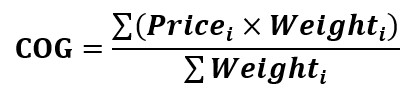
Where:
- Pricei: represents the closing price of the period.
- Weighti: is the opening price of the period.
This formula results in a smooth line that oscillates around the price, offering predictive insights without lag.
General Interpretation
The COG helps traders visualize price momentum and potential reversals through the following key features:
- Turning Points: When prices deviate significantly from the COG line, a reversal may occur.
- Crossovers: Intersections between the COG line and the signal line mark buy or sell opportunities.
- Momentum Analysis: The slope of the COG line indicates the strength of price movements.
LightningChart JS Trader provides a clear visualization of these elements, aiding traders in decision-making.
Key Components
- COG Line: The main oscillating line that reflects the weighted center of price movements.
- Signal Line: A smoothed moving average of the COG line, used for confirming signals. In LightningChart JS Trader, a Simple Moving Average can be displayed as a signal line. Use setShowSignal() method to show and hide the signal.
- Customizable Settings: LightningChart JS Trader allows users to adjust parameters such as period count, signal periods, and offsets for tailored analysis.
Calculation Example
Let’s assume the following:
- We are using a lookback period of 5 days in this example.
- The closing prices for the last 5 days are as follows:
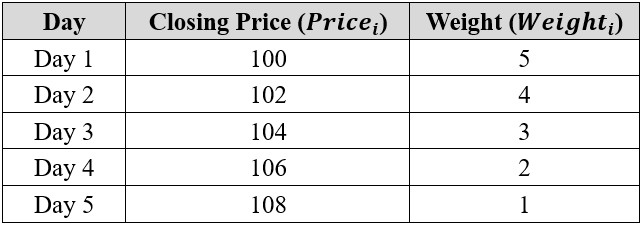
Step 1: Multiply Prices by Weights.
We calculate the weighted price for each day by multiplying the closing price by the weight:
WeightedPrice1 = 100 x 5 = 500
WeightedPrice2 = 102 x 4 = 408
WeightedPrice3 = 104 x 3 = 312
WeightedPrice4 = 106 x 2 = 212
WeightedPrice5 = 108 x 1 = 108
Step 2: Calculate the Sum of Weighted Prices
Add all the weighted prices together:
Sum of Weighted Prices = 500 + 408 + 312 + 212 + 108 = 1540
Step 3: Calculate the Sum of Weights
Add all the weights together:
Sum of Weights = 5 + 4 + 3 + 2 + 1 = 15
Step 4: Calculate the COG
Now, divide the sum of the weighted prices by the sum of the weights:

The Center of Gravity (COG) for this 5-day period is 102.67. This value represents the “center of gravity” of the price movements over the selected lookback period.
Interpretation of the example
- If the price is above the calculated COG, it may indicate overbought conditions and a potential reversal to the downside.
- If the price is below the COG, it may indicate oversold conditions and a potential reversal to the upside.
- A crossover of the COG line with a signal line (e.g., a 3-period moving average) can confirm buy or sell signals.
What is a Center of Gravity indicator Signal?
A COG signal is a trading cue derived from the interaction between the COG line and the signal line. The two primary signals are:
- Buy Signal:
- When the COG line crosses above the signal line, it indicates bullish momentum and a potential price increase.
- Sell Signal:
- When the COG line crosses below the signal line, it signals bearish momentum and a potential price decline.
Additionally, peaks and troughs in the COG line highlight overbought and oversold conditions, enabling traders to anticipate reversals. The setShowSignal() method in LC JS Trader allows traders to toggle the visibility of these signals for greater clarity.
How to Create the Technical Indicator Using LC JS Trader
Step 1: Get LightningChart JS Trader
To begin, you’ll need access to LightningChart JS Trader. This library provides the tools necessary to create advanced technical indicators, including the Center of Gravity Indicator. Visit the LightningChart JS Trader page to download the required components and review the documentation.
Step 2: Review the Interactive Example
LightningChart JS Trader includes interactive examples that demonstrate how to create custom technical indicators. Start by reviewing the documentation, focusing on how to integrate the Center of Gravity Indicator into your chart setup. The interactive examples will guide you through the process of setting up the Center of Gravity indicator, from importing the necessary modules to modify the chart settings.
Step 3: Code Explanation
In this step, we will break down the code that creates the chart with the Center of Gravity Indicator, as shown in the image, using LightningChart JS Trader. The code demonstrates how to initialize a trading chart, apply the Center of Gravity indicator, and customize its appearance.

Here’s a detailed breakdown of each section:
A. Importing the Required Libraries:
   const lcjsTrader = require('@arction/lcjs-trader')
   const lcjs = require('@arction/lcjs')
const { Themes } = lcjs- lcjsTrader: This library provides access to the LightningChart JS Trader functionalities, allowing you to create advanced financial charts.
- lcjs: The main LightningChart JS library, used for general charting functionality.
- Themes: A property within lcjs that provides access to pre-built themes. In this case, we are using the darkGold theme to style the chart.
B. Initializing the Trading Chart:
   lcjsTrader.trader(TRADER_LICENSE).then(async (trader) => {
    // Create a trading chart.
const tradingChart = trader.tradingChart({ loadFromStorage: false, colorTheme: Themes.darkGold })trader(TRADER_LICENSE): Initializes the LightningChart JS Trader with the provided license key (TRADER_LICENSE). This is required to access the charting functionalities for financial data.
Note you can request a LightningChart JS Trader trial license, which is free.
tradingChart(): This function creates a trading chart with certain options.loadFromStorage: false: This disables the loading of previously stored chart data from local storage, ensuring a fresh chart setup.colorTheme: Themes.darkGold: This applies the darkGold theme to the chart, which influences the background color, gridlines, and other visual elements.
C. Adding and Customizing the Indicator
    // Add Center of Gravity indicator
    const cog = tradingChart.indicators().addCenterOfGravity()
    cog.setPeriodCount(10)
    cog.setSource(3)
    cog.setShowSignal(true)
    cog.setSignalPeriodCount(3)
    cog.setLineColor('#FFAA33')
    cog.setSignalColor('#FF477E')
cog.setLineWidth(3)addCenterOfGravity(): COG is designed to anticipate future price movements. Since it has no lag, it can give clear signals of turning points in the price.
cog.setPeriodCount(10): Sets the number of time periods (n) used to calculate the indicator.
**cog.setSource(3): Sets which values the indicator calculations are based on. In this case, calculations based on Close values.
cog.setShowSignal(true): Sets whether the signal line should be visible or not. Set true to show the signal line. A Simple Moving Average is displayed as a signal line.
cog.setSignalPeriodCount(3): Sets the number of time periods (n) used to calculate the signal line.
cog.setLineColor('#FFAA33'): Changes the color of the Center of Gravity line to orange.
cog.setSignalColor('#FF477E'): Changes the color of the Signal line to a shade of pink.
cog.setLineWidth(3): Sets the line thickness of the indicator to 3 pixels. This makes the line more prominent and easier to observe during analysis.
D. Loading Data from a CSV File
    // Reading data from a file.
    await fetch(`${document.head.baseURI}examples/assets/0000/Alphabet Inc (GOOGL).csv`).then((res) => res.text()).then((text) => {
        tradingChart.readCsvString(text, 'Alphabet Inc (GOOGL)')
})fetch(): This function retrieves a CSV file containing historical data for Alphabet Inc. (GOOGL). The CSV file includes pricing information for the company’s stock, which is plotted on the chart.readCsvString(): This function reads the CSV data and interprets it as pricing data for Alphabet Inc. The second argument (‘Alphabet Inc (GOOGL)’) sets the label for the chart, as seen at the top of the chart image.
E. Setting the Currency for the Chart
    tradingChart.setCurrency('USD')
})setCurrency('USD'): This sets the currency of the chart to USD, ensuring that the pricing data is interpreted and displayed in US dollars.
** Enumeration of Moving Average Types in LC JS Trader: To select which values the indicator calculations are based on.

Key Observations from the LightningChart JS Trader Implementation
- Interactive Features:
- LightningChart JS Trader allows users to adjust the period count and signal periods dynamically, making the indicator flexible for different timeframes and strategies.
- Users can toggle the signal line visibility via the setShowSignal() method.
- Practical Variations:
- LightningChart appears to use a simple moving average for the signal line.
- Customization:
- The settings panel of LightningChart JS Trader indicates full control over:
- The period length (10 default).
- Signal line smoothing (3 default).
- Offset adjustments and visibility toggles.
Advantages and Limitations of the Indicator
The Center of Gravity Indicator (COG) offers several advantages that make it a valuable tool in technical analysis. One of its most significant benefits is its lag-free nature, which allows traders to predict price turning points instead of merely reacting to past price movements.
This forward-looking characteristic gives traders an edge in anticipating reversals and adjusting their strategies proactively. Additionally, the Center of Gravity indicator is highly versatile and can be used across various markets, including forex, stocks, and commodities, making it suitable for different trading styles.
Its clear visualization of overbought and oversold conditions, combined with the use of a signal line for buy and sell confirmations, provides precise and actionable trading signals.
Solutions like LightningChart JS Trader enhance these advantages further by offering customizable parameters such as period count and signal line visibility, enabling traders to tailor the indicator to their specific needs.
However, the Center of Gravity indicator also comes with limitations. In choppy or sideways markets, the sensitivity of the COG can lead to false signals, making it less reliable in such conditions. Traders must be cautious and consider using additional indicators to filter out noise and confirm signals.
The complexity of the underlying calculations may pose challenges for beginners, as understanding the mathematical basis and proper application of the indicator requires some level of expertise.
Furthermore, variations in the Center of Gravity indicator’s implementation—such as differences in weighting schemes or data sources—can yield inconsistent results, necessitating thorough testing and optimization.
Despite these drawbacks, when used correctly and in conjunction with other tools, the COG can significantly enhance a trader’s ability to navigate market movements effectively.
Conclusion
The Center of Gravity Indicator (COG) is a powerful tool for traders looking to predict price movements and identify turning points with precision. Its lag-free nature, combined with the ability to visualize overbought and oversold conditions, makes it an indispensable asset in technical analysis. However, like all indicators, it should be used in conjunction with other tools and strategies to minimize risks.
Moreover, libraries like LightningChart JS Trader enhance the usability of the COG by providing interactive features, including adjustable parameters, signal line visibility, and offset settings. By mastering the Center of Gravity Forex Indicator, traders can gain an edge in navigating the complexities of today’s financial markets.
Continue learning with LightningChart

Trend Lines in Trading
Trend lines are among the simplest yet most powerful tools in technical analysis. They help traders visualize market direction, identify potential support and resistance levels, and make more informed trading decisions. Despite their simplicity, trend lines remain a...
Best Python Charting Library in 2026
Python's charting ecosystem is large, overlapping, and regularly misunderstood. Most comparison guides stop at Matplotlib, Plotly, and Seaborn. This one goes further: it covers what happens when your datasets grow large, your update rates increase, or your chart types...
Best TradingView Charting Library Alternative
TradingView's charting libraries are the most visible option for fintech developers. Visibility is not the same as capability. This guide is for developers who have hit the wall on candle count limits, watermark restrictions, branding requirements, real-time...



If you have any questions, feel free to contact us!



©LightningChart Ltd 2026. All rights reserved.