








Creating Awesome Oscillator for Trading with LightningChart JS Trader
Article
Learn how to integrate the Awesome Oscillator into your fintech software applications to assess market momentum and identify price trends.
Ahmad Omid
Data Science Developer


Introduction
The Awesome Oscillator is a popular technical analysis tool widely used by traders to assess market momentum and identify potential reversals in price trends. It offers valuable insights into the strength of a stock, helping traders make informed decisions. In this blog, we will explore the theory behind the Awesome Oscillator, its application in trading strategies, and how to create it using LightningChart JS Trader Interactive Examples.
Awesome Oscillator Indicator: What is it?
The Awesome Oscillator (AO) is a momentum indicator developed by Bill Williams. It measures the difference between a 5-period simple moving average (SMA) and a 34-period SMA, both calculated using the midpoints of each candlestick rather than the closing prices. By comparing recent momentum with a longer-term momentum, the indicator provides insights into the prevailing trend’s strength and potential shifts.
Is the Awesome Oscillator a Good Indicator?
The Awesome Oscillator is considered an effective indicator because it is simple yet powerful. It aids traders in identifying:
- Momentum shifts: Highlights when the market is gaining or losing momentum.
- Trend reversals: Detects changes in direction, allowing traders to enter or exit positions at opportune moments.
- Bullish and bearish setups: Signals like the twin peaks or zero-line cross provide actionable trading cues.
What is the Awesome Oscillator Secret for Trading Strategies?
The secret to the Awesome Oscillator lies in its ability to simplify complex market dynamics. Its visual representation in a histogram format makes it easy for traders to:
- Spot divergences between price and momentum.
- Identify potential entry and exit points.
- Combine it with other technical indicators to strengthen trading strategies.
Formula
The Awesome Oscillator is calculated using the following formula:
Awesome Oscillator = SMA5(Midpoint) – SMA34(Midpoint)
Where the Midpoint is:
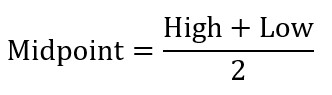
General Interpretation
The values of the Awesome Oscillator are plotted as a histogram that fluctuates above and below a zero line. Here’s how to interpret it:
- Above zero: Indicates bullish momentum (short-term momentum exceeds long-term momentum).
- Below zero: Indicates bearish momentum (short-term momentum is weaker than long-term momentum).
Which Time Frame is Best for Using the Awesome Oscillator Indicator?
The time frame depends on your trading style:
- Day traders may use shorter time frames like 1-minute or 5-minute charts.
- Swing traders often prefer daily or 4-hour charts for smoother signals.
- Position traders might use weekly charts for long-term trend analysis.
Key Components
- Histogram bars: The height and color of the bars indicate the strength and direction of momentum.
- Zero line: Serves as a reference point for identifying bullish or bearish conditions.
- Signals: Common patterns include:
- Zero-line cross: A bullish or bearish signal when the histogram crosses the zero line.
- Twin peaks: Indicates potential reversals based on consecutive peaks in the histogram.
Calculation Example for the Awesome Oscillator
To demonstrate how the Awesome Oscillator (AO) works, let’s go through a step-by-step calculation with a hypothetical example.
- Data Setup:
Assume we have the following candlestick data (5 periods for short-term momentum, 34 periods for long-term momentum):

- Calculate the Moving Averages:
Short-Term SMA5:

Long-Term SMA34:
Assume the average of the last 34 midpoint values (for simplicity, summing them up yields 5900):
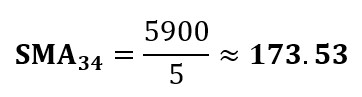
3. Calculate the Awesome Oscillator:
Awesome Oscillator = SMA5(Midpont) – SMA34(Midpoint)
Awesome Oscillator = 110 – 173.53 = -63.53
- Interpretation:
- The negative AO value (-63.53) indicates bearish momentum because the short-term momentum () is weaker than the long-term momentum ().
- If this value crosses above the zero line, it might signal a bullish shift.
This process can be automated and visualized using LightningChart JS Trader Interactive Examples, making it easier to track and interpret AO values in real-time.
How to Create the Technical Indicator Using LC JS Trader
Step 1: Get LightningChart JS Trader
To begin, you’ll need access to LightningChart JS Trader. This library provides the tools necessary to create advanced technical indicators, including the Awesome Oscillator Indicator. Visit the LightningChart JS Trader page to download the required components and review the documentation.
Step 2: Review the Interactive Example
LightningChart JS Trader includes interactive examples that demonstrate how to create custom technical indicators. Start by reviewing the documentation, focusing on how to integrate the Awesome Oscillator Indicator into your chart setup. The interactive examples will guide you through the process of setting up the Awesome Oscillator Indicator, from importing the necessary modules to modify the chart settings.
Step 3: Code Explanation
In this step, we will break down the code that creates the chart with the Awesome Oscillator Indicator, as shown in the image, using LightningChart JS Trader. The code demonstrates how to initialize a trading chart, apply the Awesome Oscillator Indicator, and customize its appearance.

Here’s a detailed breakdown of each section:
A. Importing the Required Libraries:
   const lcjsTrader = require('@arction/lcjs-trader')
   const lcjs = require('@arction/lcjs')
const { Themes } = lcjs- lcjsTrader: This library provides access to the LightningChart JS Trader functionalities, allowing you to create advanced financial charts.
- lcjs: The main LightningChart JS library, used for general charting functionality.
- Themes: A property within lcjs that provides access to pre-built themes. In this case, we are using the darkGold theme to style the chart.
B. Initializing the Trading Chart:
   lcjsTrader.trader(TRADER_LICENSE).then(async (trader) => {
    // Create a trading chart.
const tradingChart = trader.tradingChart({ loadFromStorage: false, colorTheme: Themes.darkGold })trader(TRADER_LICENSE): Initializes the LightningChart JS Trader with the provided license key (TRADER_LICENSE). This is required to access the charting functionalities for financial data.
Note you can request a LightningChart JS Trader trial license, which is free.
tradingChart(): This function creates a trading chart with certain options.loadFromStorage: false: This disables the loading of previously stored chart data from local storage, ensuring a fresh chart setup.colorTheme: Themes.darkGold: This applies the darkGold theme to the chart, which influences the background color, gridlines, and other visual elements.
C. Adding and Customizing the Indicator
    // Add Awesome Oscillator indicator
    const ao = tradingChart.indicators().addAwesomeOscillator()
    ao.setPeriodCounts(5, 34)
ao.setBarColors('#9EF9FF', '#FF4D55')addAwesomeOscillator(): AO provides information about the strength of the stock and possible reversals. It compares recent momentum with the momentum over a longer time frame.
ao.setPeriodCounts(5, 34): Sets the number of short-term and long-term time periods used to calculate the indicator. The number 5 indicates the Short-term period count, and the nember 34 indicates the Long-term period count.
ao.setBarColors('#9EF9FF', '# FF4D55'): Changes the bar colors of the indicator to a shade of blue as colorUp and red as colorDown.
D. Loading Data from a CSV File
    // Reading data from a file.
    await fetch(`${document.head.baseURI}examples/assets/0000/Alphabet Inc (GOOGL).csv`).then((res) => res.text()).then((text) => {
        tradingChart.readCsvString(text, 'Alphabet Inc (GOOGL)')
})fetch(): This function retrieves a CSV file containing historical data for Alphabet Inc. (GOOGL). The CSV file includes pricing information for the company’s stock, which is plotted on the chart.readCsvString(): This function reads the CSV data and interprets it as pricing data for Alphabet Inc. The second argument (‘Alphabet Inc (GOOGL)’) sets the label for the chart, as seen at the top of the chart image.
E. Setting the Currency for the Chart
    tradingChart.setCurrency('USD')
})setCurrency('USD'): This sets the currency of the chart to USD, ensuring that the pricing data is interpreted and displayed in US dollars.
Advantages and Limitations of the Indicator
The Awesome Oscillator offers several advantages that make it a valuable tool for traders. Its simplicity is one of its most significant strengths, as the histogram format provides a clear visual representation of market momentum.
This makes it accessible to both novice and experienced traders. Additionally, the Awesome Oscillator is versatile, functioning effectively across various time frames and markets. Whether used by day traders on short-term charts or position traders on long-term charts, it delivers actionable insights.
Another advantage is its compatibility with other technical indicators such as RSI or MACD, which enhances the reliability of trading signals by providing additional confirmation.
However, the Awesome Oscillator also has its limitations. Like most moving average-based indicators, it is inherently lagging, meaning it relies on past data and may generate delayed signals in fast-moving markets.
This lag can lead to missed opportunities or late entries in certain scenarios. Furthermore, the indicator is prone to producing false signals, particularly in ranging or sideways markets where momentum shifts are less pronounced.
This limitation underscores the importance of using the Awesome Oscillator in combination with other tools to validate its signals. While the AO provides valuable information, relying solely on it can lead to suboptimal trading outcomes.
Conclusion
The Awesome Oscillator is a valuable addition to any trader’s toolbox, offering insights into market momentum and potential reversals. By understanding its formula, interpretation, and components, traders can effectively integrate it into their strategies.
Moreover, leveraging modern visualization tools like LightningChart JS Trader, you can create and customize the Awesome Oscillator for real-time trading applications. Embrace the power of this tool to enhance your trading decisions and gain a competitive edge in the market.
Continue learning with LightningChart

Geospatial data visualization with Google Maps & LightningChart
Written by a human | Updated on April 10th, 2025Geospatial Data Visualization This article showcases and describes a particular use case of LightningChart JS for geospatial data visualization. LightningChart JS is a JavaScript charting tool designed for...
![[Tutorial] How to embed interactive charts in PowerPoint presentations](https://lightningchart.com/wp-content/uploads/2022/12/Interactive-Charts-in-PowerPoint-feature-image.jpg)
[Tutorial] How to embed interactive charts in PowerPoint presentations
Written by a human | Updated on April 9th, 2025Embed interactive charts in PowerPoint presentations Embedding charts within PowerPoint presentations has always been possible but perhaps one of the most ignored possibilities is actually embedding web applications...
Motorsports Analytics
Updated on April 10th, 2025 | Written by human Motorsports Analytics Large companies in the motorsports industry are collecting huge volumes of real-time data coming from different sources on and off the pitch during racing competitions. These data are both...



If you have any questions, feel free to contact us!



©LightningChart Ltd 2026. All rights reserved.