








LightningChart JSCreating a React Line Chart with LightningChart JS
TutorialLearn how to create a React Line chart with LightningChart JS
Written by a human | Updated on April 14th, 2025
React Line Chart
Hi! We have been working on several articles related to React JS and LightningChart JS and today we will do a new exercise with a React line chart. As in the other articles, it will explain step by step how to create a React JS project from scratch. Remember that you can download the React line chart template for this project later in this article.
What is a React Line Chart?
A line plot is based on the union of data points distributed along the chart. Line charts are used to show data that change over periods of time. They are very useful in financial studies since they can aggressively represent the negative and positive points, due to the effect of spikes generated by the union of points. There are three types of line charts:
- Single line
- Multiple lines
- Compound lines.
A single-line chart is a chart with a single line, which only shows the relationship between two variables. The multi-line chart has more than one line and shows the changes between several variables within the same period. The composite line chart is a little more complex, as it can have different sets of data, such as three types of industries and their sales within the same timeline. Line charts are very useful for financial analysis, as they represent data points over time periods very well.
What is React JS?
Well, React JS is a framework created by Facebook, developed with great emphasis on implementing user interfaces. With more focus on user interfaces, it is recommended to use React JS for the view layer, making use of a model-view-controller pattern.
The advantage of using React over other frameworks is that it was created with easier development in mind. Its syntax is simpler compared to frameworks like Angular. React also allows you to run code in server and client contexts. React is open-source and cross-platform.
As for disadvantages, reading in forums and developer groups, many mentioned that its documentation is not complete enough, which can be a problem in more complex projects based on React.
Project Overview
In this article, we will do the initial setup of our React project and a brief implementation of LightningChart JS, to show the use of libraries within this project.
 Download the project to follow the tutorial
Installing React JS
In order to install React JS using commands, you will need to have Node JS and the NPM command interface installed. In previous Node JS articles, we have explained how to install it or you can also visit the NPM documentation page.
Already having NPM installed, we can execute the React JS installation command. First, we need to open a command prompt as administrator and run the following command:
npm i -g create-react-appThe above command will download the complete react library. Once React is installed, we will see a list of React commands which serves as a confirmation of a successful installation.

Now we will create a react project. We will execute the following command from the command prompt:
npx create-react-app lc-react-app“lc-react-app” will be the name of our React bar chart project, you can change the name to your needs.
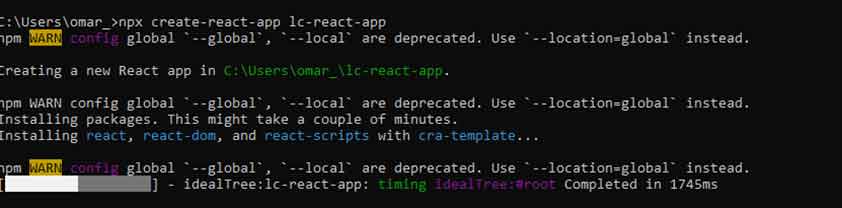
When the project has been created, the path where the project has been stored will be displayed. I recommend cutting and pasting the project into an easily accessible path.

Project Configuration
Before we begin, we’ll need to install the Lightning Charts JS library. Open your React bar chart project with Visual Studio Code:
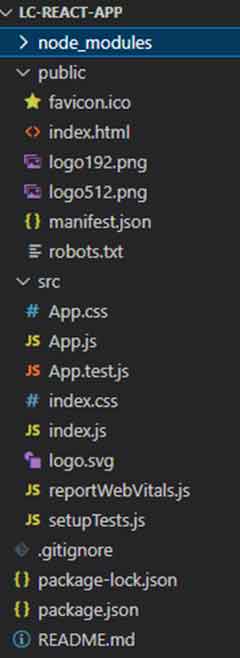
Your project should look the same or similar to the image above. Now open a new terminal so you can install LightningChart JS.
npm i @arction/lcjsThe npm i @arction/lcjs command will install the Lightning Charts JS library into our project. If we execute the command npm start, we will be able to compile and view our page on a local server:
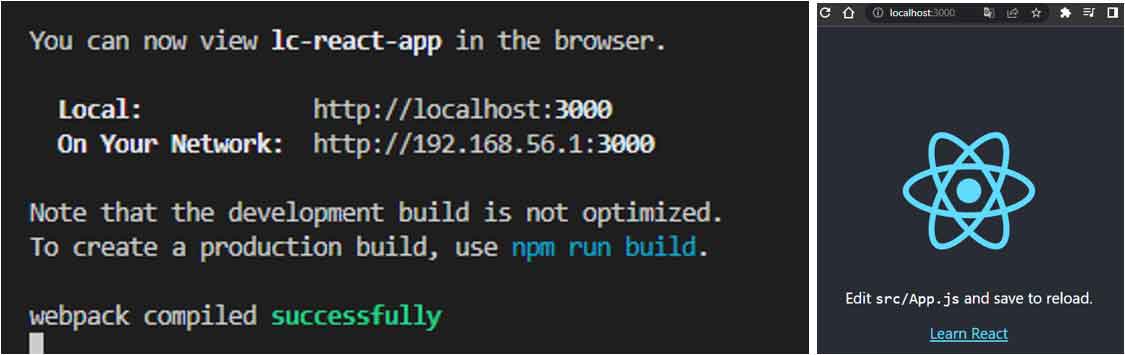
Line Chart
Before we start working with the code to create the React Line chart, we have to understand the files on which we will work. Unlike Angular, where our views and logic are grouped by component, React starts with a simpler structure.

The first thing we will see will be two JS files, index.js and App.js. These files have a default name but can be renamed according to your needs. The index file will contain the code to render the view created by the App.js file. App.js contains our logic in charge of building the react line chart object that we will render.
The CSS files will modify the style of the objects generated in their corresponding JS files. An App.test.js file is generated when we create a React project. This file corresponds to our App.js file and can be used to test our code using the npm test command. The basic idea is that there is a .test file for each generated JS file.
LineChart.JS
For this project, we will create a new file called LineChart.js. This file will contain the code that will generate our React Line chart. We do it separately to keep our chart code organized instead of embedding everything within the App.js file.

Importing Classes
We’ll start by importing the necessary LightningChart JS classes. The way to import components is the same as used in Angular.
import { lightningChart,AxisTickStrategies, Themes } from '@arction/lcjs'
import React, { useRef, useEffect } from 'react'
Now we have to create an object that contains our chart, and in turn, can be exported to other instances.
const Chart = (props) => {
    const { data, id } = props
    const chartRef = useRef(undefined)

    useEffect(() => {
Using the EffectHook allows you to run side effects like fetching, direct DOM updating, and timers. Inside the useEffect function, we’ll encapsulate all of our Line chart logic.
const chart = lightningChart().ChartXY({
            theme: Themes.auroraBorealis,
            container: id
        })
        .setPadding({
            right: 50,
        })
        .setTitle('Diesel and Gasoline Price Comparison')
Create Line Chart Object
To create a Line chart object, we need to use the method ChartXY. We can declare some properties like theme and container.
- Theme: A collection of default implementations can be accessed by Themes. The color theme of components must be specified when it is created, and can’t be changed afterward (without destroying and recreating the component). All properties can be consulted in the Themes documentation.
- Container: The DOM Element or its ID that will contain the chart. If there is no such element found, the chart will not work. If nothing was provided, LCJS will automatically append a new DIV element on the document for the chart.
chart.getDefaultAxisX()
            .setTickStrategy(AxisTickStrategies.DateTime)
            .setInterval({
                start: new Date(2022, 0, 1).getTime(),
                end: new Date(2022, 0, 31).getTime()
            })

//
chart.getDefaultAxisY().setTitle('$/litre').setInterval({ start: 0, end: 3, stopAxisAfter: true })
We can set properties to axes by using the getDefaultAxis method.
setInterval: set axis scale interval. This property includes parameters such as start (a number).setTickStrategy: TheTickStrategydefines the positioning and formatting logic of Axis ticks as well as the style of created ticks.
| tickStrategy | styler |
| ‘Numeric’ | ( tickStrategy: NumericTickStrategy ) => tickStrategy |
| ‘Time’ | ( tickStrategy: TimeTickStrategy ) => tickStrategy |
| ‘DateTime’ | ( tickStrategy: DateTimeTickStrategy ) => tickStrategy |
| ‘Empty’ | undefined |
const lineSeries = chart.addLineSeries().setName('Diesel')
const lineSeries2 = chart.addLineSeries().setName('Gasoline')
The LineSeries is a method for adding a new object to the chart. This series type visualizes a list of Points (pair of X and Y coordinates) with a continuous stroke. The LineSeries is optimized for processing massive amounts of data, here are some reference specs to give an idea:
- A static data set in the tens of millions range is rendered in a matter of seconds.
- With streaming data, even millions of data points can be streamed in every second, while retaining an interactive document.
lineSeries2.add(diesel)
lineSeries.add(gasoline)
The method add will help us to store data in the line series. The ‘diesel’ and ‘gasoline’ array objects contain the values for the X and Y axes.
// Diesel data snippet
const diesel = [
            { x: new Date(2022, 0, 1).getTime(), y: 1.52 },
            { x: new Date(2022, 0, 2).getTime(), y: 1.52 },
            { x: new Date(2022, 0, 3).getTime(), y: 1.58 },

//Gasoline data snippet
const gasoline = [
            { x: new Date(2022, 0, 1).getTime(), y: 1.35 },
            { x: new Date(2022, 0, 2).getTime(), y: 1.35 },
            { x: new Date(2022, 0, 3).getTime(), y: 1.35 },
Chart Data
The LineSeries is optimized for processing massive amounts of data, here are some reference specs to give an idea:
- A static data set in the tens of millions range is rendered in a matter of seconds.
- With streaming data, even millions of data points can be streamed in every second, while retaining an interactive document.
lineSeries2.add(diesel)
lineSeries.add(gasoline)
The method add will help us to store data in the line series. The ‘diesel’ and ‘gasoline’ array objects contain the values for the X and Y axes.
// Diesel data snippet
const diesel = [
            { x: new Date(2022, 0, 1).getTime(), y: 1.52 },
            { x: new Date(2022, 0, 2).getTime(), y: 1.52 },
            { x: new Date(2022, 0, 3).getTime(), y: 1.58 },

//Gasoline data snippet
const gasoline = [
            { x: new Date(2022, 0, 1).getTime(), y: 1.35 },
            { x: new Date(2022, 0, 2).getTime(), y: 1.35 },
            { x: new Date(2022, 0, 3).getTime(), y: 1.35 },
Properties
The React line chart can be fully customized, several properties are available:
setAutoCursor: Style chart AutoCursor using a callback function.
chart.setAutoCursor((cursor) => cursor.setResultTableAutoTextStyle(true).setTickMarkerYAutoTextStyle(true))- setResultTableAutoTextStyle: Set is ResultTable auto text fill style enabled. When enabled, the text of ResultTable will be automatically filled based on pointed data.
- setTickMarkerYAutoTextStyle: Set is TickMarkerY auto text fill style enabled. When enabled, the text of TickMarkerY will be automatically filled based on pointed data.
addLegendBox: Collection of available LegendBox builders.
const legend = chart
            .addLegendBox()
            // Dispose example UI elements automatically if they take too much space. This is to avoid bad UI on mobile / etc. devices.
            .setAutoDispose({
                type: 'max-width',
                maxWidth: 0.3,
            })

        // Add Chart to LegendBox.
        legend.add(chart)
To build LegendBoxes, you must pass one of these to the method: addLegendBox(). This method can be accessed through Charts, Dashboard, Etc. The legend boxes can be created as horizontal or vertical boxes.
.addLegendBox(LegendBooxBuilders.HorizontalLegendBox)- setAutoDispose: Interface for describing auto dispose mode of an UI element. Can be used to set a condition, where the UI element is automatically disposed of, removing it from view. Use with
[[UIElement.setAutoDisposeMode]].
Return function that will destroy the graphic when the component is unmounted. The chart will be stored inside a container (id). The class name “chart” will be used to apply the CSS class located in the App.css file.
return () => {
        console.log('destroy chart')
        chartRef.current = undefined
        }
    }, [id])

    return <div id={id} className='chart'></div>
}

export default Chart
Rendering Chart
To render our chart object, we need to import it in our App.js file:
import React, { useEffect, useState } from 'react';
import './App.css'
import Chart from './LineChart'

const App = (props) => {
  return <div className='fill'>
    <Chart id='chart'/>
  </div>
}

export default App
The App constant will return the React line Chart object. Also, we can apply a CSS Class for the body. The CSS class is located in the App.css file. The App constant will be exported to the index.js file.
import React from 'react';
import ReactDOM from 'react-dom/client';
import './index.css';
import App from './App';
import reportWebVitals from './reportWebVitals';

const root = ReactDOM.createRoot(document.getElementById('root'));
root.render(
  <React.StrictMode>
    <App />
  </React.StrictMode>
);
The last step is to import our App.js into the index.js. The way to import/export objects between JS files is similar in almost all cases. For Index files, we need to apply some react properties, because here is where we will manipulate the DOM.
React Strict Mode: Strict mode checks are run in development mode only. They do not impact the production build.
Run Project: Execute in the terminal the npm startcommand.
Conclusion
Thanks for getting until the end of this React line chart tutorial! Within my experience, I have not worked with React since all my projects are based on Angular. However, React is a very present name in web developer groups or forums.
And I mean, I can partly understand why. Creating a project is quite simple since it is a framework based on JavaScript, we only depend on a few basic commands, and voila! project created.
Really easy, right?… Something that really surprises me is the flexibility of LightningChart JS when being implemented in this and other frameworks. I have worked with plugins that do not work correctly in different frameworks, but this was not the case.
As we saw in the React line chart article, we did not have to change the logic or functions of LC JS. We just had to create our chart and export it the way React requires it. In this exercise, we returned with the XY object.
The trick in this chart is to create data points, place them in the two-dimensional plane, and join them with lines to generate a line chart. LC JS allows us to specify the type of values displayed on each axis. Remember that “setTickStrategy” will help us with establishing these values.
In the case of dates, we can establish an interval “setInterval”. By just specifying the start and end, LC JS will automatically calculate the rest of the values! Excellent, right?
Remember that you can establish a look and feel just by assigning the name of a theme. LC JS has a large catalog of themes, from very basic ones to very futuristic or friendly ones. Remember that you can download this template.
With the “npm Install” command, the project will install all the necessary packages and with the “npm start” command, your chart will be displayed in your browser.
Thank you very much for your attention, bye!

Omar Urbano
Software Engineer


Continue learning with LightningChart
React Charting Performance
Here's a scenario that plays out across development teams every few months. Someone builds a React dashboard, picks Recharts or Victory because they're popular, the devs love them, and the first demo looks great. Then the dataset gets bigger. Or the data starts...
Javascript Charting Library comparison 2026
Every year someone publishes a listicle of JavaScript charting libraries. They screenshot a demo, note the GitHub stars, paste in the npm install command, and call it a day. Then you follow their recommendation, get six months into your project, and discover that your...
Visualizing 10 Million Data Points in the Browser (2026): The Technical Deep-Dive
Ten Million Data Points in the Browser: How WebGL Makes Mass Datasets Interactive Ten million data points. That number used to mean a database problem, not a front-end problem. Now research teams want to explore it interactively in a browser. Trading desks want...



If you have any questions, feel free to contact us!



©LightningChart Ltd 2026. All rights reserved.