








LightningChart PythonImplementation of a Vital Signs Dashboard in Python
TutorialImplementation of a vital signs dashboard in Python with LightningChart Python for real-time patient data monitoring.
Written by a human | Updated on April 23rd, 2025
Vital Signs Dashboard in Python with LightningChart
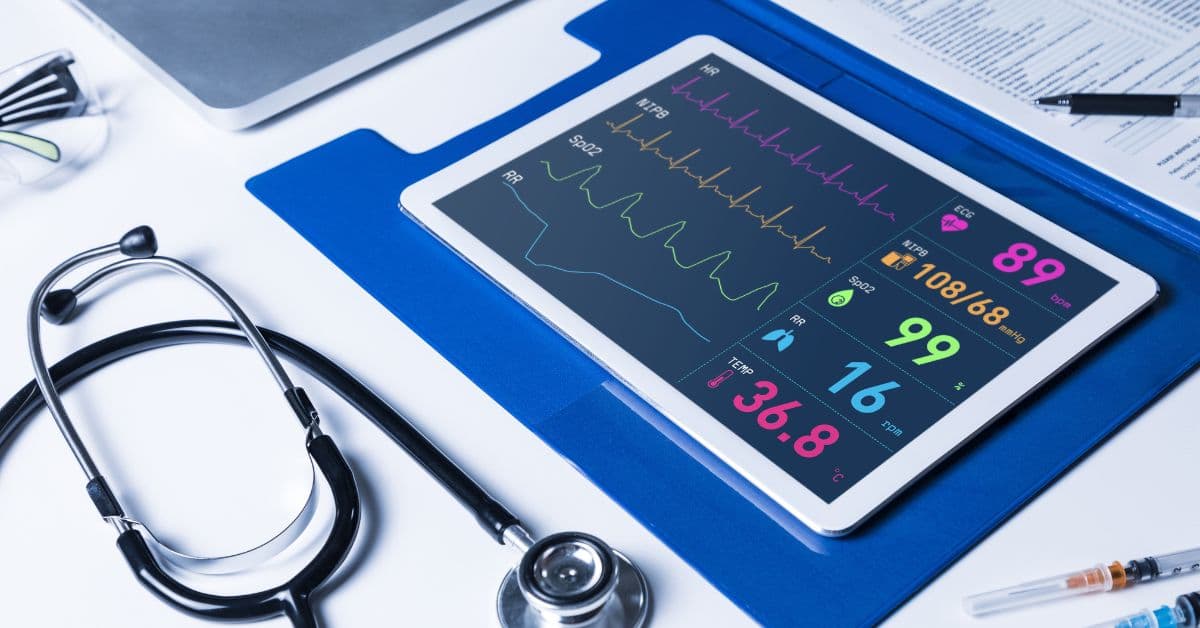
Vital signs are measurements of the body’s basic functions. The vital signs can include various numbers of these measurements. Usually, these vital signs are measured:
- Body temperature
- Heart rate
- Respiratory rate
- Blood pressure
- Oxygen saturation
Tracking vital signs is important for detecting health problems, especially those underlying. They also can prevent misdiagnosis.
LightningChart Python

For this task, we may use the LightningChart Python library. It provides a wide range of tools for creating graphs that can be useful for flow cytometry white cell analysis in Python. In this project, we will use:
- XY Charts (Link to docs)
- Gauge Charts (Link to docs)
LightningChart uses GPUs for faster rendering, so it is possible to ‘feed’ it a huge sample of data (which will be the case in this project).
Setting Up Python Environment
To create a vital signs dashboard in Python, first, we need to set up our Python environment.
1. The first step is installing Homebrew itself
I recommend using Homebrew package manager as it is popular and has a lot of packages. Moreover, it is arguably more convenient than installing Python using .dmg. You can skip this step if it is already installed on your Mac. Enter Terminal app and copy/paste this string:
/bin/bash -c "$(curl -fsSL https://raw.githubusercontent.com/Homebrew/install/HEAD/install.sh)"Important note: the installation of Homebrew is not fast, it usually takes between 5 to 15 minutes.
2. Installation of Python
This command will install the latest stable version of Python.
brew install pythonNOTE: if you don’t want to use Homebrew, you can access the official Python website, select the latest stable version downloader for MacOS (its named macOS 64-bit universal2 installer), and follow the installation instructions. You can check the version using python3 –version in the terminal. If it displays Unknown command error, it is most likely due to PATH variables. Refer to this guide to fix it.
Installation of Python on Windows
I recommend using the tool Winget. To install the Python package, open cmd or PowerShell as Administrator and type:
winget install Python.Python.3NOTE: if you don’t want to use Winget, You can access the official Python website, select the latest stable version downloader for Windows
(it is named Windows installer (64-bit)) and follow the installation instructions. You can verify the installation of Python and pip by typing python --version and pip --version respectively. If it displays command' is not recognized error, it is most likely due to PATH variables. Refer to this guide to fix.
3. Installation of IDE
For IDE (integrated development environment), I recommend using PyCharm as it is clean and powerful. However, the full version is paid so you can also use VSCode. Optionally, you may want to set up Venv (Python virtual environment) to install packages there and not clutter the Python installation. The environment-creating instructions are:
- PyCharm – https://www.jetbrains.com/help/pycharm/creating-virtual-environment.html#python_create_virtual_env
- VSCode – https://code.visualstudio.com/docs/python/environments
Then, using the terminal (IDEs have integrated terminals) install the needed packages:
pip install pandas lightningchart4. Libraries Used
Pandas
In this project, we will mainly use the two-dimensional data frame data structure provided by Pandas. It can be easily created from a .CSV or Excel file.
LightningChart
LightningChart Python is the main library used in the project for flow cytometry data analysis. It provides highly customizable graph-building tools, including simple XY charts, 3D charts, Bar charts, Spider charts, and Map charts. However, this time we will use only XY charts and Point Series.
Firstly, we need to import pandas and lightningchart libraries.
import pandas as pd
import lightningchart as lc
Loading and Processing Data
You can find lots of medical data, including datasets for the vital signs dashboard in Python, on the PhysioNet website. This dataset with a detailed description is also present at Nature.com. You can easily convert .vital file to .csv by first converting it to a pandas data frame and then to CSV.
from vitaldb import VitalFile
vf_df = VitalFile('00001.vital').to_pandas(['SNUADC/ART', 'Solar8000/ART_SBP'], interval=1/100)

csv_file = 'data.csv'
vf_df.to_csv(csv_file, index=False)
NOTE: You don’t need to do that, as the ready-made .csv file is located inside /data folder in the GitHub repo. To extract data from a .csv file and store it in data frame we need to use pd.read_csv function. After this, we need to convert data frame columns to lists.
df = pd.read_csv('data/data_cut.csv', header=None)  # read csv
df.fillna(0, inplace=True)  # fill NaN values with 0s
df.columns = ['x', 'Primus/CO2', 'SNUADC/ART', 'SNUADC/PLETH', 'SNUADC/ECG_II', 'Solar8000/BT', 'Solar8000/HR']  # name columns
y_ecg = df['SNUADC/ECG_II'].to_list()  # Extract Ys from DataFrame and cast to list
y_pleth = df['SNUADC/PLETH'].to_list()
y_art = df['SNUADC/ART'].to_list()
y_co2 = df['Primus/CO2'].to_list()
temp = df['Solar8000/BT'].to_list()
heartrate = df['Solar8000/HR'].to_list()
x = df['x'].to_list()  # same with Xs
Visualizing Data with LightningChart
Let’s initialize the Dashboard, and then ChartXY and Gauge charts from the LightningChart library. Also, we can customize titles.
dashboard = lc.Dashboard(columns=3, rows=4, theme=lc.Themes.Black)  # initialize Dashboard
chart_ecg = dashboard.ChartXY(column_index=0, row_index=0, column_span=2, title='ECG')  # group charts as you like
chart_pleth = dashboard.ChartXY(column_index=0, row_index=1,column_span=2, title='PLETH')
chart_art = dashboard.ChartXY(column_index=0, row_index=2, column_span=2, title='ART')
chart_co2 = dashboard.ChartXY(column_index=0, row_index=3, column_span=2, title='CO2')
chart_temp = dashboard.GaugeChart(column_index=2, row_index=0, row_span=2)
chart_heartrate = dashboard.GaugeChart(column_index=2, row_index=2, row_span=2)

chart_ecg.set_title_position('left-top').set_title_color(lc.Color(0, 255, 0))  # initialize titles
chart_pleth.set_title_position('left-top').set_title_color(lc.Color(0, 255, 0))
chart_art.set_title_position('left-top').set_title_color(lc.Color(0, 255, 0))
chart_co2.set_title_position('left-top').set_title_color(lc.Color(0, 255, 0))
chart_temp.set_title_color(lc.Color(0, 255, 0)).set_label_font(40)
chart_heartrate.set_title_color(lc.Color(0, 255, 0)).set_label_font(40)
Then, we need to customize the charts themselves and add series for our data.
series_ecg = chart_ecg.add_line_series(
            data_pattern='ProgressiveX')  # add series to chart
series_ecg.set_line_color(lc.Color(0, 255, 0))  # color the line green
x_axis_ecg = chart_ecg.get_default_x_axis()  # get axis
y_axis_ecg = chart_ecg.get_default_y_axis()
x_axis_ecg.set_scroll_strategy(strategy='progressive')  # Set the x_axis_ecg to progressive scroll strategy
x_axis_ecg.set_interval(start=-300, end=300, stop_axis_after=False)  # define intervals for x and y
y_axis_ecg.set_default_interval(start=-0.5, end=1)
x_axis_ecg.set_tick_formatting('')  # this feature is experimental and not yet available in public version
y_axis_ecg.set_tick_formatting('')  # of LightningChart library, it removes axis (only visual purpose)
Then, we can repeat the same for the other 3 XY charts.
series_pleth = chart_pleth.add_line_series(  # same with other series and charts
            data_pattern='ProgressiveX')
series_pleth.set_line_color(lc.Color(0, 255, 0))
x_axis_pleth = chart_pleth.get_default_x_axis()
y_axis_pleth = chart_pleth.get_default_y_axis()
x_axis_pleth.set_scroll_strategy(strategy='progressive')
x_axis_pleth.set_interval(start=-300, end=300, stop_axis_after=False)
y_axis_pleth.set_default_interval(start=20, end=60)
x_axis_pleth.set_tick_formatting('')
y_axis_pleth.set_tick_formatting('')

series_art = chart_art.add_line_series(
            data_pattern='ProgressiveX')
series_art.set_line_color(lc.Color(0, 255, 0))
x_axis_art = chart_art.get_default_x_axis()
y_axis_art = chart_art.get_default_y_axis()
x_axis_art.set_scroll_strategy(strategy='progressive')
x_axis_art.set_interval(start=-300, end=300, stop_axis_after=False)
y_axis_art.set_default_interval(start=50, end=150)
x_axis_art.set_tick_formatting('')
y_axis_art.set_tick_formatting('')

series_co2 = chart_co2.add_line_series(
            data_pattern='ProgressiveX')
series_co2.set_line_color(lc.Color(0, 255, 0))
x_axis_co2 = chart_co2.get_default_x_axis()
y_axis_co2 = chart_co2.get_default_y_axis()
x_axis_co2.set_scroll_strategy(strategy='progressive')
x_axis_co2.set_interval(start=-300, end=300, stop_axis_after=False)
y_axis_co2.set_default_interval(start=0, end=50)
x_axis_co2.set_tick_formatting('')
y_axis_co2.set_tick_formatting('')
Now, let’s customize the Gauge charts. They have a bit different settings, but similar to the ChartXY.
chart_temp.set_interval(start=25, end=50)  # range of the chart
chart_temp.set_angle_interval(start=225, end=-45)  # angles (visual)
chart_temp.set_thickness(5)  # thickness of the circle
chart_temp.set_slice_color(lc.Color(0, 255, 0))  # color
chart_temp.set_title('TEMP')  # title
chart_temp.set_animations_enabled(False)  # disable animation to minimize distraction

chart_heartrate.set_interval(start=40, end=150)
chart_heartrate.set_angle_interval(start=225, end=-45)
chart_heartrate.set_thickness(5)
chart_heartrate.set_slice_color(lc.Color(0, 255, 0))
chart_heartrate.set_title('Heartrate')
chart_heartrate.set_animations_enabled(False)
Also, we need to set maximum amount of samples to be cached in memory (for progressive chart to display correctly).
series_ecg.set_max_sample_count(10000)
series_pleth.set_max_sample_count(10000)
series_art.set_max_sample_count(10000)
series_co2.set_max_sample_count(10000)
Then, we are ready to put data. Remember that we need to do it gradually for the progressive chart to work. You can experiment with a different number of entries (e.g. 10) or changing sleep time.
dashboard.open(live=True)

for point in range(0, len(x), 5):
    series_ecg.add(x[point:point+5], y_ecg[point:point+5])
    series_pleth.add(x[point:point+5], y_pleth[point:point+5])
    series_art.add(x[point:point+5], y_art[point:point+5])
    series_co2.add(x[point:point+5], y_co2[point:point+5])

    for i in range(point, point + 5):
        if temp[i] != 0:
            chart_temp.set_value(temp[i])
    for i in range(point, point + 5):
        if heartrate[i] != 0:
            chart_heartrate.set_value(heartrate[i])

    time.sleep(0.01)

dashboard.close()
Final Vital Signs Dashboard Application

Conclusion
In this guide, we created a medical dashboard of vital signs. We used libraries lightningchart and pandas. The dashboard consists of the vital signs that are usually measured (ECG, plethysmogram, blood pressure, oxygen saturation, temperature) that are nicely grouped and smooth thanks to the libraries used.
With the ready graphs, we can further analyze them. It can also be used for machine learning.
Benefits of using LightningChart
LightningChart provides a lot of ready-made options for creating graphs. Otherwise, we would have a headache creating proper charts for the Python vital signs dashboard, whilst LightningChart has powerful tools to create XY charts with a huge amount of points in almost no time.
There are lots of other tools in the library, you can review various code snippets for different tasks at LightningChart Python Guide.

Georgii Gibizov
Data Science Python Developer


Continue learning with LightningChart
Data Visualization in Medical & Healthcare Applications
Written by a human | Updated on April 10th, 2025Charting Controls for Medical Healthcare Data Visualization Applications The fact that data and data visualization are everywhere in today's world, makes me wonder how data visualization impacts medical...
Creating a Smith Chart Application in .NET
Written by a human | Updated on April 9th, 2025Smith Charts The Smith chart is a diagram designed for the study and resolution of problems with transmission lines. This diagram is aimed at electrical and electronic engineers specializing in radio frequency....
Nbody Simulation Data Visualization
Written by a human | Updated on April 9th, 2025N-body Simulation Nbody simulation is maybe one of the most advanced data visualization types out there. The truth is that we’re not talking anymore about visualizing traditional data with a business focus and it...



If you have any questions, feel free to contact us!



©LightningChart Ltd 2026. All rights reserved.