





Stroke Prediction Data Visualization with LightningChart Python
Tutorial
Assisted by AI
Use LightningChart Python to visualize clinical data for stroke prediction. Enhance healthcare insights through high-performance data visualization.
Vindya Nukulasooriya
Data Science Developer

Introduction
This project presents a comprehensive analysis of health data visualization using the Stroke Prediction Dataset, powered by the LightningChart Python library. The dataset, originally sourced from Kaggle, contains clinical and demographic information for over 5,000 individuals, with the goal of identifying patterns and risk factors associated with stroke occurrence.
Project Overview
Stroke represents a global health crisis as a leading cause of death and long-term disability, necessitating a deeper understanding of the demographic, health, and lifestyle factors that drive its occurrence. By leveraging LightningChart Python to transform complex health data into high-performance, scientific visualizations, this project enhances early risk detection, personalized clinical decision-making, and public health policy design.
Objectives
- Explore stroke prevalence across age, gender, and lifestyle factors such as smoking, work type, and residence.
- Identify correlations between key health conditions (e.g., hypertension, heart disease) and stroke occurrence.
- Analyze how comorbidities and behavioural factors interact across age brackets and other segments.
- Demonstrate the scientific-grade visualization capabilities of LightningChart Python for presenting healthcare datasets in an interactive and insightful way.
Deliverables
The project will present 10 high-performance visualizations to explore stroke risk dynamics across demographics and clinical variables. Demonstrating how LightningChart Python aids in predictive healthcare analysis, risk communication, and decision-making support in public health.
Tools Used
Python 3.13.5, LightningChart Python, Jupyter Notebook, AI Assistance
About the Dataset
The Stroke Prediction Dataset, sourced from Kaggle, contains anonymized health and demographic information from individuals across multiple categories. The dataset was originally compiled to support the development of predictive models for identifying stroke risk based on clinical and lifestyle features.
Each record includes:
- Demographics: Age, Gender, Residence Type
- Health History: Hypertension, Heart Disease, BMI, Average Glucose Level
- Lifestyle Factors: Smoking Status, Work Type
- Stroke Status: A binary indicator showing if a stroke occurred (1) or not (0)
LightningChart Python
LightningChart Python is a high-performance data visualization library designed for fast, interactive, and visually rich charting. It supports both 2D and 3D visualization, making it an excellent choice for analysing statistical, biomedical, and time-series datasets, such as those used in health informatics and stroke risk prediction.
For this project, LightningChart Python proves to be an exceptional choice for creating health data visualizations that highlight the relationships between demographics, comorbidities, and stroke incidence. With interactive dashboards and multidimensional charts, the library enables seamless pattern discovery, comparative analysis, and segment-level insights across the dataset.
Setting Up Python Environment
Before running the project, install Python and the other required libraries using:
%pip install numpy pandas lightningchartOverview of Libraries Used:
- Pandas: Data cleaning, aggregation, and transformation.
- NumPy: Numerical computation and data normalization.
- LightningChart Python: High-performance interactive 2D/3D visualizations.
- SciPy: Data interpolation and smoothing.
Setting Up Your Development Environment:
- Set up a virtual environment:
- Use Visual Studio Code (VSCode) for a streamlined development experience.
Loading and Preprocessing Data
To create this Stroke Prediction Application, we will fetch the data using the following function:
# Name the dataset as spd = Stroke Prediction Data
spd = pd.read_csv("Stroke Prediction Data.csv", encoding='ISO-8859-1')
To preprocess the dataset, we will import the pandas library:
# Import necessary libraries (load pandas library to preprocess dataset)
import pandas as pd NaN records. By using the average BMI value to fill in these gaps, the dataset is kept reliable for the analysis’s decision-making stage.# Identify the Missing values (Stroke Prediction Dataset)
missing_percentage = spd.isnull().mean() * 100
missing_percentage = missing_percentage.round(2).astype(str) + '%'Visualizing Data with LightningChart Python
To effectively visualize and interpret the Stroke Prediction dataset, ten distinct chart types were selected from the LightningChart Python library. Each was carefully selected to uncover stroke risk patterns, correlations, and population-level health insights from the multidimensional health data.
Stroke Incidence by Age Group and Gender
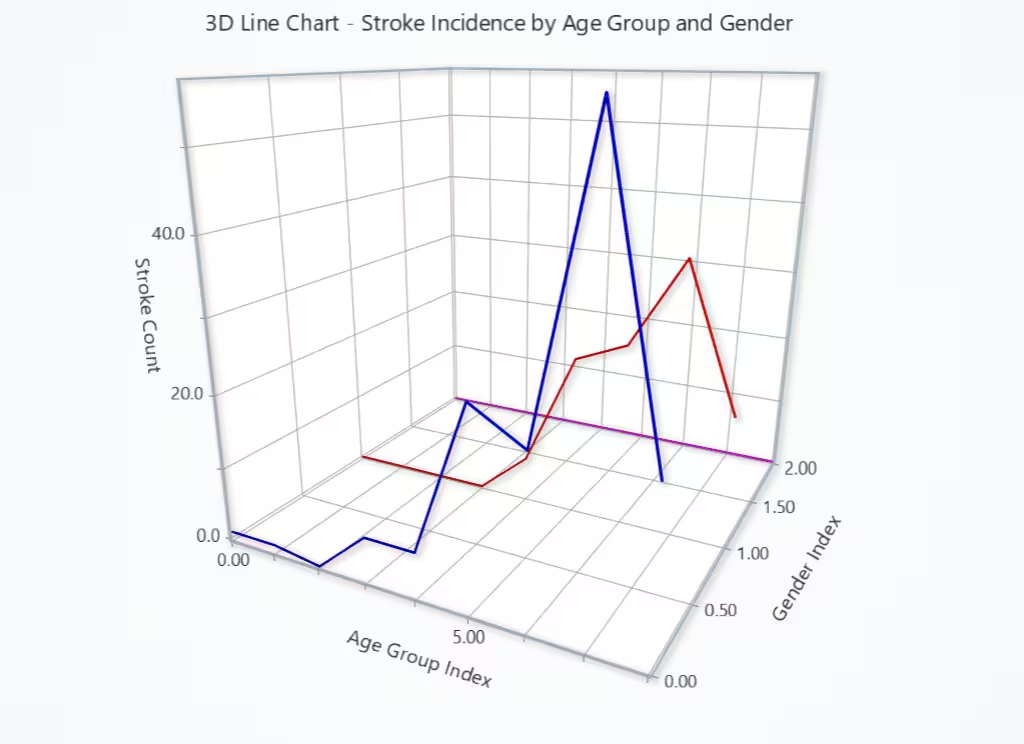
The dataset was grouped by age group and gender, and total stroke cases were summed per group. A line was plotted for each gender, connecting stroke counts across increasing age groups.
# Chart 1 – Stroke Incidence by Age Group and Gender (3D Line Chart)
import lightningchart as lc
import pandas as pd

# Load license key
with open("D:/HAMK/Internship/MyProjects/lc_license.txt", "r") as f:
    lc.set_license(f.read().strip())

# Load and clean dataset
spd = pd.read_csv("Stroke Prediction Data.csv", encoding='ISO-8859-1')
spd['bmi'].fillna(spd['bmi'].mean(), inplace=True)

# Define age bins and labels
age_bins = [0, 10, 20, 30, 40, 50, 60, 70, 80, 200]
age_labels = ['0-10', '10-20', '20-30', '30-40', '40-50', '50-60', '60-70', '70-80', '80+']
spd['age_group'] = pd.cut(spd['age'], bins=age_bins, labels=age_labels, right=False)

# Group by age group and gender
grouped = spd.groupby(['age_group', 'gender'])['stroke'].sum().reset_index()
age_groups = age_labels
genders = grouped['gender'].dropna().unique().tolist()

# Create chart
chart = lc.Chart3D(
    theme=lc.Themes.Light,
    title='3D Line Chart - Stroke Incidence by Age Group and Gender'
)

# Define colors (repeatable if more genders)
colors = ['blue', 'red', 'magenta']

# Create line series per gender
for z, gender in enumerate(genders):
    gender_data = grouped[grouped['gender'] == gender]
    gender_data = gender_data.sort_values('age_group')

    line_data = [
        {'x': float(age_groups.index(str(row['age_group']))), 'y': int(row['stroke']), 'z': float(z)}
        for _, row in gender_data.iterrows()
    ]

    series = chart.add_line_series()
    series.set_line_color(lc.Color(colors[z % len(colors)])).set_line_thickness(3)
    series.add(line_data)

# Set axis titles
chart.get_default_x_axis().set_title("Age Group Index")
chart.get_default_y_axis().set_title("Stroke Count")
chart.get_default_z_axis().set_title("Gender Index")

# Optional: Print legend mapping
print("Axis Mapping Legend:")
print("X = Age Group Index →", dict(enumerate(age_labels)))
print("Z = Gender Index →", dict(enumerate(genders)))

# Show chart
chart.open()
Stroke Rate by Age Group and Gender
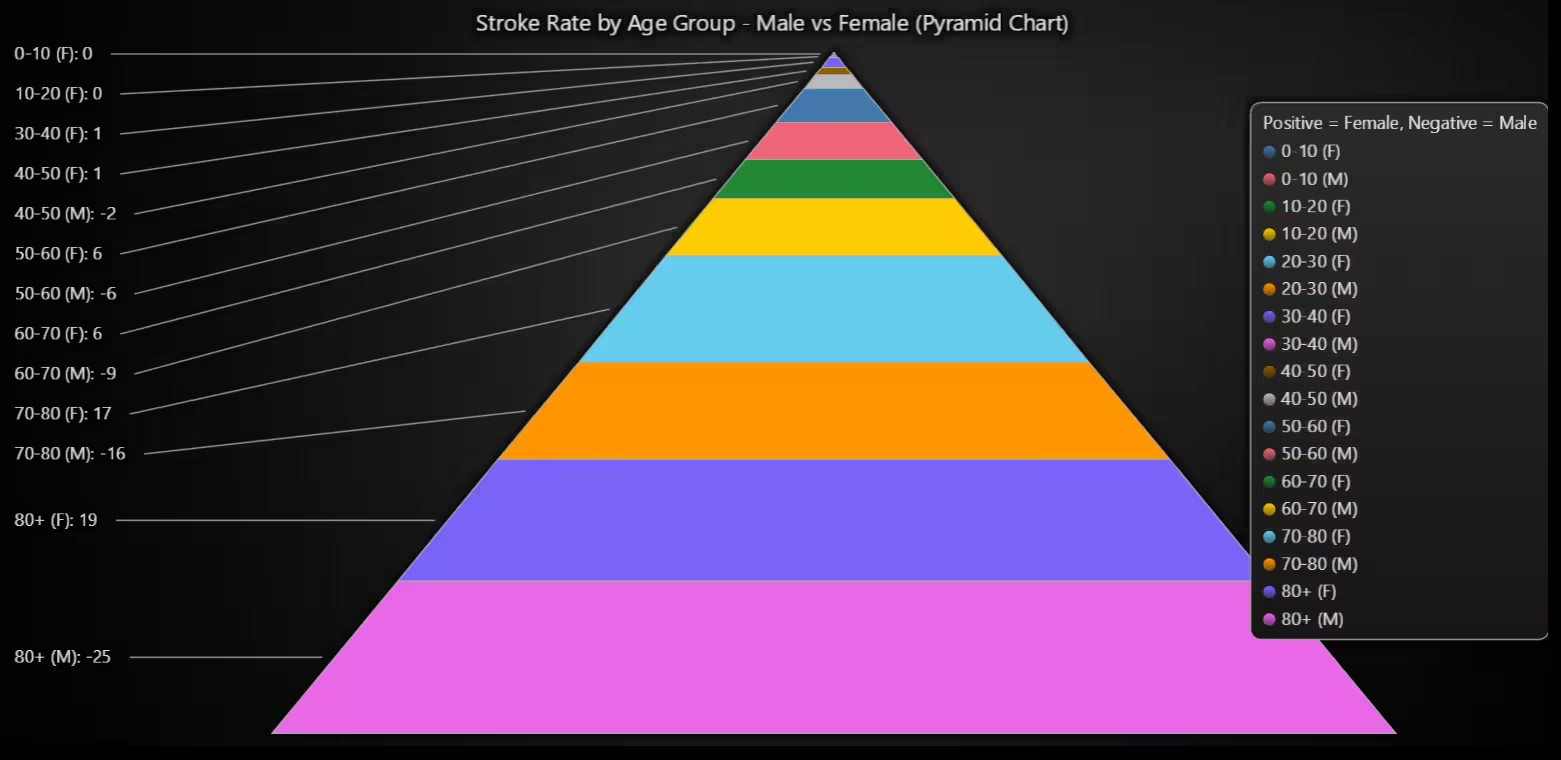
The chart shows that stroke risk increases with age for both genders. Stroke rates are nearly negligible below age 40 but rise sharply in individuals aged 50 and above. Males show higher stroke rates in middle-senior age groups (60–70), while females surpass males in the oldest age group (80+), indicating a potential longevity-related risk factor.
# Chart 2 – Stroke Rate by Age Group and Gender (Pyramid Chart: Male vs Female)
# Developed with AI Assistance to demonstrate LightningChart Python

import lightningchart as lc
import pandas as pd

# Load license
with open("D:/HAMK/Internship/MyProjects/lc_license.txt", "r") as f:
    lc.set_license(f.read().strip())

# Load data
spd = pd.read_csv("Stroke Prediction Data.csv", encoding='ISO-8859-1')
spd['bmi'].fillna(spd['bmi'].mean(), inplace=True)

# Age groups
age_bins = [0, 10, 20, 30, 40, 50, 60, 70, 80, 200]
age_labels = ['0-10', '10-20', '20-30', '30-40', '40-50', '50-60', '60-70', '70-80', '80+']
spd['age_group'] = pd.cut(spd['age'], bins=age_bins, labels=age_labels, right=False)

# Drop missing values
spd = spd.dropna(subset=['gender', 'age_group'])

# Filter only Male and Female
spd = spd[spd['gender'].isin(['Male', 'Female'])]

# Group data
pivot = spd.groupby(['age_group', 'gender']).agg(
    total=('stroke', 'count'),
    strokes=('stroke', 'sum')
).reset_index()
pivot['stroke_rate'] = (pivot['strokes'] / pivot['total']) * 100

# Prepare pyramid data (Male = negative, Female = positive)
pyramid_data = []
for age in age_labels:
    female_rate = pivot[(pivot['age_group'] == age) & (pivot['gender'] == 'Female')]['stroke_rate']
    male_rate = pivot[(pivot['age_group'] == age) & (pivot['gender'] == 'Male')]['stroke_rate']

    f_val = round(float(female_rate.values[0]), 2) if not female_rate.empty else 0
    m_val = -round(float(male_rate.values[0]), 2) if not male_rate.empty else 0

    # Female (positive)
    pyramid_data.append({'name': f'{age} (F)', 'value': f_val})
    # Male (negative)
    pyramid_data.append({'name': f'{age} (M)', 'value': m_val})

# Create Pyramid Chart
chart = lc.PyramidChart(
    slice_mode='height',
    theme=lc.Themes.Black,
    title='Stroke Rate by Age Group - Male vs Female (Pyramid Chart)'
)

chart.add_slices(pyramid_data)
chart.add_legend().add(chart).set_title('Positive = Female, Negative = Male')
chart.open()
Glucose vs BMI (Stroke Patients)
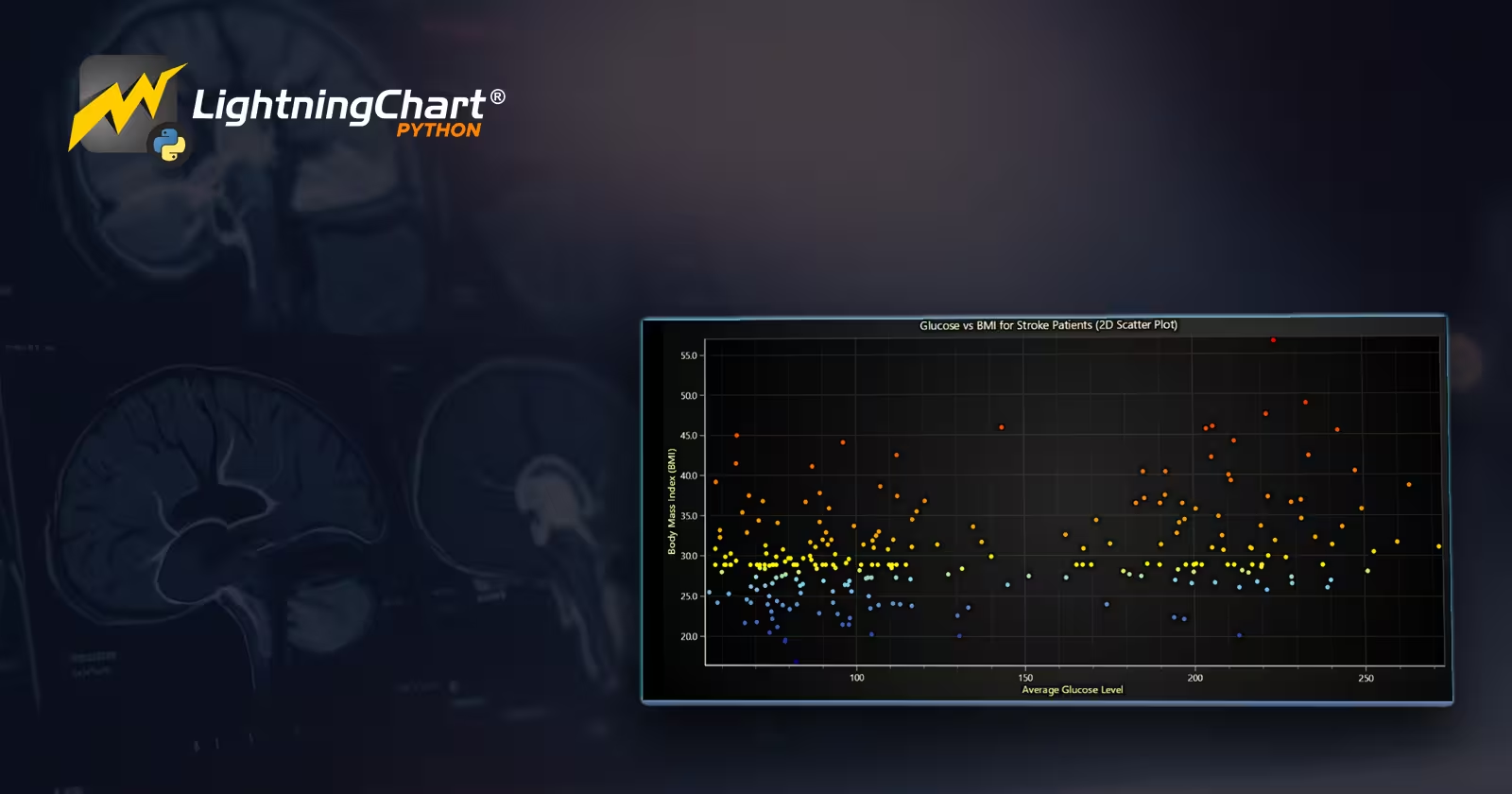
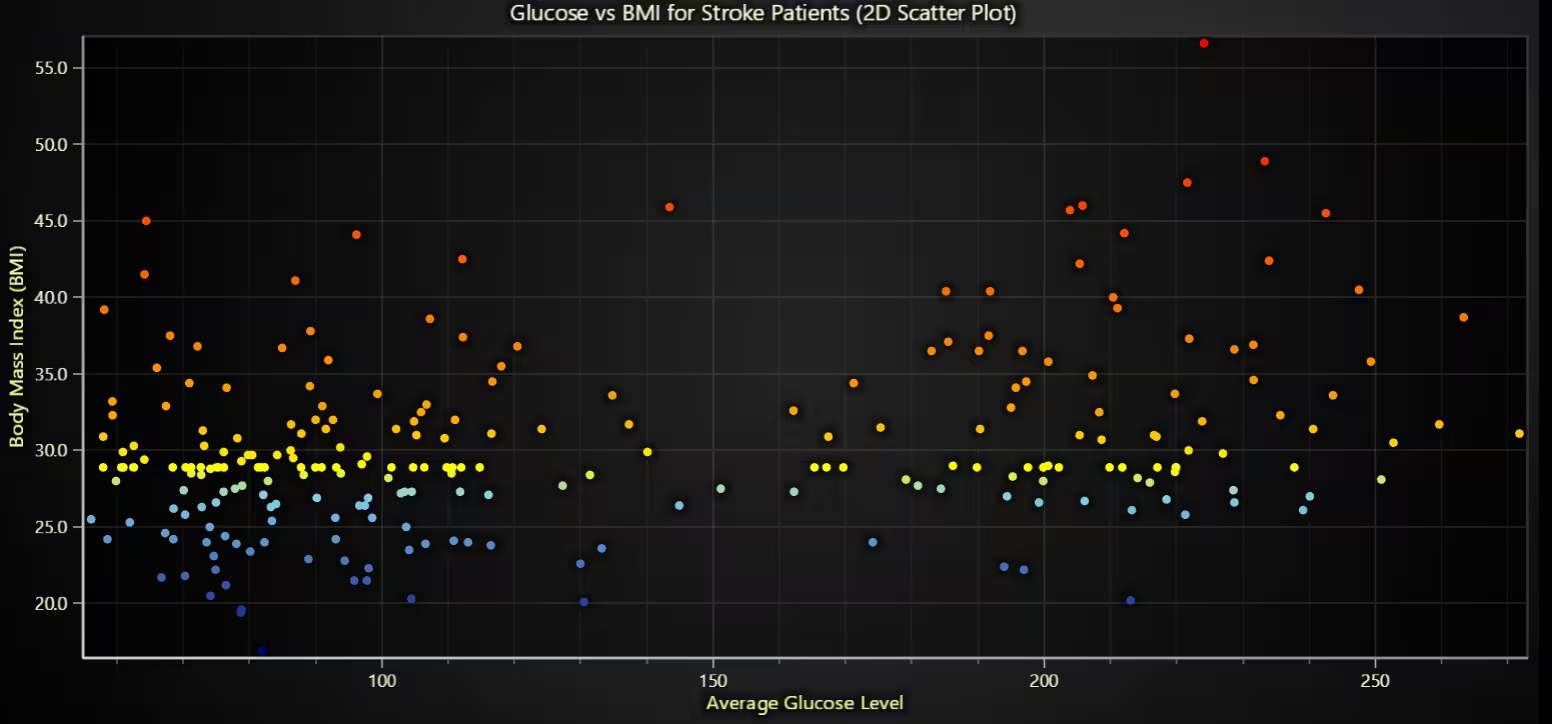
The 2D scatter plot clearly maps each stroke patient’s glucose and BMI, highlighting value concentration and spread. The color gradient adds insight into clustering by BMI levels.
# Chart 3 – Glucose vs BMI for Stroke Patients (2D Scatter Plot)
# Developed with AI Assistance to demonstrate LightningChart Python

import lightningchart as lc
import pandas as pd

# Load license
with open("D:/HAMK/Internship/MyProjects/lc_license.txt", "r") as f:
    lc.set_license(f.read().strip())

# Load dataset
spd = pd.read_csv("Stroke Prediction Data.csv", encoding='ISO-8859-1')
spd['bmi'].fillna(spd['bmi'].mean(), inplace=True)

# Filter stroke patients only
stroke_patients = spd[spd['stroke'] == 1]

# Create scatter chart
chart = lc.ChartXY(title="Glucose vs BMI for Stroke Patients (2D Scatter Plot)", theme=lc.Themes.Dark)

# Add point series
point_series = chart.add_point_series()

# Set palette coloring by BMI (mapped on Y-axis)
point_series.set_palette_point_coloring(
    steps=[
        {'value': stroke_patients['bmi'].min(), 'color': 'navy'},
        {'value': stroke_patients['bmi'].quantile(0.25), 'color': 'skyblue'},
        {'value': stroke_patients['bmi'].median(), 'color': 'yellow'},
        {'value': stroke_patients['bmi'].quantile(0.75), 'color': 'orange'},
        {'value': stroke_patients['bmi'].max(), 'color': 'red'},
    ],
    look_up_property='y',
    percentage_values=False
)

# Add data points
point_series.add(
    x=stroke_patients['avg_glucose_level'].tolist(),
    y=stroke_patients['bmi'].tolist()
)

# Set axis titles
chart.get_default_x_axis().set_title("Average Glucose Level")
chart.get_default_y_axis().set_title("Body Mass Index (BMI)")

# Open chart
chart.open()
Glucose vs BMI vs Glucose Intensity
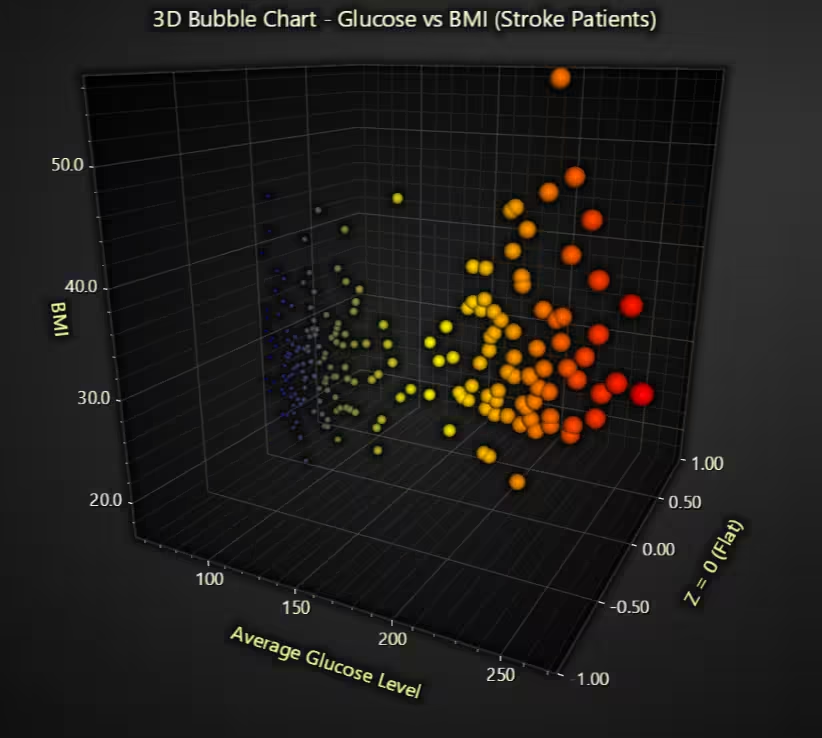
The 3D Bubble Chart adds visual emphasis to glucose intensity via both size and color, revealing density and deviation beyond flat 2D scatter.
# Chart 4 – Glucose vs. BMI for Stroke Patients (3D Bubble Chart)
# Developed with AI assistance using LightningChart Python

import pandas as pd
import lightningchart as lc
import numpy as np

# Load your LightningChart license key
with open("D:/HAMK/Internship/MyProjects/lc_license.txt", "r") as f:
    lc.set_license(f.read().strip())

# Load dataset
df = pd.read_csv("Stroke Prediction Data.csv", encoding='ISO-8859-1')

# Drop rows with missing values in relevant columns
df = df.dropna(subset=['avg_glucose_level', 'bmi', 'stroke'])

# Filter only stroke patients
df_stroke = df[df['stroke'] == 1].copy()

# Normalize values for color and size mapping
df_stroke['glucose_norm'] = (df_stroke['avg_glucose_level'] - df_stroke['avg_glucose_level'].min()) / (df_stroke['avg_glucose_level'].max() - df_stroke['avg_glucose_level'].min())
df_stroke['bmi_norm'] = (df_stroke['bmi'] - df_stroke['bmi'].min()) / (df_stroke['bmi'].max() - df_stroke['bmi'].min())

# Scale bubble size based on normalized glucose
df_stroke['size'] = df_stroke['glucose_norm'] * 25 + 5  # Between 5 and 30

# Create chart
chart = lc.Chart3D(
    theme=lc.Themes.Dark,
    title="3D Bubble Chart - Glucose vs BMI (Stroke Patients)"
)

# Create point series
series = chart.add_point_series(
    render_2d=False,
    individual_lookup_values_enabled=True,
    individual_point_color_enabled=True,
    individual_point_size_axis_enabled=True,
    individual_point_size_enabled=True,
)

# Point shape and color palette
series.set_point_shape('sphere')
series.set_palette_point_colors(
    steps=[
        {'value': 0.0, 'color': (0, 0, 128)},      # Dark blue (low glucose)
        {'value': 0.5, 'color': (255, 255, 0)},    # Yellow (medium)
        {'value': 1.0, 'color': (255, 0, 0)},      # Red (high glucose)
    ],
    look_up_property='value',
    interpolate=True,
    percentage_values=True
)

# Add data points
data = []
for _, row in df_stroke.iterrows():
    data.append({
        'x': float(row['avg_glucose_level']),
        'y': float(row['bmi']),
        'z': 0,  # Can be stroke ID or zero
        'size': float(row['size']),
        'value': float(row['glucose_norm'])  # For color mapping
    })

series.add(data)

# Axis titles
chart.get_default_x_axis().set_title('Average Glucose Level')
chart.get_default_y_axis().set_title('BMI')
chart.get_default_z_axis().set_title('Z = 0 (Flat)')

chart.open()
Glucose vs BMI (Color = Normalized Glucose)
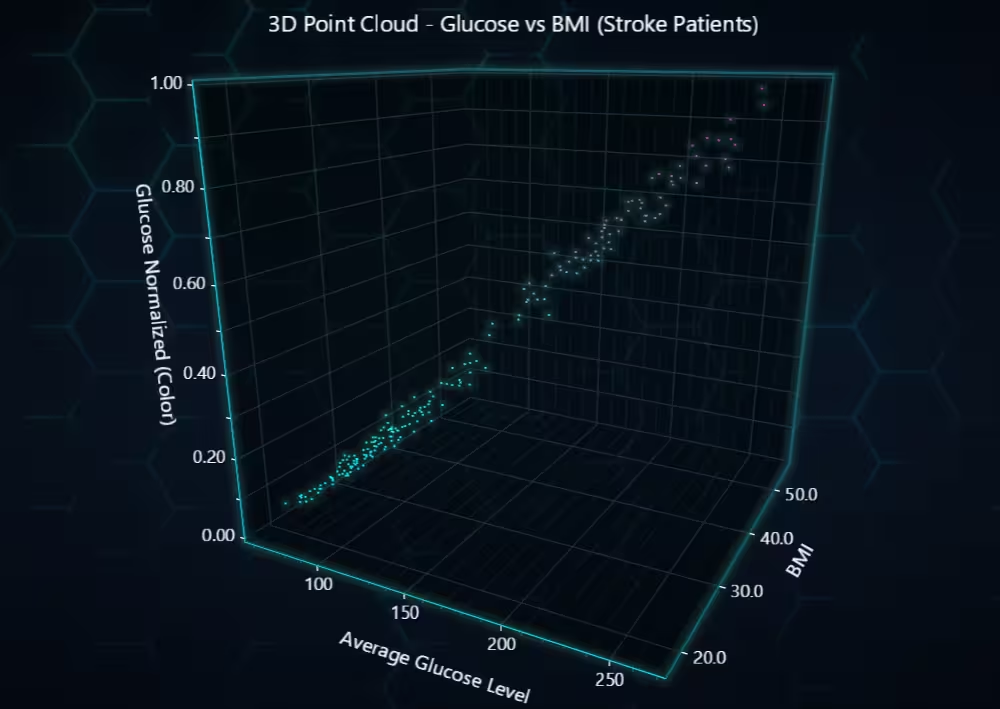
Point cloud offers a space-based visualization where color-coded normalized glucose creates a visual altitude of intensity. Ideal for spotting patterns in multi-dimensional data. The cloud shows a distinct layering: low glucose (cyan) at the base, high glucose (pink) at the top, most of which aligns with BMI > 30 along the Z-axis.
# Chart 5 – Glucose vs. BMI for Stroke Patients (Point Cloud)
# Developed with AI assistance using LightningChart Python

import pandas as pd
import lightningchart as lc

# Load your license
with open("D:/HAMK/Internship/MyProjects/lc_license.txt", "r") as f:
    lc.set_license(f.read().strip())

# Load data
df = pd.read_csv("Stroke Prediction Data.csv", encoding='ISO-8859-1')
df = df.dropna(subset=['avg_glucose_level', 'bmi', 'stroke'])

# Filter stroke patients only
df_stroke = df[df['stroke'] == 1].copy()

# Normalize glucose for color mapping
df_stroke['glucose_norm'] = (
    df_stroke['avg_glucose_level'] - df_stroke['avg_glucose_level'].min()
) / (df_stroke['avg_glucose_level'].max() - df_stroke['avg_glucose_level'].min())

# Prepare X, Y, Z
x_vals = df_stroke['avg_glucose_level'].tolist()
y_vals = df_stroke['bmi'].tolist()
z_vals = df_stroke['glucose_norm'].tolist()  # Use this as 'z' + color lookup

# Create chart
chart = lc.Chart3D(
    title='3D Point Cloud - Glucose vs BMI (Stroke Patients)',
    theme=lc.Themes.TurquoiseHexagon
)

# Add point cloud
series = chart.add_point_series(render_2d=True)
series.add(x_vals, z_vals, y_vals)  # X = glucose, Y = normalized glucose, Z = bmi

# Color points based on Y (glucose_norm)
series.set_palette_point_colors(
    steps=[
        {'value': min(z_vals), 'color': '#00FFFF'},   # Cyan – Low Glucose
        {'value': 0.5, 'color': '#40E0D0'},           # Turquoise – Mid Glucose
        {'value': max(z_vals), 'color': '#FF1493'},   # Deep Pink – High Glucose
    ],
    look_up_property='y',
    interpolate=True,
    percentage_values=False
)

# Point appearance
series.set_point_size(1.5)

# Axis labels
chart.get_default_x_axis().set_title('Average Glucose Level')
chart.get_default_y_axis().set_title('Glucose Normalized (Color)')
chart.get_default_z_axis().set_title('BMI')

chart.open()
Stroke Risk by Condition
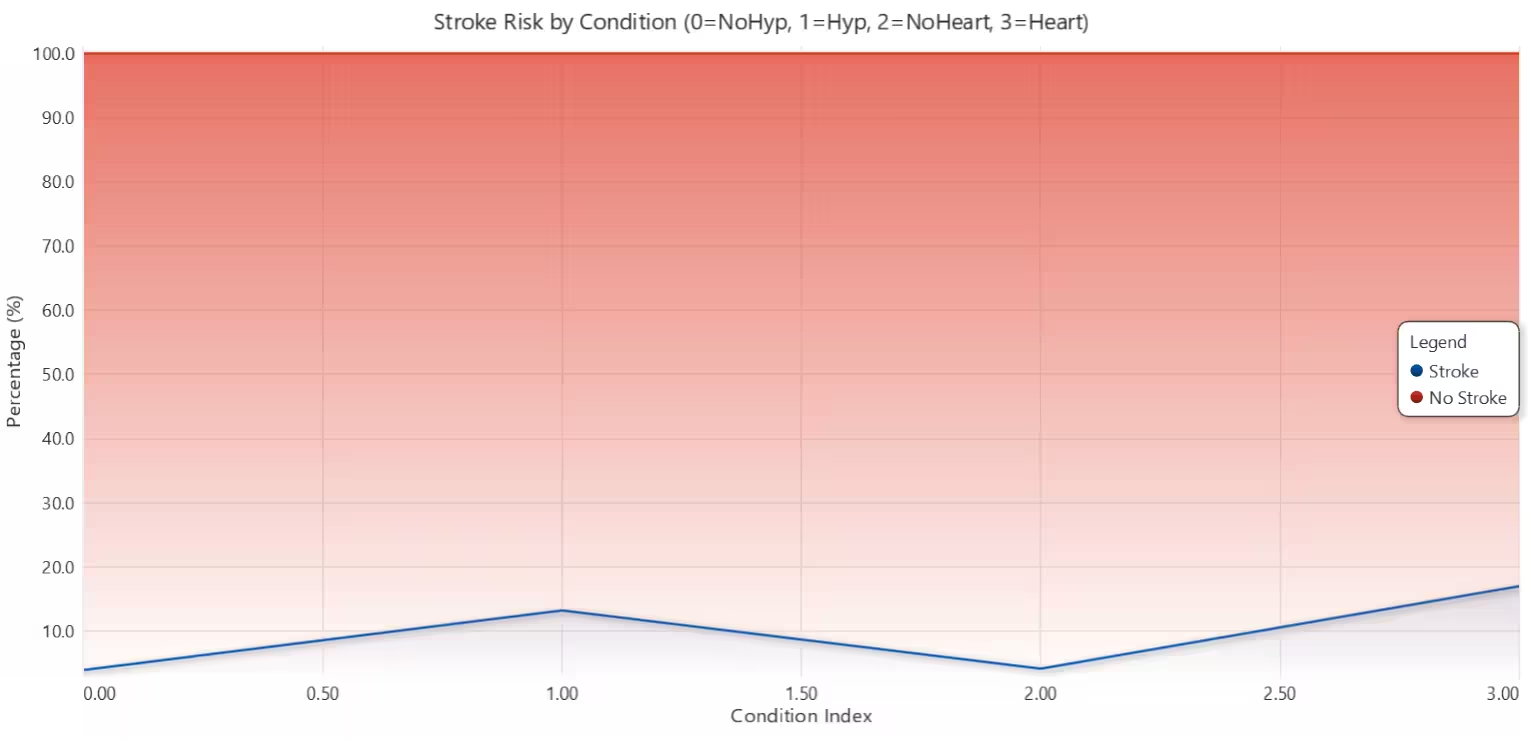
A Stacked Area Chart was selected because it shows how stroke and non-stroke proportions stack up within each condition type, and it allows easy visual comparison of stroke risk across different health conditions.
# Chart 6 – Stroke Risk by Condition (Stacked Area Chart)
# Developed with AI assistance using LightningChart Python

import lightningchart as lc
import pandas as pd
import numpy as np

# Load license
with open("D:/HAMK/Internship/MyProjects/lc_license.txt", "r") as f:
    lc.set_license(f.read().strip())

# Load dataset
df = pd.read_csv("Stroke Prediction Data.csv", encoding='ISO-8859-1')
df['bmi'].fillna(df['bmi'].mean(), inplace=True)
df = df.dropna(subset=['stroke', 'hypertension', 'heart_disease'])

# Summarize function
def summarize(condition):
    grouped = df.groupby([condition, 'stroke']).size().unstack(fill_value=0)
    grouped.columns = ['No Stroke', 'Stroke']
    grouped['Total'] = grouped.sum(axis=1)
    grouped['% Stroke'] = (grouped['Stroke'] / grouped['Total']) * 100
    grouped['% No Stroke'] = (grouped['No Stroke'] / grouped['Total']) * 100
    return grouped.reset_index()

# Get values
hyp = summarize('hypertension')
heart = summarize('heart_disease')

# Chart data
x = [0, 1, 2, 3]
x_labels = ['No Hypertension', 'Hypertension', 'No Heart Disease', 'Heart Disease']
stroke_vals = hyp['% Stroke'].tolist() + heart['% Stroke'].tolist()
no_stroke_vals = hyp['% No Stroke'].tolist() + heart['% No Stroke'].tolist()
stacked_vals = np.array(stroke_vals) + np.array(no_stroke_vals)

# Chart creation
chart = lc.ChartXY(
    title="Stroke Risk by Condition (0=NoHyp, 1=Hyp, 2=NoHeart, 3=Heart)",
    theme=lc.Themes.White
)

# Stroke Area
s1 = chart.add_area_series()
s1.set_name("Stroke")
s1.add(x, stroke_vals)

# No Stroke Area (stacked)
s2 = chart.add_area_series()
s2.set_name("No Stroke")
s2.add(x, stacked_vals)

# Axes
chart.get_default_x_axis().set_title("Condition Index")
chart.get_default_y_axis().set_title("Percentage (%)")

# Legend
chart.add_legend(data=chart)

# Show
chart.open()
Stroke vs No Stroke Condition Comparison
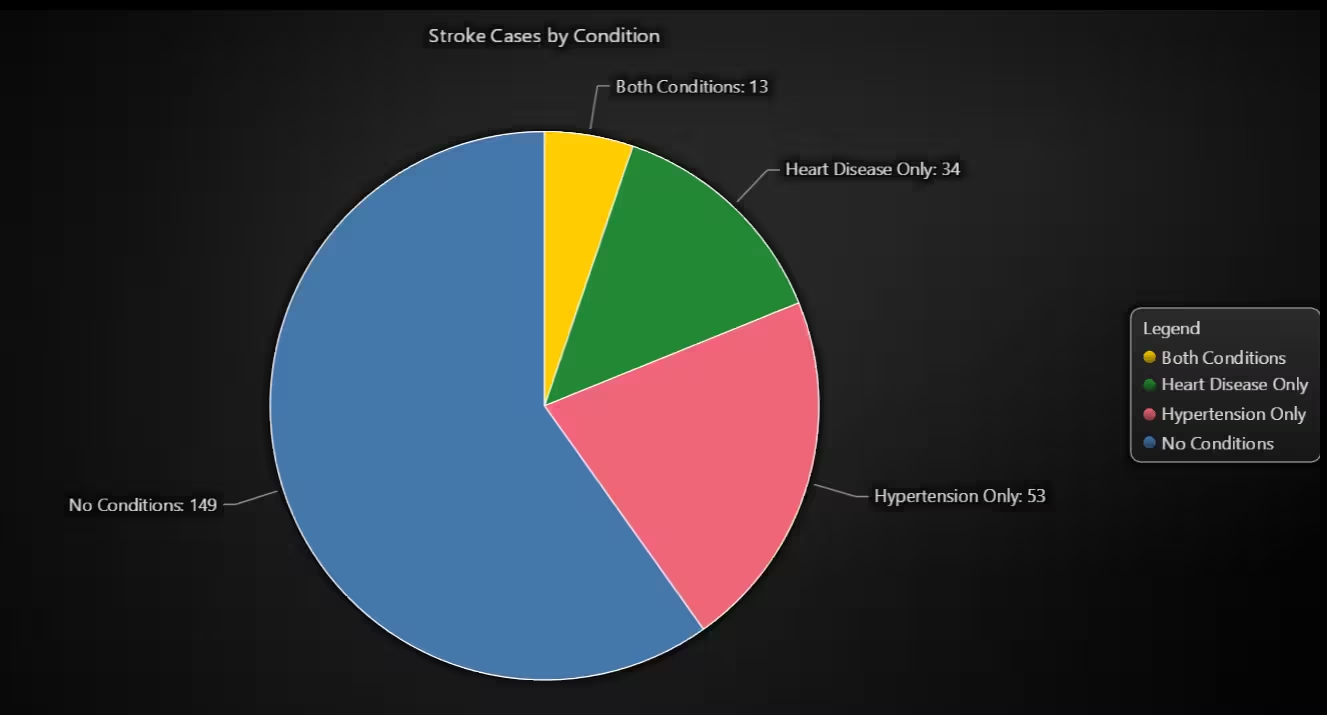
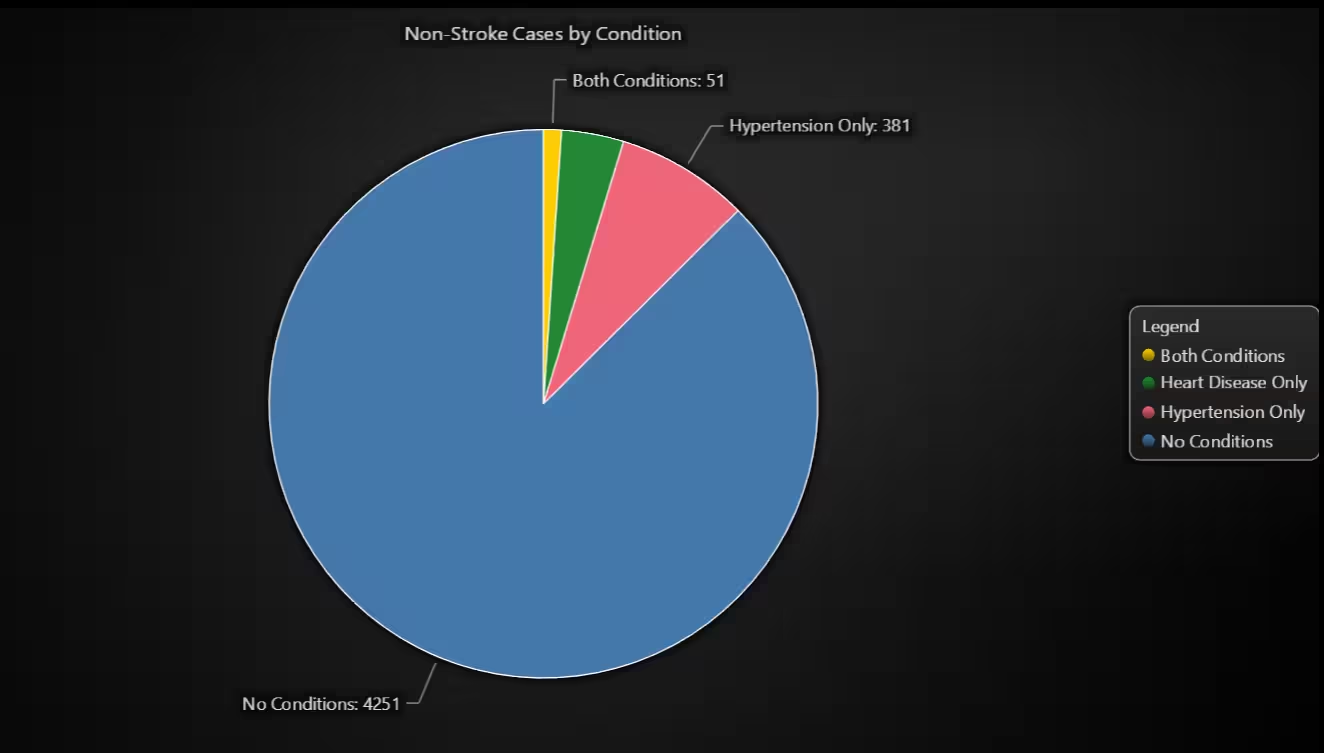
Each pie chart displays how common the four condition types are within each group. This approach allows a clear visual comparison between the stroke and non-stroke populations in terms of comorbidities. Notably, the stroke pie chart tends to have higher shares for “Hypertension Only” and “Both Conditions” categories than the non-stroke pie chart.
# Chart 7 – Stroke vs No Stroke Condition Comparison (Pie Charts)
# Developed with AI assistance using LightningChart Python

import lightningchart as lc
import pandas as pd

# Load your LightningChart license key
with open("D:/HAMK/Internship/MyProjects/lc_license.txt", "r") as f:
    lc.set_license(f.read().strip())

# Load dataset
df = pd.read_csv("Stroke Prediction Data.csv", encoding='ISO-8859-1')
df['bmi'].fillna(df['bmi'].mean(), inplace=True)

# Create combined condition label
df['Condition'] = df['hypertension'].astype(str) + df['heart_disease'].astype(str)
condition_map = {
    '00': 'No Conditions',
    '10': 'Hypertension Only',
    '01': 'Heart Disease Only',
    '11': 'Both Conditions'
}
df['Condition Label'] = df['Condition'].map(condition_map)

# Split into Stroke and Non-Stroke
stroke_df = df[df['stroke'] == 1]
no_stroke_df = df[df['stroke'] == 0]

# Value counts by condition
stroke_counts = stroke_df['Condition Label'].value_counts().to_dict()
no_stroke_counts = no_stroke_df['Condition Label'].value_counts().to_dict()

# Prepare data
stroke_data = [{'name': k, 'value': v} for k, v in stroke_counts.items()]
no_stroke_data = [{'name': k, 'value': v} for k, v in no_stroke_counts.items()]

# --- Stroke Pie Chart ---
stroke_chart = lc.PieChart(
    title='Stroke Cases by Condition',
    theme=lc.Themes.Black
)
stroke_chart.set_slice_stroke(color='white', thickness=1)
stroke_chart.add_slices(stroke_data)
stroke_chart.add_legend(data=stroke_chart)
stroke_chart.open()

# --- Non-Stroke Pie Chart ---
no_stroke_chart = lc.PieChart(
    title='Non-Stroke Cases by Condition',
    theme=lc.Themes.Black
)
no_stroke_chart.set_slice_stroke(color='white', thickness=1)
no_stroke_chart.add_slices(no_stroke_data)
no_stroke_chart.add_legend(data=no_stroke_chart)
no_stroke_chart.open()
Stroke Risk by Age Group & Work Type
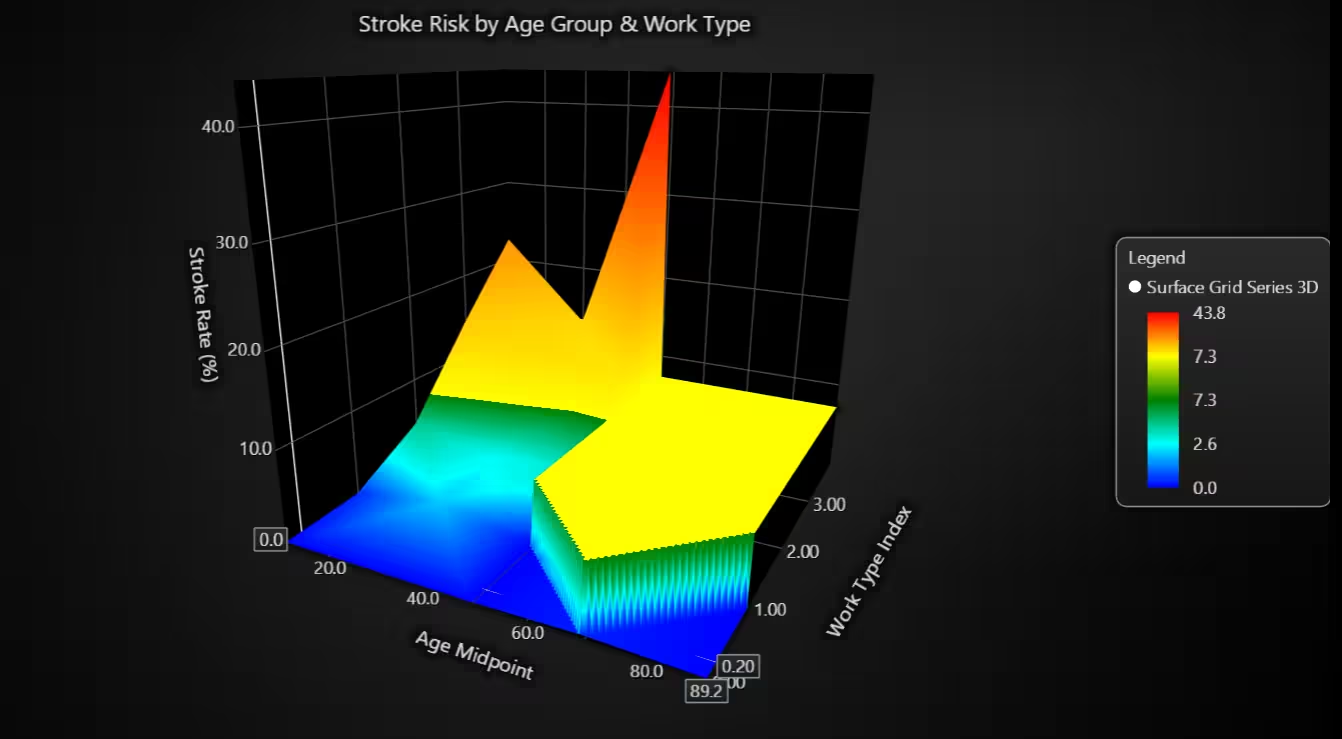
The chart interpolates stroke risk using actual group-wise data across five age bins and multiple work categories. It forms a curved surface that highlights where stroke incidence is concentrated.
# Chart 8 – Stroke Risk by Age Group & Work Type (3D Surface Grid)
# Developed with AI assistance using LightningChart Python

import lightningchart as lc
import pandas as pd
import numpy as np
from scipy.interpolate import griddata

# Load license
with open("D:/HAMK/Internship/MyProjects/lc_license.txt", "r") as f:
    lc.set_license(f.read().strip())

# Load dataset
df = pd.read_csv("Stroke Prediction Data.csv", encoding="ISO-8859-1")
df['bmi'].fillna(df['bmi'].mean(), inplace=True)

# Filter and preprocess
df = df[['age', 'work_type', 'stroke']]
df.dropna(inplace=True)
df['age_group'] = pd.cut(df['age'], bins=[0, 20, 40, 60, 80, 100], labels=['0–20', '21–40', '41–60', '61–80', '81+'])

# Encode work_type to Z axis
work_type_mapping = {wt: i for i, wt in enumerate(df['work_type'].unique())}
df['work_code'] = df['work_type'].map(work_type_mapping)

# Grouped data
grouped = df.groupby(['age_group', 'work_code'])['stroke'].mean().reset_index()
grouped['stroke'] = grouped['stroke'] * 100
grouped['age_num'] = grouped['age_group'].map({'0–20': 10, '21–40': 30, '41–60': 50, '61–80': 70, '81+': 90})

# Interpolate
xi, zi = np.meshgrid(
    np.linspace(10, 90, 100),
    np.linspace(df['work_code'].min(), df['work_code'].max(), 100)
)
yi = griddata((grouped['age_num'], grouped['work_code']), grouped['stroke'], (xi, zi), method='linear')
yi[np.isnan(yi)] = np.nanmean(grouped['stroke'])

# Create chart
chart = lc.Chart3D(title='Stroke Risk by Age Group & Work Type', theme=lc.Themes.Black)
surface_series = chart.add_surface_grid_series(columns=yi.shape[1], rows=yi.shape[0])
surface_series.set_start(x=xi.min(), z=zi.min())
surface_series.set_end(x=xi.max(), z=zi.max())
surface_series.set_step(x=(xi.max() - xi.min()) / yi.shape[1], z=(zi.max() - zi.min()) / yi.shape[0])
surface_series.invalidate_height_map(yi.tolist())
surface_series.invalidate_intensity_values(yi.tolist())
surface_series.hide_wireframe()
surface_series.set_palette_coloring(
    steps=[
        {"value": np.min(yi), "color": 'blue'},
        {"value": np.percentile(yi, 25), "color": 'cyan'},
        {"value": np.median(yi), "color": 'green'},
        {"value": np.percentile(yi, 75), "color": 'yellow'},
        {"value": np.max(yi), "color": 'red'}
    ],
    look_up_property='value',
    percentage_values=False
)

chart.get_default_x_axis().set_title('Age Midpoint')
chart.get_default_y_axis().set_title('Stroke Rate (%)')
chart.get_default_z_axis().set_title('Work Type Index')
chart.add_legend(data=surface_series)
chart.open()
Smoking Status vs. Age Groups
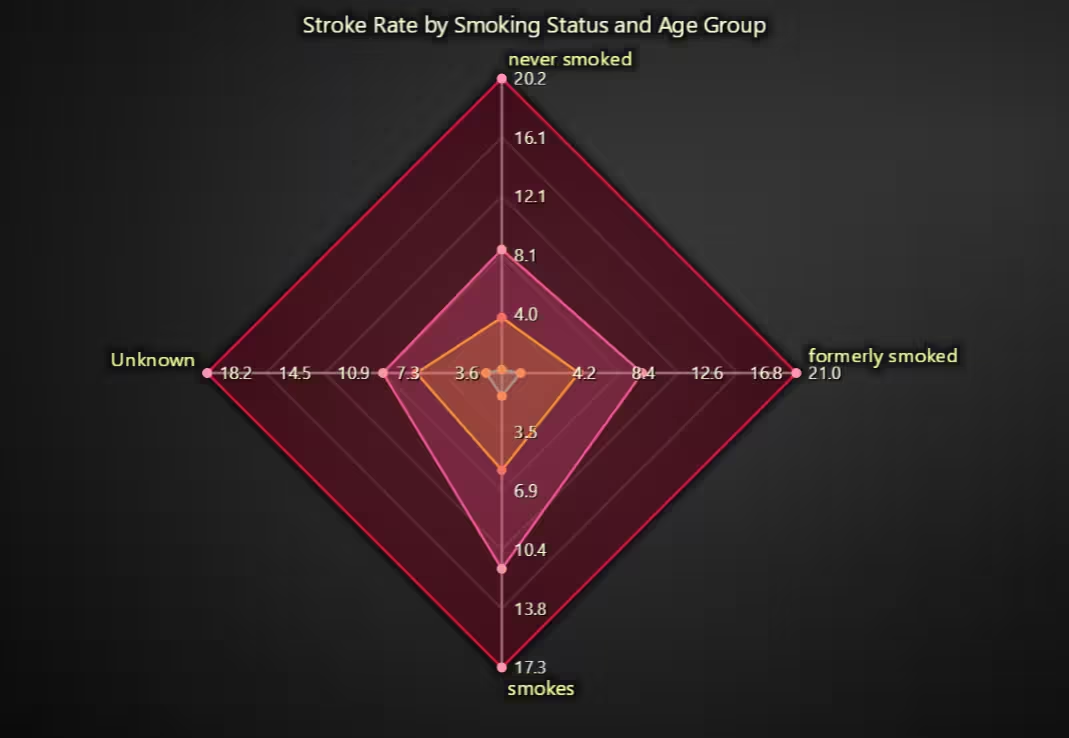
Each age group’s stroke rate varies distinctly across smoking behaviours. The radar shape makes it easy to compare how risk inflates with age and certain smoking habits.
# Chart 9 – Smoking Status vs Age Groups (Radar Chart)
# Developed with AI assistance using LightningChart Python

import pandas as pd
import lightningchart as lc

# Load LightningChart license
with open("D:/HAMK/Internship/MyProjects/lc_license.txt", "r") as f:
    lc.set_license(f.read().strip())

# Load dataset
df = pd.read_csv("Stroke Prediction Data.csv", encoding='ISO-8859-1')
df['bmi'].fillna(df['bmi'].mean(), inplace=True)

# Define age bins and labels
bins = [0, 30, 45, 60, 75, 100]
labels = ['0–30', '31–45', '46–60', '61–75', '76+']
df['Age Group'] = pd.cut(df['age'], bins=bins, labels=labels, right=False)

# Keep valid smoking statuses
valid_smoke = df[df['smoking_status'].isin(['never smoked', 'formerly smoked', 'smokes', 'Unknown'])]

# Calculate stroke rate for each Age Group × Smoking Status
grouped = valid_smoke.groupby(['Age Group', 'smoking_status'])['stroke'].mean().reset_index()
grouped['stroke'] = grouped['stroke'] * 100  # Convert to percentage

# Pivot data for charting
pivot = grouped.pivot(index='Age Group', columns='smoking_status', values='stroke').fillna(0)
smoke_categories = ['never smoked', 'formerly smoked', 'smokes', 'Unknown']
pivot = pivot[smoke_categories]  # Ensure consistent axis order

# Define RGBA fill colors (manually tuned for dark theme)
line_colors = ['cyan', 'turquoise', 'gold', 'hotpink', 'crimson']
fill_colors = [
    (0, 255, 255, 64),     # Cyan (25% opacity)
    (64, 224, 208, 64),    # Turquoise
    (255, 215, 0, 64),     # Gold
    (255, 105, 180, 64),   # Hot Pink
    (220, 20, 60, 64)      # Crimson
]

# Create Radar Chart
chart = lc.SpiderChart(
    title="Stroke Rate by Smoking Status and Age Group",
    theme=lc.Themes.Dark
)
chart.set_web_mode("polygon")
chart.set_web_count(5)

# Add axes
for cat in smoke_categories:
    chart.add_axis(cat)

# Add data layers (one per age group)
for i, (age_label, rates) in enumerate(pivot.iterrows()):
    series = chart.add_series()
    series.set_name(f"Age {age_label}")
    series.set_line_color(line_colors[i])
    series.set_fill_color(fill_colors[i])  # Fill with RGBA

    # Add stroke rates per smoking status
    points = [{'axis': smoke_categories[j], 'value': rates[j]} for j in range(len(smoke_categories))]
    series.add_points(points)

# Show chart
chart.open()
Stroke Prediction Dashboard
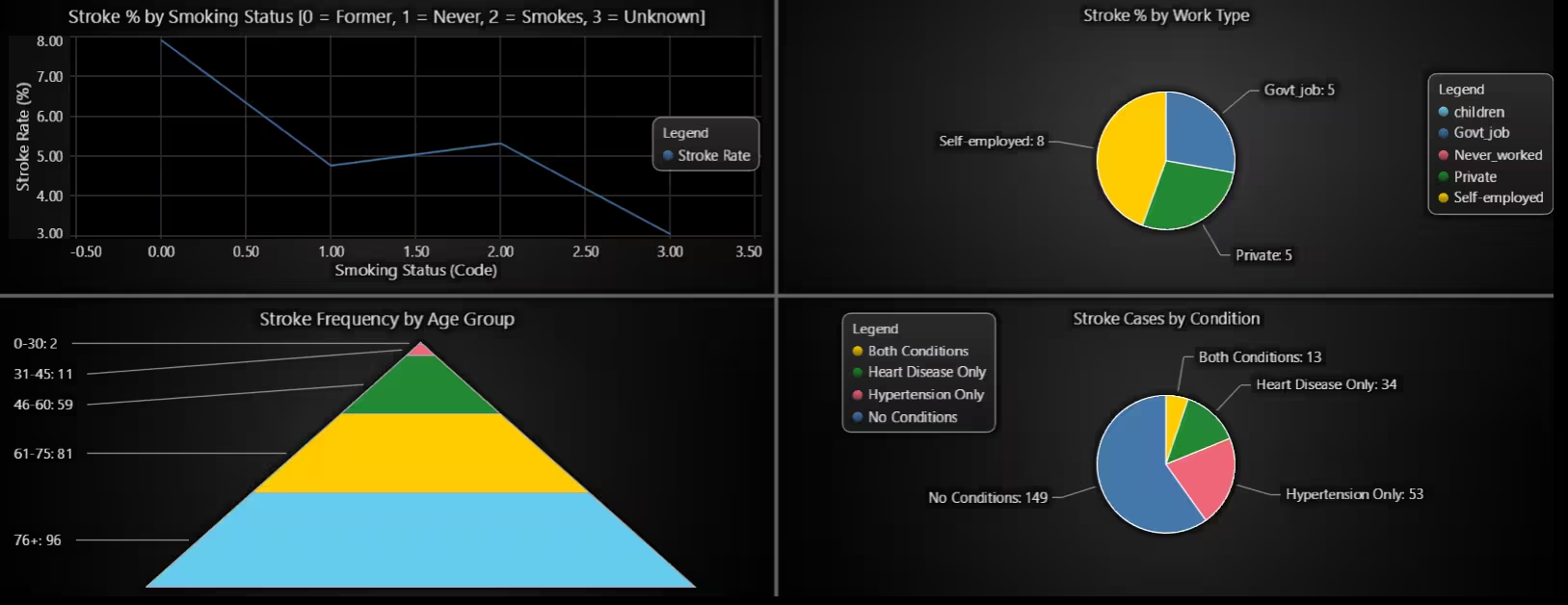
This dashboard provides a visual breakdown of key risk factors associated with stroke occurrences, using four distinct visualizations to highlight demographic, clinical, and behavioral trends.
# Chart 10 – Stroke Prediction Dashboard (Uses Pie Chart, Pyramid Chart, Pie Chart, and Line Chart)
# Developed with AI assistance using LightningChart Python

import lightningchart as lc
import pandas as pd

# Load license
with open("D:/HAMK/Internship/MyProjects/lc_license.txt", "r") as f:
    lc.set_license(f.read().strip())

# Load data
df = pd.read_csv("Stroke Prediction Data.csv", encoding='ISO-8859-1')
df['bmi'].fillna(df['bmi'].mean(), inplace=True)

# === PIE CHART: Stroke by Condition (Comorbidities) ===
df['Condition'] = df['hypertension'].astype(str) + df['heart_disease'].astype(str)
condition_map = {
    '00': 'No Conditions',
    '10': 'Hypertension Only',
    '01': 'Heart Disease Only',
    '11': 'Both Conditions'
}
df['Condition Label'] = df['Condition'].map(condition_map)
stroke_df = df[df['stroke'] == 1]
condition_counts = stroke_df['Condition Label'].value_counts().to_dict()
condition_data = [{'name': k, 'value': v} for k, v in condition_counts.items()]

# === PYRAMID CHART: Stroke Frequency by Age Group ===
df['age_group'] = pd.cut(df['age'], bins=[0, 30, 45, 60, 75, 100], labels=["0-30", "31-45", "46-60", "61-75", "76+"])
age_dist = df[df['stroke'] == 1]['age_group'].value_counts().sort_index()
pyramid_data = [{'name': str(k), 'value': int(v)} for k, v in age_dist.items()]

# === PIE CHART: Stroke % by Work Type ===
work_group = df.groupby('work_type')['stroke'].agg(['sum', 'count'])
work_group['stroke_rate'] = (work_group['sum'] / work_group['count']) * 100
work_data = [{'name': idx, 'value': round(val)} for idx, val in work_group['stroke_rate'].items()]

# === LINE CHART: Stroke % by Smoking Status ===
smoke_categories = df['smoking_status'].dropna().unique().tolist()
x_indices = list(range(len(smoke_categories)))
smoke_rates = []

for cat in smoke_categories:
    sub_df = df[df['smoking_status'] == cat]
    stroke_rate = sub_df['stroke'].mean() * 100
    smoke_rates.append(round(stroke_rate, 2))

# === BUILD DASHBOARD ===
dashboard = lc.Dashboard(columns=2, rows=2, theme=lc.Themes.Black)

# Chart A: Top-Left (0,0) – Line Chart: Stroke % by Smoking Status
chartA = dashboard.ChartXY(column_index=0, row_index=0)
chartA.set_title("Stroke % by Smoking Status\n[0 = Former, 1 = Never, 2 = Smokes, 3 = Unknown]")
line = chartA.add_line_series()
line.set_name("Stroke Rate")
line.add(x_indices, smoke_rates)
chartA.get_default_y_axis().set_title("Stroke Rate (%)")

x_axis = chartA.get_default_x_axis()
x_axis.set_title("Smoking Status (Code)")
x_axis.set_interval(-0.5, 3.5)  # Allow space around ticks
chartA.add_legend(data=chartA)

# Chart B: Top-Right (1,0) – Pie Chart: Stroke % by Work Type
chartB = dashboard.PieChart(column_index=1, row_index=0)
chartB.set_title("Stroke % by Work Type")
chartB.add_slices(work_data)
chartB.set_slice_stroke(color='white', thickness=1)
chartB.add_legend(data=chartB)

# Chart C: Bottom-Left (0,1) – Pyramid Chart for Stroke by Age Group
chartC = dashboard.PyramidChart(column_index=0, row_index=1)
chartC.set_title("Stroke Frequency by Age Group")
chartC.add_slices(pyramid_data)

# Chart D: Bottom-Right (1,1) – Pie Chart: Stroke by Condition
chartD = dashboard.PieChart(column_index=1, row_index=1)
chartD.set_title("Stroke Cases by Condition")
chartD.add_slices(condition_data)
chartD.set_slice_stroke(color='white', thickness=1)

# Legend fix for Chart D
legendD = chartD.add_legend(data=chartD)
legendD.set_position(28, 75)
legendD.set_margin(top=10, bottom=10)

# Show dashboard
dashboard.open()
Conclusion
The results offer actionable insights for healthcare professionals, policymakers, and public health researchers. By leveraging high-performance data visualizations created with the Python LightningChart library, stakeholders can more effectively identify high-risk groups—such as elderly individuals with hypertension or smokers—and gain a clearer understanding of how lifestyle factors amplify stroke prediction outcomes and overall risk probability.
Continue learning with LightningChart

Visualizing 10 Million Data Points in the Browser (2026): The Technical Deep-Dive
Ten Million Data Points in the Browser: How WebGL Makes Mass Datasets Interactive Ten million data points. That number used to mean a database problem, not a front-end problem. Now research teams want to explore it interactively in a browser. Trading desks want...
Elliott Wave Theory in Trading
Financial markets often appear chaotic, but many traders believe that price movements follow recurring patterns driven by human psychology. One of the most influential approaches based on this idea is the Elliott Wave Theory. Developed nearly a century ago, it remains one of the most widely studied methods of technical analysis.
The Head and Shoulders Pattern in Technical Analysis
The Head and Shoulders Pattern in Technical Analysis The Head and Shoulders Pattern in Technical Analysis The Head and Shoulders pattern is one of the most recognized and widely used chart patterns in technical analysis. It is considered a reliable reversal pattern...



If you have any questions, feel free to contact us!
©LightningChart Ltd 2025. All rights reserved.