





CrossFit Data Analysis of Athletes' Performance using LightningChart Python
Tutorial
Written by a Human
Explore crossfit data analysis techniques to evaluate athletes' performance using Python for actionable insights and improved training outcomes.
Adam Kessa
Data Science Python Developer

Introduction to CrossFit data analysis
CrossFit demands a unique blend of strength, endurance, power, and agility, among other metrics, making it one of the most well-rounded yet physically demanding sports. Hence the importance of analyzing said metrics’ data in order to spot trends and enhance athlete training and performance.
About the Data source
For this project, a comprehensive Kaggle dataset of CrossFit athlete data will be analyzed. This dataset includes information on athlete demographics, such as age, gender, and training experience, as well as their performance metrics, such as time, weight lifted, and repetitions completed.
The dataset covers various CrossFit events and competitions, providing a wealth of information on athlete performance in different contexts and settings.
LightningChart Python
LightningChart is a high-performance charting library designed for visualizing static as well as real-time data in Python applications. It offers powerful tools for creating real-time visualizations, enabling users to interact with complex datasets seamlessly.
We will use the LC Python library, taking full advantage of its advanced and highly customizable graphing options to make sense of the dataset at hand.

Setting Up Python Environment
To start, let’s set up our environment:
- Download and install the latest version of Python from the official website.
- Install the following libraries using the following commands:
pip install lightningchart==0.9.3
pip install lightningchart pandas numpy
Overview of Libraries Used
- Numpy: A library for numerical computations in Python, providing support for arrays, matrices, and a wide range of mathematical functions.
- Pandas: A library for data manipulation and analysis, offering data structures like DataFrames for managing structured data easily.
- LightningChart: A high-performance charting library for rendering complex visualizations, particularly useful for real-time and large-data applications.
Loading and Processing Data
After downloading the .csv datafile from Kaggle into our project directory, loading it is straightforward:
import pandas as pd

data_file = "athletes.csv"
df = pd.read_csv(data_file)
The following code first filters out rows where the gender is “–“, then calculates the count of each remaining gender in the DataFrame. It computes the total count and prepares data for a pie chart by formatting each gender with its percentage and count.
# Cleaning gender column
df = df[df['gender'] != '--']
# Calculate the counts of each gender

gender_counts = df['gender'].value_counts()

# Calculate the total count

total_count = gender_counts.sum()

# Prepare the data for the pie chart with percentages

data = []
for gender, count in gender_counts.items():
    percentage = (count / total_count) * 100     data.append({'name': f'{gender}  ({percentage:.2f}%)', 'value': int(count)})
The following code converts the weight column from pounds to kilograms and filters the data to include only CrossFit athletes within a typical weight range (45–110 kg). It then creates a histogram of athlete weights by computing bin counts and edges, rounding them for clarity, and structuring the data for visualization.
Then it calculates and rounds key weight statistics, including the median and first and third quartiles.
#creating weight_kg column

df['weight_kg'] = df['weight'] * 0.453592

# Filtering out relevant data (representative of the bulk of crossfit athletes)

df = df[(df['weight_kg'] < 110) & (df['weight_kg'] >= 45)]

#Creating CrossFit athlete Age histogram

weight_data = df.dropna(subset=['weight_kg'])['weight_kg']

bin_counts, bin_edges = np.histogram(weight_data, bins= weight_data.nunique())
bin_edges = np.round(bin_edges).astype(int)

#setting up histogram data

histogram_data = [
    {'category': f'{bin_edges[i]}', 'value': int(bin_counts[i])}
    for i in range(len(bin_edges) - 1)
]

#calculating median and quartiles

median = np.median(weight_data)
median = np.round(median).astype(int)
q1, q3 = np.percentile(weight_data, [25, 75])
q1, q3 = np.round(q1).astype(int), np.round(q3).astype(int)
Similarly, this code filters the dataset to include only athletes younger than 60, then creates a histogram of their ages by computing bin counts and edges, rounding them for clarity.
It structures the histogram data into a list of dictionaries with age categories and corresponding counts. It then calculates and rounds key age statistics, including the median and first and third quartiles.
# Filtering out relevant data

df = df[ (df['age']<60) ]
#Creating CrossFit athlete Age histogram

age_data = df.dropna(subset=['age'])['age']
bin_counts, bin_edges = np.histogram(age_data, bins= age_data.nunique())
bin_edges = np.round(bin_edges).astype(int)

#setting up histogram data

categories = [
    {'category': f'{bin_edges[i]}', 'value': int(bin_counts[i])}
    for i in range(len(bin_edges) - 1)
]

# calculating median and quartiles

q1, q3 = np.percentile(age_data, [25, 75]).astype(int)
median = np.median(age_data).astype(int)
The following code converts the height column from inches to meters, rounds it to two decimal places, and filters the dataset to include only athletes between 1.45 and 2 meters tall. It then creates a histogram of athlete heights by computing bin counts and edges, rounding them for clarity.
Finally, it structures the histogram data into a list of dictionaries with height categories and corresponding counts.
#Converting from inches to meters and rounding to 2 decimal values

df.loc[:, 'height_meters'] = df['height'] * 0.0254
df.loc[:, 'height_meters'] = df['height_meters'].round(2)

#Filtering out relevant data

df = df[(df['height_meters'] < 2) & (df['height_meters'] >= 1.45)]
#Dropping null values and creating Athlete height data and histogram

height_data = df.dropna(subset=['height_meters'])['height_meters']

bin_counts, bin_edges = np.histogram(height_data, bins= height_data.nunique())
bin_edges = np.round(bin_edges, 2)

#setting up histogram data

histogram_data = [
    {'category': f'{bin_edges[i]}', 'value': int(bin_counts[i])}
    for i in range(len(bin_edges) - 1)
]
This code selects key athlete statistics and performance features, then removes outliers from various metrics (e.g., run times, weightlifting maxes, and pull-ups) to ensure data quality. It then computes a correlation matrix for these features, converting it into a numerical array. Then it extracts the minimum and maximum correlation values from the matrix.
stats_and_performance_features = df[
    ['age',
     'height_meters',
     'weight_kg',
     'run400',
     'run5k',
     'snatch',
     'deadlift',
     'backsq',
     'pullups'     ]
]
#Cleaning the selected features
# Removing the upper outliers
df = df[ (df['run400']<150) ]

# Removing the lower outliers

df = df[ (df['run400']>44) ]

# run5k feature

# Removing the upper outliers

df = df[ (df['run5k']<2101) ]

# Removing the lower outliers

df = df[ (df['run5k']>910) ]

# snatch feature

# Removing the upper outliers


df = df[ (df['snatch']<301) ]

# Removing the lower outliers


df = df[ (df['snatch']>55) ]

# deadlift feature
# Removing the upper outliers

df = df[ (df['deadlift']<630) ]

# Removing the lower outliers


df = df[ (df['deadlift']>160) ]

# backsq feature


# Removing the upper outliers

df = df[ (df['backsq']<540) ]

# Removing the lower outliers

df = df[ (df['backsq']>124) ]

# pullups feature


# Removing the upper outliers

df = df[ (df['pullups']<80) ]

# Removing the lower outliers

df = df[ (df['pullups']>0) ]

# Compute correlation matrix

corr_matrix = stats_and_performance_features.corr()
corr_array = corr_matrix.to_numpy()

# Extract min and max correlation values

min_value = corr_array.min()
max_value = corr_array.max()
Visualizing Data with LightningChart Python
Dashboard of athletes’ attributes:
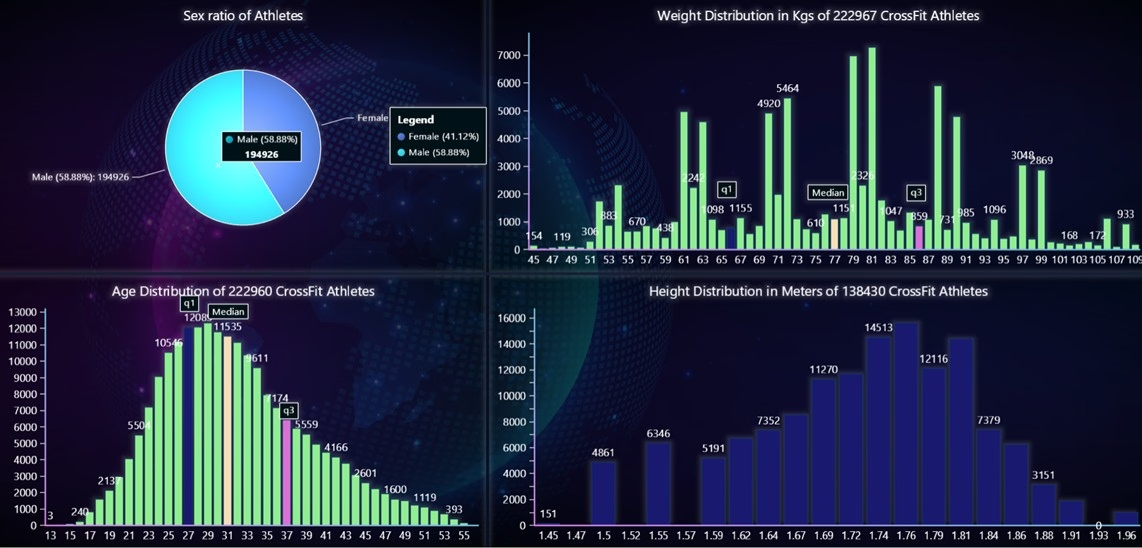
Description:
This visualization consists of 3 bar charts and a pie chart, all analysing different athlete attributes.
- There seems to be a 59 to 41 male to female ratio, which indicates a more male dominated representation of CrossFit athletes.
- The median weight of CrossFit athletes appears to be around 79 kg, there are also distinct peaks, indicating weight clusters at certain ranges, likely due to common weight classes or optimal performance weights.
- The median age of athletes is around 31 years. The highest concentration of athletes is between 25-35 years old, indicating that this is the prime age for CrossFit performance.
- The most common height range is between 1.70 – 1.76 meters (5’7″ – 5’9″).
Pie chart and dashboard initialization:
# Create Dashboard and pie chart

dashboard = lc.Dashboard(columns=2, rows=2, theme=lc.Themes.CyberSpace)

pie_chart = dashboard.PieChart(column_index=0, row_index=0)
pie_chart.set_title("Sex ratio of Athletes")

# Separate the slices with white stroke

pie_chart.set_slice_stroke(color=lc.Color('white'), thickness=1)

pie_chart.add_slices(data)

pie_chart.add_legend(data=pie_chart)
Histogram of Athlete Weight
chart = dashboard.BarChart(column_index=1, row_index=0)
chart.set_title(title=f'Weight Distribution in Kgs of {len(weight_data)} CrossFit Athletes')

chart.set_data(histogram_data)
chart.set_sorting('disabled')

#Setting up median and quartiles indicators

textbox = chart.add_textbox(position_scale='percentage', text="Median")
textbox.set_position(x=52, y=24.5)

textbox = chart.add_textbox(position_scale='percentage', text="q1")
textbox.set_position(x=36.5, y=21.5)

textbox = chart.add_textbox(position_scale='percentage', text="q3", )
textbox.set_position(x=65, y=22)

#Coloring median and quartiles bars

chart.set_bars_color(lc.Color('lightgreen'))
chart.set_bar_color(str(median), lc.Color('wheat'))
chart.set_bar_color(str(q1), lc.Color('midnightblue'))
chart.set_bar_color(str(q3), lc.Color('orchid'))
Histogram of Athlete Ages
chart = dashboard.BarChart(column_index=0, row_index=1)
chart.set_title(title=f'Age Distribution of {len(age_data)} CrossFit Athletes')
chart.set_data(categories)

#Setting up median and quartiles indicators

textbox = chart.add_textbox(position_scale='percentage', text="Median")
textbox.set_position(x=46.3, y=90)

textbox = chart.add_textbox(position_scale='percentage', text="q1")
textbox.set_position(x=36.5, y=92)

textbox = chart.add_textbox(position_scale='percentage', text="q3", )
textbox.set_position(x=57.9, y=52.7)

chart.set_bars_color(lc.Color('lightgreen'))
chart.set_bar_color(str(median), lc.Color('wheat'))
chart.set_bar_color(str(q1), lc.Color('midnightblue'))
chart.set_bar_color(str(q3), lc.Color('orchid'))

chart.set_sorting('disabled')
Histogram of Athlete Heights
chart = dashboard.BarChart(column_index=1, row_index=1)
chart.set_title(title=f'Height Distribution in Meters of {len(height_data)} CrossFit Athletes')

chart.set_data(histogram_data)
chart.set_sorting('disabled')

#Coloring bars
chart.set_bars_color(lc.Color('midnightblue'))

#Displaying full dashboard
dashboard.open(method='browser')
Heatmap of Correlation Matrix of Athlete Attributes and Performance Indexes:

Description:
This visualization is a Heatmap demonstration of the correlation between the previously analyzed features, and performance indexes of the athletes.
- Weight and Height are highly correlated.
- A good back squat performance transfers best to deadlift and snatch performances. This relationship is positive the other way as well.
- It appears that CrossFit athletes with higher 5km runtime do better in deadlifts.
- Interestingly, age and weight are not particularly negatively correlated to any performance metric, as opposed to common belief.
Technical implementation:
# Create LightningChart Heatmap

chart = lc.ChartXY(
    title="Correlation Map of Athlete Performance Features",
    theme=lc.Themes.CyberSpace
)

grid_size_x, grid_size_y = corr_array.shape

heatmap_series = chart.add_heatmap_grid_series(
    columns=grid_size_x,
    rows=grid_size_y,
)

heatmap_series.set_start(x=0, y=0)
heatmap_series.set_end(x=grid_size_x, y=grid_size_y)
heatmap_series.set_step(x=1, y=1)
heatmap_series.set_wireframe_stroke(thickness=1, color=lc.Color('lightgrey'))

# Assign correlation values to heatmap

heatmap_series.invalidate_intensity_values(corr_array.tolist())
heatmap_series.set_intensity_interpolation(False)

# Define color scale

palette_steps = [
    {"value": min_value, "color": lc.Color('blue')},  # Negative correlation
    {"value": 0, "color": lc.Color('white')},  # No correlation
    {"value": 1, "color": lc.Color('red')}  # Strong positive correlation
]

heatmap_series.set_palette_coloring(
    steps=palette_steps,
    look_up_property='value',
    interpolate=True
)

# Customize X and Y Axes

x_axis = chart.get_default_x_axis()
y_axis = chart.get_default_y_axis()

x_axis.set_tick_strategy('Empty')
y_axis.set_tick_strategy('Empty')

# Add feature names as axis labels

feature_names = stats_and_performance_features.columns.tolist()
for i, label in enumerate(feature_names):
    custom_tick_x = x_axis.add_custom_tick().set_tick_label_rotation(90)
    custom_tick_x.set_value(i + 0.5)
    custom_tick_x.set_text(label)

    custom_tick_y = y_axis.add_custom_tick()
    custom_tick_y.set_value(i + 0.5)
    custom_tick_y.set_text(label)

# Add legend

chart.add_legend(data=heatmap_series).set_margin(-20)

# Show chart

chart.open(method="browser")
Conclusion
CrossFit data analysis plays a crucial role in optimizing athlete performance and minimizing injury risks. By using LightningChart Python, complex metrics can be turned into intuitive visualizations. Enabling CrossFit coaches and athletes, among others, to easily track training intensities, progress, and recovery.
Continue learning with LightningChart
A brief look into ‘performance’ in Web Data Visualization
A brief look into ‘performance’ in Web Data Visualization Introduction Throughout the existence of humankind, we’ve been trying to present data in various visual forms. Therefore, it is quite accurate to say that the concept of data visualization is...
Using Scale Breaks in Data Visualization
Using Scale Breaks in Data Visualization Starting from LightningChart® .NET version 8, X axes has supported Scale breaks. Scale breaks allow excluding specific X ranges, e.g. inactive trading hours/dates or machinery off-production hours. In effect, scale breaks allow...
Lighting
This article covers basics of Lighting in Data Visualization.





If you have any questions, feel free to contact us!
©LightningChart Ltd 2026. All rights reserved.