








Creating a Chemical Industry Stock Trading Application with LightningChart Python Trader
Tutorial
Written by a Human
Use LightningChart Python Trader to build a pro-level chemical industry stock trading solution. See how to handle massive data instantly.
Mikael Virtanen
Data Science Python Developer


Introduction
This article demonstrates how to create a chemical industry stock trading application with LightningChart Python Trader. The chemical companies stocks included are: Air Products & Chemicals Inc. (APD), LyondellBasell Industries (LYB), CF Industries Holdings Inc. (CF), and PPG Industries Inc. (PPG). Additionally S&P 500 Chemicals Industry Index (SP500.151010) will be used for one of the charts, to see how the companies perform compared to the broader market, at least in this sector.
Datasets
The data for this article is acquired from marketwatch.com. The data is provided as .csv files with a time range of 1 year. The datasets in question:
Plotted Variables
Python trader requires Open, High, Low, Close (O, H, L, C) values to work as well as a date. These values refer to the stock’s Highest and Lowest prices during the trading day, as well as what the price was at market open and close. Volume value is not required for the trader to work, but is needed for certain indicators.
LightningChart Python Trader can read and process the data automatically as long as the fields (or in this case columns) are labelled correctly. In this case, all the columns are in the correctly named, but the volume data needs to be adjusted to work properly.
Libraries used
- LightningChart Python
- Pandas
Pandas will be used to import data to the trader. This is done by reading the dataset values and importing them into a data frame, which can easily be worked with before visualization. Pandas might be preinstalled with the Python standard library. If this is not the case, simply run the following command in the terminal. Python Trader also needs to be installed.
pip install pandas
pip install lightningchart_trader
LightningChart Python Trader
LightningChart’s Python Trader (PT) provides extensive charting solutions with a high degree of customizability through its easy-to-use UI and built-in functionalities. Since the library is built for Python, it’s also possible to use other Python libraries if necessary.
As with all Lightningchart products, Performance has been a high priority when developing the library, even when working with large amounts of data, thus removing possible bottlenecks in this area.
Overview of the UI
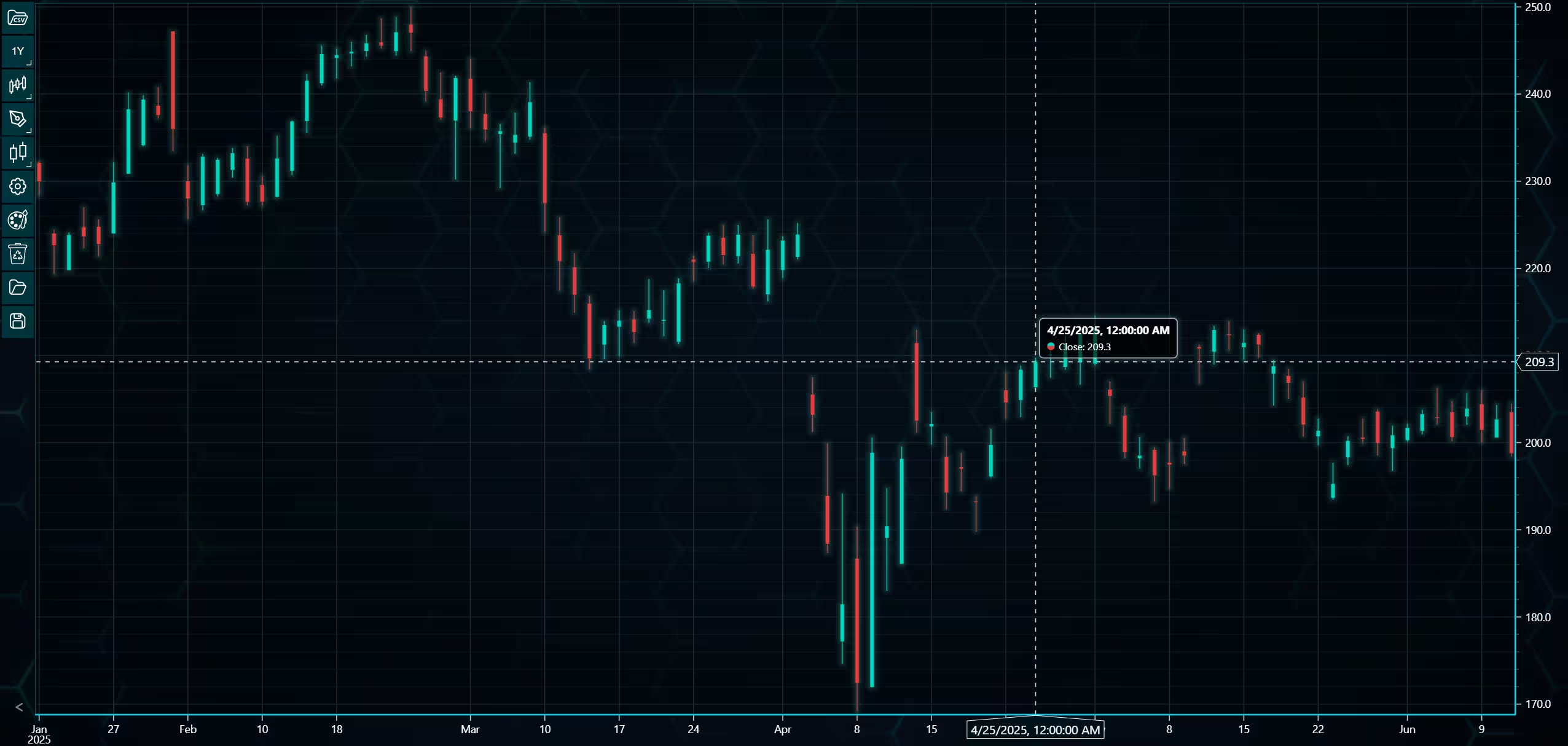
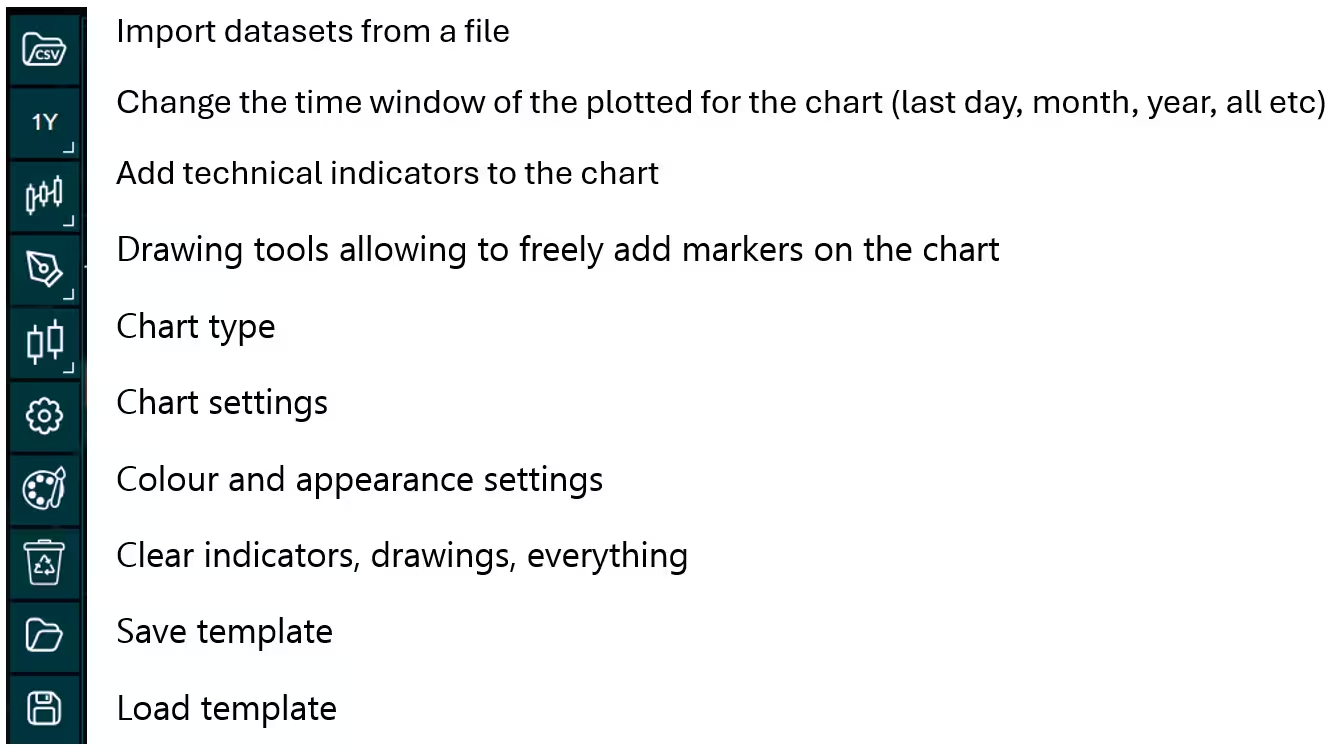
Above is the PT user interface with stock data charted using the default candlestick chart. On the top left are controls used to customize the chart and work with datasets. Here is the explanation for all the UI controls:
Charting features
These are chart types of Python trader provides out of the box.
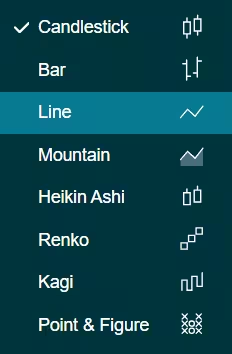
Chart types can be changed with the the UI or with the set_price_chart_type(chart_type) command. Available ones are ‘CandleStick’, ‘Bar’, ‘Line’, ‘Mountain’, ‘HeikinAshi’, ‘Renko’, ‘Kagi’, and ‘PointAndFigure’. For example, a mountain creating a mountain chart using the following methods:
trader.set_price_chart_type('Mountain')
trader.add_data_array(data)
trader.open()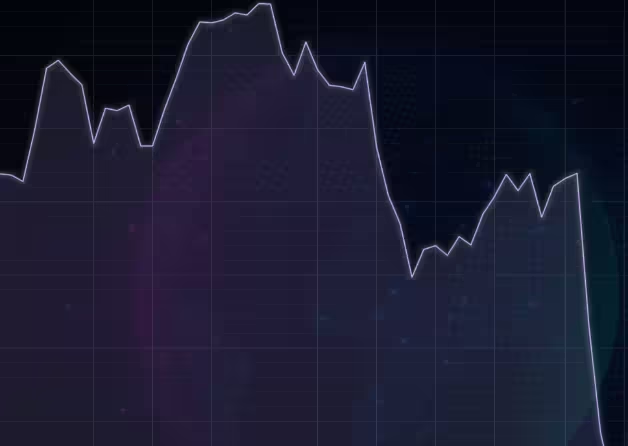
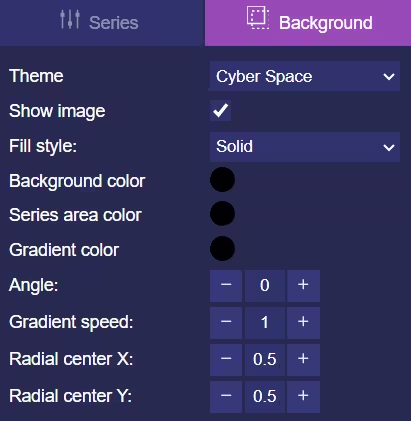
Chart visuals can be customized using the Python trader UI. Below are available settings for chart and indicator colours, background colour/image etc.
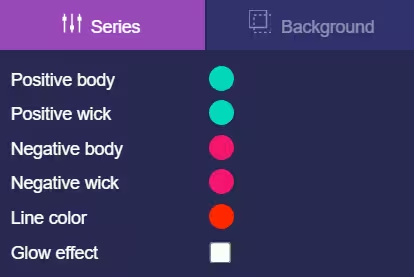
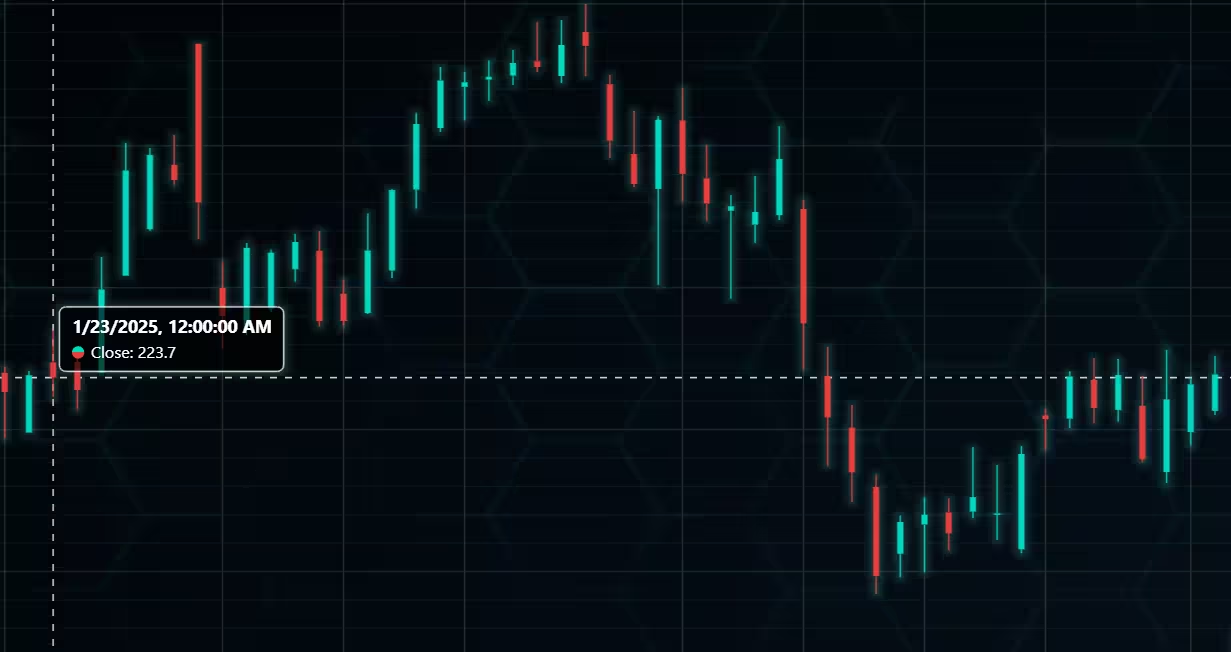
Default chart colours.
Background and indicator colours changed
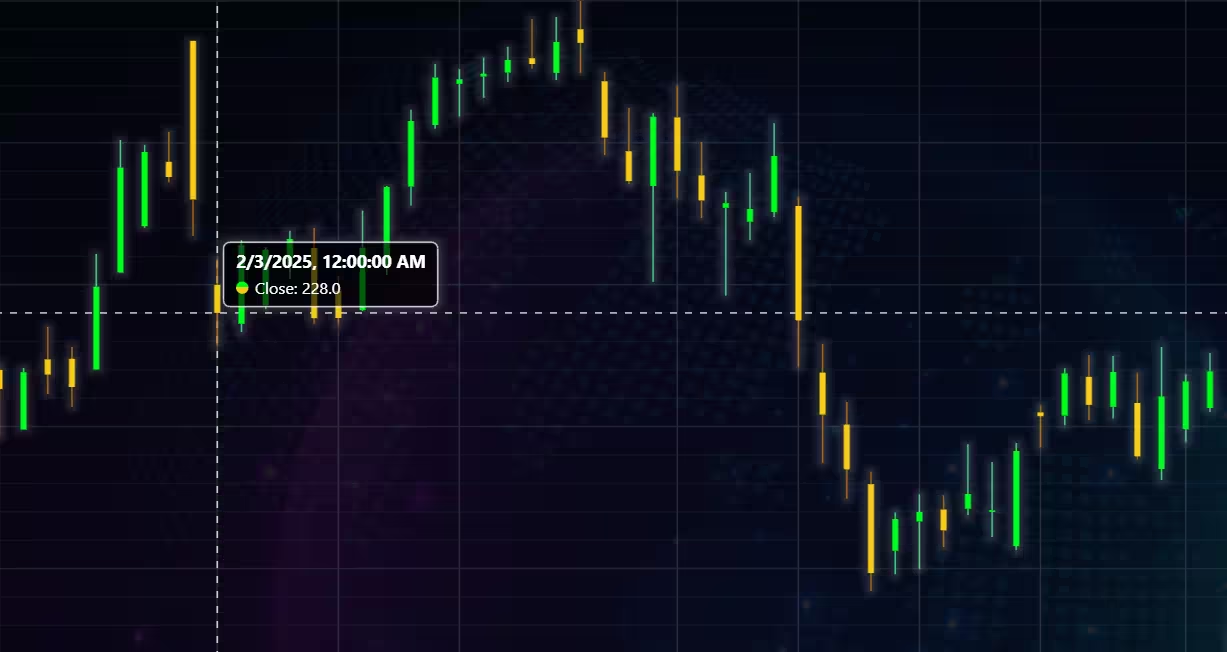
Chart customization
Customisation can also be done with code, using the built-in methods. The code below changes the background image and the chart colours to the ones seen in the right image. But why use code for customisation, since working with UI is easier?
trader.set_color_theme('cyberSpace')
# Changing the indicator colours for the candlesticks
trader.set_positive_body_color('#0fdf0c')
trader.set_positive_wick_color('#33d7a0')
trader.set_negative_body_color("#f3eb16")
trader.set_negative_wick_color('#b85900')
When the customization is applied on code level there’s no need to change any settings or load a template. Meaning you won’t have to make the changes every time when opening a chart. Python trader supports the use of templates for customization, and these files can be loaded in with code.
However, you still need to manually select the file, and in case you want to share the chart the template file would also need to be shared. When the changes are done in code, only it needs to be shared to get the same results.
Technical indicators
Python trader supports over 100 technical indicators. These include ones such as Relative Strength Index (RSI), Bollinger bands, Moving averages (SMA, EMA etc), Oscillators for money flow and price, Fibonacci retracements, as well as statistical ones like Standard deviation. Technical indicators can be added to a chart easily with the trader UI, their properties (period count, standard dev) can also be changed the same way.
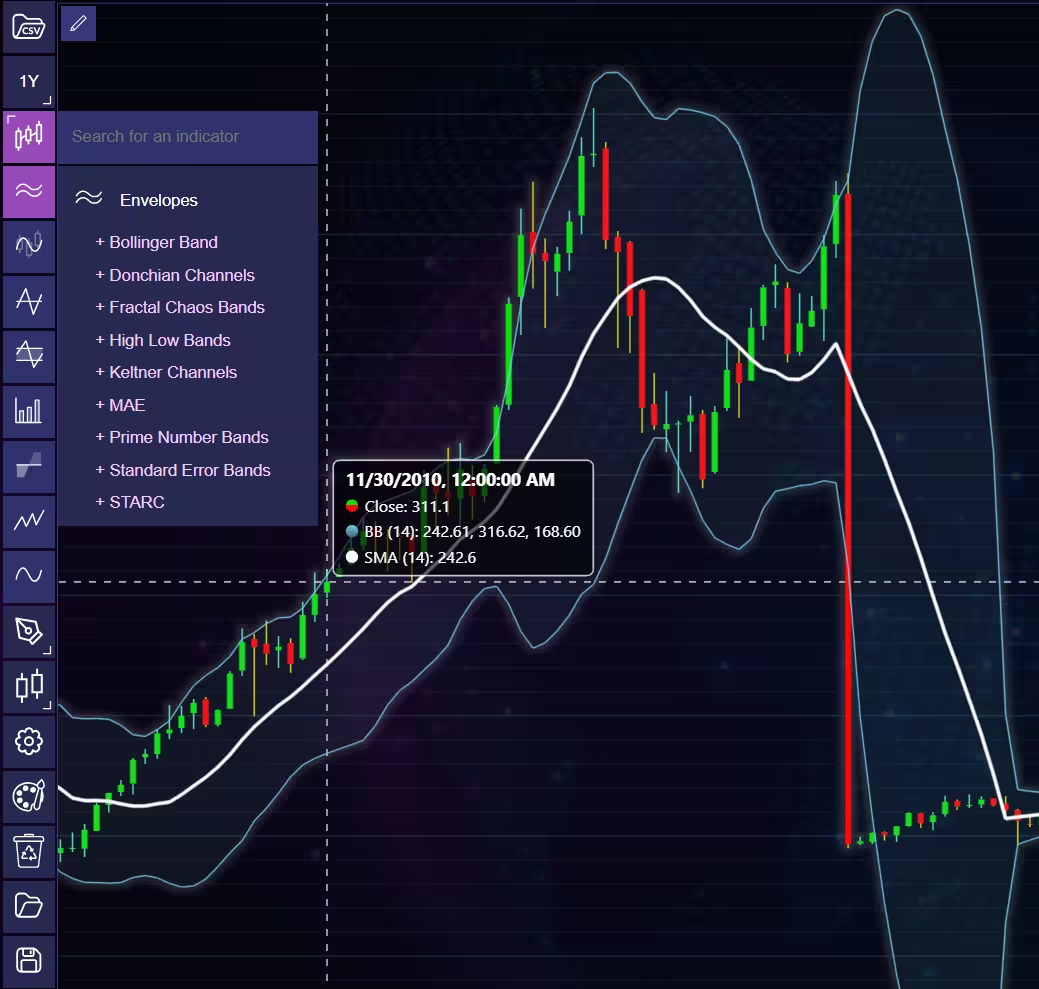
These indicators can also be added and customized via code.
trader.add_simple_moving_average(period_count=14)
trader.add_bollinger_band(period_count=14)
Indicators such as the Fibonacci patterns can be added with the built-in draw tools. Other markers can also be added this way. To see all the indicators, refer to the documentation.
Setting Up Python Environment
The data set is downloaded as a .csv file. This is the code used to process data and import it into charts.
from lightningchart_trader import TAChart
import pandas as pd
import os
license_key_path = "Python-Trader_License_key.txt"
# license key for python trader and the stock API
license_key = open(license_key_path).read()
chart = TAChart(license_key)
path_to_csv = 'data/'
# All file names in the filepath
csv_list = os.listdir(path_to_csv)
print(csv_list)
This part of the code imports the necessary libraries and assigns the Python trader license key to a variable. I recommend providing a full file path to the CSV files, even if the data is saved in the same directory or a subdirectory in relation to your .py files. This since I’ve personally experienced issues with Python when only a partial path is provided. In the following example, note the different types of forward slashes used. Python might give an error if you input the path in the same format as it is in the file directory.
'C:/Users\name\Desktop\path\to\the\files/'Chemical Industry Stock Visualizations
We will now start creating the visualizations.
S&P 500 Chemical index 1-year line chart
A mountain chart for the S&P 500 Chemical index.
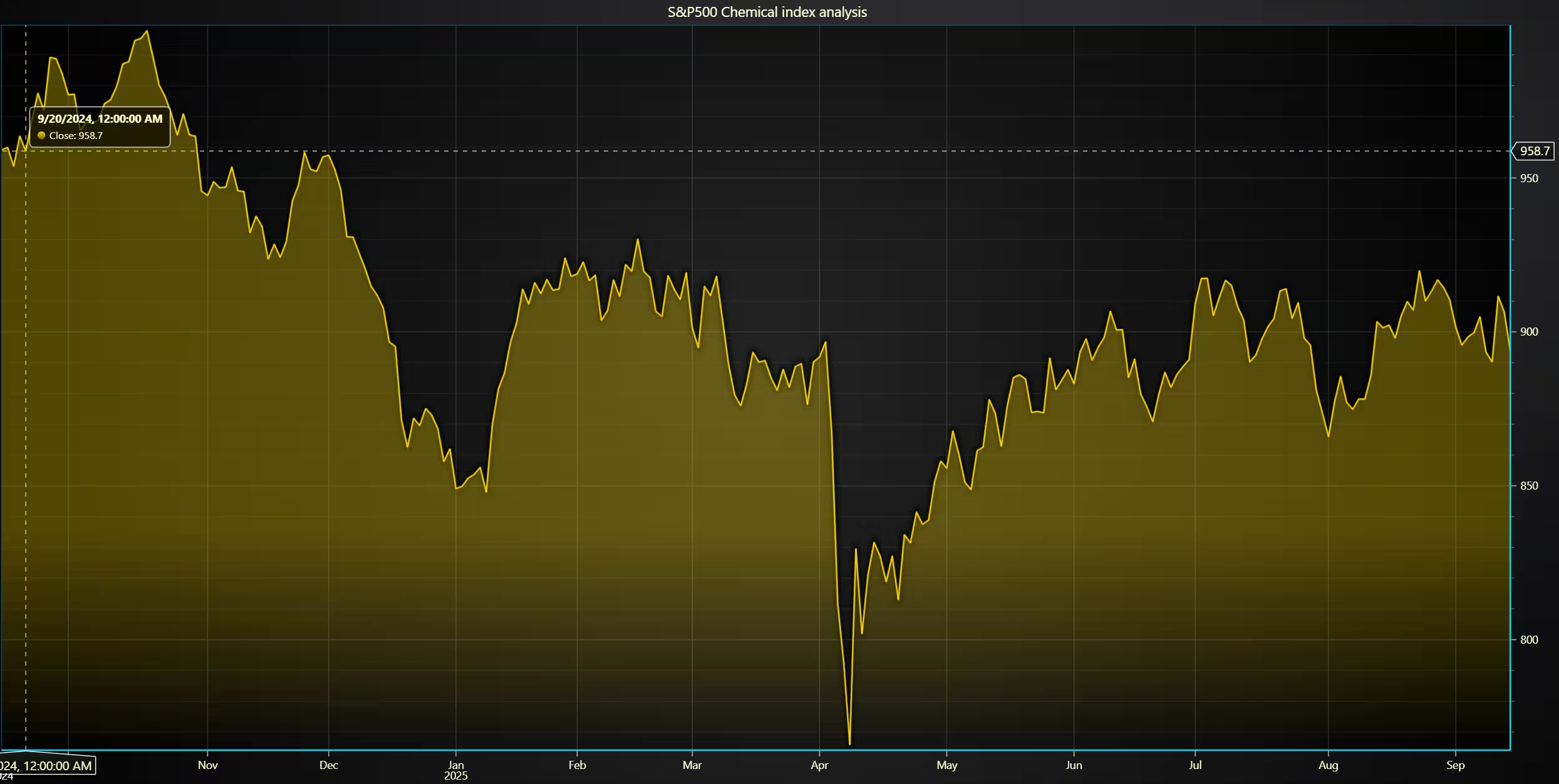
Note: for the value used in get_data_csv()might need to be changed, depending on what position the index CSV file is in the list.
from lightningchart_trader import TAChart
import pandas as pd
import os
# license key for python trader and create trader instance
license_key = 'Python Trader License key'
chart = TAChart(license_key)
path_to_csv = 'data/'
# All file names in the filepath
csv_list = os.listdir(path_to_csv)
print(csv_list)
# Transform the CSV into a dataframe, combine the file path, with the desired files name
stock_dataframe = pd.read_csv(path_to_csv + csv_list[4])
# Set chart title; I'm using the file name as a placeholder,
# type; CandleStick, Bar, Line, Mountain, Renko, HeikinAshi or Point&Figure
# and data source used; in this case the stock dataframe
chart.set_chart_title(csv_list[4])
chart.set_price_chart_type('Mountain')
chart.set_data(stock_dataframe)
# Optional appearence customization
chart.set_color_theme('darkGold')
chart.set_line_color("#FCD601")
chart.change_time_range(0)
#chart.set_series_background_color('#45673C', fillStyle=1, gradientColor="#673628", angle=-168, gradientSpeed=0.80)
chart.open()
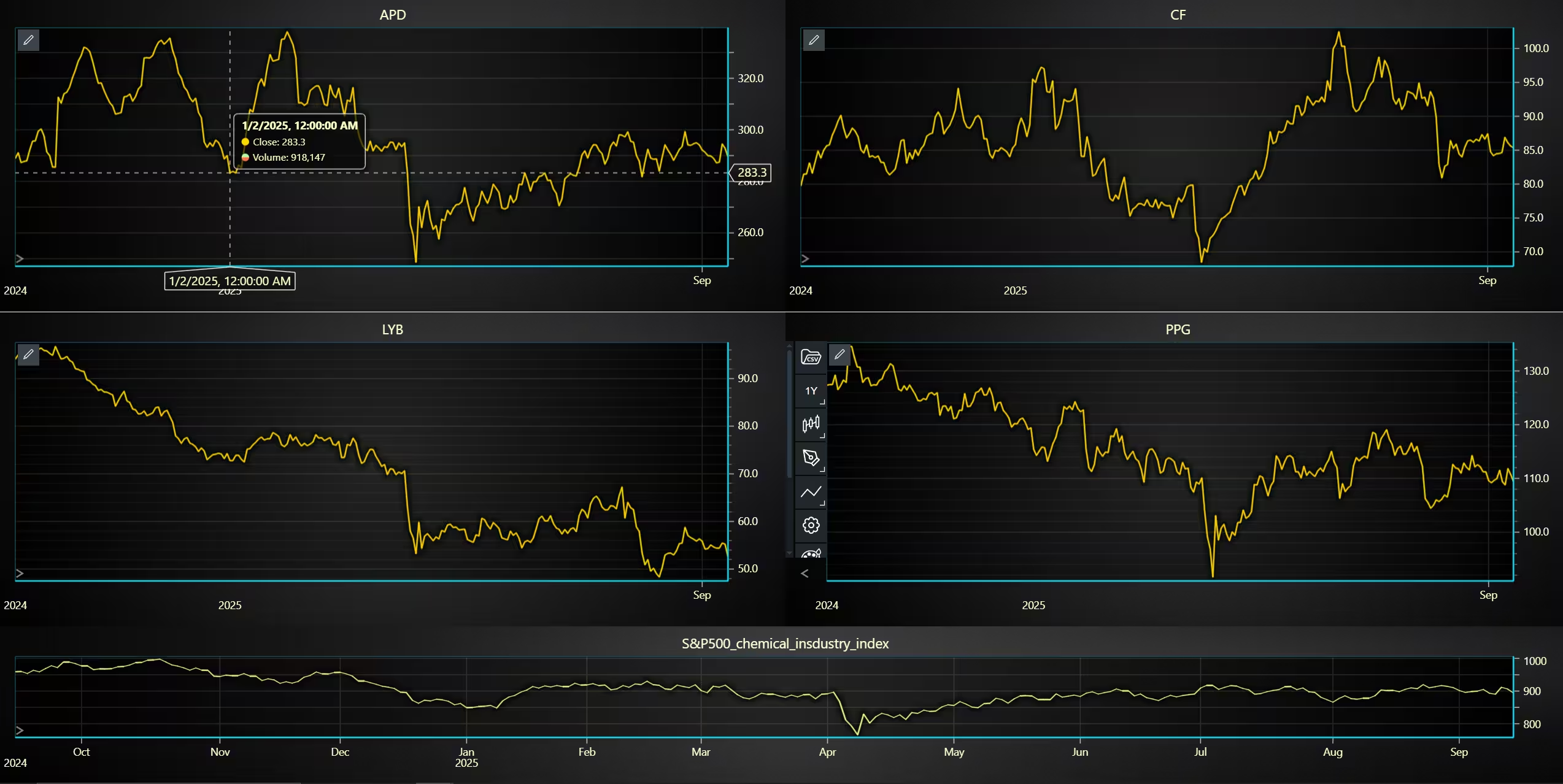
Dashboard with several companies and the index charted
Dashboard comparing the four stocks against the index.
from lightningchart_trader import TAChart
import pandas as pd
import os
license_key_path = "Python-Trader_License_key.txt"
# license key for python trader and the stock API
license_key = open(license_key_path).read()
chart = TAChart(license_key)
path_to_csv = 'data/project-13/'
# All file names in the filepath
csv_list = os.listdir(path_to_csv)
print(csv_list)
# Create a new dashboard with five rows and a two column
new_dashboard = chart.create_dashboard(rows=3, cols=2)
# These values will be used to add charts to the dashboard
row_index = 0
col_index = 0
column_span = 1
# Loop though files other than the chemical index and add them to the dashboard
for index in range(5):
    # Transform the CSV into a dataframe, combine the file path, with the desired files name
    stock_dataframe = pd.read_csv(path_to_csv + csv_list[index])
    chart_title = csv_list[index].removesuffix('.csv')
    # rename date column
    stock_dataframe = stock_dataframe.rename(columns={'Unnamed: 0' : 'date'})
    # Fill out the dashboard by filling both columns due to uneven amount of charts
    if index == 4:
        column_span = 2
    # Add a chart to the dashboard witht he following parameters
    dash_chart = new_dashboard.add_chart(chart_type='Line',
                                         row_index=row_index, column_index=col_index,
                                         row_span=1, column_span=column_span,
                                         title=chart_title).set_data(stock_dataframe)
    # Place charts to the dashboard based on the current column and row index
    col_index += 1
    if col_index >= 2:
        col_index = 0
        row_index += 1
    # Optional appearence customization
    dash_chart.set_line_color("#65FC01")
    dash_chart.change_time_range(0)
    dash_chart.set_color_theme('darkGold')
chart.open()
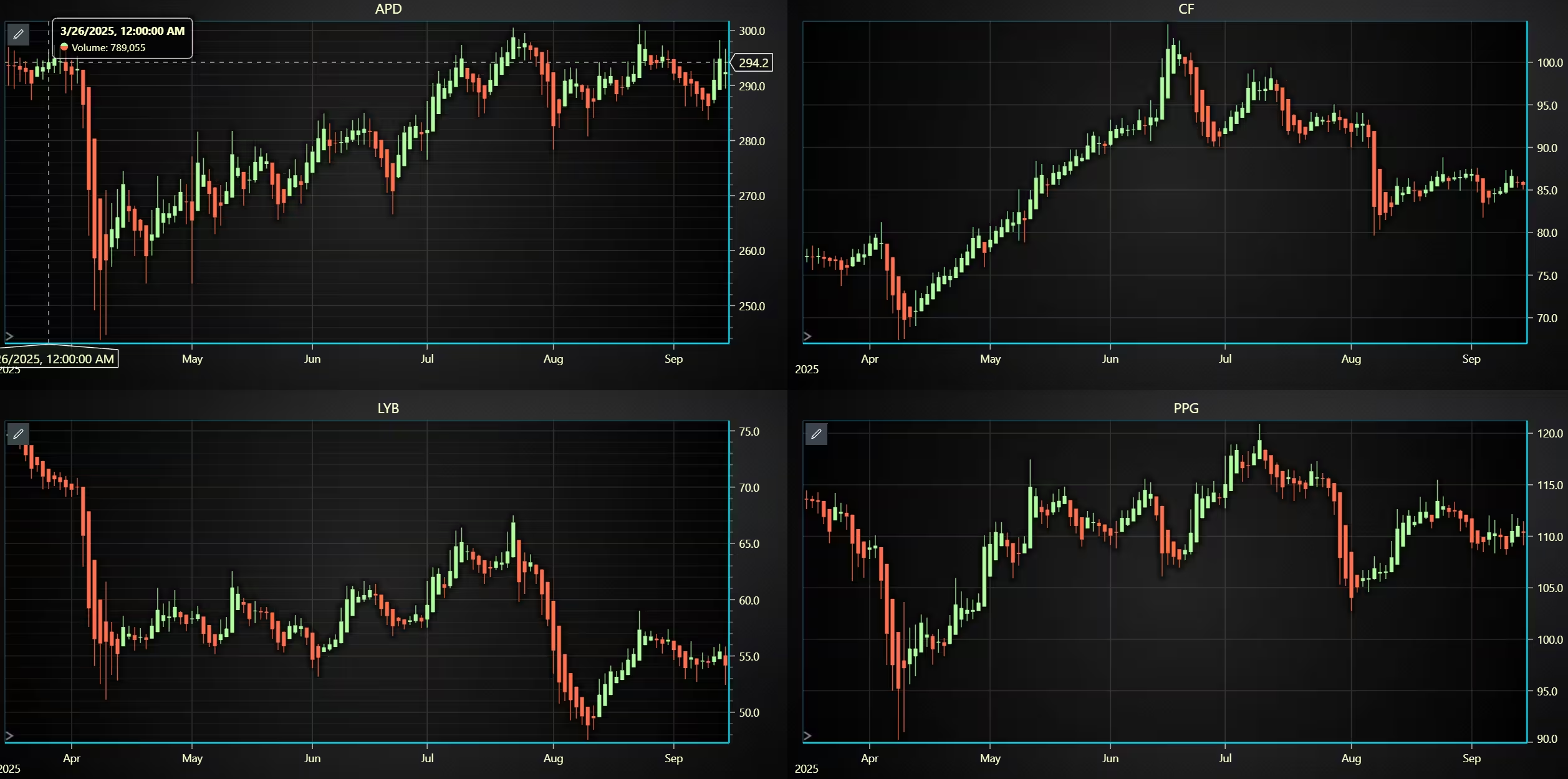
Heikin ashi chart to observe OHLC data and trend strength
Heikin ashi charts can help reduce noise by averaging price fluctuation. This can be helpful over traditional candlesticks, but not as useful when real-time trading is concerned. When comparing multiple charts, the reduced noise can help identify correlations between stocks.
from lightningchart_trader import TAChart
import pandas as pd
import os
license_key_path = "Python-Trader_License_key.txt"
# license key for python trader and the stock API
license_key = open(license_key_path).read()
chart = TAChart(license_key)
path_to_csv = 'data/project-13/'
# All file names in the filepath
csv_list = os.listdir(path_to_csv)
print(csv_list)
# Create a new dashboard with five rows and a two column
new_dashboard = chart.create_dashboard(rows=2, cols=2)
# These values will be used to add charts to the dashboard
row_index = 0
col_index = 0
column_span = 1
# Loop though files other than the chemical index and add them to the dashboard
for index in range(4):
    # Transform the CSV into a dataframe, combine the file path, with the desired files name
    stock_dataframe = pd.read_csv(path_to_csv + csv_list[index])
    chart_title = csv_list[index].removesuffix('.csv')
    # Fill out the dashboard by filling both columns due to uneven amount of charts
    if index == 4:
        column_span = 2
    # Add a chart to the dashboard witht he following parameters
    dash_chart = new_dashboard.add_chart(chart_type='HeikinAshi',
                                         row_index=row_index, column_index=col_index,
                                         row_span=1, column_span=column_span,
                                         title=chart_title).set_data(stock_dataframe)
    # Place charts to the dashboard based on the current column and row index
    col_index += 1
    if col_index >= 2:
        col_index = 0
        row_index += 1
    # Optional appearence customization
    dash_chart.set_line_color("#65FC01")
    dash_chart.change_time_range(4)
    dash_chart.set_color_theme('darkGold')
chart.open()
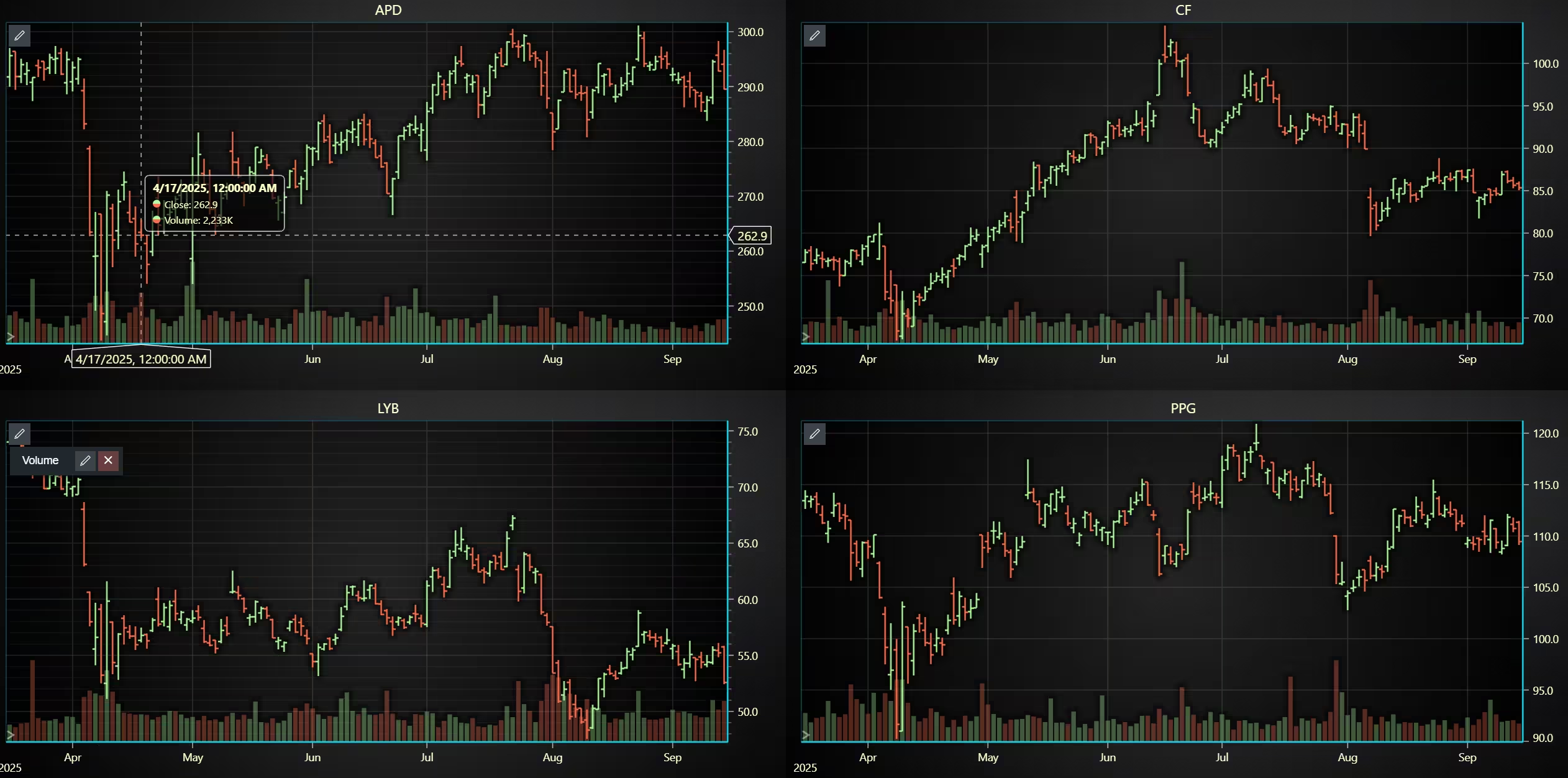
A Bar chart with a volume indicator.
Same dashboard as above, but with a bar chart and volume.
from lightningchart_trader import TAChart
import pandas as pd
import os
license_key_path = "Python-Trader_License_key.txt"
# license key for python trader and the stock API
license_key = open(license_key_path).read()
chart = TAChart(license_key)
path_to_csv = 'data/project-13/'
# All file names in the filepath
csv_list = os.listdir(path_to_csv)
print(csv_list)
# Create a new dashboard with five rows and a two column
new_dashboard = chart.create_dashboard(rows=2, cols=2)
# These values will be used to add charts to the dashboard
row_index = 0
col_index = 0
column_span = 1
# Loop though files other than the chemical index and add them to the dashboard
for index in range(4):
    # Transform the CSV into a dataframe, combine the file path, with the desired files name
    stock_dataframe = pd.read_csv(path_to_csv + csv_list[index])
    chart_title = csv_list[index].removesuffix('.csv')
    # Fill out the dashboard by filling both columns due to uneven amount of charts
    if index == 4:
        column_span = 2
    # Add a chart to the dashboard witht he following parameters
    dash_chart = new_dashboard.add_chart(chart_type='Bar',
                                         row_index=row_index, column_index=col_index,
                                         row_span=1, column_span=column_span,
                                         title=chart_title).set_data(stock_dataframe)
    # Place charts to the dashboard based on the current column and row index
    col_index += 1
    if col_index >= 2:
        col_index = 0
        row_index += 1
    # Optional appearence customization
    dash_chart.set_line_color("#65FC01")
    dash_chart.change_time_range(4)
    dash_chart.set_color_theme('darkGold')
chart.open()
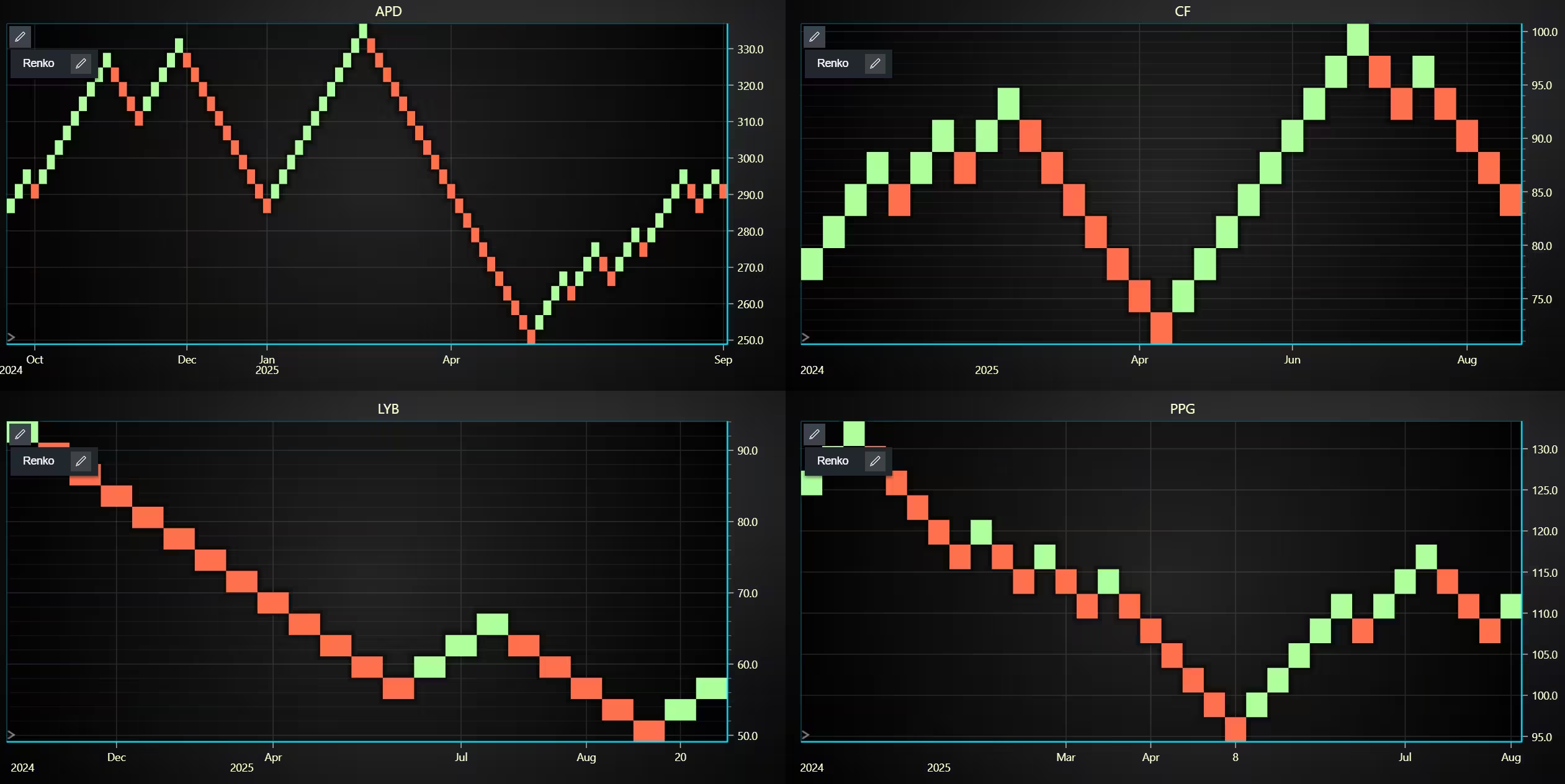
Renko chart for trend direction analysis
Renko charts are used to isolate trend directions and price movements. They only add new bricks when the price moves a set amount in one direction. They do not account for time, so a brick might be added every day, week, or month, depending on volatility.
from lightningchart_trader import TAChart
import pandas as pd
import os
license_key_path = "Python-Trader_License_key.txt"
# license key for python trader and the stock API
license_key = open(license_key_path).read()
chart = TAChart(license_key)
path_to_csv = 'data/project-13/'
# All file names in the filepath
csv_list = os.listdir(path_to_csv)
print(csv_list)
# Create a new dashboard with five rows and a two column
new_dashboard = chart.create_dashboard(rows=2, cols=2)
# These values will be used to add charts to the dashboard
row_index = 0
col_index = 0
column_span = 1
# Loop though files other than the chemical index and add them to the dashboard
for index in range(4):
    # Transform the CSV into a dataframe, combine the file path, with the desired files name
    stock_dataframe = pd.read_csv(path_to_csv + csv_list[index])
    chart_title = csv_list[index].removesuffix('.csv')
    # Fill out the dashboard by filling both columns due to uneven amount of charts
    if index == 4:
        column_span = 2
    # Add a chart to the dashboard witht he following parameters
    dash_chart = new_dashboard.add_chart(chart_type='Renko',
                                         row_index=row_index, column_index=col_index,
                                         row_span=1, column_span=column_span,
                                         title=chart_title).set_data(stock_dataframe)
    # Place charts to the dashboard based on the current column and row index
    col_index += 1
    if col_index >= 2:
        col_index = 0
        row_index += 1
    # Optional appearence customization
    dash_chart.set_line_color("#65FC01")
    dash_chart.change_time_range(4)
    dash_chart.set_color_theme('darkGold')
chart.open()
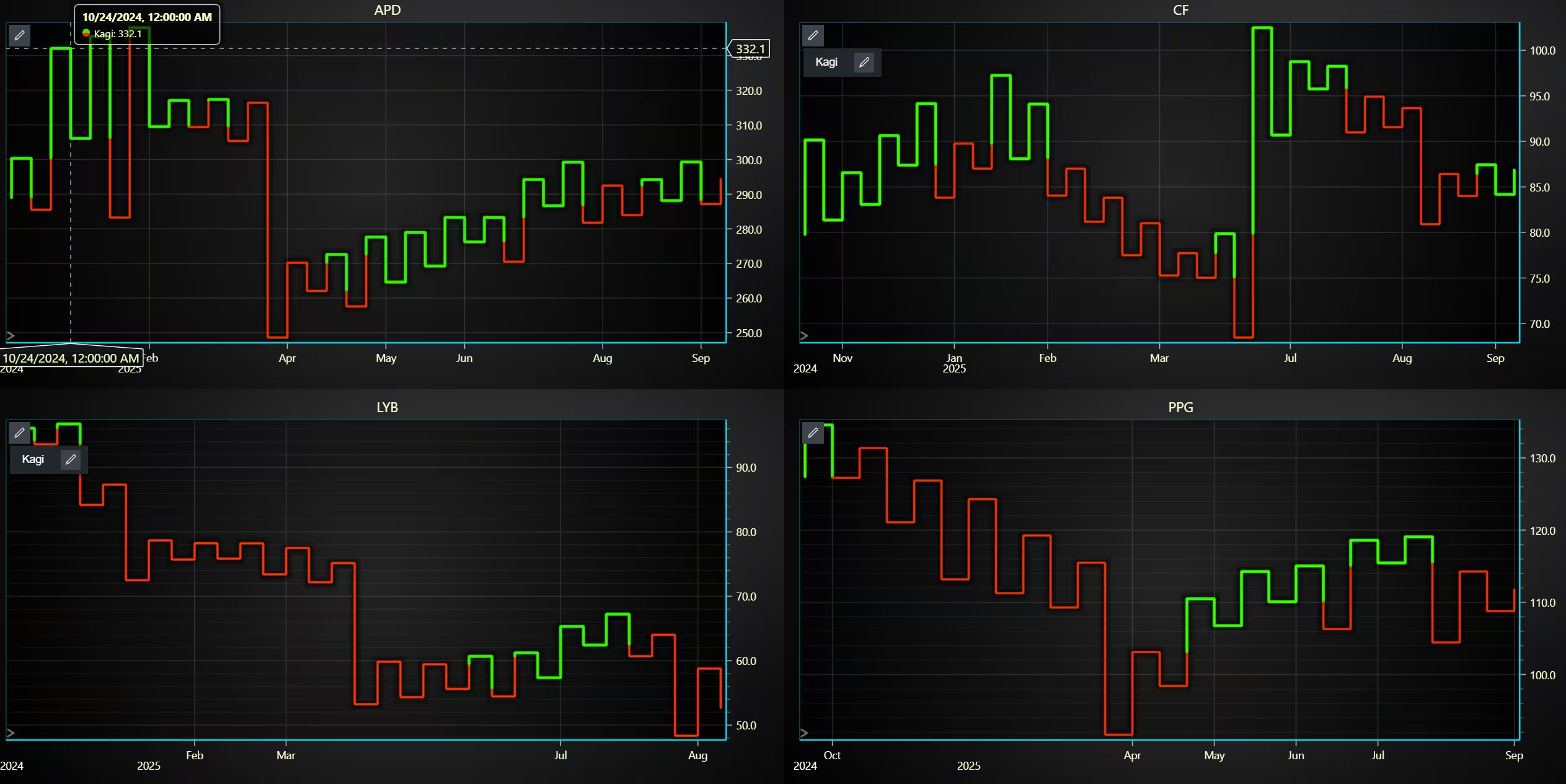
Kagi chart for comparing trend reversals
Kagi charts work similarly to Renko charts that they change direction when the price moves a set amount. Kagi charts also track how strong the trend reversal is. They do this by highlighting where higher or lower highs and lows appear.
from lightningchart_trader import TAChart
import pandas as pd
import os
license_key_path = "Python-Trader_License_key.txt"
# license key for python trader and the stock API
license_key = open(license_key_path).read()
chart = TAChart(license_key)
path_to_csv = 'data/project-13/'
# All file names in the filepath
csv_list = os.listdir(path_to_csv)
print(csv_list)
# Create a new dashboard with five rows and a two column
new_dashboard = chart.create_dashboard(rows=2, cols=2)
# These values will be used to add charts to the dashboard
row_index = 0
col_index = 0
column_span = 1
# Loop though files other than the chemical index and add them to the dashboard
for index in range(4):
    # Transform the CSV into a dataframe, combine the file path, with the desired files name
    stock_dataframe = pd.read_csv(path_to_csv + csv_list[index])
    chart_title = csv_list[index].removesuffix('.csv')
    # Fill out the dashboard by filling both columns due to uneven amount of charts
    if index == 4:
        column_span = 2
    # Add a chart to the dashboard witht he following parameters
    dash_chart = new_dashboard.add_chart(chart_type='Kagi',
                                         row_index=row_index, column_index=col_index,
                                         row_span=1, column_span=column_span,
                                         title=chart_title).set_data(stock_dataframe)
    # Place charts to the dashboard based on the current column and row index
    col_index += 1
    if col_index >= 2:
        col_index = 0
        row_index += 1
    # Optional appearence customization
    dash_chart.set_line_color("#65FC01")
    dash_chart.change_time_range(4)
    dash_chart.set_color_theme('darkGold')
chart.open()
Conclusion
The chemical industry stock data has been imported from a CSV file to LightningChart Python Trader. The Pandas library was used to preprocess the data. Otherwise, all the charting was done within Python Trader. After the code was done, it was easy to change indicators and chart properties for different situations.
Python trader’s dashboard provided an easy way to plot multiple stocks at once. This way of finding correlations that might indicate something happening with the broader market, moving the stock price instead of the company’s performance.
Continue learning with LightningChart
Real-time data visualization with WebSockets
Written by a human | Updated on April 10th, 2025WebSockets Data Visualization in Real-Time These days it is ever increasingly common that people require web solutions for their applications and services. Data visualization is not an exception to this, as...
Why Performance Matters in Data Visualization?
Written by a human | Updated on April 10th, 2025Performance in Data VisualizationI was doing a Google search a couple of days ago and particularly, I wanted to know what are the options for developers who need to visualize large amounts of data points within...

Geospatial data visualization with Google Maps & LightningChart
Written by a human | Updated on April 10th, 2025Geospatial Data Visualization This article showcases and describes a particular use case of LightningChart JS for geospatial data visualization. LightningChart JS is a JavaScript charting tool designed for...



If you have any questions, feel free to contact us!
©LightningChart Ltd 2025. All rights reserved.